If blurry footage brought you to HitPaw Video Enhancer, now called HitPaw VikPea, the takeaway is straightforward: choose a model that suits the source, preview the result in motion, and distinguish preview access from permission to save an enhanced video.
Is it a practical fit for your footage and project budget? This 2026 HitPaw Video Enhancer review covers VikPea features and pricing, model selection, local and cloud processing, and trial export access, then compares the enhancement workflows available in HitPaw and UniFab.
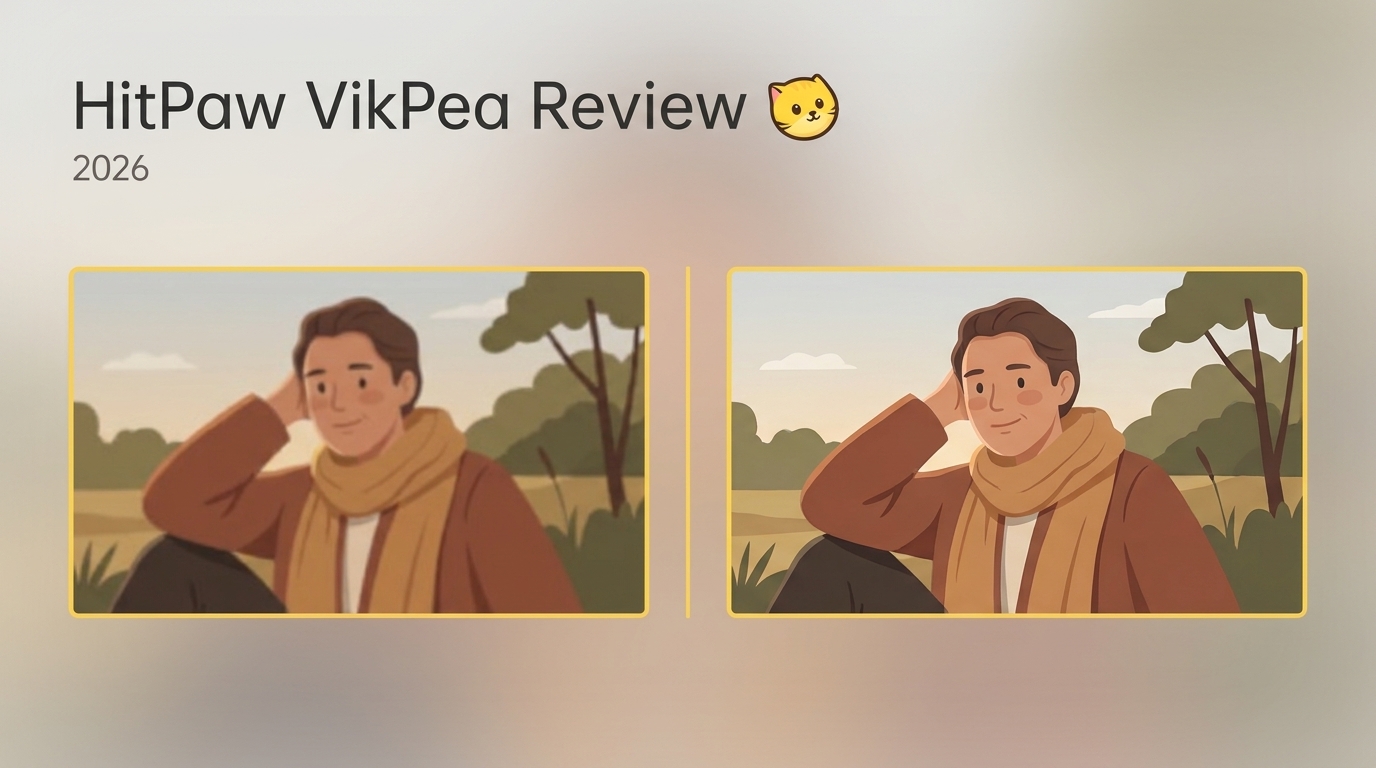
What is HitPaw Video Enhancer
HitPaw Video Enhancer (rebranded as HitPaw VikPea in 2024) is an AI-powered video enhancement software designed to improve video quality through upscaling, noise reduction, colorization, and frame interpolation. Developed by HitPaw, a software company specializing in multimedia tools, it's part of their broader suite that includes the HitPaw Video Converter and other video editing utilities.
The software targets content creators, video editors, and casual users looking to restore old footage, enhance low-quality videos, or upscale content to higher resolutions up to 8K. With its one-click AI models, HitPaw aims to make professional-grade video enhancement accessible to users without technical expertise.
HitPaw released VikPea v6.0 on October 27, 2026.
System Requirements of HitPaw Video Enhancer AI
Before downloading, ensure your system meets these specifications:
| Specification | Windows | macOS |
|---|---|---|
| Supported OS | For Windows 11/10 | macOS 10.15 or later |
| Processor (CPU) | Intel i3 or AMD Ryzen 3 or above | Intel i3 or Apple M1 or above |
| Disk Space | 2GB or more free space | 2GB or more free space |
| Memory (RAM) | 8GB or more | 8GB or more |
| Graphics Card (GPU) | NVIDIA GTX 950 / AMD RX 560 or above | AMD RX 560 / Apple M1 or above |
| Display Resolution | 1366×768 or higher | 1366×768 or higher |
OpenGL: 3.3 or above on Windows and macOS. DirectX: Version 12 on Windows; N/A on macOS.
Minimum system requirements describe compatibility, not rendering speed. Local rendering uses the computer’s hardware; cloud export uses remote processing.
Models & Features of HitPaw AI Video Enhancer
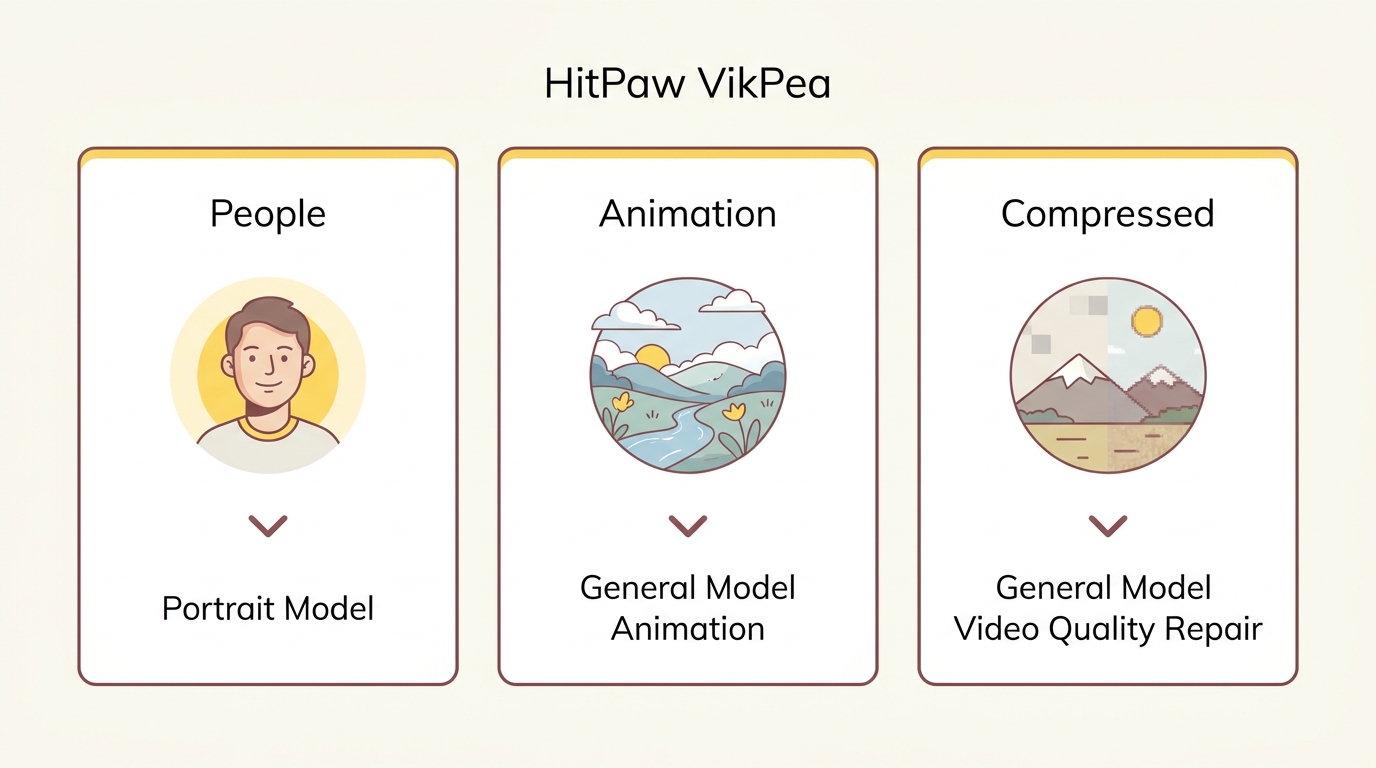
HitPaw Video Enhancer provides multiple specialized models designed to address various video enhancement needs. Below is a table to help you clearly understand their features and functions.
| Category | Model | Description |
|---|---|---|
| Video Enhancer | General Model | Seven specialized AI sub-models |
| Video Enhancer | Portrait Model | Face Restoration and Face Generation |
| Video Enhancer | AI Pilot | Intelligent assistant for video enhancement |
| Video Enhancer | Professional Model | Video clarity and precision |
| AI Color | Color and lighting tools | Colorization, SDR to HDR, color enhancement, low-light enhancement |
| AI Toolbox | Repair and editing tools | Repair, retouching, background removal, frame-rate enhancement, stabilization |
The General Model includes seven specialized AI sub-models: General Restoration, Video Quality Repair, UHD Restoration, AI Generative, HD Sharpen, Fast Sharpen, and Animation.
For footage with people, the Portrait Model offers Face Restoration and Face Generation. For anime or cartoons, choose Animation within the General Model; for compressed footage, start with Video Quality Repair and inspect the preview for remaining artifacts.
AI Color
- Colorize Model: Restores natural colors to black-and-white or greyscale footage.
- SDR to HDR: Upgrades SDR videos to HDR with brighter colors and richer details.
- Color Enhancement Model: Boosts color vibrancy for a more visually striking effect.
- Low-light Enhancement Model: Enhances brightness and contrast, making dark videos clearer and brighter.
Video Repair and AI Toolbox
- Video Repair: Fixes issues like flickering, unplayable videos, screen loss, lag, and restores video sound.
- Retouch: Removes selected watermarks from videos.
- BG Rmover: Allows exported videos to retain a transparent or blurred background.
- Frame Rate Enhancement Model: Enhances the frame rate by 2x or 4x for smoother motion.
- Stabilize Model: Corrects shaky footage for more stable videos.
Performance & Speed Review of HitPaw Video Enhancer (VikPea)
To assess HitPaw VikPea for your footage, preview the selected model in motion and inspect faces, moving edges, noise, saturation, and highlights before exporting.
Test Environment
- GPU: NVIDIA GeForce RTX 4070
- CPU: AMD Ryzen 7 5700G with Radeon Graphics
Performance of HitPaw AI Video Enhancer
Face Model Performance
For videos with people, compare the Portrait Model’s Face Restoration and Face Generation options in a moving preview.
Facial texture: Check whether sharpening improves facial definition without exaggerating skin texture or creating hard outlines.
Natural appearance: Watch for airbrushed skin and softened features, especially as the person turns or moves.
Preview check: Choose the result that preserves the person’s appearance throughout the shot, rather than the sharpest isolated frame.
Animation Model Performance
Improvements to look for:
- Cleaner character outlines and object edges
- Color saturation that remains faithful to the original artwork
- Reduced noise in older animated content
Potential tradeoffs to inspect:
- Over-saturation can alter the original artistic intent
- Gradient smoothing may remove subtle shading
- Watch complex scenes for unstable edges or new artifacts
Preview check: Compare linework and shading during camera movement before choosing the enhancement strength.
Colorize Model Performance
For a colorization preview, include:
- Clear, well-lit black-and-white footage
- Scenes with distinct objects and backgrounds
- Historical footage restoration
Preview checks:
- Check whether facial details remain distinct after colorization
- Watch for color shifts within moving objects and between shots
- Inspect skin tones for an unnatural tint
Low-light Enhancement Model Performance
For low-light footage, preview a shot containing both dark subjects and bright lights to judge the balance between visibility and retained detail.
Improvement to look for:
- Increased Visibility: Check whether dark subjects become easier to distinguish.
Potential tradeoffs to inspect:
- Overexposure Risk: May cause loss of detail in bright areas.
- Shadow Noise: Watch for more visible grain as dark regions become brighter.
SDR to HDR
When previewing SDR-to-HDR conversion, compare highlight detail, shadow visibility, and saturation on an HDR-capable display. A brighter image alone does not establish a convincing HDR result; look for distinct detail in both bright and dark areas.
Preview check: Reduce the adjustment if bright areas lose texture or colors look exaggerated, then compare the result with the original clip in motion.
Processing Speed of HitPaw Video Enhancer AI
HitPaw VikPea provides local rendering and cloud export. Local rendering uses your computer's hardware, while cloud export uploads footage to a remote processing service and consumes separate cloud credits.
Processing time varies with the selected model, clip length, and output resolution. For local rendering, your hardware also affects how long the job takes.
I recommend processing a short representative clip before starting a long batch. Play the result in motion to check faces, moving edges, noise, saturation, and highlight detail, then use that job's completion time to estimate the workload for similar footage with the same settings and processing route.
Is HitPaw Video Enhancer Free
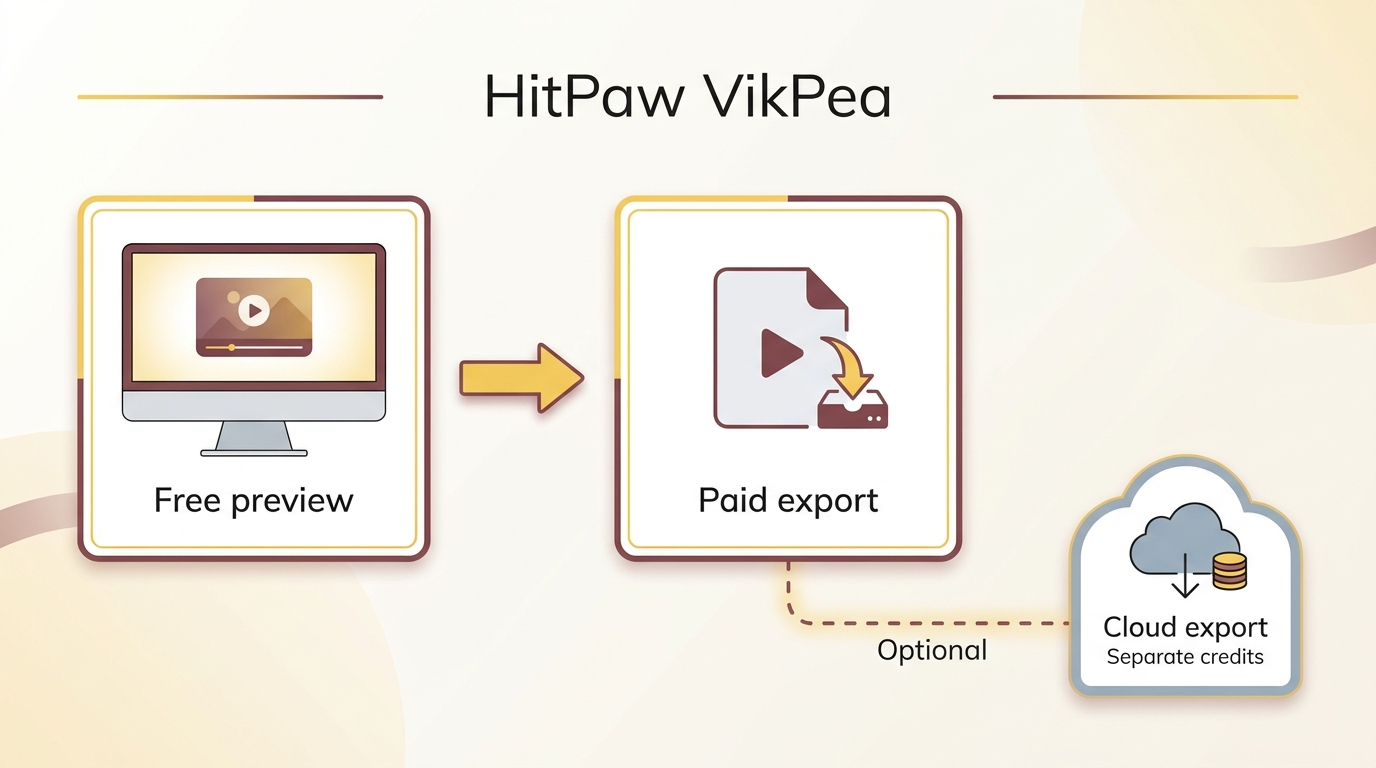
HitPaw Video Enhancer, now called HitPaw VikPea, is paid software with free preview access. The free license supports previews only; a paid license unlocks all features and lets you export enhanced video. Cloud export uses separate cloud credits.
Please note each HitPaw Video Enhancer license is valid for use on one PC only.
HitPaw Video Enhancer Price
As of November 2026, HitPaw advertises a Windows one-month license at $43.19 and a Mac one-month license at $70.39, excluding tax. These are promotional one-month prices. The same date applies to the pricing and license entitlements discussed below.
For a single project, I recommend considering the best free AI video enhancer options if basic adjustments will suffice, or choosing a license that covers your required enhancement features and enough time to finish the footage. For repeated use, compare the subscription term with a perpetual license and include any cloud-credit purchases in the project cost.
| Version | Platform | 1 Month Price | 1 Year Price | Perpetual Price |
|---|---|---|---|---|
Standard | Windows | $43.19 | $99.99 | $349.99 |
Standard | Mac | $70.39 | $109.99 | $349.99 |
Pro | Windows | $52.99 | $119.99 | $399.99 |
HitPaw Video Enhancer Preview and Export Access
- The free license supports previews of HitPaw VikPea.
- A preview lets you assess the enhancement, but the free license does not include saving an enhanced video.
- A paid license unlocks all features and video export. Cloud export uses separate cloud credits.
HitPaw Video Enhancer Paid Features
With a paid HitPaw VikPea license, you can unlock all features and export your enhanced video.
Using HitPaw AI Video Enhancer
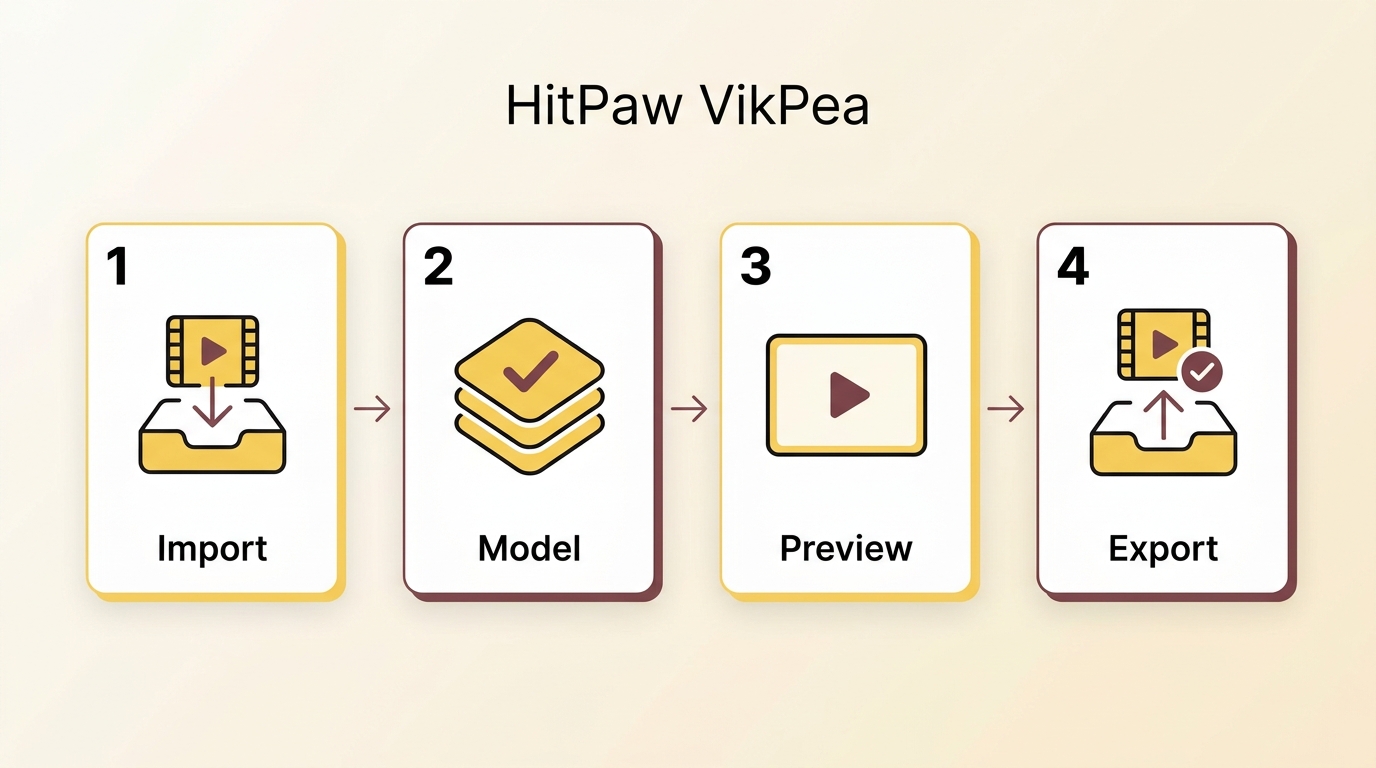
Here's a simple guide on how to use HitPaw AI Video Enhancer. First, download HitPaw Video Enhancer from the official website to get started.
Before you begin, have your original video file ready and allow enough storage for the enhanced output. Use the original recording rather than a compressed social media copy when possible.
- Import the source file. Open VikPea and add the video you want to enhance.
- Choose a model for the footage. Use the General Model for restoration tasks or the Portrait Model for footage featuring people. The Portrait Model offers Face Restoration and Face Generation.
- Preview a representative segment. Play a section containing faces, moving edges, and bright highlights. Compare it with the original before processing the full video.
- Choose the processing route. Local rendering uses your computer's hardware. Cloud export uploads footage to a remote processing service and consumes separate cloud credits.
- Set the output. Choose from the format, resolution, and bitrate settings available for the selected model and processing route, then select a save location.
- Export and review. Save the enhanced video, then play the saved file to inspect picture quality and audio before starting a longer batch.
Launch and Upload
After opening the software, you can click the Choose File or just drag & drop the original video to it.
Select An AI Model
Choose an AI model suited to your video type.
Preview & Export
Once the video is uploaded, click the Preview button to process the video. Then, click the Export button to save the enhanced video.
Process only footage you own or have permission to use, for lawful personal purposes, and follow applicable law and service terms. You are responsible for obtaining the necessary content permissions; specific requirements depend on your use case.
Pros & Cons of HitPaw Video Enhancer
HitPaw Video Enhancer is an excellent tool for enhancing videos, but it does have some weaknesses in certain aspects. You should carefully consider these before making a purchase.
{{COMPARE_LIST_6}}
HitPaw Video Enhancer Reviews by Users
The HitPaw company profile on Trustpilot covers feedback about multiple HitPaw products.
As of November 2026, Trustpilot withholds the HitPaw company rating following a platform-guideline breach; the profile lists 2,754 reviews and covers the company rather than VikPea alone.
For enhancement results, one Reddit commenter in r/VideoEditors (2026) preferred VikPea for natural-looking people when the source footage was decent. Another Reddit commenter in r/DefendingAIArt (2026) described it as straightforward for beginners doing quick restoration.
Historical reports describe different experiences: a Reddit commenter in r/mash (2024) reported plastic-looking faces and crawling motion artifacts. Separately, a Reddit commenter in r/VideoEditing (2024) reported a denied refund after buying for the wrong operating system, a purchase-support experience rather than an enhancement result.
HitPaw Alternative: UniFab Video Enhancer AI
For footage that needs upscaling, noise reduction, or SDR-to-HDR conversion, UniFab offers enhancement tools for those tasks. The feature list and comparison below refer to UniFab All-In-One, the suite, rather than treating every listed capability as part of a single enhancement tool. If your clip needs only a small brightness or color adjustment, start with those adjustments; use AI enhancement when resolution, noise, or dynamic range is the problem.
Pro-Level AI Video Enhancer: UniFab
Easy to use, meets all your video and audio needs.
30-day free trial with full features, no watermark!
UniFab All-In-One
Pro-Level AI Video Enhancer: UniFab
Easy to use, meets all your video and audio needs.
30-day free trial with full features, no watermark!
UniFab All-In-One for Mac
Key Features of UniFab All-In-One
Video & Audio Enhancement
- Video Upscaler AI: Boosts resolution to 720P, 1080P, 4K, 8K, and up to 16K with enhanced clarity, improving quality for all video types, including low-res TV shows, black-and-white films, homemade videos, and animations.
- Face Enhancer AI: Sharpens and restores facial details in videos using advanced AI enhancement.
- HDR Upconverter AI: Upgrades SDR to HDR10/Dolby Vision, improving brightness, color range, and overall quality. (Supports both DCI-P3 and Rec.2020 color spaces.)
- Denoise AI: Removes video noise from low-light conditions, high ISO settings, and compression artifacts for clean playback.
- Colorizer AI: Automatically adds realistic colors throughout your black and white video with precision. It offers 4 color styles.
- Deinterlace AI: Converts interlaced video to smooth progressive scan.
- Smoother AI: Increases frame rate up to 120 fps for fluid motion.
- Stabilizer AI: Automatically steadies shaky footage.
- Audio Upmix AI: Upgrades audio to immersive DTS 7.1 or EAC3 5.1 surround sound.
Other Useful Tools
- Subtitle Generator AI: Creates accurate subtitles in 30+ languages.
- TV Show Converter: Auto-convert, generate metadata & .nfo files for easy media server recognition
Free AI Tools Included:
- Video Converter: Supports 1000+ formats for broad device compatibility.
- Vocal Remover AI: Easily remove vocals for karaoke or remixes.
- Video Background Remover AI: Precise background removal with detailed AI matting.
Pro-Level AI Video Enhancer: UniFab
Easy to use, meets all your video and audio needs.
30-day free trial with full features, no watermark!
UniFab All-In-One
Pro-Level AI Video Enhancer: UniFab
Easy to use, meets all your video and audio needs.
30-day free trial with full features, no watermark!
UniFab All-In-One for Mac
HitPaw Video Enhancer AI vs. UniFab Video Enhancer AI
Basic Information Comparison: HitPaw vs. UniFab
The comparison covers UniFab All-In-One and HitPaw VikPea, with enhancement capabilities shown at the suite level for UniFab.
| Comparison | UniFab All-In-One | HitPaw VikPea |
|---|---|---|
| Supported platforms | Windows 11/10 64-bit; Mac | Windows 11/10; macOS 10.15 or later |
| Enhancement tools | Video Upscaler AI; Denoise AI; HDR Upconverter AI | AI Pilot; Portrait Model; Professional Model |
For VikPea, the Free license supports preview only. The Paid license unlocks all features and export of enhanced video; cloud export uses separate cloud credits.
I would choose UniFab All-In-One when a project calls for its upscaling, denoising, and HDR conversion tools together. VikPea is worth considering when its restoration or portrait options fit the source footage and its local or cloud export route fits the project.
Performance Comparison: HitPaw vs. UniFab
When comparing HitPaw and UniFab, look for natural facial texture, stable details during movement, and balanced color rather than sharpness alone.
Use the image examples below to identify details worth checking in your own footage, then watch a moving preview before exporting.
Colorize Black and White Video
For HitPaw colorization, watch moving objects and transitions between shots for color shifts. A still image can help you judge the palette, but playback is needed to inspect flickering and color consistency.
When using UniFab to convert black and white video to color, compare skin tones, clothing, and backgrounds across adjacent shots to judge whether the palette suits the footage.
SDR to HDR Conversion
For HitPaw HDR conversion, inspect bright areas and saturated colors rather than judging the result by brightness alone. Reduce the adjustment if highlights lose texture or colors look exaggerated.
For UniFab HDR conversion, inspect the same highlights, skin tones, and shadow details on an HDR-capable display to judge whether the result suits your intended playback setup.
Different HDR software options offer different conversion controls, so choose settings that suit your display and footage.
Film and television video
UniFab Video Enhancer AI Performance
- Image Clarity: Compare the UniFab example's outlines and fine textures with the source rather than relying on the output resolution alone.
- Detail Restoration: Watch clothing, facial expressions, and background elements during movement to check that details remain stable.
- Visual Effect: Inspect high-contrast edges for halos and textured areas for excessive smoothing.
HitPaw Video Enhancer AI Performance
- Image Clarity: In the HitPaw preview, inspect edges and small details at the intended viewing size.
- Detail Restoration: Check whether facial features and clothing textures stay recognizable without distortion.
- Visual Effect: Compare contrast and depth with the original, keeping the intended look of the scene in mind.
Animal Video
UniFab Video Upscaler AI: Use fur, feathers, and fine edges to judge texture enhancement. Watch the preview in motion to see whether those textures remain stable.
HitPaw Video Enhancer: Inspect the same fine textures for blur or smoothing, and compare color and contrast with the original footage.
Nightscape video
When using UniFab HDR Upconverter AI for night footage, compare illuminated signs, lamps, and dark areas with the source. Aim for visible shadow detail without losing texture in bright lights.
HitPaw Color Enhancement Model: For a restrained nightscape adjustment, compare contrast and saturation with the original. Watch for amplified noise in dark areas and clipped detail around lights.
Improving Video Quality with UniFab AI
Start with the original video file and choose the UniFab enhancement tool that matches the problem you want to address.
- Import the video. Add the source file to the desktop application.
- Select the enhancement. Choose upscaling for a larger output frame, denoising for grainy footage, or HDR conversion for an HDR workflow.
- Preview the result. Inspect a representative section in motion before processing the full video.
- Set the output. Choose the available resolution, format, and other output settings for the selected tool and your playback device.
- Export and review. Save the enhanced video, then play the saved file to confirm picture quality and audio playback.
30-day Free Trial for full features, without watermark!
Launch UniFab program on your system (Windows/ Mac), go to "All Features" to select your preferred module. Then, upload the video to initiate the video-enhancing process.
Next, set the output profile perimeters with resolution, formats, codec, etc, to get a personalized video. At the end, select the “Start” option to complete the video-enhancing process of your video.
Process only content you own or are authorized to use, for lawful personal use without unauthorized redistribution. You are responsible for content permissions and for following applicable law and service terms; specific requirements depend on your use case.
Conclusion
For a clip that needs only a modest brightness or color correction, start with light adjustments rather than increasing resolution. HitPaw VikPea suits projects where its restoration models and local or cloud export match your needs; cloud processing uses separate credits.
I recommend UniFab's desktop enhancement tools when the project calls for upscaling, denoising, or HDR conversion. Choose the tool for the source footage and intended output, preview a representative section, and export once the result fits your project. For a browser-based enhancement workflow, UniFab's AI Video Enhancer offers an online option.
FAQs about HitPaw Video Enhancer
Is HitPaw Video Enhancer free to use?
HitPaw Video Enhancer, now called VikPea, provides free preview access rather than free enhanced-video exports. The free license supports previews; a paid license unlocks features and lets you export enhanced videos. Cloud export uses separate cloud credits.
Does HitPaw upscale video to 8K?
Yes, HitPaw does support 8K video upscaling. For a comprehensive comparison of 8K upscaling tools, including HitPaw and other top options like UniFab, check out our 8K Video Enhancer article for more details.
Is HitPaw Video Enhancer safe to download?
Download HitPaw Video Enhancer, now called VikPea, from the official HitPaw website. VikPea offers local rendering and cloud export. Cloud export sends footage to a remote processing service and uses separate cloud credits. Choose the processing route before submitting sensitive footage. Avoid modified installers such as a HitPaw Video Enhancer Crack, which may expose your computer to malware and lack official support or updates.
Should I download a cracked version of HitPaw Video Enhancer?
It is not recommended to download a HitPaw Video Enhancer Crack version. Using cracked software is illegal, may expose your computer to security risks like malware or viruses, and often lacks official support and updates. To ensure the best experience and safety, it’s always better to use the HitPaw official version from the legitimate source.
Can I use HitPaw without a watermark?
The Free license only supports preview of HitPaw VikPea. A preview is not a saved, watermark-free export. A Paid license unlocks features and enhanced-video export; watermark treatment depends on the selected feature and license.
Does HitPaw Video Enhancer work on Mac?
Yes, HitPaw Video Enhancer, now called HitPaw VikPea, supports macOS 10.15 or later. Choose the Mac installer and a Mac license for your computer; Windows and Mac have separate purchase options. Both platforms offer the same core features, though GPU acceleration performance may vary depending on your hardware.
What affects HitPaw VikPea's processing time?
Processing time varies significantly by AI model and video resolution. Clip length also affects the total processing time.
Process a short, representative clip with your intended model, output settings, and export route to estimate the time needed for a longer project.