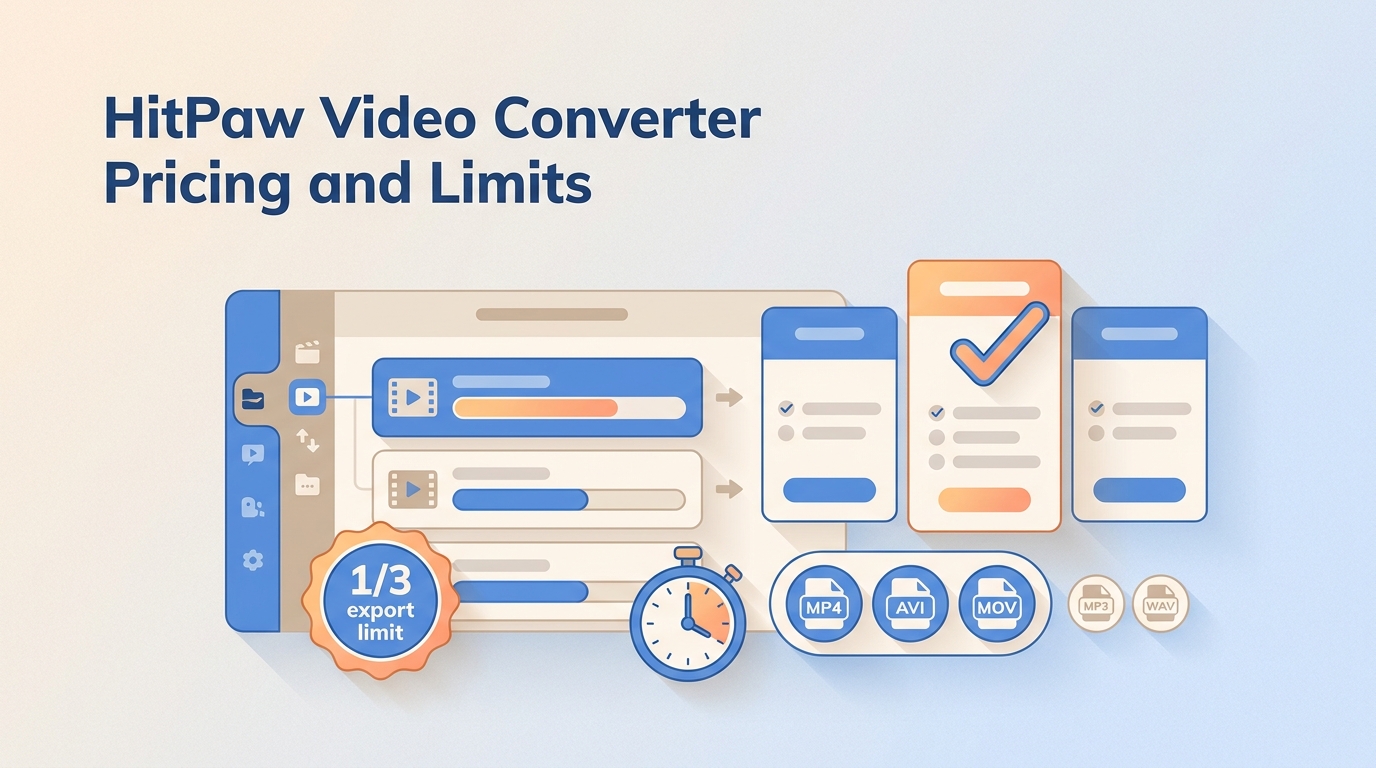
A HitPaw Video Converter export that stops after one-third of your file has hit the trial limit. HitPaw Univd requires a license for full-length conversion. My recommendation: choose it for a guided media workflow; choose a no-cost local converter when completing a standard export is the priority.
This HitPaw Video Converter review covers price, platform licensing, renewal terms, installer safety, and a full-export alternative. Echo Drewer recommends treating the trial as a compatibility check, rather than the final delivery tool for a time-sensitive project.
What Is HitPaw Video Converter?
HitPaw Video Converter, now called HitPaw Univd, is a Windows and Mac media application. Its US plans start at $19.95 monthly. It combines standard video and audio conversion with editing utilities and separate credit-based AI tools.
Conversion changes a file's delivery format for playback or editing. Enhancement is a different job: it attempts to improve the picture itself. Univd brings both types of work into one interface, but a conversion license and credit-based processing are separate purchase considerations.
HitPaw introduced Univd version 5.0.0 in March 2025 with AI enhancement. That release date identifies a product milestone, not the latest build. Install the current release for your operating system rather than following a tutorial solely because its screenshots look familiar.
Key Features of HitPaw Video Converter
HitPaw Video Converter features cover format conversion, subtitles, compression, editing, and AI-assisted tasks. The useful distinction is between preparing a playable file and changing its content. A format conversion alone does not restore damaged footage.
Format Support and Conversion
HitPaw advertises more than 1,000 video and audio formats. That breadth suits a folder containing clips from different cameras or editing applications. Start with the destination: identify the format your player or editor accepts, then select the matching output profile.
Batch conversion reduces repeated setup for files with the same delivery requirements. Keep unusual clips separate from the main queue. A screen recording, a camera file, and a subtitled video need different checks even when the output extension is identical.
Subtitle Management
HitPaw provides subtitle import and switching for SRT, ASS, VTT, and SSA files. This is useful when you need a particular language track or an external subtitle file for a player. Subtitle timing still matters.
Decide whether you want switchable subtitles or text burned into the picture before exporting. Burned-in text becomes part of the image. Inspect an opening dialogue scene and a later scene so a timing mismatch does not escape a quick playback check.
DVD Conversion and Authoring
DVD conversion creates a video file from disc-based media; authoring prepares video for disc playback. These are different tasks. For an authorized disc project, identify whether you need a playable file or a disc with navigation before choosing a workflow.
Use content you own or are authorized to process for lawful personal backup, follow applicable law and platform terms, and do not redistribute protected material. You are responsible for the copyright and permission status of your files.
Disc input also requires suitable optical hardware. For a menu-based project, establish that your installed release supports the intended authoring task before committing to it. Ordinary file conversion does not require DVD menu creation.
Additional Tools and Downloader Status
Univd also includes AI enhancement, speech to text, noise removal, and face blur alongside standard conversion. Credit-based tools have separate usage considerations. Select the tool that actually solves your task rather than assuming a converter license includes unrestricted AI processing.
Older HitPaw video downloader tutorials do not guarantee that the same feature is included in your installed Univd release. For a purchase centered on a particular download task, obtain a task-specific answer from HitPaw support before buying. Do not use an older installer as a substitute for feature compatibility.
System Requirements and Compatibility
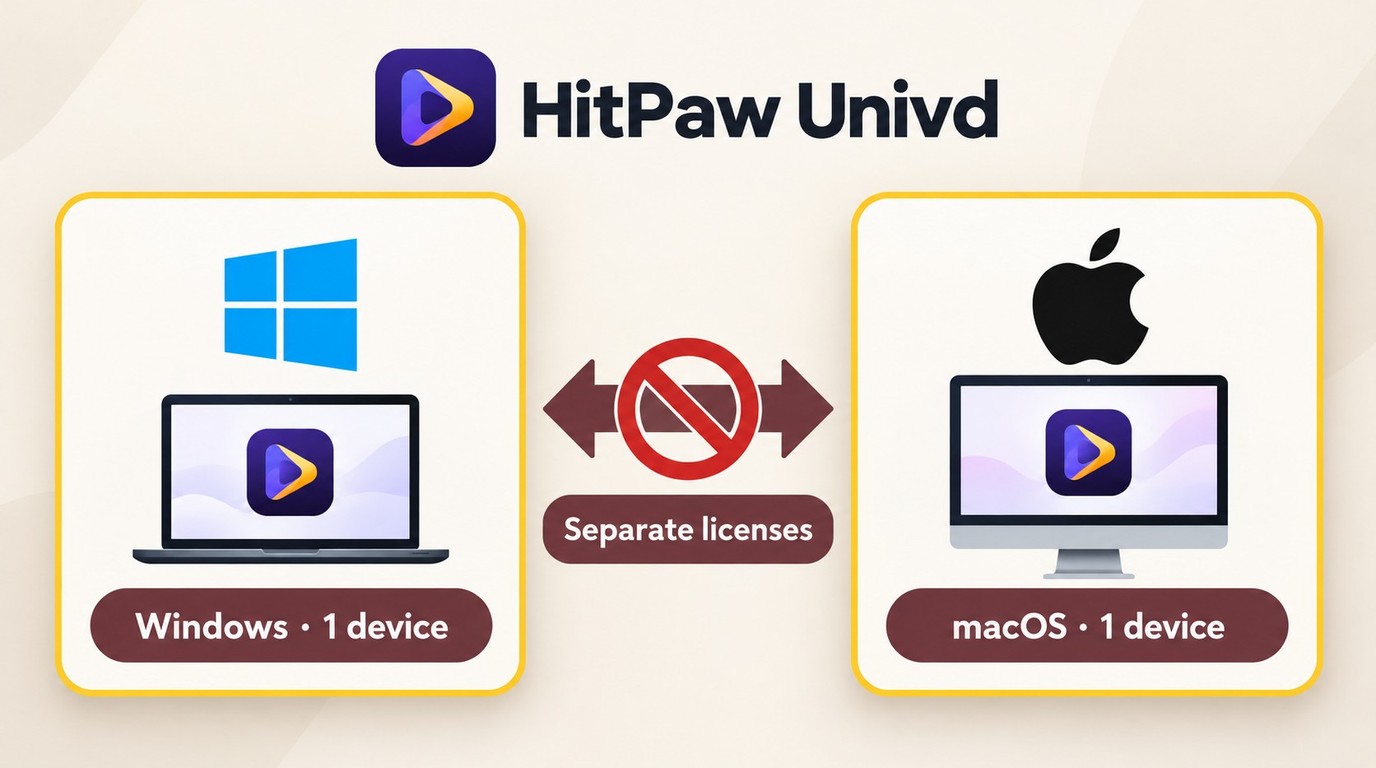
HitPaw Video Converter for PC and its Mac edition use separate installers and platform-specific licenses. Choose the operating system where you will convert files. Each consumer license covers one device.
Windows and Mac Support
Windows and macOS availability does not make the licenses interchangeable. A Windows license does not activate the Mac edition, and a Mac license does not activate Windows. Switching platforms is a licensing decision as well as an installation task.
On a Mac, compare your system with the requirements presented by the current installer before proceeding. Keep the original files and choose a separate output folder. Successful installation is the starting point; importing your actual camera or editing file establishes practical compatibility.
GPU and Apple Silicon Notes
HitPaw promotes GPU acceleration and Apple Silicon compatibility. Acceleration applies to supported processing paths, not every operation in a job. Import, decoding, effects, encoding, and writing the output are distinct parts of conversion.
Use a representative source file with the output profile you need. During conversion, inspect whether the relevant acceleration option is enabled and whether the computer has enough free storage. Treat Apple Silicon support as platform compatibility, rather than a prediction of elapsed time.
HitPaw Safety and Official Download
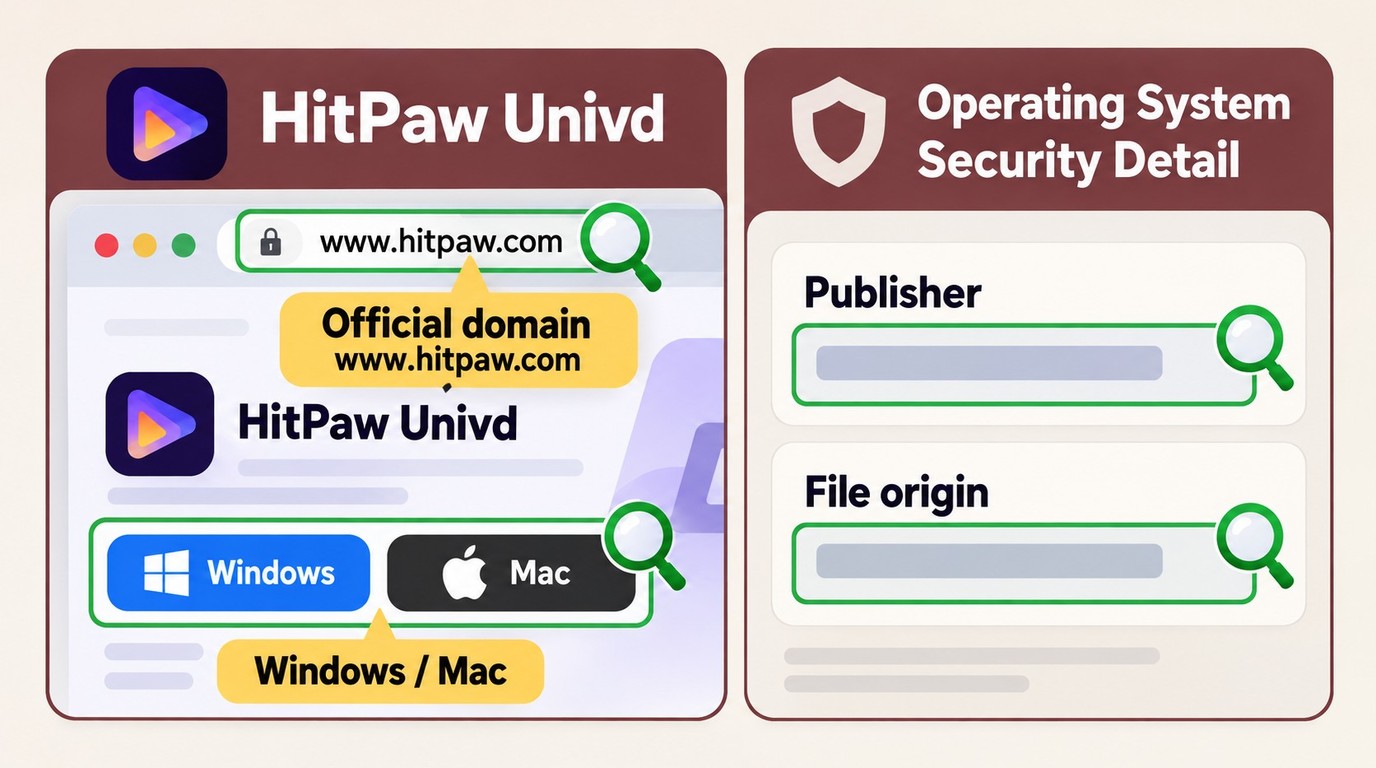
Start your HitPaw Video Converter download on HitPaw's official website and use the installer for your operating system. Publisher identity and file origin are practical safety checks. Keep them separate from questions about renewal charges or customer service.
- Open HitPaw's official product page and select Windows or Mac.
- Confirm the download domain and inspect the installer publisher before opening the file.
- Keep your operating system's security checks enabled and pause installation if the publisher or file origin is unexpected.
- Keep the installer details and order confirmation so you can identify the software and purchase later.
A modified installer or unofficial activation package adds avoidable uncertainty. Use the official installation path. The installation download does not itself provide unrestricted conversion; full-file export is a license entitlement, addressed in the trial section below.
For a delivery deadline, resolve activation and output compatibility before queuing the entire project. I would not make a project depend on a partial trial export. A complete local-conversion option is described later for work that does not need the broader toolkit.
HitPaw Video Converter Price and Plans (2026)
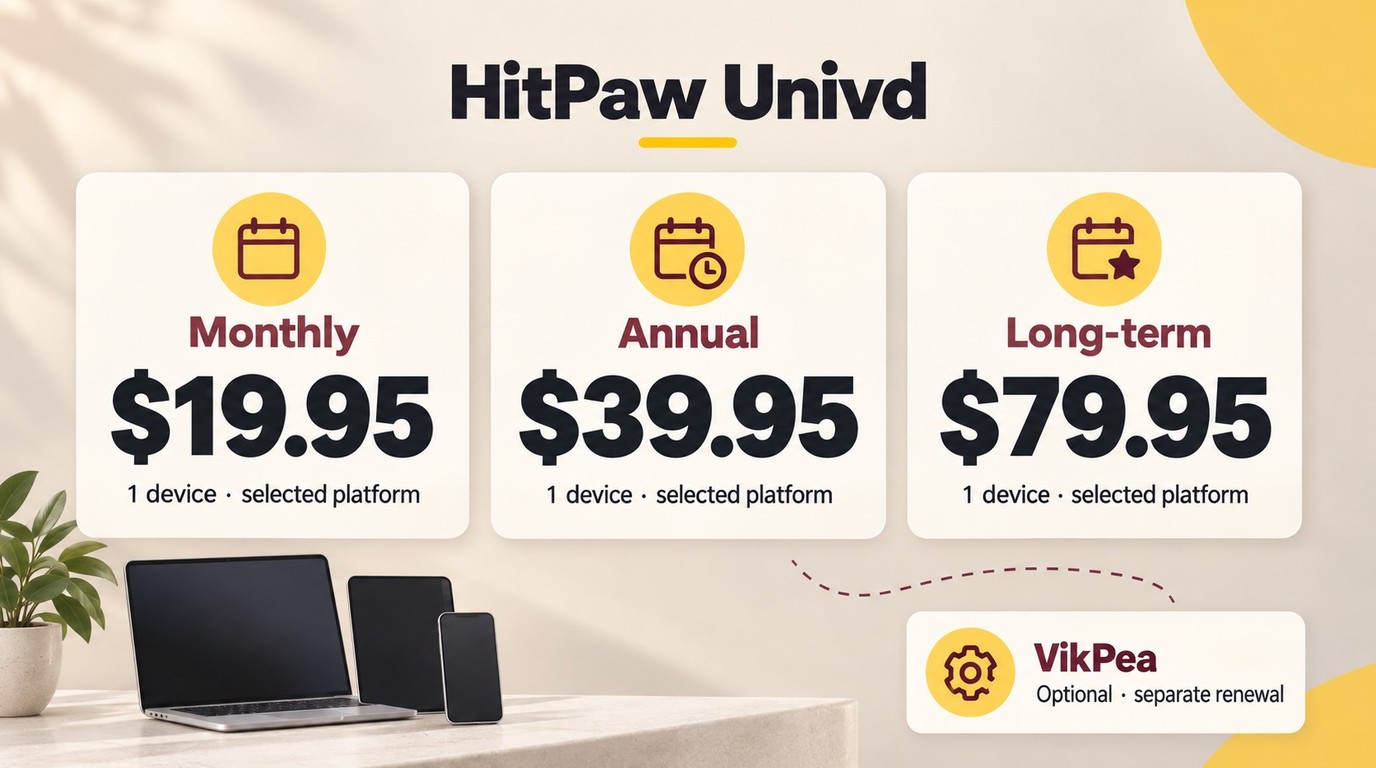
The HitPaw Video Converter price starts at $19.95 monthly, with $39.95 annual and $79.95 perpetual options. These base prices apply to one device on the selected platform. Windows and Mac licenses are separate.
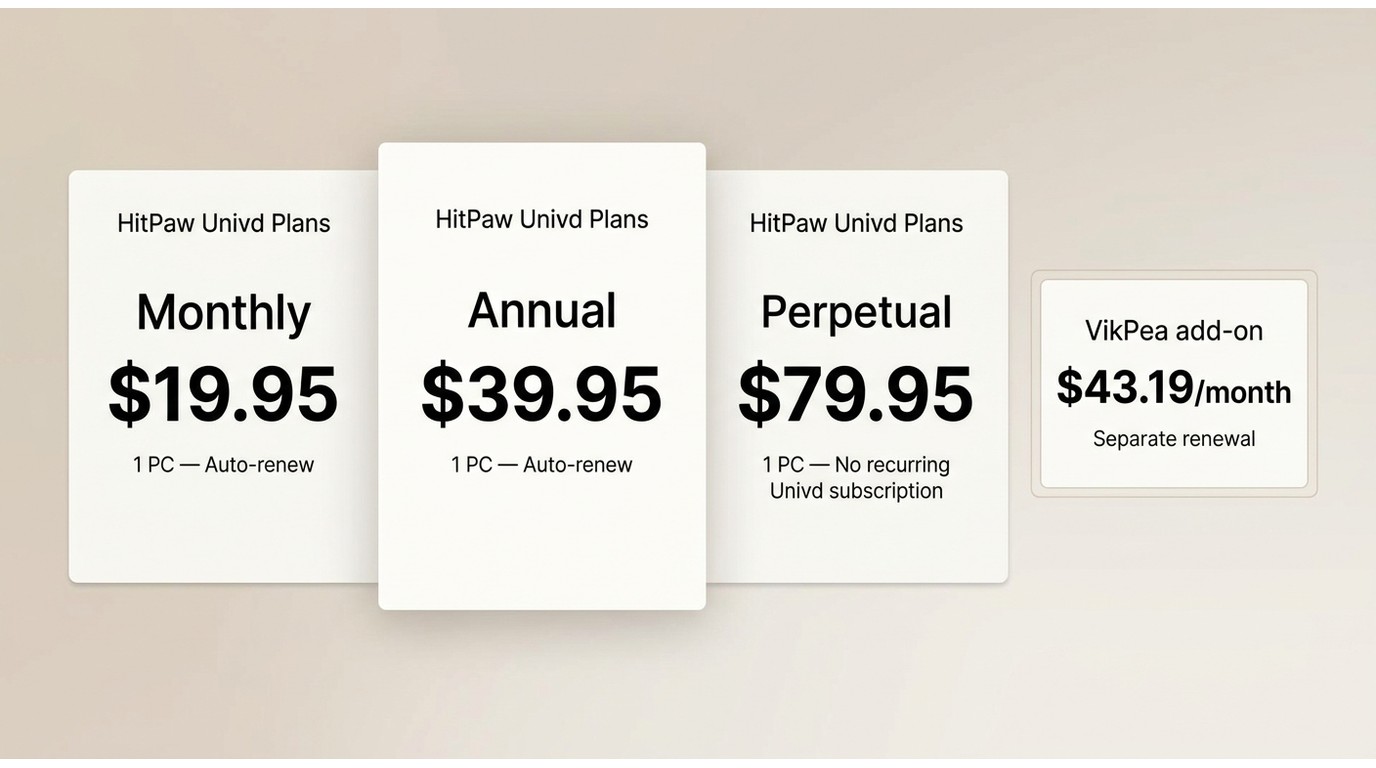
| Plan | US base price | Device entitlement | Renewal |
| Monthly | $19.95 | One device, selected platform | Automatic |
| Annual | $39.95 | One device, selected platform | Automatic |
| Perpetual | $79.95 | One device, selected platform | No recurring base-plan subscription |
As of October 2026; USD, excluding tax.
The optional VikPea seven-day offer is separate from the Univd base license. Its monthly renewal is $43.19 on Windows or $70.39 on Mac. An accepted add-on creates its own recurring charge.
So how much is HitPaw for your task? Compare the base plan with the length of time you need it, then remove any optional extras you do not want at checkout. HitPaw pricing is easier to assess when the converter and additional products are treated separately.
My preference for a one-off conversion is to avoid a recurring commitment unless the interface solves a concrete problem. For repeated work, the annual or perpetual option deserves a separate cost comparison. A lower initial payment is not the same as a lower ongoing cost.
Trial, Renewal, and License Terms
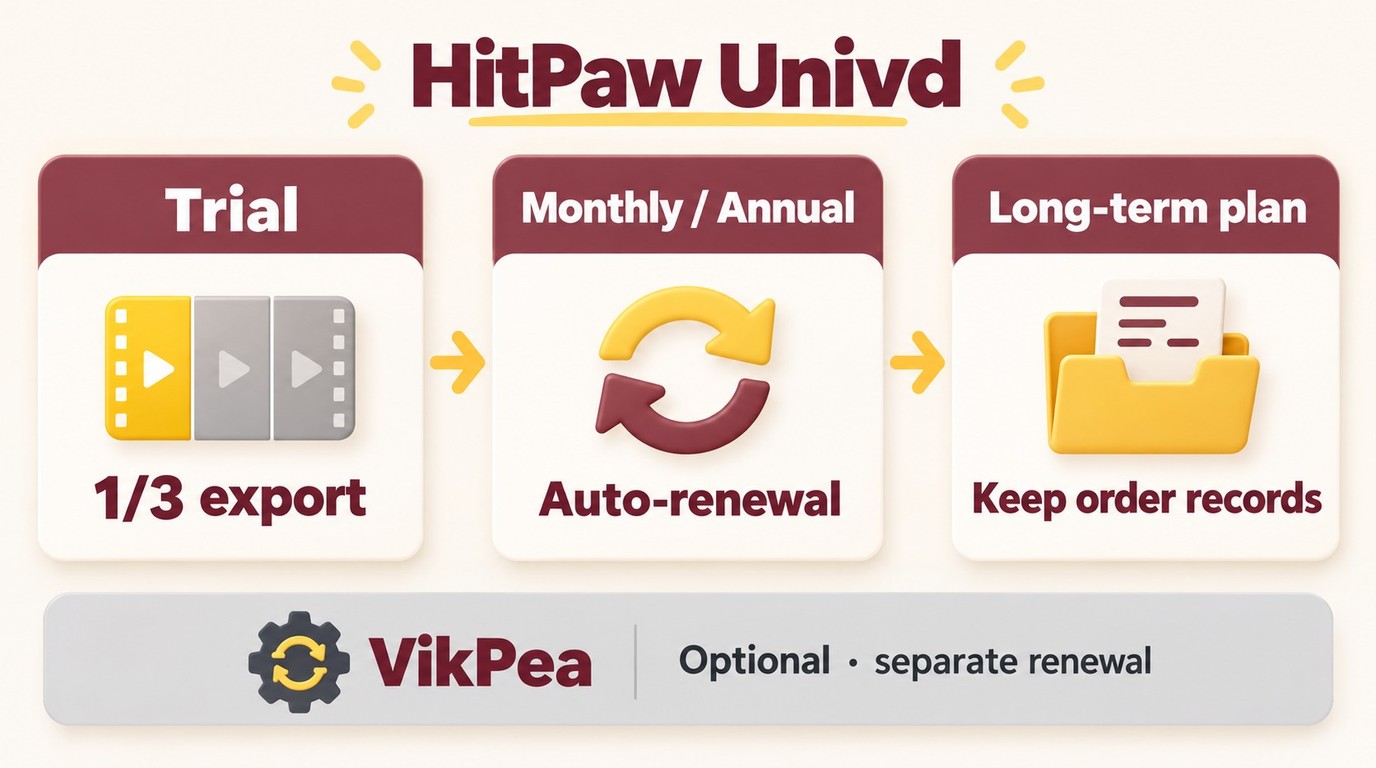
The trial export limit, automatic renewals, and update entitlement are separate terms. Resolve each before purchase. The one-third restriction affects what you can deliver, while renewal and license terms affect what you pay and activate.
Trial Export Limits
The conversion trial processes one-third of each file. That permits a partial playback and settings check, but it does not deliver the complete project. For a HitPaw Video Converter full-length export, use the appropriate license.
Use the partial result to inspect the image, sound, and subtitle handling available within that segment. It cannot establish that a later scene exports correctly. If you need a complete standard conversion without purchasing a license, the local alternative below offers that workflow.
Subscription and Add-On Renewals
Monthly and annual Univd subscriptions renew automatically. The optional VikPea offer has a separate renewal schedule and charge. Keep the two products distinct when reviewing the final checkout summary and managing subscriptions.
Save the confirmation with the selected platform, plan, and optional items visible. If you do not want another subscription period, manage cancellation through the purchase account before renewal. A perpetual converter purchase does not turn a separately accepted add-on into a perpetual product.
Perpetual License and Major Updates
A perpetual plan differs from a monthly or annual subscription. HitPaw's purchase wording includes major-version updates, while individual owners have reported entitlement disputes. The account-specific lookup, including the exact wording and the historical version 5 issue, is in the FAQ.
Keep the original order and license email together. Those documents identify the product, platform, and terms attached to your purchase, making a later activation or update question easier to resolve.
Performance and Quality Claims
HitPaw conversion quality is a settings question before it is a speed question. Select the required codec, resolution, and bitrate, then inspect the exported picture and sound. A fast conversion that fails on the destination player still needs another export.
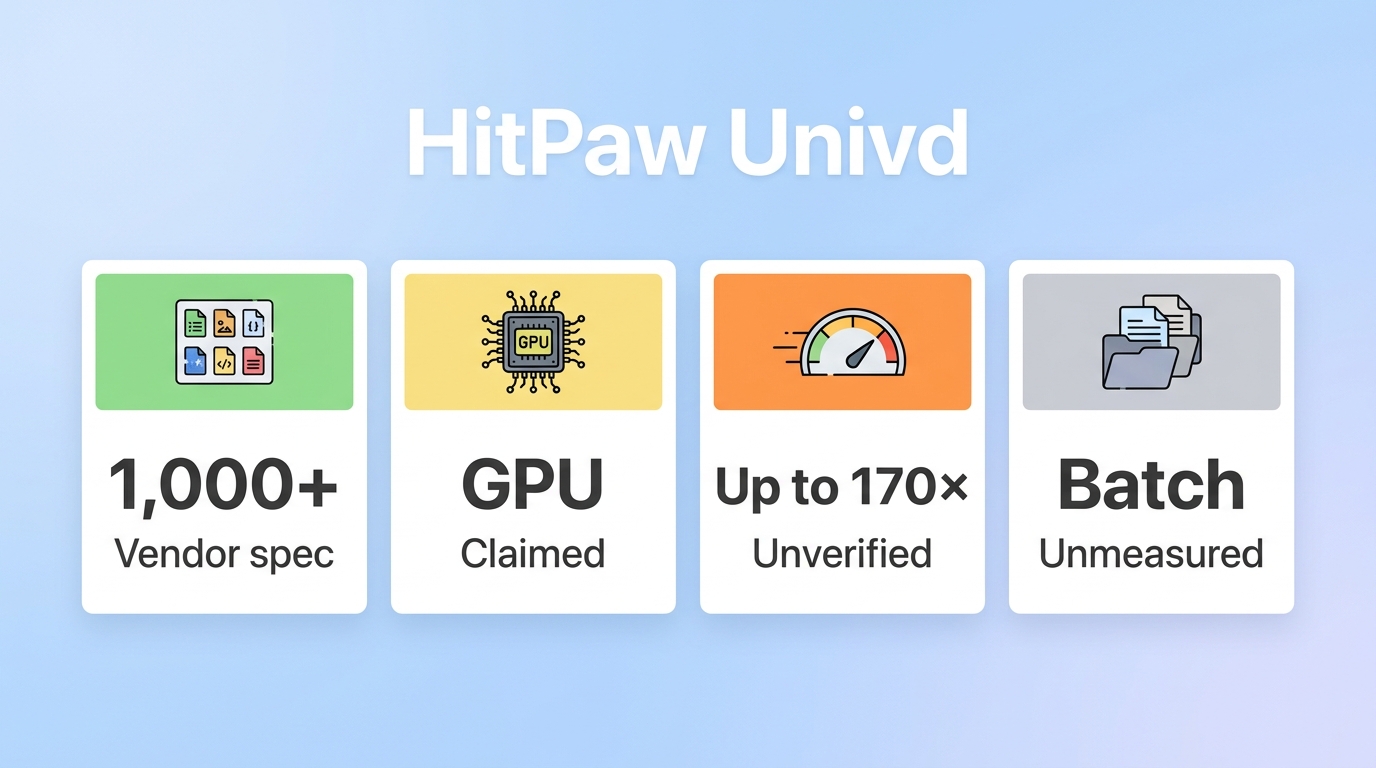
HitPaw's up-to-170x figure is a vendor-published maximum. UniFab's up-to-50x figure is a vendor-published maximum. The vendors use different test conditions; the two multipliers are not a direct speed ranking for your computer or source file.
- Container change: changes the file wrapper; when streams are copied intact, the encoded video and audio stay unchanged.
- Re-encoding: creates a new encoded stream. Codec and bitrate choices affect file size and visible detail.
- AI enhancement: processes the picture itself. It is a separate operation from making a compatible file.
Keep the original resolution and frame rate when the destination supports them. Raising the resolution setting alone does not recover missing detail. For compression, inspect motion and fine textures rather than judging the result solely by its smaller file size.
Compare source and output properties, then play both in the intended application. Check audio sync and subtitle behavior as well as the picture. This gives you a useful acceptance decision for that file without turning a headline acceleration figure into a delivery-time promise.
Limitations and Common Complaints
A HitPaw review should distinguish converter feedback from company-wide customer experiences. Product ratings describe one listing; billing and upgrade accounts describe individual purchases. Use those experiences to identify a relevant checkout or account question.
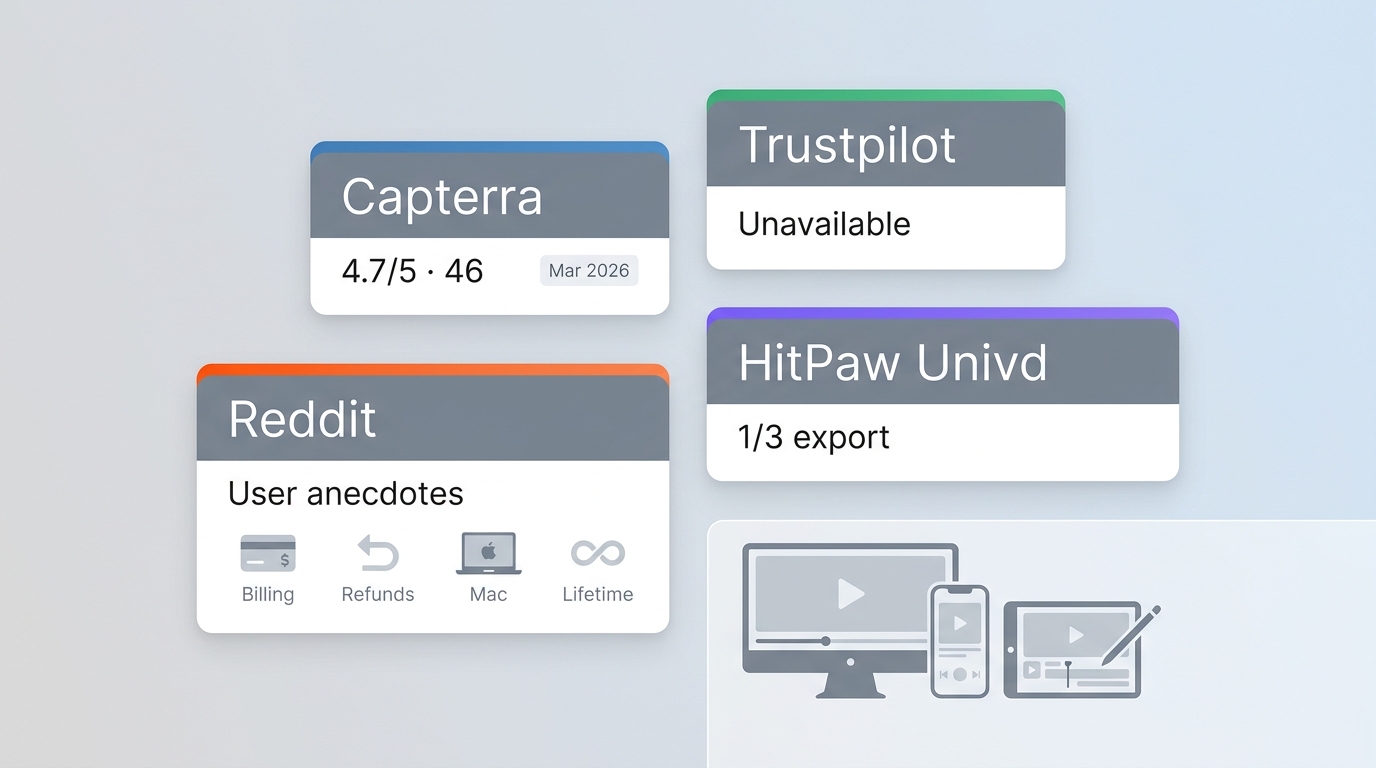
As of October 2026, Capterra lists HitPaw Video Converter at 4.7/5 from 47 reviews, and G2 lists it at 4.9/5 from 19 reviews. Trustpilot withholds HitPaw's company-wide rating following a guidelines breach and says it removed fake reviews. That warning concerns the company profile across products.
Positive individual feedback includes a Capterra reviewer (2025): “Great product, efficient and easy to use, a good selection of formats available. Customer support and service is efficient.” A Reddit commenter (2025) similarly wrote: “I didn’t have a problem with hitpaw I only use the converter all the time no problems at all.”
Negative individual feedback includes a Capterra reviewer (2025): “Software worked for what I needed, but how they inform you of costs and subscription isn't clear and it ends up costing twice as much as needed and they won'T refund you.” Another Capterra reviewer (2024) wrote: “Product didn't work, no refund, no support”.
A separate converter customer on Reddit in 2025 described upgrade difficulties and alleged an incentive for a five-star support review. That is an individual allegation. Historical update-entitlement questions have their own account-specific context, covered in the FAQ.
The useful takeaway is practical: establish that the export works for your file, and keep a clear record of the plan you accepted. The dated accounts describe both satisfactory conversion and purchase disputes; they are not a product failure rate or an installer-security finding.
Using HitPaw Video Converter
The HitPaw converter workflow is import, select a destination profile, adjust necessary settings, and export. Before starting, install the correct desktop edition, prepare your source files, choose an output folder, and identify the player or editor that must accept the result.
- Open HitPaw Univd and select its conversion module.
Add the source files through the file browser or drag and drop.
Select the target format. For ordinary playback, use an MP4 container with H.264 video and AAC audio, retaining the original resolution and frame rate when your destination player supports them.
- Adjust bitrate, audio, and subtitle settings only where the delivery task requires a change. Choose the intended language track before exporting.
- Select the output folder and start conversion. Keep the source file intact until the result passes your playback checks.
- Inspect the output codec and resolution, then play the beginning, a later scene, and the ending. Check picture detail, audio sync, subtitle timing, and whether the destination application opens the file.
For example, converting an MPG camera clip to MP4 addresses an editing-compatibility problem without requiring a restoration workflow.
Change one setting at a time when an output fails inspection. A codec problem calls for a different supported profile; an incorrect language track calls for a track-selection change. Keep a working profile for similar files so the next batch starts from a known destination requirement.
A Free Alternative: UniFab Video Converter
UniFab Video Converter is a permanently free local converter for Windows and Mac, with full-file exports and no UniFab watermark. It fits standard format-conversion jobs when the one-third trial restriction would leave your delivery incomplete.
UniFab Video Converter
- Easily convert videos to over 1000 formats
- 100% free with full feature access, no watermark!
UniFab Video Converter
UniFab Video Converter
- Easily convert videos to over 1000 formats
- 100% free with full feature access, no watermark!
UniFab Video Converter for Mac
Where UniFab Fits Your Workflow
Local processing keeps your source footage on your computer without uploading it to a conversion website. That is useful for private clips and repeat conversion work. I recommend this route when you need a complete compatible file rather than a broader collection of media utilities.
UniFab Conversion Scope and Limits
Converter output stops at 4K: choose a profile within that ceiling, including a 1080p output profile for Full HD delivery. The converter does not perform AI enhancement; use a separate UniFab enhancement module for picture restoration. Converting the format does not repair source damage.
Converting Videos With UniFab
Open UniFab, select Video Converter, and import your source footage.
Choose the format, then adjust only the necessary profile settings.
Keep the resolution and frame rate aligned with the destination requirements.
Choose the output folder and start export.
After the queue finishes, play the result and inspect sound and subtitles. Keep the source and converted files in separate folders until your playback check is complete.
HitPaw Video Converter vs. UniFab
HitPaw Video Converter vs. UniFab comes down to the task: HitPaw combines conversion with additional AI tools, while UniFab supplies full-file local conversion. The HitPaw Windows list is shown below; a separate Mac installer is also available, with a separate license.
| Product | Desktop platforms | Export entitlement | Conversion scope | Output ceiling |
| HitPaw Univd (HitPaw Video Converter) | For Windows 11/10/8.1/8/7 | One-third per file in trial | 170X AI Video Converter for videos, audio, and images | 8K 4320p |
| UniFab Video Converter | Windows and Mac | Full export; permanently free | Standard video format conversion | 4K |
HitPaw Univd product and technical specifications, October 2026. The 170X wording is the vendor's label, not a comparative benchmark.
Who Should Use HitPaw Video Converter?
HitPaw fits you if you want a guided conversion interface, subtitle controls, and related media tools in one application. The purchase makes sense when those conveniences justify the license for your chosen platform and the renewal arrangement you accept.
- Several media tasks in one interface: choose HitPaw when conversion and the additional tools match your actual projects; account for separate credit-based processing.
- A complete standard export without a purchase: use the local-conversion alternative above.
- Command-level automation: choose a scriptable conversion workflow when repeatable parameters matter more than guided controls.
- A move between Windows and Mac: plan for platform-specific licensing rather than assuming one activation covers both.
My recommendation is conditional: HitPaw is worth considering for its guided workflow, provided the partial trial demonstrates the compatibility you need and you accept the license terms. For a straightforward full-file conversion, completing the export matters more than collecting additional utilities.
Other UniFab Tools Worth Exploring
UniFab's enhancement modules are separate from Video Converter and address picture restoration or upscaling. The converter changes delivery formats; choose an enhancement module when the picture itself needs processing.
FAQs About HitPaw Video Converter
Can one HitPaw license be used on both Windows and Mac?
No. A HitPaw license is platform-specific: Windows and Mac licenses are separate, and each consumer license covers one device. A second installer does not provide a second platform entitlement.
Does HitPaw Univd still include a streaming downloader?
Older downloader tutorials do not establish what your installed Univd release includes. Give HitPaw support the specific site and download task before purchasing for that purpose. Treat the answer as a feature requirement, rather than assuming an old tutorial describes the current app.
What should perpetual-license owners know about HitPaw version 5?
The perpetual purchase page promises “Free Updates for All Big Versions.” A Reddit owner in 2025 reported an update-entitlement dispute; that historical account is separate from the current purchase wording. For an affected account, send HitPaw support the original order terms, license email, and account history to resolve the entitlement.
Can UniFab Video Converter be used without a watermark?
Yes. Video Converter exports without a UniFab watermark. Use files you own or are authorized to process.