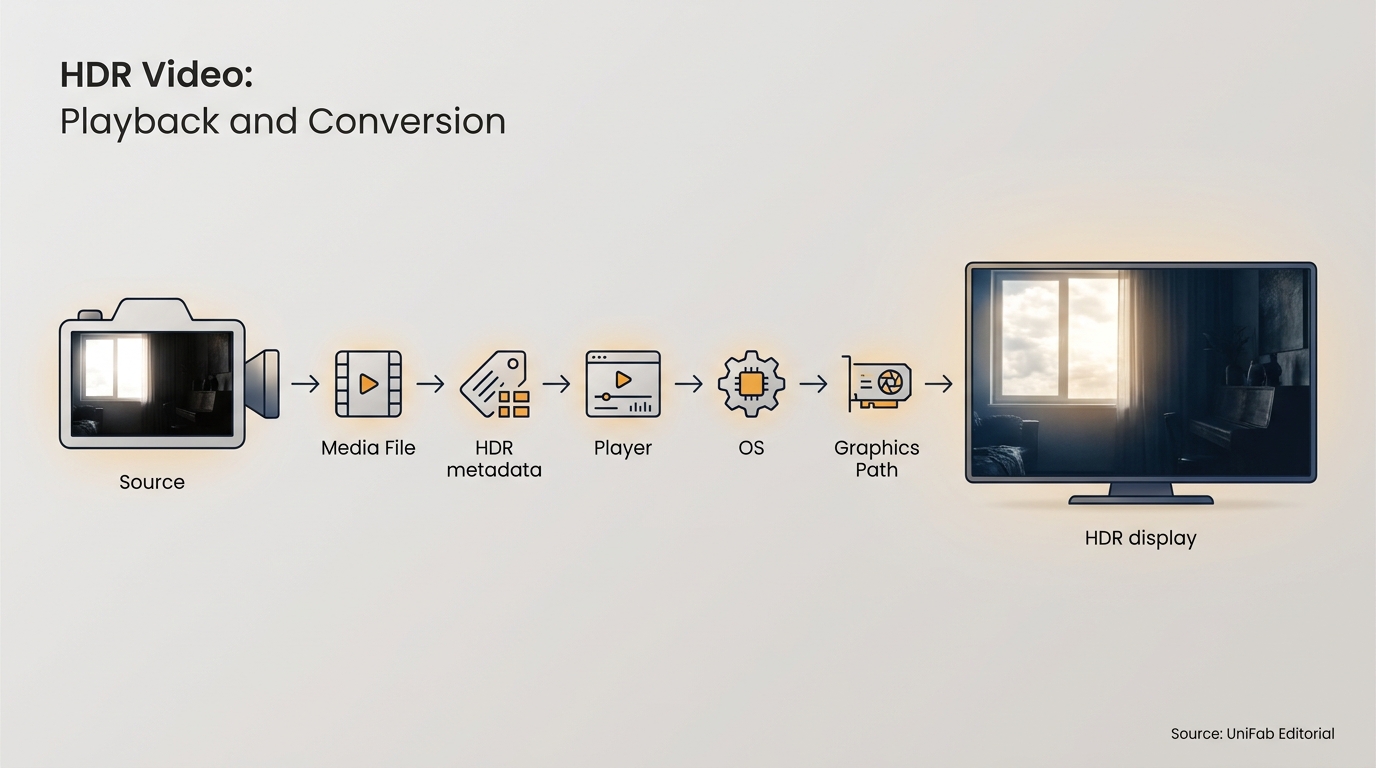
HDR video expands the range between dark shadows and bright highlights while carrying richer color and tone information. If a clip suddenly makes your phone screen flare at a low brightness setting, HDR playback is engaging, but greater brightness by itself does not prove that the image is better.
That phone-brightness mismatch exposes the most useful way to understand HDR: follow the image through the full playback chain. I treat HDR as a chain, not a badge, because the source, metadata, app, operating system, and display all influence the final picture. This guide defines the terms first, then diagnoses playback faults and maps out a controlled conversion workflow. The goal is not to make every image brighter; it is to preserve detail and intent across compatible devices.
What Is HDR Video and What Does It Change?
HDR video is footage designed to preserve a wider usable range of brightness, contrast, and color than standard dynamic range, or SDR. In practice, it can show more detail in bright clouds, lamps, reflections, and dark rooms without forcing the whole frame toward one brightness level.
A Plain-English Definition of HDR
The meaning of HDR video is “high dynamic range.” Dynamic range is the span between the darkest useful shadow and the brightest useful highlight in an image. An HDR file also carries color and brightness information that compatible playback equipment uses to map that wider range onto the screen.
Highlights, Shadows, Color Depth, and Contrast
HDR can keep a bright window distinct from the wall around it while retaining texture in a dim corner. It can also support smoother color transitions and a stronger sense of depth. Tone mapping is the step that translates the brightness and color range in the video to what a particular display can reproduce. A clear tone-mapping workflow matters because the same file may need different treatment on a bright television and a modest laptop panel.
What HDR Does Not Automatically Improve
HDR does not add sharp focus, recover clipped highlights, remove compression blocks, or turn a weak display into a capable one. The practical boundary is simple: HDR can redistribute and preserve usable image information, but it cannot create source detail that was never captured. That boundary is why the playback path should be checked before conversion enters the discussion.
What HDR Means Compared with 4K, HDR10, Dolby Vision, and HLG
If your question is “what is HDR video compared with 4K?”, HDR describes tonal and color range, while 4K describes pixel count. HDR10, Dolby Vision, and HLG are formats used to carry or deliver HDR information.
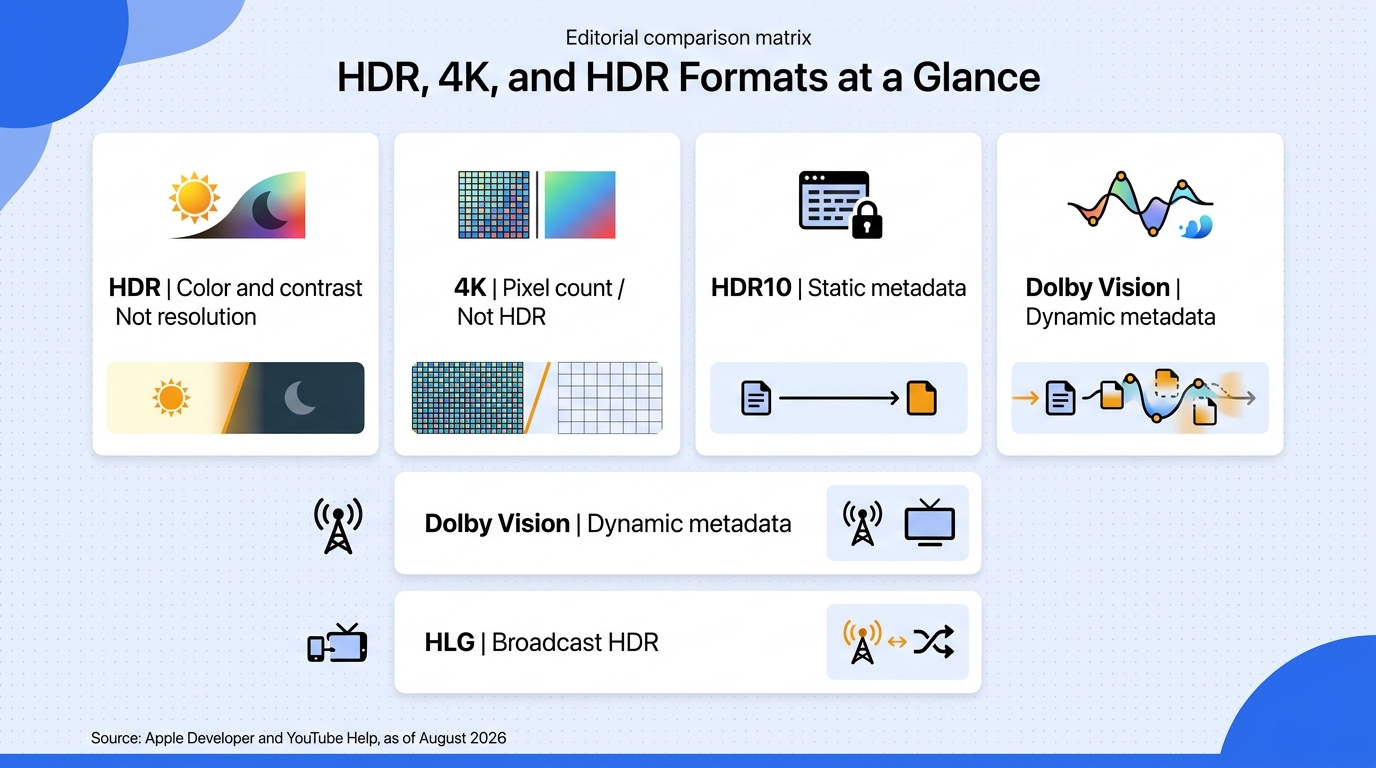
HDR and 4K Measure Different Things
A video may be 4K SDR, lower-resolution HDR, or both 4K and HDR. The 4K label says how many pixels form the picture, not how well the picture preserves highlights and shadows. That is why “4K” should never be treated as proof that a file is HDR or that it will look better on a given screen.
HDR10, Dolby Vision, and HLG Are HDR Formats
HDR10 uses static information that describes the program as a whole. Dolby Vision can carry scene-level or frame-level guidance for compatible playback chains. HLG is designed around broadcast-oriented delivery and compatibility needs. None is universally superior in every workflow; format choice should follow the editor, service, player, and display that will handle the file. A fuller Dolby Vision versus HDR10 comparison explains where their delivery models differ.
| Term | What it describes | Key boundary |
| HDR | Brightness range, color, and contrast | Does not define resolution |
| 4K | Pixel resolution and spatial detail | May be SDR or HDR |
| HDR10 / Dolby Vision | HDR delivery formats | Requires compatible playback |
| HLG | Broadcast-oriented HDR format | Support varies by chain |
Source: Apple Developer and YouTube Help, as of August 2026.
The practical takeaway is that these labels belong to separate layers. A strong workflow identifies the resolution, HDR format, container, metadata, and playback target instead of compressing all of them into the word “quality.”
Why the Display and Playback Chain Still Matter
An HDR-capable file can still be shown incorrectly when the operating system, graphics path, browser, media player, cable, or display does not pass the required signal and metadata. The file label is the starting point, not the verdict. When one link falls back to SDR or applies poor tone mapping, highlights may clip, shadows may close up, and colors may look gray. Diagnose that playback chain before deciding whether conversion is needed.
Why HDR Playback Can Look Too Bright, Dim, or Washed Out
The practical HDR video meaning depends on the playback chain: a valid HDR file can still look wrong when the display, app, or operating system mishandles it. Excessive brightness, dim images, washed-out color, crushed shadows, banding, and flicker are diagnostic clues, not intended HDR benefits.
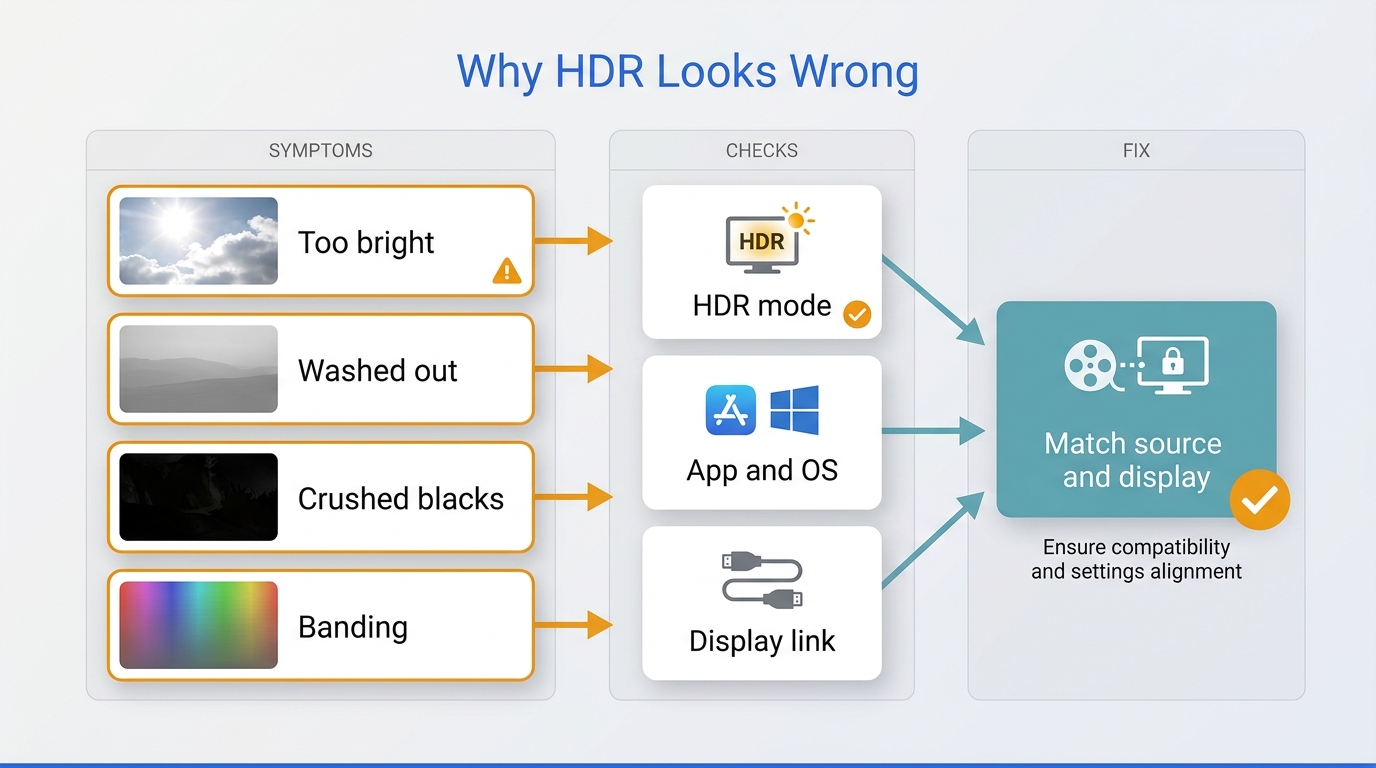
The Display, App, and Operating System Must Agree
Start by separating the file from the playback path. A phone may raise highlight brightness for an HDR clip while keeping the interface dim. A browser may fall back to SDR, while a dedicated app on the same device triggers HDR correctly. A monitor can accept an HDR signal yet lack the brightness control or local contrast needed to render it convincingly.
One Reddit user in r/NoStupidQuestions captured the confusion: “I could have my phone at 20% brightness but when when I scroll on an HDR video it'll be like the video itself is at 90% brightness and everything else at the regular brightness. The video quality doesn't look much better though.” The complaint is valid because a brighter highlight is visible immediately, while better shadow separation or color gradation may be subtle or absent on that device.
Tone Mapping Can Clip Highlights or Crush Shadows
When the source range exceeds what the screen can show, tone mapping must compress that range. An aggressive curve can flatten bright areas into white patches or push dark detail toward black. The opposite error can make the frame look gray and low-contrast. A user in r/OnePlus12 described different results from two players: “VLC Player → Dark scenes look crushed, shadows lose detail. MX Player (HW decoder) → Bright scenes look fine, but darker areas are still crushed and sometimes bright scenes look washed out.”
This is why switching apps can change the result without changing the file. The practical test is not whether HDR activates, but whether important highlights, skin tones, gradients, and shadows remain readable.
Banding and Flicker Are Not Normal HDR Benefits
Banding appears as visible steps across a gradient that should look smooth. Flicker or repeated shifts between bright and dark states usually point to unstable playback, display processing, or a compatibility fault. Neither effect should be accepted as the cost of HDR. If the same clip behaves differently across apps or displays, the chain is the likely problem; if the defect appears everywhere, inspect the source and encode.
How to Check Whether a Video Is Actually Playing in HDR
Use several signals rather than trusting a filename:
- Confirm that the file, camera, or streaming service identifies the title as HDR.
- Check for the television, monitor, or player’s HDR indicator when playback starts.
- Open the service’s playback information or media details and inspect the reported color space and HDR status.
- Compare the clip on a known-compatible HDR display and an SDR path.
- Look for preserved highlights and shadows, not a simple jump in overall brightness.
No single badge proves that rendering is correct. The most reliable verdict combines metadata, a device indicator, and a visual check on known-compatible equipment; a suitable option from a current list of HDR video players can help isolate app-level differences.
When SDR Playback Is the More Reliable Choice
Choose an SDR version when the display cannot render HDR consistently, the viewer cannot control uncomfortable brightness, or the editing and delivery chain cannot preserve the required metadata. That is not a quality defeat. I prefer a well-mapped SDR image to an HDR file with clipped highlights, crushed shadows, or unstable brightness, because reliable rendering matters more than the HDR label. The decision order matters: diagnose the playback chain first, then convert only when the source and delivery target require it.
How to Convert SDR Footage to HDR Without Breaking the Workflow
For anyone asking what is an HDR video conversion workflow, it is a controlled remapping process with a defined source, target, and validation path. It is not an automatic quality upgrade, so work in this order:
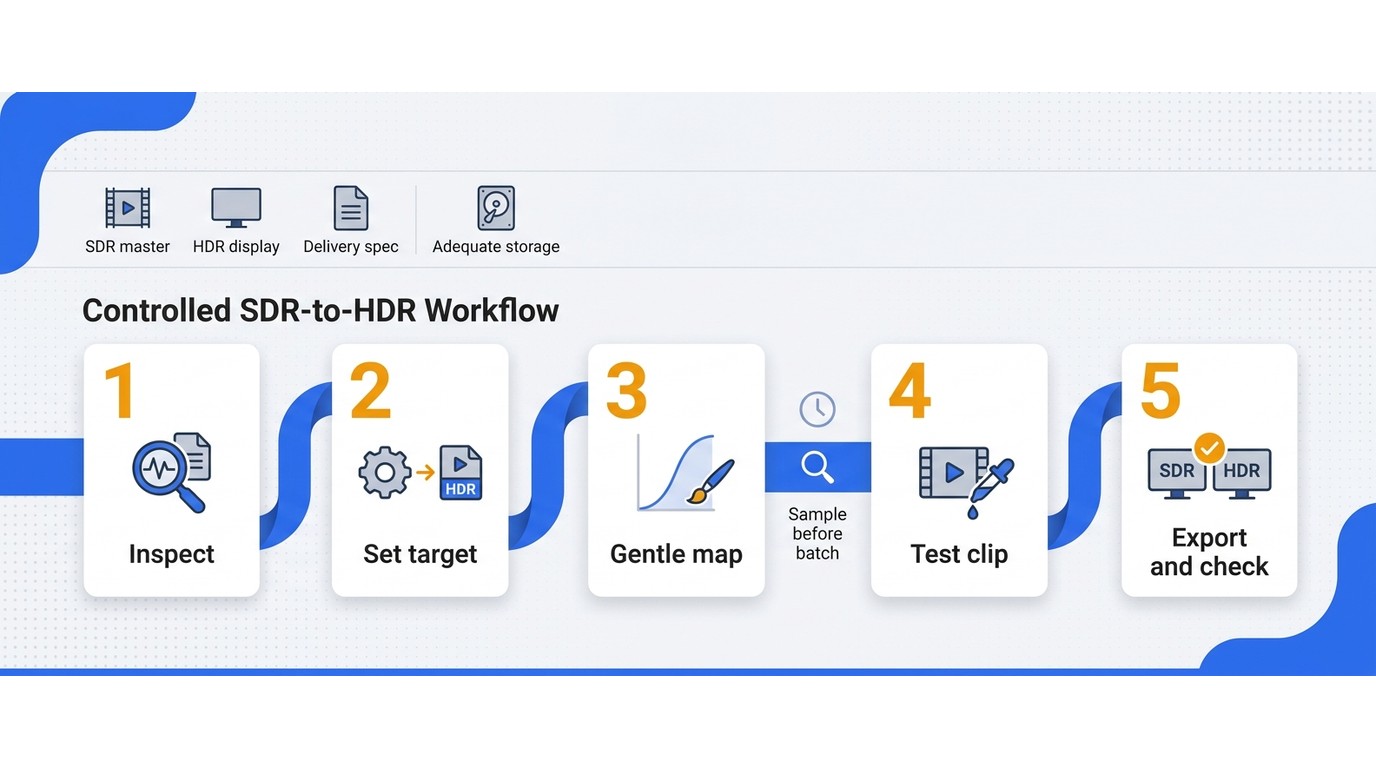
- Inspect the SDR source for exposure, noise, clipping, and compression.
- Choose the HDR target and output container for the delivery chain.
- Map brightness, contrast, and color conservatively.
- Process a short representative sample before a batch or long export.
- Validate both HDR playback and the SDR fallback.
Copyright note: Convert or upload only footage you own or are authorized to use. You are responsible for following copyright rules and the requirements of the service receiving the file.
Prerequisites: Source Quality, Target Display, and Delivery Format
Prepare a usable SDR master, an HDR-capable display for validation, enough storage for the output, and a defined destination such as local playback, an editor, a television, or YouTube. Decide whether the chain expects HDR10 or another supported format before processing. GPU resources can shorten compatible conversion jobs, but compute power does not correct a damaged source or a mismatched color workflow.
Step 1: Inspect the SDR Source
Check exposure before adding range. Clipped skies will not regain cloud texture, and crushed shadows will not reveal detail merely because the output is tagged HDR. Also inspect color casts, compression artifacts, noise, and banding. Correcting those faults first gives the remapping stage cleaner information to work with.
Step 2: Choose the HDR Target and Output Container
Match the HDR format to the intended platform and devices. HDR10 is a practical baseline across many consumer workflows, while Dolby Vision needs a compatible creation and playback chain. Then choose a container, commonly MP4 or MKV, that the next app or device accepts. The format decision belongs to the delivery plan, not to a blanket ranking of formats.
Step 3: Map Brightness, Contrast, and Color Conservatively
Expand the image without turning every bright surface into a peak highlight. Protect skin tones, sky gradients, reflective detail, and shadow texture. A steadier editorial rule is to judge conversion by what remains controlled, not by how dramatic the first comparison frame looks. A restrained map is also more likely to survive mixed displays and downstream compression.
Step 4: Process a Short Sample Before a Batch
Choose a sample containing faces, bright lights, deep shadows, motion, and gradients. Process that clip with the planned settings, then inspect it before committing a long video or folder. This step catches format mismatches, exaggerated contrast, color shifts, and processing artifacts while they are still inexpensive to correct.
Step 5: Validate HDR and SDR Playback
Play the result through the intended HDR path and an SDR fallback. Confirm that HDR activates, metadata survives export, highlights retain shape, shadows remain readable, and gradients stay smooth. The SDR check matters because many viewers will encounter a tone-mapped version. If the output works on one display but fails elsewhere, revisit the chain before assuming the conversion itself is wrong. Another conversion pass should come after that diagnosis.
How UniFab HDR Upconverter AI Handles SDR-to-HDR Conversion
If your question is “what is a HDR video?” before choosing a SDR to HDR converter, start with format and playback compatibility; UniFab's verified role is SDR-to-HDR10 conversion with MP4 or MKV output up to 4K. It suits users with an HDR10 delivery target, but cannot replace clean source footage or a compatible display.
Prerequisites and Supported Inputs
The local application accepts MOV, MP4, AVI, MPEG, WMV, F4V, MPG, TS, and FLV inputs. Processing demands still depend on the source, hardware, settings, and output resolution.
A Numbered UniFab Conversion Workflow
- Add one or more supported source files.
- Select the HDR conversion mode and use HDR10 as the verified SDR conversion target.
- Choose MP4 or MKV and set the required resolution and job options.
- Process a representative sample and inspect it on an HDR-capable display.
- Apply the approved settings to the remaining files as a batch.
- Check the finished files through both HDR and SDR playback paths.
I rank sample-first validation above batch speed because batching only saves repetition after the image is approved; it should never multiply an unreviewed setting across every clip.
Verified Output and Processing Capabilities
UniFab HDR Upconverter AI is a Windows and macOS desktop application that converts SDR to HDR10, writes MP4 or MKV output at up to 4K, and supports GPU acceleration and batch processing. Its specifications separately list HDR10 and Dolby Vision display-output compatibility, but the documented SDR conversion mode is SDR to HDR10. Keeping those statements separate avoids implying direct SDR-to-Dolby Vision conversion.
Price and License Options
As of August 2026, the US price is $99.99 per year or $129.99 for a lifetime license. The annual option lowers the initial commitment; the lifetime license fits recurring work. Occasional users may prefer a tool already included in their editing setup.
Who It Suits and Where It Has Limits
It is suited to Windows or Mac users who need local, repeatable SDR-to-HDR10 conversion in common containers and want to process multiple files after validating a sample. It is not a substitute for native HDR capture, professional manual grading, source detail that has already clipped or compressed away, or a display that can render HDR correctly. The larger decision is still the same one established earlier: choose the tool only after the source, target format, device, and delivery chain agree.
HDR Video FAQ
If you are still asking what's an HDR video useful for, the answer depends on the capture, edit, playback, and delivery path. Use that full chain to decide whether HDR helps or adds avoidable compatibility work.
Should I Turn HDR Video On or Off on My Phone?
Turn HDR recording on when the scene has bright highlights and deep shadows, your editing tools preserve the format, and the main destination supports HDR. Turn it off when you need the simplest cross-device workflow, have limited storage or processing headroom, or find HDR playback uncomfortably bright. The useful choice is the one your full workflow can preserve, not the setting with the more advanced label.
Why Does YouTube Sometimes Fail to Recognize an HDR Upload?
YouTube may show an upload as SDR when the encode uses incorrect color-space markings, required HDR metadata is missing, or platform processing has not produced the HDR version correctly. A Reddit user in r/youtube described the symptom: “For the last weeks, none of my uploads are detected as HDR anymore — even videos that used to show HDR now only appear as SDR (BT.709 in ‘Stats for Nerds’).” Inspect the exported color space and metadata, then use playback information to confirm the processed result. A focused YouTube HDR upload workflow can help separate export settings from platform processing.
Can I Mix HDR and SDR Clips in the Same Edit?
Yes, but define the timeline color management and final delivery format before grading. If the master will be HDR, map SDR clips into that working space without forcing false highlight detail. If the master will be SDR, tone-map HDR clips so highlights and saturation remain controlled. The mistake is not mixing formats; it is letting each clip enter the timeline without one conversion and monitoring policy.
What HDR Video App Do I Need on Windows?
Choose the app by task. For playback, use a player and graphics path that can trigger HDR on the connected display. For editing, use software with explicit HDR color management and metadata handling. For inspection, use a media-information tool that reports color space and HDR metadata. For SDR-to-HDR conversion, use a converter that states its target format and supports the needed container. One generic “HDR app” cannot cover all four jobs equally well. The same decision order applies: identify the playback need first, then decide whether conversion is necessary.