
An FPS converter can change a file's frame rate, but smoother motion requires AI interpolation rather than a larger output number alone. Choose a frame rate converter based on whether you need compatible export settings, generated intermediate frames, or a specific 120 FPS delivery target.
Start with a playable source file you are authorized to process, its current frame rate, and a target supported by your editor or player. Then choose a desktop or online workflow, a processing method, and export settings that suit your footage.
Why FPS Matters in 2026
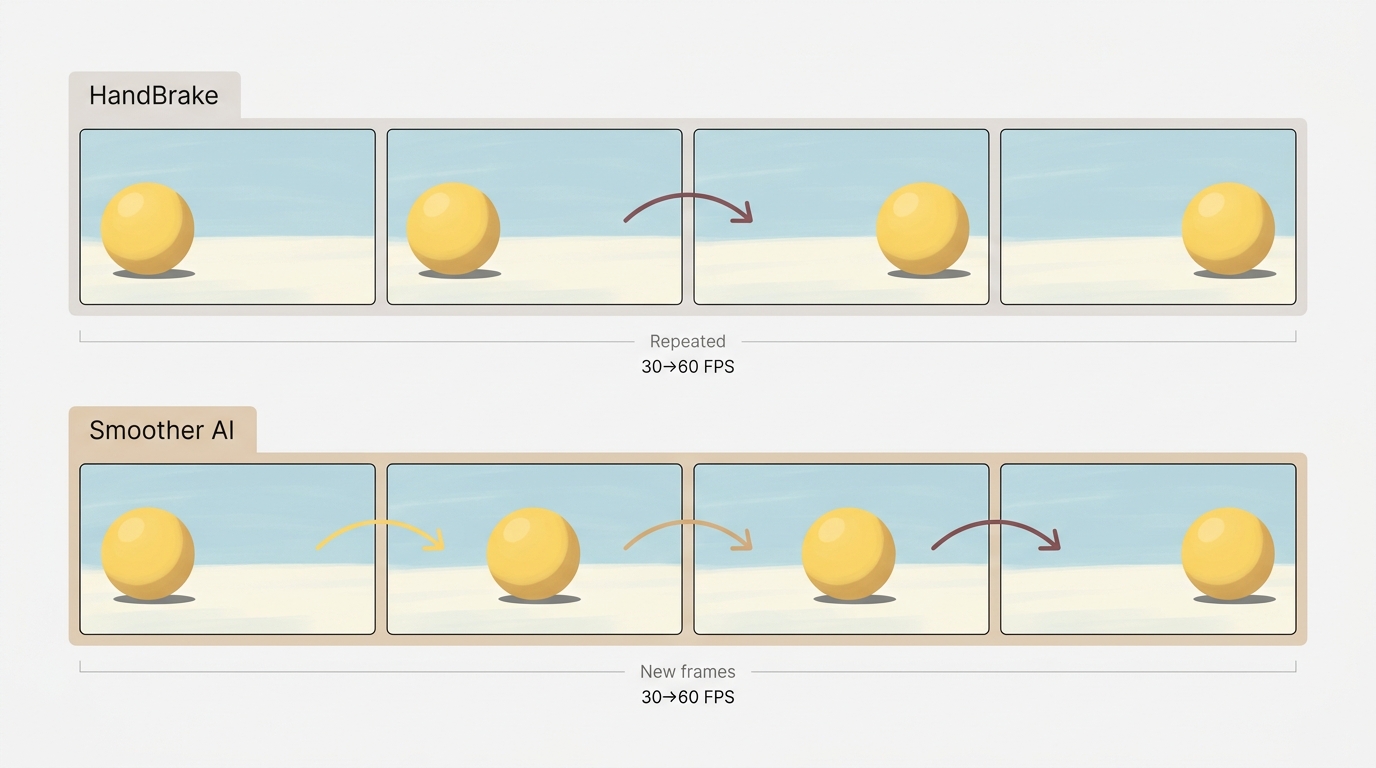
Frame rate is the number of frames played each second. Frame rate conversion changes that timing or count. Simple conversion drops, repeats, or retimes existing frames; AI interpolation creates intermediate images. Repeated frames add no new motion positions. Generated frames need a visual check.
- 12 FPS: a deliberately stepped look for animation or stylized motion.
- 24 FPS: a common cinematic cadence.
- 30 FPS: a common everyday video target.
- 60 FPS: a useful target for visibly smoother action.
- 120 FPS: a high-frame-rate target for motion work and slow-motion preparation.
I would preserve deliberate animation timing before chasing a larger number. For action footage you want to smooth, choose interpolation and review the result; for a delivery specification, match the requested rate without assuming the picture becomes sharper.
Top 3 FPS Converters at a Glance
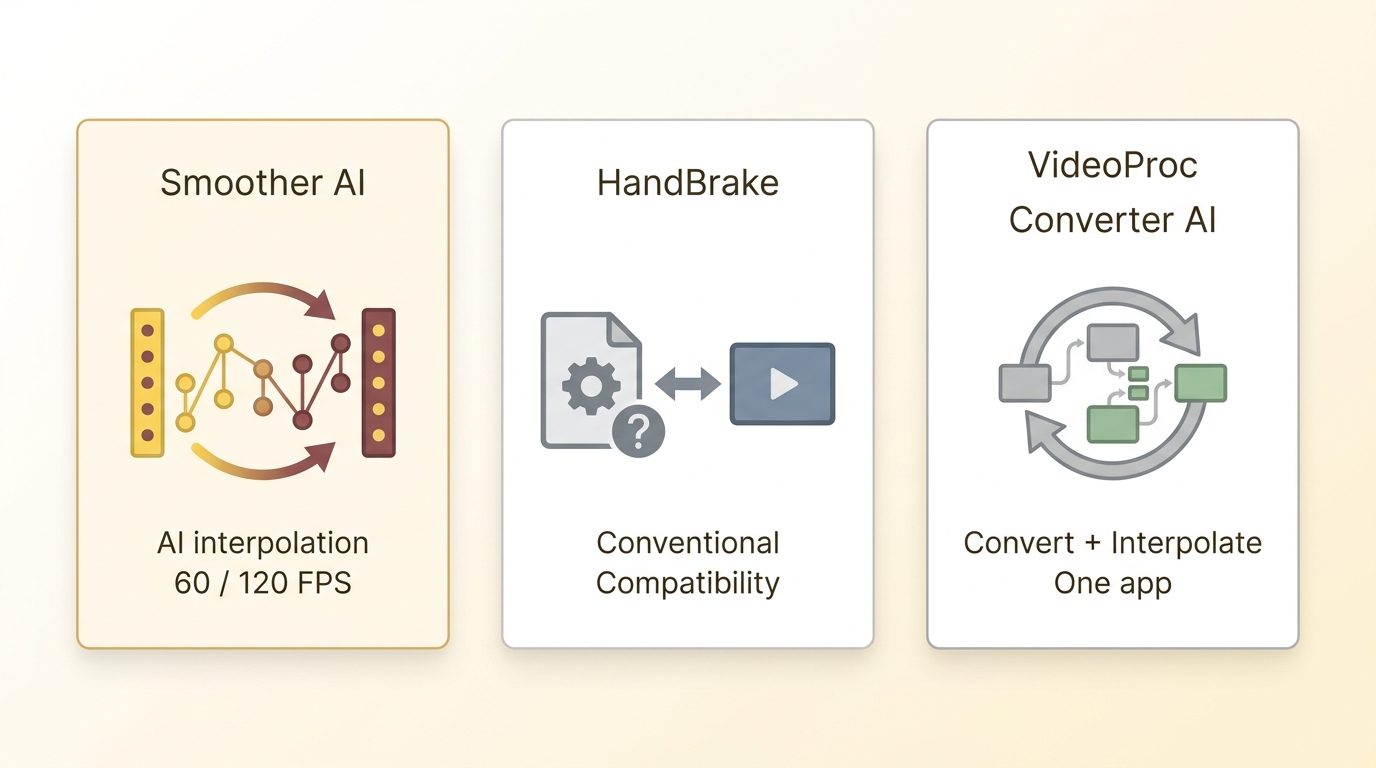
Smoother AI, HandBrake, and VideoProc Converter AI serve different jobs. Choose Smoother AI for desktop AI interpolation, HandBrake for free conventional conversion, or VideoProc Converter AI when you want conventional conversion and interpolation in one application.
A 60 FPS to 120 FPS Converter Generates Motion
Duplicating frames can produce a 120 FPS file without adding new motion positions. AI interpolation generates intermediate frames between the original 60 FPS frames, so preview fast movement and overlapping objects before processing the full video.
Desktop FPS Converters
A desktop FPS video converter suits a folder of clips or a long processing session. You avoid transferring the source to a conversion server. Keep the original file and enough disk space for the export.
1. Smoother AI: AI Frame Generation
Smoother AI is UniFab's desktop option for smoothing motion. It runs on Windows and Mac, converts 24 or 30 FPS footage to 60 or 120 FPS through AI interpolation, and exports MP4 or MKV up to 4K.
Its three relevant strengths are motion-compensated interpolation, batch processing, and a choice of fast and high-quality models. Use it when you want to increase FPS across several source clips. Start with a representative clip, then apply your chosen settings to the batch.
As of September 2026, the evaluation includes three uses without a watermark. Annual and lifetime licenses are available, with a 14-day refund window for those purchases. Select an evaluation task in the app to preview your footage.
2. HandBrake: Free Desktop Conversion
HandBrake is a free, open-source converter for Windows, Mac, and Linux. It fits straightforward frame-rate and format changes. Choose it for delivery compatibility rather than AI motion smoothing.
3. VideoProc Converter AI: Dual Mode
VideoProc Converter AI combines conventional video conversion with an interpolation workflow. It suits you if both jobs belong in the same desktop application. Select the processing mode before setting the output rate.
Other Desktop Options
Wondershare Filmora puts frame-rate selection inside an editing workflow. Choose it when you also need to trim and arrange footage.
EaseUS VideoKit provides configurable frame-rate conversion. It fits an export task that needs more control than a single preset.
MiniTool Video Converter combines format conversion with export settings. It is a practical choice when the container and frame rate need changing together.
VLC Media Player includes conversion controls alongside playback. Use it for an occasional conversion if it is already part of your desktop workflow.
VideoPad Video Editor includes frame-rate selection at export. It fits projects where cuts and sequencing come before conversion.
Online FPS Converters
You can change frame rate online without installing a desktop application. Browser tools suit short, one-off clips. Browser-local processing uses your device; cloud conversion transfers the file to a server. Do not use an FPS converter to copy or redistribute video illegally; process only footage you own or are authorized to use.
1. Miniwebtool: Simple Conversion
Miniwebtool offers free preset and custom frame-rate controls. Choose it for a short clip with a straightforward target. Use an FPS converter only with footage you are authorized to process; copying or redistributing unauthorized material can violate copyright or platform terms.
2. VEED.io: Browser Editing
VEED.io combines browser editing and frame-rate export settings. It fits a clip that needs editing as well as conversion.
3. VideoBolt: Simple FPS Changes
As of September 2026, VideoBolt offers free FPS conversion without registration or a watermark. It suits a single-purpose task without a full editing workspace.
Fractional Frame Rates Need Exact Export Settings
The listed Wutools page is not a usable converter for an immediate job. For 23.976, 29.97, or 59.94 FPS delivery, match the required fractional frame rate exactly and preserve playback duration. Rounding these rates to 24, 30, or 60 FPS can create timing or compatibility issues in workflows that require an exact match.
5. ConvertFleet: Browser-Local Processing
ConvertFleet provides a browser-based video conversion workflow. Choose it for a short clip when you want to avoid installing desktop software.
6. Topaz Frame Interpolation Web Tool
Topaz Frame Interpolation provides a web-based AI route. It fits a browser workflow that calls for interpolation rather than a basic export control.
7. Video2Edit: Online Video Conversion
Video2Edit offers manual frame-rate selection in an online conversion workflow. Choose it when you need to set an output rate and format together.
8. FreeConvert: Cloud Imports
FreeConvert supports cloud imports and video output customization. It fits a workflow where the source is already in cloud storage.
9. AConvert: Basic Batch Workflow
AConvert offers a basic browser conversion workflow with batch handling. It suits a small group of clips that need the same kind of export.
120 FPS Online: Limits and AI Options
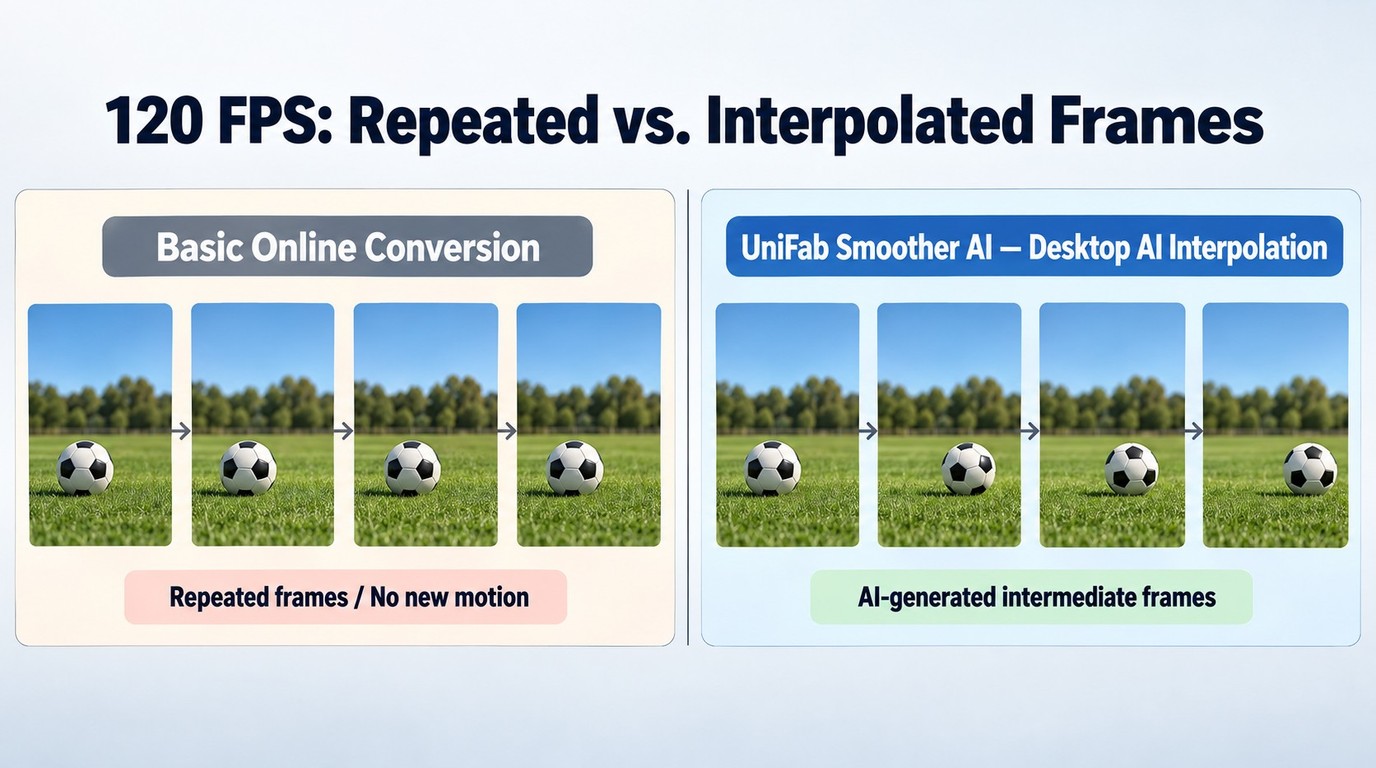
A numeric FPS setting alone does not generate intermediate motion frames. AI interpolation generates intermediate frames, while format conversion selects the output container and encoding.
Long clips place pressure on browser memory, while cloud jobs add upload time, service queues, timeouts, and file-size caps. Begin with a short excerpt. If the browser stalls or rejects the source, move the full job to desktop AI processing.
Source and Target FPS Determine the Conversion Method
Match the conversion to the delivery requirement. Preserve playback duration unless you deliberately want a speed change. These recipes distinguish an export adjustment from a motion-smoothing task.
| Source | Target | Method | Result |
| 24 FPS | 12 FPS | Drop frames or preserve holds | Stepped cadence; duration preserved |
| 30 FPS | 24 FPS | Drop or retime frames | 24 FPS delivery; duration preserved |
| 30 FPS | 60 FPS | Interpolate or duplicate | New motion with AI; repeats otherwise |
| 60 FPS | 120 FPS | Interpolate or duplicate | New motion with AI; repeats otherwise |
| 120 FPS | 60 FPS | Drop frames | Lower-rate export; duration preserved |
| 23.976 / 29.97 / 59.94 | Exact match | Preserved-duration conversion | Broadcast-aligned delivery |
For a stylized sequence, a 12 FPS video converter setting produces a stepped cadence. Preserve intentional held drawings rather than treating them as a defect to smooth away.
MP4 Export Balances Compatibility, Bitrate, and File Size
MP4 is a practical starting point for everyday playback. A video FPS converter changes frame timing; the container and codec govern how the file is packaged and decoded. Make those choices together.
- Container and codec: choose MP4 with a codec supported by the destination.
- Target FPS: match the player, editor, or delivery specification.
- Resolution: retain the source resolution unless resizing is required.
- Quality and bitrate: preview moving detail before finalizing compression.
- Audio sync: check speech and visible impacts near the end.
- Playback compatibility: test the exported file on the intended device.
Use constant frame rate when your editor or delivery specification needs evenly timed frames. Variable-frame-rate sources need an audio-sync check after conversion. A container change alone does not resolve timing problems. Bitrate and duration are major file-size drivers, and adding frames does not impose a fixed file-size multiplier.
High-FPS Export Checklist
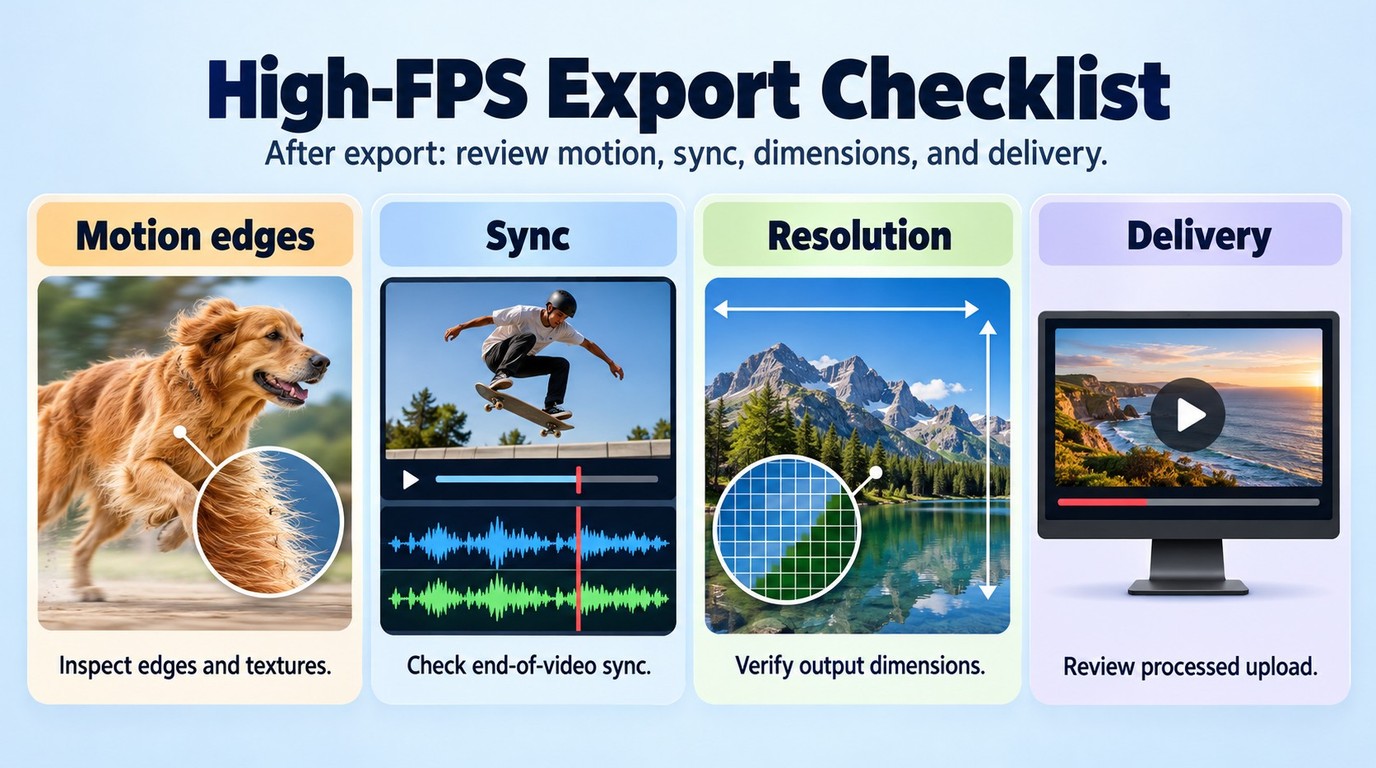
Judge the exported motion, not just its FPS label. Review a longer moving passage for Edge artifacts before delivery.
- Source: confirm frame rate, duration, and resolution.
- Target: match the intended player or delivery specification.
- Resolution: preserve it unless a separate resize is required.
- Bitrate: inspect fine textures during movement before raising it.
- Sync: check speech or a visible impact near the end.
- Preview: follow a moving Edge through a longer passage.
- Delivery: review the platform's processed upload, not just your local export.
I would accept an export based on the moving picture. A clean opening frame does not reveal artifacts in a later pan or cut.
Free-Tier and Privacy Snapshot
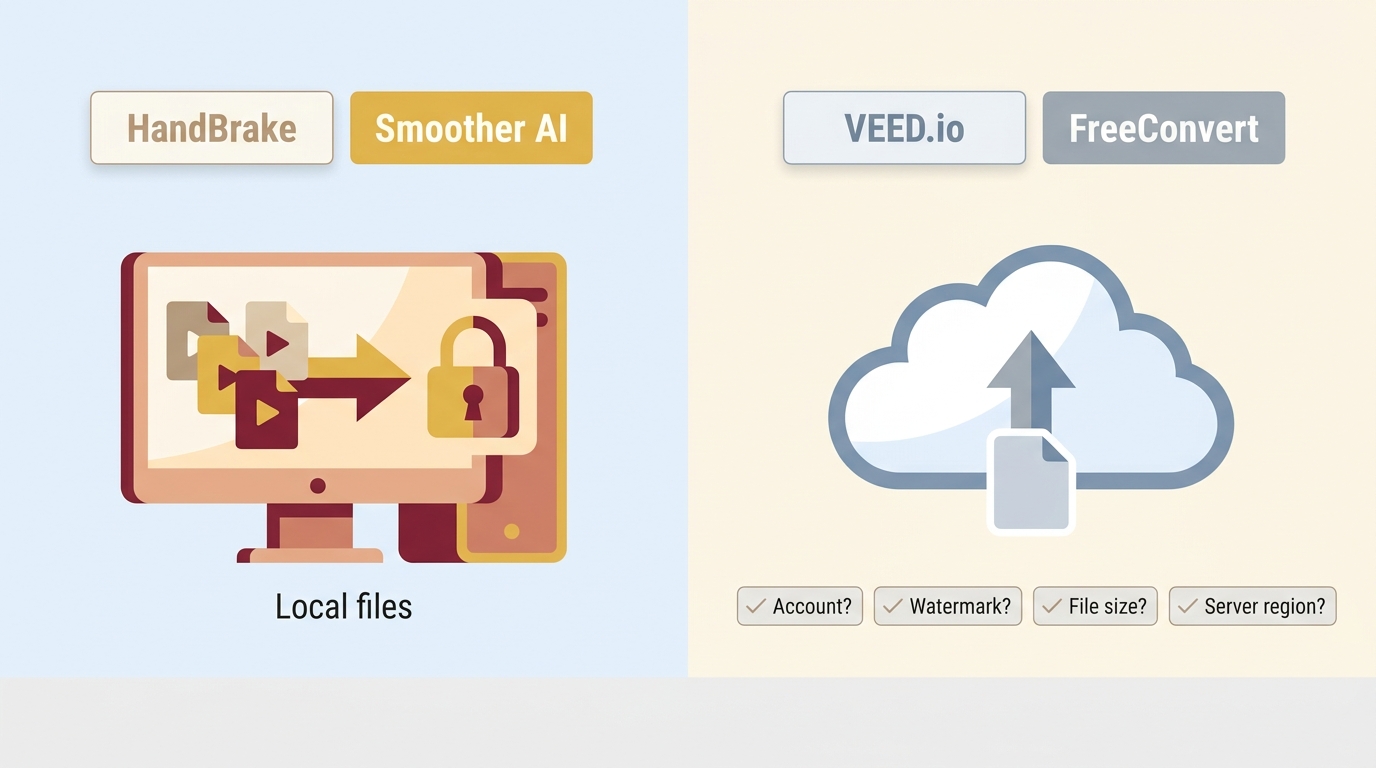
HandBrake provides free desktop conversion. A cloud tool adds a transfer step, so inspect the upload and export workflow before selecting a file.
Before selecting a file, inspect the upload and export screens for account requirements, a watermark notice, and a file-size limit. Use a non-sensitive sample first. Do not upload private footage to a service whose processing location conflicts with your requirements.
FPS Converter Comparison Table
These six options represent desktop and browser workflows. Match the method to your task.
| Tool | Type | Method | Useful task |
| Smoother AI | Desktop | AI interpolation | Generate intermediate frames |
| HandBrake | Desktop | Frame-rate conversion | Change export frame rate |
| Miniwebtool | Browser tool | Preset/custom FPS | Quick FPS changes |
| VEED.io | Online editor | FPS export settings | Edit and change FPS |
| Topaz Frame Interpolation | Web tool | AI interpolation | Generate intermediate frames online |
| Video2Edit | Online converter | FPS export settings | Convert FPS and format |
For a folder of clips, I would favor a local workflow. For one short clip, a browser tool saves installation time.
30 to 60 and 60 to 120 FPS Conversion
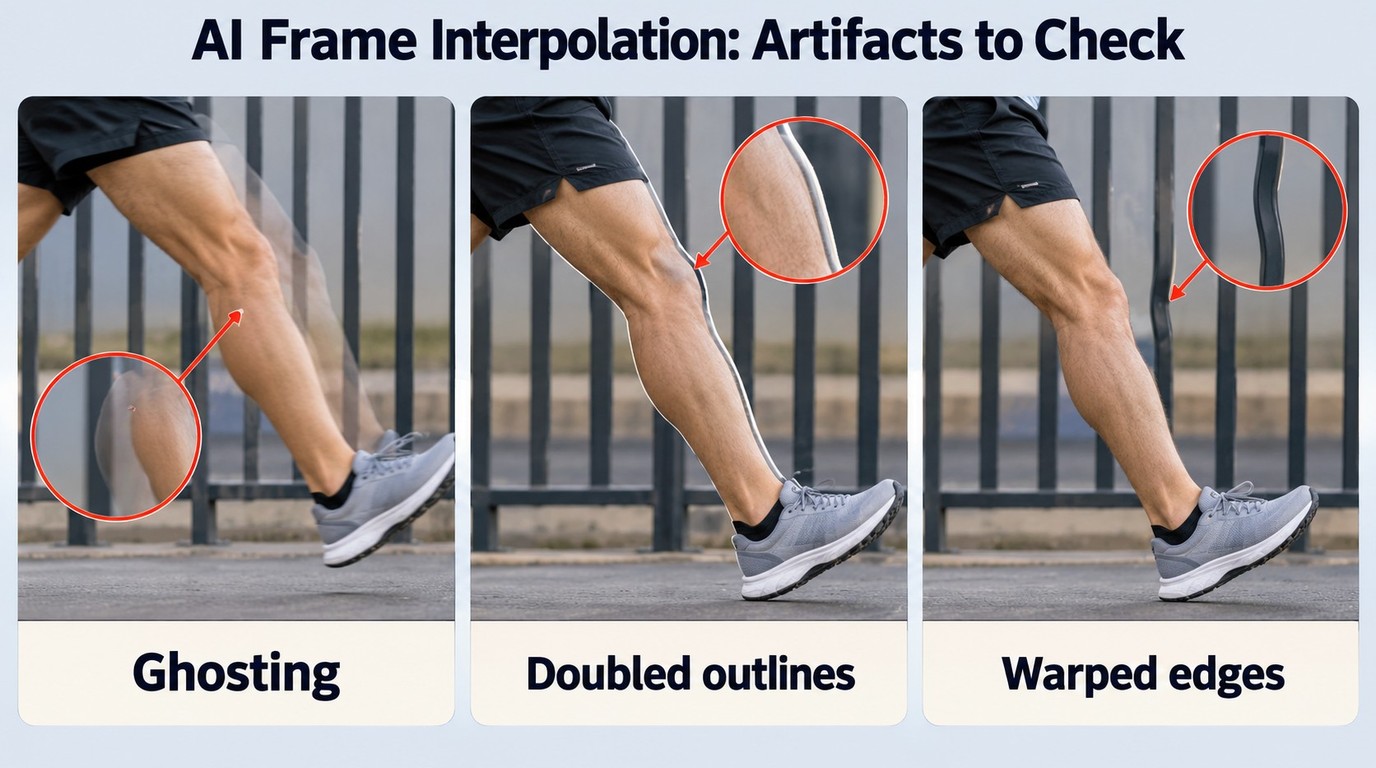
Frame-rate conversion can drop or duplicate frames. AI interpolation generates intermediate frames; Smoother AI and Topaz Frame Interpolation offer interpolation workflows. A higher output FPS does not by itself establish additional motion detail.
AI frame interpolation needs careful previewing around fast cuts and overlapping objects. Look for ghosting, doubled outlines, and warped edges.
In Smoother AI, preview the same difficult passage with the fast and high-quality models. Follow the object as it crosses another object, then inspect the frames around the cut. Choose the cleaner result before applying that model to the full batch.
The Right FPS Converter Matches Your Output
Choose the smallest workflow that completes your delivery. Your target rate, processing method, job size, privacy needs, and export format should point to the same tool.
- 12, 24, or 30 FPS delivery: use conventional conversion when you want to preserve the intended cadence.
- 60 or 120 FPS motion smoothing: choose an AI workflow with a preview you can inspect.
- A short, non-sensitive clip: a browser converter is a convenient fit.
- A long file or batch: desktop processing avoids repeated uploads.
- Private footage: choose local processing.
- A specified container: filter for that export format before starting.
A video frame rate converter should fit your delivery workflow, whether it starts on desktop, in a browser, or on mobile. Keep your original so you can compare the result directly.
FPS Conversion Takes Six Export Steps
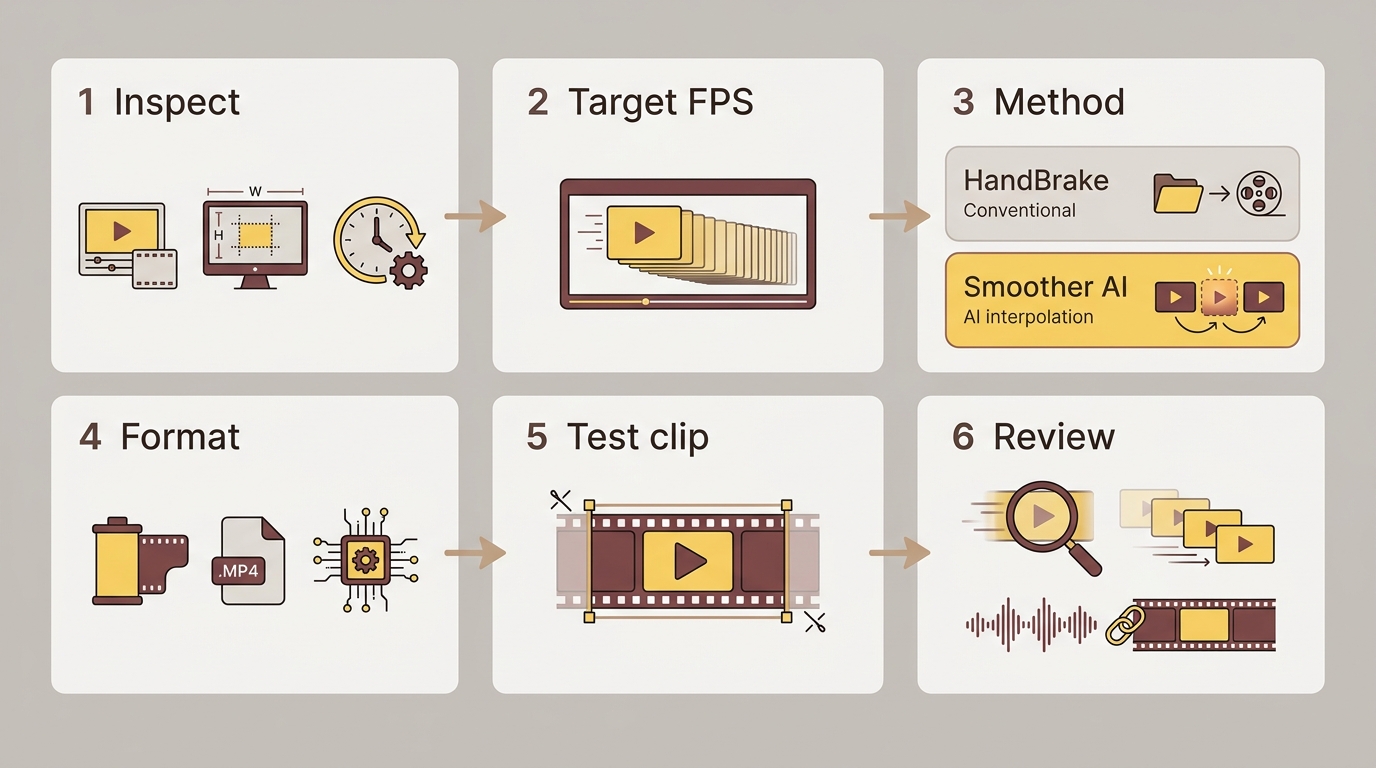
Convert a representative excerpt before committing to a long job. Use the same target settings for that excerpt and the final export.
- Import the source and inspect its frame rate, resolution, and duration.
- Select the target FPS required by the destination.
- Choose conventional conversion for delivery compatibility or interpolation for additional motion detail.
- Set the output format, codec, resolution, and quality or bitrate.
- Export the video while retaining the original source file.
- Inspect fast edges, cuts, audio sync, and stylized animation during playback.
A 60 FPS converter follows the same sequence. Approve the preview before processing the remaining clips.
FAQs about FPS Converters
Is there a completely free FPS converter?
HandBrake is a free, open-source desktop FPS converter. VideoBolt also offers free browser conversion without registration or a watermark. A free frame-rate change does not by itself create intermediate motion frames.
How long does FPS conversion take?
There is no universal completion time. AI interpolation adds frame-generation work, and resolution, clip length, hardware, the selected model, and cloud queues can all affect the result. For a long video, process a representative excerpt first, then use the approved settings for the full export.
What frame rate should I use for social media?
Use a frame rate accepted by the destination and preserve the source cadence when extra smoothness is unnecessary. Social platforms may re-encode uploads, so exporting at 60 FPS does not guarantee that viewers will receive 60 FPS playback.
What is the difference between constant and variable frame rate?
Constant frame rate uses evenly timed frames throughout the video. Variable frame rate allows the intervals to change. Constant frame rate can improve editing compatibility and make audio synchronization easier to manage after conversion.
Can I convert FPS on my phone?
A mobile editor can change the export frame rate, and a browser converter is another route for short clips. Changing the export setting alone does not generate intermediate frames. Use only footage you are authorized to process, and do not copy or redistribute material when applicable law or platform terms prohibit it.
Conclusion
Use a browser converter for a short clip, free desktop conversion for a straightforward delivery change, and desktop AI when you want to smooth movement across longer footage. Smoother AI fits that AI workflow with batch processing and model previews. Open a representative clip and start with its watermark-free evaluation.
Process footage you own or are authorized to use. Keep use within the permission you hold, avoid unauthorized redistribution, and follow applicable law and platform terms for your use case.