If you searched for Fotor Video Enhancer or Fotor AI Video Enhancer, the browser preview does not answer the two questions that matter: what the full download actually costs in credits, and whether a 4K target restores usable detail. This review checks both before weighing formats, limits, and workflow fit.
Fotor is most convincing for short, casual browser jobs. Its three-second preview makes the workflow easy to sample, but longer full downloads use credits, and the preserved 360p test did not show convincing recovery of fine texture at the 4K target.
Fotor AI Video Enhancer at a Glance
Fotor AI Video Enhancer is a browser-based tool for improving video clarity without installing a desktop editor. It sits inside Fotor's broader creative suite and is designed around upload, preview, and credit-gated download steps.
- Primary use: quick enhancement and upscaling of short clips in a browser.
- Verified inputs: MP4, MOV, and WebM.
- Advertised target: up to 4K through the AI Video Upscaler.
- Free evaluation: a three-second preview; full downloads may require credits or membership.
The practical distinction is simple: a resolution label describes the selected output target, while visible Edge and texture recovery determine whether the result actually looks better.
Fotor Video Enhancer Features and Limits
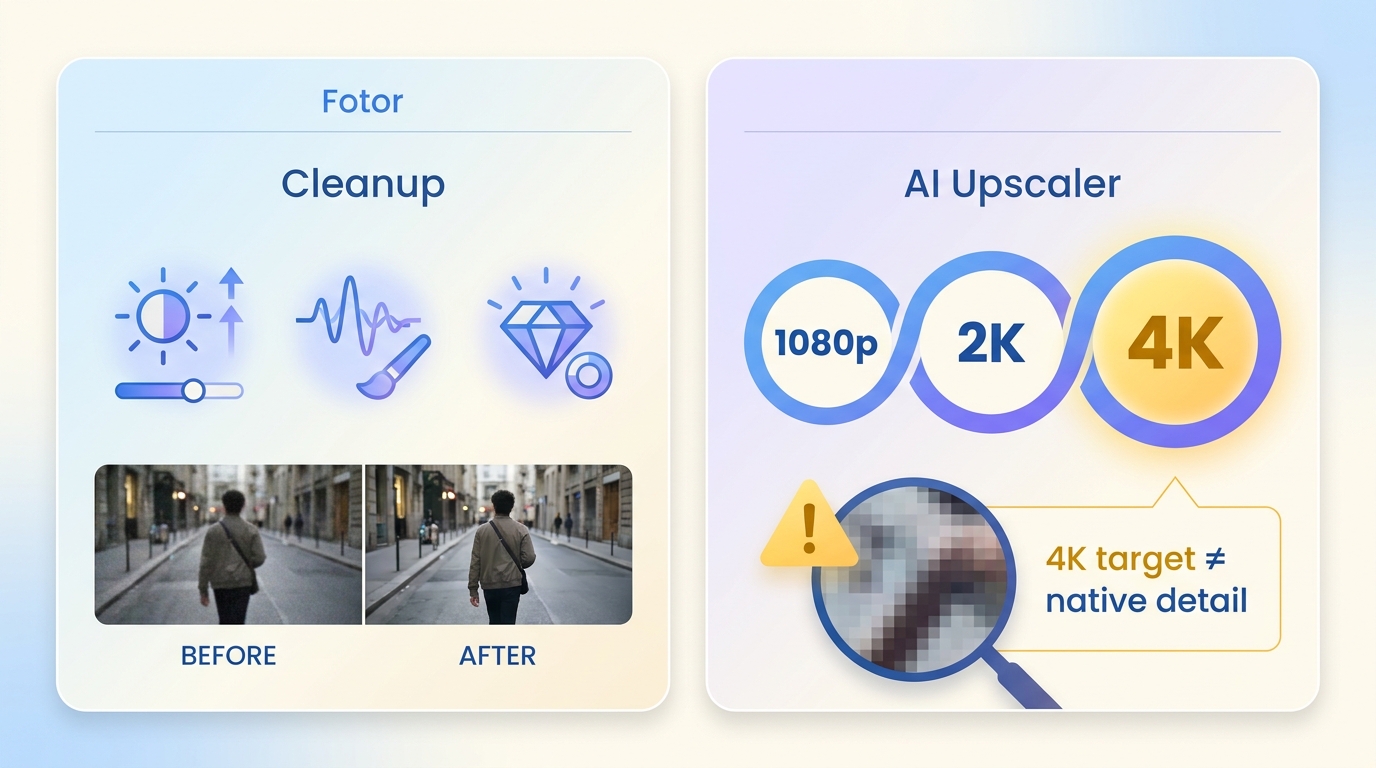
Fotor Video Enhancer and Fotor AI Video Upscaler overlap, but they are not identical operations. The general enhancer focuses on broad cleanup, while the AI upscaler is the Fotor AI upscaler path for selecting a higher output target.
| Area | Video Enhancer | AI Video Upscaler |
| Main task | General video cleanup | Resolution upscaling |
| Input formats | MP4, MOV, WebM | MP4, MOV, WebM |
| Output behavior | MP4 download after processing | No-watermark output advertised |
| Free access | Limited evaluation | Three-second preview |
| Full result | Credits apply | Up to 4K; credits or membership |
The phrase Fotor video clearer is useful shorthand, but it can overstate the result. Noise and color adjustments may make a clip easier to watch, yet an Fotor AI video upscaler cannot recreate source detail that was never captured. Current upload caps also affect whether a long or large file can enter the online workflow.
Fotor's browser-first design is convenient when installation is undesirable. It is less predictable when upload bandwidth, server load, or strict file limits become part of the job.
Fotor Pricing and Credit Costs
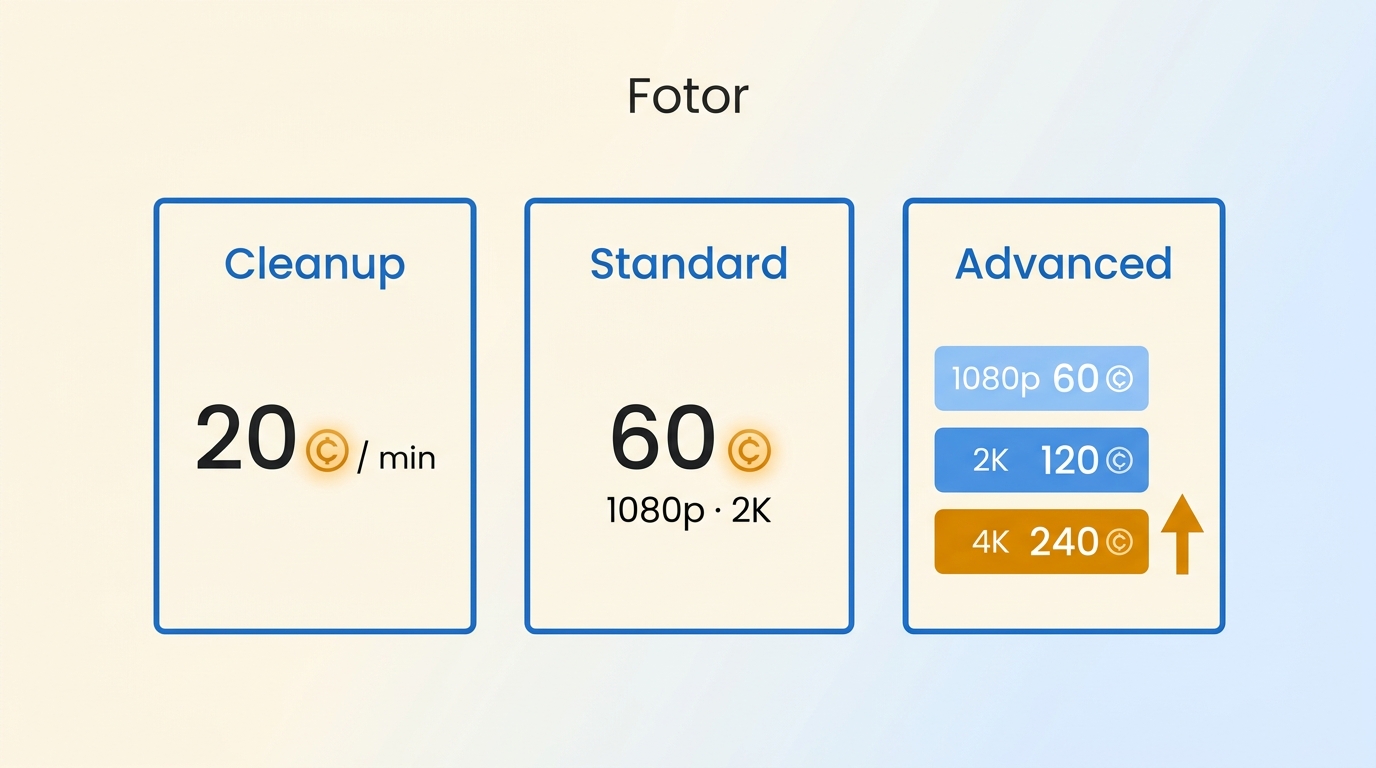
Fotor Video Enhancer pricing combines a suite subscription with operation-based credits, so the displayed monthly rate is not the same as the cost of a finished video. The table below reflects US pricing as of August 2026.
| Plan | Displayed rate | Annual billing | Included credits |
| Basic | Free | US$0 | Limited access |
| Pro | US$3.99/month | US$38.39 yearly | 1,200/year |
| Pro+ | US$8.33/month | US$69.99 yearly | 3,600/year |
The annual figures and credit allotments appear on Fotor's US pricing page.
Credit use changes by operation:
- General enhancement uses 20 credits per started minute.
- Standard upscaling uses 1 credit per second at either 1080p or 2K, so a 60-second clip uses 60 credits.
- Advanced upscaling uses 1, 2, or 4 credits per second at 1080p, 2K, or 4K. A 60-second clip therefore uses 60, 120, or 240 credits.
- Credits are deducted when the full result is downloaded.
My practical take is that Fotor video enhancer free access works as a sample, not as a predictable full-project allowance. Short clips at modest targets can fit the model; long clips or repeated 4K downloads can consume an annual credit pool quickly.
Comparing a genuinely free AI video upscaler with a free online 4K video enhancer requires looking at full-export access, clip limits, and watermarks rather than relying on a free-preview label.
Fotor Video Enhancer Test Results
The review used a 360p source clip and observed limited fine-detail recovery plus visible jagged artifacts at the 4K target.
Test Setup and Findings
The Fotor video upscaler offered a 4K target, but the selected target did not demonstrate restoration of native fine detail in this source. Edge structure, texture, and text legibility matter more than the output label when judging an Fotor 4K upscaler.
| Benchmark item | Test condition | Observed result | Practical meaning |
| Source and target | 360p to 4K target | Higher target selected | Target alone did not prove detail recovery |
| Fine detail | Hair, fabric, foliage | Limited recovery | Textures remained soft |
| Edges | High-contrast outlines | Visible jagged artifacts | Artifacts reduced natural clarity |
| Color | Brightness and contrast | Modest change | More visible than texture restoration |
Processing time is not fixed. Clip length, target resolution, connection speed, server load, and current upload limits all affect the wait.
The query Fotor 4K video converter can be misleading because enhancement and upscaling are not the same as changing containers or codecs with a general 4K video converter.
Editorial Verdict
Fotor can make a low-resolution clip brighter and somewhat cleaner, but this test did not show convincing fine-detail restoration. My editorial judgment is to evaluate eyelashes, hair, text, and object edges before accepting any 4K claim at face value.
The result is adequate for a casual social clip where speed and browser access matter more than close inspection. It is a weaker fit for restoration work, archival footage, or projects in which Edge artifacts remain visible on a large display.
Using Fotor Video Enhancer in Three Steps
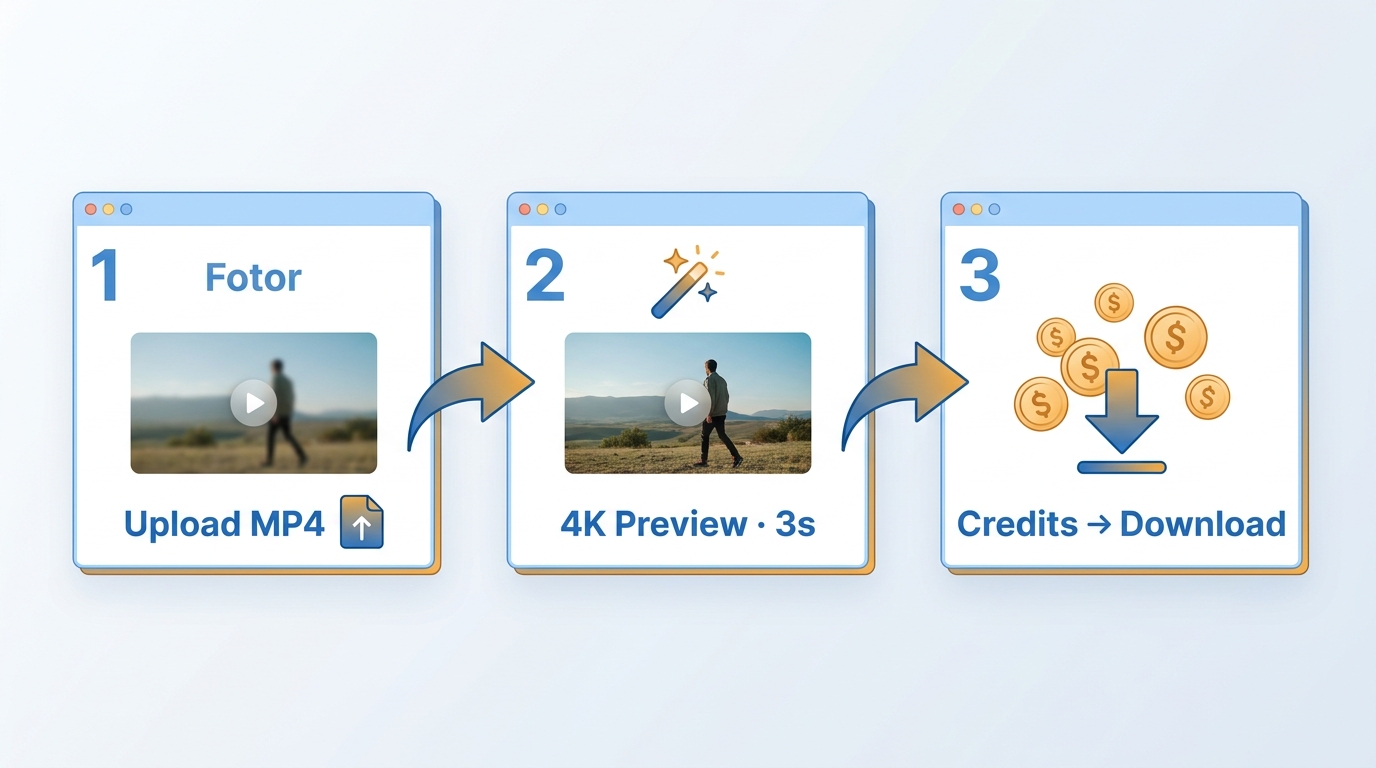
Fotor Video Enhancer online follows a simple upload, preview, and download sequence. Before starting, prepare an MP4, MOV, or WebM file, use a stable connection, and confirm that the clip fits the current upload limits.
- Open the Fotor enhancer in a supported browser and upload the source clip.
- Select the enhancement or upscaling operation, choose the target, and review the three-second preview where available.
- Check the projected credit use, process the clip, and download the full result if the preview justifies the cost.
A browser-based AI video enhancer online is easiest to assess with a short representative segment before committing a longer file.
Once you open the Fotor Video Enhancer on your device using any web browser, you will find the “Upload” Option to upload your desired poor-quality video for enhancement.
The “Sign Up” and “Login” Options are on the top right side of the home page. You can sign up through Google, Facebook, Apple, or Email. However, you can use this program without signing up or logging in.
Hit “Upload” to upload a poor-quality video from your system or other devices in MOV, MP4, or WebM format. After successfully uploading the video, select “Generate Preview” on the right-hand side of the window.
Next, you will see the “Original” and “Enhanced” Versions of the video side by side to compare the video quality. Then select “Download Preview” to download the enhanced video for free on your device.
There is also a “Download Full HD Video” Option with 480p, but you must create an account to avail of this option. You can get a further edit option for your downloaded enhanced video here.
Fotor Safety, Privacy, and Billing Reliability
Fotor is an active service, but operational legitimacy, cloud-file privacy, and subscription reliability are separate questions. A safe decision considers what is uploaded, how billing is managed, and where the subscription was purchased.
- Operational legitimacy: Fotor provides an established, functioning web service and account system.
- Uploaded-file privacy: browser processing requires sending the source file to a cloud service, so sensitive footage deserves a stricter privacy decision than an ordinary social clip.
- Billing reliability: community reports describe cancellation friction and unexpected renewals as user concerns, but those reports should not be generalized to every subscriber.
Uninstalling an app does not cancel an App Store subscription or an account-based plan. Cancellation must be completed through the subscription controls used for the purchase, and saving the confirmation provides a useful billing record.
Fotor Ratings and User Feedback
These platform-level ratings describe Fotor as a company and product suite, not Fotor Video Enhancer alone. They can flag service themes, but they should not be treated as a direct measurement of the enhancer's output quality.
Trustpilot: 3.7/5
As of August 2026, Fotor's US Trustpilot page title shows a rating of 3.7/5. The current review count was not reliably exposed, so no review total, trend, star distribution, response rate, or response-time statistic is used here.
The defensible takeaway is limited: the company-level score provides broad service context, while output quality still needs to be judged from the actual video result.
Capterra: 4.5/5 in Search Results
A current US search result for Fotor on Capterra lists 4.5/5 from 1,095 reviews. That value was not verified on the live Capterra page and should not be presented as a direct-page extraction.
The snippet also covers Fotor broadly. It does not establish a separate satisfaction score for Fotor Video Enhancer, and it does not support conclusions about the preferences of business buyers or video-enhancer users.
Fotor Video Enhancer Pros and Cons
The Fotor review case is balanced: browser convenience and suite integration are useful, while variable detail recovery, credit consumption, upload constraints, and billing concerns limit the fit.
Pros
- Runs in a browser without a desktop installation.
- Accepts MP4, MOV, and WebM uploads.
- Provides a three-second preview for the AI Video Upscaler.
- Fits naturally into an existing Fotor photo and design subscription.
Cons
- The 360p test showed limited fine-detail recovery and visible Edge artifacts at the 4K target.
- Credit use increases with clip length, operation, and target resolution.
- Cloud upload limits and connection speed can constrain larger jobs.
- Community reports make cancellation and renewal controls worth handling carefully.
Who Fotor Video Enhancer Suits
Fotor Video Enhancer best suits short, casual clips and people who already use the wider Fotor suite. It is less suitable when a project needs predictable credit budgeting, long-file handling, or detail-sensitive restoration.
- Good fit: a short social clip that needs quick browser-based cleanup.
- Good fit: an existing Fotor subscriber who wants occasional video enhancement in the same account.
- Less suitable: a long clip where per-second 2K or 4K credit costs are difficult to budget.
- Less suitable: old or compressed footage where Edge and texture recovery determine success.
A useful decision rule is to preview the hardest three seconds of the clip, not the cleanest section. If fine text, hair, foliage, or object edges remain weak there, a longer full download is unlikely to change the underlying fit.
Fotor vs. UniFab: Workflow and Quality
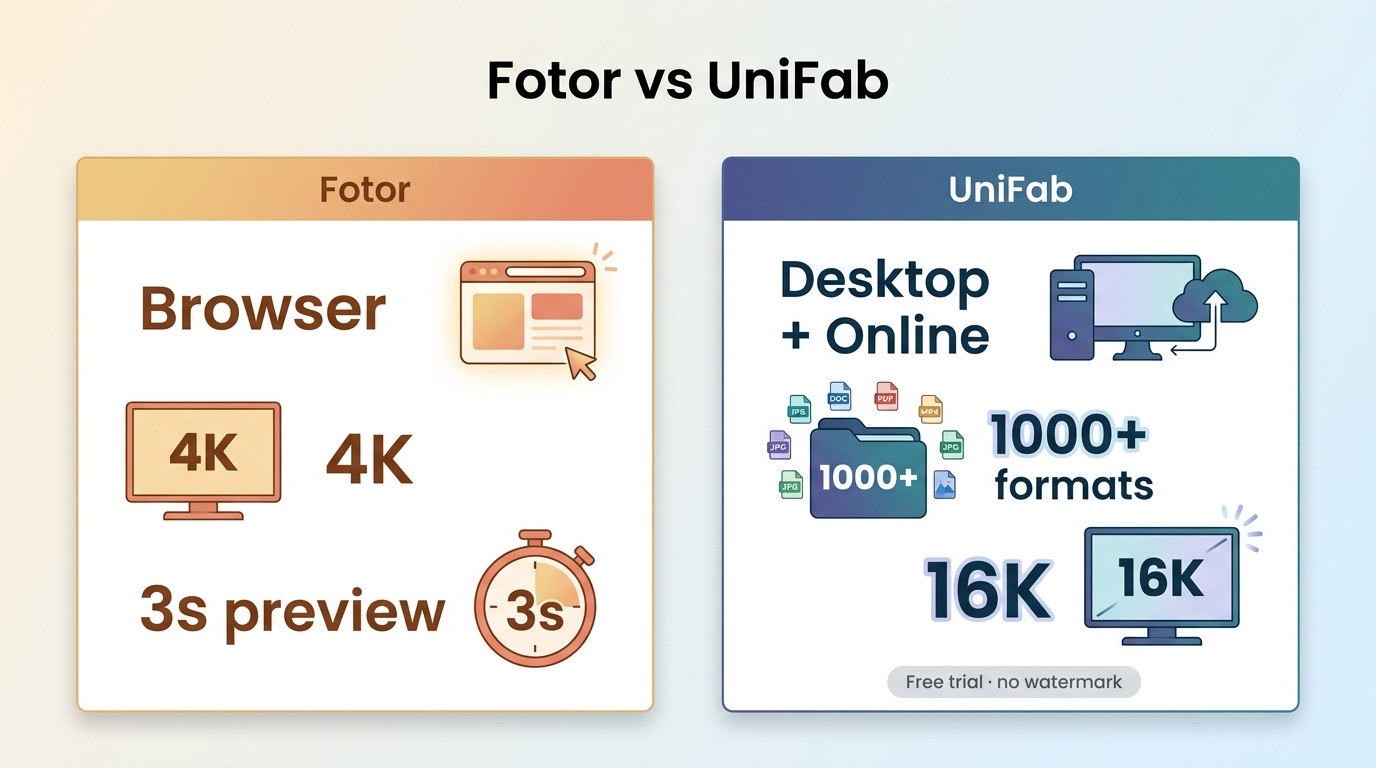
Fotor and UniFab solve different workflow problems. Fotor favors short browser-based jobs, while UniFab supports local desktop files and an online path for projects that need broader format handling or higher advertised targets.
UniFab Models and Workflow Fit
The UniFab AI Video Upscaler supports desktop and online workflows, multiple AI models, more than 1,000 formats, and output targets up to 16K. Those options matter when the source type and output goal vary across a project.
Vellum is oriented toward surface texture and fine detail, while Kairo is designed for anime, cartoons, and motion graphics. Equinox covers general footage, and Titanus is intended for movie and television sources.
My fit judgment is that model choice materially helps when live action, animation, and compressed footage need different treatment. UniFab is not ideal for someone who wants nothing more than a quick, short browser upload.
A local workflow can be preferable when an AI video enhancer for Mac needs to handle larger files without making cloud upload the first step.
Fotor vs. UniFab Comparison
| Dimension | Fotor Video Enhancer | UniFab Video Enhancer |
| Observed quality result | Limited detail; jagged edges in 360p test | Not tested with the same source clip |
| Input formats | MP4, MOV, WebM | More than 1,000 formats |
| Maximum advertised target | Up to 4K | Up to 16K |
| Workflow | Browser-first | Desktop and online |
| Evaluation and download terms | Three-second preview; credits for full result | Free trial with no-watermark output |
Choose Fotor for a short browser-based job when its preview already looks acceptable. Choose a local-file workflow such as UniFab for longer or higher-resolution projects where upload time, format breadth, and model selection materially affect the process.
Enhancing Video with UniFab
For a local enhancement job, install the desktop application, import the source, select the model and output target, preview the result, and export only after the Edge and texture changes look appropriate for the footage.
30-day Free Trial with full feature access! No watermark!
Once you launch the UniFab Program on your Windows or Mac system, go to the left-hand functions panel, click 'All Features' to select your desired module. Click the '+' button to import your video for enhancement.
Customize the output video parameters with resolution, model, format, quality, and other preferences as needed.
After completing the customization process, you should select the “Start” option to initiate the video enhancement process.
Final Verdict on Fotor Video Enhancer
Fotor Video Enhancer is a convenient option for short browser-based enhancements, but its value depends on preview quality and the credits required for the full download. The 360p test supports a cautious verdict: the 4K target did not restore convincing fine detail.
Use Fotor when the clip is short, the three-second preview represents the difficult part of the footage, and the credit cost is acceptable. For longer, higher-resolution, or detail-sensitive work, a workflow with clearer cost controls, broader format support, and local processing is the more practical choice.
Fotor Video Enhancer FAQ
Does uninstalling Fotor cancel a free trial?
No. Uninstalling the app does not cancel an App Store or account subscription. Open the subscription controls for the store or account used to purchase the trial, complete cancellation there, and retain the confirmation notice.
Can Fotor process long or large videos?
It depends. Current upload limits, clip length, target resolution, connection speed, and server load determine whether a job is practical. A short representative segment can reveal both upload friction and credit demand before a larger file is committed.
Can I use Fotor Video Enhancer on my phone?
Yes, through a mobile browser where the service is available. Use a stable Wi-Fi connection, keep the browser session active during upload, and start with a short clip because mobile upload bandwidth can become the main bottleneck.
Can I use Fotor-enhanced videos commercially?
Not automatically. Watermark-free export and commercial-use permission are separate issues. Commercial use depends on Fotor's applicable terms and on whether you hold the necessary rights to the source footage, audio, graphics, and other included material.
Does Fotor support 8K or 16K output?
No current official Fotor evidence here supports 8K or 16K output; the advertised target is up to 4K. Projects that genuinely require a higher target need a separate 8K video enhancer workflow rather than assuming the Fotor 4K setting scales further.
Is there a free alternative without a watermark?
Potentially, but compare the exact evaluation path. Fotor advertises a free three-second preview and no-watermark output, while longer or advanced full downloads may require credits; UniFab offers a free trial with no-watermark output. Test the same difficult segment before choosing either workflow.