To convert FLV to WMV, use an online converter for one small, non-sensitive file and a local converter for private, large, or batch jobs. A browser tool avoids installation, while desktop software avoids uploading the source and gives you steadier control over output settings.
Uploading two FLV files totaling just over 500 MB can turn a simple format change into a slow round trip on a weak connection. My editorial rule is to choose WMV only when a Windows app or delivery specification requires it; otherwise, MP4 is usually the more portable archive target because it travels across current devices and editors more easily. Start by deciding whether WMV is actually required, then choose between the FLV-to-WMV online and desktop paths below. Finish by checking resolution, aspect ratio, audio, and duration before you archive the source.
FLV vs. WMV: What Changes When You Convert?
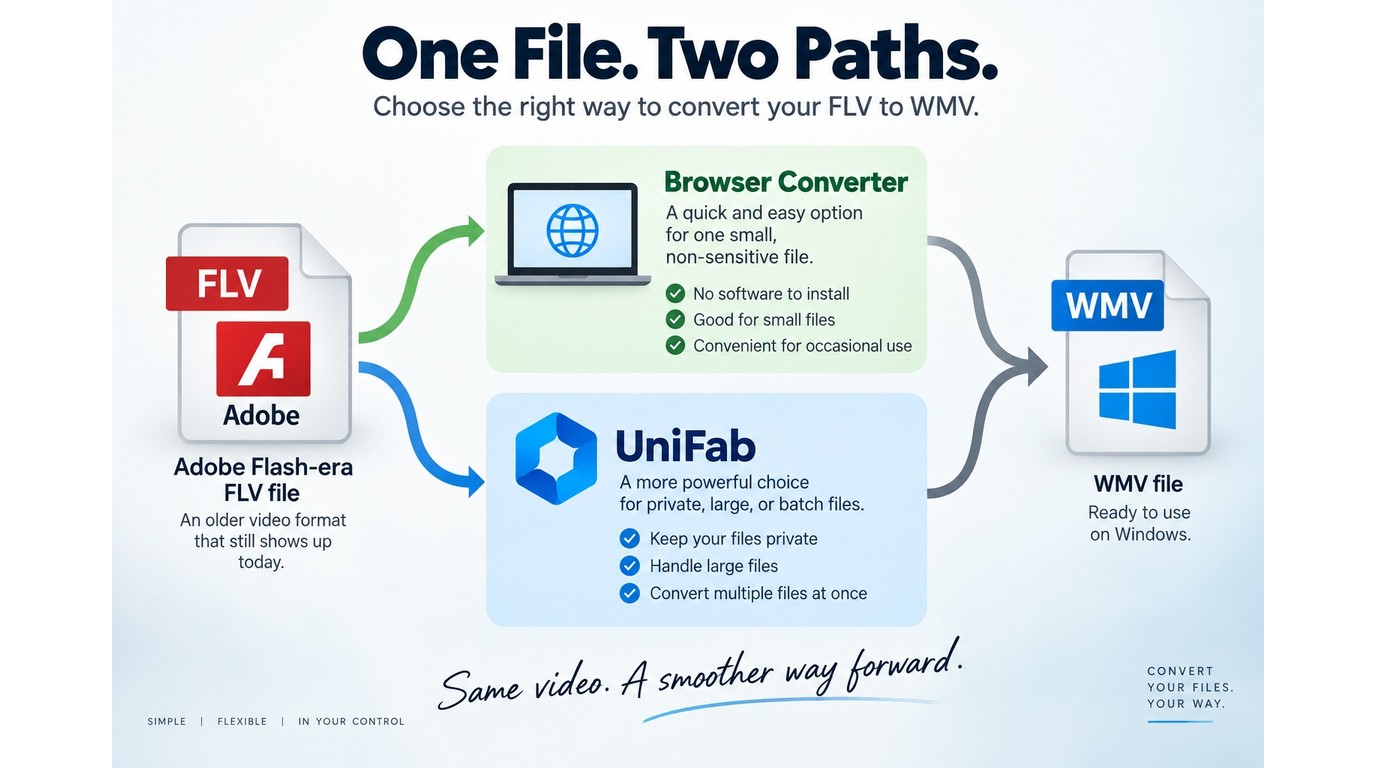
Conversion changes the file container and usually re-encodes its video and audio streams. It can make an older FLV file fit a Windows-centered workflow, but it does not add detail that the source never contained. The right method depends on file sensitivity, size, quantity, and connection speed.
FLV as a Legacy Flash-Era Container
FLV is a container associated with Adobe Flash video on the web. Modern browsers no longer use the old Flash playback model, so an FLV archive can be awkward to open, share, or import into a current editor even when the video stream itself is intact.
Conversion is therefore a compatibility repair, not an automatic quality upgrade. If the destination is not tied to Windows software, converting FLV to MP4 often gives the file a wider playback path across phones, browsers, and editing apps.
WMV in a Windows Playback Workflow
WMV is a practical target when a Windows application, older media library, or delivery requirement explicitly asks for it. The filename extension identifies the container, while successful playback still depends on the video and audio codecs inside it and the decoders available to the player.
That distinction matters. Renaming .flv to .wmv does not convert the streams, and selecting WMV without checking its codec options can produce a file that has the right extension but fails in the target app.
Choose Online for Convenience or Local for Control
The decision is clearest when you compare where the file travels and how much work is involved.
| Factor | Online converter | Local converter |
| Setup | No installation | Desktop app required |
| File transfer | Upload, then download | Stays on the computer |
| Good fit | One small, ordinary file | Private, large, or batch files |
| Main constraint | Connection and site limits | Storage and hardware |
| Batch workflow | Service-specific limits | Batch queue available in UniFab |
Format references: Adobe's FLV overview and Microsoft's Windows Media extension documentation.
The practical upshot is that “no installation” is not the same as “no overhead.” As one Reddit user in r/VideoEditing put it, "Most of those I find are sites wanting me to upload the file only to have to download the converted copy. Given my internet speed and the fact that I have two files totalling just over 500mb that's not feasible."
I do not count an online converter as the faster option when a 500 MB upload is the bottleneck: the file still has to cross the connection twice.
Online fits a quick, low-sensitivity conversion on a reliable connection. Local processing is not ideal when you cannot install software, but it is the better fit for confidential footage, slow uploads, large files, or a folder-sized queue.
How to Convert FLV to WMV Online
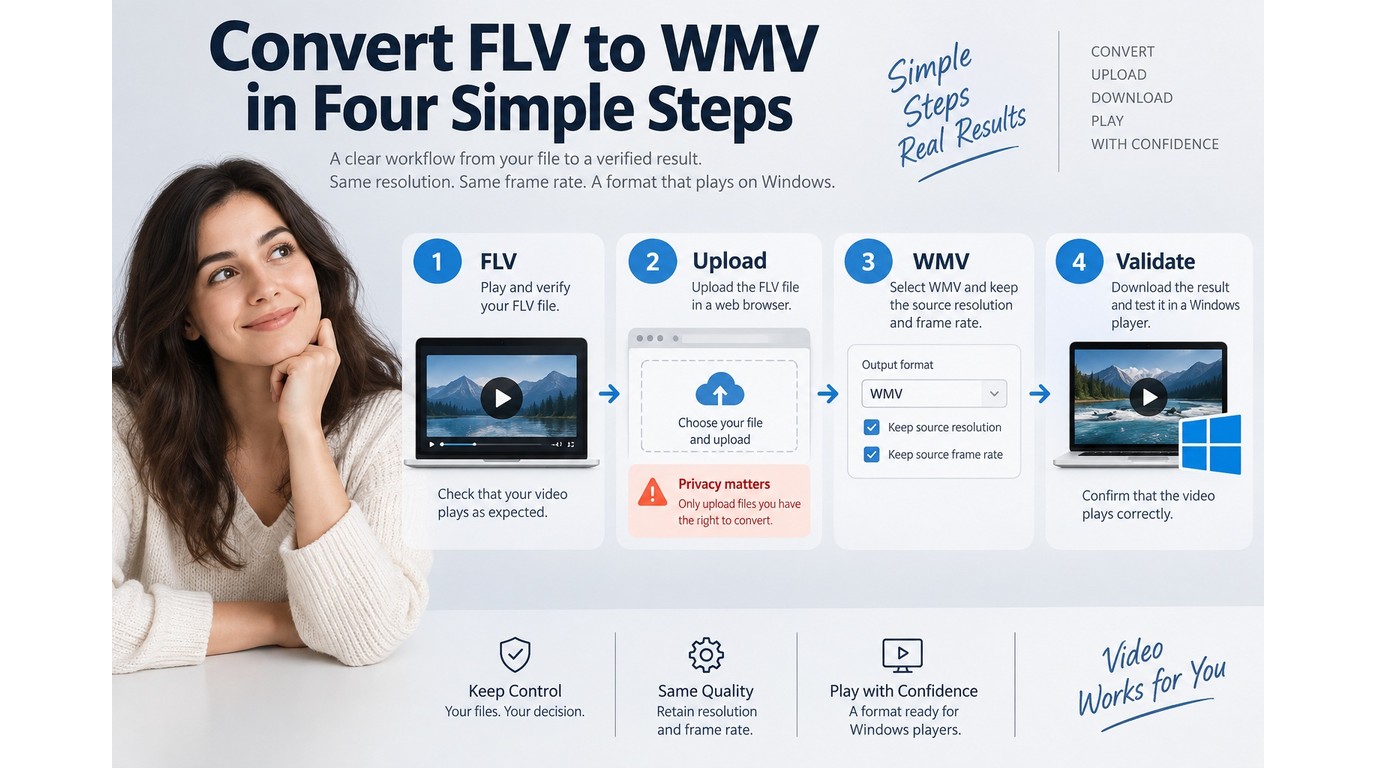
An online FLV-to-WMV converter handles the job in four stages: check the source, upload it, select WMV, then download and validate the result. The browser route is convenient for a single modest file, provided the service accepts its size and exposes the settings your target app needs.
Upload reminder: Review the converter's Terms of Service, privacy policy, and deletion policy before sending a file. Upload only footage you own or are authorized to process.
Before you begin, confirm that the FLV plays locally, your connection is stable, the site accepts the file size, and you have enough disk space for both the source and output.
- Confirm that the FLV plays from start to finish.
- Upload it to a browser converter that offers WMV output.
- Match the source settings, then start conversion.
- Download and inspect the WMV before deleting anything.
Check the File and Connection First
The prerequisites determine whether the online route is worth using. Confirm that the source opens locally, your connection is stable, the site accepts the file size, and you have enough disk space for both the source and output. Keep sensitive client footage, family videos, and unreleased work off a remote service unless its terms and data-handling policy meet your requirements.
Batch limits deserve attention before you start. As one Reddit user in r/techsupport wrote, "I have tested a few webconverters, which only allow around 20 files max and I have googled a lot on how to batch convert the files. Does anyone know a solid way to batchconvert to .FLV?" The direction differs, but the workflow problem is the same: a browser cap can turn a folder job into repeated manual uploads.
Upload, Select WMV, and Review Optional Settings
Use this order so the output stays close to the source:
- Choose the FLV from your computer and wait for the upload to finish.
- Set the output container to WMV.
- Keep the source resolution and aspect ratio unless the target requires another size.
- Match the source frame rate to avoid needless motion conversion.
- Select a compatible video codec and audio option offered by the service.
- Start the conversion and keep the browser tab open until processing finishes.
Bitrate controls how much data is used per second of video. A drastic bitrate cut usually shrinks the file by discarding detail, while a much higher value makes a larger file without recreating missing texture. The sensible default is to stay near the source rather than maximizing every control.
Download and Validate the Converted File
Validation protects you from archiving a broken conversion. Download the WMV to a new filename, then check it before moving or deleting the FLV.
- Play the opening, a middle passage, and the final minute.
- Compare the total duration with the source.
- Check framing, lip sync, and audio presence.
- Open the file in the actual Windows app or device that needs it.
Keep the source until that last check passes. A successful download only proves that a file arrived, not that the complete video was encoded correctly.
How to Convert FLV to WMV Offline with UniFab
UniFab Video Converter accepts FLV input and exports WMV on Windows and macOS. It processes private, large, or batch jobs locally, but requires installation and local storage.
UniFab Video Converter is a $0 Windows and macOS desktop app that converts among 1,000+ formats, including FLV input and WMV output up to 4K, processes batches locally without a watermark, and supports NVIDIA, AMD, and Intel GPU acceleration up to a listed 50×.
Please note: Convert only non-protected material you own or are authorized to process. You are responsible for confirming copyright and other usage permissions before starting a local conversion.
- Add one FLV file or a batch.
- Choose WMV and match the source settings.
- Select a local folder, convert, and inspect the results.
Add One FLV File or a Batch
Install UniFab Video Converter and open the converter module. Add one FLV or a folder that needs the same WMV profile. Leave enough free space for temporary data and completed copies.
Select WMV and Set the Output
Choose WMV as the output and match resolution, aspect ratio, and frame rate to the FLV unless the destination specifies otherwise. UniFab supports output up to 4K, but selecting 4K for a low-resolution FLV enlarges the frame rather than restoring detail.
Use compression or trimming only for a defined size or content goal. Heavy compression trades detail for a smaller file.
Convert Locally and Check the Results
Choose the output folder, start the queue, then compare each WMV with its FLV source. Check the total duration, framing, audio, and lip sync in the target Windows app.
Use it for: private footage, large sources, and batches on Windows or macOS. Not ideal for: a locked-down computer or a one-off file that is already small and safe to upload.
Settings That Preserve Quality and Prevent WMV Errors
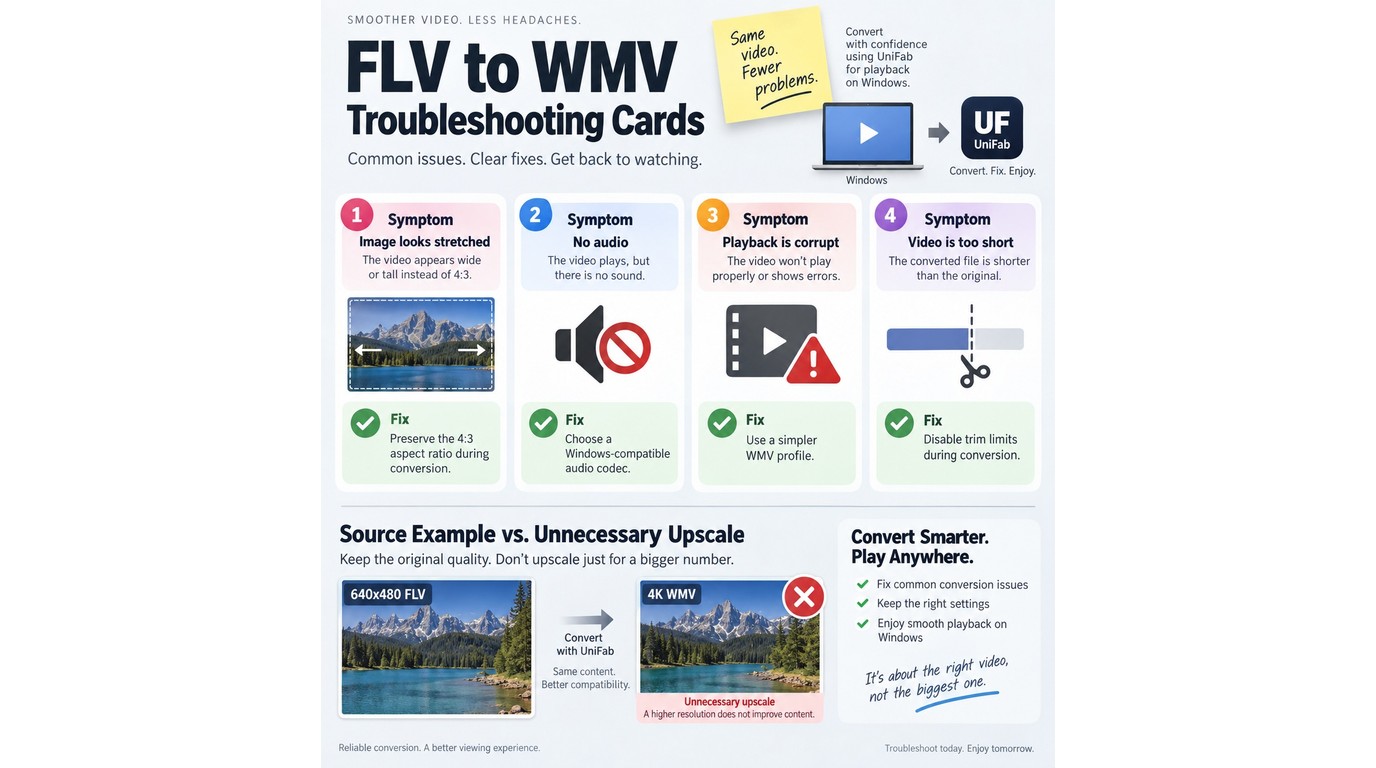
Source-matched resolution, aspect ratio, frame rate, and a sensible bitrate give you the safest WMV output. Higher numbers do not repair an old FLV. When a result is stretched, silent, corrupt, or incomplete, diagnose the matching setting before running the whole file again.
Match Resolution, Aspect Ratio, and Frame Rate
Preservation starts with the source dimensions. Keep a 640×480 FLV at a 4:3 aspect ratio, for example, rather than forcing it into 16:9. If the converter offers a “keep original” option for resolution or frame rate, that is usually the cleanest starting point.
Upscaling is a size change, not recovered evidence. A 4K output setting can create a 3840×2160 frame, but it does not restore texture, faces, or text that the smaller FLV never recorded. I rank source matching above 4K output: turning 640×480 into 3840×2160 adds pixels, not captured detail.
Balance Bitrate, Codec, File Size, and Audio
Bitrate is the amount of video or audio data stored per second, while a codec is the method used to encode and decode that data. Keep the video bitrate near the source for a first pass, and choose an audio codec that the target Windows player or application supports.
A lower bitrate reduces file size but removes detail more aggressively. A higher bitrate reduces compression pressure, yet it cannot improve the source beyond what is already there. If the destination rejects the WMV, a simpler codec and standard stereo audio setting can be more useful than a larger file.
Troubleshoot Stretched, Silent, or Incomplete Output
Treat visible symptoms as setting clues. As one Reddit user in r/techsupport described a failed conversion, "I used VLC to convert them to MP4, but now the video is now stretched out, the audio is sometimes not there; It's corrupted. What can I do?" The container was different, but the checks apply directly to WMV.
- Stretched image: restore the source aspect ratio and disable forced cropping.
- Missing audio: choose another supported audio codec and confirm the FLV has sound.
- Corrupt playback: use a simpler WMV codec profile and test another current player.
- Short duration: verify the FLV is complete, then rerun without trimming or range limits.
- Partial render: free local space, close competing tasks, and retry a short sample first.
The short sample is the useful diagnostic. Converting one minute with the intended settings reveals framing and audio failures before you commit time and storage to the full source.
FLV-to-WMV FAQ
The remaining decisions concern playback support, the target platform, upload privacy, and the limits hidden behind the word “free.” Resolve those points against the app or device that will receive the WMV, not against the filename alone.
Will Windows 11 Play My WMV File?
Answer: Windows 11 can play many WMV files, but the container does not guarantee that every codec inside it is supported by every app. Test the output in the destination player. If it fails there but opens in a player with built-in decoders, encode again with a simpler WMV profile that the destination accepts.
Can I Play the Converted WMV on a Mac?
Answer: A Mac can convert a file to WMV, but macOS playback support is a separate issue. You may need a media player with WMV-compatible decoders. If the file must move regularly between Mac, Windows, phones, and browsers, MP4 is usually the more portable destination.
Should I Choose WMV or MP4 for an Old FLV File?
Answer: Choose WMV when a Windows application or delivery specification asks for it. Choose MP4 when the goal is broad playback across current devices and software. Neither container improves the source by itself; the codec and encoding settings determine the quality and compatibility of the result.
Is It Safe to Upload a Private FLV to an Online Converter?
Answer: Local conversion is the lower-exposure choice for private footage because the file does not need to leave your computer. For an ordinary file, read the service's Terms of Service, privacy policy, retention period, and deletion controls before uploading. Use only material you own or have permission to process.
What Should “Free” Include in an FLV-to-WMV Converter?
Answer: Check the maximum file size, daily or monthly limits, account requirement, batch cap, output watermark, and deletion policy. A $0 browser tool can still restrict one of those areas. A $0 local desktop converter avoids browser upload limits, but it still requires installation and local storage.
The practical choice remains simple. Use an online converter for a small, non-sensitive file when convenience matters most; use a local converter for private, large, or batch work. In either case, keep the FLV until the WMV passes a full playback check.