Quick Start: 3 Paths from Black-and-White Video to Color
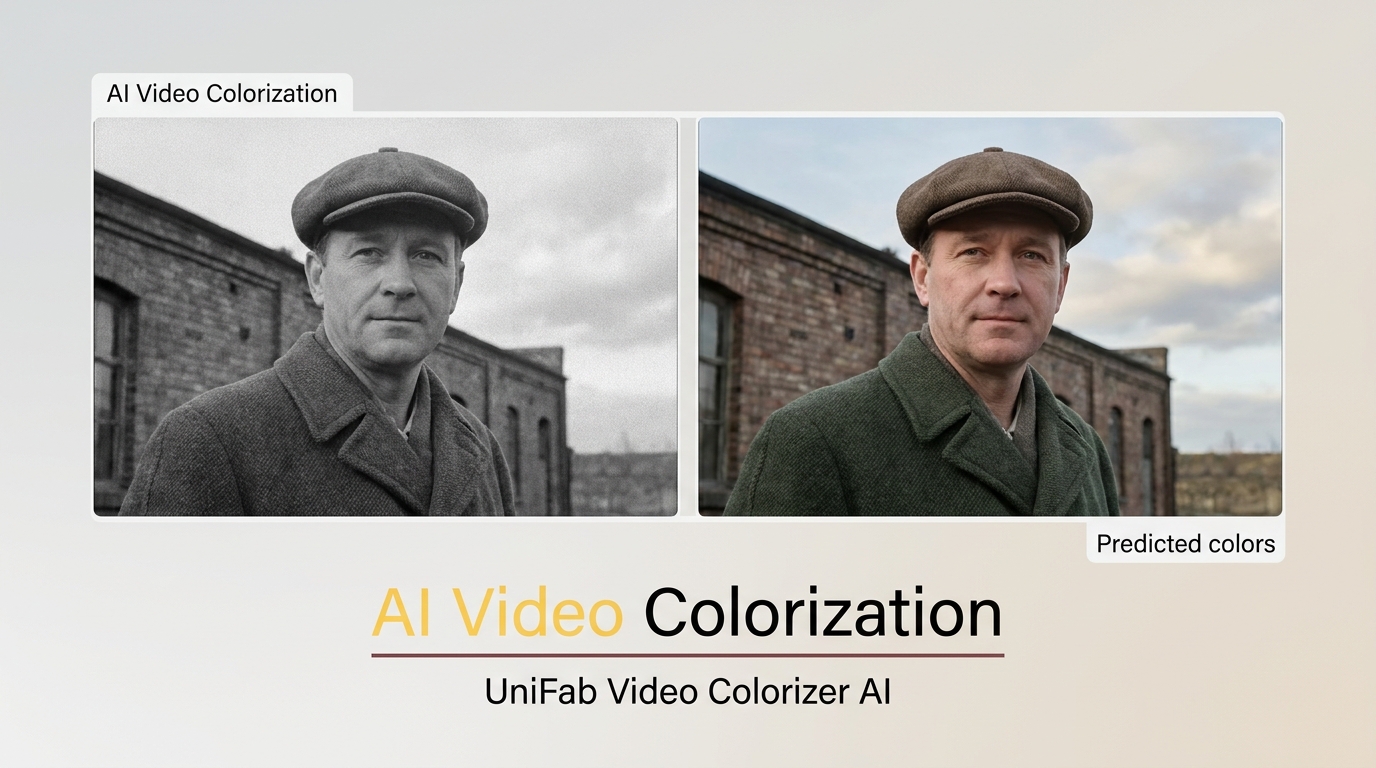
If you want to colorize video online for free, finding only a preview can be frustrating: a free sample of your black and white video does not necessarily include full processing or a downloadable finished video.
- Choose a short MP4 the tool accepts.
- Inspect the preview.
- Check whether full processing and export require payment.
- Save the result your plan includes; check playback, audio, resolution, and watermark.
| Your situation | Workflow to consider |
|---|---|
| One short clip, no install | Kolorize.cc Video (browser, credit-based processing) |
| Family VHS clips saved as digital files | UniFab AI Video Colorizer (desktop) |
| Your footage also needs noise reduction or upscaling | Consider restoration alongside colorization; preview processing settings first |
| You want hands-on guidance with screenshots | Jump to the 3-step UniFab guide below |
AI Predicts Color Rather Than Recovering Original Hues
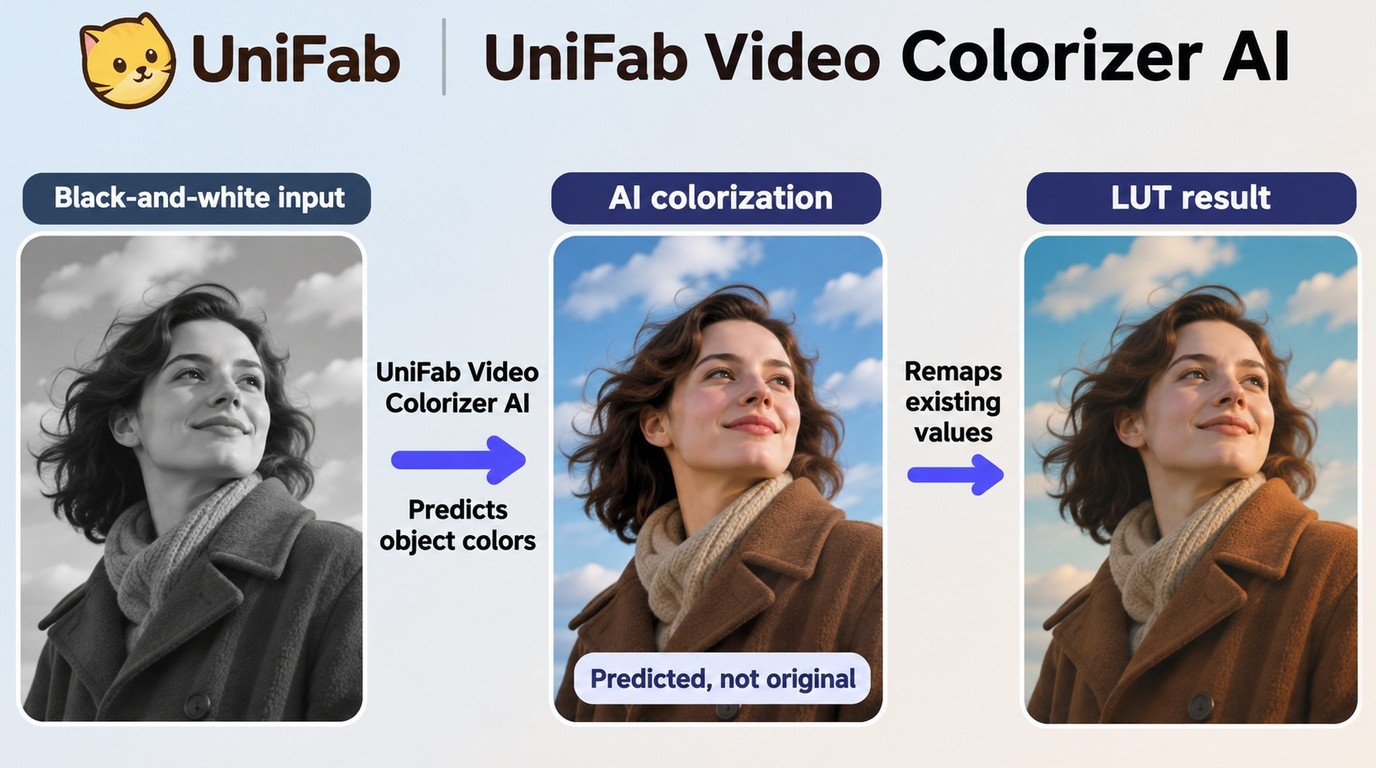
Video colorization adds plausible colors to grayscale footage; AI video color correction adjusts color already present in a video. Tools differ in how they predict skin tones and maintain color across frames, and source quality affects the result.
- Image content: Faces, sky, vegetation, fabric, and lighting provide clues for plausible colors.
- Color prediction: AI assigns hues based on those visual clues, rather than recovering a record of the original colors.
- Frame-to-frame consistency: Check whether faces, clothing, and backgrounds keep stable colors during movement and scene changes.
- Video export: The colorized frames are encoded into a playable video; check the saved file as well as the preview.
A lookup table (LUT) remaps existing image values; it does not infer which grayscale objects should have different colors. AI colorization can assign different hues to a coat and the sky in the same shot, but the predicted colors still need a visual check.
Checks Before Colorizing Black-and-White Video
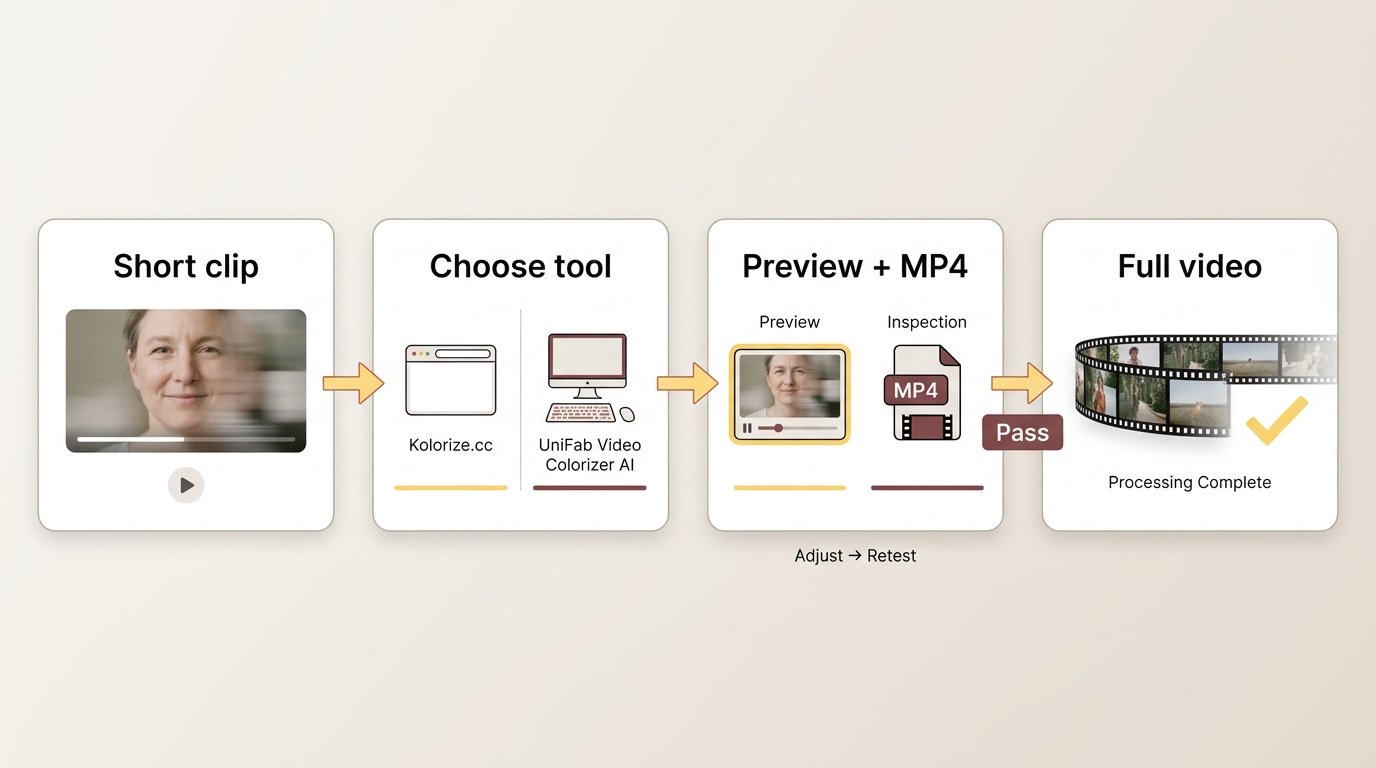
Before processing a full video, choose a representative segment, decide whether to use a browser or desktop workflow, and check both the preview and the saved output.
Choose a Representative Clip
Choose a short segment with faces, movement, and changes in lighting, such as an indoor conversation, an outdoor street scene, and a close-up portrait. Use a high-quality digital source where possible so compression artifacts do not obscure details the colorizer needs. Digitize tapes before importing them; for film colorization, start with a high-quality digital transfer.
Local or Browser Processing
- Browser workflow: Upload a compatible video to the service for remote processing; upload and download time are part of the job.
- Desktop workflow: Open a local video file in the installed app and use hardware supported by that app.
- Opening a local file does not by itself mean processing stays on your computer. Processing location and data retention depend on the tool and its settings.
Preview and Export Checks
| # | Check | What to inspect |
|---|---|---|
| 1 | Skin-tone naturalness | Faces in highlights and shadows; unwanted orange or blue casts |
| 2 | Object-color consistency across frames | Flicker or shifting colors during movement and scene changes |
| 3 | Processing workflow | Upload, queue, rendering and download stages |
| 4 | Free-access terms | Preview versus full processing; export access and watermark |
| 5 | Saved-file quality | Playback, original audio, resolution and file format |
Colorize Video Online Free vs. Desktop AI Software
A common 2026 question: do you actually need to install a desktop app to convert a black and white video to color? The honest answer is "it depends on what you are starting from."
A free preview is not the same as a full exported video. A 30-second clip or an eight-minute family recording still needs full-processing and download access, even if a short sample is free.
The third-party access terms and offers discussed here are as of November 2026. Sources: Magic Hour, Kolorize, HDconvert, Ai4Video, HitPaw VikPea, and AVCLabs official product or purchase pages; EditingTools and Pixelift processing-order guidance.
- Magic Hour: Browser-based colorization with three daily previews of up to five seconds at 480p, without signup. Full processing and download access are separate.
- Kolorize.cc: Browser-based colorization billed at one credit per 160 video frames. Downloading the processed result carries no additional charge.
- HDconvert: A browser workflow for uploading grayscale footage, choosing settings and downloading the colorized result.
- Ai4Video.co: Cloud GPU colorization with batch processing. Batch support does not establish a free full-video export allowance.
- UniFab Video Colorizer AI: A Windows and macOS desktop workflow for opening video files and applying AI colorization, with a free trial available.
- HitPaw VikPea: Desktop software for Windows and macOS with a Colorize Model.
- AVCLabs Video Enhancer AI: Desktop software for Windows and macOS with Bright and Soft colorization models.
For one family clip, I would start with a short browser preview to judge the colors, then establish the cost of a usable full export. For a digitized tape collection, a desktop workflow is worth considering for working with source files on your computer.
4 Browser Colorizers for Black-and-White Video
These browser-based tools offer ways to add color to black-and-white video without installing desktop software. Preview and full-processing access differ by service; the fourth entry covers EditingTools.io's announced colorizer retirement rather than an ongoing recommendation.
1. Kolorize.cc
Kolorize.cc is a web-based AI video colorizer that charges one credit per 160 video frames, with no additional charge to download the processed result. You access it through a browser, so there’s no desktop software installation required. The platform focuses on simplicity — upload a video, let the AI process it, and download the colorized result.
What to Check Before Processing a Full Video
Choose a short representative segment and note its source properties before processing:
- File format and clip length
- File size
- Source resolution
- Facial close-ups and motion scenes
Allow for uploading, processing and downloading as separate stages. Inspect any available preview, then open the saved result to judge the finished video rather than relying on the processing screen alone.
Inspect the colorized result for distortions, noise and jitter, especially around moving faces and objects. Compare the saved file's resolution with the source, and confirm that playback and audio work before processing the rest of your footage.
Pros and Cons of Kolorize.cc
The download link expires automatically in 3 days.
Offers a free version to preview the colored result and download it to share with others.
Displays the complete information of the source video content.
Allows you to access previously colorized videos with a single click.
Works on all video types, be it historical documentaries, classic films, or cultural heritage videos.
The downloaded colorized result has a ‘Kolorize Sample’ watermark.
Lengthy processing time for longer-duration videos.
Requires purchasing credits to download the full video in 4K quality.
Does not process or color multiple videos at once.
Cannot play or trim and crop the video parts manually.
Does not deliver promised results (said 768 x 768 but generated 768 x 576 resolution).
Uses an expensive credit-based pricing that can surpass your budget to colorize multiple videos.
Works only with an active/stable internet connection to operate smoothly across all platforms and devices.
My Experience with Kolorize.cc's Video Colorization
Kolorize.cc can turn black and white video into color online free, but in my testing, it prioritizes accessibility over quality preservation. If you just want to preview how an old clip might look in color, it’s convenient. If you want to preserve original resolution and fine detail, the compromises become noticeable.
2. HDconvert
HDconvert is a web-based tool for adding color to black-and-white video without downloading desktop software. Upload your video and choose your settings, then inspect the result for natural-looking colors and retained detail.
Preview and Saved-File Checks
Start with a short black-and-white clip that includes faces and changes in lighting. Considering the processing time, it can vary for different users depending on the extent of manual adjustments. After processing, open the downloaded video and check playback, audio, resolution and any watermark.
Inspect skin tones and neutral objects for unwanted orange, blue or yellow tints. Watch moving scenes as well as still frames to see whether warm and cool colors remain consistent.
Pros and Cons of HDconvert
Fast, convenient browser-based use.
No installation needed.
Affordable short-term plans.
Colors may look dull or grayish.
Limited accuracy in complex scenes.
File size restrictions.
My Experience with HDconvert's Video Colorization
HDconvert can technically turn black and white video into color online free. However, based on my test, the result leaned more toward “quick preview” quality rather than refined restoration.
3. Ai4Video.co
Ai4Video.co offers cloud GPU batch colorization for black-and-white video. It saves users from the hassle of a formal software download by enabling them to perform operations in the cloud. The browser workflow requires no software or plug-ins. Batch processing support is separate from any free preview or full-export allowance. Start with a short clip to check whether the colors suit your footage.
Preview and Download Checks
Inspect a representative clip before processing a batch. Allow for upload, cloud processing and download stages, then open the saved file to check playback and audio.
Check for imbalanced saturation and lighting, particularly an orange cast across faces and backgrounds. Watch moving scenes as well as still frames to judge whether the colors remain consistent.
Pros and Cons of Ai4video.co
Supports several formats, such as MP4, WebM, MOV, AVI, and GIF formats.
Offers several output parameters to get a tailored output.
Displays the preview before downloading.
No watermarks on the colorized output.
Does not alter the resolution or cut the video on its own.
Displays all the earlier tasks (from the last 7 days).
Does not require video editing skills to colorize the videos.
Colorization can’t proceed without signing up and receiving credits.
Restricts the maximum file size to 2GB.
The free version offers only 20 credits.
Lengthy processing time, took approximately 60 seconds to generate an 11-second colorized video.
Lacks advanced AI technology, requiring manual effort and intervention.
Requires a stable internet connection to colorize black and white video online free.
The output quality does not match the quality of specialized software.
Struggles with handling complex video scenes and intricate details effectively.
My Experience with Ai4video.co's Video Colorization
Among the online tools I tested, Ai4video.co felt more stable than most. If your goal is to colorize video online free while keeping original resolution, this platform performs better than many browser-based alternatives. However, based on my test clip, color realism and tonal balance still fell slightly short when compared to desktop AI processing.
4. EditingTools.io: Colorizer Retirement Announced for 2026
EditingTools.io has announced that its current video-colorizing model service will be discontinued by the end of 2026. For a new project, use the browser-preview workflow above or the desktop options below rather than building a continuing workflow around this model.
Processing Credits
Processing costs depend on clip length and the selected resolution. Calculate the credits for the intended output before submitting a full video.
Standard-resolution processing costs one AI credit per second; high-resolution processing costs two. A six-second clip therefore requires six credits at standard resolution or twelve at high resolution. After saving a result, check its resolution, playback, audio and watermark status.
Pros and Cons of editingtools.io
Supports video formats of MOV, MP4, MPEG, AVI, WMA, M4A, and MXF.
Drag and drop functionality to select the desired black and white video file to colorize.
Offers bulk video processing.
The colorized output does not have a watermark.
Besides video colorization, editing.io offers other tools for photo customization and audio editing.
Only colorize real photos and film footage, doesn't work with videos of drawings and animations.
Limits the video file size to 2GB and a 20-minute input file upload size.
Requires signing up and creating an account to proceed with colorization.
Very expensive subscription fee, and the pricing lacks transparency, as you're required to contact the company for a customized quote.
Lengthy processing time (took 2.5 minutes to process a 5-second clip).
No preview available before downloading the final result.
The colored quality is nowhere near pro-grade software.
My Experience with editingtools.io's Video Colorization
editingtools.io can turn black and white video into color without watermarking the output, which is rare among online platforms. In my test, it preserved resolution and produced reasonably natural tones. However, slow processing speed and credit-based limits make it less practical for longer videos. If your priority is watermark-free output and you don’t mind waiting, it’s a usable option. If speed and scalability matter, limitations become more noticeable.
Free Online Previews Have Tool-Specific Limits
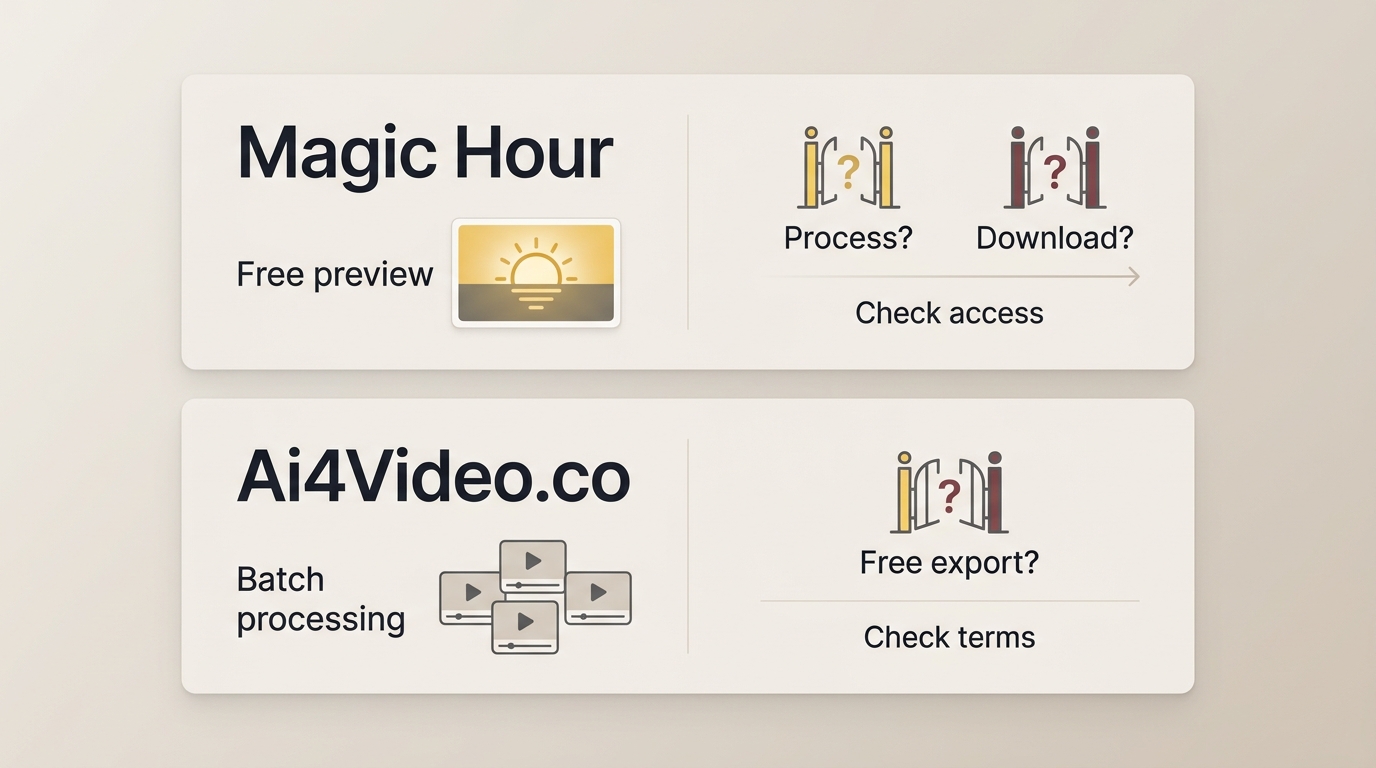
A free preview does not necessarily include processing and downloading your full video. Match the tool's access terms to the finished clip you need, including its length and output resolution.
- Preview access: Magic Hour offers three daily previews of up to five seconds without signup. That preview allowance does not include a full-length export.
- Output resolution: Magic Hour's preview is 480p. Preview resolution and the resolution available through full processing are separate terms.
- Privacy: Your footage uploads to a third-party server. For family or sensitive material, this is a real consideration.
- Batch limits: Ai4Video advertises cloud GPU batch colorization; batch support is separate from the free-export allowance.
For a family archive, I recommend checking a saved short clip before committing to full processing. A desktop workflow is another option for working with local source files; choose it for the workflow and output controls you need, not an assumed speed advantage.
3 Desktop Options for Black-and-White Video
For family archives or longer clips, these three desktop options offer an installed-software workflow for opening and processing your video files. For the deepest tool roundup beyond colorization, see our colorize video software comparison.
1. UniFab Video Colorizer AI
UniFab AI Video Colorizer adds color to black-and-white video on Windows and macOS. Its Multi-Scene Colorization Mode detects scene changes and selects reference frames to guide colorization. Four customizable color styles let you adjust the look before processing the full video.
- Supported Platforms: Windows & macOS
Professional AI Video Colorizer
- One-Click Colorization for Black and White Videos
- Multi-Scene Video Colorization with Four Color Styles
- Natural Tones and Perfectly Uniform Colors
- 30-day free trial with no watermark or limitations
Video Colorizer AI
Professional AI Video Colorizer
- One-Click Colorization for Black and White Videos
- Multi-Scene Video Colorization with Four Color Styles
- Natural Tones and Perfectly Uniform Colors
- 30-day free trial with no watermark or limitations
Video Colorizer AI
For more details about UniFab Video Colorizer AI, watch this YouTube video:
Key Features of UniFab Video Colorizer
- Automatically add color with scene detection and reference-frame selection.
- Offers 4 unique color styles to fit different creative needs.
- Preview multiple results before applying to the full video.
How Well It Works on Black and White Video to Color?
UniFab requires a desktop installation rather than a browser-only workflow; use the official product page above to get the installer. AI-generated colors are plausible interpretations, not a recovery of the original hues; use the trial preview to compare skin tones, moving objects and scene transitions against your reference material.
Pros and Cons of UniFab
High-quality, lifelike results.
Multi-Scene Colorization avoids flickering.
Easy to use, even for beginners.
Flexible color styles for different projects.
Requires installation.
My Experience with UniFab's Video Colorization
UniFab is the most reliable solution I’ve tested because it finally solves the "flicker" problem that ruins most AI colorization. The Multi-Scene Colorization is a total game-changer—the AI actually recognizes camera cuts and recalibrates the palette instantly, so the colors don't "jump" or bleed between shots. Everything looks incredibly natural and consistent, with smooth, stable tones that make old footage feel like it was natively shot in color. It’s the perfect balance for anyone who wants studio-grade results without the headache of complex manual editing.
2. HitPaw VikPea
HitPaw VikPea is another popular tool to convert black and white video to color. With its built-in Colorize Model, you can bring old footage back to life in just one click, making it an excellent choice for beginners who value simplicity.
- Supported Platforms: Windows & macOS
- Price: Parallel perpetual promotional offers of $284.69 and $350.39 for a Windows individual license, excluding tax.
How Well It Works on Black and White to Color Video?
HitPaw’s colorization feature enhances black-and-white videos by adding color. In the preview, check skin tones, fine details, and overall sharpness against the source. Watch complex scenes in motion to check whether colors remain consistent across frames.
Pros & Cons of HitPaw VikPea
Extremely easy to use, no learning curve.
One-click operation saves time.
Works on both Windows and macOS.
Higher price compared to alternatives.
Colors may look less vibrant in complex scenes.
Some details may appear blurry.
My Experience with HitPaw's Video Colorization
HitPaw is best suited for beginners who want a quick way to turn black and white video into color without dealing with too many settings. However, professionals may find the results less refined compared to UniFab.
3. AVCLabs Video Enhancer AI
AVCLabs Video Enhancer AI is another strong option to turn black and white video into color. Unlike simpler tools, it offers two different AI models—Bright and Soft—giving users more flexibility depending on whether they prefer vivid or natural results.
- Supported Platforms: Windows & macOS
- Price: $149.90 perpetual promotional offer for Windows on one PC; $299.90 reference price.
How Well It Works on Black and White Video to Color?
Compare the Bright and Soft previews on the same scene. Check faces for natural-looking skin tones, inspect object boundaries for color bleeding, and compare facial detail with the source. Watch for saturation differences between the subject and background before processing the full clip.
Pros and Cons of AVCLabs
Offers two AI models for different looks.
Flexible customization for advanced users.
Skin tones can appear oversaturated.
Color distribution may be uneven.
Faces may look blurry in some cases.
My Experience with AVCLabs's Video Colorization
AVCLabs is best for users who want control and flexibility over the colorization process. While it provides more options than HitPaw, the results are not as consistently natural as UniFab.
For desktop users, UniFab offers customizable color styles, HitPaw VikPea includes a Colorize Model, and AVCLabs offers Bright and Soft modes. Depending on your needs, each tool can help you convert black and white video to color.
Add Color with UniFab in 3 Steps
Once you have UniFab installed, converting a black and white video to color takes three clicks plus processing time. The screenshots below walk through the exact path on the 2026 build.
30-day free trial for full feature, without watermark!
Import B&W Video
Open UniFab and choose "Video Colorizer AI" module. Import black-and-white films by clicking or dragging them in.
Capture and Generate
Click "Capture", drag the video progress bar to pick a reference frame. Use it to test 4 color styles. Click "Generate", UniFab will auto - create 4 styles for the frame. Then choose your favorite one.
Start to Colorize
Once you select the style, adjust the output parameters of the video and click on the “Start” option at the right below. The entire video will be colored according to your selected coloring style.
Process only footage you own or are authorized to use for lawful personal backup and restoration, and do not redistribute it without permission. You are responsible for confirming your content rights and following applicable laws and each service’s terms; specific requirements depend on your use case.
Preparation order depends on the tool: EditingTools recommends colorizing before upscaling, while Pixelift recommends denoising before colorization and upscaling afterward. Use a representative preview to choose processing settings for noisy or low-resolution footage.
Choose a Workflow for Your Black-and-White Video
A short browser preview can help you judge colorization, but processing and downloading the full video are separate access questions. Choose a workflow that delivers the finished file you need:
- Browser preview: Start with a short clip when you cannot install software. With Kolorize.cc, processing uses credits; downloading the processed result carries no additional charge.
- Desktop colorization: Start UniFab Video Colorizer AI’s free trial to explore its color styles with your own footage.
- Family archives: Use a representative scene to choose your colorization settings before applying them to longer home videos.
For readers digitizing a parent's home-video shelf, I recommend checking one saved result against the source for color consistency, playback, audio, resolution, and watermark before processing the archive. Start with UniFab’s free trial for a desktop workflow, or use a browser preview if you need a no-install option.
FAQs About Black-and-White Video Colorization
Can I colorize a video without signing up?
Yes. Magic Hour offers three daily previews of up to five seconds at 480p without signup. Full-video processing and download access are separate from the preview allowance. If you save a result, check it for a watermark before using it.
Do I have to pay to colorize a long video?
Check how processing is billed and whether your purchase includes downloading the finished video. Kolorize charges one credit per 160 video frames, with no additional download charge after processing. An eight-minute clip at 30 frames per second contains 14,400 frames, requiring 90 processing credits at that rate. A short free preview does not include a free full-length export.
How long does it take to colorize a 5-minute video?
A five-minute video at 30 frames per second contains 9,000 frames. Processing time depends on the hardware, source resolution and selected settings. Browser tools also require time for uploading, waiting in a processing queue and downloading. Process a short representative segment to estimate the full job, allowing for cloud queue times to vary.
Can I colorize video on my iPhone or Android phone?
Yes, a compatible browser-based colorizer can process video on a remote server without a desktop installation or an APK. Start with a short clip in a supported format and upload it through your phone's browser. Preview access and full-video download access may differ. After downloading an available result, open it in Files on iPhone or your file manager on Android and check playback and audio.
Are AI-colorized historical videos accurate?
AI colorization produces plausible colors, not the original colors. It assigns hues based on visual clues rather than recovering a record of the original colors.
Is it safe to upload a personal video to an online colorizer?
It depends on the tool's privacy policy. An online colorizer sends your footage to a remote service, whose retention and deletion terms apply. For sensitive family footage, consider a desktop workflow such as UniFab Video Colorizer AI that opens local source files. Download the installer from UniFab's official website. Opening a local file does not by itself mean processing stays on your device; review the service's processing and data-retention terms before selecting sensitive footage.