A video enhancer app should turn a blurry phone clip into a cleaner video you can actually save. Choose a mobile video clarity app for short social edits, or a local desktop workflow for private footage, longer projects, and more control over saved exports.
Quick Picks by Use Case
- Best for local desktop workflows: UniFab All-In-One, for Windows and Mac projects that need batch processing or controlled exports.
- Best for quick social edits: CapCut, for short mobile-first projects.
- Best for face-focused clips: Remini video enhancer, when portrait restoration is the priority.
- Best for multi-layer editing: KineMaster, for creators who need a mobile timeline rather than a one-tap enhancer.
- Best for creative mobile edits: Videoleap, for projects built around effects and compositing.
- Best for one-tap repair: Utool, for users who prefer automatic adjustments.
📺 Prefer a visual breakdown? Watch our comparison, 6 Best Video Enhancer Apps for Android, iPhone, and PC in 2026, below in about 90 seconds:
All-in-one solution for all your video enhancement needs
- 30-day free trial with no watermark or limitations
- AI-powered tools for automatic video enhancement
- Ultra-fast processing with GPU acceleration
- Easy-to-use interface for seamless experience
UniFab All-In-One
All-in-one solution for all your video enhancement needs
- 30-day free trial with no watermark or limitations
- AI-powered tools for automatic video enhancement
- Ultra-fast processing with GPU acceleration
- Easy-to-use interface for seamless experience
UniFab All-In-One for Mac
Video Enhancer App Preview Checklist
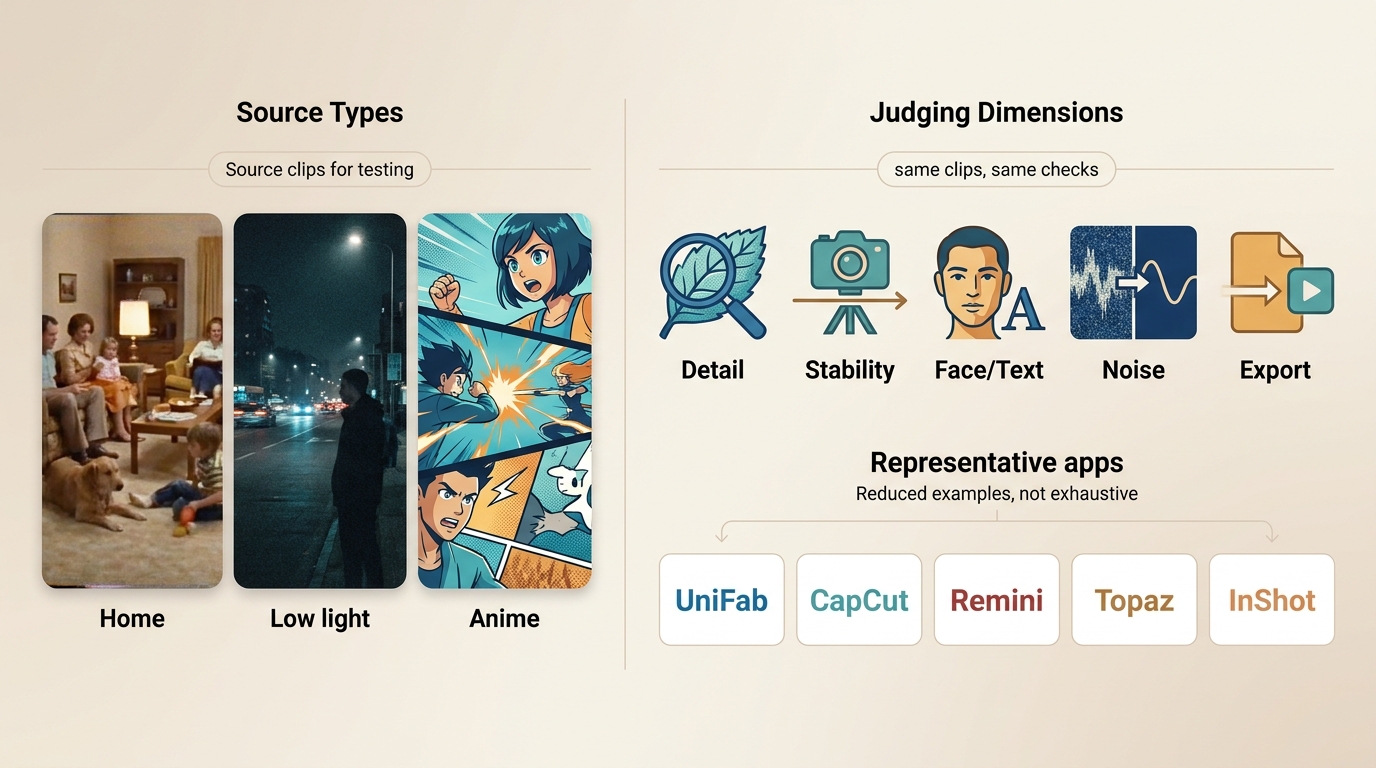
To compare video enhancer apps fairly, use the same source material across each tool: a low-resolution home video, a low-light phone clip, and an animation clip. Judge detail recovery, temporal stability, face and text handling, noise control, export behavior, and whether the app saves a usable new file. Desktop and mobile tools should be assessed on the devices they are designed for, not as if they share the same hardware limits.
What matters most: Resolution alone is not a useful score. A cleaner-looking frame can still fail if motion flickers, faces become artificial, or the app blocks the export you need. I prioritize natural motion and a usable saved export over a larger resolution label.
What a Video Enhancer App Does
A video quality enhancer can upscale footage, reduce noise, sharpen edges, stabilize motion, or adjust color. Upscaling increases output dimensions; it cannot reconstruct exact missing source detail.
Key Video Enhancer App Features
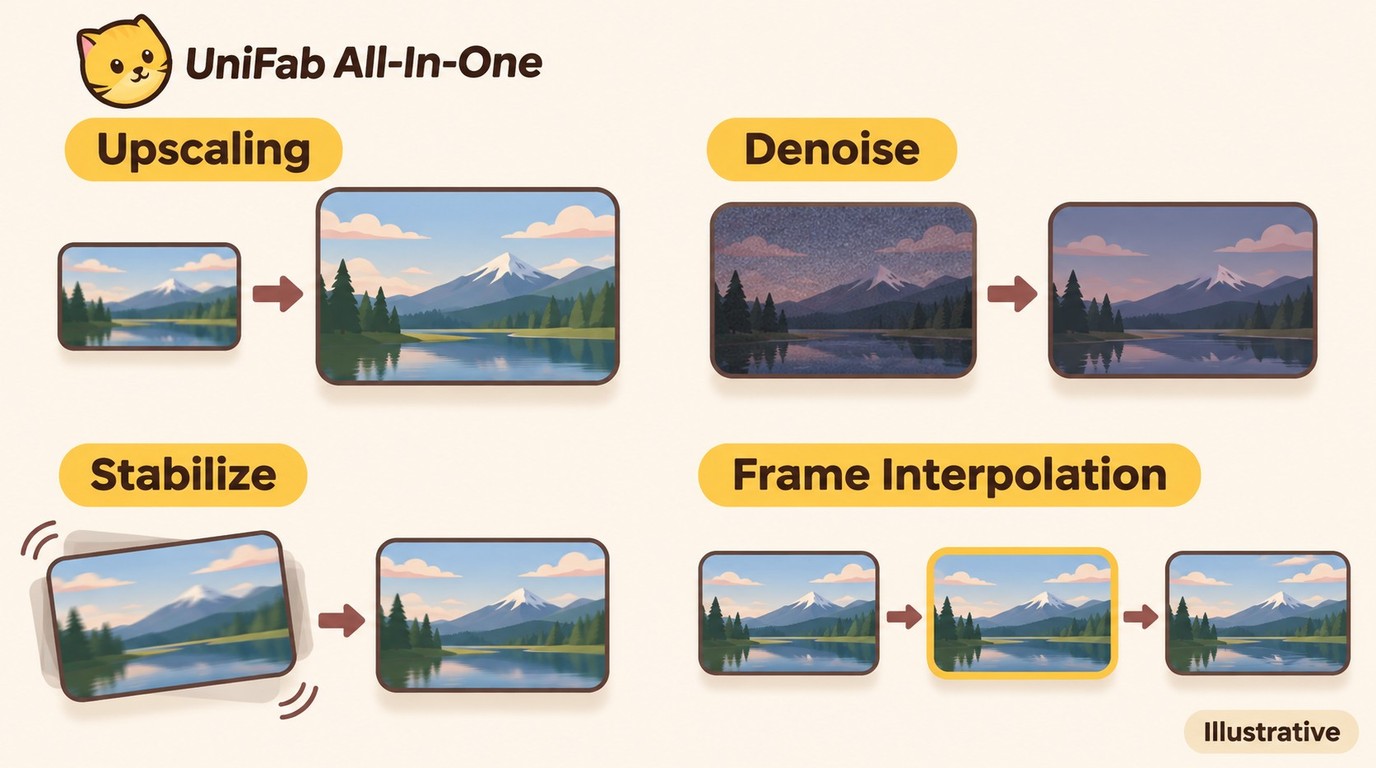
- Upscaling: Increases output dimensions.
- Noise reduction: Reduces visible grain.
- Color correction: Adjusts brightness and color.
- Stabilization: Reduces visible camera shake.
- Frame interpolation: Generates intermediate frames.
- Face enhancement: Refines facial details.
- HDR conversion: Converts SDR footage for HDR delivery.
For an example of a local desktop workflow, see UniFab All-In-One in the desktop section below.
Takeaway: Before choosing an app, confirm three practical details: the export format, any watermark or usage limit, and whether the footage is processed locally, on-device, or in the cloud.
AI Video Enhancer Apps: From Import to Export
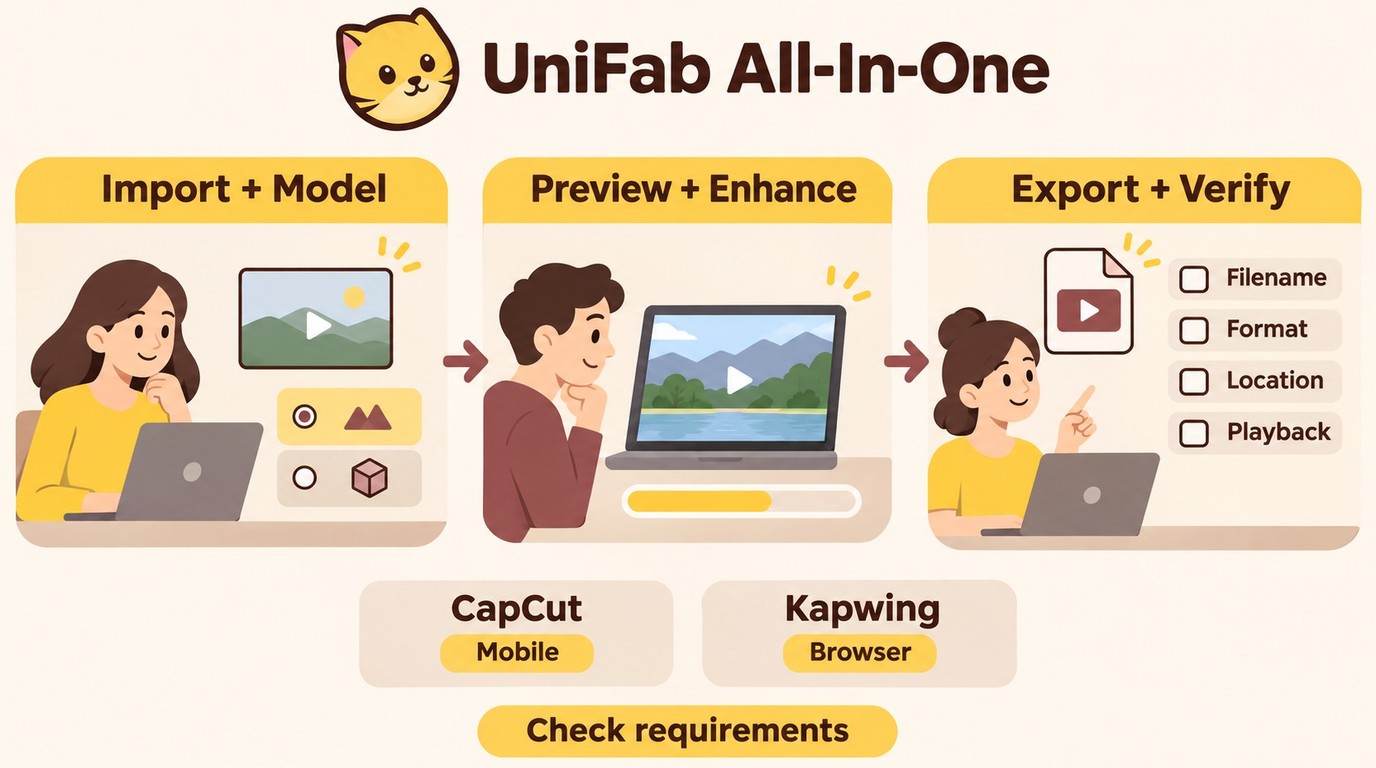
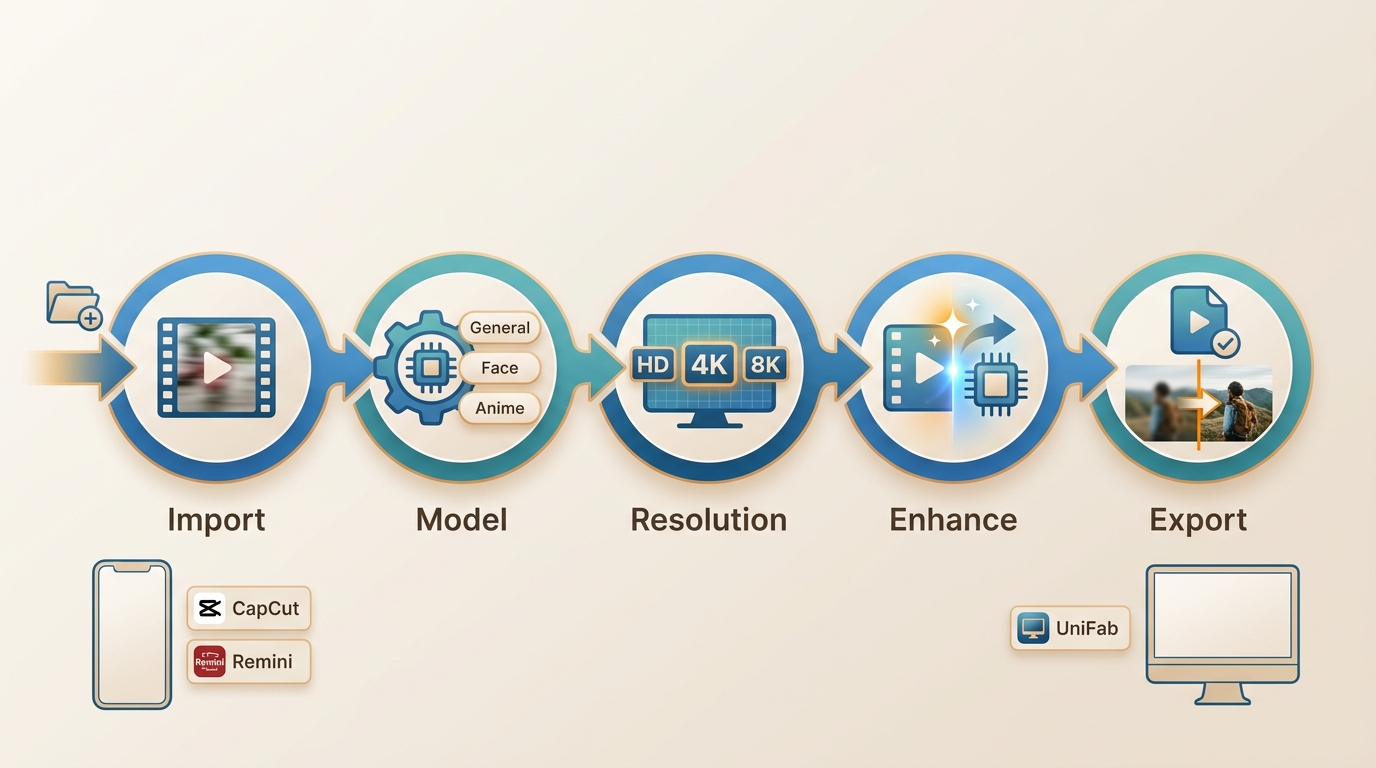
AI video enhancer apps analyze frames with a trained model and generate an enhanced output. The exact controls differ, but most follow a similar workflow:
- Import your low-quality or blurry video
- Select an AI model, such as General, Face, Anime, or Restoration
- Choose a supported target resolution and preview a representative segment
- Let the app analyze and enhance the footage; processing time depends on the device, source file, and selected settings
- Export to a new filename, play the saved file, and compare before/after results
Mobile and online workflow: If the selected app accepts MP4, import or upload the clip, choose enhancement settings, preview, then process and save a new file. Confirm the saved format and destination; browser uploads and local desktop processing handle footage differently.
Why Use AI Video Enhancer Apps
Video now dominates every platform — social media, marketing, education, and entertainment. Yet plenty of clips still suffer from blur, noise, poor lighting, or low resolution, often because they were captured on older phones or compressed by chat apps.
Modern AI-powered video enhancer apps can analyze frames, sharpen edges, reduce visible noise, and adjust color for a cleaner result. They can shorten routine editing, but they cannot recreate detail that was never captured, and aggressive settings can make texture or motion look less natural.
Takeaway: AI enhancement is most useful when it reduces routine cleanup without introducing flicker, oversharpening, or a restrictive export rule.
Types of Video Enhancer Apps
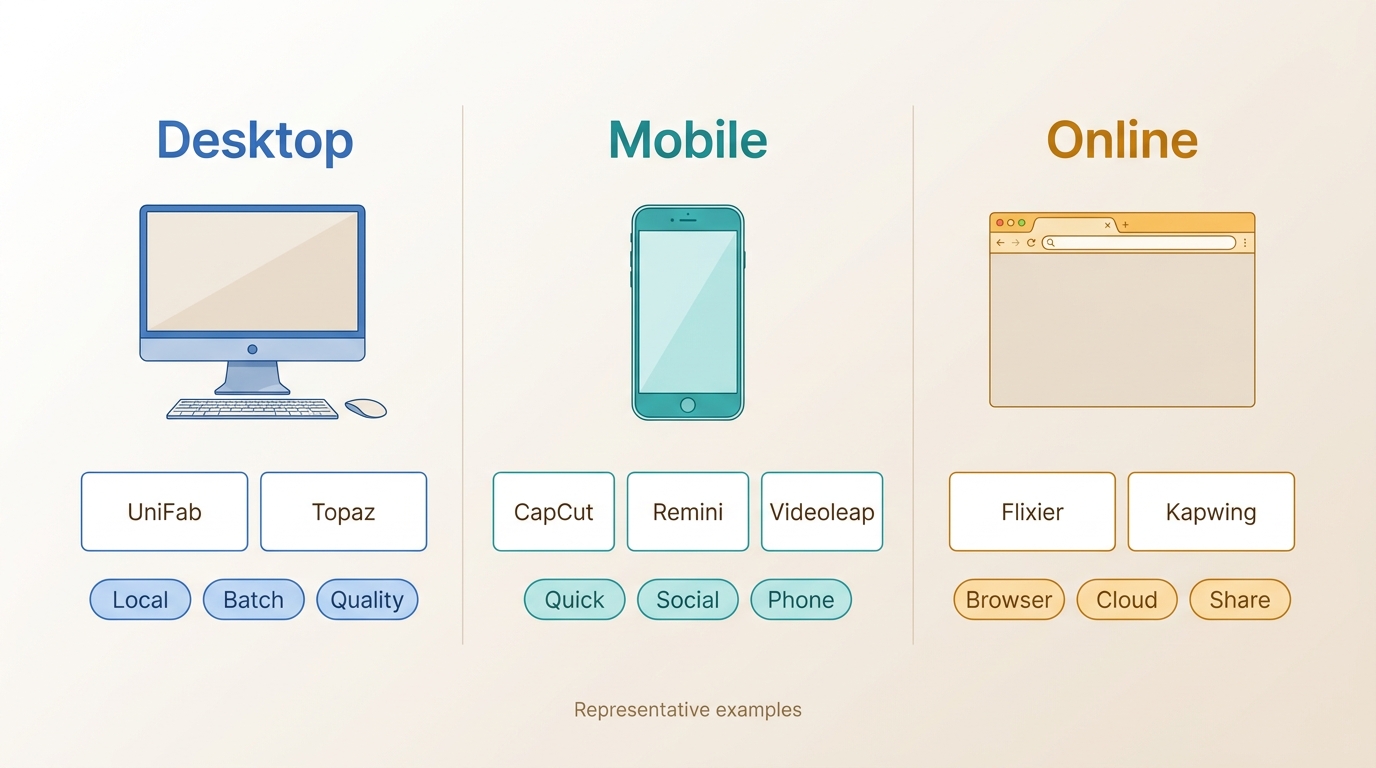
Video enhancement is available through desktop software, mobile apps, and online tools. Each category makes a different trade-off between control, convenience, file handling, and privacy.
Here is how they compare in 2026:
| Type | Description | Ideal For | Examples |
|---|---|---|---|
| Desktop Software | Typically offers local processing, more export control, and a workflow better suited to batches or longer files. | Long-form projects, sensitive footage, and users who want more control. | UniFab All-In-One, Topaz Video AI |
| Mobile Apps | Designed for quick edits and convenient sharing, but export rules, storage demands, and processing limits vary by app. | Short clips and social media workflows. | CapCut, KineMaster, Videoleap, Remini |
| Online Tools | Browser-based tools generally require an upload, so file-size limits and cloud handling should be checked before use. | Small, non-sensitive projects and occasional fixes. | Flixier, Kapwing |
Best App Type by Workflow
The best video enhancer app depends on your goal.
- For local desktop processing, batch work, and controlled exports, consider UniFab All-In-One.
- For short mobile and social projects, start with CapCut or another app whose export rules fit your project.
- For occasional browser-based fixes, use an online tool only after reviewing its upload and download limits.
The desktop example below is relevant to Windows users and to readers comparing an AI video enhancer for Mac, while the following mobile picks focus on shorter, phone-first workflows.
Takeaway: Use desktop tools for local or batch workflows, mobile apps for quick phone edits, and browser tools for lightweight temporary tasks after checking their upload and download rules.
Desktop Video Enhancement With Local Processing
UniFab All-In-One is a Windows and Mac desktop option for projects that need local processing, batch handling, or controlled saved exports. It supports MP4 and MKV output, batch processing, SDR-to-HDR10 conversion, and output up to 16K.
Use a short preview to inspect moving edges, faces, fine text, and darker scenes before committing to a full export. This desktop workflow is not a phone-based editing workflow, and a simple brightness adjustment or trim does not require a full enhancement process.
Verdict: UniFab is a practical option for longer local projects and batch queues, while short phone edits and basic adjustments can stay in a simpler workflow.
Best AI Video Enhancer Apps for Android and iPhone
Mobile AI video enhancer apps are most useful for short phone clips that need editing and sharing in the same workflow. Check the current app listing, export options, and saved-file rules before choosing one for a larger project.
These mobile video enhancer apps serve different needs, from quick social edits to face-focused restoration and timeline-based editing. App-store policies, export options, and data handling can change, so treat the app's current listing as part of the selection decision.
Also considered: Wink, Vmake, YouCam Video, and PowerDirector are recurring options in this category. They are worth comparing when their editing style or current app-store terms better match your workflow.
1. CapCut: Fast Social Video Fixes
- Platform: Android & iOS (also Windows/macOS)
- Access: Availability and feature access vary by platform and account.
- Best For: Beginners and social media creators — especially TikTok users
Use CapCut for short, social-first edits when its current account access and export rules fit the project. Preview a clip with movement and check the saved file before committing to a full export.
A multi-layer timeline and keyframe animation can be useful when a social edit needs more than a one-tap adjustment. Check the current access and export path before relying on a phone workflow for a larger project.
Free and packed with powerful tools.
Supports HD and 4K video upscaling.
Easy to use for beginners.
Direct TikTok integration for quick sharing.
Interface may feel overwhelming at first due to abundant features.
Some advanced features add a watermark unless you upgrade.
Limited options for manual adjustment of enhancement settings.
Best for: Short social-ready edits. Not ideal for: projects that need detailed local-processing controls or long batch workflows.
2. Utool: One-Tap Video Repair
- Platform: Android; the separate iOS listing is published by APPBYTE.
- Access on Android: Free to install, with ads and in-app purchases.
- Android developer: Music Video Editor with Effects & Slideshow.
- Listing activity: 10M+ downloads; Google Play listing updated November 4, 2026.
- Best For: Users who want one-tap automatic AI repair
Utool is a user-friendly video enhancer app focused on fast, AI-driven video repair. It excels at improving low-resolution or noisy footage through automatic noise reduction, sharpening, and color adjustment, with saved Android exports up to 1080p. The app is especially suitable for restoring old or imperfect videos without complex editing.
Besides video enhancement, Utool offers basic editing features like trimming and adding subtitles, making it a convenient all-in-one tool. Its intuitive interface makes it accessible for beginners, though some advanced AI features require a paid upgrade. Performance-wise, resource-intensive AI processing may slow older devices during enhancement tasks.
Powerful AI upscaling and noise reduction.
Fast processing, including batch video enhancement.
Simple and clean user interface for easy use.
Limited advanced editing functions.
Some key AI features locked behind subscription.
Can be demanding on device performance.
Best for: Users who want automatic adjustments with minimal setup. Not ideal for: creators who need detailed editing controls or predictable export terms for larger projects.
3. KineMaster: Editing Plus Enhancement
- Platform: Android & iOS
- Access: Feature access and export terms depend on the current plan and platform.
- Best For: Advanced users and mobile professionals
KineMaster is a powerful video editing app that offers a robust set of tools for those who want more control over their video projects. Unlike basic enhancers, KineMaster supports multi-layer editing, allowing you to stack videos, images, text, and effects with precision. Its AI-powered filters help improve video quality, but the app truly shines with its detailed manual controls over color, saturation, and speed.
Ideal for creators working on complex projects, KineMaster supports up to 4K video export and provides advanced features like keyframe animation and blending modes. However, the range of tools might feel overwhelming for beginners, and the free version includes watermarks that require a subscription to remove.
Supports professional-grade multi-layer editing and 4K export.
Offers comprehensive manual controls for fine-tuning.
Includes AI-powered filters and quality enhancements.
Steeper learning curve for new users.
Free version adds watermarks on exported videos.
Subscription needed for full access to premium features.
Best for: Mobile creators who need a multi-layer editing timeline as well as enhancement tools. Not ideal for: users who want a quick one-tap repair workflow.
HiQuality iOS: Version 1.6 From December 2023
- iOS version: The U.S. App Store listing shows version 1.6, released December 29, 2023.
- Android: A separate platform listing; the iOS release date does not describe its update history.
- Access: Available features and export options depend on the app version and plan.
- Focus: Clarity adjustments and animation enhancement.
Using advanced AI, HiQuality enhances facial details, reduces blurriness, and can upscale videos to HD or 4K. It also features specialized tools for restoring old films and enhancing 2D/3D anime styles, making it stand out for animation enthusiasts. This AI video enhancer app's simple interface makes it easy to use, even for beginners.
However, HiQuality offers limited editing beyond enhancement and has restrictions on high-resolution output in the free version. Its focus is quality adjustment rather than comprehensive editing.
Efficient AI-powered video clarity and upscaling.
Special support for anime and animation enhancement.
Lightweight and beginner-friendly.
Basic editing features only.
Free version limits high-resolution exports.
Not suited for complex video projects.
Version context: This iOS profile concerns version 1.6 from December 2023. Its enhancement-focused workflow is distinct from a full mobile editing timeline with detailed export controls.
4. Videoleap: Creative Mobile Editing
- Platform: Android & iOS
- Access: Available features and export options depend on the current plan and platform.
- Best For: Creators focused on artistic editing and storytelling
Videoleap fits phone projects built around effects, green screen work, multi-layer editing, and keyframe animation. It is a better match for a creative edit than for a lightweight one-tap repair task.
For HD or 4K output, confirm the current export option and saved file before building a larger edit around it. A short preview is especially useful when effects and layered elements are part of the project.
Complex edits can demand more from a phone, so preview and export a short segment before committing a larger project.
Powerful AI-enhanced upscaling and color correction.
Creative tools like green screen, masking, and animations.
Optimized exports for social media platforms.
Subscription needed for full feature access after trial.
Can slow on older or less powerful devices.
Slight learning curve for beginners new to advanced editing.
Best for: Creators who prioritize effects and layered storytelling on a phone. Not ideal for: users who need a lightweight repair tool or want to process long footage locally.
Mobile App Limits and Saved Exports
- CapCut: Short social edits on Android, iPhone, and desktop, with multi-layer editing and keyframe animation.
- Utool (Android listing): Its Google Play description states: “AI Video Enhancer: Enhanced AI algorithms auto-remove noise, sharpen details, and enhance colors with HD/4K resolution.” For saved output, it states: “Export Full HD video with custom settings: 240p to 1080p, 60FPS, 12Mbps...”
- KineMaster: Layered mobile editing with up to 4K export. The free version includes watermarks that require a subscription to remove.
- Videoleap: Creative mobile editing with layered effects and HD or 4K output.
- Remini: Portrait and face-focused clips rather than general timeline editing.
App-store details are presented as of November 2026.
Free installation does not necessarily include permission to save an enhanced export; a free video enhancer app should fit both your editing needs and your export allowance. For long or sensitive footage, a local desktop workflow is often easier to manage.
App Privacy Starts With Data Handling
Data collection, sharing or tracking, and whether your footage is uploaded describe different aspects of an app’s privacy practices.
AI Video Enhancer & Editor on Google Play: The listing names the developer display name as Music Video Editor with Effects & Slideshow and the company as APPBYTE PTE. LTD. It states “No data shared with third parties,” says the app may collect “Location, Personal info and 3 others,” and lists data encrypted in transit. The listing also says you can request that data be deleted.
Video Enhancer & Editor: Utool on the App Store: The listing identifies APPBYTE PTE. LTD. as the developer. It declares that identifiers may be used to track you across apps and websites owned by other companies. It also lists identifiers, usage data, and diagnostics as data that may be collected without being linked to your identity; its privacy details list third-party advertising for identifiers and analytics for usage data, product interaction, diagnostics, and crash data. Apple states that this information has not been verified by Apple.
AI Video Enhancer - HiQuality on the App Store: The listing identifies 芷安 林 as the developer. It declares that identifiers may be used to track you across apps and websites owned by other companies, and that user content may be collected and linked to your identity for app functionality and customer support. It also lists identifiers, usage data, and diagnostics as data that may be collected without being linked to your identity. Apple states that this information has not been verified by Apple.
For private family or client footage, local processing is a practical way to avoid uploading the source video for enhancement. That workflow choice does not, by itself, describe the app’s other data practices.
Desktop and Mobile Enhancers Serve Different Projects
For a short phone clip headed to social media, a mobile enhancer keeps editing and sharing in the same workflow. For longer footage, batch queues, or source files you want to keep on your computer, a local desktop workflow is a practical choice. Preview a representative segment and play the saved output before processing the full project.
Using UniFab to Enhance a Video
Full feature access, without watermark!
Choose one module and import the videos you want to improve.
Set the parameters and output settings.
Click the "start" button and export the videos.
Choosing the Right Video Enhancer App
Choosing the best video enhancer app can feel overwhelming given all the options. To land on the right one, consider your specific needs, experience level, and device capabilities.
Here is how to match your situation to a tool:
| User Type | Recommended Apps | Why It Is a Good Fit |
|---|---|---|
| Beginners & Casual Users | CapCut, Utool | Simple interfaces, automatic AI enhancement, fast fixes for personal clips. |
| Social Media Creators | CapCut, Videoleap | Social-optimized exports and creative overlays. |
| Face / Selfie Restoration | Remini, UniFab All-In-One | Dedicated face models trained on portraits. |
| Long or Batch Projects | Desktop enhancer | Local file handling and batch workflows are generally easier to manage than a phone-only process. |
| Sensitive Footage | Local desktop enhancer | A local workflow avoids uploading the source file to a browser-based service. |
Tip: The hidden limitation to watch is the export path: confirm the format, save location, and any restrictions before doing the full job.
Takeaway: Match the app to the clip length, target resolution, and how much manual control you actually want.
User Experiences Highlight Export Trade-Offs
Positive Experiences From 2025
A UniFab user on Reddit in 2025 described more natural rendering with version 3.0.2.5. Another UniFab user on Reddit in 2025 liked the stereo-to-surround result. These accounts concerned different tasks: one focused on the appearance of processed video, while the other focused on audio playback. Neither account was a side-by-side comparison of the apps listed here.
Reported Problems From 2024 to 2026
A UniFab user on Reddit in 2024 reported concerns about the preview quality of wedding footage. For similar footage, preview a short segment with faces and movement, then use UniFab’s official troubleshooting resources if the result needs attention.
A CapCut user on Trustpilot in 2026 described difficulty with refund support. That was one customer’s support experience, not an assessment of every CapCut export or its current support service.
These reports point back to the same selection check: preview representative motion and confirm the saved export before committing a full project. I would choose the app that preserves natural motion and saves a usable file over one that simply offers a higher resolution.
Which Video Enhancer App Fits You
Choose a phone workflow for a short social clip, face-focused enhancement for a portrait clip, or a desktop workflow for a longer project. Start with a short export and review its motion, faces, and saved file size. For longer footage or a batch queue, use the desktop workflow discussed above rather than moving the project through a phone-only process.
Process only content you are authorized to access and use, keep personal offline copies without unauthorized redistribution, and follow applicable law and platform terms. Specific requirements depend on your use case.
Video Enhancer App FAQs
Can ChatGPT enhance a video file for me?
ChatGPT can help you plan settings, compare workflows, or troubleshoot an export, but a dedicated video enhancer app is needed to import, process, preview, and save an enhanced video file.
Can video enhancement make noise or blur look worse?
Yes. Strong sharpening can enlarge compression noise, while heavy denoising can erase texture and make faces look artificial. Preview a short segment with motion, faces, text, and dark areas before enhancing the entire file. In difficult footage, reducing obvious noise before upscaling can produce a more natural result.
Where should I download a video enhancer app?
Use the Apple App Store, Google Play, or the developer's verified download page. Third-party download mirrors can expose you to outdated versions, unclear privacy practices, or modified installation files.
Will a video enhancer overwrite my original video?
Do not assume it will preserve the source automatically. Keep the original file, export the enhanced version with a new filename and folder, confirm available storage, and review the output before deleting anything.
Why is my enhanced MP4 much larger than the original?
Higher resolution and bitrate can increase file size. Codec choice and video duration also affect how much storage an MP4 needs. Export a short sample, inspect its saved size, and choose output settings suited to where you will play or share the video before processing the full clip.