If a clip will not open in your editor or play on your device, AVS Video Converter can transcode it into a compatible format on Windows. The key is choosing an output profile that matches the destination, not merely changing the filename to MP4.
People searching for AVS Video Converter often face a harder question than “Which format should I pick?” They need the result to open, keep its audio, and avoid an unnecessary quality loss. My editorial rule is to choose settings for the destination device or editor first, then choose the container, because a familiar extension cannot rescue an unsupported codec. This review explains how to use AVS Video Converter, which download and license checks matter, and when a Mac-ready alternative becomes relevant.
What AVS Video Converter Does and Where It Runs
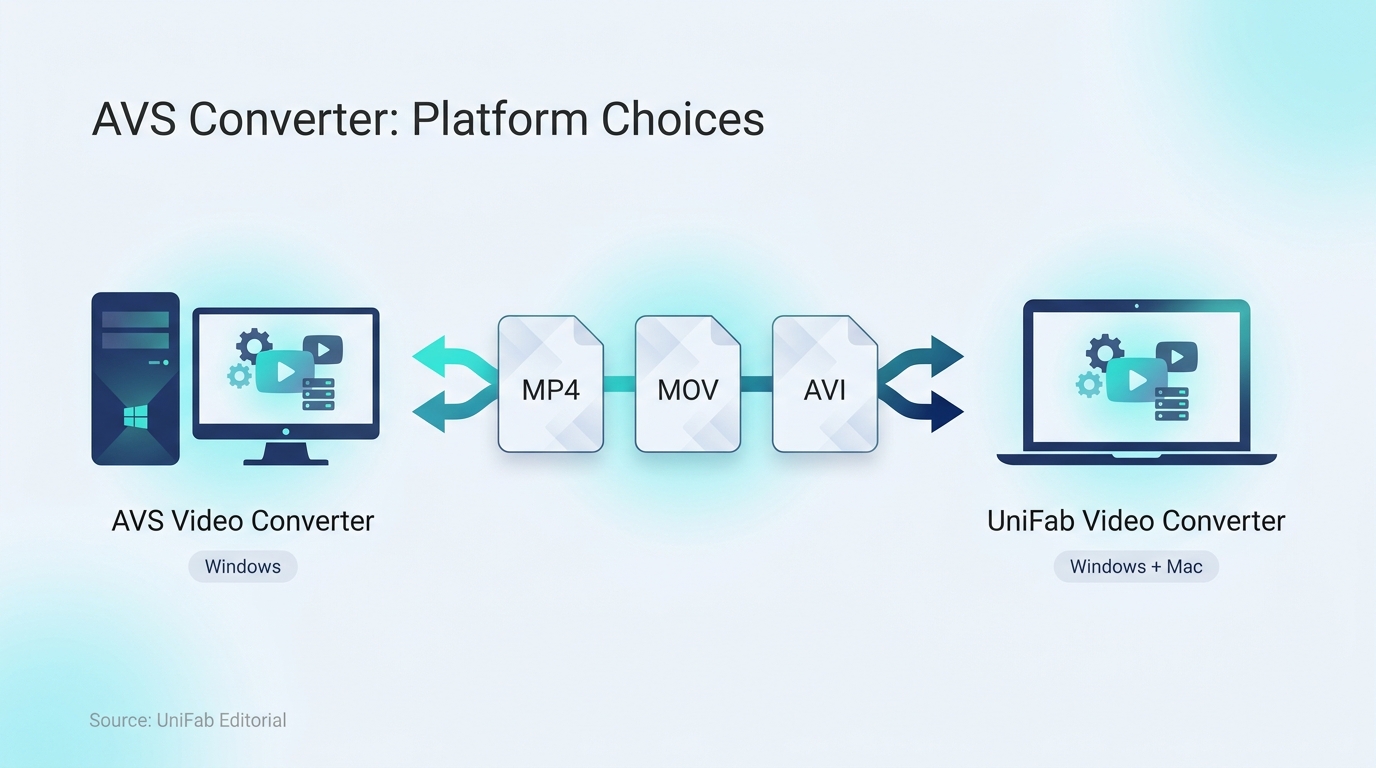
AVS Video Converter is a Windows desktop program for changing video containers, codecs, and device profiles. It handles common conversion jobs; its Windows scope should be the first compatibility check for anyone considering an AVS Video Converter download.
Core Conversion, Preset, and Editing Functions
AVS converts common video types such as MP4, AVI, MOV, MPEG, and WMV in mixed-format batches, supports conversion up to 4K, and provides presets aimed at phones, consoles, web playback, and other destinations. A container is the file wrapper, such as MP4; a codec is the compression method inside it, such as H.264; a preset combines settings for a target device or service. Basic preparation work such as trimming, cropping, and visual adjustments before conversion is marked for the full version.
That distinction matters because an MP4 file is not automatically compatible with every editor. Two MP4 files may use different video or audio codecs.
Windows Compatibility and the Official Download Path
AVS Video Converter runs on Windows, with no native macOS or Linux version. Mac users who need a native desktop conversion workflow can use UniFab Video Converter. Start from the official AVS4YOU download page, confirm that the publisher shown by Windows matches AVS4YOU, and read the current system requirements before installing. An Android package with a similar name is not the same program, and a download mirror adds another party between the publisher and the installer.
Who AVS Fits and Who Should Compare Alternatives
AVS fits a Windows user who needs to convert common source files, apply device presets, process mixed-format batches, or convert video up to 4K. It identifies Intel and NVIDIA hardware decoding for supported formats, while users who need a native Mac workflow should compare a Mac-compatible converter.
The quality question is real. One Reddit user in r/AfterEffects asked, “How do I decide which output file type to use in order to insure I keep the best quality possible as well as guarantee that AE will be able to open the file?” The practical answer is to begin with the target application’s accepted codecs, not with the shortest preset name.
AVS Video Converter Settings for Quality MP4 Output
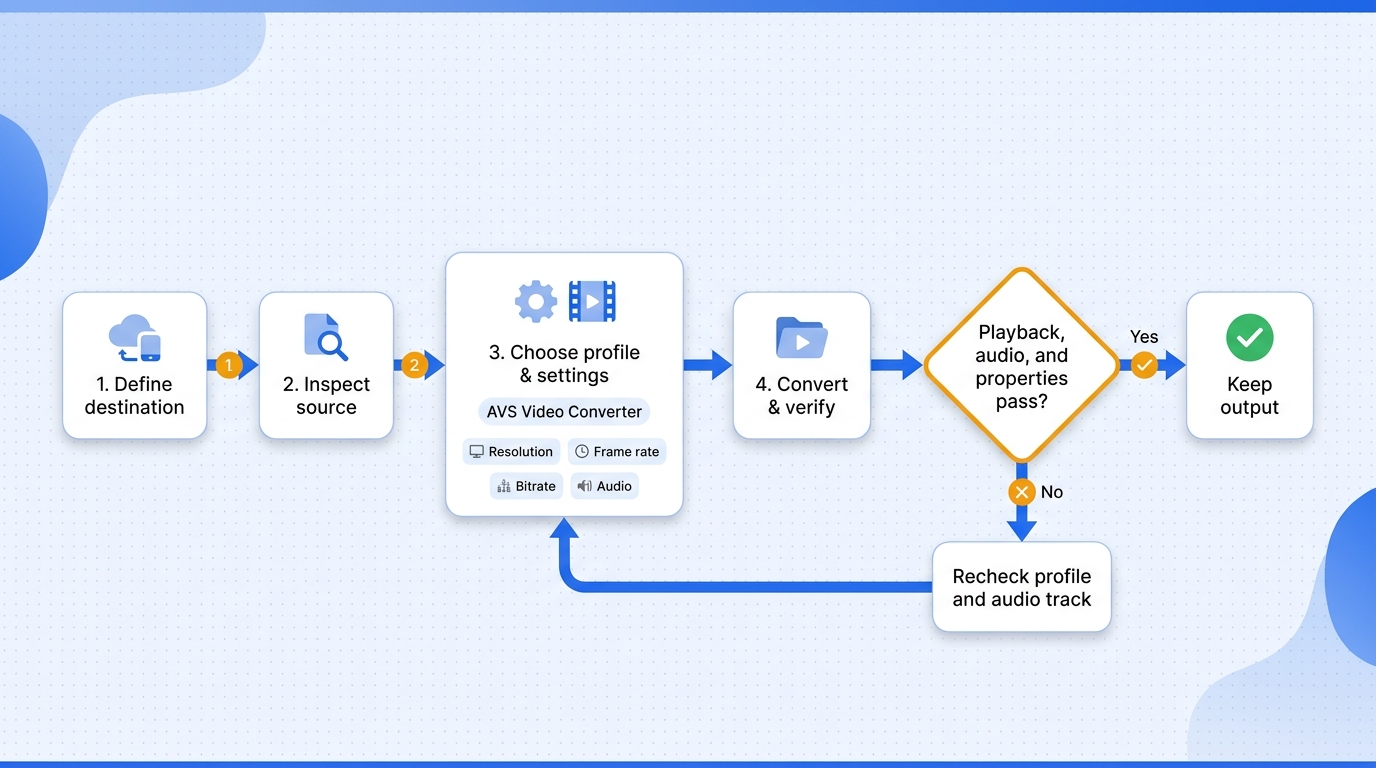
To convert a video to MP4 in AVS, inspect the source, choose a profile accepted by the destination, set video and audio parameters, select an output folder, and verify playback, audio, and the displayed aspect ratio on the target device. Quality depends mainly on codec, resolution, frame rate, and bitrate choices rather than the MP4 extension itself.
Prerequisites: Source File, Destination, and Output Goal
Before opening the converter, identify four things:
- A source file that plays correctly before conversion
- The editor, device, console, or website that must accept the result
- Enough storage for both the source and converted copy
- A priority: smaller size, editing headroom, or playback compatibility
Keep the original until the converted file passes a full playback check. For delivery workflows, the same destination-first principle also applies when you need guidance on how to send videos without losing quality.
Work through the conversion in this order:
- Add the source video and inspect it. Open AVS Video Converter, choose the input file, and note its duration, dimensions, frame rate, and audio track. If the source already has missing audio or damaged frames, conversion will not restore information that is absent. A source that fails to import may use a codec the program cannot read even when its extension looks familiar.
- Choose MP4 or a device profile. Pick the destination before the format. H.264 video with AAC audio inside MP4 is widely accepted for playback, while an editor may prefer a less compressed intermediate. A legacy console may require an exact resolution or frame rate. For MKV to MP4 conversion with compatible streams, remuxing changes the wrapper without re-encoding, while transcoding re-encodes the video or audio streams and can change quality.
- Set resolution, codec, bitrate, frame rate, and audio. Keep the source resolution and frame rate unless the destination requires something else. Bitrate controls how much data is allocated over time; reducing it usually cuts file size but can remove texture and motion detail. Use MediaInfo to inspect the exported file's actual bitrate mode and frame rate rather than relying on the profile label. For audio, select a track the destination supports and avoid disabling audio during profile customization.
- Choose the output folder and start conversion. Save the result to a separate folder with a descriptive filename, check the available disk space, and start the conversion. Avoid overwriting the source. A separate output also makes comparison easier if you need to revise the bitrate or codec.
- Verify playback and file properties. Open the entire result in the target editor or device, not just in the converter’s preview. Confirm duration, picture dimensions, frame rate, audio presence, lip sync, and the displayed aspect ratio on the destination device. Check the codec and bitrate in MediaInfo when those values matter. Delete the source only after the delivered file works where it is meant to work.
For most delivery tasks, the better choice is the lowest bitrate that preserves the needed detail, not automatically selecting the maximum. My AVS rule is simple: I would accept a lower bitrate that the target editor can decode before I would deliver a higher-bitrate file it cannot open.
Is AVS Video Converter Free and Safe to Download?
Basic AVS video conversion is free, while editing features are marked for the full version; license rights and installer safety remain separate questions. Use the publisher’s site, inspect the digital signature, scan the installer, and read the license terms that apply to your intended personal or commercial use.
Free Use, License Terms, and Feature Boundaries
As of September 2026, the converter is presented as “Free Video Converter.” Do not assume that wording applies to AVS Video Editor, every AVS utility, or older versions found elsewhere. The license shown during installation governs how the software may be used. AVS offers basic video conversion for free; its editing features are marked for the full version. Before a full batch, export a short sample with any editing features you need and check whether the result includes a watermark.
This distinction prevents a common category error: a $0 download price does not grant rights to convert material you do not own or have permission to use.
Installer Safety: Official Site, Signature, and Scan Checks
No installer should receive a blanket safety promise. Use this pre-install checklist:
- Confirm the domain is
avs4you.com - Check the Windows publisher and digital signature
- Scan the downloaded file with current security software
- Read each installer screen for optional bundled components
- Create a restore point or backup before system-level changes
The useful conclusion is narrower than “safe” or “unsafe”: an unmodified, signed installer from the publisher gives you a better chain of trust than a repackaged copy from an unknown mirror.
Legal use: Convert footage you own or are authorized to use, including personal backups permitted by applicable terms and law. You remain responsible for copyright, license, and distribution compliance.
Why Unofficial Builds Are a Bad Trade
An unofficial AVS Video Converter build removes the clearest trust signals from the installation process. Modified binaries may include malware, disable updates, or alter unrelated system settings. Using unauthorized activation to evade a software license is unlawful, so do not use it. There is no technical benefit that compensates for losing publisher provenance; use the official build or choose another legitimate converter.
AVS Video Converter Review: Where UniFab Fills the Gaps
This AVS Video Converter review finds that AVS supports Windows conversion, including 4K and mixed-format batches, while UniFab becomes relevant when the workflow requires a native Mac desktop converter.
Stay With AVS for Straightforward Windows Conversion
For a one-off Windows conversion or a mixed-format batch built around ready-made presets, AVS is a direct fit. A cross-platform queue is where UniFab changes the decision.
Choose UniFab for Windows and Mac Workflows
UniFab Video Converter is a Windows and Mac desktop converter that handles mixed-format batches, supports MOV, MP4, AVI, MPEG, WMV, F4V, MPG, TS, and FLV inputs, and converts authorized local media and permitted personal backups to supported outputs up to 4K. Hardware decoding processes the source stream; encoding creates the output stream. Acceleration applies to supported codec and hardware combinations.
| Decision point | AVS Video Converter | UniFab Video Converter |
| Operating systems | Windows | Windows and Mac |
| 4K conversion | Supported | Supported |
| Batch conversion | Mixed-format batches | Mixed-format batches |
| Hardware acceleration | Intel/NVIDIA decoding; supported formats | Supported codec/hardware combinations |
| Workflow fit | Windows presets and conversion | Windows and Mac local-file workflows |
For a Windows-only preset job or mixed-format batch, AVS is a practical fit. UniFab's clearest difference is a local-file workflow on both Windows and Mac. I would choose AVS for a Windows-only workflow and UniFab when the same conversion process needs to run natively on Mac.
Know the Fit Limits Before Switching
UniFab Video Converter is a format converter, not a video downloader: it does not remove ads or fetch subtitles. Conversion also does not upscale low-resolution footage; that requires a separate enhancement tool. For authorized local media or permitted personal backups, import the source file, choose an output profile for the destination, and convert it to a local file. If the source is an editor project, render it in the application that created it before using a format converter.
AVS Video Converter FAQ
The remaining AVS questions usually concern platform identity, AviSynth scripts, editor project files, and failed outputs. These answers separate the Windows converter from similarly named apps and give quick checks for files that become larger or lose audio.
Is AVS Video Converter Safe and Supported on Windows 11?
For an AVS Video Converter download, use the current official Windows build and verify its publisher before installation. Windows 11 compatibility depends on the current build and system requirements. Treat successful installation as the first check, not the final one: import a representative source, preview it, export a short file, and confirm audio and playback in the target app before committing a large queue.
Can You Use AVS Video Converter Online Without Installing It?
The AVS product covered here is a desktop application, so it requires installation. Browser converters with similar wording are separate services with their own upload limits, privacy terms, and format support. For private or large footage, local conversion avoids sending the source to a third-party server.
Is an AVS Video Converter APK the Same as the Windows App?
No. An APK is an Android application package, while AVS Video Converter is distributed as Windows desktop software. A matching phrase in an app-store listing does not establish the same publisher or codebase. Check the developer identity and package source instead of relying on the icon or product name.
Can I Convert an .avs or .ave File to MP4?
First identify the application that created the file; the extension alone does not show whether it is a script, editor project, or proprietary recording. An AviSynth .avs file is a text script that supplies frames to compatible applications. Open it through an AviSynth-compatible workflow, then encode the resulting frames to MP4. An editor project references source media and must be rendered in its originating editor after any missing assets are reconnected; a proprietary recording needs its originating software's export workflow. An .ave extension alone does not identify a standard video format.
Why Is the Converted Video Larger or Missing Audio?
A larger file usually comes from a higher bitrate, a less efficient codec, a larger resolution, or an unnecessary frame-rate increase. Missing audio usually points to the selected track, an unsupported audio codec, or an audio option disabled in the profile. Diagnose it in this order:
- Compare source and output properties in MediaInfo.
- Confirm the intended audio track is selected.
- Choose a destination-compatible audio codec such as AAC.
- Re-export a short segment before processing the full file.
The final choice follows three paths: use AVS for Windows conversion, including mixed-format batches; choose UniFab when you need native Mac support or the same local-file workflow on both Windows and Mac; and let the target device or editor determine the codec and bitrate in either case.