AI dubbing replaces a video's spoken dialogue with translated speech. If you need another language for a tutorial or interview, YouTube offers automatic dubbing for eligible uploads, while video tools provide a separate route for generating a translated version of your material.
I would reject a fluent translation that makes an encouraging lesson sound indifferent. For a hypothetical example, imagine an English tutorial you have permission to adapt into Spanish. The words need to teach the same lesson, with the same reassurance. I'll use that scenario to connect generation, listening review, and delivery choices.
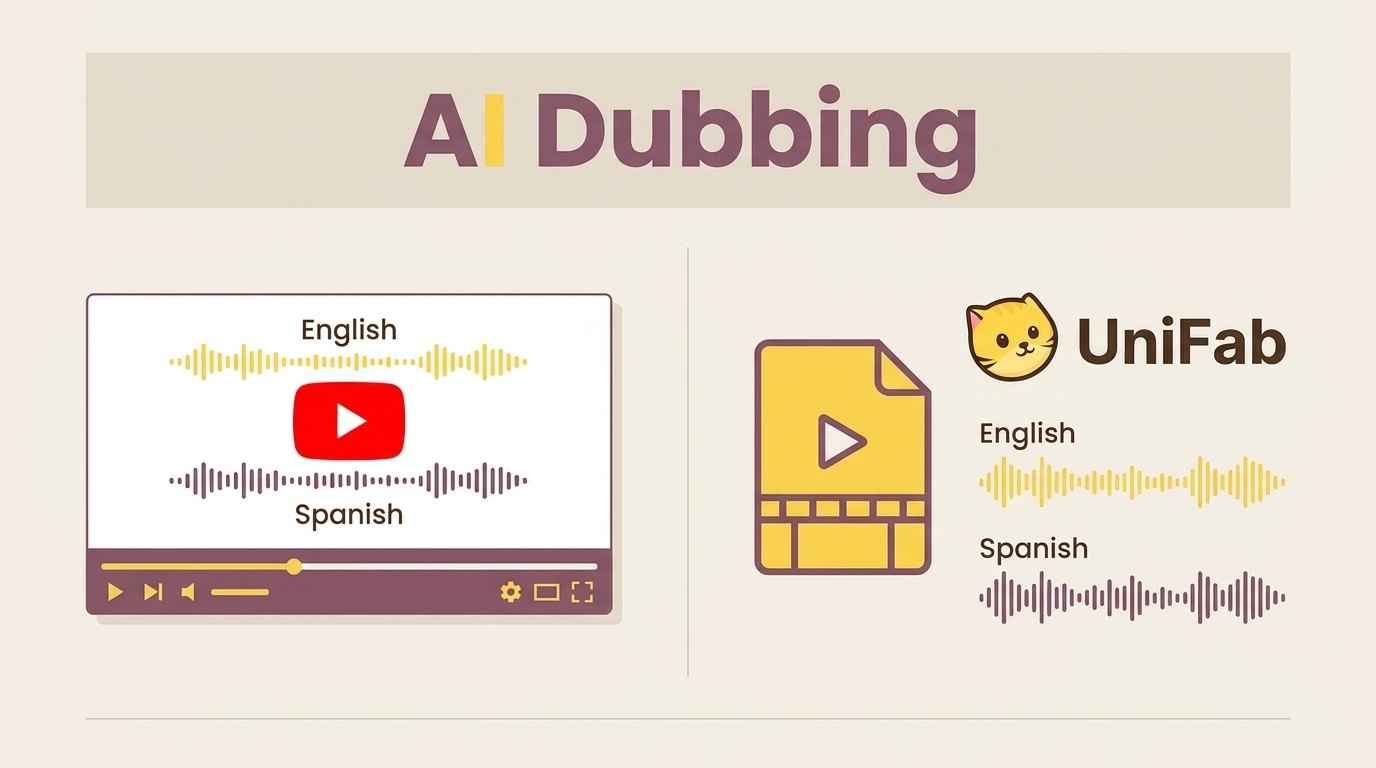
What AI Dubbing Does and Where YouTube Fits
Translated speech lets viewers hear the dialogue in another language; subtitles put that translation on screen. YouTube's built-in option suits eligible channel uploads when your goal is playback on YouTube, rather than producing a separate video file.
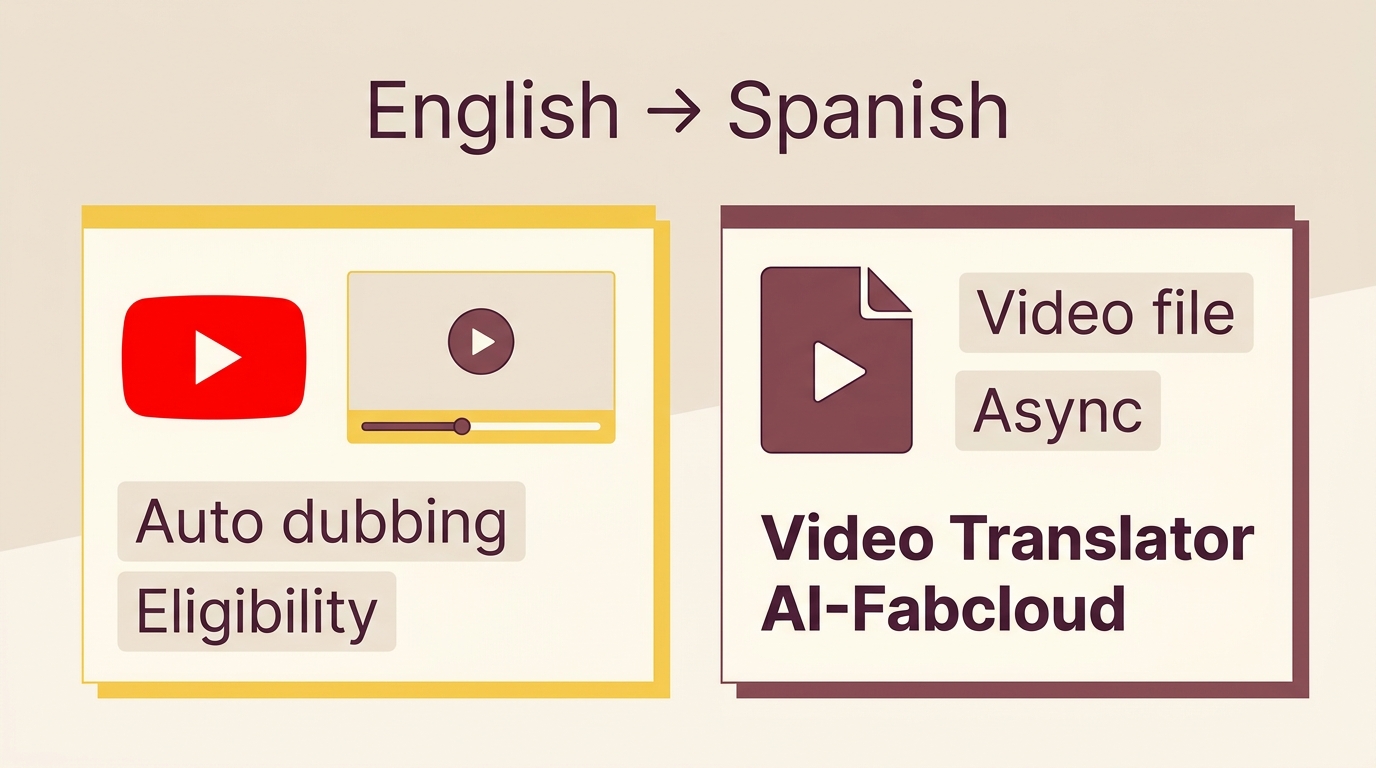
The basic process connects speech recognition, translation, and voice generation. That is different from the similarly named Dubbing AI real-time voice changer: this article concerns translating recorded video dialogue. Changing a live voice does not accomplish that task.
YouTube has eligibility limits. As of November 2026, videos exceeding 120 minutes, unsupported source languages, little spoken content, detection errors, rapid speech, or copyright claims can prevent automatic dubbing. Available languages also differ between channels and videos. For the hypothetical tutorial, the relevant question is whether that upload supports the desired language.
You retain a review stage. Channel settings allow manual review before dubs are published, and creators can disable automatic dubbing. The generated dubs themselves are not editable, so reviewing a track and rewriting its dialogue are different capabilities.
A familiar voice and convincing delivery are separate goals. Preserving speaker identity concerns who the voice resembles; expression concerns emphasis and feeling; timing concerns when speech lands. Lip sync changes visible mouth movement. YouTube's lip-sync option is experimental and limited to selected channels and qualifying videos and languages.
I would use the built-in route for an eligible YouTube-only lesson. For a translated file needed elsewhere, a separate video workflow is the better fit.
How to Dub a Video With Async
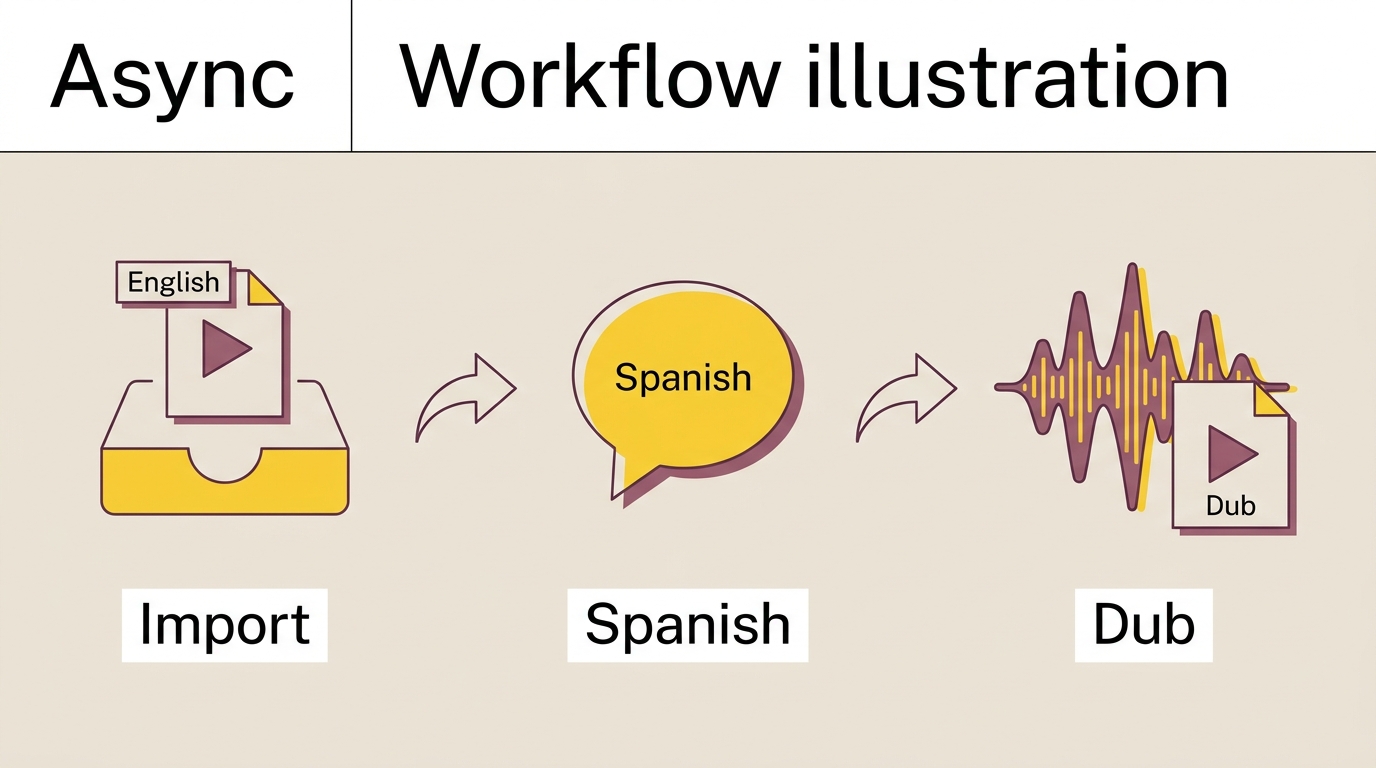
In Async, open Translate & Dub, import your video, select a language and optional audio or lip-sync settings, then start generation. This route suits a video you want to process directly, without relying on YouTube's automatic-dubbing eligibility.
Prepare the source before opening the tool. Have a clearly audible video, know its source language, identify the target language, and use an account with access to the dubbing feature. For the hypothetical tutorial, keep the English original available beside the intended Spanish version. A clean source makes listening and comparison easier.
Start with a representative excerpt. Include the instructor saying a name, explaining an important instruction, and shifting from explanation to encouragement. Those moments give you useful review material without committing the entire lesson at the outset. This is a suggested selection method, not a claim about an upload limit.
Import the Video and Set the Dub Options
Keep the import and language choices together:
- Open Translate & Dub. Use this entry on Async's homepage to begin the video-translation workflow.
- Choose the source video. Upload a file, add a YouTube link, or select an existing recording or project. Choose the route that matches where your tutorial already lives.
- Pick the target language and optional settings. Select Spanish for the example, then choose whether to remove background audio and enable lip syncing.
An upload and a project selection are alternative starting points. You do not need to upload a file and then import the same material again through a link. Keep track of which original you selected so the review uses the matching version.
Treat background-audio removal as a creative choice. If the hypothetical lesson uses music to support its reassuring tone, removing that background changes the listening experience. Listen for whether the spoken instruction remains clear and whether anything important has disappeared. The setting alone does not settle that decision.
Lip syncing is also optional. It addresses the relationship between the translated speech and the visible mouth, rather than correcting the meaning of a translated instruction. I would resolve a wrong name or changed meaning before judging mouth movement; a visually aligned mistake is still a mistake.
Generate the Dub and Decide Whether to Keep It
Generation begins with the remaining action:
- Click Start Dubbing. Async starts translation and dubbing using the selected video and options.
Use the generated version as a review candidate. Compare a complete thought with the English original, then ask a Spanish-speaking reviewer whether it teaches the same action. A natural voice is useful, but it should not distract from a changed instruction.
Keep or revise the candidate based on that review. If a tool offers script or timing controls, use those controls for the relevant correction; their presence must be established in that tool rather than assumed from another service. The listening checks below help you decide what needs attention.
Async, YouTube's built-in dubbing, and the Windows option discussed later are separate routes. The following delivery section explains what your finished project needs, rather than requiring you to pass the result through another tool.
Check Voice Quality and Choose a Delivery Format
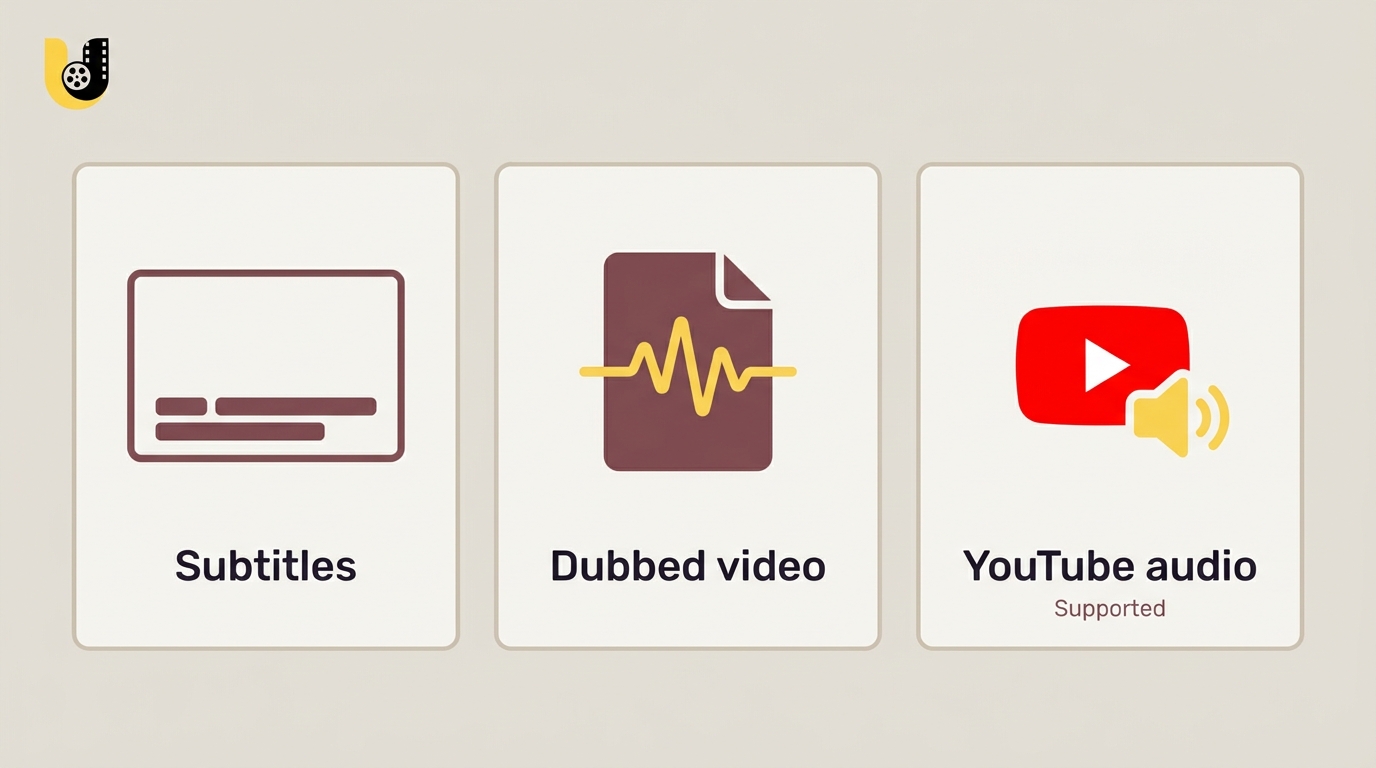
Review meaning, pronunciation, expression, and timing before accepting a dub. Then match the deliverable to its destination: translated text, a dubbed video, and an additional YouTube language track serve different needs.
Flat delivery deserves its own check. One Reddit poster in r/ElevenLabs wrote, “My problem is the voices sound too flat.” That describes a listening problem, not proof that every dubbing tool has the same weakness. In the hypothetical tutorial, reassurance should remain audible when the instructor explains a difficult action.
Use separate listening passes so a pleasant voice does not hide an error:
- Verify names, numbers, and meaning. Ask someone familiar with Spanish to compare the instruction with the English original, including negatives and technical terms.
- Listen for pronunciation and intent. Check whether emphasis, questions, and encouragement carry the intended message.
- Watch timing and speaker changes. Listen for rushed endings, speech over the next speaker, and words obscured by music or effects.
I would fix the instruction before polishing its delivery. If script or timing edits are available in your chosen tool, correct the affected passage and review the regenerated result in context. Include surrounding dialogue in that review; an isolated sentence does not reveal a broken transition.
The delivery choice determines what you hand over:
| Deliverable | File type | What viewers get | Key requirement |
|---|---|---|---|
| Subtitles | Text | Translated on-screen words | No spoken translation |
| Dubbed video | Video, such as MP4 or MKV | Picture with translated speech | Destination accepts the video format |
| YouTube language track | Supported audio-only file | Selectable dubbed audio | Roughly the original video's length |
YouTube's automatic-dubbing guidance and multi-language audio requirements cover the platform conditions discussed here.
A video container is not an audio codec. An MP4 video deliverable does not automatically satisfy an audio-only upload requirement. For a replacement YouTube language track, an existing automatic dub in that language must first be deleted.
I would accept a clear, correctly timed lesson over a sharper-looking file with a wrong instruction. Higher picture resolution does not correct translated speech.
Where UniFab Video Translator AI Fits on Windows
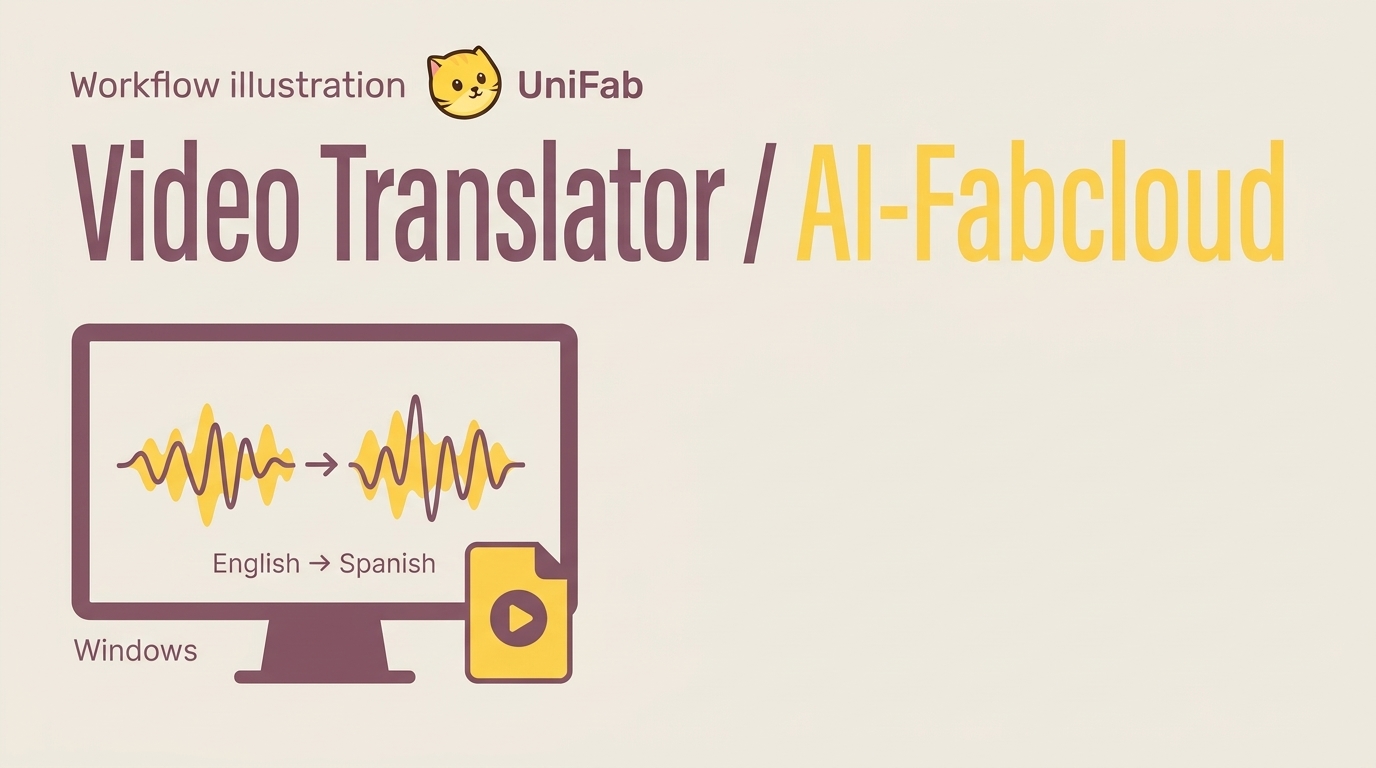
UniFab's Video Translator AI-Fabcloud fits you if you need a translated video file from a Windows workflow. I would assess it as a separate production option for the tutorial, with the same listening review used above.
Video Translator AI-Fabcloud supports Windows, 23 translation languages, and video output up to 4K in MP4 or MKV, giving you language and file-format choices for a video deliverable. The languages include English, Spanish, French, German, Japanese, Chinese, and Korean. For the example lesson, English and Spanish place the language choice within that supported set.
Keep the intended handoff specific. Use a short authorized excerpt to assess the language choice and the resulting video's suitability for your destination. This is a project path, not an additional processing stage for an Async result. The format choice addresses file delivery; the listening review addresses whether the lesson communicates well.
Beta availability is the practical constraint: feature access is subject to system requirements and account-credit conditions. Use the module's availability, system, and credit notices to identify and resolve a blocked task before submitting the full lesson.
Start your Windows video-translation project from the official UniFab page, using a short excerpt that represents the final deliverable.
AI Dubbing FAQ
Device access, voice permission, and long-video costs need separate decisions before you commit a full project. I would settle those questions for the actual lesson and intended audience, rather than assume that access to a tool covers the entire job.
Can I dub a video from my phone?
A mobile browser, a native app, and a desktop workflow are different forms of access. A browser-based service is the relevant option to assess if your file is on a phone; opening its homepage does not establish that importing, reviewing, and exporting all work there. For YouTube, previewing, publishing, and deleting individual dubs requires Studio on a computer. I would plan desktop access for that final review rather than assume a phone completes the workflow.
Can I dub a video using someone else’s voice?
Permission to adapt footage does not automatically include permission to imitate its speaker's voice; obtain the relevant content rights and the speaker's permission for voice imitation. You remain responsible for content authorization and must follow the dubbing service's terms and applicable law: keep personal-use dubs private, and obtain the necessary permissions for publication, redistribution, or resale.
How should I budget for dubbing a long video?
Budget for the finished deliverable, including review and corrections. One Reddit poster in r/artificial asked, “What is the best service to do that looking at both quality and price?” For your project, record the source duration, target languages, included generation allowance, treatment of retries, and export restrictions. I would approve the representative excerpt before commissioning the full lesson. A free entry point is useful for evaluation; a job requiring a full-length export needs an allowance that covers that output.
Choose the Workflow Around Your Deliverable
Choose YouTube's built-in dubbing for an eligible upload that needs translated playback on the platform, or a video tool when you need to generate a separate version. The Async walkthrough provides a concrete starting route; the Windows option belongs to projects needing the video-file delivery described above. For the hypothetical tutorial, I would accept the result when a Spanish-speaking reviewer confirms that both the instruction and its reassurance survived. That listening decision belongs before delivery, whichever route you choose.