Mixed WMV and AVI clips can stall an edit. To convert WMV to AVI, choose an AVI codec your target player or editor supports. Use an online tool for a small, non-sensitive clip or a local converter for large, private, or batch work, then verify the result.
If a client hands you a folder of WMV and AVI clips, the hard part is rarely clicking Convert. Editors often discover that one legacy clip refuses to play or scrub beside the others. My editorial rule is to treat AVI as a compatibility exception, not a quality upgrade: Microsoft documents AVI as a container for multiple codecs, so the receiving application, not the extension, must decide the output. This guide starts with that decision, then walks through online and local workflows, settings, the AVI-versus-MP4 choice, and a final verification check.
What WMV-to-AVI Conversion Actually Changes
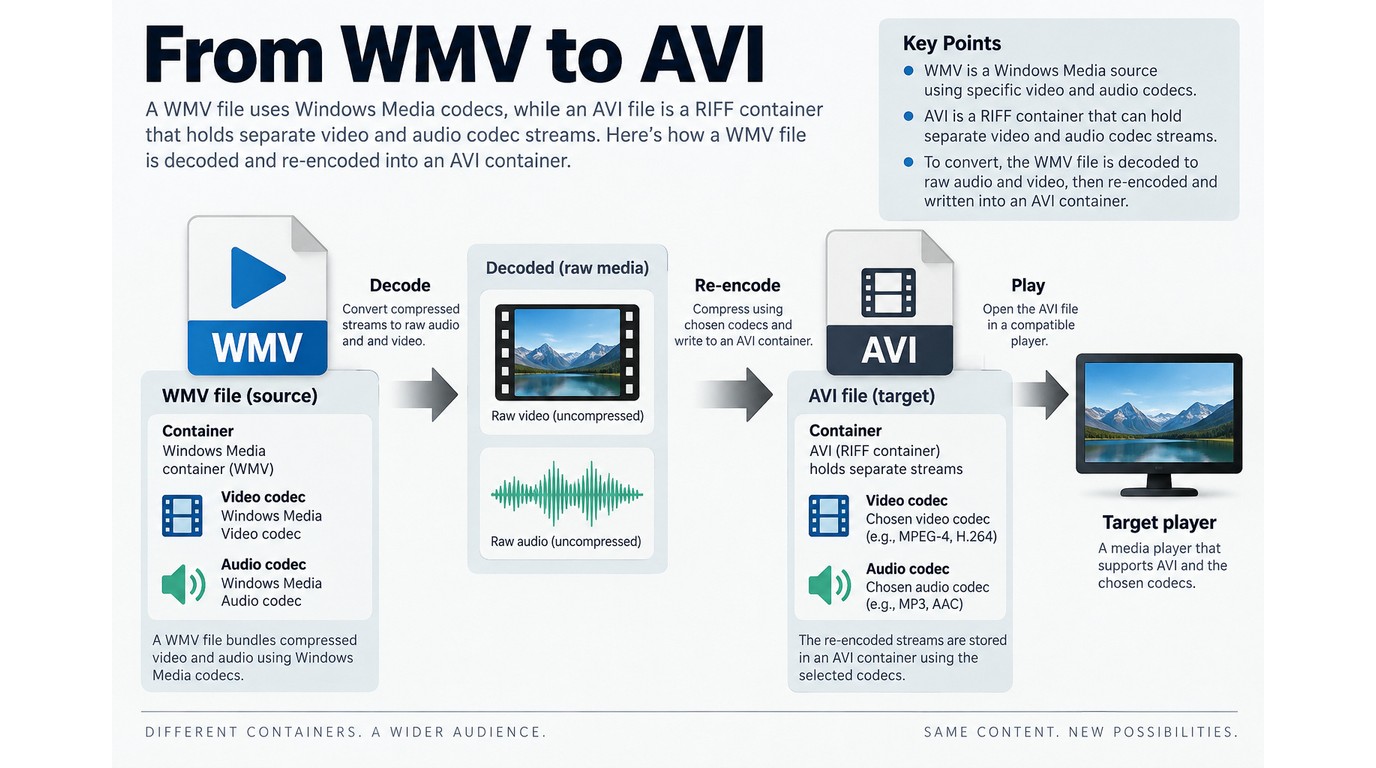
AVI is a container, not a single codec, so converting WMV changes the file wrapper and may re-encode the video and audio. Playback improves only when the codec inside the new AVI matches the target player or editor; the conversion itself does not create detail that was absent from the WMV source.
Before you start: identify the destination and protect the source
Write down the exact destination before choosing a preset. A short prerequisite list is:
- Name the player, editor, website, or device that must open the file.
- Keep the original WMV until the AVI passes a playback check.
- Reserve working space for a second copy and a potentially larger output.
- Note any codec requirement in the destination's import documentation.
That order matters because an AVI that opens in one player can still fail in an editor. As one Reddit user in r/davinciresolve put it, “Does anybody have a reasonable workflow for dealing with these formats? Somebody found out I knew a little about video editing (strong emphasis on little) and now I have projects with all kinds of weird clips to assemble ... some are wmv format, some avi, and others. But those 2 are a real problem.” The useful response is to identify the receiving application first, not to convert every clip blindly.
WMV and AVI are not interchangeable codec labels
WMV is a Windows Media video format. AVI is a RIFF container that can hold different video and audio streams. Microsoft's AVI RIFF File Reference and Media Foundation documentation describe the container separately from the codecs stored inside it. That distinction explains why changing .wmv to .avi in a filename does nothing, while a real transcode can change compatibility.
The practical test is simple: if the target program names a required codec, select that codec in the converter. If it does not, create a short sample and open it in the target program before processing the whole library.
When an AVI output is still useful
AVI still earns its place when a known legacy player, editor, or ingest workflow asks for it. It is not a universal upgrade, and “Is AVI outdated?” is the wrong first question; “What does my destination accept reliably?” is better. For an iPhone handoff, check the receiving app before choosing AVI, because MP4 is often the less troublesome route for modern sharing.
How to Convert WMV to AVI: Online and Local Steps
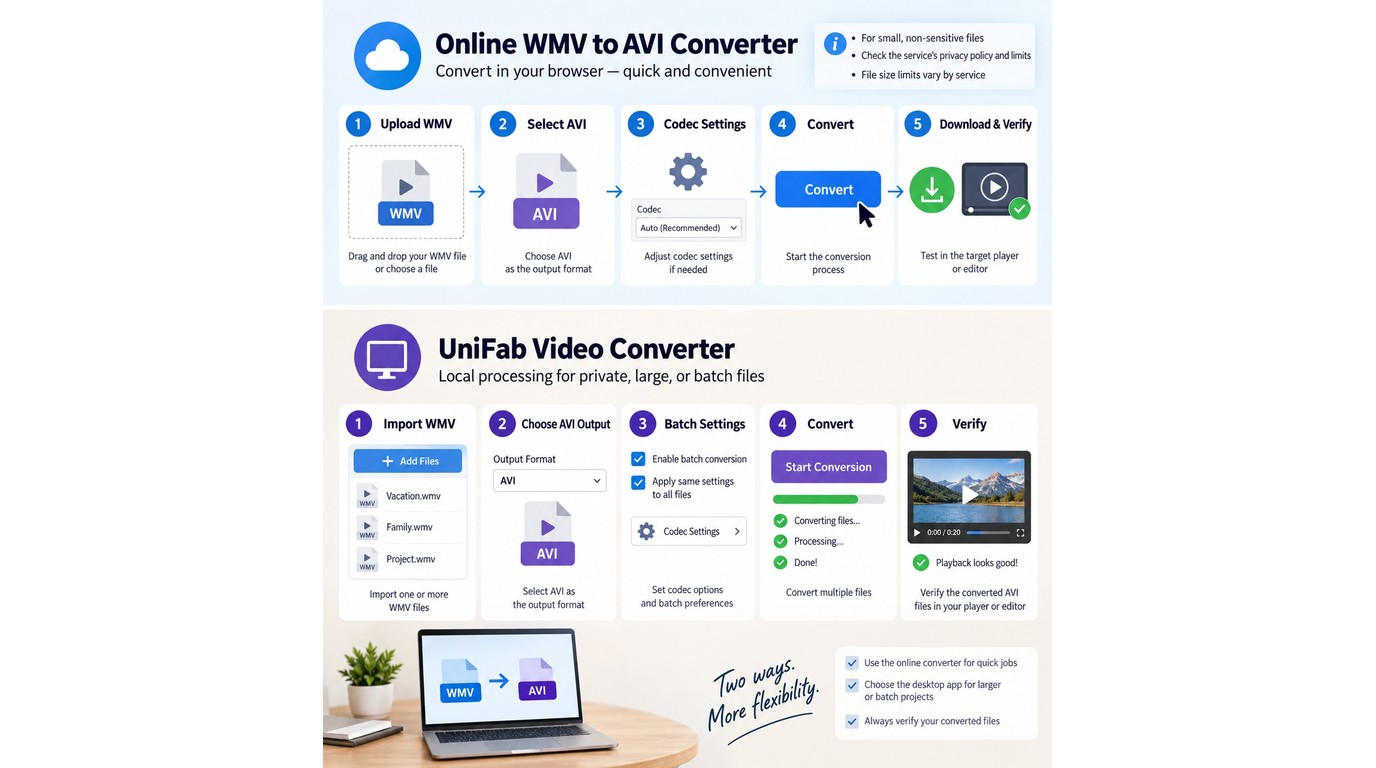
For a short, non-sensitive clip, the WMV-to-AVI process is four decisions: add the file, select AVI, choose a compatible codec and source-matched settings, then verify the download. A local workflow follows the same logic without uploading the media, which makes it more practical for private files and repeat jobs.
Please note: Convert only video you own or are authorized to use, and follow the online service's Terms of Use. If the service limits processing to personal use, keep the output within that scope. Local processing avoids sending confidential media to a remote server.
Online workflow: upload, choose AVI, convert, and download
A WMV-to-AVI online converter is convenient when the file is small enough for the service and the content is suitable for upload. Use this sequence:
- Open the online converter and select the WMV file from your drive.
- Choose AVI as the output; do not leave the target format on an automatic preset.
- Open the settings panel and match the source resolution and frame rate. Select the codec named by your destination, if one is specified.
- Start the conversion and wait for the service to finish processing the upload.
- Download the AVI, save it under a new name, and test it in the intended player or editor.
This route suits one-off clips and quick handoffs. Upload time grows with file size and connection speed, and a service may impose its own file or queue limits. A browser converter is therefore a poor fit for confidential footage or a folder of long files, even when the headline says “free.”
Local workflow: add the WMV, set AVI, and export
Use a desktop converter when the source should stay on your drive or when you need repeatable settings across several files:
- Open the desktop converter and add one WMV as a short test.
- Set AVI as the output container and select the codec required by the destination.
- Match the source resolution and frame rate, then choose an output folder with enough free space.
- Add the remaining WMV files only after the sample opens and plays correctly.
- Start the batch and keep the original files until every result has been checked.
This is the more dependable interpretation of a “free WMV-to-AVI” workflow when upload limits, privacy, or batch volume matter. It also lets you reuse one tested profile instead of guessing at settings for every clip.
Verify the converted file before deleting the source
Treat conversion as complete only after the result survives these checks:
- Compare duration, resolution, and frame rate with the WMV source.
- Scrub through the beginning, middle, and end for missing or frozen frames.
- Listen for audio, then check lip-sync or other timing cues.
- Open the file in the player, editor, or device that motivated the conversion.
- Check the file size and archive the WMV until the new workflow is proven.
The final check is not busywork. As one Reddit user in r/techsupport put it, “There are several movies that I have converted where the audio is not synced with the video.” A file that opens is not necessarily a file that is ready to edit.
Choose AVI Settings for Quality, Compatibility, and File Size
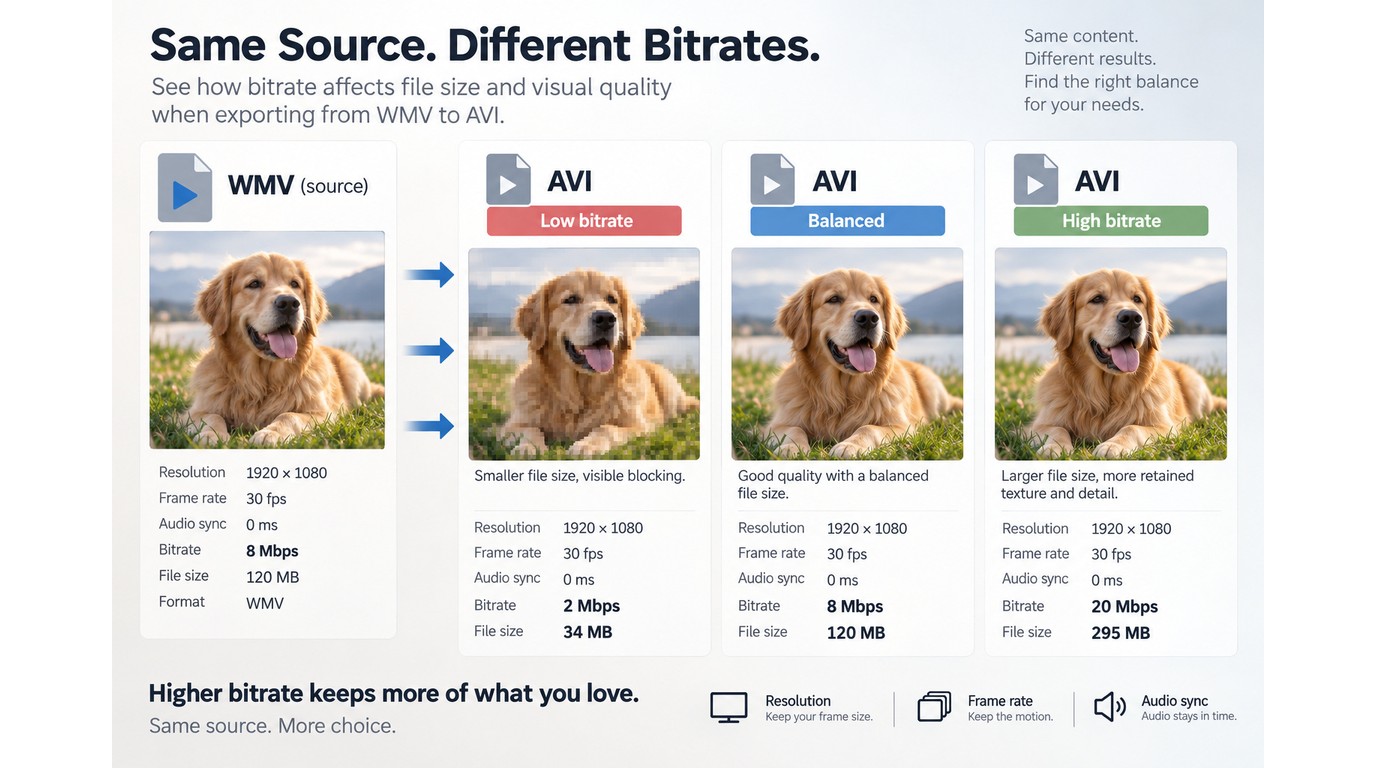
AVI is not inherently higher quality than MP4. Quality follows the source and the encoder settings: keep the original resolution and frame rate, choose a codec the destination accepts, and use enough bitrate for the detail you need. Those choices also control file size and the risk of audio drift.
Choose a codec for the target player or editor
Start with the receiving application's codec requirement, not the .avi extension. If the app lists a profile, use it; if it does not, test a short export before committing to a long batch. The decision rule is simple: a smaller file that the editor rejects is not a successful conversion.
Keep resolution and frame rate aligned with the source
Match the WMV's dimensions and frame rate unless the destination requires a change. Upscaling a lower-resolution source to 4K changes the number of pixels, not the recovered detail. Downscaling can reduce detail, but it may be sensible when the destination has a fixed limit. A source-matched export is a conservative starting point for both AVI and MP4.
Balance bitrate, file size, and audio sync
Bitrate is the main size lever. A higher setting can retain more texture, while a lower setting produces a smaller file with a greater risk of blocking and banding. AVI can also become larger than the original WMV when you choose a less efficient codec. If a “WMV to MP4 converter 2GB” search reflects an upload cap, calculate the target bitrate and measure the output instead of assuming AVI or MP4 will always be smaller.
As one Reddit user in r/VideoEditing put it, “The conversions are usually really bad in quality and my footage becomes quite a bit pixellated…” That result points to re-encoding choices, not a permanent flaw in the AVI suffix. A user in r/handbrake described the size problem: “I have been researching how to make the files smaller with no quality loss and I have tried so many different things. Nothing seems to be working. In fact, it seems like the videos are all coming out bigger.” The practical answer is to compare a short sample at two bitrate settings, then check both picture and sound.
UniFab Video Converter for Large or Private WMV-to-AVI Jobs
For large, private, or repeat WMV jobs, the local workflow applies the same codec and verification rules without the upload step. UniFab Video Converter runs on Windows and Mac, accepts WMV input, and exports AVI without sending the source to a remote service.
Where UniFab fits
It fits you when a folder of WMV clips must stay on your drive, when browser upload limits are inconvenient, or when one tested profile needs to be reused for a batch. It is not a substitute for checking the destination codec, and it does not make an incompatible legacy player accept every AVI variant. Local processing solves the upload problem; it does not remove the compatibility check.
Capabilities relevant to WMV-to-AVI jobs
UniFab Video Converter is a Windows and Mac desktop app that accepts WMV, exports AVI up to 4K, batches files locally without a watermark, supports 1,000+ format conversions, and accelerates compatible jobs on NVIDIA, AMD, and Intel GPUs by up to 50×. Those capabilities address large folders and source privacy without turning a simple container change into a broader editing workflow.
As of September 2026, UniFab lists Video Converter as free to use, and that status dates to December 2024. That makes it a practical no-upload option for a single file or a batch, but “free” does not mean that every preset is right for every player.
Limits and decision checks
Quality still follows the WMV source, and AVI still depends on the codec inside the container. The fit is straightforward: use UniFab for local, private, or batch conversion when you can confirm the destination profile; choose another path when the receiving system demands a codec the available export profile cannot provide.
AVI or MP4? Pick the Output for Your Next Step
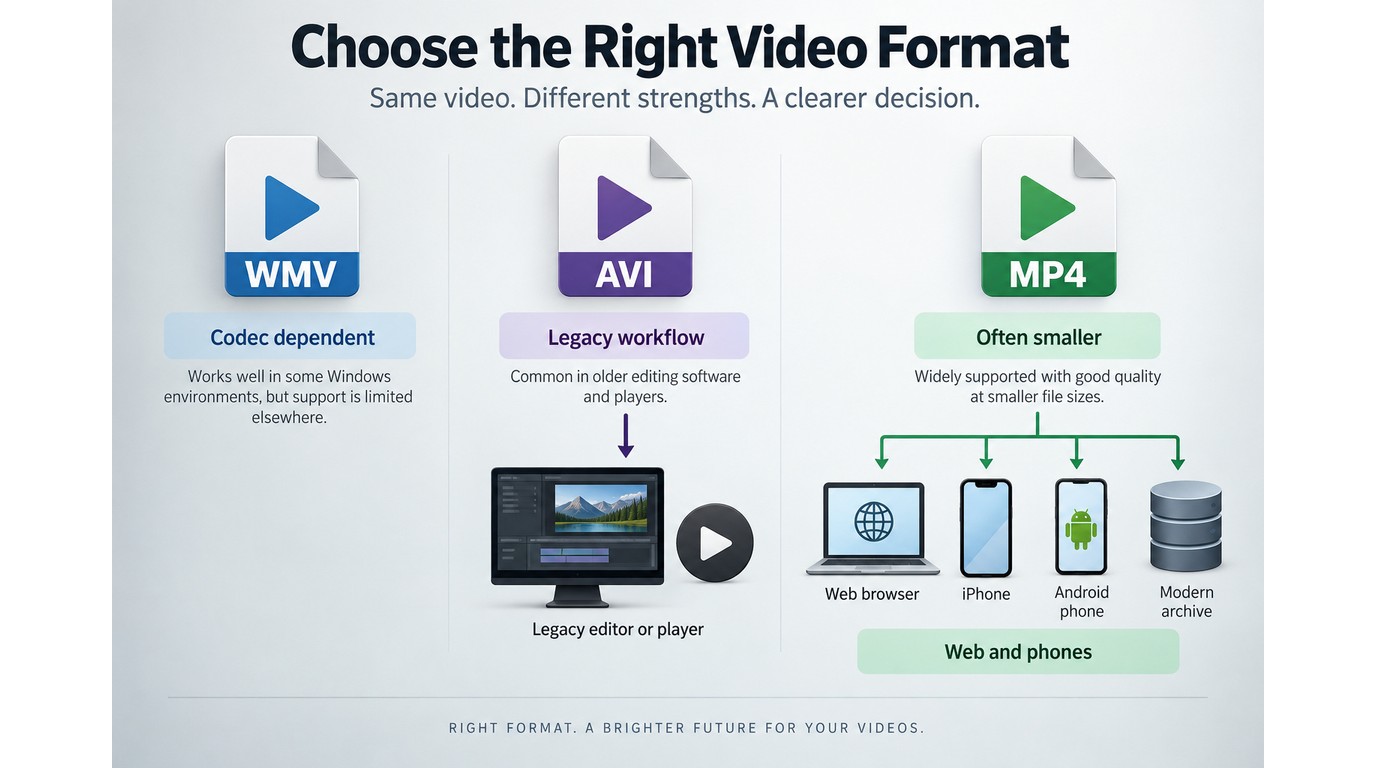
Check the receiving application first. Choose AVI for a known legacy requirement, or choose MP4 for modern playback, web publishing, phone sharing, and a general-purpose archive; neither container guarantees quality without a compatible codec and sensible bitrate.
| Format | What it is | Suitable use | Watch for |
|---|---|---|---|
| WMV | Source format in this task | Keep as original | Legacy playback gaps |
| AVI | RIFF container; codec controls playback | Known legacy workflow | Larger files, codec mismatch |
| MP4 | Modern delivery container | Phones, web, sharing | Codec profile still matters |
Source: Microsoft's AVI RIFF File Reference and Media Foundation documentation, as of September 2026.
Choose AVI for a known legacy workflow
AVI is the right destination when the receiving tool names AVI or a specific AVI codec. Convert only for that requirement, then keep a tested profile for future clips. If no application asks for AVI, the extension alone is not a reason to accept larger files or narrower playback support.
Choose MP4 for broader modern playback
If both containers meet the destination's requirements, I would choose MP4 for web, phone, and everyday delivery and reserve AVI for a documented legacy need; Microsoft's AVI documentation and the file-size tradeoffs above show why AVI adds compatibility checks without restoring source detail. If you begin with WMV and discover that the destination wants MP4, use the same add, select, export, and verify logic; an AVI-to-MP4 job is another container-and-codec decision, not a quality shortcut. For an online MP4 conversion, apply the same privacy and file-size checks described above.
WMV-to-AVI Questions Readers Still Ask
The remaining questions are mostly about where conversion runs, how large files behave, and which device receives the result. The answers below focus on unresolved device, privacy, and file-handling decisions without repeating the conversion steps.
Can I convert WMV to AVI on Windows or Mac?
Yes. A browser converter works from either operating system, while a local workflow requires a desktop build for your OS. A player or editor with Windows Media support can open the WMV source; a program opening the AVI output must also support the codec stored inside it.
Is an online WMV-to-AVI converter safe for private files?
Local processing is the safer fit for confidential media because the source stays on your drive. An online tool requires an upload, so read its handling terms and avoid sending files that your organization does not permit you to place on a remote service.
Can I convert a large WMV file without a 2GB limit?
There is no universal online limit. Upload size, queue rules, connection speed, and browser stability all affect a long job. A local converter avoids the upload ceiling, but you still need enough disk space for the source, temporary files, and output.
Can I convert WMV to AVI for an iPhone?
You can, but first check the iPhone app that will receive the file. If it accepts MP4, that output is often the simpler handoff; choose AVI only when the app or an intermediate editor specifically requires it.
The Practical WMV-to-AVI Decision
Check the receiving application before choosing the container. Use AVI for a known legacy requirement and MP4 for broader modern playback, then choose the least burdensome online or local path that protects the source and fits the job.
Match the output to the destination
Start with the player or editor's codec requirement, keep the WMV untouched, and choose online conversion only when the file is suitable for upload. For large, private, or repeat jobs, use a local workflow, then verify duration, picture, sound, sync, and destination playback. AVI is a compatibility choice; MP4 is usually the broader modern handoff.