If a converter makes your WAV smaller but leaves the wrong extension, the job is not finished. To convert WAV to MP3, select MP3 as the output, choose a suitable bitrate, run the conversion, then confirm the new file ends in .mp3 and plays correctly.
That wrong-extension problem points to a broader issue: conversion is easy to start but easy to verify badly. The recurring failure is not file size but verification: a smaller output can still retain a .wav extension or break a device or library link. My editorial view is that verification, not encoding, is the real failure point: a smaller output is not success until the extension, playback, and library links check out. A browser tool suits a one-off, non-sensitive file, while Audacity or FFmpeg gives you stronger local control for private recordings or repeat batches. This guide covers the quick path, bitrate choices, method fit, metadata, and the final playback check.
How to Convert WAV to MP3 in Three Steps
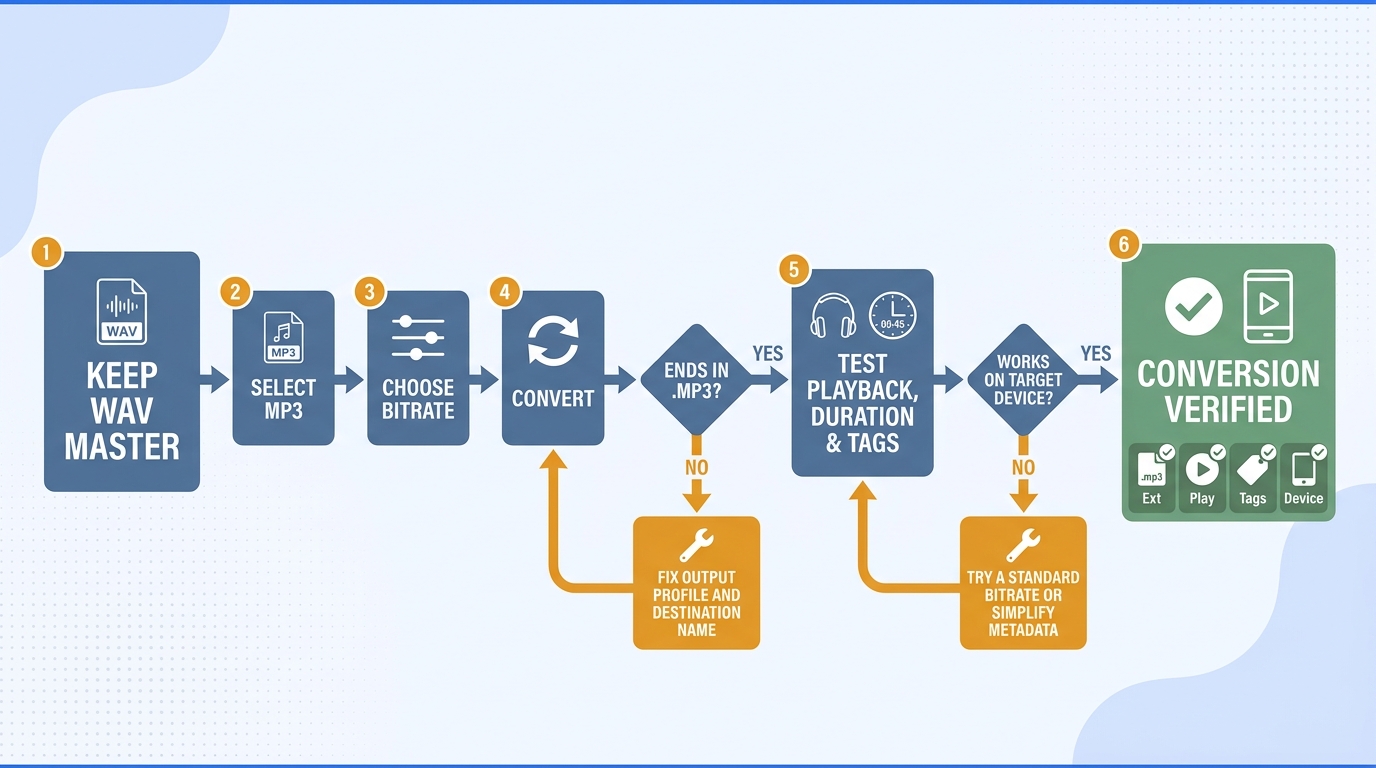
Start with the original WAV, a separate destination folder, and the device or app that must play the result. Then select MP3, set the bitrate, convert, and inspect the exported file before changing or deleting the source. For private or repeated work, I would start with a local tool; reserve a WAV to MP3 converter online for one small, non-sensitive file and verify it on the target device.
Prerequisites: Source File, Destination, and Playback Target
Prepare four things before opening a WAV to MP3 converter:
- The source
.wavfile - An untouched backup or master copy
- A separate folder for converted MP3 files
- The phone, player, editor, or library that will use the MP3
The playback target matters because a file can convert successfully yet fail in a specific app. A Reddit user in r/Logic_301 described that split clearly: “I was able to convert the files on iTunes but now I can't sync them to my iPhone and when I drop the files into my Philips MP3 Player it says the files are not supported.”
The safer rule is simple: keep the WAV as the master, and treat the MP3 as the portable copy.
Step 1: Add the WAV File and Select MP3
Open your chosen tool, add the WAV, and select MP3 as the output format. Do not merely rename .wav to .mp3; the audio must be encoded into MP3.
Check both the output profile and the destination filename. One Reddit user in r/VLC captured the common failure: “VLC is converting the file and it gets smaller, but it stays .wav instead .mp3?! Is this a common issue? I did it multiple times and checked all the settings.” A smaller file alone does not prove that the output format is correct.
Step 2: Choose Bitrate and Start the Conversion
Use 128 kbps for speech where size matters, 192 kbps as a practical general setting, or 256 to 320 kbps when music quality has priority. Choose the setting once, confirm the output folder, and start the conversion.
For a single file, the reliable sequence is:
- Add the WAV.
- Select MP3.
- Set the bitrate.
- Choose a new destination.
- Start the conversion.
Step 3: Verify the MP3 Before Deleting the WAV
Open the finished MP3 in its intended player. Confirm the .mp3 extension, full duration, beginning and ending playback, artist and album tags, and album art if used. Keep the original WAV until the new file has passed those checks and any library has been updated.
The key point is that export completion is not the same as workflow completion.
Bitrate, Quality, Metadata, and Compatibility
MP3 uses lossy compression, so converting WAV to MP3 reduces file size by discarding audio information. If you are deciding how to convert WAV to MP3, choose the bitrate by listening use, keep the WAV master, and verify tags and playback after export.
What WAV-to-MP3 Compression Changes
WAV commonly stores uncompressed PCM audio, while MP3 reduces size through perceptual compression. The MP3 is easier to store, share, and play across many devices, but it is not an archival replacement for the source.
Converting an MP3 back to WAV later creates a larger file without restoring the discarded information. That is why the right source for future editing or new exports is the original WAV, not an MP3-derived WAV.
The key distinction is that “highest bitrate” and “highest quality” are not interchangeable ideas. A 320 kbps MP3 may retain more than a 128 kbps MP3, but neither becomes lossless.
Choose 128, 192, 256, or 320 kbps by Use Case
| Bitrate | Practical use | Trade-off |
| 128 kbps | Speech, notes, drafts | Smallest; less music detail |
| 192 kbps | General listening | Balanced size and quality |
| 256 kbps | Music libraries | More detail; larger files |
| 320 kbps | High-quality MP3 delivery | Largest standard MP3 choice |
My editorial rule is to choose the lowest bitrate that survives the real listening context, because 320 kbps cannot restore information already discarded by MP3 compression.
The practical upshot: choose the lowest setting that meets the listening need rather than selecting 320 kbps by reflex. For spoken-word archives, 128 or 192 kbps may be sensible. For music distribution when WAV is impractical, 256 or 320 kbps gives more room to the encoded signal.
Check Tags, Album Art, File Extension, and Device Support
Metadata deserves its own check. A Reddit user in r/DigitalAudioPlayer wrote, “I tried using Audacity, it worked but it changed tags (for example in album there's more than one artist, after converting into other format there's only one artist).” Multi-value artist fields, custom comments, embedded artwork, and library-specific tags do not always move cleanly between formats or applications.
After converting WAV to MP3, compare the title, artist, album, track number, and artwork with the source record. Then test the MP3 on the actual destination device. If a player rejects it, try a standard constant bitrate such as 192 kbps, simplify unusual metadata, and confirm that the extension matches the encoded format.
Audacity, FFmpeg, or CloudConvert: Which Method Fits?
Use reminder: Process only audio you own or are authorized to handle, and follow applicable law and source licenses. For browser services, review the terms, file limits, and privacy settings before uploading.
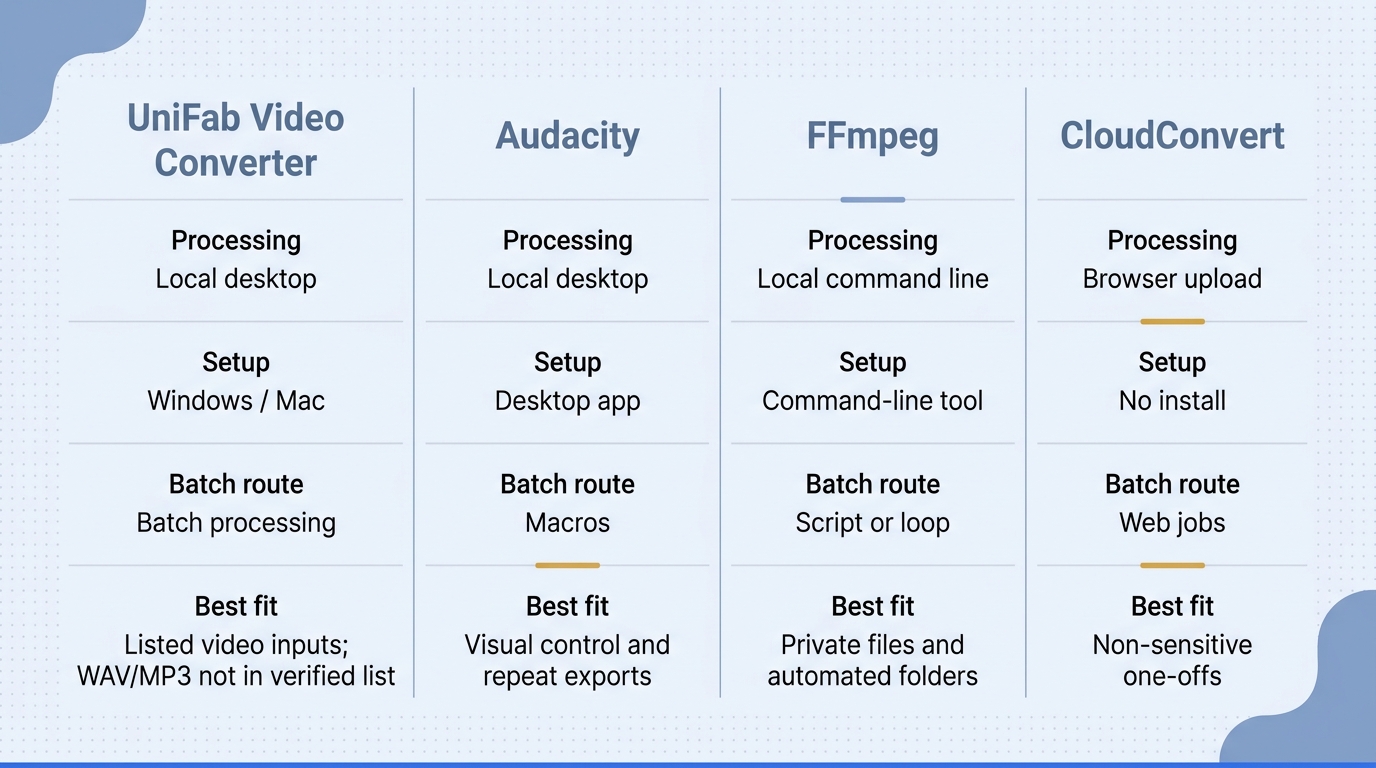
For a standalone WAV, use CloudConvert when installation is inconvenient and the file is non-sensitive. Audacity fits visual local control and occasional batches, while FFmpeg fits private files, scripted folders, and repeatable settings. If the source is video, start with a video-format workflow; otherwise choose these audio tools by processing location, repeatability, and setup comfort.
Decision Table: Browser Upload vs Local Desktop Tools
| Method | Installation | Processing location | Batch route | Recommended use |
| Audacity | Desktop app | Local | Macros | Visual control, repeat exports |
| FFmpeg | Command line | Local | Script or loop | Automated folders |
| CloudConvert | None | Browser upload | Web jobs | Non-sensitive one-offs |
The table is not a ranking. It shows the real trade: browser convenience sends the file away from your device, while local tools require setup but offer more control over repeat work.
Audacity: Visual Export Controls and Macro Batches
The Audacity convert WAV to MP3 workflow uses Export Audio, where you can set the bitrate, destination, and metadata before saving. Its strength is inspectable, local conversion; its limitation is that repeated one-file exports become tedious unless you build a macro.
- Open Audacity and import the WAV.
- Choose File > Export Audio.
- Select MP3 as the format.
- Set the bitrate and destination.
- Review metadata, then export.
- Play and inspect the new MP3.
A Reddit user in r/audacity explained the batch appeal: “I can run them through Audacity one at a time ... Or... I could be smarter and make a macro ... then use Files selection to run it on all my WAV files as a batch!”
Recommended for: people who want visible controls and local processing. Not ideal for: unattended folder automation.
FFmpeg: Reproducible Local Conversion and Folder Automation
FFmpeg turns the same settings into a repeatable command. Its strength is automation without uploading the source; its limitation is that filenames, paths, and shell syntax must be handled carefully.
FFmpeg WAV to MP3 command (192 kbps):
ffmpeg -i input.wav -codec:a libmp3lame -b:a 192k output.mp3
For a macOS or Linux folder batch, create an mp3 destination first, then run:
for f in *.wav; do ffmpeg -i "$f" -codec:a libmp3lame -b:a 192k "mp3/${f%.wav}.mp3"; done
Keep outputs in a separate folder so a naming mistake cannot overwrite a master. Recommended for: repeat batches and reproducible settings. Not ideal for: readers uncomfortable with a command line.
CloudConvert: A No-Install Browser Workflow
CloudConvert removes the installation step and exposes format and quality controls in a browser. Its strength is convenience for a one-off; its limitations are uploading time, service limits, and the privacy implications of sending audio to a remote service.
- Open the WAV-to-MP3 conversion page.
- Select or upload the WAV.
- Confirm MP3 as the output.
- Choose an appropriate bitrate.
- Convert and download the result.
- Verify playback, extension, and tags.
Recommended for: a small, non-sensitive file on a device where you cannot install software. Not ideal for: confidential recordings, large uploads, or repeat folders.
Can UniFab Convert WAV to MP3? Verified Scope and Limits
UniFab is not the verified WAV-to-MP3 answer because its published input list does not include WAV or MP3. If you need a WAV to MP3 converter free of charge, use an audio-specific tool; UniFab fits the adjacent case of local batch conversion for supported video inputs.
The Verified Boundary: WAV and MP3 Are Not Listed
The published scope covers MOV, MP4, AVI, MPEG, WMV, F4V, MPG, TS, and FLV inputs. That list defines a video-first boundary.
This boundary matters more than a long feature list. A $0 tool is not useful for a job outside its documented format scope.
Where UniFab Does Fit: Local Batch Video Conversion
UniFab's Video Converter is a Windows and Mac desktop app that locally batch-converts its listed video inputs across 1,000+ format conversions, with up to 4K output, no watermark, and NVIDIA, AMD, or Intel GPU acceleration up to 50x. It fits an adjacent workflow in which video files need local format conversion before editing, delivery, or archiving.
Price and Fit Decision
As of August 2026, the UniFab Video Converter core costs $0 and has carried that price since December 2024. Use Audacity, FFmpeg, or a suitable browser service for WAV to MP3. Consider UniFab only when the actual input is one of its listed video formats and local batch conversion is the task.
WAV-to-MP3 FAQ
Before you convert WAV to MP3, check the mobile, quality, rights, accessibility, and library-link edge cases that can change the safest workflow. Handle each before converting a large collection, and retain the WAV masters until the destination workflow is stable.
Can I Convert WAV to MP3 on an iPhone or Android Phone?
Yes. A browser converter can handle a non-sensitive one-off, while an audio conversion app can keep more of the workflow on the phone. Check app permissions, available storage, the download destination, and playback in the intended music or editing app before processing more files.
Does Converting an MP3 Back to WAV Restore Lost Quality?
No. The new WAV can be larger, but it cannot recreate audio information discarded during MP3 encoding. Return to the original WAV when you need a new edit, a different bitrate, or a different delivery format.
Is It Legal to Convert WAV Files to MP3?
Converting a WAV you own or are authorized to process is generally different from distributing copyrighted audio. Check the source license and any platform or service Terms of Service, which can govern account or access rules separately from copyright law; redistribution or commercial use can create copyright risk. Keep the file for personal or otherwise permitted use, and consult local law when rights are unclear.
Which WAV-to-MP3 Options Are Easier to Use with a Screen Reader?
Accessibility can vary by version and operating system, so start with one short file. Check keyboard navigation, labeled format and bitrate controls, audible or readable progress feedback, error messages, and access to the finished download. A repeatable FFmpeg command may suit experienced command-line screen-reader users, while others may prefer a clearly labeled desktop interface.
Why Did My DJ Playlist Lose Tracks After Conversion?
DJ software usually links a playlist entry to a specific file path and filename. Changing .wav to .mp3 creates a new path, so the library may treat the track as missing. A Reddit user in r/Rekordbox summarized the result: “Recently I've converted my wav library to mp3, and my tracks on playlists went missing. Is there any way to replace the files on playlists as the mp3s?”
Import or relocate the MP3 files inside the library software, preserve a consistent folder structure, and confirm cues and playlist membership before moving the WAV masters.
Which WAV-to-MP3 Method Should You Use?
Use a browser converter for one small, non-sensitive file, Audacity for visual local control, and FFmpeg for private recordings, repeat folders, or scripted work. Keep the WAV as the master and verify the MP3 on its real destination before considering the job complete. Use an audio-specific method rather than UniFab for WAV to MP3; UniFab fits adjacent video conversion within its listed formats.