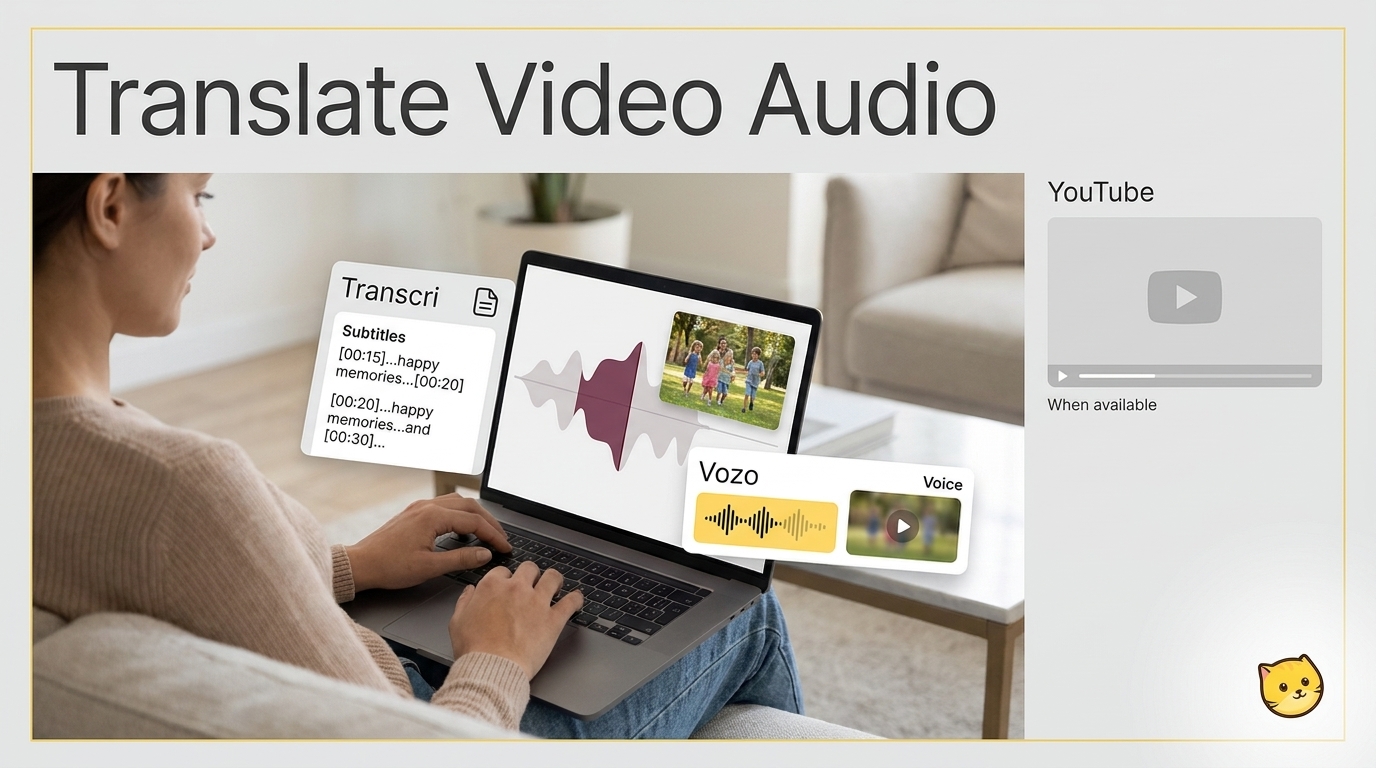
To translate audio from video, select an available translated track, generate translated text or subtitles, or create a dubbed video. For an old family clip, choose video translation based on whether you need to read or listen.
Consider an example: a Spanish-language family video cleared for translation. I would preserve its original voices unless the audience needs spoken English. Subtitles leave those voices intact. Below, I follow that example from playback to file delivery.
Use YouTube's Audio Tracks and Captions When Available
YouTube lets you select another audio language when that video has the track available. Captions also require an available caption track; neither control guarantees a new translation or exports a translated file.
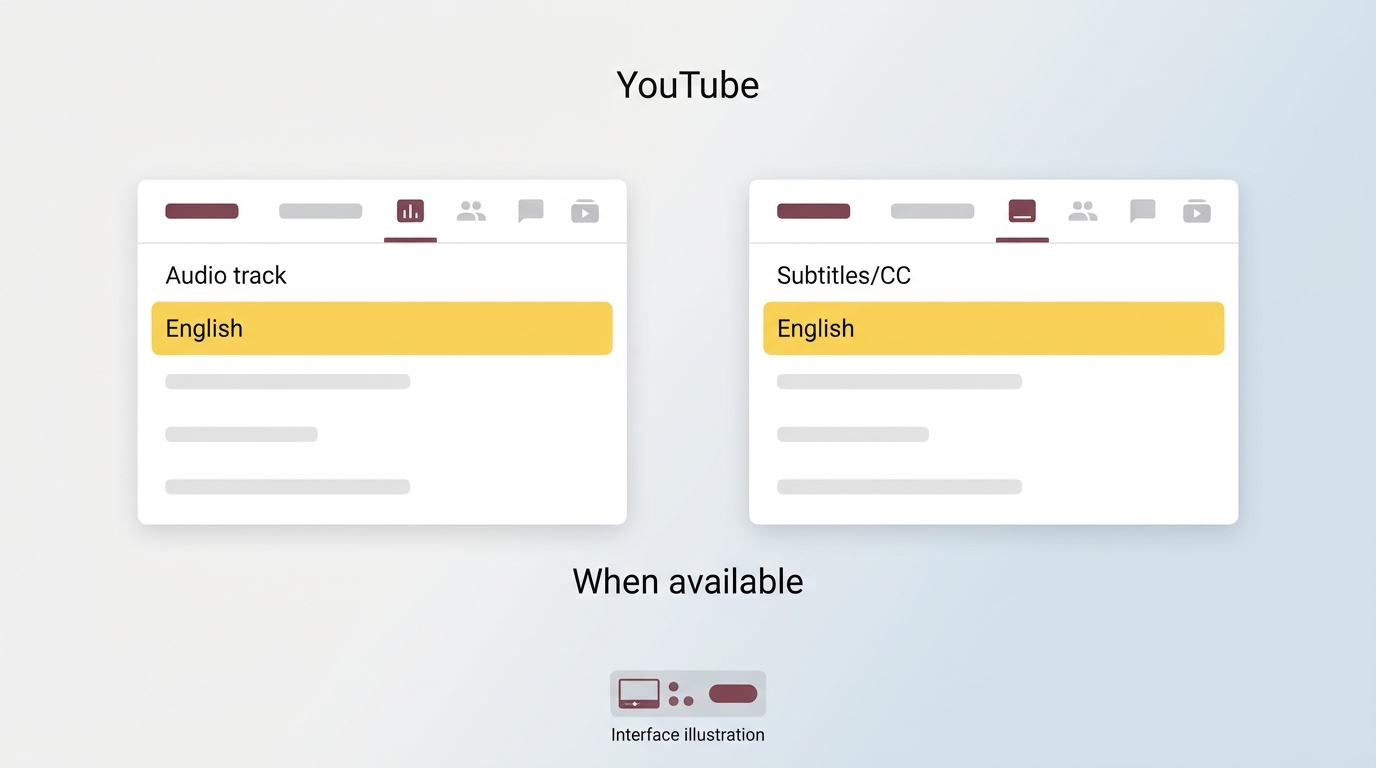
For the family-video example, this route fits a clip already on YouTube with English audio or captions. You need the target language to be available on that particular video.
- Open the video in the YouTube video player and select Settings.
- If Audio track appears, select the language you want to hear.
- For reading, turn on CC and use an available caption language under Subtitles/CC.
I would stop here if the available track makes the clip understandable. Watching an existing translation needs no separate file workflow.
What to Do When the Translated Track Is Missing
A missing track is a content gap, not a switch you overlooked. A Reddit poster in r/PartneredYoutube wrote, "I recently noticed that some YouTube videos allow audio translation. However, I don’t know how to do it, and it seems that it’s not available for all videos."
The viewer's audio menu selects tracks already available for that video. It does not create missing English speech. If captions also fail to supply what you need, move to your available video file and the text route below. That route suits the family recording you already have; it is not a tutorial for obtaining someone else's upload.
Translate Video Audio into Text or Subtitles with Transcri
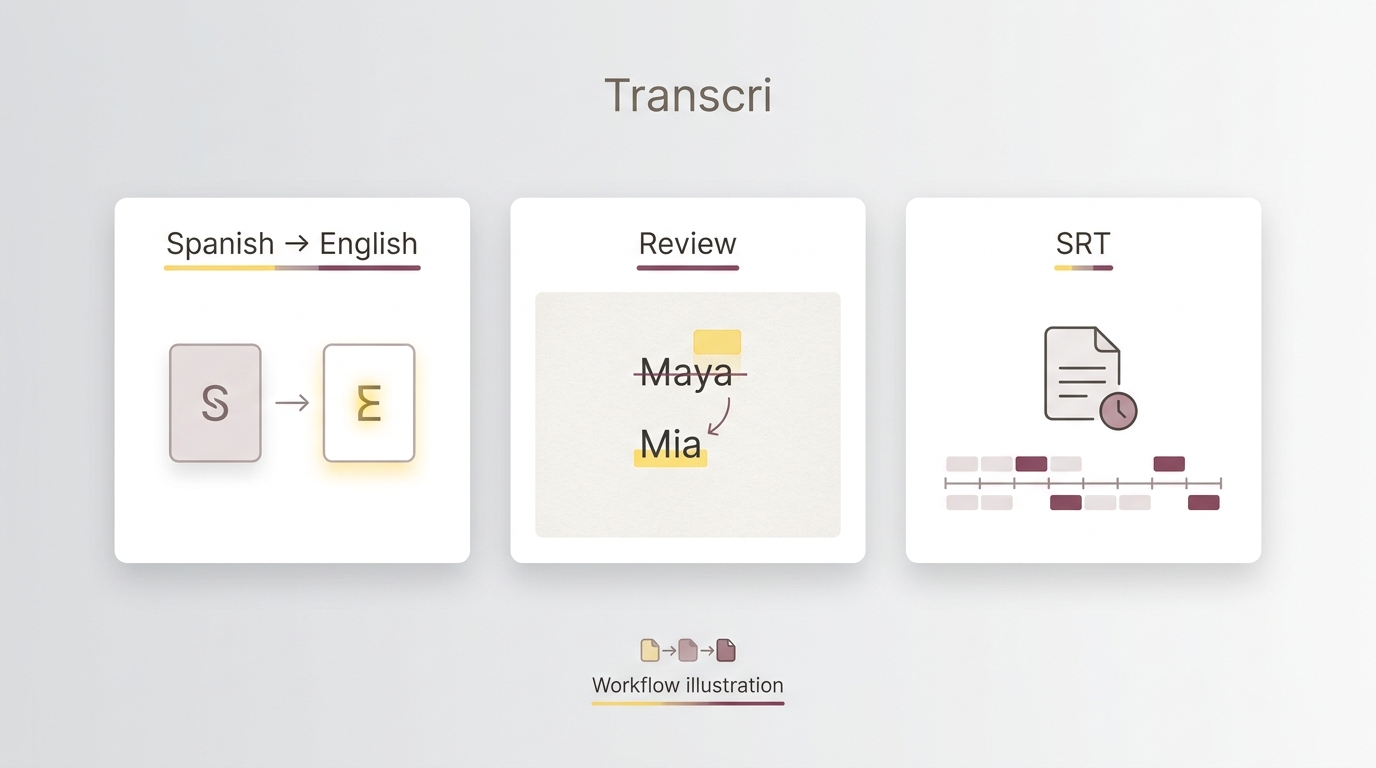
Transcri turns video speech into a transcript and supports translated text and timed subtitle exports. Choose TXT or DOCX for reading, or SRT or VTT when the words need to follow the video.
For our Spanish-language family clip, English subtitles would let relatives follow the story while hearing the original voices. I would choose this route for study notes or a readable family copy before adding dubbing work. You need the video file, its spoken language, a target language, and access to the required translation and export features.
The free entry is narrower than the overall workflow. As of November 2026, Transcri's no-registration entry accepts up to eight minutes for transcription, while its plan comparison places multilingual translation in Premium. File acceptance alone does not establish free translated output.
Upload a Video and Set the Languages
- Open Transcri's video translator and choose your video file. Keep the original unchanged so you can compare the words and timing later.
- Confirm the source audio language, then select the target language. For this example, use Spanish as the source and English as the target.
Automatic language detection is a starting point. If you know the speaker is using Spanish, set that language rather than leaving an incorrect detection in place. For Japanese-to-English video translation, make the same source-and-target distinction; English captions are the requested result, not the language of the recording.
Review the Transcript Before Finalizing the Translation
- Generate the transcript and compare it with the original speech. In the editor, correct names, numbers, place names, and technical terms before finalizing the translation.
- Generate or update the translated text, then check its meaning against the corrected source. For subtitles, also review when each line appears and disappears.
I would fix a misheard name before polishing an English sentence. A fluent translation of the wrong name is still wrong. A Reddit poster in r/machinetranslation described the problem this way: "However, the transcription accuracy is poor considering how much time it takes".
For the family example, ask someone familiar with the recording to confirm a town name or relative's nickname. Do not guess from the translated spelling. If you cannot judge the source language, have a speaker of that language review uncertain passages. A readable English sentence does not settle what was said.
Export Text or Timed Subtitles
- Export the result in the format you need. Open the text file, or load the subtitle file alongside the original video, and replay a passage with speech and a passage near a speaker change.
Text and subtitles serve different jobs. A transcript is convenient for searching or quoting; subtitles carry timing that a reading document does not. The spoken-output route changes another part of the experience:
| Output | What Changes | Example Delivery | Useful For |
|---|---|---|---|
| Translated transcript | Written words | TXT, DOCX | Study notes |
| Translated subtitles | Text with timing | SRT, VTT | Reading along |
| Dubbed video | Spoken language | Vozo video export | Listening in another language |
For this family clip, I would stop at subtitles if everyone can follow them. Keep both the video and its subtitle file together, and confirm that your intended player loads the captions. A subtitle file sitting in the same folder is not itself a finished viewing check.
Create a Translated Voice Track with Vozo Video Translator
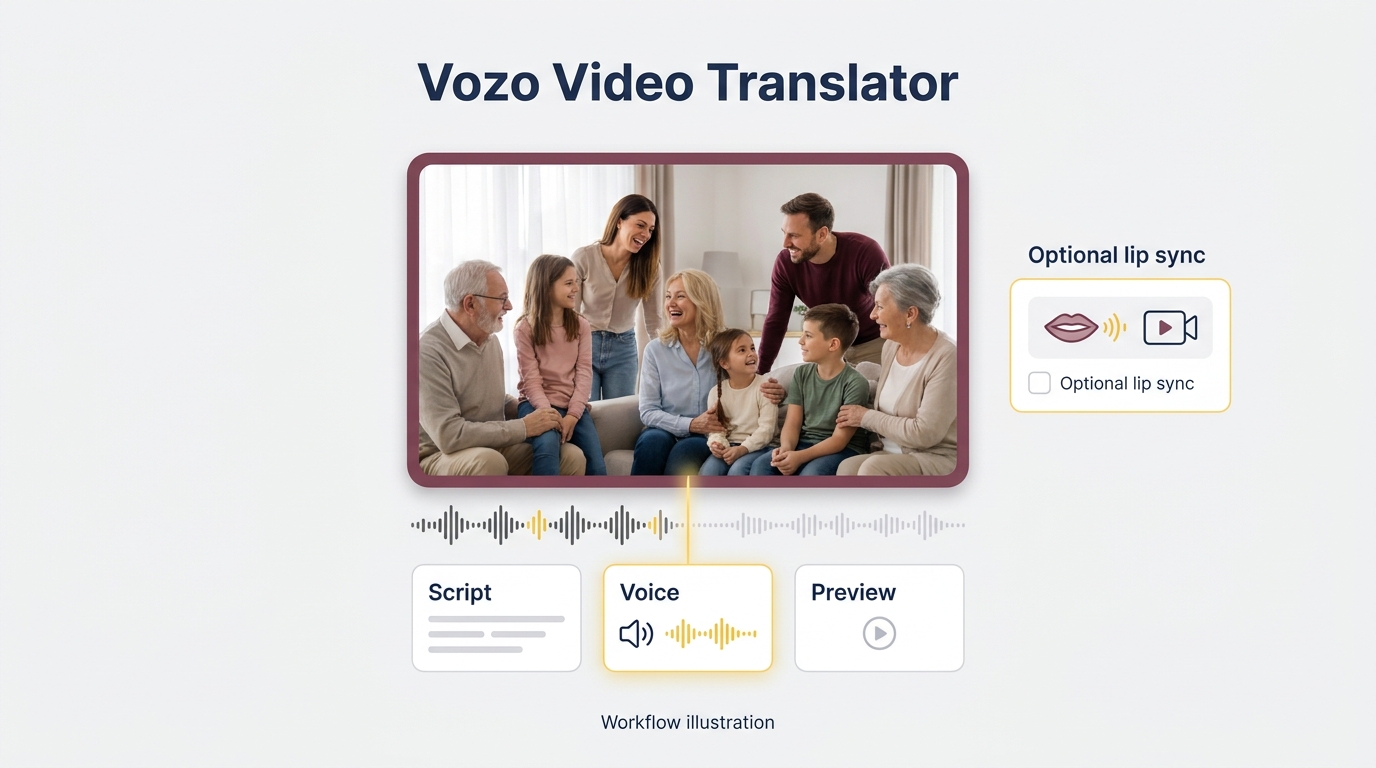
Vozo Video Translator supports uploading a video, selecting a target language, reviewing the translated script, and exporting a dubbed video. Lip sync is an optional stage for matching visible mouth movements to the translated audio.
This route suits the family example when relatives need to hear English instead of reading captions. You need access to the target language and enough account allowance for the job. Obtain the relevant speaker permission before reproducing a voice; voice cloning should not be an assumed setting.
Review the Script, Timing, and Optional Lip Sync
- Open Vozo Video Translator, upload the clip, and choose English as the target language. Set the available speaker preferences for the people in the recording.
- Review the translated script before generating the final voice track. Correct names and wording, and shorten awkward phrases without removing their meaning.
- Preview the dubbed speech. Check pronunciation, speaking pace, and whether each line belongs to the right speaker.
- Add lip sync if matching visible speech matters for this video. Preview the faces and speaker transitions afterward.
- Export the translated video and play the saved result, rather than judging the job solely from the script editor.
I would treat lip sync as a presentation choice, not evidence that the translation is right. A mouth movement can match a sentence whose meaning is wrong. For the family clip, a correctly translated name matters more than a convincing lip movement.
A voice track is useful when listening is the goal. If the audience is comfortable reading, the earlier subtitle route preserves the original delivery with less to rebuild. Before committing the full recording to dubbing, preview a short passage with a name and a speaker change. Those moments make wording and speaker-assignment problems easier to spot.
When UniFab Video Translator AI Fits a Windows Workflow
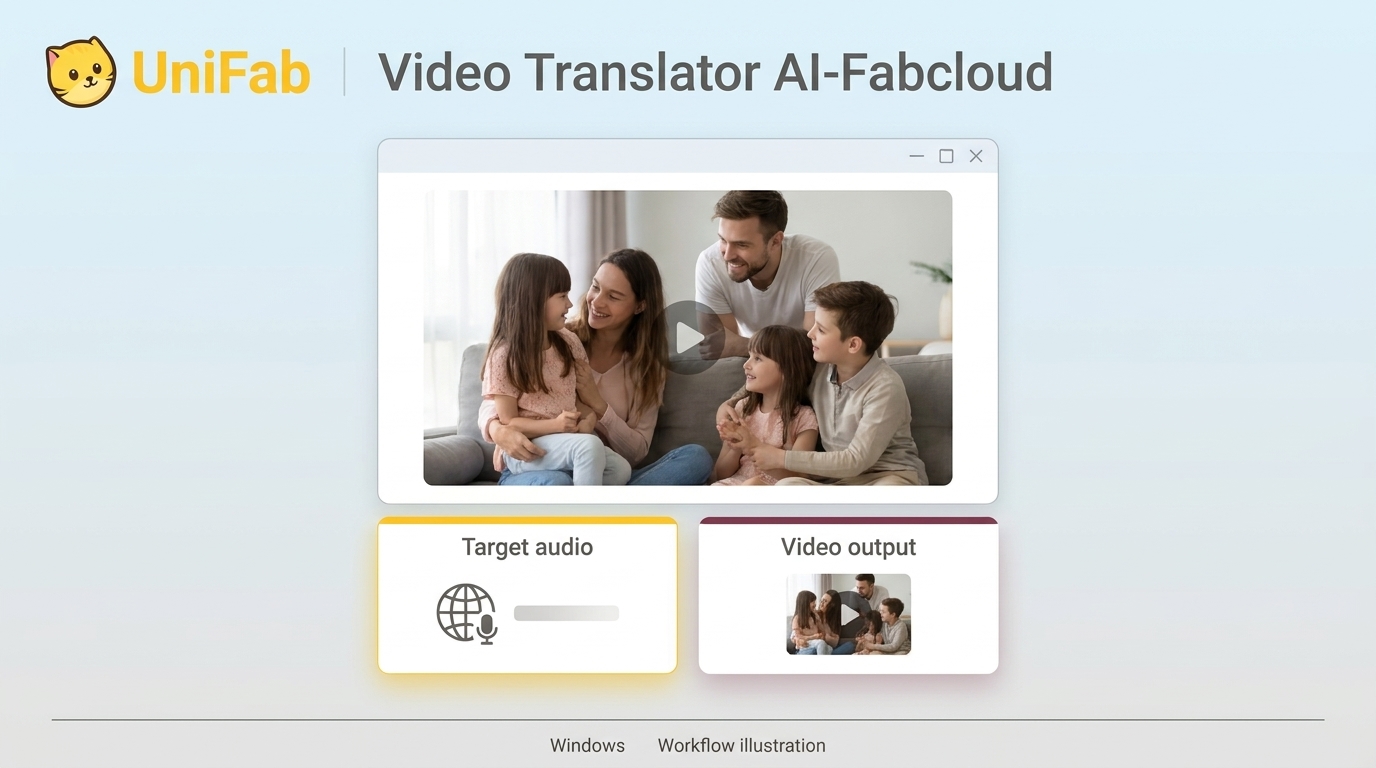
Video Translator AI-Fabcloud fits you if you use Windows and want a translated video file to watch or edit. It supports 23 languages and MP4 or MKV output up to 4K, so you can deliver the translation as a video rather than a reading document.
Check Availability and Export Requirements
Start with a Windows account where Video Translator AI is enabled. A beta notice, unmet system requirement, or credit message needs attention in that account before processing; UniFab's account and support options are the next stop for that specific message.
- Open Video Translator AI-Fabcloud on Windows and load your video.
- Select the target audio-track language and start the translation available to your account.
- Preview the spoken result, then save the video as MP4 or MKV.
The saved file gives the family a watchable translated copy. Choose the container your intended player or editor accepts, and review the English speech before handing over the file.
The FabCloud 600-credit annual plan starts at USD 199.99 per year. New accounts receive 30 FabCloud credits.
I would choose this workflow for video delivery; Video Translator AI-Fabcloud does not download standalone subtitle files, so use its video export for the finished viewing copy rather than a separate subtitle-editing handoff.
Open UniFab's official website and use your enabled Video Translator AI-Fabcloud account to preview a short clip with the audio and video output you need.
FAQs About Translating Audio from Video
Free access, permission to upload, and live playback are different questions. I would settle the finished-file requirement before committing a long recording to a translation job.
Can I Translate a Full-Length Video for Free Without Signing Up?
Answer: Not as a blanket promise across these routes. Free transcription access does not establish free translation, dubbing, or translated-file export. For a long recording, account for the entire duration and the output you need, rather than assuming that an accepted upload completes the job. I would budget for the finished deliverable, not the upload screen. The transcription allowance described above is a starting point, not an unlimited full-video translation offer.
Is It Safe to Upload a Private Video for Translation?
Answer: For personal use, process only video you lawfully hold and are authorized to translate, and follow applicable law and the platform's and tool's terms. You remain responsible for using the content; do not redistribute or resell the original or translated files without the required rights.
Can These Methods Translate a Video While I Watch It?
Answer: These file workflows are for generating a result you review and save, not for listening across other apps as they play. YouTube playback of an existing translated track is different from creating new speech from an uploaded file. If you need live video translation during a stream, do not assume that a translator with an upload button also provides real-time, cross-app listening.
Choose the Output You Need
Use an existing translated track when it already solves the viewing problem; choose text or subtitles when you need to read, and dubbing when you need to listen. In the family-video example, I would keep the original voices with English subtitles unless spoken English is the actual need. Before handing over any translated copy, review names, numbers, timing, and speaker changes against the recording. The useful finish is a file your audience can understand, with its meaning checked, rather than an export that merely completed.