Understanding Topaz Deinterlace and the Dione Model
For comb lines or choppy motion, the Topaz Video AI deinterlace workflow starts with source diagnosis: AI deinterlacing can address true interlaced footage, but model choice and output cadence matter. Choose Dione or another suitable interlaced model, then judge motion in the saved file, not just its frame-rate label.
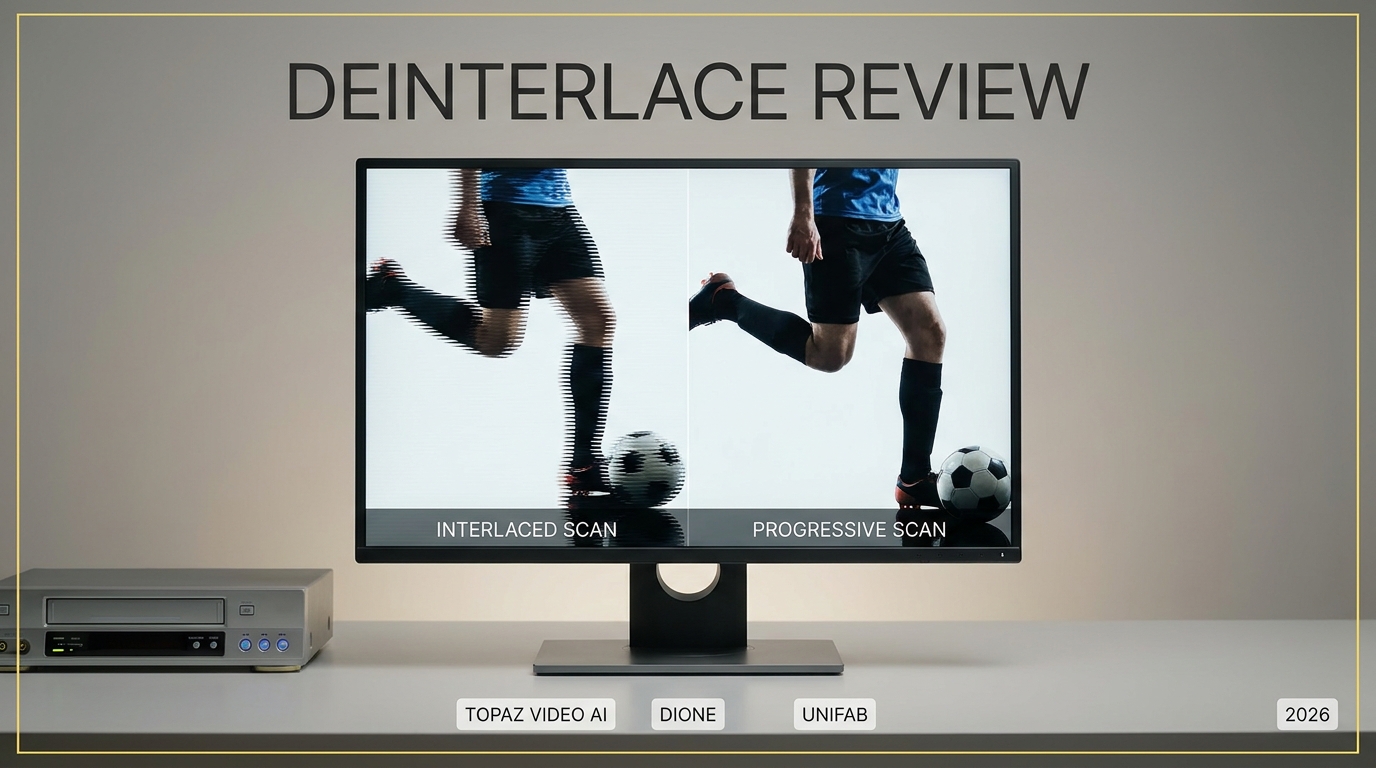
What Is Topaz Video AI Deinterlace
Topaz Video offers interlaced processing with Dione, Iris, and Proteus, plus a separate Interlaced Progressive input branch. Dione is one deinterlacing model family, not the name of every Topaz deinterlacing option. Deinterlacing converts interlaced video (where each frame consists of two alternating half-frames called fields) into progressive video (where each frame contains a complete image). This eliminates the horizontal comb-line artifacts visible on interlaced sources played back on modern progressive-scan displays.
True interlaced motion calls for field-aware deinterlacing; already-progressive footage does not, and telecined film calls for cadence recovery. For progressive footage with baked-in combing, use the appropriate Interlaced Progressive treatment rather than trusting the file label alone.
Topaz Video AI Dione Model Explained
Dione is one of Topaz's interlaced-processing model families, designed to convert interlaced footage into progressive frames. It's integrated into the application discussed in our Topaz Video AI review, allowing users to restore old DV tapes, VHS, analog TV recordings, and more with a one-stop enhancement workflow. The Dione models were trained specifically for removing interlacing artifacts—a relic from broadcast and camcorder recording days, where each frame was split into alternating lines to save bandwidth or fit TV standards.
How Does Topaz Video AI Deinterlace Work
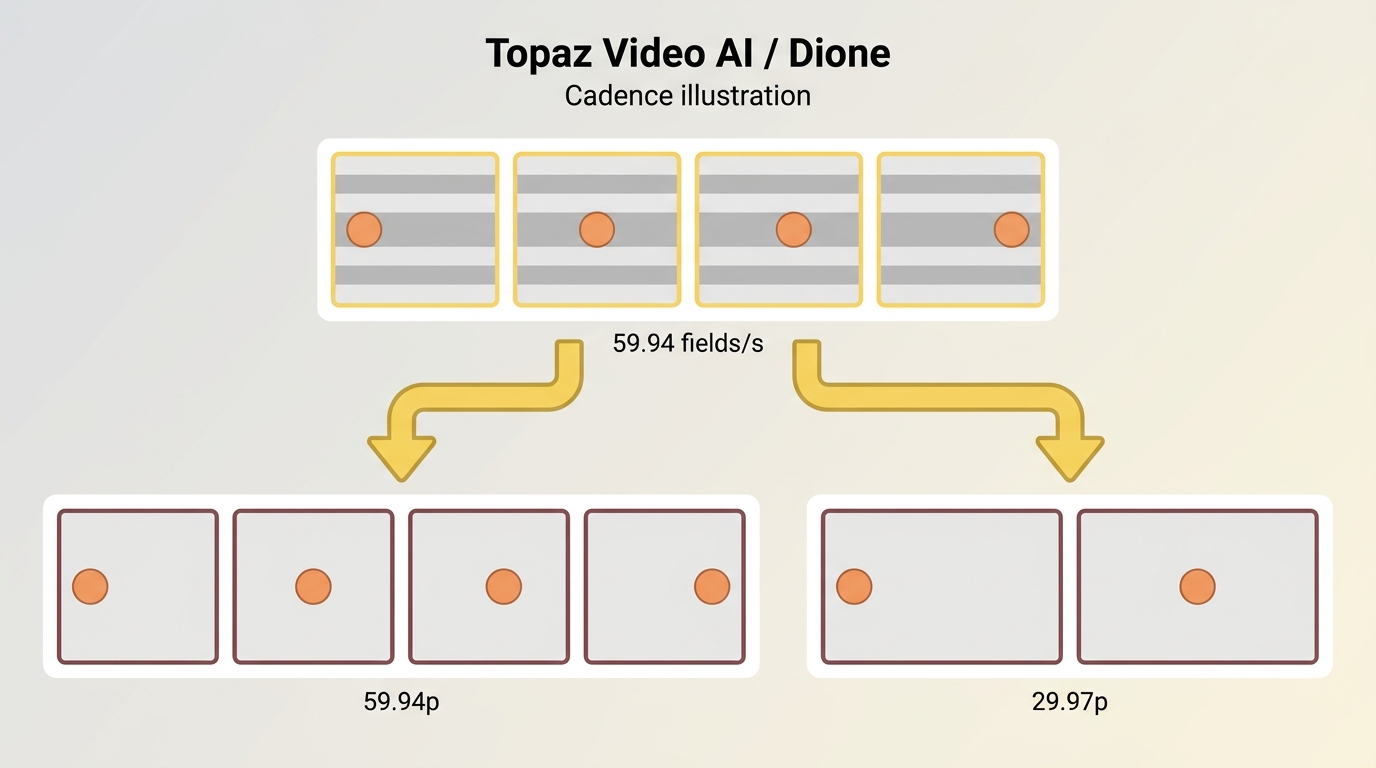
Deinterlacing requires more than removing visible lines: each interlaced frame contains odd-line and even-line fields captured at different moments, and field order determines which comes first. Traditional algorithms fill in those blanks with guesses, which can be unreliable.
Rather than simply blending or doubling lines, which can create blur and ghosting, Dione reconstructs missing information with AI. It also combines deinterlacing, upscaling, and enhancement in the same pass.
At 29.97 interlaced frames per second, the source carries 59.94 fields per second: bob output at 59.94p retains those temporal samples, while 29.97p output reduces temporal sampling and can make movement less fluid. Bob reconstruction uses the captured fields and does not require synthetic frame interpolation.
My experience
There’s something a little magical about watching those jagged, ghosted edges disappear in real time on the preview screen. Of course, like any AI tool, sometimes the magic is hit-or-miss on especially rough footage—but it usually beats manual filters by a mile.
Topaz Dione Model Variants: DV, TV, and Dehalo
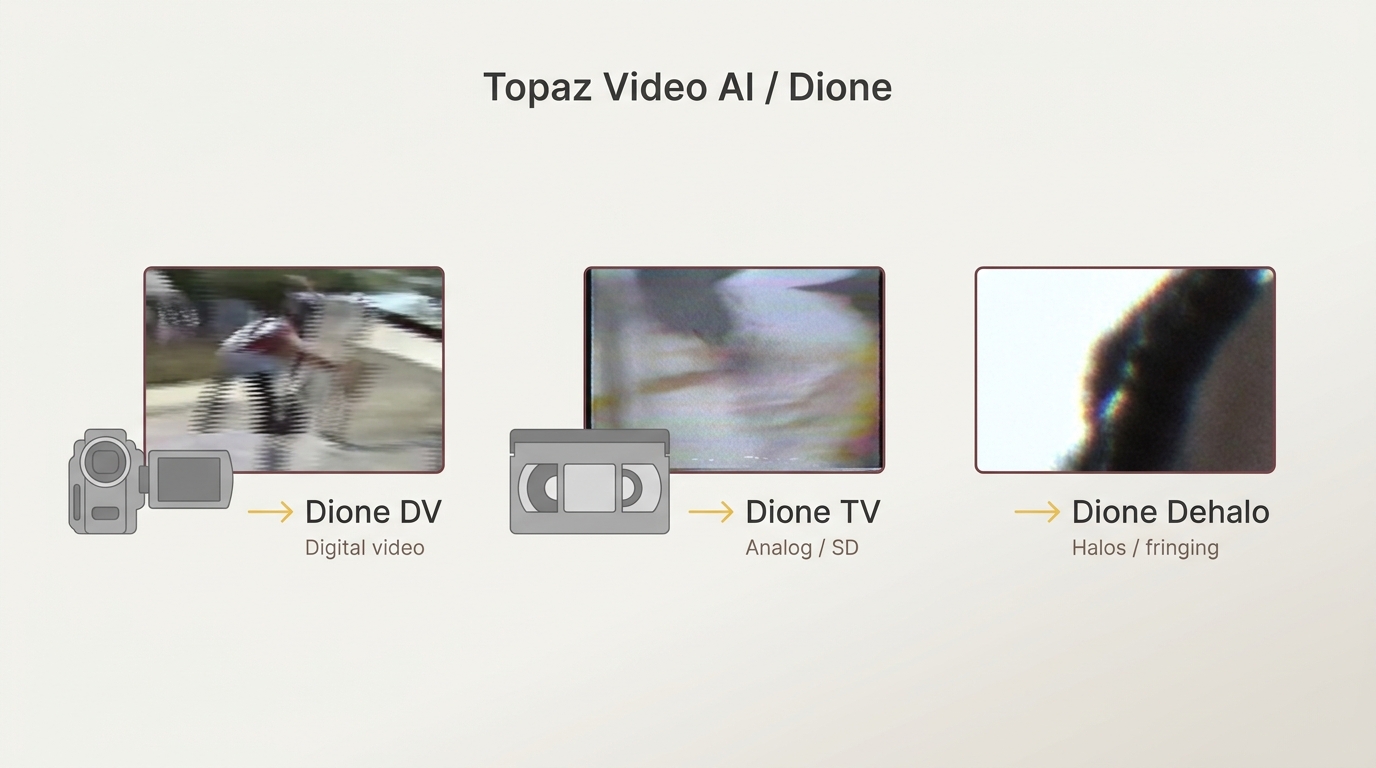
Dione variants include DV for digital camera sources, TV for noisy interlaced footage such as VHS captures or interlaced DVD video, and Dehalo for stronger halo reduction. Dione TV includes denoising and dehaloing, while Dione Dehalo targets more pronounced edge halos; the Dione Dehalo model is distinct from dehalo controls in other Topaz models. The right choice depends on your video's origin and damage level.
One of the big selling points for Topaz Video AI is the ability to pick a model tailored to your footage, rather than being locked into a “one-size-fits-all” filter. But if you’re staring at three Dione options—DV, TV, Dehalo—which do you actually need?
Quick rule of thumb: pick Dione DV for clean digital camcorder tapes (MiniDV, DVCPRO, HDV), Dione TV for analog VHS, 8mm, or DVD rips at 480i/576i, and Dione Dehalo when an over-sharpened source shows bright edge halos.
Quick Breakdown:
Dione DV:
- Best for digital camcorder sources.
- Think: miniDV tapes, DVCPRO, DVCAM, or HDV.
- These have cleaner signals to start with, so Dione DV focuses on sharpness and line reconstruction, keeping digital artifacts in check.
Dione TV:
- Designed for older analog or broadcast footage.
- Suitable sources include VHS, 8mm, analog TV recordings, or interlaced DVD rips at 480i/576i.
- Dione TV combines deinterlacing with denoising and dehaloing for noisy, low-resolution sources.
Dione Dehalo:
- A specialty model for problem footage with halos or edge fringing.
- Dione Dehalo applies stronger halo reduction than Dione TV to bright outlines in over-sharpened recordings; compare edge detail in a preview before processing the full clip.
Useful Tip
If you're unsure which to use, start with TV for general analog and DV for digital. Swap to Dehalo only if you see stubborn white/black halos after the first run.
Topaz Deinterlace Performance and Output Checks
Source Setup
For a 1080i camcorder or broadcast capture, first confirm true interlaced motion, choose a Dione variant matched to the source, and target 1080p progressive output. Check a moving edge for field-order errors, then inspect the saved file for motion and picture geometry.
Step-by-Step Process
Use the best settings for Topaz Video AI to configure deinterlacing, from source scan type and model selection to progressive export.
1. Import & Model Selection
Import the interlaced video into Topaz Video AI.
Choose Dione TV for a suitable analog or broadcast-style source, or another Dione variant matched to the footage.
Keep the output resolution at 1080p for the 1080i source-size example.
2. Scan Type, Field Order, and Output Cadence
The screenshot shows Topaz Video AI; current Topaz Video documentation describes source scan-type and field-order controls. Set the scan type to match the footage and preview a moving edge to check field order rather than inferring it from the tape format alone. For a source containing 29.97 interlaced frames per second, choose 59.94p to retain field-rate motion, or the intended original-rate progressive output when required. Output cadence and synthetic frame interpolation are separate choices.
3. Preview and Process
Inspect a motion-heavy preview for remaining combing, backward-forward movement, ghosting, and softened detail before processing the full clip. Dione can deinterlace and upscale within its own enhancement pass.
If the desired combined model configuration is unavailable, deinterlace at source size into a high-quality progressive intermediate. Then denoise or upscale that intermediate in a separate pass, preserving the source display aspect ratio.
For delivery, choose progressive H.264 in MP4 where supported, with the intended output cadence and display aspect ratio. Play the saved file and inspect motion and picture geometry for combing, judder, ghosting, and stretch.
Use this workflow for personal restoration or backup of content you are authorized to access and process, without unauthorized redistribution. Follow applicable law and platform terms; the permissions required depend on your use case.
Deinterlace Results: Remaining Lines and Ghosting
After processing, compare moving objects with the source: check whether jagged comb lines are reduced and whether edges remain clear rather than becoming blurred.
Inspect detailed or high-motion scenes for faint residual interlacing lines, ghosting, and softened textures. If these remain, revisit field order and model choice, then compare another short preview before exporting the full video.
Topaz Deinterlace Limitations
- Residual Interlacing:
Inspect detailed areas and fast motion for remaining comb lines; compare a short preview with the alternative field-order setting if movement looks uneven. - Softened Fine Detail:
Check backgrounds and hair for a plasticky appearance, and compare model settings before processing the full clip. - Source-Dependent Results:
Damaged footage can retain artifacts after deinterlacing. Inspect moving edges for ghosting and residual line patterns before applying further enhancement.
Choosing Settings for Topaz AI Deinterlace
Match the model to the source, then inspect a motion-heavy preview for residual combing, ghosting, and softened detail before committing to a full export.
Topaz Pricing & Trial
In October 2025 Topaz Labs retired the perpetual license. Dione access requires an active Topaz Video AI subscription. Topaz Personal costs $299 per year prepaid, $39 per month with an annual commitment, or $59 on a monthly plan. Pro costs $699 per year prepaid. Personal permits commercial use below the organization-revenue threshold in its license terms; commercial use is not exclusive to Pro.
As of November 2026:
| Plan | Billing arrangement | Price | Includes Dione? |
|---|---|---|---|
| Personal | Annual prepaid | $299/year | Yes |
| Personal | Monthly, annual commitment | $39/month | Yes |
| Personal | Monthly plan | $59/month | Yes |
| Pro | Annual prepaid | $699/year | Yes |
Demo access: Topaz offers a free demo (no credit card needed), but every export is watermarked. You can inspect motion and remaining artifacts in the demo, but its watermarked exports are not clean production deliverables.
Topaz Video AI $299/Year Too Expensive?
For many users, Topaz Video AI’s complex interface and dense settings can feel overwhelming—especially if you just want a fast, high-quality result without a steep learning curve. Combined with its $299/year subscription (with limited flexibility to opt out), it quickly becomes a costly choice for casual or occasional video editors.
The UniFab Solution: Cheaper and Equal Powerful High-Quality Deinterlacing
UniFab Deinterlace AI for Local Restoration
With UniFab Deinterlace AI, process an authorized interlaced capture locally on Windows or macOS, then inspect the progressive result for combing and motion continuity. Prepare an MP4 or MKV delivery file at up to 4K; Topaz also supports local rendering.
Workflow scope and limits
- Dedicated restoration task
Import an authorized interlaced capture, choose Deinterlace, and inspect moving edges in the progressive output before preparing a delivery file. - Output container limit
UniFab All-In-One provides local processing on Windows and macOS with MP4 and MKV output up to 4K. A workflow that requires MOV needs another delivery route. - Conversion boundary
UniFab Video Converter provides free format conversion, but that offer does not include a license for AI deinterlacing. Format conversion alone therefore does not provide an AI deinterlacing route.
Topaz vs UniFab: Quick Comparison Snapshot
UniFab All-In-One is one of the Topaz AI alternatives for restoring interlaced footage locally. Both products support local processing; Topaz also offers cloud rendering.
As of November 2026, the container options and deinterlacing workflows compare as follows.
| Product | Rendering location | Output containers | Deinterlacing workflow |
|---|---|---|---|
| Topaz Video AI | Local or cloud | MOV, MP4, MKV | Dione: deinterlace and upscale with one model |
| UniFab All-In-One | Local | MP4, MKV | Dedicated Deinterlace task |
Both products support local processing, so that capability is shared. The table shows that Topaz Video AI supports local or cloud rendering and MOV, MP4, and MKV output, while UniFab All-In-One uses a dedicated Deinterlace task with MP4 and MKV output. The broader UniFab vs Topaz comparison covers their capabilities beyond deinterlacing.
License and budget considerations
For an occasional restoration project, choose the package that covers the work you need. A recurring budget should account for the selected plan’s renewal and update terms, and UniFab Video Converter’s free format-conversion offer does not include AI deinterlacing.
Best Topaz Alternative: UniFab All-In-One
- Topaz-level enhancement depth
- Better pricing ($319.99 Lifetime) than Topaz ($299/Year)
- More Complete features than Topaz
- Frequent product releases and updates
- 30-Day Full-Feature Free Trial, No Watermark
UniFab All-In-One
Best Topaz Alternative: UniFab All-In-One
- Topaz-level enhancement depth
- Better pricing ($319.99 Lifetime) than Topaz ($299/Year)
- More Complete features than Topaz
- Frequent product releases and updates
- 30-Day Full-Feature Free Trial, No Watermark
UniFab All-In-One for Mac
Should You Use Topaz Dione to Deinterlace Video?
I recommend Topaz Dione when you want source-specific model choices and field-order control for interlaced footage. Choose UniFab when you need MP4 or MKV delivery through a dedicated Deinterlace task; its free Video Converter offer does not include AI deinterlacing. For a 1080i capture, confirm true interlaced motion before choosing the model, then judge the exported video by moving edges, motion cadence, and picture proportions rather than its frame-rate label alone.
Is Topaz Dione Right for Your Footage?
Choose Topaz Dione when...
- You want to choose a Dione variant for your source and adjust field order after checking motion.
- You need deinterlacing and upscaling within Dione’s combined model.
- You’re restoring varied material, such as DV, VHS, or cable TV captures, and want source-specific model choices.
Choose another workflow when...
- You only need smoother playback: a player’s deinterlacing filter can process the picture during viewing without creating a restored file.
- You need MP4 or MKV delivery through a dedicated Deinterlace task: UniFab provides that restoration route, while its free Video Converter offer does not include AI deinterlacing.
- Your source is already progressive or contains telecined film: preserve progressive footage or recover film cadence instead of applying deinterlacing indiscriminately.
Conclusion
Start by confirming that the source needs deinterlacing, then choose the output cadence deliberately. Inspect the saved video for residual combing, judder, ghosting, softened detail, and stretched proportions rather than relying on its frame-rate label alone.
FAQs about Topaz Deinterlace
Is Topaz deinterlace free?
No. Topaz deinterlace access requires an active Topaz Video AI subscription. The free demo exports watermarked output. UniFab Video Converter is available at no cost, but that offer does not include an AI deinterlacing license.
How long does Topaz Dione take to deinterlace?
Rendering time depends on source resolution, model choice, GPU, output frame rate, and any added enhancement. A 59.94p export contains twice as many output frames as a 29.97p export of the same duration. To estimate the workload for your footage, render a short, representative segment at your intended settings before processing the full video.
Does Topaz deinterlace work on Mac (Apple Silicon)?
Yes. Topaz Video AI runs on macOS 12+ with native Apple Silicon (M1/M2/M3/M4) optimization via Metal acceleration. Set the source scan type, field order, and intended output cadence for your footage, then preview a motion-heavy segment before exporting.
Can I deinterlace and upscale in a single pass with Topaz?
Yes. Dione can deinterlace and upscale within a single model pass in Topaz Video AI. This is one of the workflow strengths of the Topaz architecture. If your desired enhancement combination is unavailable, deinterlace at source size into a high-quality progressive intermediate, then apply the additional enhancement in a separate pass while preserving the display aspect ratio. Choose the output cadence separately from synthetic frame interpolation; bob deinterlacing reconstructs progressive frames from captured fields without requiring interpolation.
Why does my deinterlaced export still look choppy?
Incorrect field order can make movement alternate backward and forward, while reduced output cadence can discard captured motion samples. Compare a pan or moving edge using the alternative field-order setting, then inspect playback in the saved file. A frame-rate label alone does not confirm smooth motion.
Why does a 720 × 480 export look stretched?
Stored dimensions and display aspect ratio describe different properties. When converting DVD video to square pixels, preserve the source display aspect ratio rather than stretching every 720 × 480 source to 16:9. Check faces and circles in the saved file for distorted proportions.