Topaz Nyx targets noise in low-light footage, but aggressive processing can flatten visible texture. For Topaz Video AI denoise, choose the model for your source, compare previews at matching scale, and preserve skin, hair, and shadow detail before exporting. This walkthrough covers Nyx model selection, preview checks, and export settings without relying on a universal slider preset. Denoise AI is also a Topaz alternative for local denoising and batch processing on Windows and macOS.
Topaz Video $299/Year Too Expensive—or Too Much Tuning?
The UniFab Solution: Cheaper and Equal Powerful High-Quality Denoising
Topaz Nyx Model shine on high‑ISO, high‑res footage, but dialing them in can take time. When I'm processing everyday clips and don't want to babysit parameters—or commit to an annual plan—I’ll often run UniFab Denoise AI side‑by‑side: it gives me clean, natural results with a one‑click preset and no watermark during the trial.
Side‑by‑side example
The Nyx Denoising Workflows Compared section explains how the models and controls fit different noisy-video tasks.
Denoising workflow choices
Nyx offers model-specific denoising controls, while Denoise AI offers Fast and High-quality modes for a straightforward local workflow. The broader UniFab vs Topaz comparison covers features beyond the denoising choices discussed here.
What Is Topaz Video Denoise?
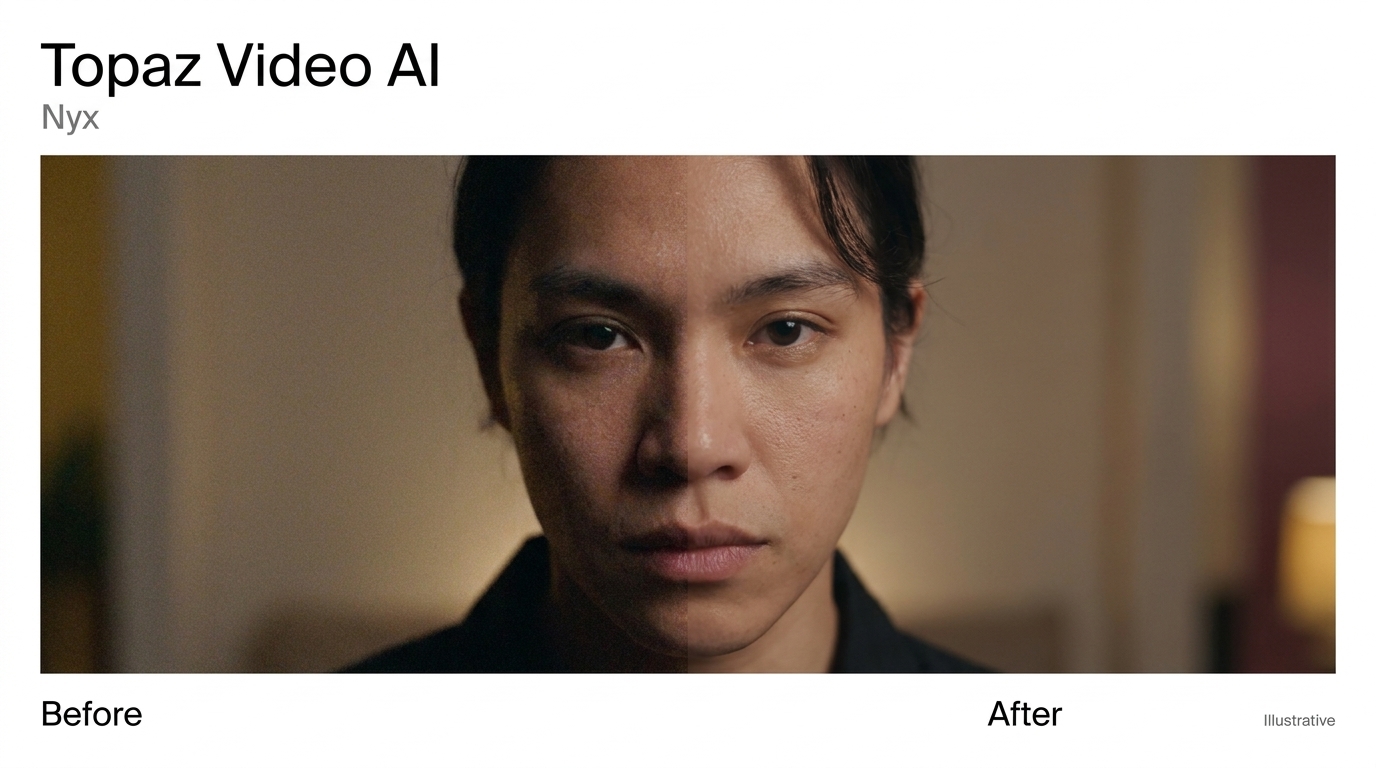
Topaz Video Denoise (also called "topaz denoise video") is the AI-driven noise-reduction workflow inside Topaz Video AI. Its enhancement models include Topaz Nyx for sensor noise and grain, and Artemis and Proteus for compression artifacts. Enhancement Nyx offers 1x and 2x modes; the separate Denoise filter uses Nyx High-Fidelity to remove grain without scaling or sharpening.
Topaz uses machine-learning models to distinguish image structure from noise patterns. Nyx targets high-ISO noise in night footage, but aggressive processing can still flatten skin texture.
Core capabilities of the Topaz video denoise workflow:
- AI-powered models (Nyx, Nyx XL, Artemis) for different noise and artifact types
- Enhancement Nyx at 1x or 2x; a separate Denoise filter for cleanup without scaling or sharpening
- Artifact removal: blockiness, mosquito noise, chroma noise from heavily compressed sources
- Per-clip controls: denoise strength, detail recovery, sharpening, dehalo
Topaz Nyx Model Overview
When people say "the Nyx model" in video editing, they almost always mean this: the Topaz Video AI Nyx noise-reduction engine, designed for noisy, high-resolution footage shot in low-light or high-ISO conditions. The Nyx model separates noise from real textures so night shots, available-light interiors, and underexposed clips can be cleaned without flattening detail.
Enhancement Nyx offers 1x and 2x modes. The separate Denoise filter uses Nyx High-Fidelity to remove grain without scaling or sharpening, and supports a noise-map TIFF sequence export.
Key Features & Use Cases
- Low-light and high-ISO footage — heavy sensor noise in night cityscapes, concerts, weddings, indoor events
- Detail-preserving denoise — targets noise patterns while keeping hair, fabric, and skin texture intact
- Compression and artifact cleanup — reduces blocky compression and chroma noise on highly compressed clips
- GPU-accelerated processing — uses NVIDIA CUDA, AMD, and Apple Silicon acceleration for faster previews and renders
- Manual fine-tuning — denoise / detail / sharpening sliders for precise control (on the standard Nyx model)
Nyx vs Nyx XL: Which Denoise Model to Use
Distinguish the enhancement Nyx model and Nyx XL from the separate Denoise filter powered by Nyx High-Fidelity. Enhancement Nyx offers 1x and 2x modes; the separate filter removes grain without scaling or sharpening.
| Model or filter | What it does | Best for |
|---|---|---|
| Enhancement Nyx | Adjustable denoising; 1x and 2x modes | Low-light and high-ISO clips needing manual control |
| Nyx XL | More aggressive denoising in the January 2026 release | Very noisy footage requiring careful detail checks |
| Denoise: Nyx High-Fidelity | No scaling, sharpening, or adjustable properties | Grain removal at the source resolution |
The separate Denoise filter also supports a noise-map TIFF sequence export. Use enhancement Nyx at 1x to retain the source resolution or 2x when you also need enlargement; assess any additional upscaling as a separate workflow choice.
The Topaz enhancement model descriptions explain the enhancement controls; select the model or filter that matches your intended resolution and level of manual adjustment.
When to Use Nyx vs Other Topaz Models
| Model | Best For | Typical Use |
|---|---|---|
| Nyx / Nyx XL | Heavy noise / grain in low-light or high-ISO video | Night scenes, handheld event footage, noisy smartphone clips |
| Artemis / Proteus | Compression artifacts and low-quality sources | Blocky streaming downloads, low-bitrate web video |
| Iris / Rhea | Fine detail and general enhancement | Face refinement, sharpening cleanup after denoise |
Topaz Nyx Model: Quality and Rendering Considerations
For a Nyx workflow, first identify whether the main problem is low-light or high-ISO noise versus compression artifacts, then choose the model and output settings for that footage. Preview a representative segment at matching scale, inspect retained texture and motion, and accept the least aggressive result that reduces distracting noise rather than assuming the strongest cleanup will produce the most natural image.
Hardware considerations
- GPU: Model compatibility and available graphics memory affect processing.
- CPU: Decoding and encoding also contribute to the export workload.
Footage and output considerations
- Duration: Longer clips require more frames to process.
- Resolution: Source dimensions and output scaling affect the workload.
- Frame rate: Higher frame rates mean more frames for the same clip duration.
- Output target: Set the delivery resolution before committing to a full export.
Nyx Denoising Quality Analysis
Compare the Nyx preview with the original at matching scale. Check whether distracting grain is reduced while fine textures remain visible, particularly on skin and fabric. If skin looks "plastic" or fabric loses its weave, reduce the relevant denoise or sharpening controls and preview again. Inspect moving edges and shadow gradients for artifacts or banding before accepting the result.
Topaz Video 1.2.0, released January 23, 2026, included a fix for dropped frames with Nyx XL. After exporting, check motion and frame continuity in the saved file.
Topaz Denoise Video: Nyx Workflow
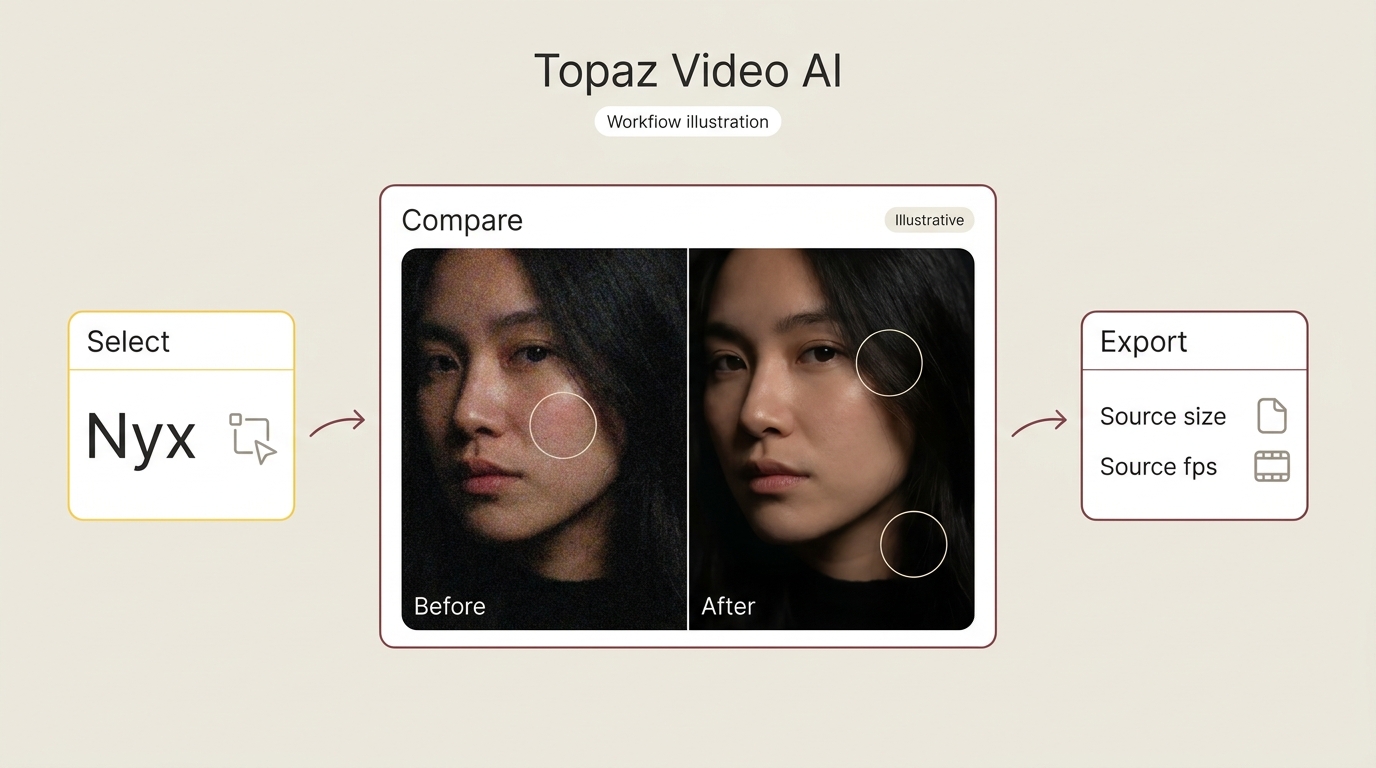
The following steps apply Topaz Video AI settings to denoising noisy or low-resolution clips. This walkthrough focuses on the Topaz Nyx model so you can remove noise and sharpen video frames with clear, repeatable settings.
Import Your Noisy Video
Open Topaz Video AI and load your noisy clip, whether it was shot on an older phone, DSLR, or even VHS.
Choose an AI Model (Nyx or Artemis)
In the Enhancement panel, choose Nyx for heavy noise and grain or Artemis if the footage mainly suffers from compression and blocky artifacts.
Adjust Denoise and Detail Settings
Use the Denoise, Recover Detail, Sharpen, and Dehalo sliders to balance noise reduction and texture. Many users start with a mid-range denoise value and then fine-tune depending on motion and lighting in the scene.
Preview Before You Export
Run a short preview to compare the original and processed frames side by side.
Export the Enhanced Video
Once you’re satisfied, choose your output resolution, codec, and format, then export the enhanced video.
Select the Nyx model and controls available in your installed application version. For export, choose a container and supported codec, then set the resolution and frame rate for your intended player. Keep the source resolution when you want a denoise-only delivery.
Process only footage you legally own or are authorized to use, and follow applicable law and relevant service terms. You are responsible for the rights to your content and any permission needed to redistribute it.
Preview Checks Before Export
- Select a representative noisy segment that includes motion and a face or fine texture.
- Compare the original and processed previews at the same display scale.
- Inspect skin, hair, fabric, moving edges, shadow gradients, and any visible banding.
- Adjust the controls available for your selected model and preview the segment again.
- Accept the least aggressive result that reduces distracting noise while preserving visible detail, then export the full clip.
Pros and Cons of Topaz Video Denoise Nyx Model
Pros of Topaz Denoise Video
- Low-light noise control — Nyx targets high-ISO grain and low-light noise; use a representative preview to judge how much noise reduction the shot needs
- Temporal stability — flicker, grain, and noise reduction stay consistent across frames with minimal motion artifacts when tuned correctly
- Detail checks — use the available denoise, detail-recovery, and sharpening controls, then inspect hair, fabric, and skin texture in the preview
- AI-powered fine-tuning — granular control over denoise strength, detail recovery, and sharpening for different luminance/chroma/film grain noise
- Non-destructive workflow — Topaz processes a copy of your source; original stays intact
- Batch and 4K capable — supports batch processing and high-resolution post-production work, GPU permitting
A Reddit user in 2025 praised Nyx's noise reduction and tighter-looking detail. In a separate 2026 Reddit discussion about a Starlight workflow, a user reported a satisfying result after resolving their issue.
Cons of Topaz Denoise Video
- Annual subscription — $299/year; Topaz retired the perpetual license in October 2025, so the cost recurs every year
- Manual adjustment — preserving detail on the standard Nyx model requires previewing and adjusting the available controls; it is not fully automatic
- Demands a capable GPU — Topaz recommends an NVIDIA RTX 30-series with ≥ 8 GB VRAM (6 GB VRAM is the minimum)
- Rendering workload: model choice, hardware, and output resolution affect export time; render a short segment with your intended settings before starting a long job.
- Separate Denoise filter has no adjustable properties: this filter uses Nyx High-Fidelity to remove grain without scaling or sharpening; preview it before choosing it for a clip that needs fine control.
- Occasional over-smoothing — aggressive settings flatten fine detail, especially on skin and shadow
A Reddit user in 2025 reported banding in a dark sky after noise reduction. A November 2026 Trustpilot reviewer described Topaz's processing as too slow for their value expectations, discussing the application experience rather than a Nyx-specific result. Preview your selected model on motion, fine detail, and shadow gradients before committing to a full export.
Topaz Pricing & Demo (2026 Subscription)
In October 2025 Topaz Labs retired the perpetual license. New buyers use a recurring subscription (as of November 2026). Personal permits commercial use for organizations with annual revenue below $1 million.
| Plan | Price | Includes |
|---|---|---|
| Personal | $299 billed annually; $59 month-to-month; or $39/month with an annual commitment | Nyx, Nyx XL, Artemis, Proteus, Iris, Rhea + standard local models |
| Pro | $699/year | Commercial rights, advanced features, priority cloud rendering |
| Topaz Studio | $499/year | Adds Photo AI and Gigapixel |
Watermarked demo — Topaz offers a demo with no credit card needed. Every exported clip is watermarked. You can preview model behavior and test hardware speed, but you can't ship production work from the demo.
The one-time perpetual license is no longer available for new users. Continued access to the Nyx model (and any model updates) requires an active subscription.
UniFab Denoise AI for Local Video Processing
For straightforward local denoising and batch processing on Windows or macOS, UniFab Denoise AI offers Fast and High-quality modes for noisy footage.
Denoise AI supports local video denoising, so this workflow does not require uploading footage for denoising. Topaz also provides a separate web denoiser: upload a video, select Nyx, preview the result, and download it. Its controls and plan entitlements are separate from the desktop workflow.
Key Highlights
- Cleans low-light, high-ISO, and camera-artifact footage with one-click presets
- AI-powered interface with a direct mode selection for sharp, clean output
- NVIDIA 50-series GPU support for faster processing
- Input and output: MOV, MP4, AVI, MPEG, WMV, F4V, MPG, TS, and FLV inputs. Output is limited to 4K; choose MP4 or MKV within that limit. These are the two supported output containers.
- Three free exports to evaluate denoising on your own clips
Best Topaz Alternative: UniFab Denoise AI
- Professional noise reduction on par with Topaz
- Supports up to 4K upscaling
- More affordable than Topaz
- 30-day free trial with full features, no watermark
UniFab Denoise AI
Best Topaz Alternative: UniFab Denoise AI
- Professional noise reduction on par with Topaz
- Supports up to 4K upscaling
- More affordable than Topaz
- 30-day free trial with full features, no watermark
UniFab Denoise AI for Mac
Nyx Denoising Workflows Compared
For high-resolution footage shot in poor light, I would start with Topaz Nyx. For footage that also needs general detail and artifact reduction, I would consider Topaz Artemis. Denoise AI offers Fast and High-quality modes for local denoising and batch processing.
| Model | Primary denoising task | Controls |
|---|---|---|
| Topaz Nyx | Nyx is optimized for use in denoising high resolution footage in poor lighting conditions. | In the manual settings, you can use dehalo to help reduce the edges you would sometimes find in older analog footage. |
| Topaz Artemis | Artemis is a general enhancement model that offers a good balance of improved detail, noise, and artifact reduction. | There are six variant presets to choose from: High Quality, Medium Quality Low Quality, Medium Halo, Strong Halo and Aliasing or Moire. |
| Denoise AI | Deep-learning noise reduction; preserves edges, textures, and detail | Fast and High-quality modes |
Topaz Video AI enhancement documentation, as of November 2026.
Processing Speed
Rendering time depends on the selected model, available GPU resources, source resolution, output resolution, and export settings. Preview a representative segment using the intended settings before exporting the full clip. If you only need noise reduction, keep the source resolution rather than adding an unnecessary upscale.
Denoising Quality Summary
Nyx targets noisy, high-resolution footage in poor lighting; Artemis addresses a broader mix of detail, noise, and compression artifacts. Denoise AI provides Fast and High-quality modes for video noise reduction. When comparing previews, look for distracting noise reduction without flattened skin, lost hair or fabric texture, or smeared moving edges. A smoother image is not necessarily a more detailed one.
Denoising Workflow Fit
- Topaz Nyx: Choose it for low-light, high-resolution footage when you want model-specific denoising controls.
- Topaz Artemis: Choose it when compression artifacts and general detail cleanup matter alongside noise reduction.
- Denoise AI: Choose it for straightforward local denoising and batch processing on Windows or macOS.
I would choose the workflow that preserves visible texture at an acceptable noise level, rather than push for the smoothest frame. Denoise AI supports output up to 4K in MP4 or MKV; choose one of those containers and a resolution within that limit for delivery.
The video below illustrates the denoising comparison:
UniFab Denoise AI: Import, Preview, and Export
30-day free trial for full feature, without watermark!
Launch the UniFab software. Select the Denoise AI module. Click the Add option to import the grainy and noisy video clip you wish to denoise.
Choose output resolution, model, and other parameters as you like. Alternatively, you can proceed with the denoising process with the default settings.
Once you are satisfied, tap Start to remove the digital noise from your source video. UniFab will complete the entire process in a few seconds.
- Import a local video into Denoise AI on Windows or macOS.
- Select Fast or High-quality, then compare the processed preview with the original. Check skin, fine textures, and moving edges before proceeding.
- Choose an output resolution using the supported 1x, 2x, or 4x scale options. Output is limited to 4K; select MP4 or MKV and keep the chosen resolution within that limit.
- Export the clip, then play the saved file to check picture quality and playback compatibility.
Denoising License Costs over Five Years
At a constant $299 annual rate, five years of Topaz Video AI Personal payments total $1,495, before taxes or later price changes.
Denoise AI offers annual and one-time purchase options. The annual option involves recurring payments; the one-time option does not require annual license renewals.
My Verdict: Choosing a Denoising Workflow
Use Topaz Video AI Nyx if you want model-specific control over noisy footage. I would start with the noise type and preview result, keeping visible skin and fabric texture ahead of aggressive smoothing. Topaz also offers a separate web denoiser with upload, Nyx selection, preview, and download; its controls and plan entitlements are distinct from the desktop application.
Use Denoise AI if you want a straightforward local denoising workflow on Windows or macOS. Process one local clip and inspect the preview before exporting; use batch processing when recurring noisy-video work calls for it.
FAQs about Topaz Denoise Video
Where can I download the Nyx model for Topaz Video AI?
Nyx is a model inside Topaz Video AI, not a separate standalone denoising application. Install Topaz Video AI using the official Topaz Labs installer, then use the application's model-selection and download interface to access Nyx rather than downloading it from a separate model-download website.
Is Topaz Denoise Video free?
No. Topaz Video AI is a paid application. A demo is available without a credit card, but every exported clip carries a watermark.
Is Topaz video denoise good for old VHS or MiniDV footage?
Yes, with caveats. Nyx can reduce noise and grain in VHS, MiniDV, or analog captures, especially when combined with upscaling and dehalo controls. For interlaced captures, apply deinterlacing in Topaz Video AI before assessing denoising, then inspect moving edges and fine textures in the preview. However, results depend heavily on tape condition — extremely damaged or warped tapes may still need manual restoration or specialized models before Nyx can help.
What are the system requirements for Topaz Video AI denoise?
Windows 10/11 (64-bit) or macOS 13 or newer with Apple Silicon support. Topaz recommends an NVIDIA RTX 30-series or newer GPU with 8 GB VRAM (6 GB VRAM is the minimum on a supported NVIDIA/AMD/Intel GPU), 16 GB RAM (32 GB recommended), and a CPU with AVX support. These are application-level requirements; individual models can have additional requirements. Nyx XL in Topaz Video 1.2.0, released January 23, 2026, requires macOS 15 or later. Preview your selected model on a representative segment before exporting the full clip.
Does Topaz Video AI work on Mac (Apple Silicon)?
Yes. Topaz Video AI is compatible with macOS 13+ and optimized for Apple M-series chips (Intel Macs are no longer supported). For Nyx XL's version-specific macOS requirement, see the system requirements answer above. Denoise AI supports local processing on macOS.
Is the Nyx model safe to install?
Nyx is a model inside Topaz Video AI, not a separate standalone application. Use the official Topaz Labs installer and the application's model-selection and download interface rather than a separate model-download website. Topaz processes a copy of your source, so keep the original file before exporting.