4DDiG AI Video Enhancer is an approachable option for cleaning up short, visibly noisy clips, but it sits inside 4DDiG File Repair rather than 4DDiG Data Recovery. Its clearest use is simple enhancement with guided models; it is less convincing when you need predictable detail recovery, extensive output control, HDR conversion, or audio work.
The practical takeaway is to judge the preview against your actual source before paying for export. A credible performance verdict also requires documented source footage, computer specifications, output settings, render time, and side-by-side output observations.
Can You Trust 4DDiG Video Enhancer?
4DDiG video enhancer is a legitimate feature within Tenorshare's File Repair application, but trust should come from the preview, the exact license, and the source footage rather than broad enhancement promises.
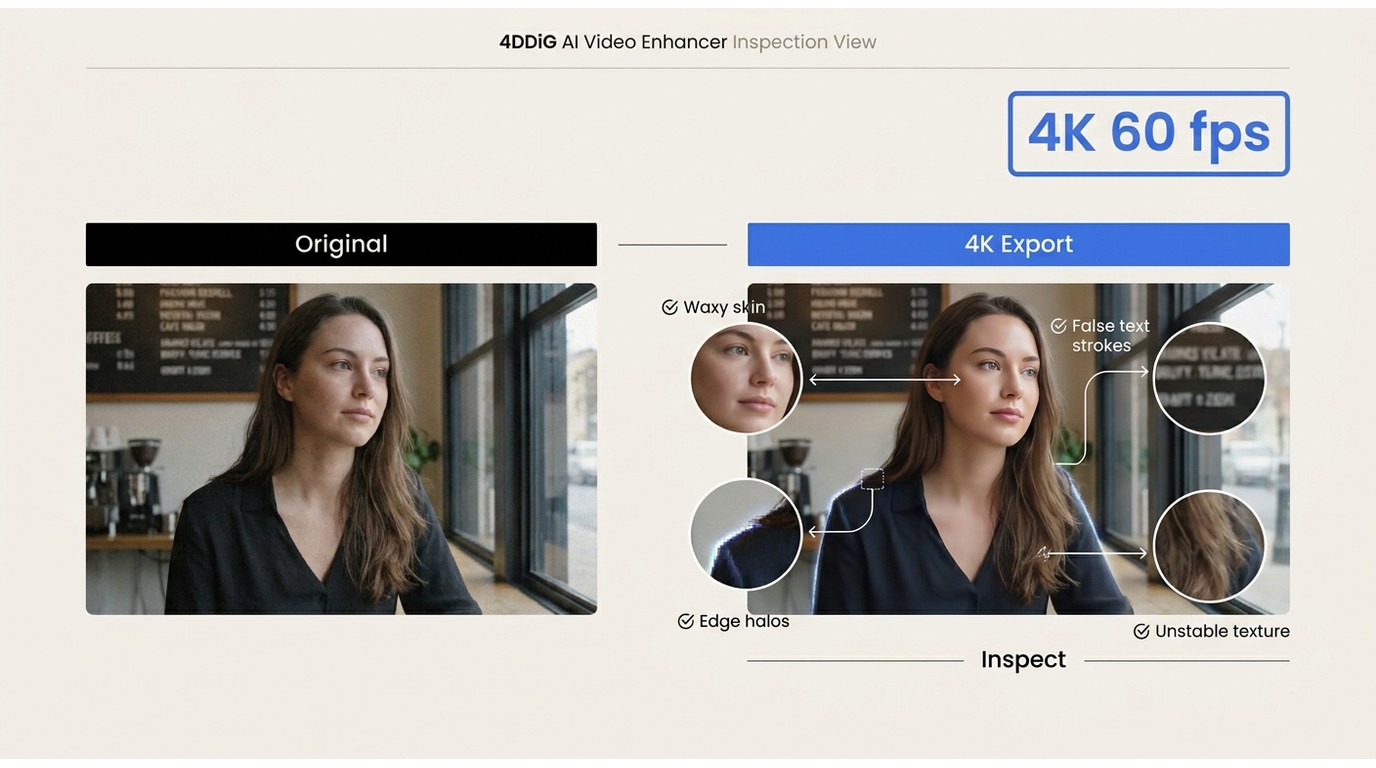
The current official workflow is easy to understand: import a clip, select a model and output resolution, enhance, preview, then save. That is a sensible fit for a first enhancement attempt. It is not proof that weak footage will gain authentic detail, and the preview should be checked for facial texture, text edges, and motion consistency.
My editorial judgment is cautious: 4DDiG AI video enhancer is worth considering for a focused repair task when its preview visibly improves the clip without introducing artifacts. Skip it when the project also requires HDR, frame-rate conversion, audio enhancement, or a broader production workflow.
What Tenorshare 4DDiG Actually Includes
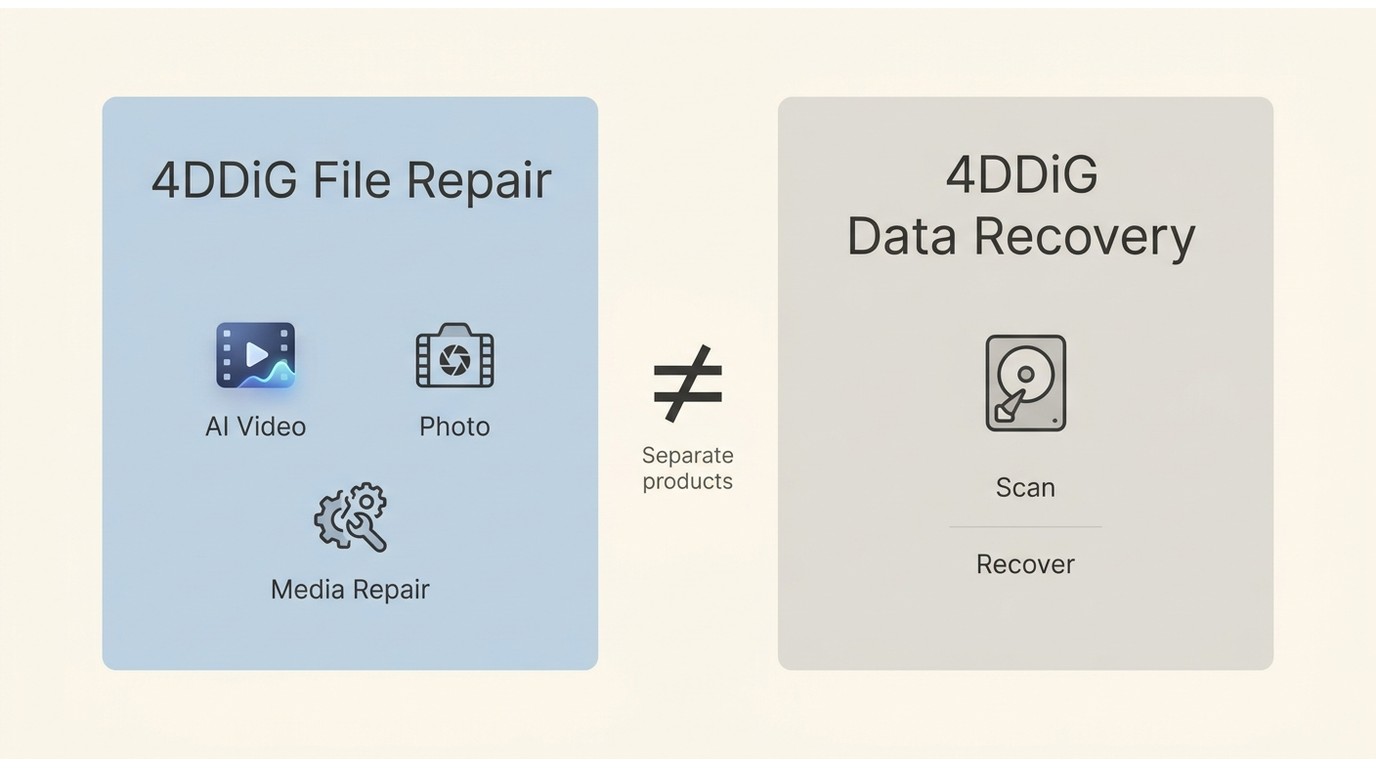
Tenorshare uses the 4DDiG name across separate products. The enhancer reviewed here belongs to 4DDiG File Repair, while 4DDiG data recovery has a different scan-and-recover workflow and separate licensing.
4DDiG Product Line Overview
4DDiG is a product family, not one all-purpose application. File Repair covers damaged media and AI enhancement tools; Data Recovery searches storage devices for deleted or lost files. Results, prices, and user reports from one product should not be used as evidence for the other.
File Repair and Enhancer Features
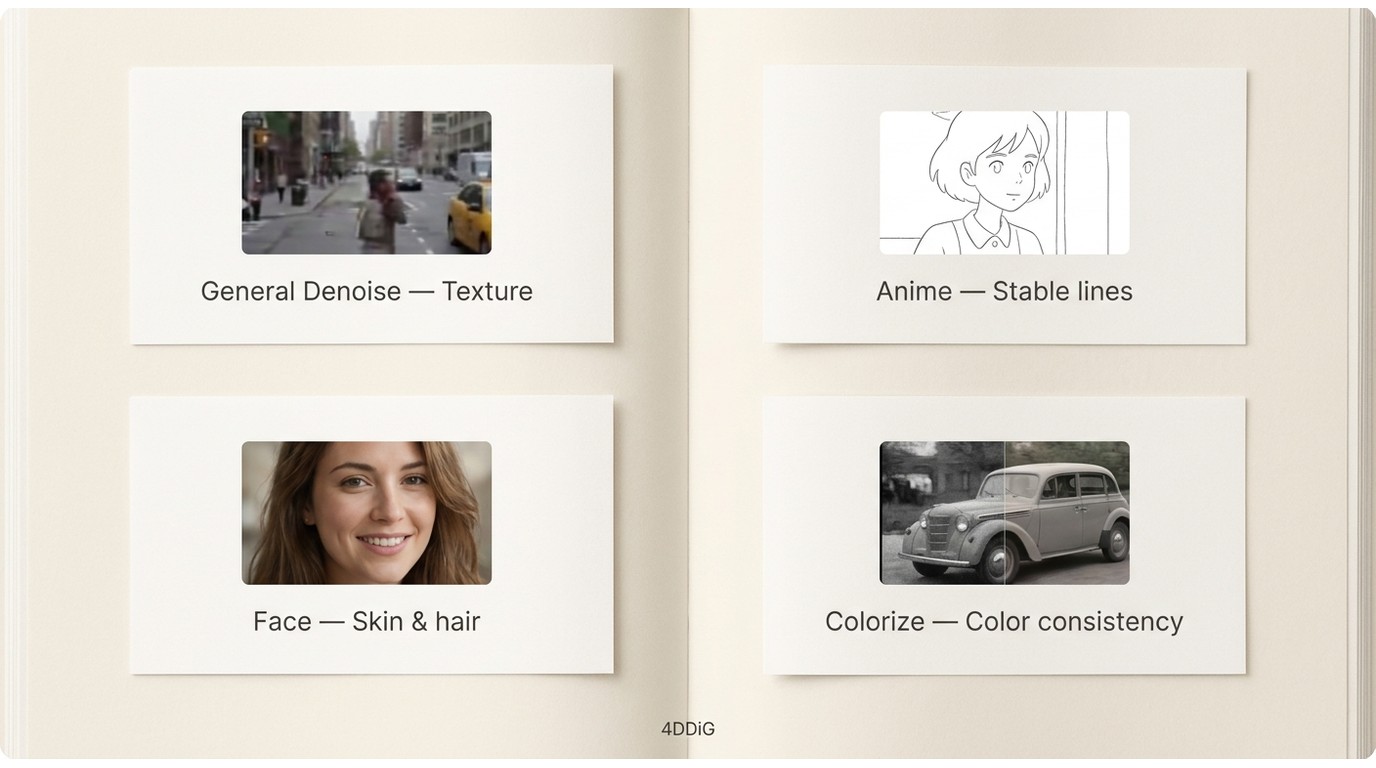
4DDiG File Repair brings photo repair, video repair, a 4DDiG photo enhancer, and the AI Video Enhancer into the same desktop application. The official video page lists General Denoise, Anime, Face, and Colorize models.
- General Denoise: suited to mixed footage with visible noise or compression.
- Anime: aimed at drawn edges and flatter color regions.
- Face: prioritizes portraits and facial areas.
- Colorize: adds color to black-and-white material, where historical accuracy still needs human review.
The Basic Enhancement Workflow
The 4DDiG AI video enhancer follows a short import-to-preview process, which makes the initial evaluation accessible even if you have not used an AI upscaler before.
- Open File Repair, choose AI Enhancer, then select Video Enhance.
- Import the source video and choose the model that matches the footage.
- Select an output resolution and start enhancement.
- Inspect the preview closely, then save only if the result improves the source without distracting artifacts.
4DDiG AI Video Enhancer Features
4DDiG AI Video Enhancer combines upscaling, denoising, face-focused processing, anime enhancement, and colorization. AI video enhancement quality still depends more on the source and model fit than the selected output resolution.
Upscaling and Sharpening
The 4DDiG video enhancer can enlarge low-resolution footage and apply sharpening, but output pixels are not the same as recovered detail. A good result makes edges easier to read without turning hair, fabric, or foliage into brittle outlines.
Output Clarity and Detail
AI video enhancement quality should be judged on texture retention, readable text, stable faces, and consistent edges across adjacent frames. Pause on moving faces and fine patterns; a sharp still frame can hide shimmer or invented detail during playback.
Resolution and Frame-Rate Limits
The current official page states output up to 4K at 60 fps. It does not verify 8K output for this exact File Repair feature, so 4K at 60 fps is the defensible ceiling for this review.
That ceiling does not guarantee a worthwhile conversion. A clean HD clip may benefit from modest upscaling, while a heavily compressed source can remain blocky or look overly processed at 4K.
Color and Contrast Enhancement
The color tools can make faded footage more legible, but stronger saturation is not automatically more accurate. For colorized or restored media, inspect skin tones, neutral objects, and frame-to-frame stability rather than relying on a bright first impression.
Four AI Models
The four 4DDiG AI video enhancer models make selection simpler, although each has a narrower best-fit source. General Denoise suits mixed real-world clips, Face targets portraits, Anime favors illustrated content, and Colorize addresses monochrome footage.
Avoid assuming the specialized model is automatically better. For example, face processing can oversmooth skin, and an anime model can harden edges in live-action footage.
Interface and Batch Workflow
The interface reduces the job to importing, choosing a model, setting resolution, previewing, and saving. The official page uses plural wording for video uploads, but it does not document a 4DDiG batch processing limit, shared queue settings, or parallel-job behavior.
If batch work is essential, confirm that your installed build can queue the required clips and apply the intended settings consistently before committing a large project.
Test Setup and Evaluation Criteria
Use a repeatable test matrix before treating any performance claim as evidence. Record the footage, computer, selected model, output settings, elapsed time, file size, and visible changes for each run.
| Record | What to document |
| Source clips | Length, original resolution, frame rate, codec, and visible defects for a noisy live-action clip, a face close-up, animated footage, and a black-and-white sample. |
| Computer | CPU, GPU, memory, operating-system version, available storage, and whether the device was on AC power. |
| Settings | 4DDiG version, selected AI model, target resolution, target frame rate, and any quality controls exposed by the build. |
| Measured output | Processing time, output size, completed or stalled status, and whether preview and exported output match. |
| Visual checks | Texture, faces, text, Edge halos, motion shimmer, color stability, invented detail, and oversmoothing. |
Use the same source clips and viewing scale for each model. That keeps the comparison repeatable and prevents a larger output window from being mistaken for better detail.
Test Results and Failure Cases
Do not accept a speed or quality verdict that omits its source, computer, settings, render time, and output comparison. For 4DDiG, the most useful evidence is a matched before-and-after sequence that reveals both gains and failure cases.
- Sharpness: look for clearer edges without halos around text, hair, or high-contrast objects.
- Texture retention: compare fabric, skin, foliage, and grain to make sure denoising has not erased useful detail.
- Faces and text: reject results that invent facial features, distort lettering, or change details between frames.
- Temporal consistency: play motion at normal speed and watch for flicker, crawling edges, and unstable color.
- Weak-source limits: enhancement is often not worthwhile when the source is extremely small, heavily blocked, motion-blurred, or missing facial detail.
- Stalls and processing time: document incomplete jobs and total minutes alongside clip length, model, output setting, and hardware.
The most important test is whether the enhanced clip looks more natural in motion, not whether one paused frame looks sharper. If a result invents detail or shifts texture from frame to frame, keeping the original or choosing a lighter setting is the better decision.
Using 4DDiG AI Video Enhancer
Using 4DDiG AI Video Enhancer takes four main steps: open the correct File Repair module, import footage, choose a model and output, then inspect the preview before saving.
- Open the enhancer. Launch 4DDiG File Repair, select AI Enhancer, and open Video Enhancer.
- Add the source. Import the video you want to evaluate. Keep an untouched copy for comparison.
- Choose settings. Match General Denoise, Anime, Face, or Colorize to the source, then select an output resolution no higher than the verified 4K limit.
- Preview and compare. Check motion, faces, text, and fine texture at the same viewing scale as the original.
- Save the result. Export only when the preview improves clarity without visible instability or artificial texture.
The preview is the decision point. If the face model removes natural texture or the denoise model makes moving edges shimmer, change models or keep the original rather than treating 4K output as an automatic improvement.
4DDiG Free Access and Pricing
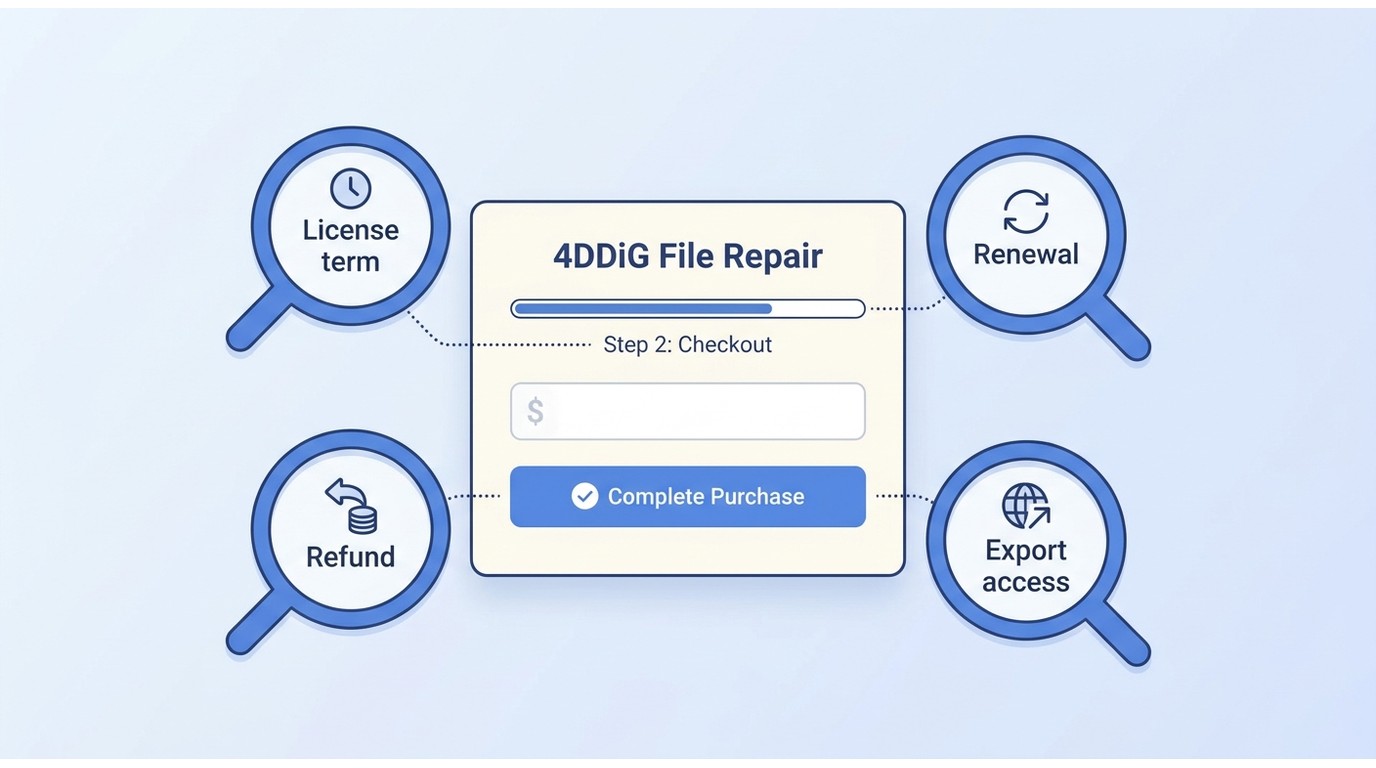
Searching for 4DDiG video enhancer free usually leads to a free download and preview path, but the official enhancer page does not state a free export allowance. Full use should be evaluated against the File Repair license, not Data Recovery pricing.
File Repair Pricing and License Terms
As of July 2026, the official US File Repair checkout lists the following Windows licenses before tax:
| File Repair license | Devices | Price |
| 1 month | 1 PC | $35.95 |
| 1 year | 1 PC | $65.95 |
| Lifetime | 1 PC | $79.95 |
| Lifetime | 3 PCs | $159.95 |
| Lifetime | 5 PCs | $239.95 |
The checkout says subscription cancellation is available through the cancellation guide or customer support and presents a 30-day money-back guarantee for qualifying unresolved technical problems. It does not clearly specify free export limits on the enhancer page, and Windows and Mac license codes are not interchangeable.
My buying rule is simple: do not treat an import or preview as proof of export access. Match the license to the exact File Repair SKU, platform, device count, and task before paying.
What 4DDiG Users Report
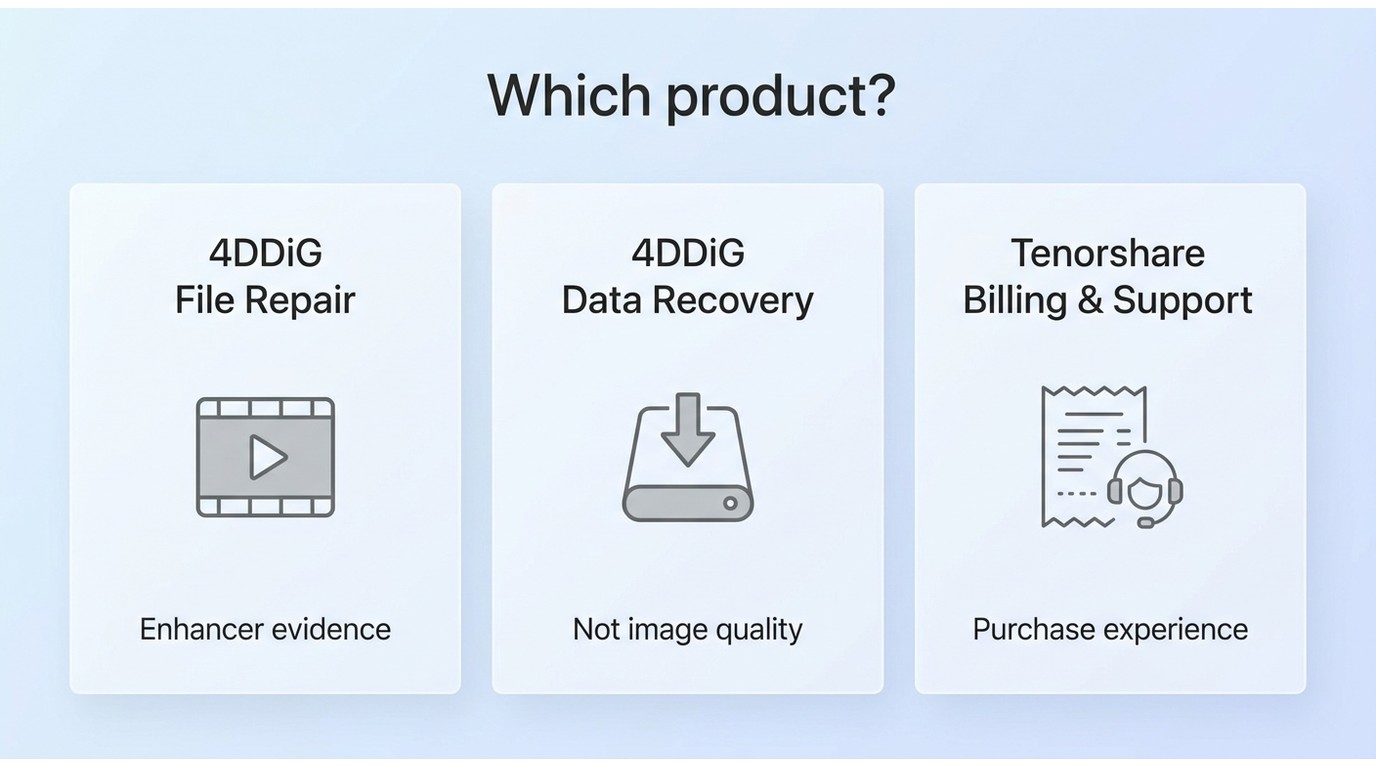
4DDiG reviews are mixed, but much of the visible feedback concerns 4DDiG Data Recovery or the wider Tenorshare brand. Those reports can inform billing and support expectations, not AI video enhancement quality.
Positive Feedback
Data Recovery reviewers often praise the clean interface and guided workflow, while one independent review found that File Repair restored several damaged JPEGs enough to view. Neither observation establishes how well the AI Video Enhancer handles a particular video source.
Negative Feedback
Recurring brand-level concerns include paid-output confusion, cancellation or refund friction, and uneven support experiences. Data Recovery reports also mention scans that find files that later prove incomplete or unusable; that is a recovery issue and should not be presented as an enhancer result.
Checks Before You Buy
Before buying, identify the exact product, confirm whether your preview can be exported under the selected plan, and save the checkout terms for the relevant platform.
- Confirm that the installer and checkout both name 4DDiG File Repair.
- Check the device count and whether the code is for Windows or Mac.
- Separate subscription cancellation from refund eligibility.
- Test your hardest source in preview, especially faces, text, motion, and fine texture.
- Do not use Data Recovery success stories as evidence of enhancer quality.
4DDiG Pros and Cons
The 4DDiG video enhancer favors a guided workflow and model choice over detailed controls. That makes it accessible, but it also puts more weight on the preview and the quality of the source.
Pros
- Clear import, model, preview, and save workflow.
- Four source-oriented models for general footage, faces, animation, and colorization.
- Officially stated output up to 4K at 60 fps.
- Windows and Mac downloads for the File Repair application.
- Preview-led evaluation before the final save step.
Cons
- The Video Enhancer is marketed under 4DDiG but installs as File Repair, which can make product and pricing research confusing.
- The official page does not publish a clear free export allowance or documented batch limit.
- Resolution alone cannot correct missing detail, heavy compression, or motion blur.
- Specialized models can oversmooth faces, harden edges, or create unstable detail when poorly matched to the source.
- Published performance claims are not useful unless they identify source footage, computer hardware, output settings, render time, and visible results.
4DDiG vs. Alternatives
Useful 4DDiG alternatives should be compared by exact workflow, not by the largest number on a product page. The table separates 4DDiG File Repair from UniFab All-In-One and marks where measured evidence is unavailable.
| Product | Exact product and workflow | Maximum officially verified output | AI models and source types | Observed quality and artifacts | Processing time and hardware | Batch workflow | HDR and frame-rate options | Audio enhancement | Free access and export limits | Current license model | Best fit | Not ideal for |
| 4DDiG File Repair / AI Video Enhancer | File repair application with a guided video-enhancement module | Up to 4K at 60 fps | General Denoise, Anime, Face, and Colorize | Evaluate the preview for smoothing, invented detail, and motion instability; no reproducible result should be accepted without matched input and output | Require clip length, model, output setting, computer specifications, and elapsed time for any speed claim | Official page does not document limits | Output up to 60 fps; no verified HDR conversion on the reviewed page | No verified audio enhancement in this workflow | Free download and preview are described; free export allowance is not stated | Monthly, annual, and lifetime File Repair licenses for listed PC counts | A focused, guided enhancement or repair task | Projects needing documented performance, detailed controls, HDR conversion, or audio processing |
| UniFab All-In-One | Local Windows and Mac suite for enhancement, conversion, HDR, frame-rate, and audio workflows | Up to 4K output in MP4 or MKV | Includes the Kairo anime model plus broader video-processing modules | Compare the same source with texture, face, text, and motion checks; the product breadth does not guarantee a better result for every clip | Require the same source, output setting, computer specifications, and elapsed time before comparing speed | Batch support is available; enhancement queue limits are not stated | SDR-to-HDR10 conversion and frame-rate enhancement | 5.1/7.1 audio upmixing | Commercial terms are omitted here because the comparison focuses on workflow rather than a mismatched promotion | Desktop All-In-One product for Windows and Mac | A broader local workflow that includes HDR, audio, anime, and output-format choices | A basic one-off enhancement where the extra modules would go unused |
Which Workflow Fits Each Tool?
Choose 4DDiG when the task is a simple enhancement or repair and its preview looks natural. Choose a broader suite when the project also needs HDR conversion, audio upmixing, format choices, or specialized anime processing.
If you are still comparing the category rather than these two products, a broader desktop video-processing workflow can clarify which modules matter before you buy.
UniFab as a 4DDiG Alternative
UniFab is one of the relevant 4DDiG alternatives when enhancement is only one step in a larger Windows or Mac workflow. Its value here is breadth, not a claim that it improves every source more effectively.
Key Video and Audio Features
For this comparison, the useful differences are SDR-to-HDR10 conversion, 5.1/7.1 audio upmixing, the Kairo model for anime, local processing, and MP4 or MKV output up to 4K. The UniFab Video Upscaler is the relevant entry point for resolution and model selection.
Face-focused work can be evaluated through the UniFab Face Enhancer, with the same caution used for 4DDiG: inspect skin texture and frame-to-frame stability rather than judging one still image.
Denoising should preserve edges and texture instead of flattening the frame.
For monochrome sources, the UniFab Video Colorizer offers a separate colorization workflow, although historically accurate color still requires editorial review.
Best Fit and Limitations
Best fit: users who need a local suite for video enhancement plus HDR, audio, anime, and format workflows. Less suitable: someone who needs a single basic enhancement and does not want to learn or pay for additional modules.
The broader toolkit does not eliminate source limits. Low-detail, highly compressed, or motion-blurred footage can still produce artificial texture, and a fair speed comparison requires the same source, settings, computer, and timing method.
Using UniFab Video Enhancer
The UniFab workflow can be kept to three steps, so the alternative does not overtake the main 4DDiG review.
30-day Free Trial with full feature access!
Launch UniFab and Import Video
Install and run UniFab on your Windows or Mac model. Navigate to "All Features" and select the Upscaler module. Click Add Video on the homepage to import the video clip you wish to enhance.
Customize the output configurations
Then, set the video parameters such as resolution, codec, format, quality, and other necessary elements.
Complete the process and save the enhanced video
Tap Start to improve, sharpen, and upscale the video content instantly.
Keep this alternative workflow brief and use the same preview criteria applied to 4DDiG, so the decision remains based on the source rather than the length of a feature list.
Final Verdict: Is 4DDiG Worth It?
4DDiG AI Video Enhancer is worth considering when you want a guided File Repair workflow, your source has moderate noise or softness, and the preview shows a natural improvement. It is not a strong purchase when the source lacks recoverable detail or the project requires HDR, audio, extensive controls, or documented render performance.
Without a reproducible source-to-output record, a hands-on performance verdict would overstate the evidence. Based on the documented capabilities, I would treat 4DDiG as a preview-first option for a narrow task, then choose a broader suite only when those additional modules match the actual workflow.
4DDiG Video Enhancer FAQs
Is 4DDiG Video Enhancer the same as 4DDiG Data Recovery?
No. The AI Video Enhancer is presented inside 4DDiG File Repair. 4DDiG Data Recovery is a separate product for locating and recovering lost files, with different workflows and licensing.
What can I do with 4DDiG Video Enhancer for free?
The official enhancer page describes a free download and preview, but it does not state a free export quota or complete export limits. Judge the preview first, then match any purchase to File Repair.
Does 4DDiG Video Enhancer support batch processing?
The page refers to importing videos, but it does not document queue limits or batch behavior. Confirm the installed build can apply your settings across multiple clips before planning a large job.
Can 4DDiG Video Enhancer export in 8K?
The current official page verifies output up to 4K at 60 fps. It does not verify 8K for this exact File Repair feature.