Choose a subtitle translator that exports an editable track if you need to correct translated captions. Start with file translation for existing subtitles or transcription for uncaptained video; YouTube Studio can publish your prepared translation, but its Auto-sync feature requires the video's spoken language.
I would treat an AI draft as the start of video subtitle translation, not the finished deliverable. The useful handoff is text you can still correct without rebuilding its timing. I'll separate file translation, caption creation, and publishing, then show what to inspect before handing over the result.
Choose a Subtitle Translator by Input and Output
For an existing SRT or VTT track, Immersive Translate offers file translation; for video or audio without captions, Kapwing combines transcription with subtitle editing. YouTube Studio fits publishing a prepared track on your own upload, while its Auto-sync option aligns a same-language transcript rather than translating it.
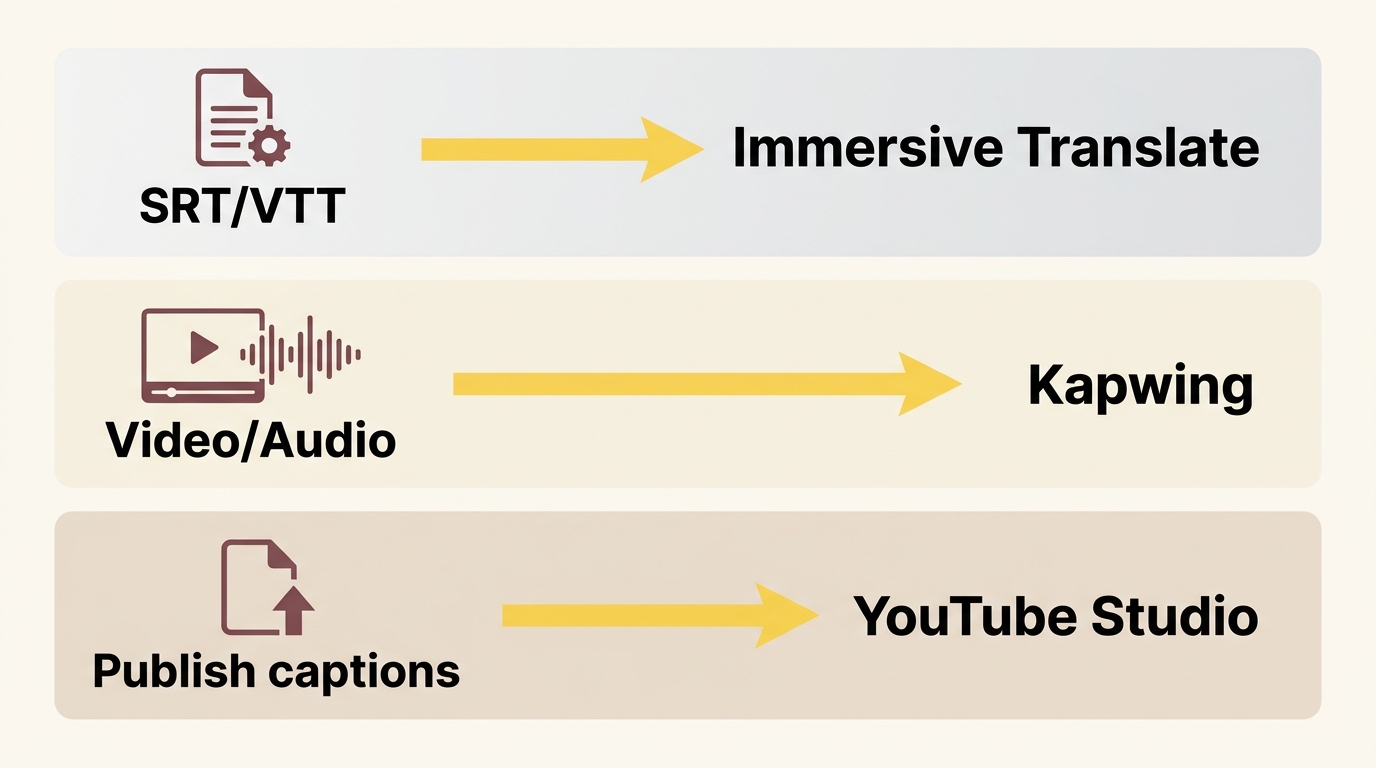
Subtitle Translation Options: Inputs, Outputs, and Limits (November 2026)
| Tool | Starts With | Output | Suits | Key Limit |
|---|---|---|---|---|
| Immersive Translate | SRT, VTT, ASS | Translated or bilingual subtitle files | Existing timed subtitles | Engine costs vary; subtitle batch support unclear |
| Kapwing | Video, audio, SRT, VTT | SRT/VTT/TXT or captioned video | Caption creation and editing | Limited translation minutes; free video exports watermarked |
| YouTube Studio | Prepared captions or same-language transcript | Published caption track on your video | YouTube creator publishing | Auto-sync requires the original spoken language |
An editable track suits revisions. A captioned video suits a delivery that needs visible text already in the picture, but keep the subtitle file too if someone will revise the wording later. I would choose the file route for a translated interview that still needs name and terminology corrections.
Kapwing fits a different starting point: you have the recording, but no timed text. Its editor brings caption creation and translation into the video project. Limited translation usage and watermarked free video exports matter if your destination requires a clean finished video; those limits are separate from whether the tool accepts your input.
YouTube Studio serves the publishing stage. An English transcript can be aligned to English speech through Auto-sync; a Spanish translation needs its own appropriate timing rather than being treated as that English transcript. Uploading captions and translating dialogue are separate jobs.
A free online video subtitle translation tool is enough when its engine allowance covers your file and its export matches your delivery. Free access alone doesn't settle either point. For a folder of episodes, confirm subtitle-specific batch input rather than assuming a document batch feature handles SRT files.
Translate SRT and VTT Files with Immersive Translate
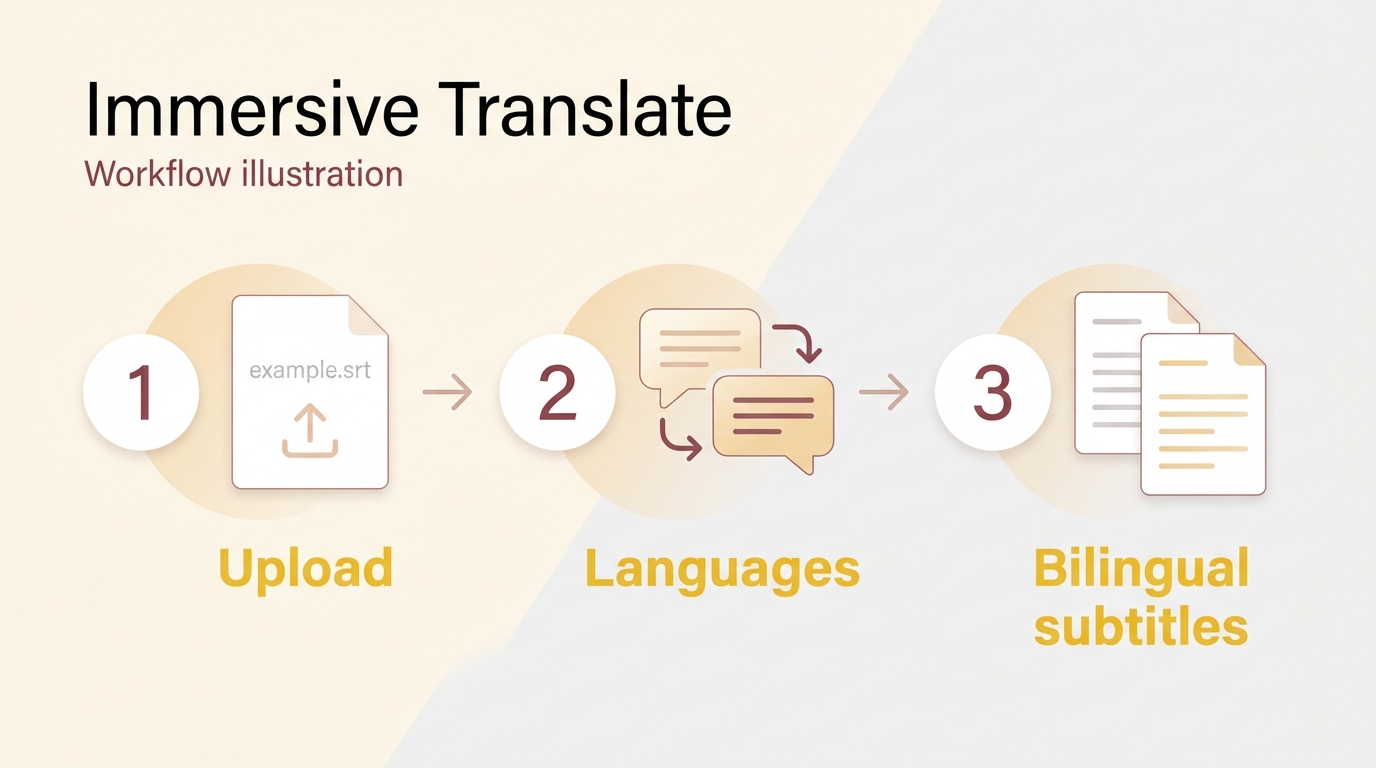
Use Immersive Translate's subtitle-file entry to upload an existing SRT or VTT, choose the translation settings, and download a translated or bilingual track. Its timing-preservation feature keeps the source structure as the starting point; your export still needs a completeness and playback check.
An editable first pass is a reasonable goal. As one Reddit poster in r/fanedits asked, “Maybe there is an AI tool out there that can make a rough translation so I only need to make some final adjustments?” I would preserve room for those adjustments instead of treating readable translated text as proof that the subtitles are ready.
Prepare the Subtitle File and Translation Settings
-
Keep the source file and matching video together. Save a working copy of your SRT or VTT before uploading it to Immersive Translate. Open that copy as text and confirm that dialogue and timestamps are present. A video file, a plain transcript, and a timed subtitle track are different inputs. Use the video to judge whether the source timing is already correct.
-
Upload the working subtitle file through Immersive Translate's subtitle entry. Use its document/subtitle interface for the supported file type. Keep the source-language and target-language choice clear, and review the selected engine's allowance against the full file. If the file exceeds that entry's limit, use a route that accepts the complete subtitle file rather than deleting cues to make it fit.
Long files deserve that check before translation. A Reddit poster in r/software described the problem directly: “Each file is for a video that is over an hour and contains about 8000 lines which means it's way to big for the free online translators.” That is one person's file, not a size limit for every service. Count subtitle cues separately from text lines when inspecting your own input.
Translate the Dialogue Without Rebuilding Cue Timing
-
Choose an engine that supports your target language. In Immersive Translate, select the available translation service and output language for this file. Use any context or terminology controls offered by that entry to keep names and recurring terms consistent. Don't assume that an engine choice guarantees the right meaning: a character name and an ordinary word sometimes share the same spelling.
-
Choose translated-only or bilingual output and run the translation. Bilingual text helps you compare the source with the draft; translated-only text suits a track intended to display just the target language. Preserve cue order and timestamps. When a sentence crosses cue boundaries, read the neighboring cues together before correcting it, so a pronoun or unfinished phrase keeps its intended meaning.
The original time window still constrains the translation. A longer target-language sentence needs editing for readability even when its timestamps remain untouched. I would shorten wording before changing a correct cue boundary, then replay the passage to judge whether the meaning and reading pace still work.
Download and Check the Translated Track
-
Download the needed subtitle format from Immersive Translate. Save it under a distinct language filename, leaving the original intact. Keep a separate translated track even if the next delivery is a video with visible captions. Renaming TXT to SRT does not create missing timestamps, and converting SRT to VTT does not translate dialogue.
-
Compare the exported track with the source structure. Check cue totals, order, and timestamps at the beginning, middle, and end. Investigate missing dialogue, blank entries, repeated passages, or a track that ends early. For translated-only output, an unexplained cue-count change deserves inspection; don't compare raw line totals when bilingual output intentionally adds text.
-
Review meaning and reading rhythm against the video. Check names, terms, negation, and sentences spread across adjacent cues. Watch for text that disappears before you can finish reading it, awkward line breaks, and dialogue assigned to the wrong moment. Use a reader fluent in the target language for wording you cannot confidently assess yourself.
-
Save the corrected track and replay it in the destination. Confirm that the player or editor loads the intended language file and displays its characters correctly. Revisit any passage you changed, along with the opening and closing dialogue. Keep the source, translated draft, and corrected delivery distinguishable so later revisions start from the right file.
I would call the track ready when the dialogue, cue structure, and playback agree, rather than when the download finishes. If the project instead needs a video output, that is a separate delivery branch, not an extra requirement for completing this file workflow.
Use these tools for lawful personal projects and follow the tool's and platform's terms. You are responsible for having permission to edit and share the material; do not redistribute or resell content without authorization.
When UniFab Video Translator AI Fits a Video Project
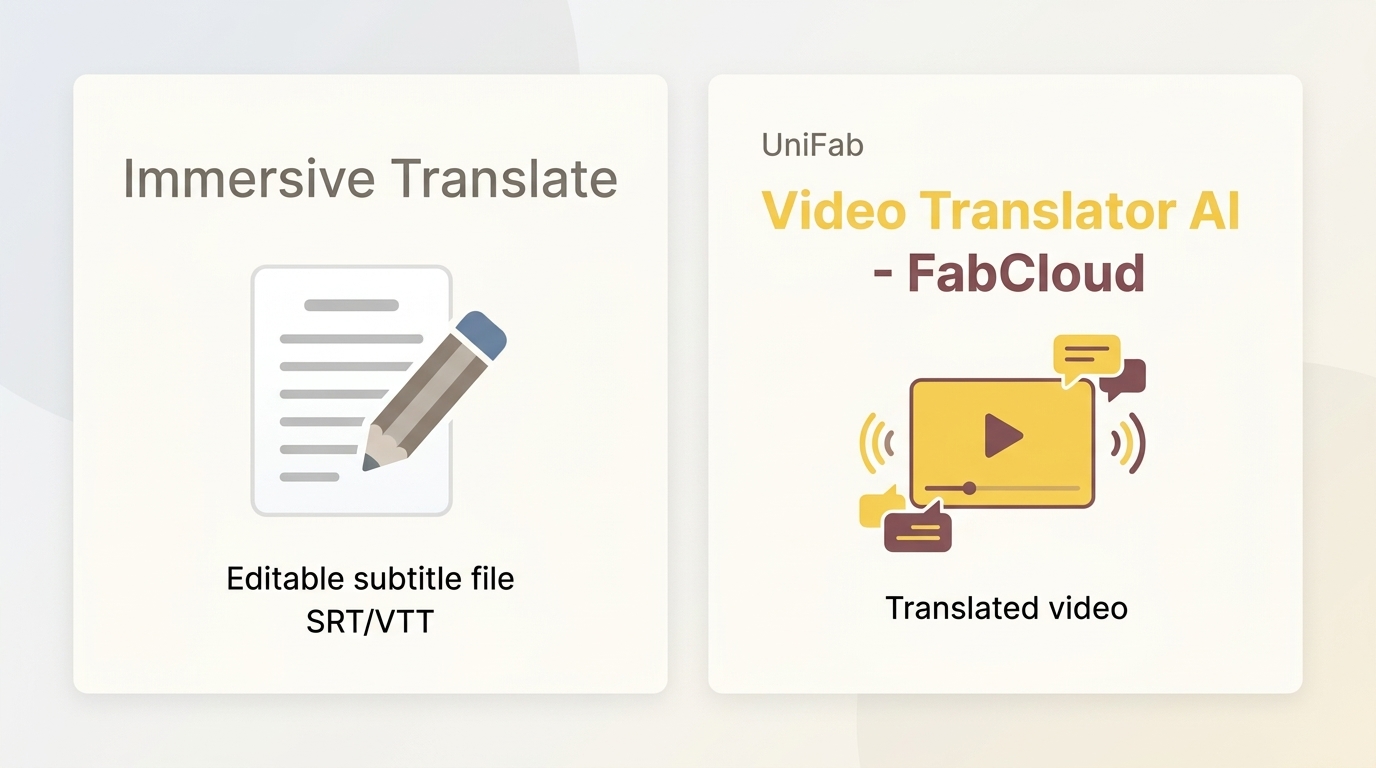
UniFab Video Translator AI fits consideration when your project calls for video output on Windows rather than a standalone translated subtitle file. It is a separate project route, so you do not need it to complete the SRT/VTT workflow above.
UniFab Video Translator AI, listed as Video Translator AI-Fabcloud, supports Windows, video output up to 4K in MP4 or MKV, and 23 languages. Windows support gives you the stated desktop project scope; MP4/MKV output and the resolution ceiling help match the video delivery. Language coverage helps establish whether your target language is included. None of those specifications substitutes for checking the translated dialogue.
I would keep an editable subtitle requirement separate from a video-output requirement. Standalone subtitle downloading is outside the module's stated scope, and separate translated-track export is not established; use the file workflow above when an editable track is the required deliverable.
Availability, System, and Credit Limits
Before starting a Windows video job, confirm that the client's translation entry is available, its Beta and system requirements fit your setup, and its credit requirement fits your balance. If the translation entry is unavailable, resolve that module's status through UniFab's current client and update information rather than substituting another feature for the translation task.
For a video project, use the UniFab product page as the entry point, then confirm the Video Translator AI-Fabcloud options for your project in the client.
Subtitle Translation FAQ
Multiple files, creator publishing, burned-in text, and mobile viewing add different requirements to subtitle translation. I would keep the corrected language track as the reusable deliverable wherever the destination accepts one.
Can I Translate a Whole Folder of Subtitle Files at Once?
A: Multiple-file upload is available in some subtitle tools: BookTranslator lists a batch subtitle upload workflow. That does not mean unlimited translation or that each exported track needs no review. Immersive Translate's subtitle batch descriptions conflict with a batch control labeled for PDFs, so don't assume folder-wide SRT translation is available there. Confirm that the active upload entry accepts multiple files of your subtitle format and preserves separate outputs, then review each track. A batch job still contains separate videos with separate timing.
How Do I Publish Translated Subtitles on My YouTube Video?
A: Use a prepared, timed translation for your own upload. In YouTube Studio:
- Open Subtitles, select the video, and add the target language.
- Under that language's subtitles, upload the translated file using With timing.
- Review the track and save the changes.
Keep an SRT file in plain UTF-8; YouTube does not recognize SRT styling markup. Its caption-file requirements explain supported formats. I would preview names and accented characters after upload, since a readable local file still needs to display correctly in the published track.
Can a Subtitle Translator Read Text Burned into a Video?
A: A file translator needs subtitle text; burned-in captions are pixels. One Reddit poster in r/androidapps asked, “Is there a free app that can translate the hard coded Chinese subtitles in a video to English so I can share it with my English speaking friends?” That task needs text recognition, or OCR, before file translation, followed by correction and timing work. An ordinary SRT/VTT upload cannot extract those pixels. I would look for an existing editable track first; if none exists, plan for text extraction rather than treating the video as a subtitle file.
Can I View Translated Subtitles on Android or a Mac?
A: Browser or mobile subtitle translation can suit viewing, while an exported SRT/VTT suits editing and reuse. Immersive Translate offers browser and mobile entries, including Android, but the viewing interface and supported video site determine which display features are available. Open the intended video in that supported entry and confirm that translated captions appear. I would choose that route for understanding a video while watching; for delivery to an editor, use a file-export workflow instead. On either device, a visible translation is not by itself a saved subtitle track.
Choose the Output You Need Before You Translate
Choose file translation for an editable subtitle track, transcription and caption editing when your video has no timed text, and YouTube Studio when the translated track is ready to publish on your own upload. A finished video is a different delivery, so retain a separate corrected subtitle file whenever later revisions matter. I would judge completion by readable dialogue on an intact timeline, not by a tool's language count or video resolution; both are useful specifications, but neither tells you whether a sentence still makes sense when it appears on screen.