Converting MP4 to MKV does not have to reduce quality. If the existing video and audio codecs work inside MKV, remuxing changes only the container and keeps the encoded streams intact. Re-encode only when you need a different codec, resolution, or file size.
A container-only change should be quick, while an accidental re-encode can turn the same job into a long wait. The first decision is whether the streams need to change before choosing a converter. That distinction also determines whether subtitles, extra audio tracks, and metadata survive. This guide follows that decision from format basics through desktop, online, and FFmpeg methods.
MP4 vs MKV: What Actually Changes?
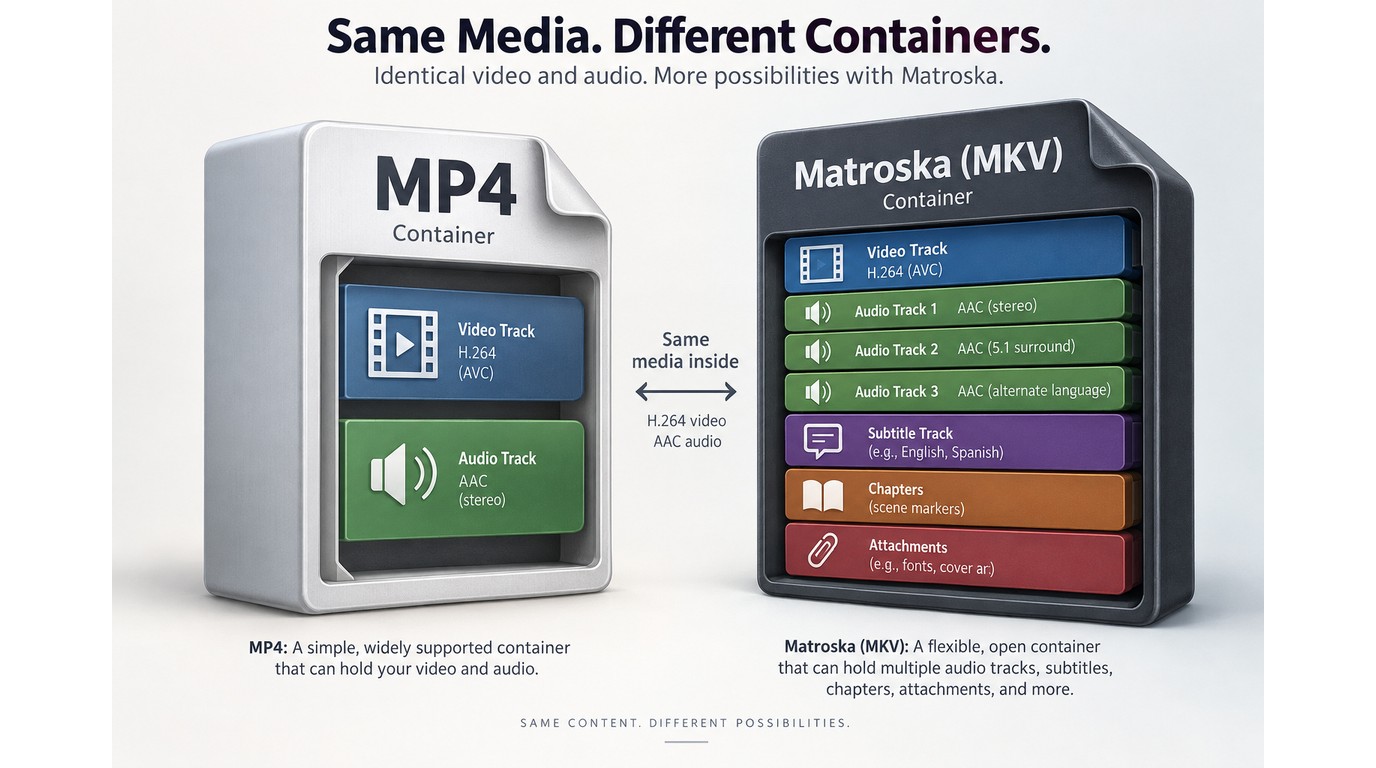
MP4 and MKV are containers: they organize encoded video, audio, subtitles, and metadata into one file. Switching the container does not sharpen the picture or repair a weak source; it changes how those existing elements are packaged and what the file can hold.
Container, codec, and file extension in plain terms
The container is the outer file structure, while codecs such as H.264 or H.265 describe how the video is encoded. The .mp4 or .mkv extension tells a player which container to expect. Renaming the extension changes the label, not the structure inside it.
When MKV is useful and where compatibility can narrow
MKV is useful for several audio languages, selectable subtitles, chapters, and attachments. One Reddit user in r/Movavi_software described making “a multilanguage video with several audio and subtitle tracks” and finding MKV better suited to it. The useful distinction is structural: MKV gives those tracks a clearer home, but it does not improve the encoded video.
That flexibility is not a universal upgrade. MP4 often has broader support in browsers, phones, TVs, and editing apps, so check the target player before changing a library. If compatibility becomes the priority later, the reverse MKV-to-MP4 workflow follows the same container-versus-codec logic.
How to Convert MP4 to MKV with UniFab Video Converter
UniFab Video Converter handles local desktop conversion on Windows and macOS, supports batch jobs, and costs $0 (specifications and price checked September 2026). To convert, add the MP4, select MKV, review the video, audio, subtitle, and resolution settings, then process and test the result. Output can be set up to 4K, and supported NVIDIA, AMD, or Intel hardware can accelerate conversion.
Prerequisites: source file, storage, and playback target
Confirm that the source opens correctly, leave enough storage for the output, and identify the device or app that will play the MKV. Note every audio and subtitle track you want to keep.
Convert and verify the file
- Add the MP4 and inspect its video, audio, and subtitle tracks. Remove only the tracks you no longer need.
- Select MKV and review the codec, resolution, frame rate, and audio settings. Changing those values can trigger re-encoding rather than a wrapper-only change.
- Choose an output folder, start the conversion, then check duration, sound, subtitles, and playback on the target device.
Use this local GUI for repeatable settings or batches. For one compatible file needing only a new container, stream copy is more direct.
Remuxing vs Re-encoding: How to Preserve Quality
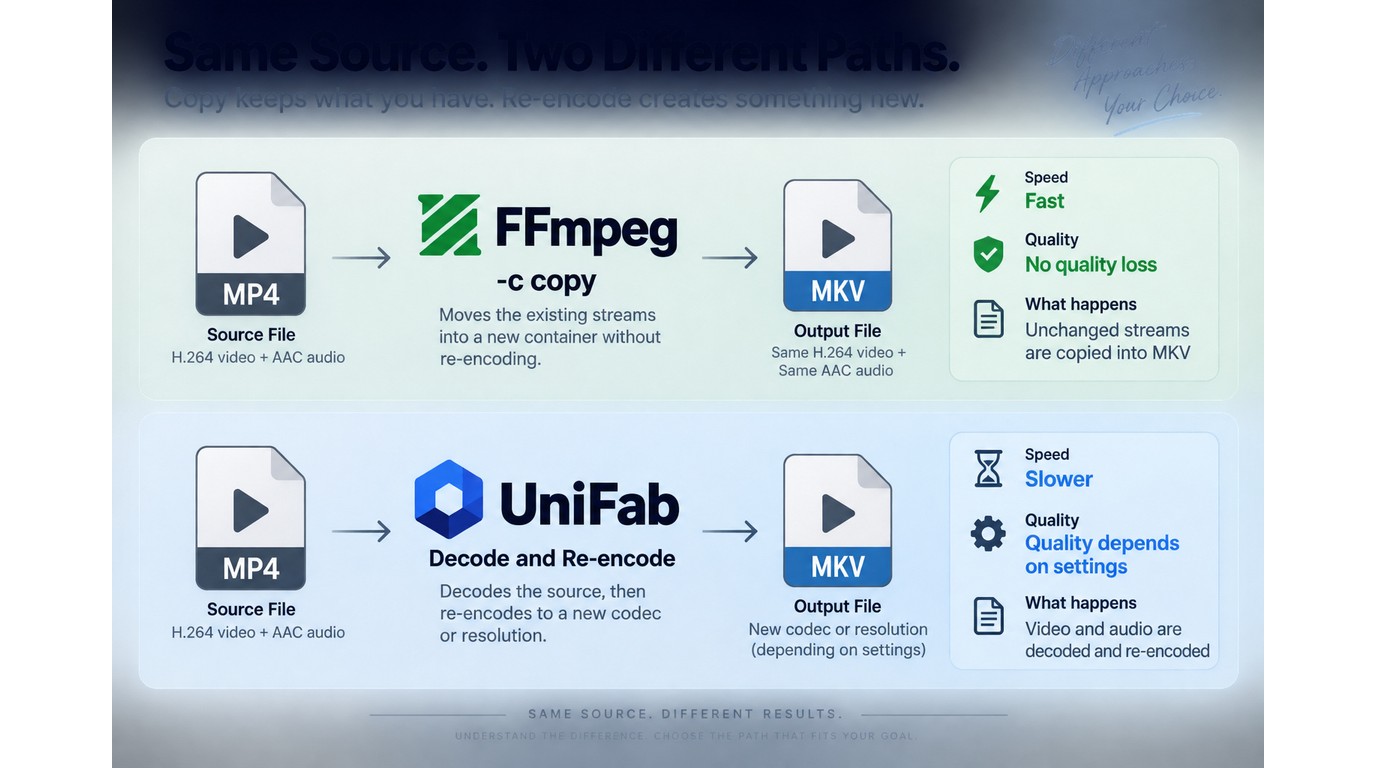
You can convert MP4 to MKV without quality loss when the job is a remux, also called stream copy. Remuxing preserves the encoded video and audio; re-encoding decodes and compresses them again to meet a new codec, size, resolution, or compatibility target.
Remux when only the container needs to change
A remux copies compatible tracks into a Matroska container without altering their encoded content. It avoids generational quality loss and is usually much faster because the software is moving streams rather than recompressing frames. File size should remain close to the source, apart from modest container overhead.
The important correction is that “converter” does not describe one operation. A 40-minute estimate for a simple wrapper change is a sign to inspect the codec settings, not proof that MKV itself is slow.
Re-encode only when the codecs or output requirements must change
Re-encode when the target player cannot decode the source codec, or when you must reduce resolution, bitrate, or file size. Quality then follows the chosen codec and compression settings. A new MKV extension cannot make a low-bitrate source clearer, and an aggressive size reduction will discard information.
If the goal is sharing rather than archiving, choose settings around the receiving device and transfer method. The same constraint matters when you send video without losing quality: the container is only one part of the path.
Choose an Offline, Online, or FFmpeg Method
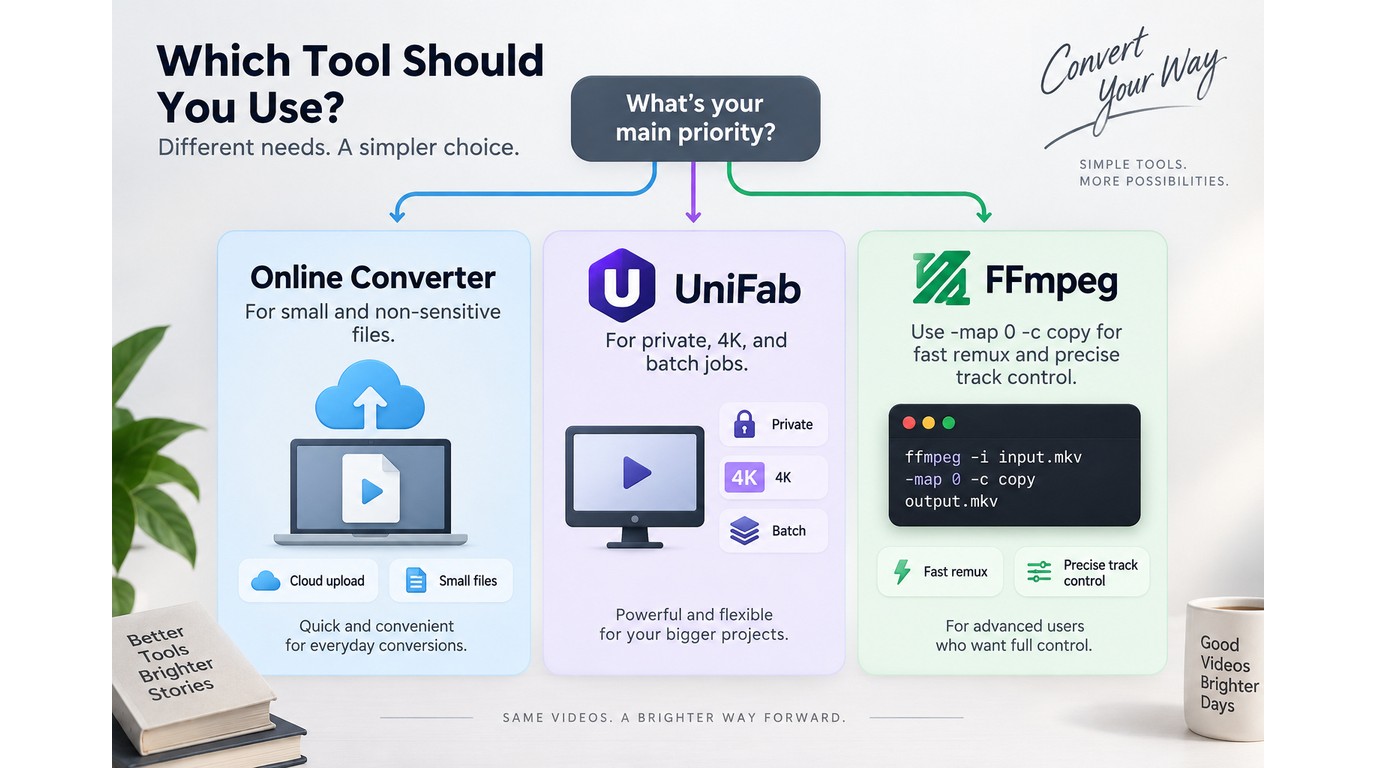
Use an online converter for a small, non-sensitive one-off file; use a local desktop app for large files or recurring batches; use FFmpeg stream copy when you need precise track control and the existing codecs are compatible. No single method fits all three cases.
Please note: Process only files you own or are authorized to use. Follow applicable service terms and copyright law, and keep personal backups within those limits.
| Method | Best for | Processing | Main caveat |
| Online converter | Small one-off files | Cloud upload | Source leaves device |
| Local desktop GUI | Large files and batches | Your computer | Settings may re-encode |
| FFmpeg stream copy | Fast container changes | Your computer | Codecs must be compatible |
| Remuxing utility | Track and metadata control | Your computer | Does not change codecs |
Source: UniFab Video Converter's official product page and Matroska's official documentation, as of September 2026.
A compatible one-file remux points to FFmpeg; a private batch points to local desktop processing; a small disposable clip can justify an upload.
Online converters for small, non-sensitive files
An online MP4-to-MKV converter follows three steps: upload, choose MKV, and download the result. It suits a small disposable clip when you cannot install software. It is not ideal for private footage, slow upstream connections, or a large file because upload caps, queues, and retention rules differ by service.
Local desktop conversion for large files and batches
An offline MP4-to-MKV workflow keeps processing on your computer and avoids sending the source across the network. It fits 4K footage, client media, and repeated batches. UniFab is one local GUI option for Windows and macOS and suits you if you want local batch processing without a command line. For private 4K batches, I would choose a local desktop workflow over an online converter because local processing avoids upload exposure, while UniFab's published specifications cover Windows and macOS, batch processing, and output up to 4K. Its limitation is the same one shared by GUI converters: you must review output settings so a container change does not become an unnecessary re-encode.
FFmpeg stream copy for a fast container change
FFmpeg is the direct route when you are comfortable with a command line. One Reddit user in r/ffmpeg summed up the barrier: “Just dont quite understand everything yet (also not great with coding either lol).” The confusion is about command syntax and stream mapping, not the remux itself; the container-only command is short:
ffmpeg -i input.mp4 -map 0 -c copy output.mkv
-map 0 asks FFmpeg to include all input streams, while -c copy copies them without re-encoding. If FFmpeg rejects a track, inspect its codec and either omit that track or re-encode only the incompatible stream. This method suits precise, repeatable work; it is not ideal if terminal paths and error messages slow you down.
I would choose FFmpeg over a general converter for a compatible one-file remux because -c copy preserves the encoded streams and avoids re-encoding.
Decision checklist for privacy, size, tracks, and repeat volume
- Use FFmpeg stream copy for a compatible file when command-line control suits you.
- Use a local GUI such as UniFab for private, large, or repeated batches without command-line work.
- Use an online converter for a small, non-sensitive file and a one-time task.
- Use a remuxing utility when chapters, attachments, and track flags matter most.
MP4 to MKV FAQ
After conversion, verify the tracks and timing rather than judging the result by its .mkv extension. Most failures come from missing stream mapping, changed timestamps, unsupported codecs, or metadata that the chosen tool did not carry over.
Can an MKV keep every audio and subtitle track from an MP4?
MKV can hold multiple video, audio, and subtitle tracks, but the output keeps only what the tool maps into the new file. Compare the source and output track lists, then test language switching and subtitle selection in the target player.
What causes subtitles to drift out of sync after conversion?
Timing offsets, variable frame-rate interpretation, or an unintended re-encode can move subtitles ahead of or behind the audio. One r/VideoToolbox user described “embedded or external SRT subtitles” ending up “out of sync.” That symptom points first to timestamp and frame-rate handling, not to the MKV extension itself. Check the offset, then compare source and output duration and frame-rate handling.
Can I make an MKV by changing .mp4 in the filename?
No. Renaming changes the extension but leaves the MP4 container untouched, which can confuse players and media libraries. Use a remuxer or converter so the internal container structure matches the .mkv label.
Do chapters, attachments, and metadata survive the conversion?
MKV supports tracks, chapters, cues, and attachments, but preservation depends on what exists in the MP4 and what the tool maps. Inspect the output before deleting the source. For archival work, verification should be treated as part of the conversion, not as optional cleanup.
What does MKV stand for?
MKV is the filename extension for Matroska Video, an open container holding video, audio, subtitles, chapters, and attachments.
What programs can open MKV files?
Programs supporting the Matroska container can open MKV, but playback also requires support for its stored codecs. Verify both container and codec support in the target player.
My recommendation order is simple: use stream copy for a compatible one-file remux, move private or repeated batches to a local desktop workflow, and keep online conversion for small, non-sensitive files.