If an app or device handles M4A more reliably than MP3, convert a copy with Apple Music or iTunes, a reputable online service, or local desktop software. The result can improve compatibility, but it cannot restore audio detail already discarded by the MP3 encode.
The recurring problem behind this search is not just finding a Convert button; it is avoiding a second lossy encode that creates new artifacts. High-frequency glitches, missing metadata, and files that no longer match the expected duration all point to the same workflow mistake: replacing the source before checking the result. MP3-to-M4A conversion should be treated as compatibility work, not audio restoration. My editorial recommendation is to convert only for a compatibility requirement; if the MP3 already plays correctly, keep it instead of adding another lossy encode. This guide protects that principle while covering a universal four-step process and the practical differences across Windows, Mac, iPhone, and Android. Use every route here only for audio you own or are authorized to process, and follow the service's Terms of Use and upload policy.
What Changes When You Convert MP3 to M4A?
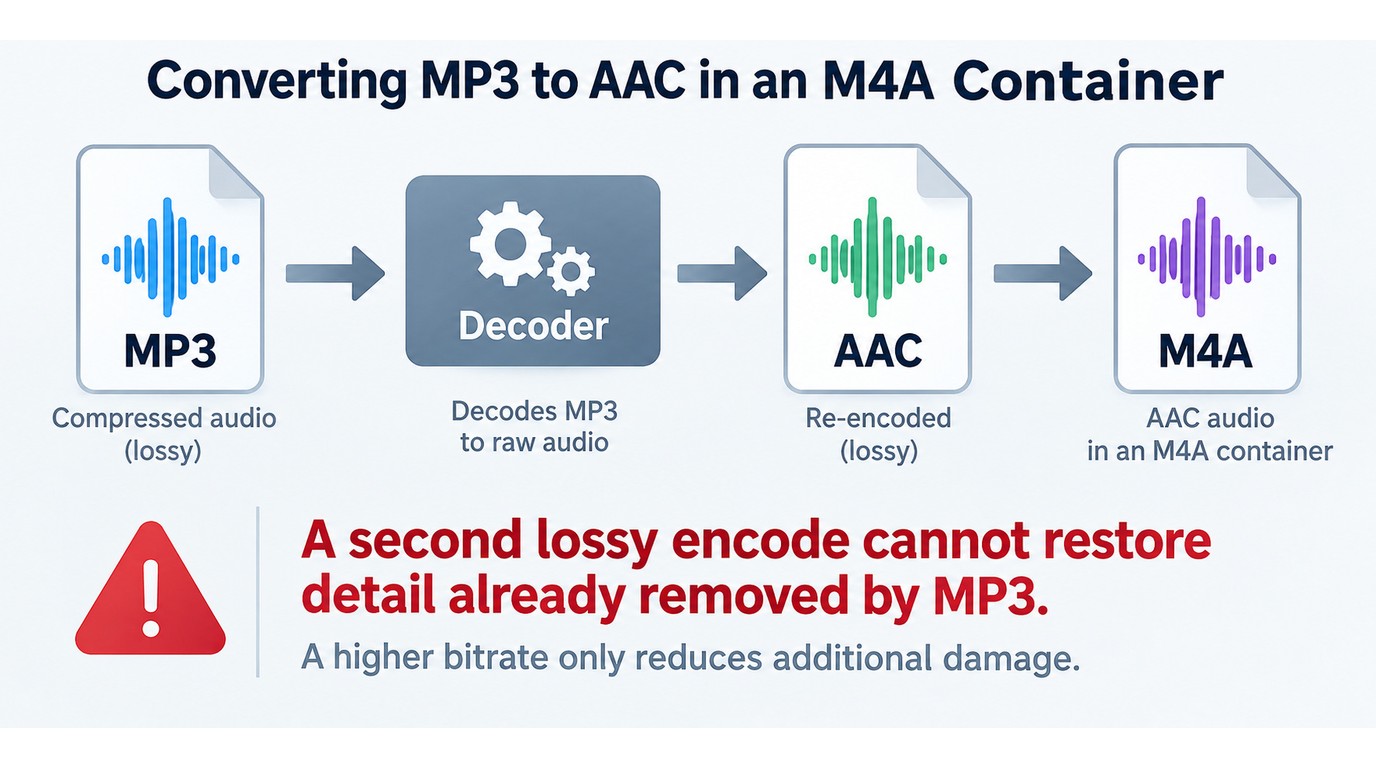
Converting MP3 to M4A does not improve the source recording. If the M4A file contains AAC audio, the job is a lossy-to-lossy transcode: the new file may suit an Apple app or another target device better, but it cannot recover detail removed by the MP3 encoder.
M4A Is a Container, Not a Single Audio Codec
The .m4a extension identifies a container. Inside it, the audio is usually AAC or ALAC. AAC is lossy and is the practical target for most MP3-to-M4A jobs; ALAC is lossless, but wrapping decoded MP3 audio in ALAC preserves the MP3's current state rather than rebuilding its missing frequencies.
That distinction matters when a converter offers “AAC” but does not say “M4A.” AAC names the encoded audio, while M4A names the file that carries it. For predictable playback, confirm both the codec and the resulting extension instead of assuming that either label guarantees the other.
Why a Higher Output Bitrate Cannot Restore MP3 Detail
A larger bitrate can reduce the damage added by the new AAC encode, but it cannot reverse the first MP3 encode. Writing a high-bitrate M4A from a low-detail MP3 usually produces a larger file that still carries the source's audible limits.
Apple's conversion guidance makes the same point: converting between compressed formats can reduce sound quality, and returning to the original source is preferable when that source still exists. A practical rule is simple: choose a bitrate near the MP3 source, avoid stepping down again, and judge the converted sample on the device that actually needs it.
Prerequisites: Keep the Source and Define the Playback Target
Protect the source before choosing a converter. Four checks prevent most costly batch mistakes:
- Duplicate the MP3 files or work in a separate output folder.
- Identify the target app, player, car stereo, or editing system.
- Choose AAC in an M4A container unless the target explicitly needs another codec.
- Note which tags, artwork, filenames, and folder structure must survive.
The practical upshot is that “without losing quality” means minimizing additional loss, not making the M4A identical to an unavailable master. If compatibility is already acceptable, keeping the MP3 may be the cleaner decision.
How to Convert MP3 to M4A in Four Steps
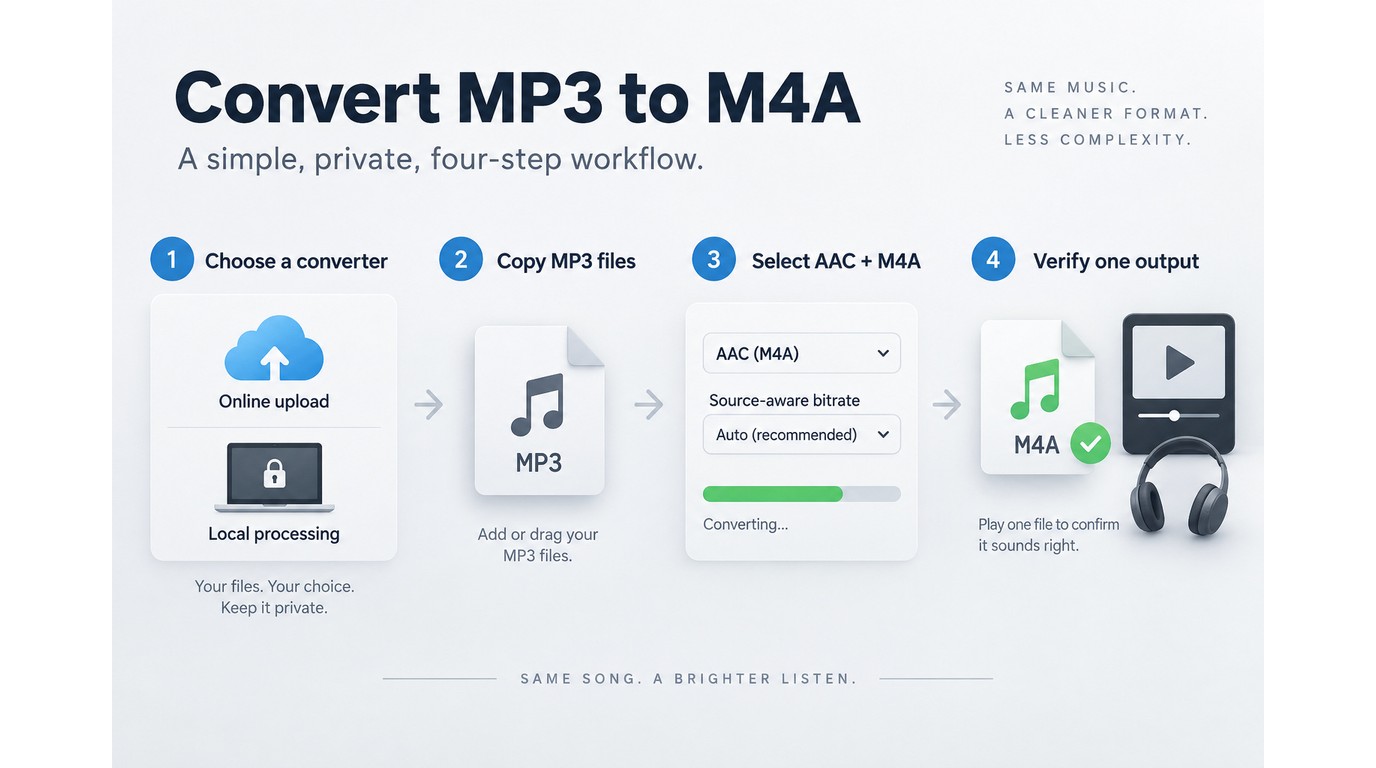
The same four decisions apply to every tool: choose where the file is processed, work from a copy, select M4A with AAC, and inspect a sample before replacing anything. Testing one copied file first prevents a codec, metadata, or playback mistake from spreading across the full batch. Use this sequence before applying the platform-specific controls in the next section.
Before you convert: Process only audio you own or have permission to use. For an online converter, read its Terms of Use, file-retention policy, and upload rules before sending a private recording.
- Choose an online service or a local app.
- Add copied MP3 files, not the sole originals.
- Select M4A with AAC and a source-aware bitrate.
- Convert one sample and verify it before batching.
Step 1: Choose an Online or Local Workflow
Use an online converter for a nonsensitive one-off file when installing software is impractical. Use a local app when the audio is private, the connection is unreliable, or the job contains many tracks. Uploading a confidential interview, unreleased song, or client recording creates a policy and retention question that a local workflow avoids.
Batch size changes the risk as much as privacy does. As one Reddit user in r/ffmpeg put it, “Due to capacity reasons I want to convert my whole iTunes library from mp3 to m4a. However, I don't know if there is any way to convert the whole iTunes library from mp3 to m4a without having any problems afterwards.” A whole library calls for a repeatable preset and a sample audit, not hundreds of one-off browser uploads.
Fit verdict: An online path suits one ordinary file; local software suits private material and repeatable queues.
Step 2: Add the MP3 Files
Add duplicates to the converter and send the output to a new folder. For a batch, keep the source folder structure intact until the converted library has passed playback and tag checks. A converter that accepts a folder is useful only if it also keeps filenames predictable and does not overwrite the inputs.
Inspect a few source files before loading the queue. A malformed file, unusual tag block, or variable-bit-rate header can create an exception that should be isolated before it affects the full set.
Step 3: Choose M4A, Codec, and Bitrate
Select M4A as the file type and AAC as the codec for broad consumer-device compatibility. If the tool separates “format” from “codec,” set both fields. Choosing ALAC makes sense only when a downstream app requires it; it creates a larger lossless container around audio that already passed through MP3 compression.
Set the AAC bitrate near the source MP3's bitrate rather than chasing the largest number in the menu. A much lower setting adds avoidable loss. A much higher setting spends space without restoring the original waveform.
Step 4: Convert and Verify the Output
Convert one representative file first. Play it in the target app, compare its duration with the MP3, and inspect the title, artist, album, track number, artwork, and filename. Listen to a quiet passage and a dense passage with cymbals or sharp consonants, where a second lossy encode is easier to notice.
Then compare file size and confirm that the output really ends in .m4a. If that sample passes, apply the same preset to the remaining files. Keep the source set until the entire destination library has been indexed and used successfully.
MP3 to M4A on iTunes, Windows, Mac, iPhone, and Android
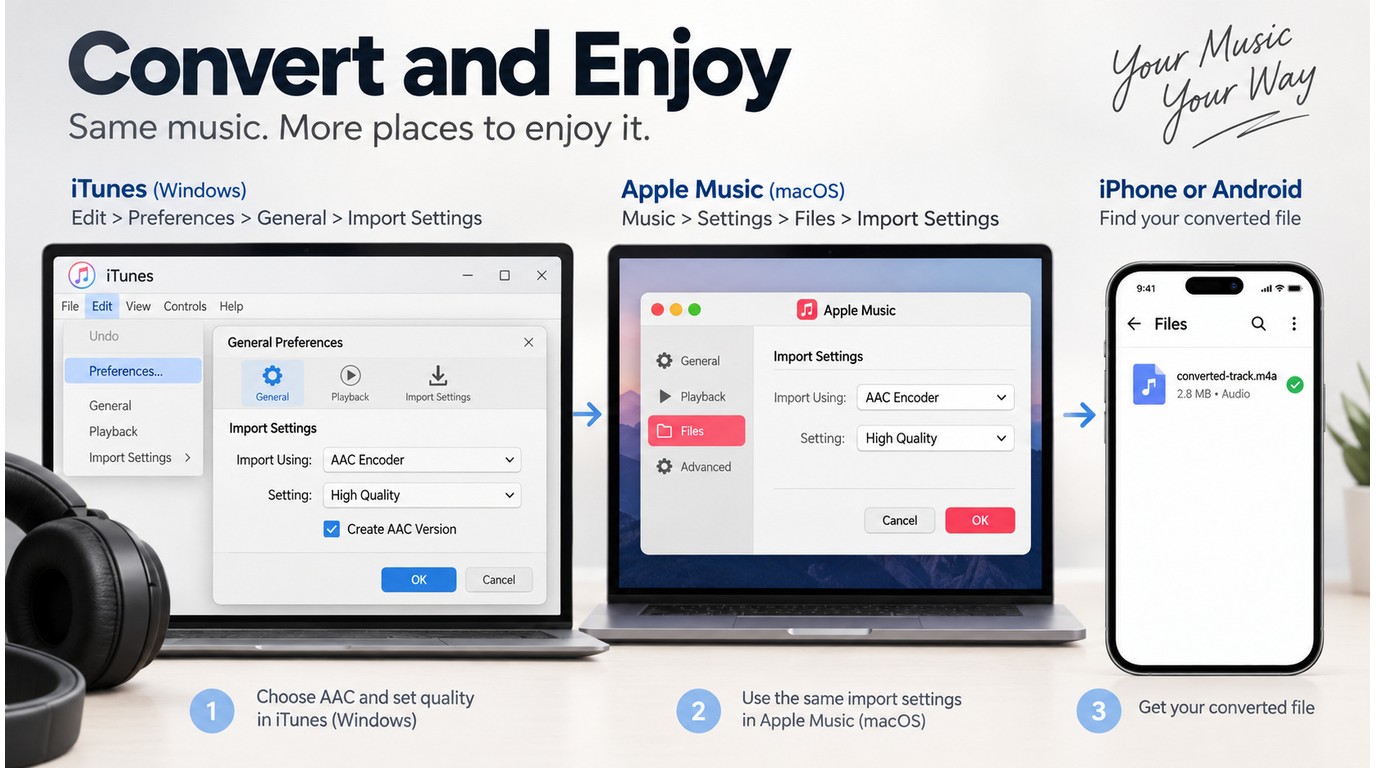
Use iTunes on Windows when its AAC conversion menu is present, Music on Mac, and a reputable mobile converter or desktop-transfer route on iPhone, iPad, and Android. For more than a few files, prepare and verify the M4A set on a desktop before transferring it to a phone or tablet. Apple documents library conversion on Mac and in iTunes for PC; mobile operating systems generally need a separate conversion app or a file prepared elsewhere.
Authorization reminder: The same ownership, Terms of Use, and upload-policy checks apply to every path below. A device-specific app does not change your responsibility for the source audio.
Windows: iTunes and Desktop Conversion Paths
iTunes for Windows provides the clearest Apple-documented route when it is installed and the relevant menus are available:
- Add the MP3 files to the iTunes library.
- Open Edit > Preferences > General > Import Settings.
- Choose AAC Encoder, save the setting, and select the songs.
- Open File > Convert > Create AAC Version.
iTunes keeps the original and creates an AAC copy, normally in an M4A container. Check the new file in File Explorer before moving or deleting either version.
The current Apple Music app for Windows does not expose the same conversion controls in every interface. As one Reddit user in r/AppleMusic asked, “Anyone know why on the Windows version of the Apple Music app you can no longer do a conversion from within the app - MP3 to M4A??” If the menu is absent, stop following an outdated click path. Use iTunes where supported or choose desktop software that explicitly lists MP3 input and M4A/AAC output.
Mac: Convert with the Music App
The Music app replaces the old iTunes conversion path on current macOS releases. The controls are built around the library rather than Finder alone:
- Add the MP3 files to Music.
- Choose Music > Settings > Files > Import Settings.
- Set Import Using to AAC Encoder and save.
- Select one or more tracks in the library.
- Choose File > Convert > Create AAC Version.
Music leaves both versions in the library, so use the Kind, date, or file-location fields to distinguish them before editing tags. For files still outside the library, macOS also supports an import-and-convert path from a folder, but the same sample-first rule applies.
iPhone and iPad: Convert First, Then Save or Sync
An iPhone or iPad can play common AAC-in-M4A files, but playback support does not make Files or Music a general batch encoder. The practical choices are to convert a copied file in a reputable mobile app, use a browser service for a nonsensitive file, or prepare the M4A on a Mac or PC and transfer it.
For a mobile-only job:
- Copy the MP3 into a separate Files folder.
- Import it into a converter that names M4A and AAC explicitly.
- Export the result back to Files and test it in the target app.
- Keep the original until tags, duration, and artwork are confirmed.
For a larger library, desktop conversion followed by Finder sync, iCloud Drive, or AirDrop is easier to audit. It also avoids repeating upload and download steps for every track.
Android: Convert Locally or Transfer a Verified M4A File
Android offers two workable routes: a local audio-converter app or a verified M4A transferred from a computer. A browser converter remains an option for ordinary material, but private recordings belong in a local workflow unless the provider's retention terms are acceptable.
Keep the Android process short:
- Duplicate the MP3 in Files or the device's file manager.
- Select M4A with AAC in the converter, not a rename command.
- Save to a normal media folder and test in the destination player.
- Confirm that the app indexes the file and reads its tags.
A voice-recorder app may ignore an imported M4A even when another player opens it, because some recorder libraries show only files created or indexed by that app. That is an app-library problem, not proof that the extension is wrong.
| Platform | Practical route | Main check |
| Windows | iTunes library | AAC menu is available |
| Mac | Music library | Import Settings uses AAC |
| iPhone or iPad | Convert a few files locally | Test in the target app |
| Android | Local app or desktop transfer | Verify codec, not extension |
The choice is straightforward: keep Apple-library work in Apple's app, handle a few mobile files where they are stored, and move larger collections to a desktop workflow that you can sample and audit.
Where UniFab Fits in a Private Batch Workflow
A local desktop video converter software is a better fit when files are private or the queue is too large for repeated uploads. UniFab matches that Windows/macOS workflow profile, but its public format examples do not explicitly confirm M4A output, so it should not be treated as a proven MP3-to-M4A route until the installed output menu shows the required file type.
Compatibility Check Before the Workflow
The compatibility gate is specific. UniFab's broad format-coverage claim does not establish MP3 input or M4A output. Confirm both in the installed build before treating UniFab as an MP3-to-M4A method.
Use a copied track to settle the question in the installed build:
- Add one duplicate MP3 to Video Converter.
- Open the audio output profiles and look for M4A explicitly.
- Convert the sample and confirm the
.m4aextension and playback. - Queue the library only after that sample passes.
If M4A is absent, choose software that names both MP3 input and M4A output. Renaming an AAC or MP3 file after export is not a substitute for container support.
Local Processing and Batch Queue
UniFab processes files locally and supports batch processing for multiple files in one queue. Those capabilities make it relevant to confidential recordings and large music, podcast, or audiobook collections, provided the M4A output gate passes.
Its limits deserve equal weight. The application must be installed, it does not provide an iPhone or Android conversion path, and hardware-assisted speed depends on the codec, task, and computer.
Price, Platforms, and Confirmed Features
As of September 2026, UniFab Video Converter is a Windows and macOS desktop app with batch processing, 1000+ format conversions, and watermark-free exports; its listed price has been $0 since December 2024. For this job, local processing and multiple-file batching are the relevant capabilities; its unrelated video-enhancement features do not change MP3-to-M4A quality.
Fit verdict: UniFab fits a private desktop batch only when the installed build exposes M4A output. It is not ideal when you cannot install software, need a mobile workflow, or want a format path that is already explicit before download.
Online, Apple Apps, or Desktop Software: Which Method Fits?
For one nonsensitive file, an online converter is the shortest route. Apple Music or iTunes suits tracks already managed in an Apple library, while local desktop software suits private files or large batches when format compatibility is verified. No single method fits every combination of file sensitivity, track count, device ecosystem, and installation access.
I would use an online video converter only for a nonsensitive one-off file; for private recordings or repeatable queues, local software is the safer fit because the file stays on the computer.
| Method | Recommended use | Upload required | Batch fit | Main tradeoff |
| Online converter | Nonsensitive one-off file | Yes | Limited or plan-based | Privacy and upload limits |
| Apple Music or iTunes | Existing Apple library | No | Selected library items | Menus differ by OS |
| Local desktop software | Private or large batches | No | Strong when supported | Install; confirm M4A output |
Reference: Apple Support conversion guidance and UniFab's official product page, as of September 2026.
The table's practical message is simple: do not trade privacy for convenience on a sensitive file, and do not build a large batch around a tool whose output profile you have not sampled.
Online Converter
An MP3 to M4A converter online removes the installation step and works well for an ordinary file you need once. The cost is control: the audio must leave your device, upload limits can interrupt a batch, and the provider's retention policy becomes part of the decision.
Suitable for: A nonsensitive file on a computer where you cannot install software. Not ideal for: Interviews, client audio, unreleased music, or a full library.
Apple Music or iTunes
Apple's apps keep the work local and preserve both the original and the converted library item. They also provide a documented AAC conversion path, but the menus differ between Music on Mac, iTunes on Windows, and the newer Apple Music app for Windows.
Suitable for: Tracks already organized in an Apple library. Not ideal for: A cross-platform team that needs one identical procedure on every device.
Local Desktop Software
Desktop software keeps private files on the computer and makes a repeatable folder queue possible. It asks more upfront: you need installation rights, storage for both source and output sets, and explicit confirmation that the app accepts MP3 and writes M4A.
Suitable for: Private recordings and large, repeatable batches. Not ideal for: A locked-down computer or a one-file job where a reputable web service is acceptable.
MP3-to-M4A Conversion FAQ
The final checks concern trust, stream identity, and library integrity. A successful export is not enough; the M4A must use the expected codec, play for the expected duration, and retain the information your target app needs.
Is It Safe to Upload Private MP3 Files to an Online Converter?
Answer: Safety depends on the named provider's upload, retention, deletion, and reuse terms. As one Reddit user in r/cybersecurity_help asked, “Are the tools on this site safe to use? More specifically, the audio converter tool. Do they get keep the file if I upload one?” That is the right question to ask before selecting a file.
Look for a clear deletion window, encrypted transfer, a real company identity, and a policy that says whether uploads train systems or support advertising. If the policy is missing or the recording is confidential, keep the job local.
Can You Rename .mp3 to .m4a Instead of Converting It?
Answer: No. Renaming changes the label that software sees, not the MP3 audio stream inside the file. A player may reject the mismatch, misidentify the file, or open it only because that player inspects the stream rather than trusting the extension.
Use a converter that writes an M4A container with a supported codec. Then test the result in the destination app instead of using one permissive player as proof of universal compatibility.
What AAC Bitrate Should You Choose for an MP3 Source?
Answer: Choose an AAC bitrate near the source MP3 bitrate and avoid reducing it again when your goal is to limit added loss. Raising the number far above the source does not recreate discarded detail, while a much lower setting makes the second encode more destructive.
If two nearby settings are available, convert the same demanding passage with both and keep the smaller file only when it remains acceptable on the target headphones, speaker, or device.
Will Album Art and Metadata Survive the Conversion?
Answer: Do not assume that tags will map perfectly between MP3 and M4A. Title, artist, album, track number, genre, comments, and embedded artwork can be copied, dropped, or written into fields that the destination app reads differently.
Convert one tagged file before a batch and inspect it in the actual library app. If artwork or sorting data disappears, adjust the converter's metadata option or restore tags from the untouched source set.
Why Did the File Length or Playback Change After Conversion?
Answer: Small timing or display differences can come from encoder delay, variable-bit-rate headers, a damaged source, or the way a player reads the new stream. A file that stops early, gains silence, or fails in one target app needs investigation before the rest of the batch runs.
Compare the source and output in more than one player, then re-encode the sample with a different AAC profile if the mismatch persists. Keep the original file as the reference until the destination library has indexed and played the converted set correctly.