Choosing Movavi is harder than learning its timeline: standalone trial exports carry a watermark and build-specific restrictions, the license choices are easy to confuse with Video Suite, and 4K performance depends on hardware and project load. This Movavi Video Editor review separates the practical facts from the noise, then weighs pricing, safety, workflow, and alternatives.
The quick takeaway: Movavi is a sensible beginner video editor for short, straightforward projects, but it is less convincing for deep color work, multicam editing, complicated codec pipelines, or heavy long-form 4K timelines.
Movavi at a Glance
Movavi Video Editor is desktop video editing software built around a conventional media bin, preview window, multitrack timeline, effects panel, and export dialog. This 2026 review covers the current product sold as Video Editor 2027, including version 27.2.0 released on October 26, 2026; the article year is not the software version.
Product Scope and Platforms
The current Video Editor 2027 release, version 27.2.0, runs on Windows and macOS. Movavi also sells separate or bundled tools, including Screen Recorder and Video Converter, so a feature shown on a Suite page should not automatically be treated as part of the standalone editor.
Quick Decision Summary
| Decision point | Editorial judgment |
| Suitable for | Beginners, casual creators, classroom projects, and short social videos that need quick cuts, captions, overlays, and simple exports. |
| Less suitable for | Editors who need multicam control, deep grading, extensive collaboration, or predictable performance on demanding long-form projects. |
| Main attraction | A short learning curve and a task-focused interface. |
| Main caution | Trial restrictions, offer-specific renewal terms, Effects upsells, and version scope require attention before checkout. |
My editorial priority in this Movavi Video Editor review is workflow fit, not feature count: use the Movavi trial to check export needs, then make sure the license scope and expected project load match how you edit. Movavi makes common tasks visible, but a simple interface does not erase licensing or performance limits.
Movavi Features That Matter
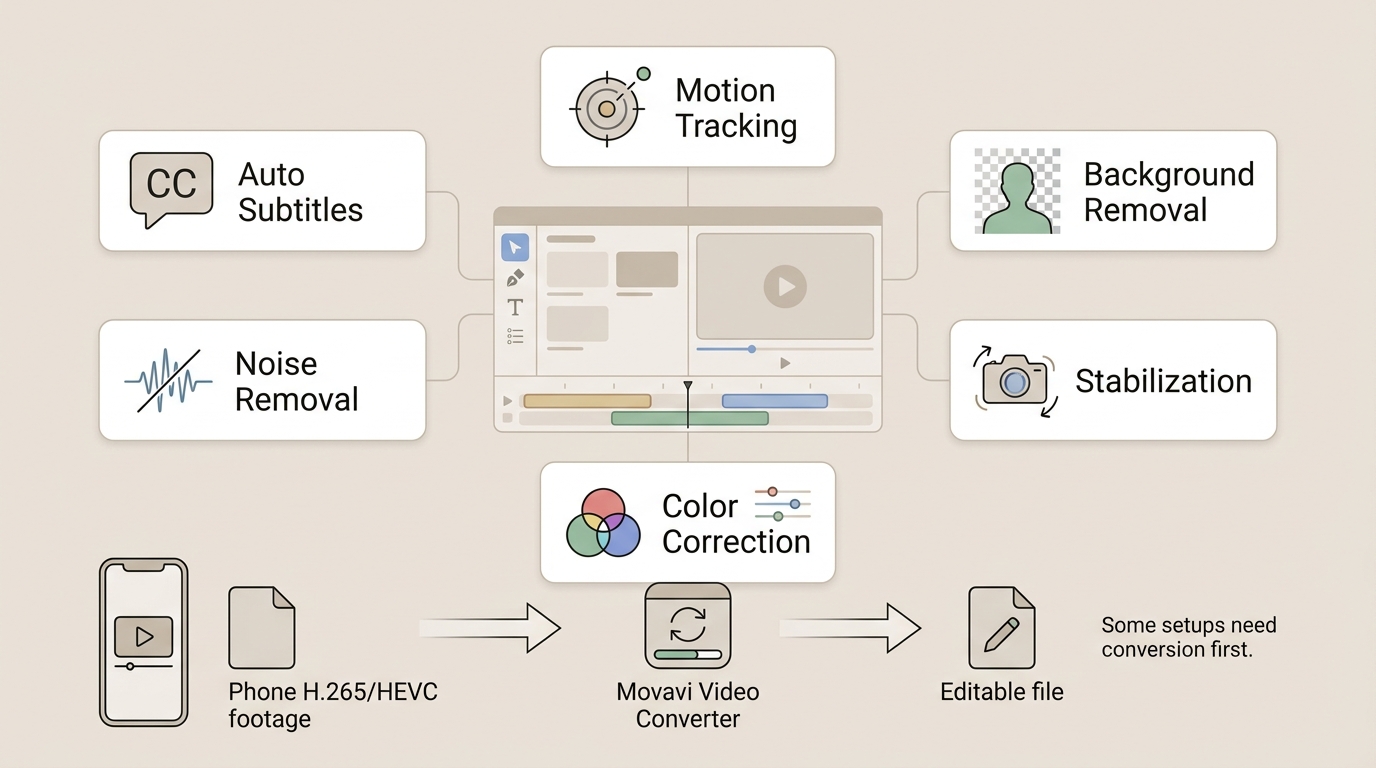
The useful features are the ones that shorten routine editing, not the longest list on a product page. Movavi covers core editing, captions, tracking, effects, cleanup, and export without requiring a professional post-production vocabulary. Current-release tools also include silence removal, auto-crop, pre-timeline trimming, and Templates and Blocks.
AI Auto Subtitles and Motion Tracking
Auto subtitles can turn speech into editable captions, while motion tracking attaches text, graphics, or overlays to a moving subject. Both tools fit short explainers and social clips, although accuracy still depends on clean speech and clear subject separation.
Creative Effects and Overlay Blending
Titles, transitions, filters, stickers, and overlays are easy to place on the timeline. Blending controls can combine textures or light effects with footage. Pre-timeline trimming can prepare clips before they reach the main timeline, while Templates and Blocks provide catalog-based creative elements; extra effect packs may belong to a separate Effects offer rather than the base editor.
AI Background and Noise Removal
Background removal can isolate a subject without a green screen. Audio noise cleanup can reduce steady distractions in dialogue, while video denoise targets visible grain or digital noise in the picture. These tools are convenient for quick content, but difficult edges and mixed audio should still be reviewed before export.
Color Correction and Stabilization
Movavi provides exposure, color, chroma key, stabilization, slow-motion, and picture-in-picture controls. They are accessible enough for basic correction and stylized edits, but they do not replace the node-based grading depth available in higher-end editors.
Screen Recording and Media Tools
Screen capture belongs to the broader Movavi ecosystem. The separate Movavi Screen Recorder review explains that workflow, while Video Suite can bundle recording and conversion tools with the editor.
Conversion and Compression
Movavi H.265 support needs precise wording. On Windows, Movavi's official output table lists MP4 with H.264 and MKV. MP4 and MKV are containers, so their presence does not establish output support for every codec they can hold; input support and output support must also be checked separately. If the installed editor cannot import a source file, Video Suite users can convert it with Movavi Video Converter before editing.
That distinction matters for modern phone and camera footage. Converting first adds a preparation step and storage overhead, so codec-heavy users should test their actual source files during the trial period.
Movavi Trial Limits and Watermarks
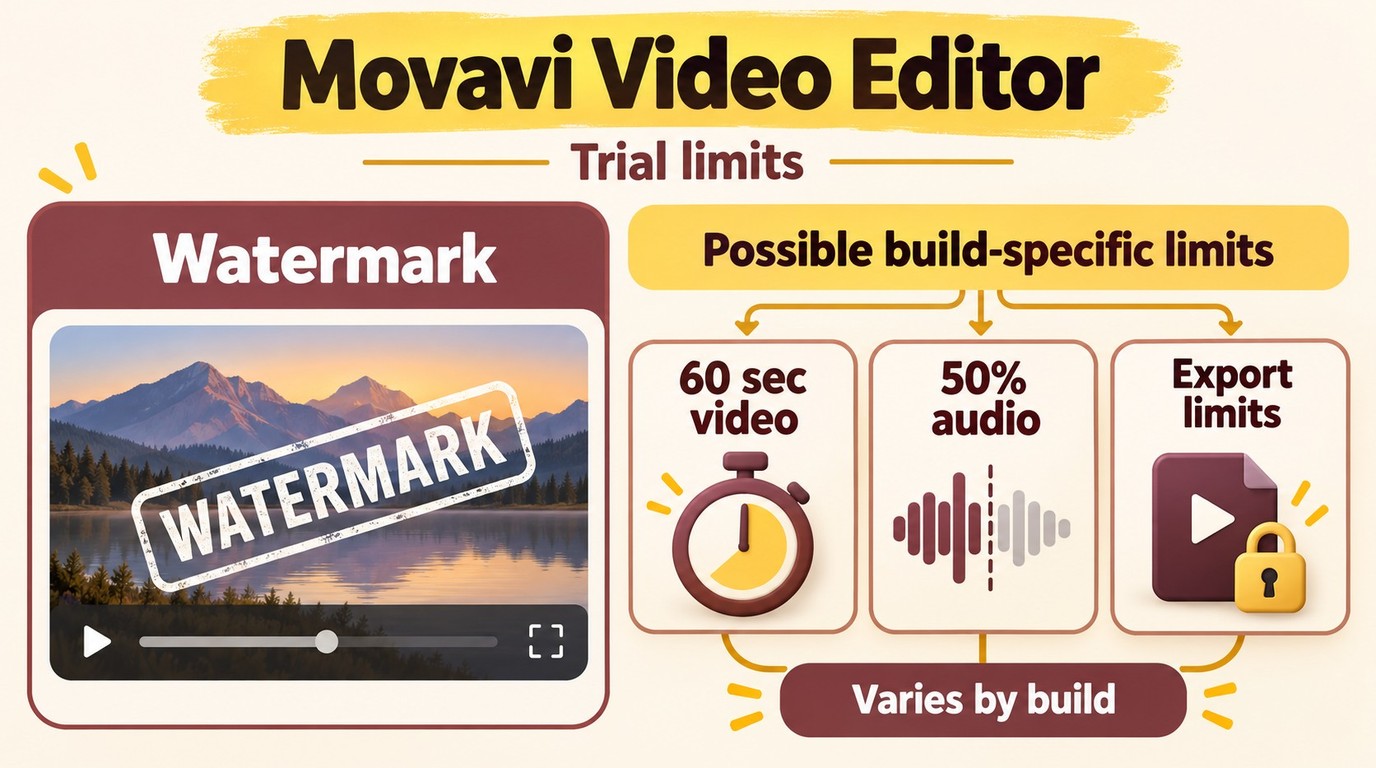
The standalone Movavi Video Editor trial has a watermark and build-specific export restrictions. Its trial listing does not set a universal seven-day period; Video Suite and the separate Effects offer have their own seven-day terms.
- Exports made during standalone Editor trial access include a Movavi watermark.
- Depending on the applicable build and listing, output may be limited to 60 seconds of video, half of an audio file, and/or restricted advanced export options.
- Video Suite has its own seven-day trial period and separate product scope.
- The optional Effects offer requires separate enrollment and has its own seven-day trial period and renewal terms.
The practical use of trial access is evaluation: import your own footage, open the tools you expect to use, export a representative project, and inspect the checkout terms tied to that exact offer.
Movavi Pricing and License Terms
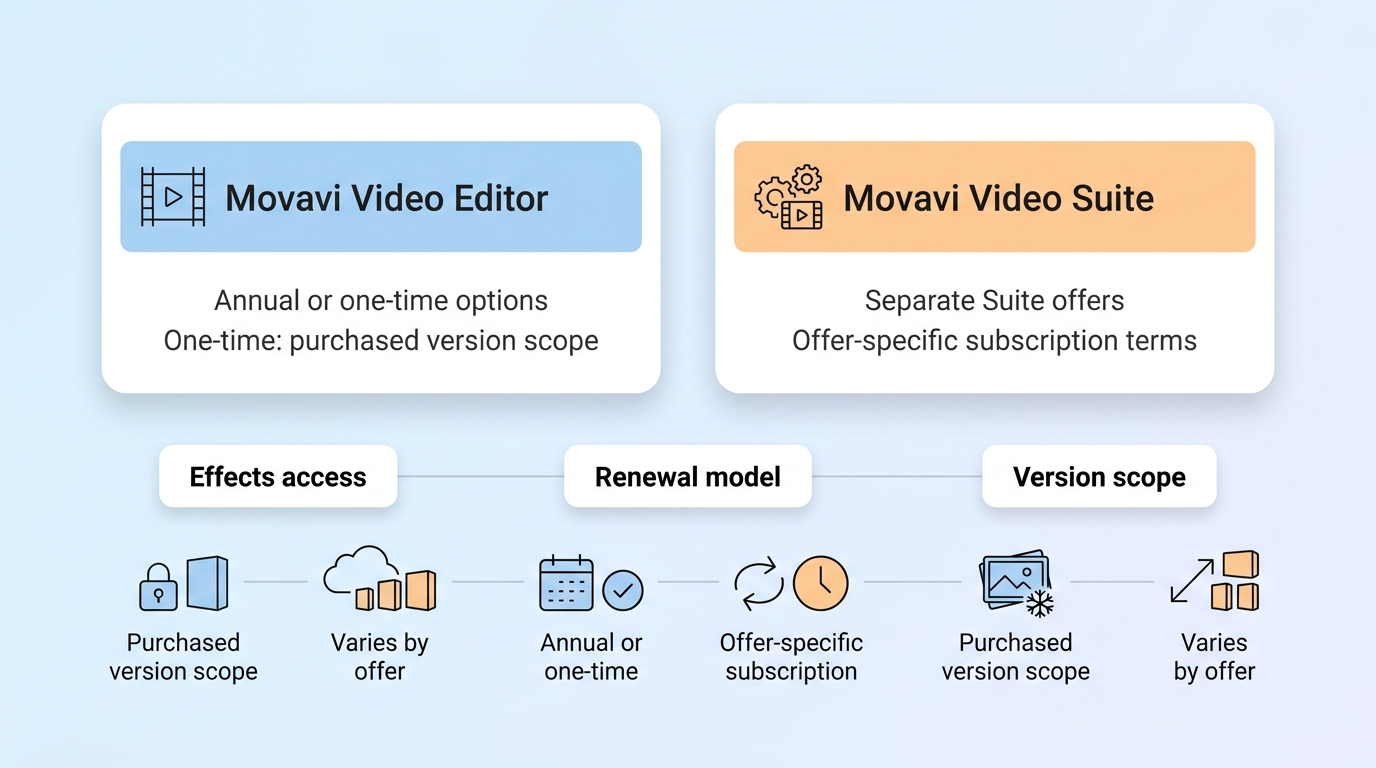
Movavi pricing is clearer when Video Editor and Video Suite are treated as separate products. The Movavi Video Editor cost depends on billing term and included access, not one generic Movavi price.
| License type | Version access | Updates |
| Subscription | Current subscription version | Included |
| Lifetime license | Purchased version | No updates or upgrades |
The observed US monthly Editor offer is $14.95 for the first month and renews at $19.95 per month. The optional Effects offer is enrolled separately and renews at $49.95 per month after its seven-day trial; Templates catalog access should not be treated as the same product.
Movavi US checkout and Movavi Help Center, as of October 2026.
Annual and One-Time Options
A subscription, including the current monthly offer, favors access to the currently offered version and plan benefits, while a one-time option reduces recurring billing but should be read as a license for its stated version scope. Current Movavi support terms give lifetime licenses access to the purchased version with no updates or upgrades; subscriptions include updates. A 2026 lifetime license refers to the purchase timing and does not automatically include version 27. These current terms should not be applied retroactively to every historical order.
Movavi Video Editor 2026 Lifetime License and Updates
Before buying, separate four questions: which app is included, whether Effects or Templates access continues, whether the plan renews, and which software version the license covers. For a 2026 fixed-version purchase, keep the matching installer and purchase details before changing releases.
I would choose the billing model only after mapping it to editing frequency. Occasional users may prefer a one-time editor license if its version scope is sufficient; frequent users who want ongoing assets may value an annual offer more.
Movavi Interface and Workflow
Movavi's interface lowers the initial learning burden by keeping import, timeline tools, effects, and export in predictable locations. That makes it approachable, though not necessarily faster for every complex project.
Dashboard
The dashboard leads with project creation and media import rather than a dense configuration screen. New editors can start quickly, while returning users can reopen saved projects.
Workspace and Export
Import media, arrange clips on the timeline, add audio or effects, preview the sequence, and open Export to select the file settings and destination. Saving the project file separately protects the editable timeline, while exporting creates a playable video for delivery. Movavi’s official Windows format table lists MP4 with H.264 and MKV as output options; MP4 and MKV are containers, so the container name alone does not define every codec it can hold.
- Import a representative source clip.
- Trim and arrange clips on the timeline.
- Add only the effects needed for the intended deliverable.
- Preview captions, audio, overlays, and transitions.
- Export a sample using the same format planned for the final project.
The interface earns its beginner-friendly reputation because the next action is usually visible. The trade-off is that specialists may reach the limits of trimming, grading, and project management sooner.
Movavi 4K Editing and Export
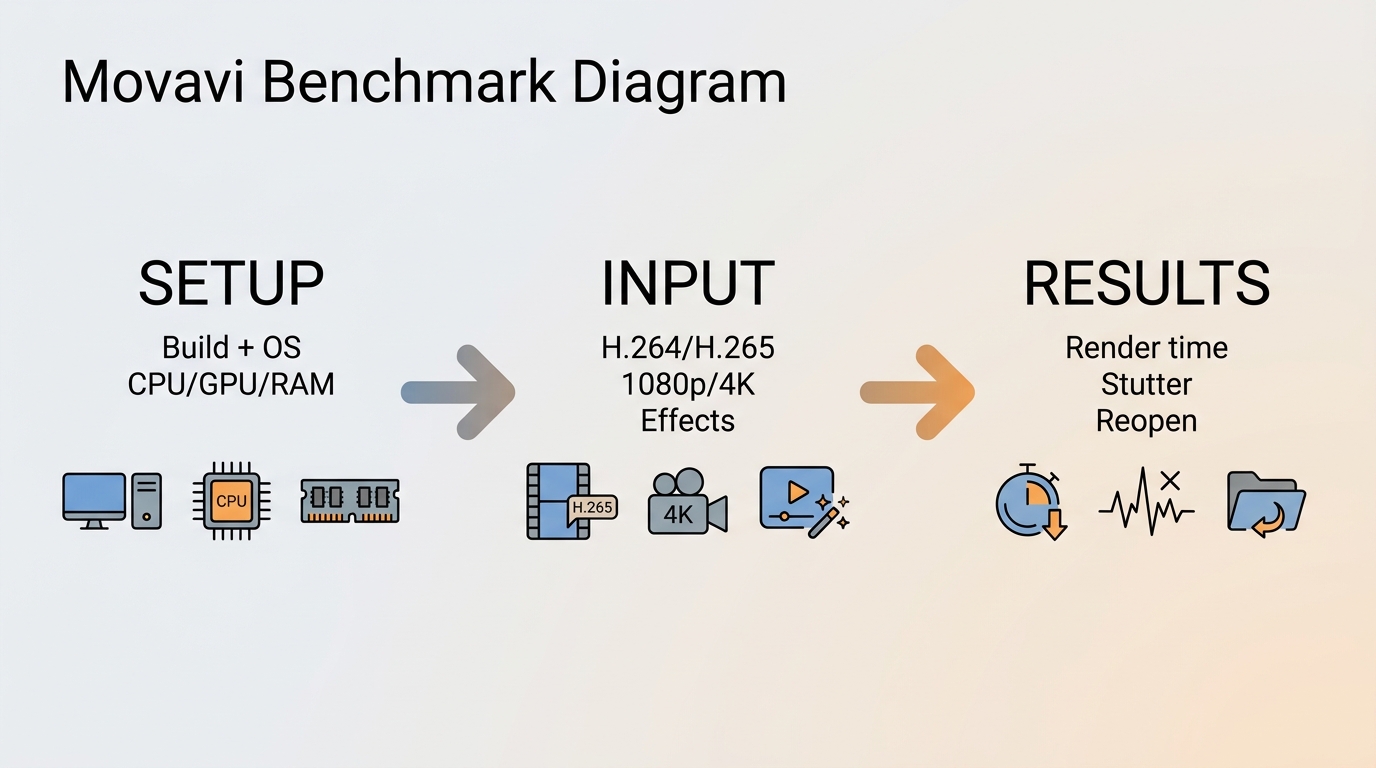
Movavi 4K editing and export behavior depend on the exact build, operating system, hardware, source codec, effects chain, project duration, and export preset. Heavier combinations place more pressure on timeline playback and final export than short projects with simpler source files and fewer effects.
Project Settings That Affect Playback
Source resolution and codec, timeline length, layered effects, tracking, stabilization, and export settings all affect playback and processing load. Higher-resolution sources and more complex effect chains generally require more CPU, GPU, memory, and storage bandwidth.
4K and Export Behavior
Movavi supports 4K editing, but that statement describes capability rather than guaranteed smoothness. Short clips with modest effects create a lighter workload than long timelines with stacked corrections, tracking, stabilization, and multiple high-resolution sources.
For a purchase decision, export a short 1080p project and a representative 4K project on the machine that will be used. Watch timeline responsiveness, preview quality, export completion, and whether reopening the project preserves every edit.
Stability and Codec Notes
Stability reports are mixed and should be treated as configuration-specific. Before committing, open representative source files, including files with multiple audio tracks, and complete a sample export on the system you plan to use.
Four Common Movavi Editing Tasks
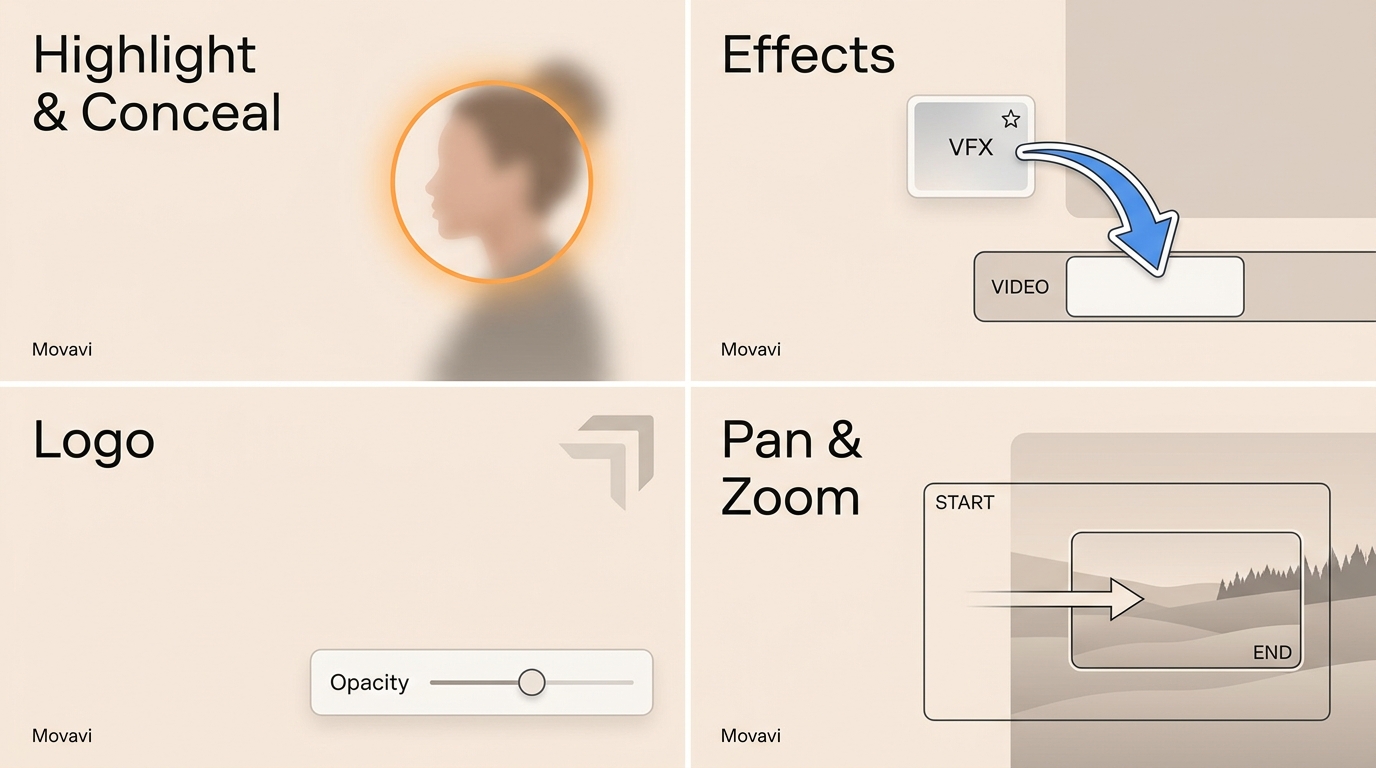
These four short cases show why Movavi works as video editing software for beginners: each task is discoverable without turning the section into a full tutorial.
Highlight and Conceal
Place the clip on the timeline, open Highlight and Conceal, choose a shape, then resize and position it over the subject. The task fits quick callouts or privacy masking, but moving subjects may require tracking and careful review.
Apply Effects
Open Effects, preview an option, drag it onto the timeline, and adjust its intensity or blending. The low friction suits short-form work; restraint matters because stacked effects can slow previews and distract from the footage.
Add a Logo or Watermark
Use the Logo tool to add an image, then set its position, scale, opacity, and duration. This user-added branding is separate from the Movavi watermark placed on trial exports.
Pan and Zoom
Select a clip, open Pan and Zoom, choose a preset or set the movement points, then preview the framing. It is useful for still images and screen details, but aggressive movement can make low-resolution sources look softer.
Together, these cases confirm the interface's main strength: common actions are easy to locate. They also lead directly to the purchase questions that matter next, including update safety, codec handling, and whether the project complexity exceeds Movavi's intended fit.
Safety, Billing, and User Feedback
Movavi safety has two separate dimensions: the legitimacy of the installer and the clarity of commercial terms. Official software can be legitimate while a buyer still needs to inspect renewal, update, and support details; the dated experiences below are individual reports, not universal outcomes.
Official Downloads and Privacy
Download the installer from Movavi's official domain or an official app store. Avoid modified installers and unofficial activation packages, which create malware and license risks unrelated to the legitimate product.
- Confirm the domain and installer publisher.
- Read privacy and telemetry controls during setup.
- Keep the original installer and license details.
- Save project files before changing builds.
Renewal, Cancellation, and Support
At checkout, record the product name, billing term, renewal amount, renewal date, included Effects access, and cancellation route. A renewal disclosure tied to one Suite or Effects promotion should not be generalized to every Movavi purchase. Editor and Effects renewals may be separate, so use the cancellation route attached to each order.
Canceling a renewal and requesting a refund are separate actions. For US purchases, Movavi advertises a 14-day money-back guarantee with eligibility rules and exceptions in the Movavi Refund Policy; UK and EEA purchase provisions should not be applied to a US order.
User Experiences in 2025 and 2026
In a 2026 Reddit discussion, one user described Movavi as a comfortable choice for simple long-form sports videos when a laptop struggled with heavier editors. Another 2026 user said it worked well for both long and short videos, but reported difficulty with source files containing multiple audio tracks and used a workaround.
Negative experiences focus more on purchase scope and separate billing. A 2026 Reddit user reported that a newly installed release did not accept a key purchased for an earlier version. In 2025, another user described canceling separate Editor and Effects renewals before requesting a refund. These are individual experiences rather than evidence that every customer will encounter the same issues.
The linked Movavi review profile on Trustpilot is useful for reading recurring themes around ease of editing, version scope, billing, and support. The practical takeaway is to match the installer to the purchased version and treat Editor and Effects billing as separate checkout decisions.
Performance, Compatibility, Pros and Cons
Movavi's buying case rests on easy operation, while its limits appear in demanding projects and specialized workflows. Official Windows format listings establish supported outputs, while community codec experiences remain specific to a user's files, build, and system.
4K and Hardware Fit
Movavi 4K editing is a realistic option for suitable systems and moderate timelines. Proxy-friendly habits, shorter sequences, and restrained effects reduce pressure; long projects with layered corrections and tracking demand more CPU, GPU, memory, and storage bandwidth.
Apple Silicon and Platform Support
Current Movavi releases support Windows and macOS, and Movavi states that the editor installs natively on Apple Silicon. Movavi Apple Silicon performance should still be evaluated with the exact Mac, macOS release, editor build, footage, and export settings.
H.265 Import and Export
Movavi H.265 support depends on the operating system, installed build, and whether the file is being imported or exported. The official Windows output table lists MP4 with H.264 and MKV, but container support does not establish compatibility with every codec those containers can hold. If the installed editor cannot import a source file, converting it to an editing-friendly format remains an option before adding it to the timeline.
Pros
- Clear timeline and task-oriented controls for beginners.
- Useful captions, tracking, cleanup, stabilization, overlays, and export tools.
- Windows and macOS support, including current Apple Silicon compatibility.
- Straightforward setup for short social, education, presentation, and casual projects.
Cons
- Trial exports have restrictions and a watermark.
- One-time license scope, major-version upgrades, Effects access, and renewal terms require careful reading.
- Some source files may require conversion before editing.
- Multicam, deep grading, collaboration, and demanding long-form workflows may outgrow the editor.
- Heavy AI or enhancement processing depends on hardware and can take time.
Editing Choices and Post-Edit Enhancement
When Movavi lacks the timeline depth a project needs, another editor is the appropriate comparison. Once the cut, titles, and pacing are finished, post-edit enhancement becomes a separate workflow for the exported file.
Editor Alternatives at a Glance
| Editor | Editing workflow | Desktop platforms |
| Movavi Video Editor | Timeline, captions, tracking, effects | Windows, macOS |
| DaVinci Resolve | Editing, color, VFX, audio | Windows, macOS, Linux |
| CapCut Desktop | Timeline, templates, captions, social tools | Windows, macOS |
Official product pages for Movavi Video Editor, DaVinci Resolve, and CapCut Desktop, as of October 2026.
Movavi Video Editor suits beginners and occasional creators who want a conventional timeline with visible tools for cuts, captions, tracking, and effects. It fits short social, classroom, presentation, and personal projects where quick access to common controls matters. Editors who need advanced color finishing, multicam production, extensive collaboration, or complex long-form project management may reach its limits sooner.
DaVinci Resolve combines timeline editing with dedicated color, visual effects, motion graphics, and audio workspaces on Windows, macOS, and Linux. It is a stronger match when a project requires detailed finishing or a broader post-production environment. Its larger toolset is less aligned with users whose main priority is starting quickly with simple cuts, captions, overlays, and routine exports.
CapCut Desktop centers its workflow on timeline editing, templates, automatic captions, effects, and social-video tools for Windows and macOS. It fits creators building short, template-led content for social platforms. Movavi offers a more conventional desktop-editing path, while CapCut emphasizes rapid creative assembly. Neither is intended to replace the deeper finishing and production controls available in DaVinci Resolve.
Where UniFab Fits After Editing
UniFab complements Movavi after export. Finish timeline edits first. Because enhancement can be hardware-intensive, process a short clip before the full file; use official troubleshooting guidance for compatibility issues.
Enhancing Finished Edits With UniFab
For an edited SDR clip intended for an HDR display, UniFab Video Enhancer can process a local MP4 or MKV up to 4K and convert SDR to HDR10; supported modules can also upmix audio to 5.1 or 7.1. Conversion-only tasks can stop after conversion.
30-day Free Trial with full feature access!
Launch UniFab, Select Mode, and Import Your Video
Open UniFab, choose the desired module, and upload your video to start enhancing it.
Adjust Output Settings
Customize output settings such as resolution format, quality, frame rate, audio, codecs, and subtitles according to your preferences.
Start Video Enhancement
Press the 'Start' button to begin enhancing your video.
Who Should Buy or Skip Movavi
Buy Movavi for an approachable editing path; skip it when project complexity matters more than a short learning curve. In my view, the choice turns on whether the current Video Editor 2027 release, restricted trial exports, fixed-version license scope, and Windows MP4/H.264 or MKV output fit your workflow.
Buy If
- You are learning timeline editing and want common tools to be easy to find.
- You create short YouTube, social, classroom, presentation, or personal projects.
- You value captions, effects, tracking, basic cleanup, and straightforward exports.
- Your own trial project confirms acceptable codec handling and performance.
Skip If
- You need multicam editing, deep color grading, extensive plugin or collaboration workflows.
- You regularly edit long, effects-heavy 4K projects or need complex finishing workflows with predictable output behavior.
- Your camera workflow relies on frictionless native H.265 handling.
- You want a feature-rich free edition or prefer to avoid offer-specific upgrade decisions.
Our Verdict
Movavi is worth considering for beginners and fast social-video work because the interface removes much of the early friction. Editors who need advanced multicam, deep grading, broad collaboration, or predictable heavy 4K performance should prioritize DaVinci Resolve; CapCut Desktop is the closer comparison for template-led social production.
My final judgment is conditional rather than enthusiastic: Movavi succeeds when speed of learning is the priority, but the trial, license scope, codec path, and real project load must match the buyer's workflow.
Movavi Video Editor FAQ
These answers cover four purchase and setup questions that are easier to use as quick references than as repeated full sections.
Is Movavi easier to learn than Filmora?
Movavi uses a conventional timeline with visible core tools, while Filmora emphasizes templates and creative assets. Movavi may suit users who prefer direct timeline controls; Filmora may suit creators who prefer template-led production. Neither fit is universal.
Can I try Movavi without paying?
Yes. Movavi provides trial access, but standalone Editor exports include a watermark and may have build-specific limits such as 60-second video, half-length audio, or restricted advanced exports. The standalone Editor listing does not set a universal seven-day period, and the separate Effects offer has its own enrollment and billing terms.
Is Movavi a good choice for YouTube and short videos?
Yes, for quick cuts, captions, overlays, simple audio cleanup, and standard exports. It is less suitable when a channel requires team collaboration, complex finishing, multicam production, or long projects with demanding effects.
What should I do before installing a Movavi update?
Save and duplicate active projects, record the installed build and license details, finish urgent exports, and keep the current installer or recovery path. Before installing a newer release, make sure it matches the version covered by your license; a fixed-version license does not automatically include a newer major version. Then update when there is time to reopen a representative project and confirm media, effects, and export behavior.