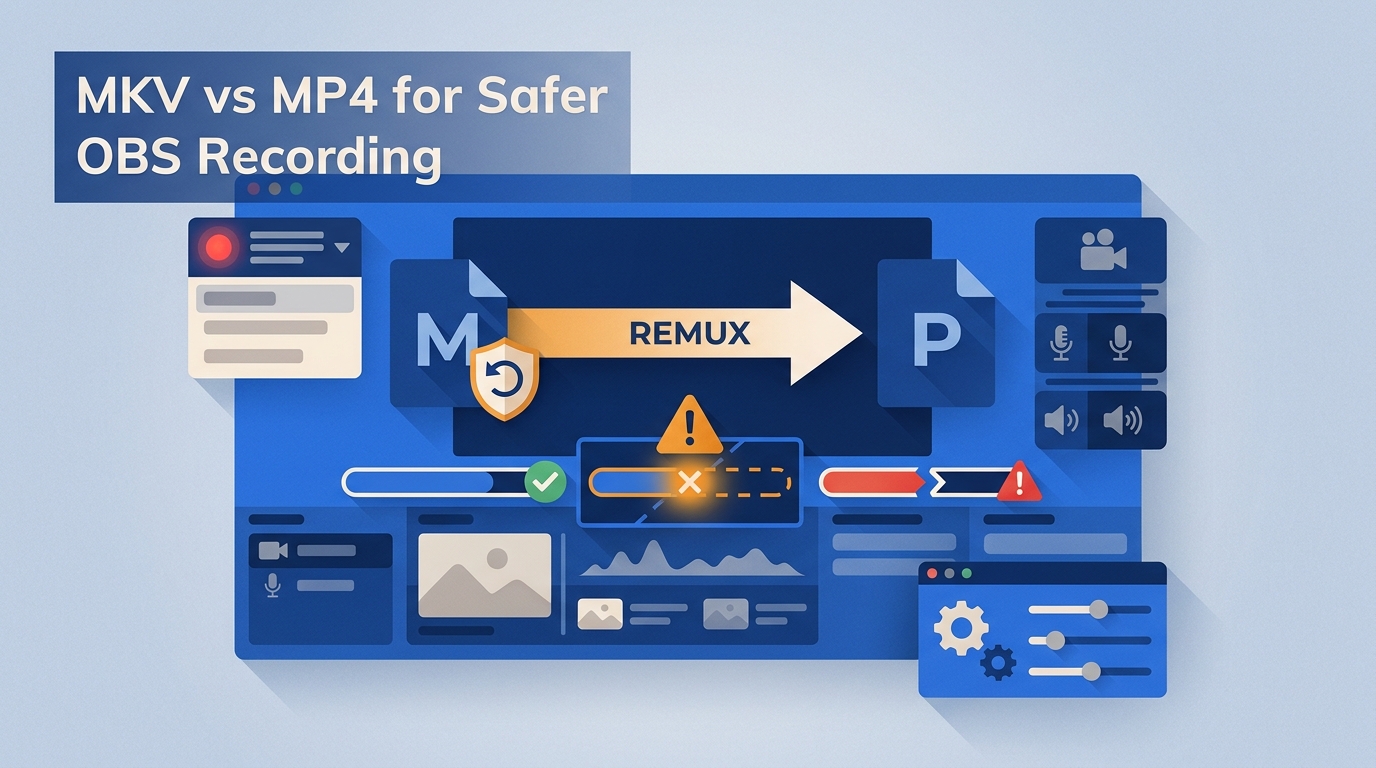
For most OBS 32 workflows, start with Hybrid MP4 only after a short end-to-end test. Choose MKV when recovery behavior and codec flexibility matter more than immediate editor access, Hybrid MOV for ProRes-oriented Mac work, and traditional MP4 only when its clean-stop compatibility outweighs finalization risk.
Why OBS Recording Format Matters
The MKV vs MP4 OBS decision is mainly about failure recovery and workflow fit, not picture quality. A container determines how a recording is finalized, which applications can open it, and what happens when OBS, the computer, or the storage destination stops unexpectedly.
A long recording can be technically well encoded and still become unusable if its container never finishes writing critical metadata. That is why OBS recording safety should be decided before a long session, not after a file fails to open.
For a broader explanation of the two containers outside OBS, see this MKV and MP4 comparison.
How the Crash Test Was Run
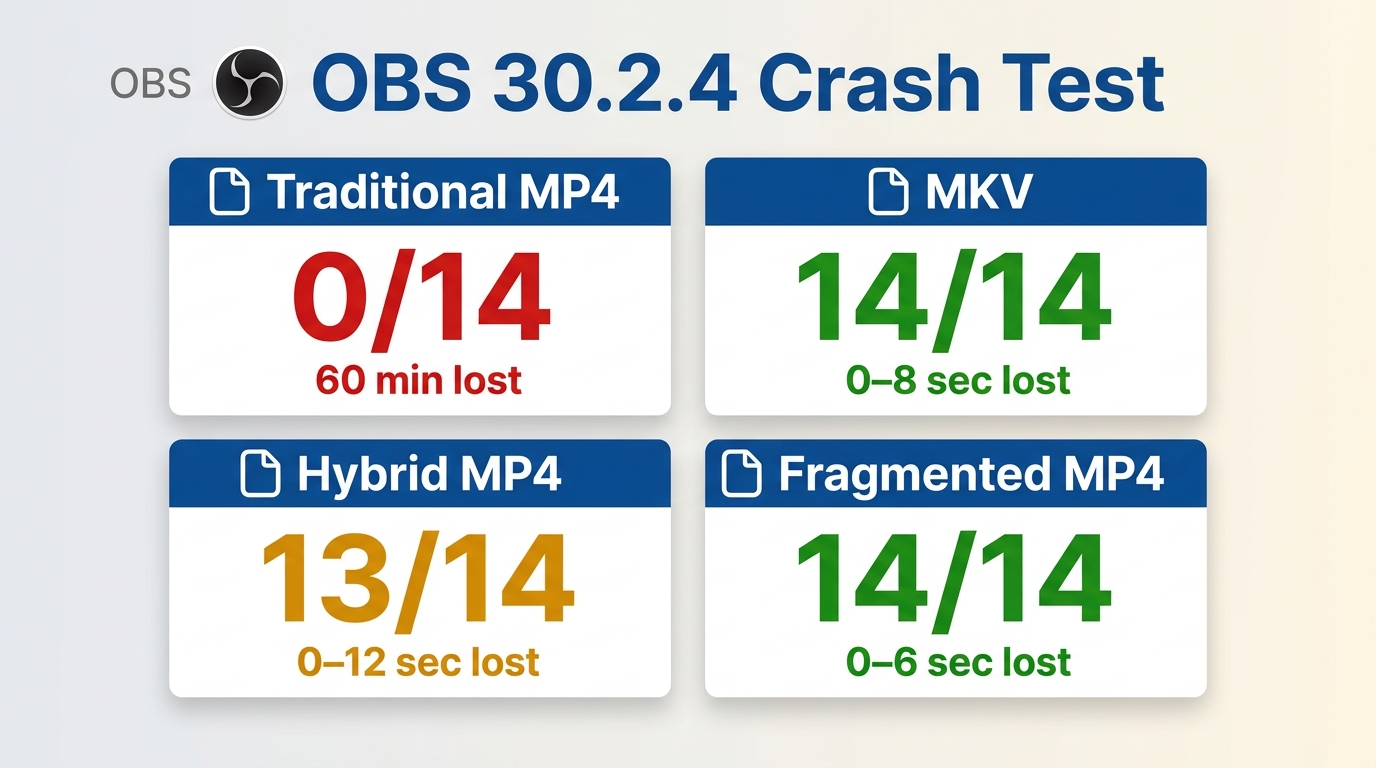
These results come from an earlier OBS 30.2.4 crash lab, not an OBS 32 retest. The setup used a Ryzen 7 5800X and RTX 4070 Windows desktop plus a Mac mini M2, with twelve 60-minute sessions recorded across the tested formats.
- Windows rig: Ryzen 7 5800X, RTX 4070, OBS Studio 30.2.4, and NVENC HEVC.
- Mac rig: Mac mini M2 with 16 GB memory, OBS Studio 30.2.4, and Apple VT HEVC.
- Interruption methods: Task Manager, Force Quit, kill -9, USB removal, simulated power loss, and disk-full events.
| Container in the OBS 30.2.4 test | Recovered files after 14 hard crashes | Observed loss per session |
| Traditional MP4 | 0 of 14 | 60 minutes |
| MKV | 14 of 14 | 0–8 seconds |
| Hybrid MP4 | 13 of 14 | 0–12 seconds |
| Fragmented MP4 | 14 of 14 | 0–6 seconds; four files were unreadable in Premiere Pro |
What the OBS 30.2.4 Results Show
The older benchmark shows a clear container-level pattern: traditional MP4 depended on a clean finalization, while MKV and fragmented recording approaches retained far more usable media after interruption. It does not establish how every OBS 32 codec, storage path, or finalization Edge case behaves.
On the Ryzen 7 5800X and RTX 4070 system running OBS 30.2.4, forced Task Manager closures and power-loss simulations were part of the test; across the 14-crash set, traditional MP4 recovered no playable recordings.
My editorial judgment is to keep this evidence because it explains the risk mechanism, while labeling it as version-specific rather than presenting it as fresh OBS 32 testing.
What Still Needs OBS 32 Verification
OBS 32 changed the practical default by moving Hybrid MP4 and Hybrid MOV out of beta for new profiles. The earlier lab did not retest chapter finalization, every PCM combination, negative composition timestamps, or every current editor against unfinished files.
Before an irreplaceable session, test the intended container, codec, audio tracks, storage destination, and editor together. A successful short recording is a workflow check, not a guarantee against every hardware or software failure.
MKV, MP4, and Hybrid MP4 Compared
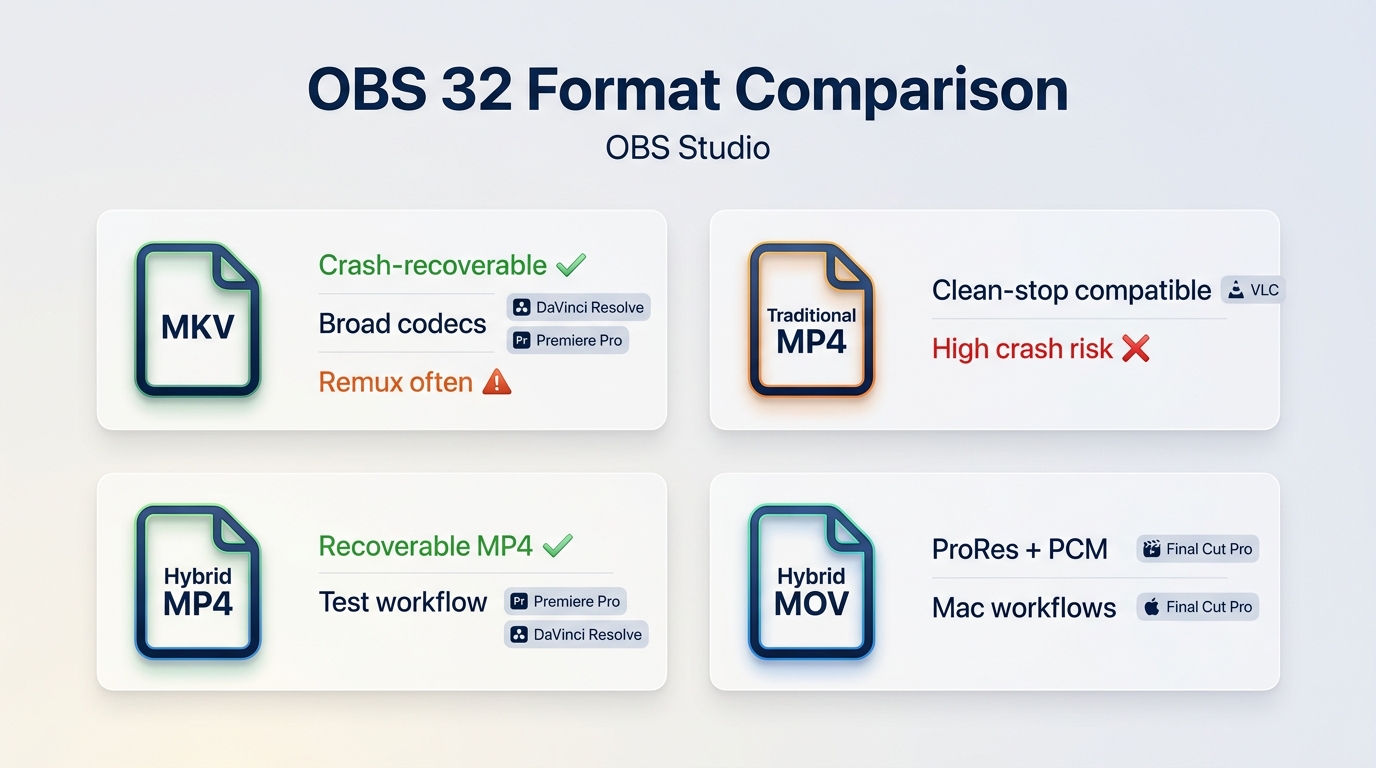
For a quick MKV vs MP4 OBS answer, Hybrid MP4 balances recovery and clean-stop compatibility, MKV favors recovery and codec flexibility, Hybrid MOV fits ProRes and PCM-oriented Mac workflows, and traditional MP4 accepts more interruption risk for a familiar finalized file.
In OBS 32.0, Hybrid MP4 and Hybrid MOV became the default containers for new profiles. The distinction is about supported workflows: Hybrid MOV provides broader room for ProRes and PCM, while Hybrid MP4 targets common MP4-compatible paths.
| Format | Interrupted-recording media recovery | Chapter-marker recovery after a crash | Compatibility after a clean stop | Unfinished-file compatibility | Codec and PCM constraints | Editor fit | Remux requirement |
| MKV | Designed to retain playable, recoverable media after many interruptions | Not dependent on MP4 finalization; verify the exact chapter workflow | Limited in editors that do not import MKV directly | Generally strong | Broadest OBS codec flexibility | Good fit for long sessions and flexible audio or codec needs; less suitable when the editor requires MP4 or MOV | Usually needed for MP4-based editing |
| Traditional MP4 | High loss risk if recording stops before finalization | Not available if the file does not finalize | Broad when stopped cleanly | Poor | Works with common MP4 combinations | Good fit for a proven legacy path with reliable clean stops; less suitable for long or irreplaceable sessions | No |
| Hybrid MP4 | Recorded media fragments may remain recoverable after many interruptions | No; chapter markers are written during finalization | Broad with tested codecs and current applications | Varies by application | PCM and some timestamp or codec combinations can reduce compatibility | Good fit for Premiere Pro and DaVinci Resolve after testing; less suitable for chapter-critical or unsupported codec paths | No after a clean stop |
| Hybrid MOV | Uses the same resilient hybrid approach for supported MOV workflows | No; chapter markers still depend on finalization | Broad in supported Mac and ProRes workflows | Varies by application | Broader ProRes and PCM fit than Hybrid MP4 | Good fit for Final Cut Pro and ProRes-oriented Mac work; less suitable when an MP4 deliverable is required immediately | No after a clean stop |
The Short Recommendation
Use Hybrid MP4 as a tested starting point for common H.264, HEVC, or AV1 editing workflows. Use MKV for conservative record-then-remux operation or broader codec flexibility, and Hybrid MOV when a Mac workflow depends on ProRes or PCM.
The Important Recovery Limits
Recoverable media is not the same as fully recoverable metadata. Hybrid files can retain recorded fragments after many interruptions, but chapter markers are created during finalization, and an unfinished file may not open in every player or editor.
Containers and Codecs Affect Different Things
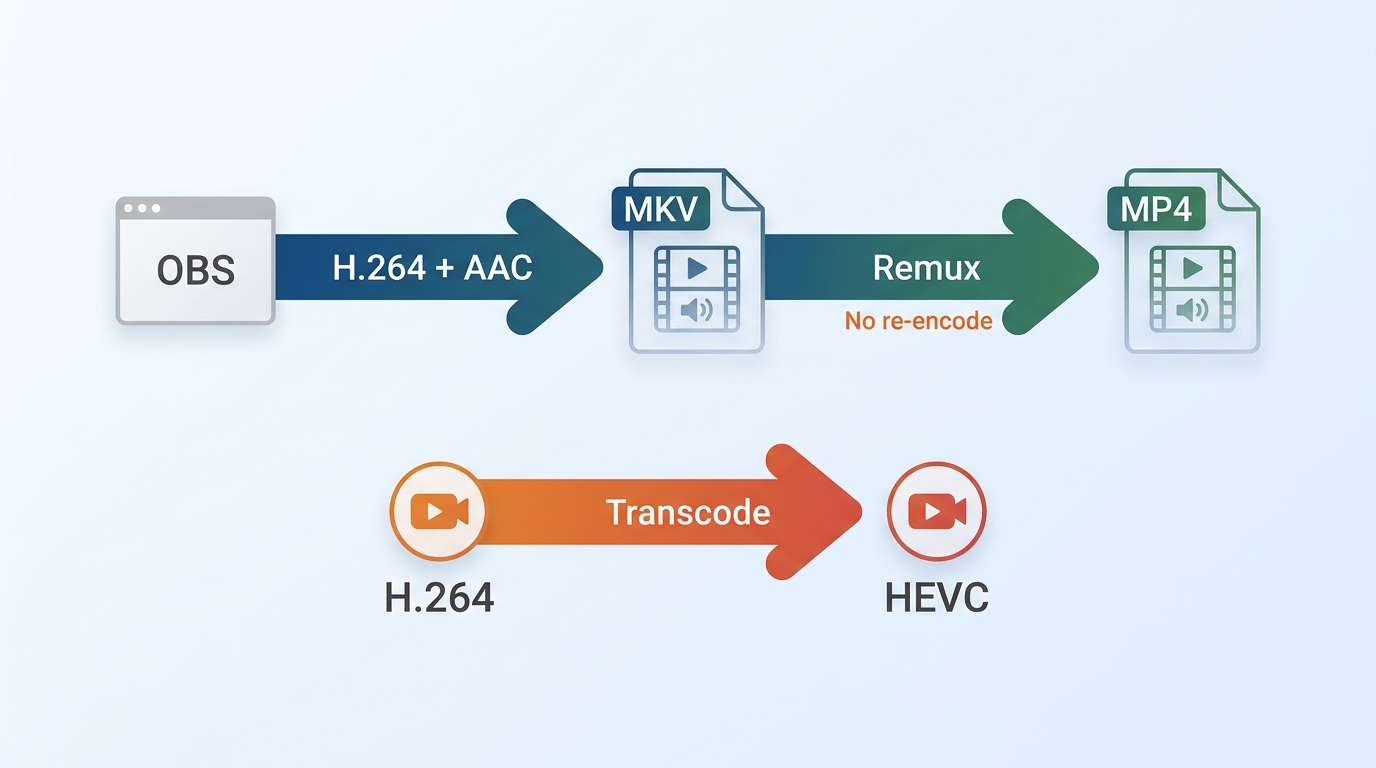
Containers organize streams; codecs encode the picture and sound. Changing MKV to MP4 without re-encoding changes the wrapper, not the recorded image quality. The container instead affects recovery, editor acceptance, chapter behavior, and which stream combinations it can carry.
An OBS recording format can hold H.264, HEVC, AV1, or another supported codec, but not every container accepts every video-and-audio pairing. The OBS audio and video formats guide is the useful reference when checking OBS supported formats.
- Codec: compresses and encodes video or audio.
- Container: packages video, audio, timestamps, chapters, and related metadata.
- Remuxing: moves existing streams into another container without encoding them again.
- Transcoding: changes one or more streams and therefore takes more processing time.
MKV Prioritizes Recovery and Codec Flexibility
MKV remains the conservative OBS recording format when recoverability and stream flexibility matter more than direct editor import. OBS describes unfinished MKV recordings as playable and recoverable after many power-loss or interruption scenarios.
On the Mac mini M2 running OBS 30.2.4, Force Quit was one of the interruption methods; across the complete 14-crash benchmark, MKV recovered 14 files with an observed loss of 0–8 seconds.
Where MKV Is the Better Fit
MKV suits long recordings, multiple audio tracks, and codec combinations that do not fit comfortably in MP4. It is also a sound choice when retaining the source recording and creating an editor-ready copy is already part of the workflow.
- Long or difficult-to-repeat sessions where interruption recovery is the main concern.
- Workflows using several audio tracks that must be checked separately in post-production.
- ProRes, lossless audio, or less common stream combinations that need broader container support.
Where MKV Adds Friction
Some editing applications do not import MKV reliably, so an extra remux step may be necessary. That step is quick because it does not re-encode, but it creates another file to verify and manage.
The balanced fit is simple: MKV is well suited to recovery-first recording, but it is less suitable when the editing system requires an MP4 or MOV file immediately.
Traditional MP4 Prioritizes Compatibility, Not Recovery
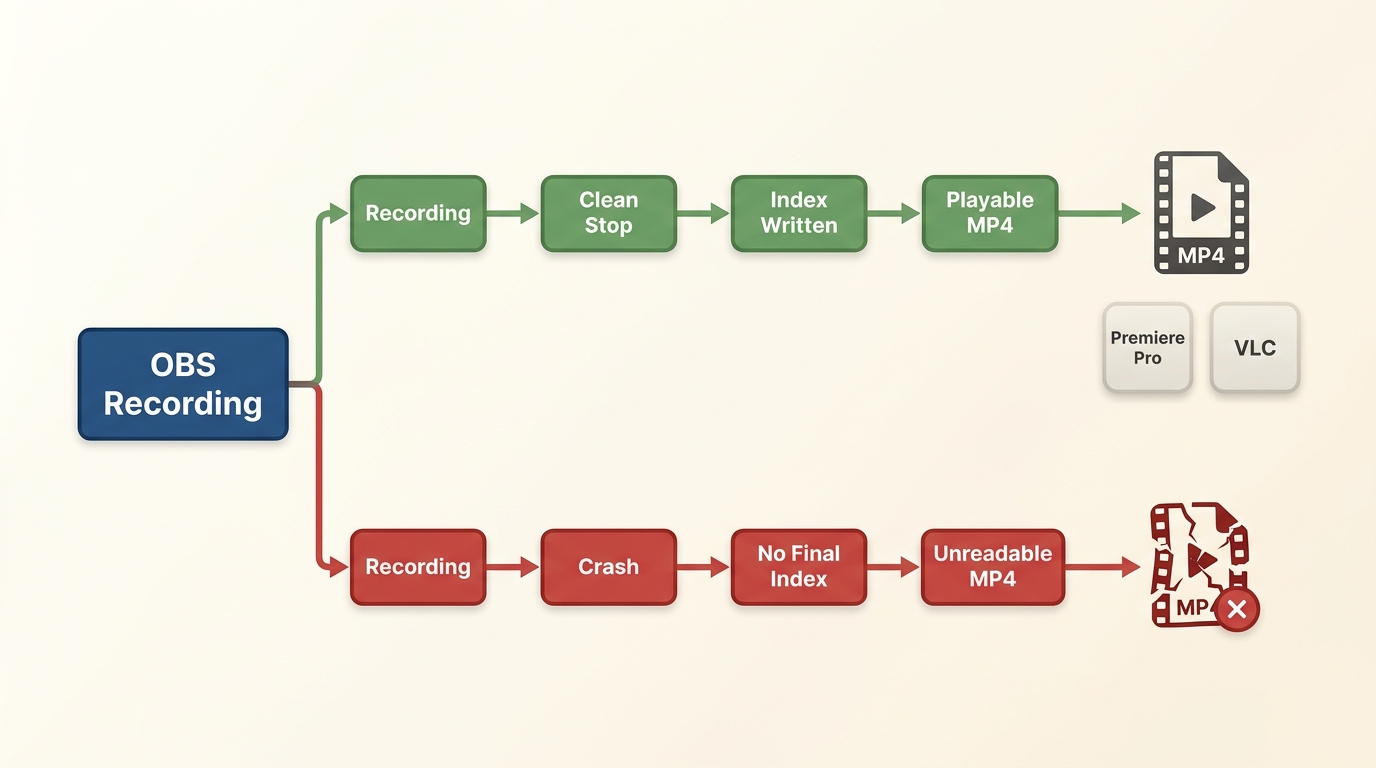
Traditional MP4 is familiar and broadly compatible after a clean stop, but OBS does not recommend direct MP4 or MOV recording because an interruption can prevent the file from finalizing into a playable state.
The format writes essential indexing metadata when recording stops normally. If OBS crashes, the system loses power, or the destination fills first, the file may remain unreadable even though media bytes were written.
The earlier Windows test used OBS 30.2.4 on an RTX 4070 system and included disk-full and forced-closure events; traditional MP4 recovered 0 of 14 files in that benchmark. That result is version-specific, but the finalization trade-off remains relevant.
Traditional MP4 can still fit a validated legacy workflow that needs a conventional finalized file and has strong protection against interruption. For long or irreplaceable sessions, its substantially higher finalization risk makes MKV or a hybrid container the more cautious choice. OBS explains this distinction in its format guidance.
Hybrid MP4 in OBS 32
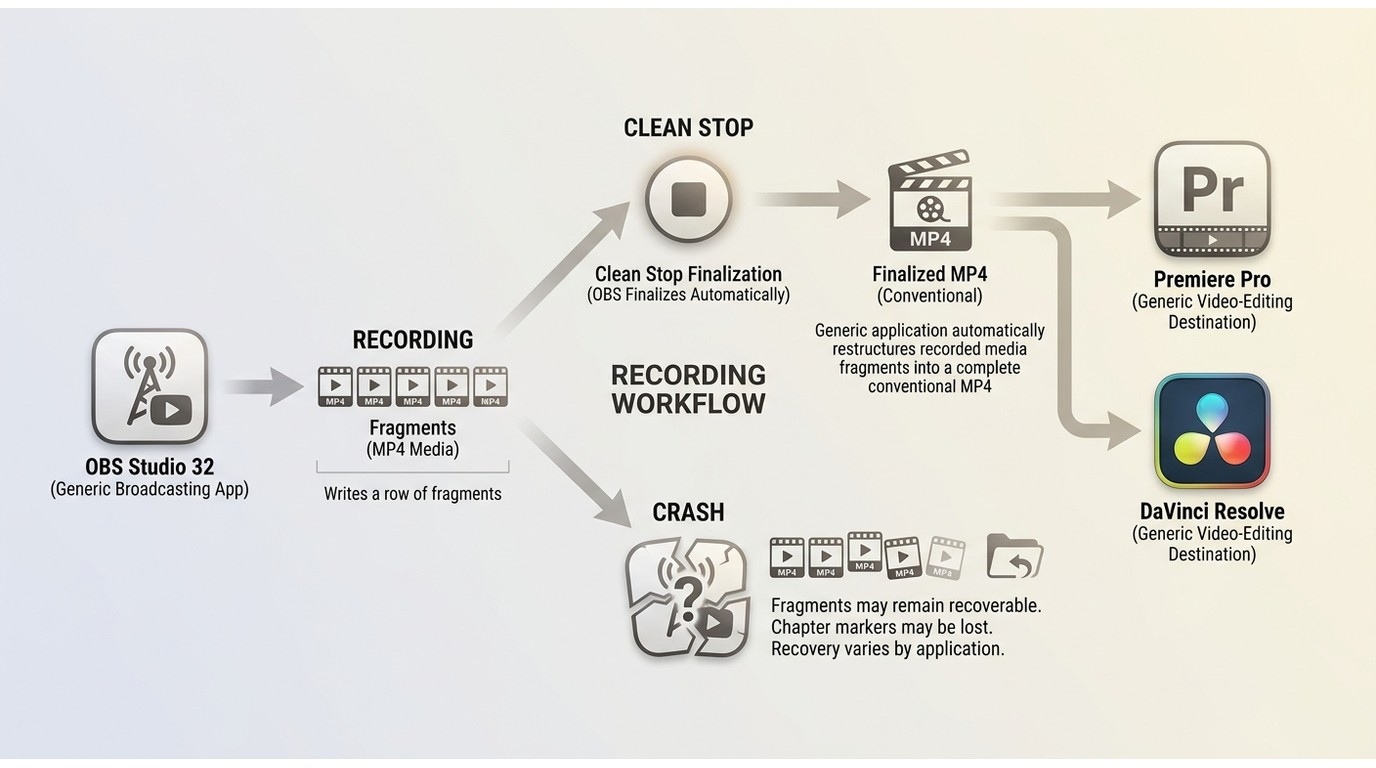
OBS Hybrid MP4 records fragmented media during capture and restructures the file after a clean stop. This combines useful interruption recovery with broad compatibility, but it does not make every piece of metadata or every unfinished file recoverable.
What Changed in OBS 32
Hybrid MP4 and Hybrid MOV left beta and became the default containers for new profiles in OBS 32.0. Hybrid MOV is the stronger fit for broader ProRes and PCM-oriented workflows, while Hybrid MP4 fits common MP4 delivery paths.
The current behavior builds on the official OBS Hybrid MP4 design: fragments are written while recording, then a clean stop performs a soft remux so applications see a more conventional file structure.
What Survives a Crash
Media fragments can remain usable after many interrupted recordings, but chapter markers are written during finalization and cannot be recovered after a crash. Chapter-heavy productions should therefore treat finalization as a real dependency rather than assuming the hybrid container preserves everything.
In the OBS 30.2.4 lab on the Windows and Mac rigs, Hybrid MP4 recovered 13 of 14 files with 0–12 seconds of observed loss. That older result supports cautious confidence in the design, not a universal OBS 32 promise.
Where Compatibility Can Still Break
Hybrid MP4 vs fragmented MP4 is not simply “compatible” versus “incompatible.” A cleanly stopped hybrid file is restructured for broader use, while an unfinished fragmented file may still fail in an application that expects a fully finalized MP4.
- PCM audio in MP4 is not handled consistently across applications.
- Negative composition timestamps can cause problems in some players and editors.
- An unfinished file may appear shortened, unplayable, or empty when a storage or finalization failure occurs.
Recent zero-byte and unplayable-file reports are troubleshooting signals, not proof that the format is broadly unsafe. Before a long session, confirm the destination path, free space, write permissions, and editor import with a short recording. The official Hybrid MP4 documentation details the format's limits.
Choose by Editor and Recording Workflow
Hybrid MP4 vs MKV should be decided by the editor, codec, audio layout, and tolerance for finalization failure. No single container is the right default for every production.
Premiere Pro and DaVinci Resolve
Hybrid MP4 is a practical starting point for common codecs when a short test imports, seeks, and exposes every intended audio track correctly. MKV remains useful when recovery and codec flexibility justify a remux before editing.
Final Cut Pro and ProRes
Hybrid MOV is the more natural OBS 32 choice for ProRes-oriented Mac workflows. Hybrid MP4 can fit broadly compatible codecs, while MKV is reasonable when maximum container flexibility matters and a remux or transcode step is acceptable.
Long Recordings and Multiple Audio Tracks
For long sessions, favor a format whose failure behavior you have tested on the actual storage path. With multiple audio tracks, verify track assignments in OBS and confirm that the editor exposes each track before deleting or archiving the source.
- Recovery-first workflow: record MKV, retain the source, then remux for editing.
- Fast editor handoff: use Hybrid MP4 after an end-to-end test.
- ProRes-oriented Mac workflow: use Hybrid MOV and test the exact audio setup.
- Legacy clean-stop workflow: traditional MP4 can fit, but interruption risk remains the trade-off.
This is the practical answer to the safest OBS recording format question: safety depends on which failure you can tolerate and whether the complete recording-to-editor path has been tested.
Change the Recording Format in OBS
Changing the OBS recording format takes a few settings changes, but the important final step is a short validation recording with the same codec, audio tracks, storage destination, and editor planned for the real session.
- Open OBS Studio and select Settings.
- Choose Output, then locate the Recording section.
- Select Hybrid MP4, Hybrid MOV, MKV, fragmented MP4, or traditional MP4 according to the workflow above.
- Select Apply, then OK.
- Record a short sample, stop normally, import it into the target editor, and inspect every audio track.
For MKV users who want an MP4 editing copy, open Settings > Advanced, find the recording options, and enable automatic remuxing.
Remux MKV Without Re-Encoding
MKV remux MP4 workflows are safer than direct traditional MP4 recording because OBS first writes the recovery-oriented MKV source, then moves the existing streams into MP4 after recording has stopped. Remuxing changes the container without encoding the video again.
Why Record Then Remux
The source MKV remains the recovery copy while the MP4 becomes the editor-facing copy. Keep the MKV until the MP4 opens correctly and every audio track has been verified.
- In OBS, select File > Remux Recordings.
- Add the MKV recording or drag it into the dialog.
- Confirm the MP4 destination and select Remux.
- Open the result in the target editor and inspect video, duration, seeking, and all audio tracks.
Fix Missing Audio Tracks
A track that seems missing may still be present but unselected in the editor, assigned incorrectly in OBS, or incompatible with the destination container. Check the source before repeating the remux.
| Symptom | Check | Next action |
| One track is silent in the editor | Editor track selection and channel mapping | Enable or map every imported track |
| A track is absent from the source | OBS Advanced Audio Properties and recording-track assignments | Correct assignments and make a short test recording |
| Remux fails or the result will not import | Whether the destination container supports the video-and-audio combination | Retain the MKV and transcode only if the streams must change |
| File opens but seeks or plays poorly | Editor support for the codec, timestamps, and unfinished structure | Try a clean remux from the retained source or use a supported transcode |
For full conversion methods beyond this OBS-focused remux workflow, use a dedicated MKV-to-MP4 guide rather than treating a container swap as a general conversion project.
When Remuxing Is Not Enough
Use a converter only when the video or audio streams must change, such as switching codecs, lowering bitrate, changing a required output specification, or applying the same settings to a batch. A simple MKV-to-MP4 container swap does not need transcoding.
UniFab Video Converter for Windows and Mac supports batch processing and 1000+ format conversions, with NVIDIA, AMD, and Intel GPU acceleration rated up to 50× in its official specifications. Re-encoding takes longer than remuxing and can change file size or quality, so it should solve a specific compatibility or delivery need.
- Suitable when the editor or delivery system requires a different codec.
- Suitable when bitrate or file size must be reduced through re-encoding.
- Suitable for batch standardization across many OBS recordings.
- Not needed when the existing video and audio streams already work and only the container must change.
See the UniFab Video Converter details for its supported conversion workflow.
OBS Format Questions
These quick answers cover the failure and compatibility details that are easiest to miss after choosing a container.
Are Hybrid MP4 chapter markers recoverable after an OBS crash?
No. Recorded media fragments may remain recoverable, but OBS writes chapter markers during finalization. If recording is interrupted before that step, the chapter markers are not recoverable.
Why did OBS create a zero-byte or unplayable Hybrid MP4 file?
Check the destination path, available space, write permissions, abrupt shutdown history, and whether the application supports unfinished fragmented files. A short test recording can expose a storage, codec, or editor mismatch before a long session, but it cannot promise recovery from every failure.
Why is an audio track missing after remuxing MKV to MP4?
The track may be disabled in the editor, mapped incorrectly in OBS, or unsupported in the destination combination. Inspect all source tracks and assignments, then keep the MKV until the remuxed file has been verified.
Should Final Cut Pro users choose MKV, Hybrid MP4, or Hybrid MOV?
Choose by codec and workflow. Hybrid MOV fits ProRes-oriented Mac work, Hybrid MP4 fits broadly compatible codecs after testing, and MKV fits recovery-first recording when an additional remux or transcode step is acceptable.
The Right Default Depends on Failure Tolerance
The right OBS 32 default is conditional: Hybrid MP4 is practical for many tested editor workflows, MKV is the conservative choice for recovery and codec flexibility, Hybrid MOV fits ProRes-focused Mac work, and traditional MP4 retains clean-stop compatibility with higher interruption risk.
My editorial rule is to optimize for the failure that would cost the most. For an irreplaceable long session, keep a recovery-oriented source. For a fast editing handoff, validate Hybrid MP4 or Hybrid MOV with the exact codec, tracks, storage, and editor before production.