In short, MP4 is usually the better delivery format because it has broader native playback, editing, sharing, and upload support. MKV is usually better as a flexible master when you need multiple audio tracks, advanced subtitles, chapters, or interruption-resistant recording. Quality depends on the encoded streams, not the container.
MKV vs MP4: Quick Comparison Table
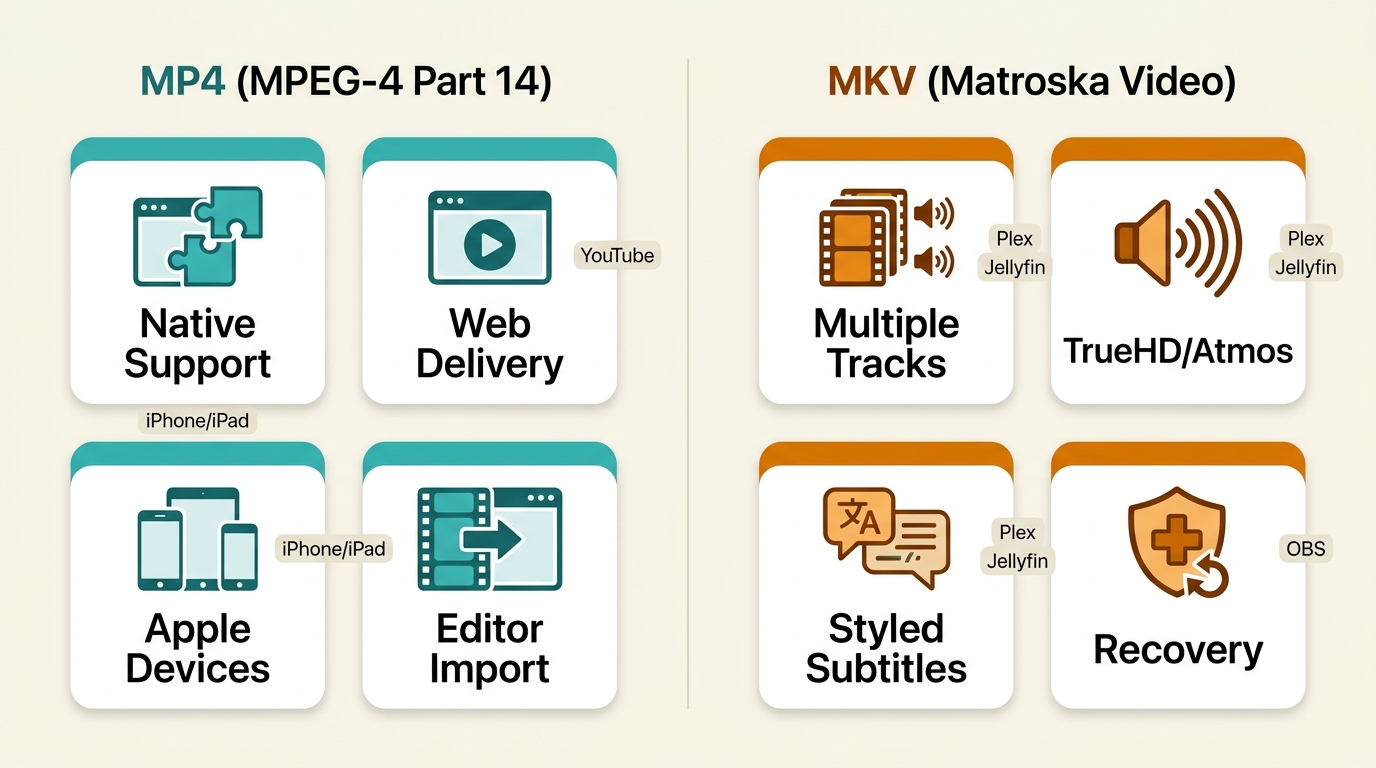
The MP4 vs MKV breakdown at a glance:
| Feature | MP4 | MKV |
| Developer | ISO/MPEG (2003) | Matroska (2002, open-source) |
| File Extension | .MP4, .m4v | .MKV |
| Video Codecs | H.264, H.265, AV1 | H.264, H.265, AV1, VP9, FFV1, and more |
| Audio Codecs | AAC, AC3, E-AC3, MP3 | AAC, FLAC, DTS-HD MA, TrueHD, Atmos, PCM |
| Subtitle Formats | SRT, TX3G | SRT, ASS/SSA, PGS, VobSub |
| Chapter Support | Limited | Full |
| DRM Support | Yes (MPEG-CENC) | No |
| Streaming (HLS/DASH) | Yes | No |
| Device Compatibility | Broad, but stream-dependent | Varies by device and included streams |
| File Size (same codec) | ~Equal | ~Equal |
| Recording Recovery | Standard MP4 is interruption-sensitive; OBS also offers Hybrid MP4/MOV and fragmented formats | Interruption-resistant, with workflow-dependent editor compatibility |
| Best For | Sharing, streaming, Apple devices | Archival, home theater, Plex, recording |
Bottom line: MP4 generally suits sharing, web delivery, editing, and broad device playback. MKV suits multi-track masters, advanced subtitles, lossless home-theater audio, and interruption-resistant recording.
Quick Decision Matrix:
| Your Use Case | Best Format |
| Streaming / sharing online | MP4 |
| Plex / home media server | MKV (or convert to MP4 per client) |
| Long-term archival | MKV |
| Video editing (Premiere, Resolve) | MP4 |
| OBS screen recording | MKV (remux to MP4 later) |
| Apple devices (iPhone, iPad, Mac) | MP4 |
| 4K HDR home theater with Atmos | MKV |
What Are MKV and MP4 Containers?
Most of the bad advice about these two formats comes from one misunderstanding: people confuse containers with codecs. Let's fix that.
What Is MP4?
MP4 (MPEG-4 Part 14) was standardized by ISO/MPEG in 2003, and it quickly became the default video format for, well, everything. Browsers, phones, social media, streaming services — if something plays video, it plays MP4.
On the codec side, MP4 handles H.264, H.265/HEVC, and AV1 for video. Audio options include AAC (by far the most common), AC3, E-AC3, and MP3. Subtitle support stops at SRT and TX3G — basic text formats, nothing fancy.
What Is MKV?
MKV (Matroska Video) launched in 2002 as an open-source project by the Matroska team. The name references Russian nesting dolls — appropriate, because MKV was built to hold nearly anything.
Video codec support is massive: H.264, H.265, AV1, VP9, lossless codecs like FFV1, even legacy formats. Audio goes further than MP4 in important ways — MKV handles DTS-HD Master Audio, Dolby TrueHD with Atmos, FLAC, and uncompressed PCM. Subtitle support includes ASS/SSA (styled, with custom fonts and positioning), PGS (Blu-ray image-based), and VobSub (DVD). MKV is a highly flexible container for multi-track audio, subtitles, chapters, attachments, and menu data.
Container vs Codec: Why This Matters
This is the part that rewires how you think about MKV vs MP4 quality.
A container is the envelope. The codec is the letter inside. MKV and MP4 are just different envelopes. If you take an H.265 video and put it in an MKV envelope or an MP4 envelope, the letter — the actual video data — doesn't change at all.
That means an H.265 video encoded at the same bitrate looks identical in MKV and MP4. Pixel-for-pixel the same. The container never touches the video stream. Claims that MKV inherently looks better confuse the container with the encoded stream. Quality is determined by the codec, bitrate, and other encoding settings.
MKV vs MP4: 7 Differences That Matter
With the container-vs-codec confusion out of the way, here's what actually differs between the two.
1. Video Quality
Same codec, same settings = same quality. Full stop. The container makes zero difference to the video bitstream.
MKV does support more codecs than MP4, including lossless options like FFV1. That matters for professional archival. For everyone else encoding in H.264, H.265, or AV1? Not relevant.
The takeaway: It's a tie. Quality lives in the codec, not the container.
2. File Size
One of the most persistent myths. "MKV files are bigger." In the wild, they often are — but not because of the container format.
Container overhead is a rounding error. A few kilobytes on a multi-gigabyte file. Encode the same source video into MKV and MP4 with identical settings, and you get virtually the same file size.
Why MKV files seem larger: they frequently carry extra baggage. Three audio tracks (English, Japanese, commentary), five subtitle streams, chapter markers. Strip that down to one video track and one audio track? No meaningful MKV vs MP4 file size difference.
Same content = same size. MKV only grows when it's carrying more tracks.
3. Device and Editing Compatibility
MP4 generally has broader native playback and editing support, which is the main reason people create MP4 compatibility copies from MKV masters.
MP4 plays natively on many phones, smart TVs, browsers, game consoles, and video editors. Actual playback still depends on the video codec, profile, audio format, subtitles, and device capabilities.
MKV support is less consistent. Apple’s built-in players generally require another app for MKV, while smart TV behavior varies by model, codec profile, bitrate, audio, and subtitle format. Premiere Pro behavior also varies by version, codec, and file, so remuxing to a supported container is the more predictable workflow when import reliability matters.
My practical rule is to choose MP4 when native playback or predictable editor import matters more than preserving every track in the source file.
4. Audio Codec Support
MP4 covers the basics well: AAC for streaming, AC3 and E-AC3 for 5.1 surround, MP3 for legacy compatibility. Good enough for most people.
MKV covers all of that plus formats used in advanced home-theater libraries, including DTS-HD Master Audio, Dolby TrueHD with Atmos metadata, FLAC, and uncompressed PCM. For a library built around those lossless audio streams, MKV is generally the more practical container.
For lossless home-theater audio: MKV is usually the better fit. For mainstream playback and sharing: MP4 is often easier to use.
5. Subtitle Support
MP4 gives you two options: SRT (plain text) and TX3G (Apple's timed text). That's the full list.
MKV gives you SRT, ASS/SSA (styled subtitles with fonts, colors, custom positioning — the format anime fansubs use), PGS (image-based Blu-ray subtitles), and VobSub (DVD). This matters most when converting: MKV-to-MP4 conversion is where subtitles frequently break or disappear, because the target container doesn't support the source subtitle format.
If you need multiple subtitle tracks, styled ASS/SSA subtitles, PGS, or VobSub, MKV is usually the better fit.
6. Streaming and Web Compatibility
MP4 is widely used for web delivery and works with common HLS (HTTP Live Streaming) and DASH (Dynamic Adaptive Streaming) workflows. As of July 2026, YouTube’s official supported-upload-formats page does not list MKV as a supported container, so MP4 or another listed format is the more predictable upload choice.
MKV is primarily used as a file container rather than a mainstream web-delivery format. Upload support varies by platform, while MP4 is more consistently accepted in browser, social, and streaming workflows.
For web delivery and platform uploads, MP4 is generally the more predictable choice.
7. Recording Recovery and OBS Formats
Here's where MKV has a genuine advantage that doesn't get enough attention.
Standard MP4 normally requires finalization when recording ends. If the application or system is interrupted before that step completes, the file may be difficult or impossible to open without recovery work.
MKV is interruption-resistant and remains a conservative capture choice when recovery is the priority. It can later be remuxed for workflows that prefer MP4, provided the required streams are compatible with the target container.
OBS also offers Hybrid MP4/MOV, which is designed to combine interruption recovery with normal MP4/MOV compatibility when recording ends correctly, plus fragmented formats with different editor and recovery tradeoffs. Real-world recovery and editing behavior can vary, so choose around your capture and post-production priorities; the dedicated MKV vs MP4 in OBS comparison covers the detailed settings.
MKV and MP4 Compatibility Matrix
A direct device-compatibility matrix is often missing from MKV vs MP4 comparisons. The table below shows the practical differences, while the notes identify cases where the streams inside the container still determine the result.
Legend: ✅ = Full support | ⚠️ = Partial (depends on codec/profile) | ❌ = Not supported
| Platform / Device | MP4 | MKV | Notes |
| YouTube | ✅ | Not listed | YouTube’s supported-upload-formats page does not list MKV |
| Vimeo | ✅ | ✅ | Both accepted for upload |
| TikTok | ✅ | ❌ | MP4 only |
| ✅ | ❌ | MP4 only | |
| X (Twitter) | ✅ | ❌ | MP4 only |
| Discord | ✅ | ✅ | Both play inline in chat |
| ✅ | ❌ | MP4 only | |
| Telegram | ✅ | ✅ | Both supported |
| Plex | ✅ | ✅ | Both; MKV may trigger transcoding on some clients |
| Jellyfin / Emby | ✅ | ✅ | Both; same transcoding considerations as Plex |
| VLC Media Player | ✅ | ✅ | Full support for both |
| Windows Media Player | ✅ | ✅ | Native support on Windows 10/11 |
| QuickTime (macOS) | ✅ | ❌ | No MKV support; use VLC or IINA |
| iPhone / iPad | ✅ | ❌ | Need VLC or Infuse for MKV |
| Apple TV | ✅ | ❌ | Need Infuse for MKV |
| Android | ✅ | ✅ | Most video players handle both |
| Samsung Smart TV | ✅ | ⚠️ | MKV works with H.264; H.265 high-profile may fail |
| LG Smart TV | ✅ | ⚠️ | Similar codec profile restrictions |
| Sony Smart TV | ✅ | ⚠️ | Similar codec profile restrictions |
| PS5 | ✅ | ❌ | MP4 only via Media Player app |
| Xbox Series X/S | ✅ | ✅ | Both supported |
| DaVinci Resolve | ✅ | ⚠️ | Partial MKV support; may have audio issues |
| Adobe Premiere Pro | ✅ | ⚠️ | MKV behavior varies by version, codec, and file |
| OBS Studio | ✅ | ✅ | Both available as recording output |
The matrix favors MP4 for broad native support, but neither extension guarantees playback by itself. My practical check is to confirm the container, video codec, audio format, subtitle type, and target device together.
If you need broad playback with minimal troubleshooting, MP4 with widely supported video and audio streams is usually the safer delivery choice. Smart TV support can change by model and firmware, so use the manufacturer’s official support information for the current device limits.
MKV vs MP4 for Plex and Jellyfin
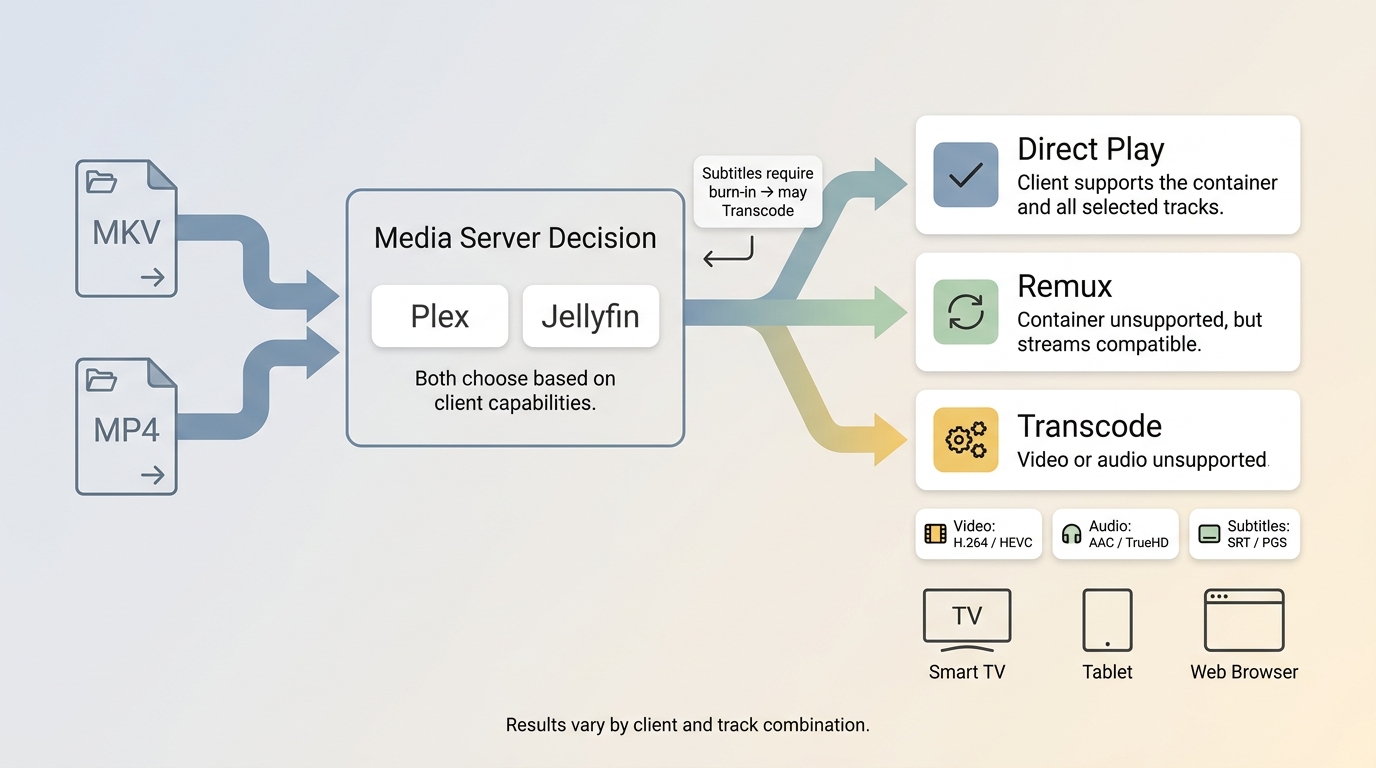
Plex and Jellyfin can both work well with MKV or MP4. Direct Play, container remuxing, and full transcoding depend mainly on the client and the video, audio, and subtitle streams inside the file.
What Triggers Direct Play or Transcoding
Plex and Jellyfin may Direct Play a file, remux it into another container without changing the encoded streams, or transcode incompatible streams. The result depends on the client’s support for the video codec, audio format, subtitles, profile, and other stream details.
An MKV file with H.264 and AAC may Direct Play on many clients, as can an MP4 containing the same streams. The Plex media format documentation shows why client capabilities matter; Jellyfin follows the same general distinction between direct playback, remuxing, and codec transcoding.
Where MKV files trigger transcoding is usually about what's inside them: H.265 with a high profile the client can't decode, DTS audio that needs downmixing to AAC for a phone, or PGS subtitles that have to be burned into the video stream.
When MKV Fits a Media Library
MKV is useful when you want to preserve the tracks from lawfully obtained, personally owned media where permitted by applicable law. Confirm that your use complies with copyright requirements in your jurisdiction:
- Multiple audio tracks (English 5.1, English commentary, Japanese stereo)
- Multiple subtitle tracks — especially PGS subtitles from Blu-ray discs
- Chapter markers for easy navigation
- Lossless audio like Dolby TrueHD or DTS-HD MA for passthrough to a receiver
On a compatible Plex or Jellyfin client, MKV can preserve those extra tracks without forcing a full video transcode. Less capable clients may still require audio conversion, subtitle burn-in, or another delivery copy.
When MP4 Reduces Client Problems
MP4 reduces headaches in a few specific scenarios:
- Roku and Fire TV — handle MP4 with H.264/AAC most reliably
- Remote streaming — MP4 with H.264 + AAC is the safest codec combo that every client supports
- Shared libraries — MP4 means fewer "why won't this play?" messages from family members
A Practical Client Compatibility Check
Start with one representative file and check whether each important client Direct Plays, remuxes, or transcodes it. Keep an MKV master when its extra audio, subtitle, chapter, or attachment data matters, and create an MP4 delivery copy for clients that handle a simpler stream set more reliably.
For a shared library, I favor MP4 delivery copies when client support is inconsistent and MKV masters when rich tracks matter. MKV is not ideal for clients that repeatedly require subtitle burn-in or audio conversion; MP4 is not ideal when preserving PGS subtitles, attachments, chapters, or lossless audio is essential.
Remux or Transcode: The Quality-Safe Choice
If you need an MP4 compatibility copy, inspect every stream you want to keep before choosing a method. Remux when the required streams fit MP4; transcode only incompatible video or audio streams, and retain the MKV master when unsupported subtitles, attachments, chapters, or metadata matter.
When to Remux or Transcode
Remuxing repackages the video and audio streams into a new container — without re-encoding anything. The video bitstream stays bit-for-bit identical. Zero quality loss. Finishes in seconds.
A lossless remux works only when every stream you need to retain is compatible with MP4. An incompatible audio track, subtitle format, attachment, chapter structure, or metadata stream may need conversion, removal, or a different target container.
Transcoding decodes and re-encodes an incompatible video or audio stream. It takes longer than remuxing and can change quality, so preserve compatible streams whenever the software allows. Neither remuxing nor transcoding can repair defects already encoded into the source or introduced during capture.
A GUI Option for Batch Compatibility Copies
UniFab Video Converter is a Windows and Mac desktop app that supports 1,000+ formats, batch processing, and NVIDIA, AMD, and Intel GPU acceleration. It suits users who prefer a GUI over command-line tools and need to create compatible delivery copies in batches; keep the original MKV master when its richer tracks or metadata still matter.
100% free, fully featured, and watermark-free.
- Step 1
Launch UniFab, choose Video Converter, and click Add (or drag-and-drop) to load your MKV file. Multiple files? Batch processing handles that.
- Step 2
Click "Choose other format..." from the output format dropdown.
- Step 3
Step 3: Select MP4 as the output format. Hit Start to begin the MKV to MP4 conversion.
For complete commands, presets, and step-by-step tool instructions, see the dedicated MKV-to-MP4 conversion guide. My rule here is simple: create the compatibility copy you need, but do not discard a richer master until you confirm that no required tracks were omitted or converted.
MKV vs MP4: The Verdict
Neither container is better for every workflow. The right choice depends on whether you prioritize rich track support and a flexible master or broad native playback, editing, sharing, and listed upload support.
- Choose MP4 when broad native playback, predictable editing, web delivery, sharing, or support on a platform’s listed upload formats matters most.
- Choose MKV when you need a rich library master with multiple audio tracks, advanced subtitles, chapters, attachments, lossless home-theater audio, or interruption-resistant capture.
- Keep both when storage permits: retain MKV as the master and create MP4 delivery copies for specific devices or services. This master-plus-delivery workflow is my preferred balance when preserving source features and minimizing playback problems are equally important.
FAQs About MKV vs MP4
Can I convert an MKV file by renaming it to MP4?
No. Changing the extension does not change the container or the streams inside it. Compatible streams can be remuxed into MP4, while incompatible video, audio, subtitle, attachment, or metadata streams must be converted, removed, or kept in another container.
Can an MKV file contain malware?
The MKV extension alone does not establish whether a file is safe. Download media only from trusted sources, keep your playback software updated, and scan files from unfamiliar sources before opening them.
Why can remuxing fail even when the video codec is supported?
The audio, subtitles, attachments, chapters, or metadata may not fit the MP4 container even when the video stream does. Remuxing also cannot repair audio or video defects already encoded into the source or introduced during capture.
Should I keep the original MKV after creating an MP4 copy?
Keep the MKV master when it contains audio tracks, subtitles, chapters, attachments, or archival data that the MP4 copy does not preserve. If storage is limited and both files contain the same required streams, your playback devices and backup plan should decide which copy to retain.