Converting MKV to OGG usually means extracting one audio stream from an MKV file and encoding it as Vorbis or Opus. Before choosing a converter, decide whether you need audio only or must retain the video, because those goals require different outputs.
The common failure is choosing the container before choosing the stream. I treat the file extension as the last decision, not the first. Choose the language, commentary, audio, or video you need to preserve, then choose between an online MKV-to-OGG converter and FFmpeg. That order prevents the most confusing result: an Ogg video when you wanted a simple audio file.
What MKV to OGG Conversion Actually Produces
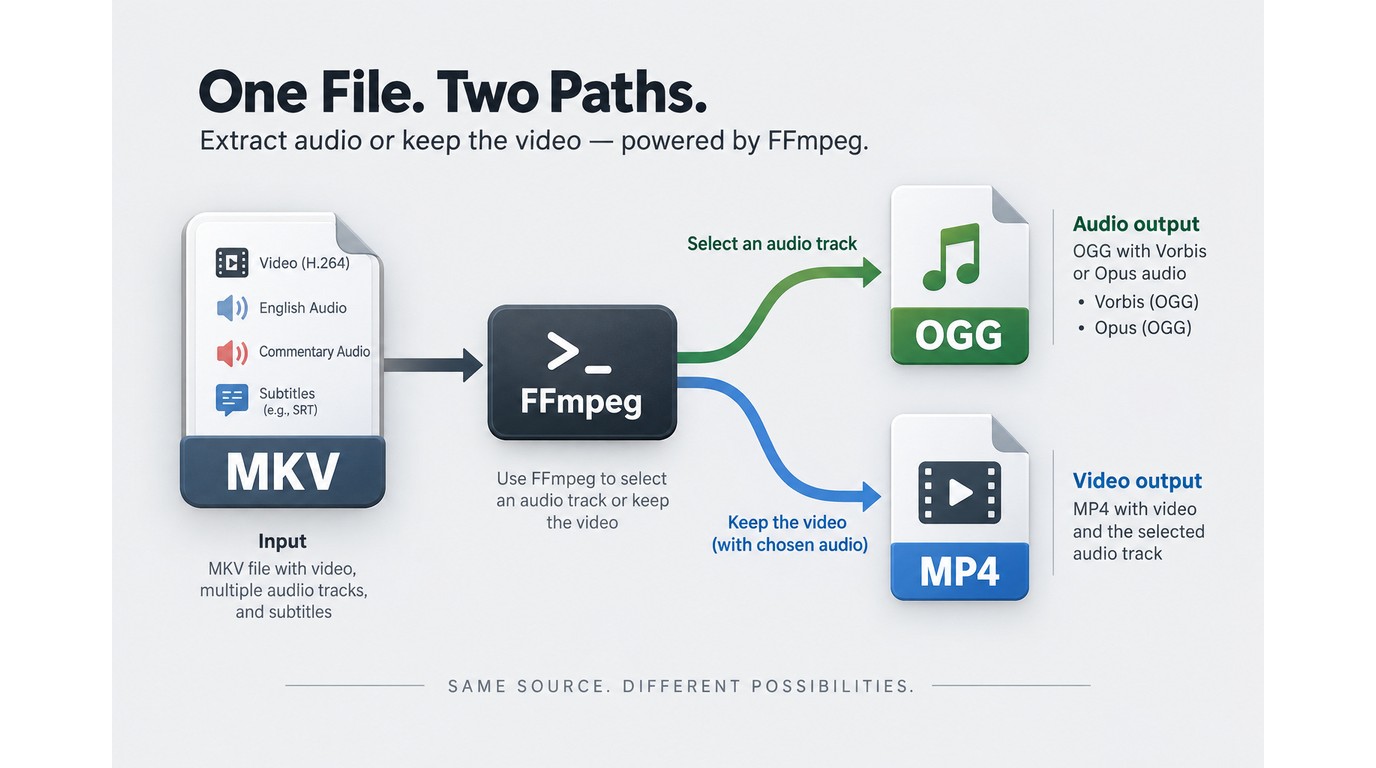
MKV-to-OGG conversion normally extracts a selected audio track and re-encodes it inside an Ogg container. It does not keep the video unless the converter creates an Ogg video file, which is a different outcome from the audio file most readers expect.
MKV Can Hold Video, Audio, Subtitles, and Multiple Tracks
MKV is a container, not a single video or audio codec. One file can hold the picture, several language tracks, commentary, subtitles, chapters, and metadata. That flexibility is useful, but it makes an automatic “convert” button prone to selecting the default audio stream rather than the one you want.
The practical clue is the track list. As one Reddit user in r/windowsapps put it, “I have an MKV with multiple audio tracks and subtitles, and I only want to extract the English subtitles or the original audio track.” Inspecting those streams first turns conversion from a guess into a controlled extraction.
OGG Audio Is Different from Ogg Video
OGG is commonly used as shorthand for an audio file containing Vorbis or Opus, while Ogg is the broader container. That container can also carry video. A Reddit user in r/ffmpeg described the exact mismatch: “The resulting output is a Ogg Theora video. How do I specify Ogg audio?”
For an audio-only result, select an audio codec and omit the video stream. If your goal is to retain the picture, use a video container such as MP4 instead; the MKV-to-MP4 workflow addresses that separate task.
Choose the Source Track Before You Convert
Track selection should happen before quality selection. Identify the language or commentary stream, note its codec and channel layout, and keep the MKV until the result has been checked. A high quality setting applied to the wrong language track still produces the wrong file.
How to Convert MKV to OGG Online in Four Steps
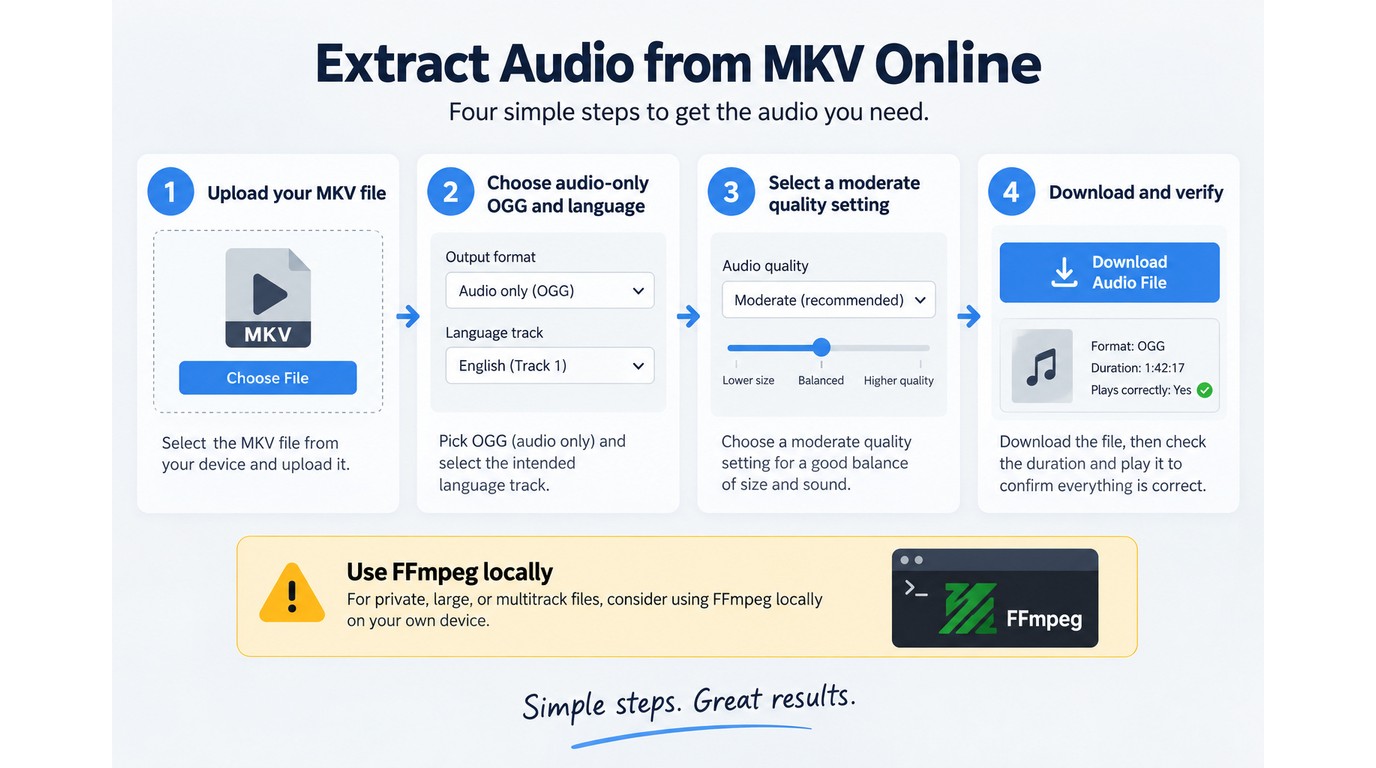
An online converter is the quickest route for a small, nonsensitive MKV when you do not need precise stream control. Check the upload rules and identify the intended audio track before transferring the file.
Please note: Upload only media you own or are authorized to process, and follow the converter provider's terms. Keep private client, family, medical, or work footage local unless the provider's storage and deletion policy is acceptable for that material.
Prerequisites: File Size, Privacy, and the Target Audio Track
Privacy is the harder limit. As one Reddit user in r/SideProject put it, “Uploading personal videos, recordings, or datasets to random websites raises privacy concerns, and sometimes the files are large enough that uploads are slow or impossible.” For sensitive or multitrack sources, skip the upload and use the local FFmpeg method below.
The browser workflow has four actions:
- Upload the MKV after reviewing the service limits.
- Select audio-only OGG and the intended audio stream.
- Choose a moderate quality setting suited to the source.
- Convert, download, and verify the completed audio file.
1. Upload the MKV File
Choose a service that displays its current limits before transfer. Select the MKV from local storage, then wait for the upload to finish before changing output options. Do not close the tab or let the computer sleep during a long transfer.
2. Select OGG and the Intended Audio Stream
Choose an audio output labeled OGG, Vorbis, or Opus rather than an Ogg video profile. If the interface lists tracks, select the required language or commentary stream. If it offers no track control, the service will usually take the default track, so a multitrack MKV is a poor fit.
3. Set Quality Without Inflating the File
Start near the middle of the available quality scale for compressed source audio. Raising the setting can increase file size, but it cannot recreate detail already discarded by AAC, MP3, or another lossy source codec. Preserve the original sample rate and channel layout unless the destination app requires a change.
4. Convert, Download, and Verify the Result
Download the OGG file and check its full duration, language, channel count, and playback. Listen near the beginning, middle, and end before deleting the MKV. Also compare file size with the source audio stream; an unexpectedly large result often points to an excessive quality or bitrate setting.
Extract MKV Audio to OGG with FFmpeg
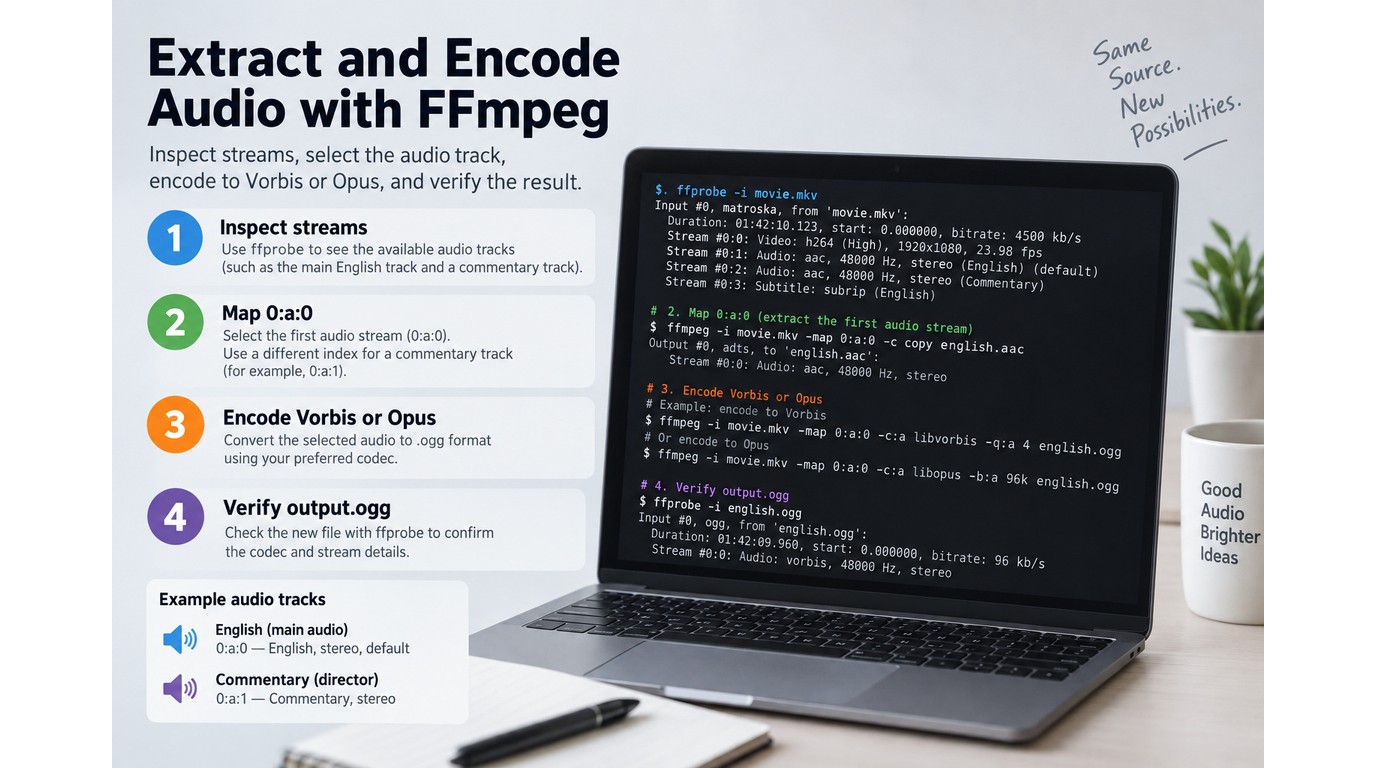
FFmpeg is the more precise option for a private, large, or multitrack MKV because it runs locally and lets you map one audio stream explicitly. The reliable sequence is to inspect, map, encode, and verify rather than letting defaults decide.
Use this order:
- Inspect the MKV and identify its audio streams.
- Map the required language or commentary track.
- Encode that track with Vorbis or Opus.
- Inspect and play the resulting OGG file.
Prerequisites: Install FFmpeg and Inspect the MKV Streams
Install an FFmpeg build that includes the encoder you plan to use, then place the source in a working folder. Start with a readable stream report:
ffprobe -v error -select_streams a -show_entries stream=index,codec_name,channels:stream_tags=language,title -of compact input.mkv
The report lists each audio stream with its codec, channel count, language tag, and title when those tags exist. If the tags are missing, play the tracks in a media player and identify them by ear before encoding.
1. Map the Audio Track You Want
Explicit mapping prevents the default-track mistake. This command selects the first audio stream, drops video, and encodes Vorbis audio:
ffmpeg -i input.mkv -map 0:a:0 -vn -c:a libvorbis -q:a 5 output.ogg
Change 0:a:0 to 0:a:1 for the second audio stream. The -vn flag excludes video, while -map makes the track choice visible and repeatable.
2. Choose Vorbis or Opus
Vorbis is the safer default when an older app or device expects conventional OGG audio. Opus is efficient for modern playback software, but the destination must support that codec inside the chosen container. To encode Opus, replace the encoder and quality options:
ffmpeg -i input.mkv -map 0:a:0 -vn -c:a libopus -b:a 128k output.ogg
My recommendation is conditional: choose Vorbis for broader legacy playback, and choose Opus when you control the playback app and have confirmed its support. Codec efficiency matters less than producing a file your actual device can open.
3. Set Quality, Sample Rate, and Channels
Quality settings should follow the source, not compensate for it. For Vorbis, -q:a 5 is a moderate starting point; for Opus, -b:a 128k sets a defined audio bitrate. Omit -ar and -ac to avoid unnecessary resampling or channel reduction, then add them only when a target device has a stated requirement.
Lossy-to-lossy encoding introduces another generation of compression. If the MKV already contains Vorbis or Opus and the goal is unchanged audio, inspect whether stream copying into a compatible container is possible before re-encoding. A new extension does not improve the source.
4. Verify the OGG File
Verification should confirm what FFmpeg actually wrote. Run:
ffprobe -v error -show_entries format=duration:stream=codec_name,channels:stream_tags=language,title -of default=noprint_wrappers=1 output.ogg
Check the codec, channel count, duration, language tag, and title, then play the file in its destination app.
Choose the Right Method and Output Format
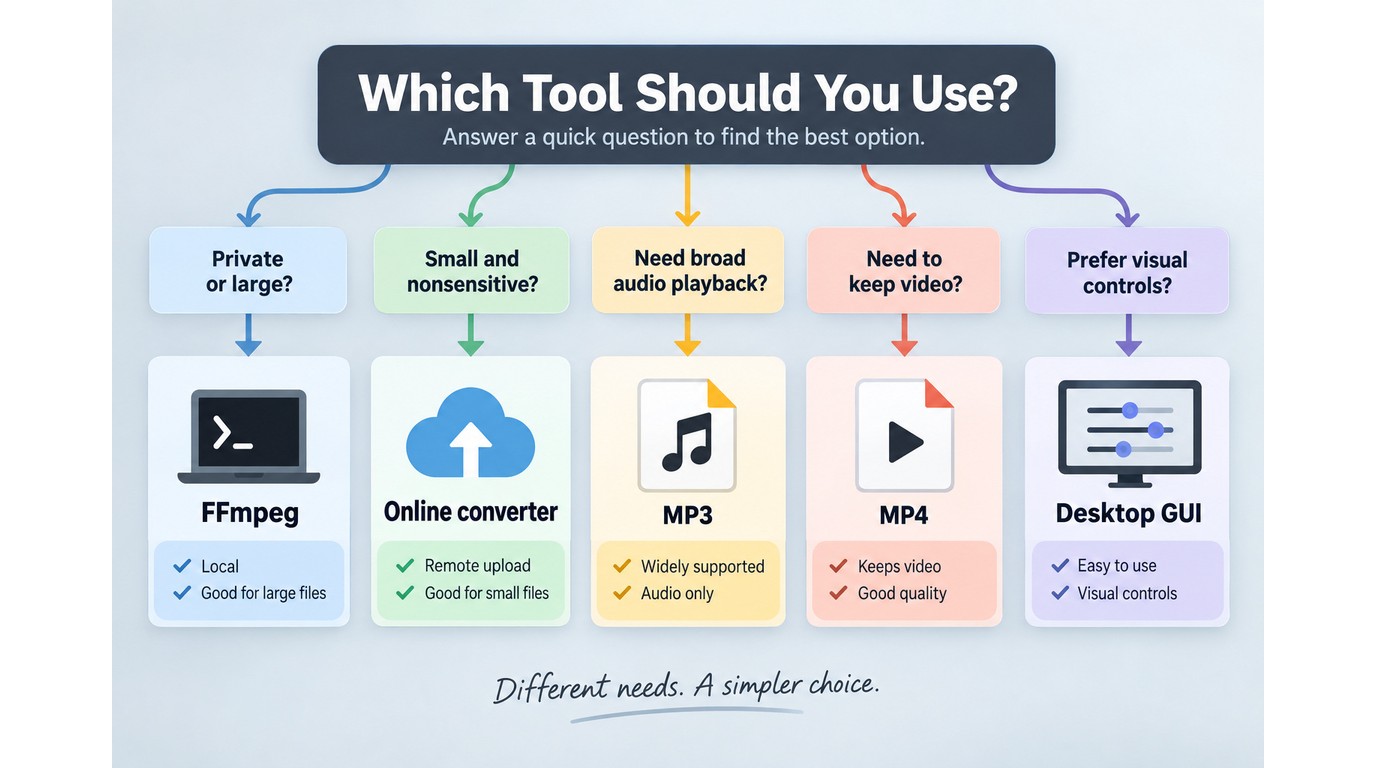
Use an online converter for a small file with low privacy risk, FFmpeg for local control, MP3 for broad audio playback, and MP4 when the video must remain. File size, sensitivity, track complexity, and command-line comfort should determine the route.
| Choice | Processing | Privacy fit | Track control | Keeps video? |
| Online converter | Remote upload | Nonsensitive files | Often limited | Usually no |
| FFmpeg | Local computer | Private files | Explicit mapping | Optional |
| Desktop GUI | Local computer | Private batches | Product-dependent | Product-dependent |
| MP3 output | Method-dependent | Method-dependent | One audio track | No |
| MP4 output | Method-dependent | Method-dependent | Audio plus video | Yes |
Reference: FFmpeg documentation and UniFab's official product page, as of September 2026.
Online Converter: A Practical Choice for a Small, Nonsensitive File
Choose the browser route when the upload is modest, the content is not sensitive, and the default audio track is already correct. Avoid it when a provider hides its limits, lacks track selection, or would require sending private footage to a remote server.
FFmpeg: Better Suited to Private, Large, or Multitrack Files
Choose FFmpeg when local processing and explicit stream mapping outweigh the command-line learning cost. It is not the convenient route for someone who wants a visual interface, but its visible -map choice is valuable when one MKV holds several languages or commentary tracks.
Preserve Audio or Preserve Video?
The output format should follow the asset you need. Use MKV to MP3 when broad audio playback matters more than OGG, and use MKV to MP4 when the picture must remain. An MP4-to-OGG job follows the same audio-extraction logic as MKV: select the source audio stream and omit video. My editorial cut is simple: if you need the picture, OGG audio is the wrong destination.
Where UniFab Fits: Check MKV and OGG Compatibility First
UniFab cannot be recommended specifically for MKV-to-OGG conversion from the currently verified format list alone. It is a local converter for Windows and macOS, but MKV is not named in its verified inputs and OGG is not named individually in its verified outputs.
What the Verified Specifications Establish
UniFab Video Converter processes files locally, supports batch jobs, and costs $0. Its converter output has carried no watermark since December 2024. Those points make it relevant when you want a visual desktop workflow without uploading media to a server.
The Compatibility Check That Must Come First
Confirm the exact pair before preparing a batch:
- Open the current input or import selector and confirm that it accepts MKV.
- Open the audio output profiles and look for OGG, Vorbis, or Opus.
- Import one representative file and confirm that the intended audio track is selectable.
Stop if either side is absent. Do not assume that a generic format total includes a particular container, codec, or stream-mapping feature.
When a Local Batch Workflow Is the Better Fit
If the current selector exposes both MKV input and the required OGG audio output, UniFab suits repeat jobs where you prefer a local GUI and batch queue. It is not the right fit when the exact pair is missing or when you need scriptable track mapping across inconsistent files. In those cases, use the FFmpeg workflow above. For a wider view of local options, the free video converter comparison covers other desktop workflows without turning this audio-extraction guide into a product list.
MKV to OGG FAQ
These answers address the failures that remain after the basic workflow: wrong media type, multiple tracks, inflated size, artwork, and batch mapping. The checks are short because each one should end in a concrete file or stream decision.
Why Did the Output Become Ogg Video Instead of Audio-Only OGG?
Answer: The tool selected an Ogg video profile or kept the video stream. Choose Vorbis or Opus as the audio codec and disable video; in FFmpeg, -vn removes video from the output. Inspect the result with ffprobe and confirm that it lists audio but no video stream.
Can One OGG File Keep Multiple Audio Tracks from an MKV?
Answer: The Ogg container can carry multiple logical streams, but many everyday players expect one main audio stream. For dependable playback, export each required language or commentary track to a separate file and keep the original MKV as the multitrack archive. Use clear filenames such as movie-en.ogg and movie-commentary.ogg.
Why Can the OGG File Be Larger Than the Source Audio?
Answer: The output bitrate or quality setting can exceed that of the compressed source. One Reddit user in r/audio asked, “I noticed that the ogg file end up taking more storage than the original mp3 file when i export with the quality meter at 10. Is that normal?” Yes, a larger setting can create a larger file without restoring discarded detail. Lower the setting and compare by listening in the target app.
Can OGG Preserve Cover Art and Metadata?
Answer: Vorbis comments can store text metadata, but cover-art handling differs across encoders and players. Map metadata explicitly when needed, then inspect the output and open it in the destination library. If the artwork fails while title and artist tags remain, keep a separate image file or choose a container that the library handles more consistently.
How Do You Batch-Convert Several MKV Files to OGG Locally?
Answer: Test the mapping on one representative MKV first, because 0:a:0 must point to the intended track in every source. On macOS or Linux, a simple shell loop can repeat the verified command:
for f in *.mkv; do ffmpeg -i "$f" -map 0:a:0 -vn -c:a libvorbis -q:a 5 "${f%.mkv}.ogg"; done
If the files use inconsistent track orders, inspect them individually or build a script that selects by language metadata rather than position.