If VLC produced a silent, formatless, or wrong-language file, the problem is often stream selection rather than MKV itself. To convert MKV to MP3 reliably, inspect the audio streams, choose the intended track, set the output, convert with an online or local tool, and verify the finished file.
Stream inspection should be treated as the first conversion step, not as troubleshooting after a failed export. An MKV may contain the main soundtrack, commentary, descriptive audio, and several languages. A one-click MKV to MP3 converter can therefore create a valid file that is still the wrong result. This guide shows how to extract audio from MKV while keeping the intended track.
How to Convert MKV to MP3 in Four Steps
Use this four-step sequence to create a playable MP3 from an MKV:
- Inspect the MKV and select the intended audio stream.
- Choose an MP3 quality preset and channel layout.
- Convert with an online service or local application.
- Confirm the extension, playback, track, and duration.
Use reminder: Convert media you own, created, or have permission to process. Follow the source license, applicable service terms, copyright rules, and local law.
1. Check the MKV's Audio Streams and Choose the Target
Start by identifying what is inside the container. The Matroska project explains that MKV can hold multiple audio, video, and subtitle streams, so the .mkv extension does not tell you which audio codec, language, or mix you are about to convert.
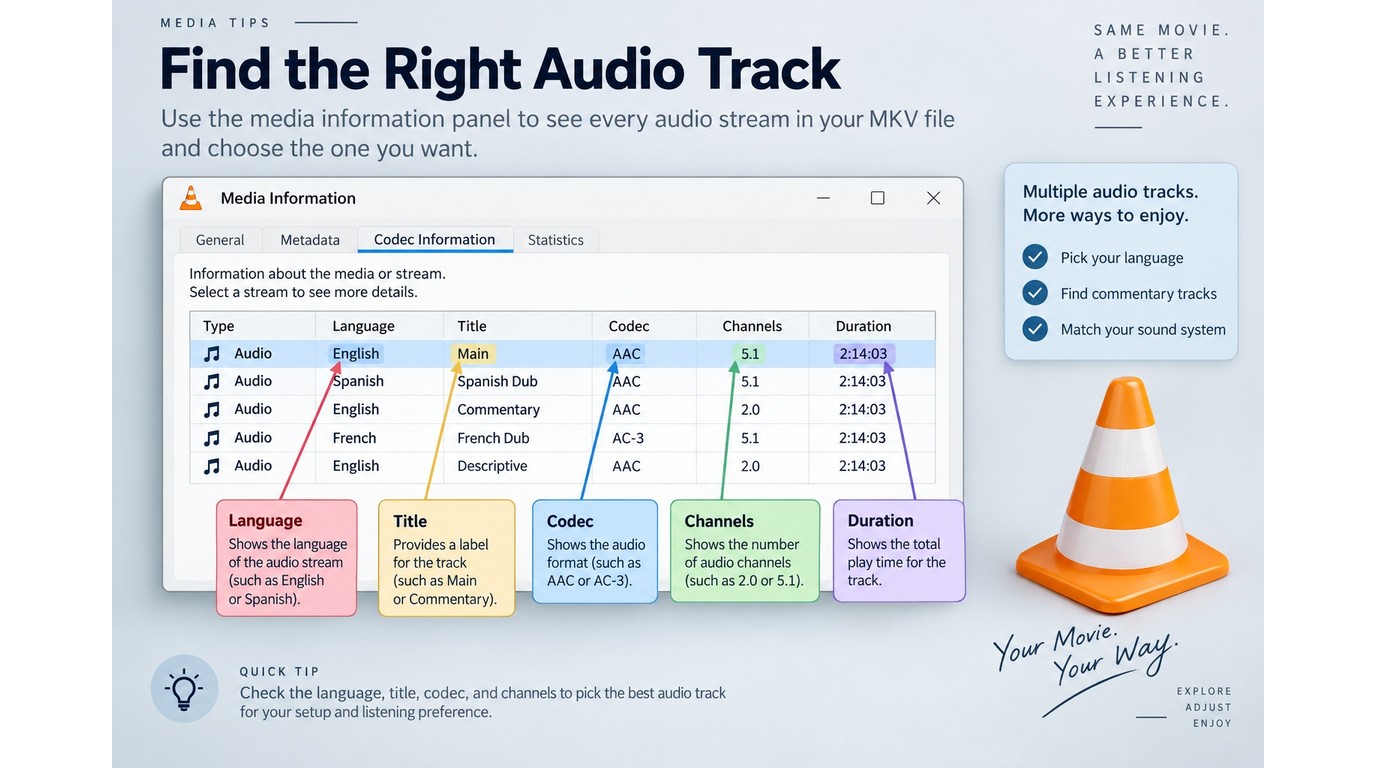
In VLC, use Tools > Codec Information on Windows or Window > Media Information on macOS. Check each stream's language, title, codec, channels, and duration. Play it briefly when the metadata is vague.
This inspection prevents the most common failure. As one Reddit user in r/mac put it, "Convert/Stream to mp3 just gives me a formatless file to which, if I add the .mp3 extension, doesn't playback still. Second issue is that the MKV in question has more than one audio file, and I don't see an option in VLC to choose which one I want to extract?"
2. Choose MP3 Bitrate and Channel Settings
Choose quality according to the source and the listening use. A lower preset can suit spoken audio, while music benefits from a higher MP3 preset. Raising the output setting above the source quality does not recreate detail that the original track lacks; it mainly increases the file size.
For broad device compatibility, stereo is the practical MP3 target. If the MKV contains 5.1 audio and preserving surround matters, MP3 is usually the wrong destination. Keep the original stream or choose a format designed for that channel layout instead.
3. Convert with an Online or Local Tool
The controls differ, but the core workflow stays the same:
- Add or upload the MKV file.
- Select the intended audio stream if the tool exposes that control.
- Choose MP3 as the output format.
- Set the quality and stereo options.
- Start the conversion and save the result as
filename.mp3.
Use a local application for a large or private file. A browser converter suits a small, non-sensitive one-off when it shows the upload limit and track controls.
4. Verify the File Extension, Playback, and Duration
Do not stop when the progress bar reaches completion. Check the result before deleting or archiving anything:
- The filename ends in
.mp3, not an extensionless name. - The file opens in a second audio player.
- The expected language or mix is audible.
- The duration matches the intended source program.
- The beginning and end are present, with no silence or truncation.
The practical rule is simple: successful conversion means the right audio plays for the full expected duration. A file that merely exists is not proof.
Online Converter, VLC, or FFmpeg: Which Method Fits?
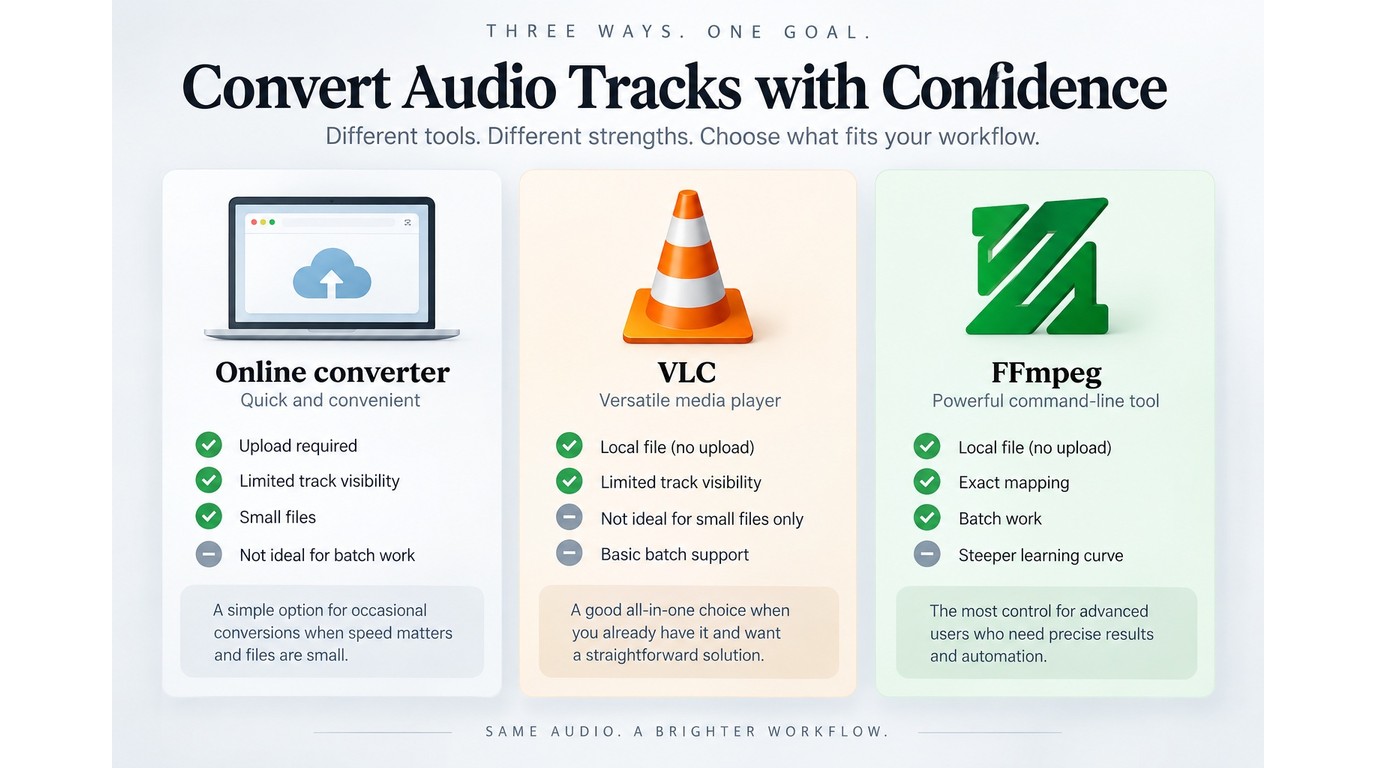
To extract audio from MKV, use FFmpeg for exact track mapping, VLC for a familiar local interface, or an online converter for a small, non-sensitive file. My editorial rule is to choose by the failure you cannot accept: a local tool avoids upload exposure, while FFmpeg lowers the risk of selecting the wrong stream.
Online Converters for Small, Non-Sensitive Files
An online converter requires no installation, but the file leaves your device. Track selection, queueing, and size limits differ by service.
| Pros | Cons |
| No installation; simple one-off workflow | Upload required; track controls may be limited |
To use one:
- Review its upload and deletion terms.
- Upload a small, non-sensitive MKV.
- Select the audio track and MP3 settings.
- Download and verify the finished file.
Suitable for: a short, non-private file with one obvious soundtrack. Poor fit for: private recordings, large files, or complicated language and commentary tracks.
VLC for a Familiar Desktop Interface
VLC keeps the file local and provides a graphical path. The official VideoLAN instructions cover Media > Convert/Save, though multi-track selection can be unclear.
| Pros | Cons |
| Free; local; familiar interface | Track choice and profile setup can confuse |
To convert with VLC:
- Open Media > Convert/Save and add the MKV.
- Choose Convert, then select an MP3 audio profile.
- Set a destination ending in
.mp3. - Start, then verify the chosen track and duration.
Suitable for: an occasional local conversion when you already know VLC. Poor fit for: an MKV with several poorly labeled audio streams.
FFmpeg for Precise Track Mapping and Batch Work
FFmpeg provides explicit stream mapping. Its command line also makes a wrong stream index easy to repeat across a batch.
| Pros | Cons |
| Explicit track mapping; scriptable batches | Command-line syntax; indexes require attention |
To map the second audio stream, for example:
- Run
ffmpeg -i input.mkvand read the listed audio streams. - Identify the intended stream by language, title, and channel layout.
- Run
ffmpeg -i input.mkv -map 0:a:1 -vn -c:a libmp3lame output.mp3. - Play the MP3 and confirm its content and duration.
The 0:a:1 selector means the second audio stream in the first input; change it to match the stream you identified. The FFmpeg documentation describes stream selection and mapping in detail.
Suitable for: multi-language files, exact track control, and repeated jobs. Poor fit for: anyone uncomfortable reading terminal output or correcting a command.
Decision Guide by File Size, Privacy, and Track Complexity
| Method | Cost | Upload Required | Audio-Track Control | Suitable Scenario |
| Online converter | Service-dependent | Yes | Service-dependent | Small, non-sensitive one-offs |
| VLC | Free | No | Limited GUI visibility | Familiar desktop workflow |
| FFmpeg | Free | No | Explicit stream mapping | Complex tracks or batches |
Method references: VideoLAN and FFmpeg official documentation. Online-service limits depend on the selected provider.
Several or poorly labeled streams point to FFmpeg. With one obvious track, privacy or file size favors a local tool; a small, non-sensitive file suits an online converter.
Where UniFab Fits, and What to Verify First
When privacy and batch work matter, a local desktop app is worth checking. UniFab Video Converter is not a confirmed MKV-to-MP3 solution under its published compatibility details. For an MKV-to-MP3 converter download, use its official product page, then confirm MKV input and MP3 output before installation.
Check MKV Input and MP3 Output Before Starting
Confirm that the current UniFab input list includes .mkv and its audio outputs include MP3. A broad format count does not establish either item.
Verified Local Features That Matter for This Workflow
UniFab Video Converter is a Windows and macOS desktop app with local batch processing, a built-in editor, watermark-free output, 1000+ output-format conversions, and NVIDIA, AMD, or Intel GPU acceleration rated up to 50x. As of September 2026, UniFab lists Video Converter at $0.
Two limits remain: published specifications do not list MKV input or separately name MP3 output. Suitable for: local batches after both formats are confirmed. Poor fit for: an immediately documented MKV-to-MP3 path.
Windows and macOS Compatibility Check
On Windows or macOS, compare the input list with .mkv, then confirm an MP3 audio profile before importing a batch. Convert one representative file first and verify its audio track.
Free and Online MKV-to-MP3 Limits to Check
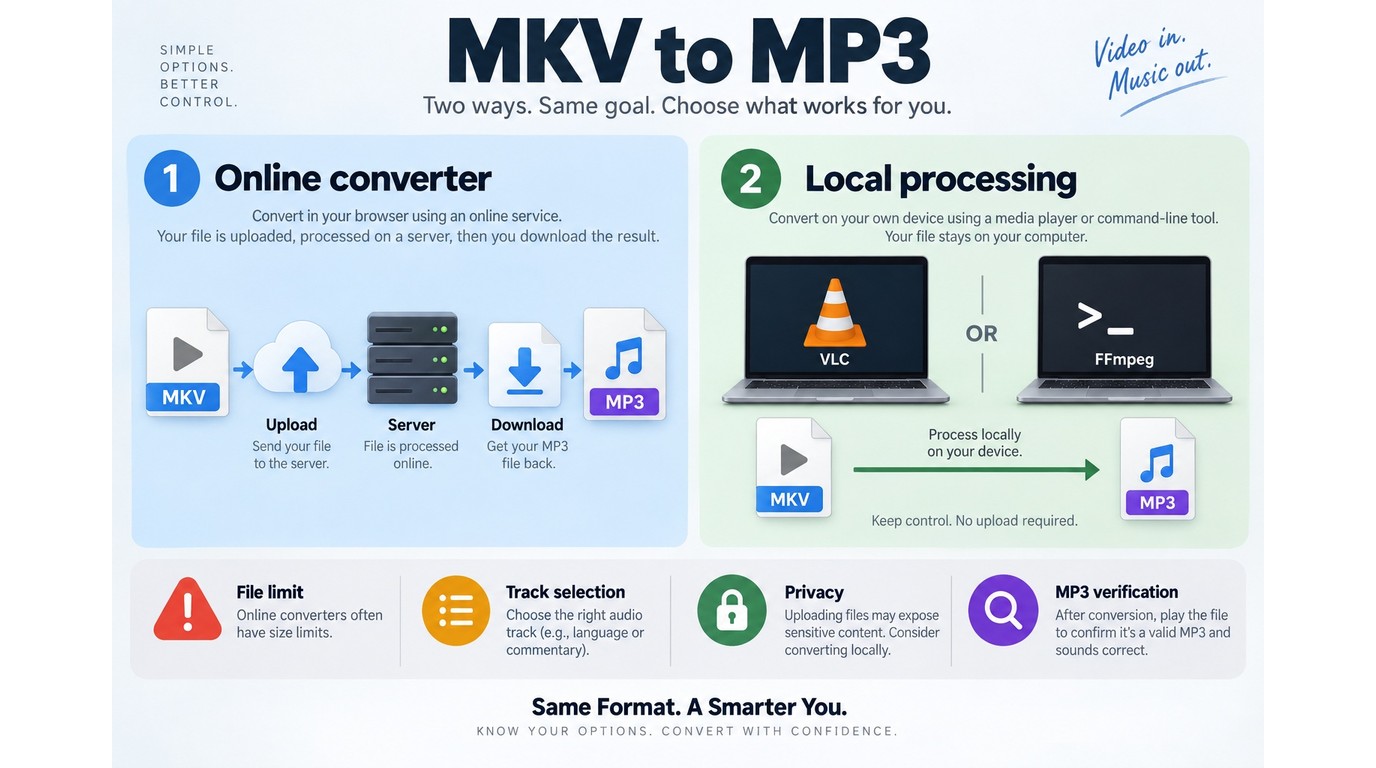
A free online MKV-to-MP3 converter is useful only when its file limit, audio-track selector, privacy terms, and MP3 controls fit your source. The word “free” does not tell you whether a large multi-audio MKV will upload, select the right track, or finish with usable sound.
Check File-Size, Duration, and Usage Limits
Read the upload panel before choosing a browser tool. Services can cap file size, media duration, daily conversions, queue priority, or access to output settings. A “no limit” label has little value unless the same page explains what happens to large files and repeated jobs.
Upload time also counts. A large MKV must travel to the server before conversion begins and the MP3 must travel back, so a local tool removes two network transfers from the workflow.
Confirm That You Can Select the Intended Audio Track
Track selection is the first feature to check on a multi-audio MKV. Look for labels such as language, commentary, descriptive audio, codec, and channel count before uploading. If the interface offers only a file picker and an output format, assume it may choose a default stream rather than the stream you want.
This is where many convenient tools become a poor fit. A wrong-language MP3 is not fixed by raising the bitrate or renaming the file; the source stream must be selected correctly and converted again.
Decide Whether Upload Time and Privacy Are Acceptable
Keep private or sensitive media on your own device. As one Reddit user explained while looking for an offline tool, "Meaning, that I don't have to upload the files to some webpage/server. Both because time it takes to upload, and sense of 'security'..."
Personal recordings, client footage, unreleased edits, and confidential interviews belong in a local workflow. A non-sensitive clip may suit a browser converter.
Verify Bitrate, Channels, Playback, and the File Extension
Inspect the output rather than trusting the download button. Confirm that the converter created a real .mp3, not a renamed container or extensionless file. Play the beginning, a middle section, and the end; check the language, channel behavior, and total duration.
MP3 conversion normally re-encodes the selected audio, so it is not a lossless extraction. If preserving the original codec matters more than universal MP3 playback, extract or copy the source audio stream into a compatible container instead of converting it to MP3.
MKV-to-MP3 FAQ
These edge cases separate audio-only playback, video retention, chapter splitting, surround sound, tool vetting, and lawful use. Start with the output you need, then reject any method that cannot preserve it.
Q: Should I convert the MKV to MP3 or MP4?
A: Choose MP3 when you need audio-only playback, such as a lecture, interview, or concert on a music player. Choose MP4 when the video must remain. If video retention is your real goal, the MKV-to-MP4 workflow is a separate task because the video and audio codecs must also fit the MP4 container.
Q: Can one concert MKV become separate MP3 tracks?
A: Yes, when the source has usable chapter markers, cue data, or known song boundaries. As one Reddit user described the goal, "I don't want to trash the mkv video, just want an mp3 of the concert broken down track by track on my PlexAmp server." Extract the intended audio first, then split it by chapters or verified timestamps; otherwise you will get one long MP3.
Q: Does a 4K MKV create better MP3 audio?
A: No. The 4K label describes video resolution, not audio quality. The MP3 result depends on the selected audio stream, its codec and channel layout, and the output setting. A high-resolution picture does not add detail to a compressed soundtrack.
Q: Can MP3 preserve a 5.1 soundtrack from an MKV?
A: MP3 is a poor default for preserving a 5.1 mix because common playback workflows expect stereo. One r/mkvtoolnix user summarized the failure clearly: "When I select the 5.1 audio track, it only converts it into stereo audio." If surround is the priority, keep the original stream or choose a format and player that explicitly support its channel layout.
Q: How should I vet an MKV-to-MP3 tool recommended on Reddit?
A: Download desktop software from its official project or vendor page, confirm current MKV input and MP3 output support, and inspect whether an online service uploads or retains the file. Then convert one representative sample and verify the track, duration, extension, and playback before processing a folder.
Q: Is it legal to convert an MKV file to MP3?
A: It depends on your rights to the source. Converting a file you created, own, or are authorized to process is different from copying material against its license terms. Copyright exceptions and private-copy rules vary by jurisdiction, so keep the workflow to personal or otherwise permitted use under the applicable license and local law.
Which MKV-to-MP3 Method Should You Choose?
Use FFmpeg for several or poorly labeled audio tracks. With one obvious track, use a browser converter for a small, non-sensitive file or VLC for a local GUI. Consider UniFab for batches only after confirming MKV input and MP3 output. Every route begins with the correct audio stream.