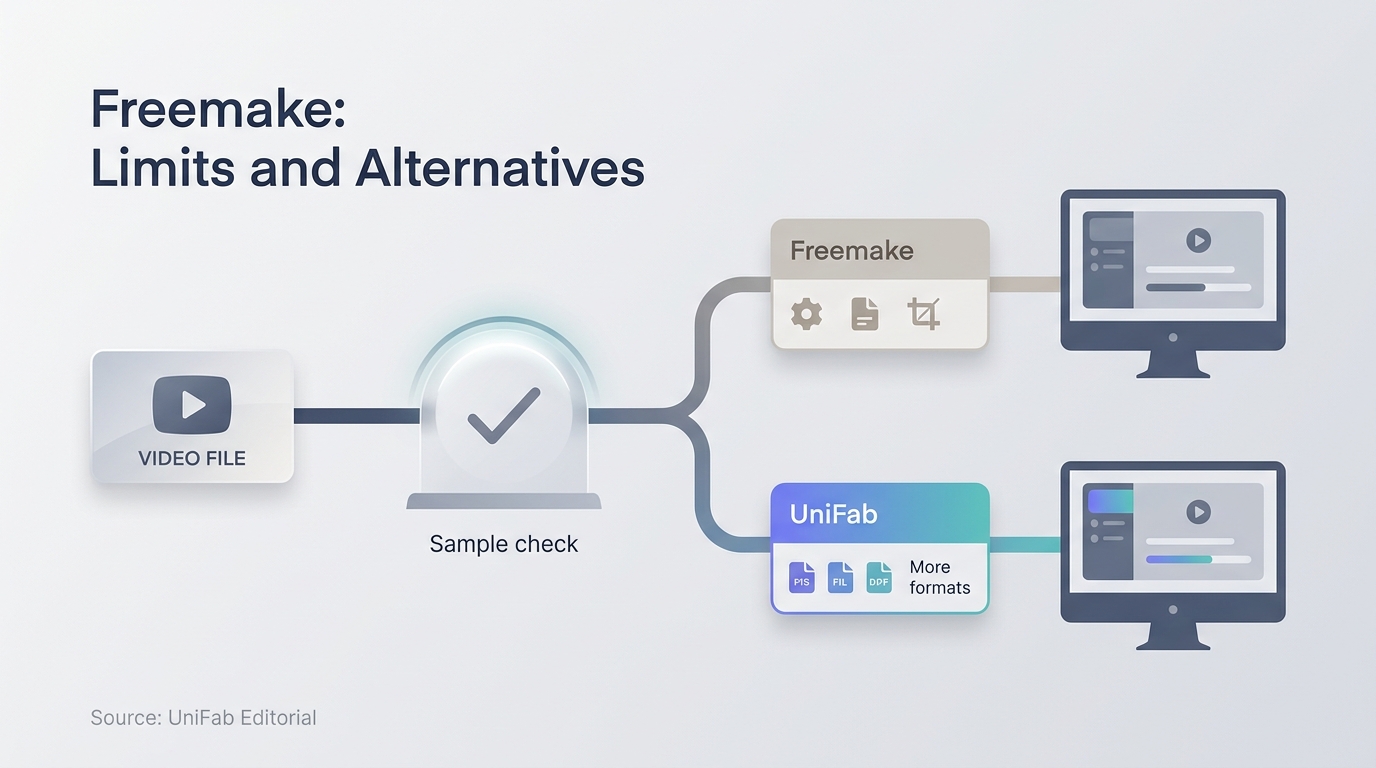
Freemake Video Converter handles MP4 conversion on Windows, but finding the finished file matters as much as the free download. Freemake advertises free conversion without limitations; your new MP4 goes to the output folder you choose. Start with the official installer and a short export.
What Freemake Video Converter Does
Freemake Video Converter is a Windows desktop program for changing media files into formats that suit another player, device, or editing workflow. Its central job is local format conversion, with basic editing and output presets supporting that task.
Core Conversion Formats and Output Choices
The app works with familiar containers such as MP4, AVI, MKV, WMV, and MPEG. A container is the file wrapper, while the codec is the method used to encode the video or audio inside it. That distinction matters because two MP4 files can use different codecs and behave differently on the same television or phone.
Freemake also provides output profiles aimed at common devices. Choose a profile for compatibility, not because its label sounds more capable.
Windows Compatibility and Typical Use Cases
Freemake is designed around a Windows desktop workflow. Typical jobs include changing a file for device playback, trimming unwanted footage, joining clips, rotating a recording, and preserving or adding subtitles where the selected format permits it.
Is Freemake Video Converter Really Free and Safe?
Freemake advertises free conversion with no trials or limitations, including 4K output. For the question “is Freemake Video Converter safe?”, start with the official installer, a Windows Security scan, and a review of setup choices. A free download label is not a safety guarantee.
The Limits Behind the Free Label
The Freemake Video Converter full installer is a setup package. The word “Full” in FreemakeVideoConverterFull.exe identifies the official offline installer, rather than a separate unlocked edition.
A June 2024 forum user described version 4.1.12: “Claims to be free, but downloaded Version 4.1.12 and it worked for one day then no longer functioned. Uninstalled and reinstalled.” That account concerns the named older build.
Convert a short clip before committing a large file. Check for a watermark, confirm the full duration is present, and play the result in the destination app. I would use that sample to decide whether the selected preset meets the job.
Installer Safety, Pop-Ups, and Complete Removal
Concern about an installer does not establish that the program itself is malware. It does justify a controlled installation: use the official package, scan it with Windows Security, read each option, and decline unrelated additions.
A November 2023 r/techsupport post described a cleanup problem: “I dont know how because I uninstalled it but im not suprise because few months ago I still had the freemake pop ups until I found how to delete it manually. How can I eradicate it from my PC?” If removal leaves pop-ups or menu entries behind, check Startup Apps, browser notification permissions, installed extensions, and File Explorer shell entries after the normal uninstall finishes.
Who Freemake Suits and Who Should Move On
Freemake suits local conversion on Windows. I favor UniFab for the same task across Windows and macOS, particularly when you want batch conversion without a watermark.
Freemake Video Converter Download and Installation
Use Freemake’s official Downloads page for the installer, including the offline option. Prepare a local video you are authorized to process, review setup choices, and verify the first export before starting a larger job.
- Prepare Windows, free storage, and a small test video.
- Download the installer from Freemake’s official site.
- Review each setup choice before installation.
- Launch the app and test one conversion.
Prerequisites Before You Download
Start with a supported Windows setup, an account that can approve installation, and enough free space for both the source and output files. Keep a small video whose framing and audio you already know; it will make first-launch checks much easier. Back up important work or create a restore point before adding unfamiliar desktop software.
Step 1: Get the Installer From the Official Site
Freemake’s Downloads page lists Video Converter 6.0.1, released October 17, 2025. Select Video Converter or the page’s offline-download option. The official Freemake Video Converter offline installer is named FreemakeVideoConverterFull.exe.
Use the official package for a new installation. A Freemake Video Converter portable package from a download portal is not interchangeable with that offline installer: offline setup installs the application, while portable packaging is intended to run without installation.
Step 2: Review Each Installation Choice
Read each dialog instead of accepting the default sequence automatically. Confirm the install folder and shortcut choices, and decline any unrelated offer that is not required for video conversion. If the publisher shown by Windows does not match the expected software vendor, cancel rather than continuing through the warning.
Step 3: Launch, Update, and Check the App
After installation, run a Windows Security scan and open Freemake from the shortcut you approved. Check the displayed version and any update prompt inside the application. Add the small test file, make one short export, and verify playback before loading a larger queue. This checkpoint is more useful than treating a successful installation as proof of a successful conversion.
Using Freemake Video Converter
Here is how to use Freemake Video Converter for MP4 conversion: add the source, select to MP4, choose settings and an output folder, then convert. Your Freemake Video Converter MP4 output is a new file; the source stays unchanged.
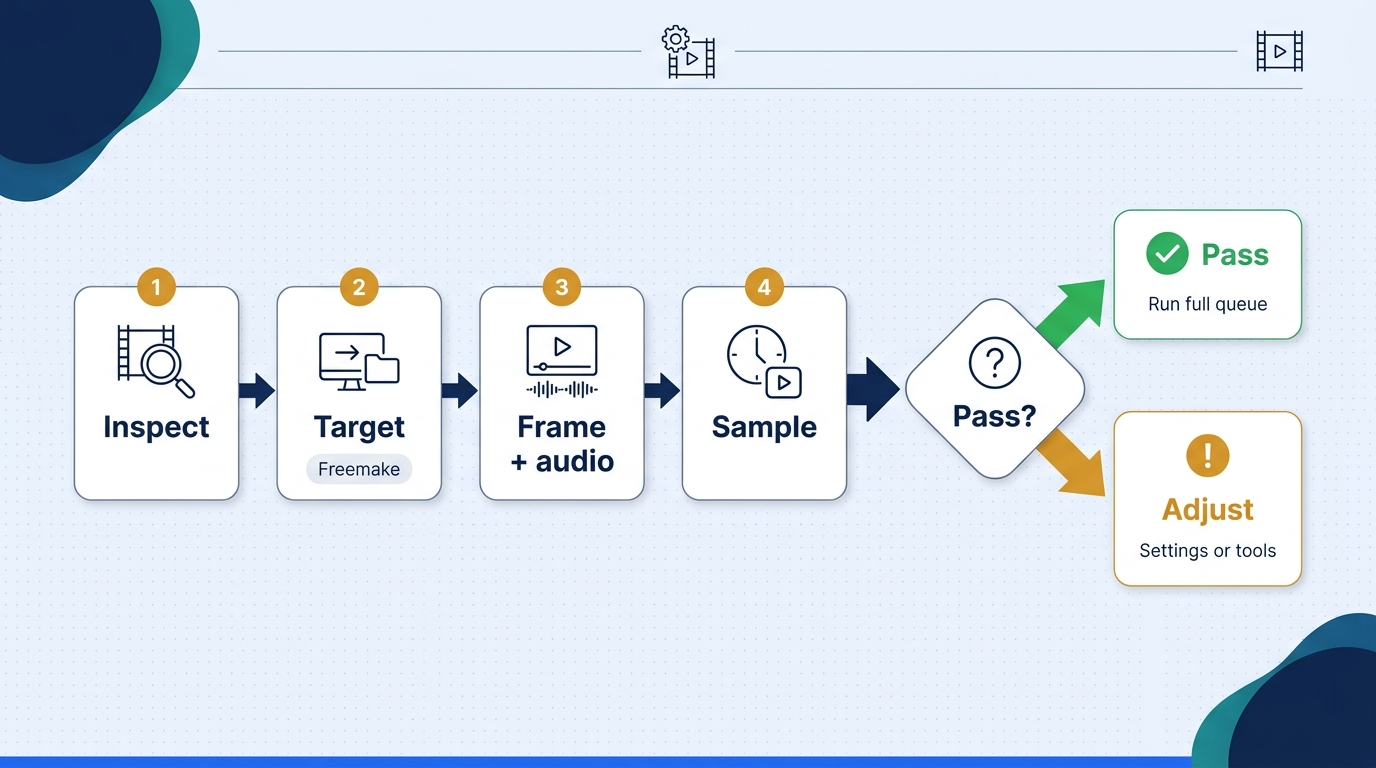
- Add the source and note its frame, audio, subtitles, and resolution.
- Choose the required format or device preset.
- Set resolution, aspect ratio, and audio deliberately.
- Convert a sample and inspect it on the target player.
Step 1: Add the Source Video and Inspect It
Select +Video and add the source file. Note its duration, resolution, orientation, aspect ratio, audio tracks, and subtitles. Play the original and confirm it contains video as well as audio before changing export settings.
Framing deserves special attention. An August 2025 forum post described an MP4-to-ISO conversion: “Some files that i've converted from MP4 to ISO with Freemake Video Converter, the converted video seems to of 'zoomed in' a little bit and is missing the top and bottom on the video.” Record the source aspect ratio so you have a concrete setting to compare if your export crops the picture.
Step 2: Choose a Format or Device Preset
Select to MP4, then choose a preset or custom parameters for your destination player. A preset is a starting point. Match its codec, the method used to encode video, and resolution to the player’s supported settings.
MKV-to-MP4 conversion changes the file wrapper; re-encoding also changes the video or audio inside it. Choose the output for playback compatibility rather than the filename alone.
Step 3: Set Resolution, Aspect Ratio, and Audio
Match the source aspect ratio unless you intentionally want a crop or letterbox. Do not raise resolution automatically; a larger frame does not restore detail absent from the source. For audio, preserve the required track and choose settings the destination player supports. If subtitles matter, confirm whether the selected output keeps them as a selectable track or renders them into the picture.
Step 4: Convert a Sample and Verify the Result
Choose an output folder and select Convert. The new MP4 is saved in that folder, and the original stays unchanged. Start with a short section containing motion, speech, and any subtitles.
Check all four edges for cropping, listen for sync or distortion, confirm the expected duration, inspect file size, and play the result on the destination device. Reuse the settings for the full file after the sample passes. If conversion crashes, retry with a small known-good local file to distinguish a source-file problem from an application problem.
UniFab as a Freemake Video Converter Alternative
UniFab’s Video Converter is a Freemake Video Converter alternative for local batch conversion on Windows and Mac. It produces files without a watermark and processes your videos on your computer, without uploading them to a cloud conversion service.
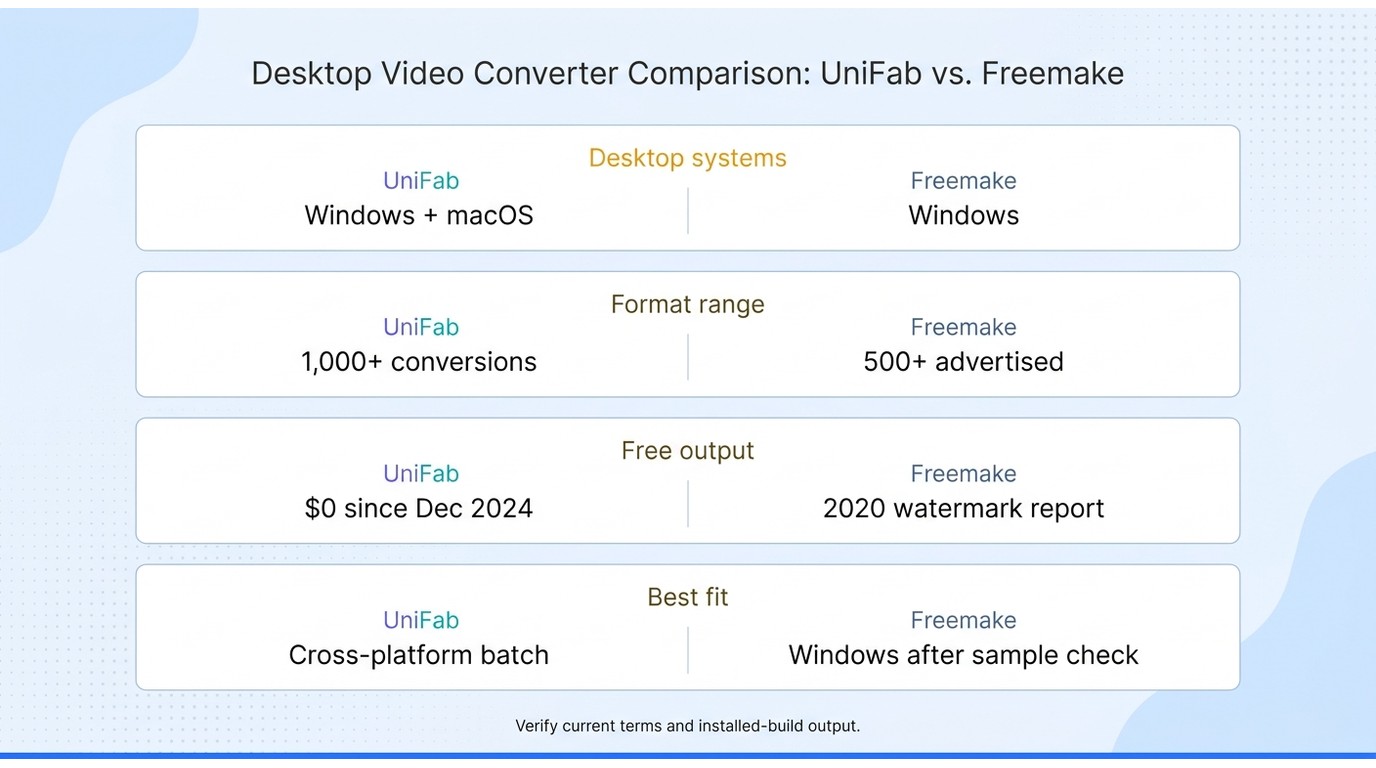
| Dimension | Freemake | UniFab |
| Desktop systems | Windows | Windows and macOS |
| Free-use offer | Advertised as free; no trials or limitations | Free; no watermark |
| Conversion workflow | Local files; MP4 and other formats | Local desktop batch conversion |
| AI restoration | Resolution settings alone do not restore detail | Separate UniFab AI tools |
Specifications are current as of September 2026. Historical user reports cover the June 2024 account of version 4.1.12 and the November 2023 uninstall account. Other historical discussions include the August 2025 cropping account and the May 2020 conversion discussion.
For a Windows-only conversion, Freemake fits the task. For local batches across Windows and macOS, I would choose UniFab.
UniFab Keeps Conversion Local on Windows and Mac
Video Converter handles local files on Windows and Mac. Add your clips, choose the destination format, and keep source and output files on your own drive.
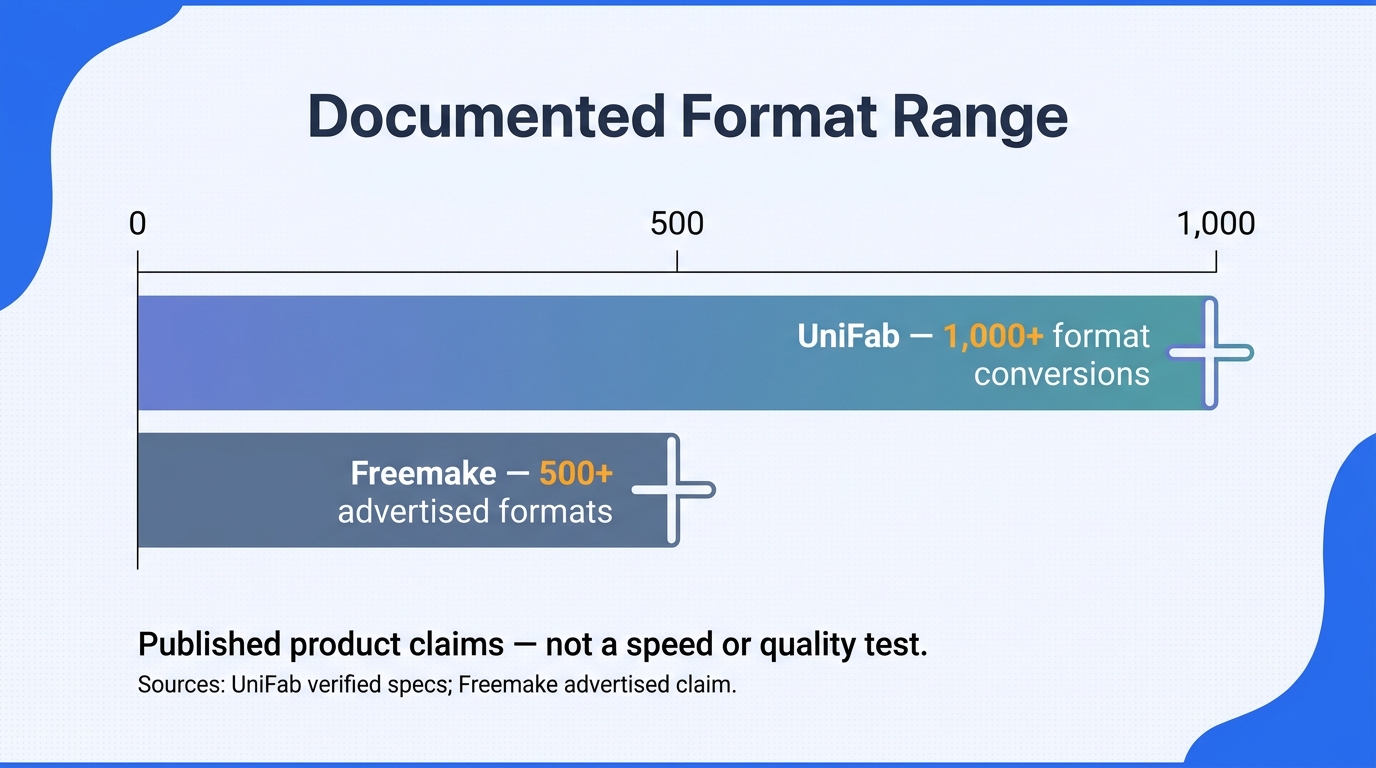
A Short Conversion Path in UniFab
- Add one or more local video files.
- Choose the target format or device profile.
- Adjust resolution, aspect ratio, audio, and destination folder.
- Convert a short sample, verify it on the target device, then run the full batch.
UniFab Conversion and Other Workflow Needs
A browser-based converter offers a lightweight route for an occasional file when installation is unavailable. UniFab’s strength is local desktop batch conversion without uploading your videos. Keep private footage in that local workflow.
DVD-Video authoring is a separate task from producing an MP4. A disc player that expects a DVD-Video structure needs authored output, rather than an MP4 copied onto a disc.
Freemake Video Converter FAQ
Installer packaging, output settings, and content permissions answer different questions. Match each choice to the file and device you need.
Is Freemake Video Converter Legal to Use?
Yes, for authorized access and conversion of content you own or have permission to process. Do not redistribute without permission. Follow applicable law and platform terms; the permissions required depend on your use case.
Does Freemake Video Converter Support 4K Output?
Freemake advertises 4K conversion. Select the 3840 × 2160 output option for a native 4K source and play a short export on your destination device.
Can You Use Freemake Video Converter on a Mac?
For conversion directly in macOS, choose a native Mac application such as UniFab’s Video Converter rather than installing a Windows environment solely to run Freemake.
Is There a 64-Bit Offline Installer or Portable Version?
Choose FreemakeVideoConverterFull.exe for official offline setup, not a portable repack. Compatibility with 64-bit Windows does not mean an application is a native 64-bit executable.
Should You Install an Old Version of Freemake?
Choose the current official installer for a new setup. Installing version 4.1.12 does not establish a watermark-free export; use a short clip to check the output you need.
Does Freemake AI Improve Video Quality?
Format conversion changes a file’s container or encoding; AI restoration reconstructs or enhances image detail. Choosing a larger output frame in Freemake Converter does not add an AI restoration step. Video Converter handles format conversion; UniFab’s AI processing tools are separate products.