Converting FLAC to MP3 creates smaller, more compatible copies by discarding some audio data. Keep the FLAC masters, choose 256 kbps for balance or 320 kbps when quality matters more than space, and test one tagged track before batch-converting the library.
A 100GB-plus FLAC library can outgrow the space left on a phone long before the collection feels complete. A practical editorial rule is simple: prove the workflow on one representative track before committing an album or archive. Batch conversion is not mainly a speed problem; it is a verification problem. This guide maps that rule to bitrate choices, metadata checks, Mac and Windows interfaces, VLC, and a local desktop option whose exact FLAC-to-MP3 path requires confirmation.
FLAC vs MP3: What Changes When You Convert
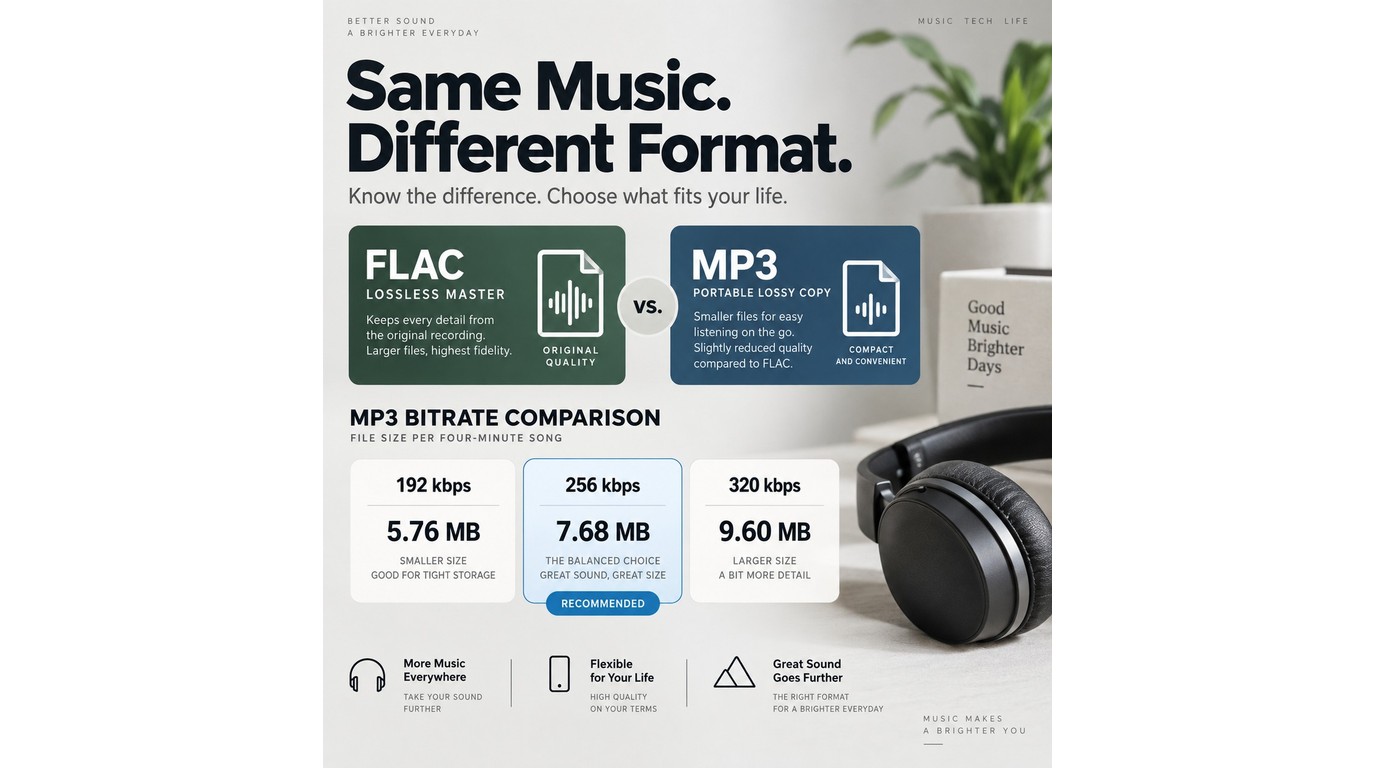
Converting FLAC to MP3 reduces file size and improves compatibility, but it always discards audio information. For most portable listening, 256 kbps is the balanced setting; 320 kbps keeps more MP3 detail, while 192 kbps saves more space.
Lossless FLAC and lossy MP3 in plain terms
FLAC uses lossless compression, so decoding restores the original audio data. MP3 uses lossy compression, which removes information according to a perceptual model. That trade makes MP3 easier to store on phones, older players, and car systems with limited space or format support.
Why a quality-neutral conversion is impossible
An MP3 cannot retain every part of its FLAC source, even at 320 kbps. The useful question is whether the loss is noticeable on your headphones, speakers, and listening material. Keep the FLAC master because it remains the better source for a future conversion to another format.
One Reddit user in r/musichoarder described the practical choice plainly: "I've started downloading and converting my most listened to albums from FLAC to MP3 320. I just don't have the space for FLAC right now." That is a storage decision, not proof that 320 kbps is universally necessary.
How to choose 192, 256, or 320 kbps
Use 192 kbps when capacity matters most, 256 kbps as a general-purpose default, and 320 kbps when you want the highest common constant bitrate (CBR) MP3 setting. A four-minute song is about 5.76 MB, 7.68 MB, or 9.60 MB at those settings before small container and tag overhead.
| MP3 setting | Approx. size per minute | Practical fit |
| 192 kbps CBR | 1.44 MB | Maximum storage savings |
| 256 kbps CBR | 1.92 MB | Balanced portable library |
| 320 kbps CBR | 2.40 MB | Highest common CBR quality |
Source: Adobe's audio bitrate guide and RFC 9639, as of September 2026. Sizes use bitrate × 60 ÷ 8 ÷ 1000.
The practical upshot is simple: start at 256 kbps unless storage pressure or careful listening gives you a reason to move. Variable bitrate is also valid, but preset names differ between encoders, so the CBR figures above are easier to compare before a large batch.
How to Convert FLAC to MP3 Safely, One File or a Whole Library
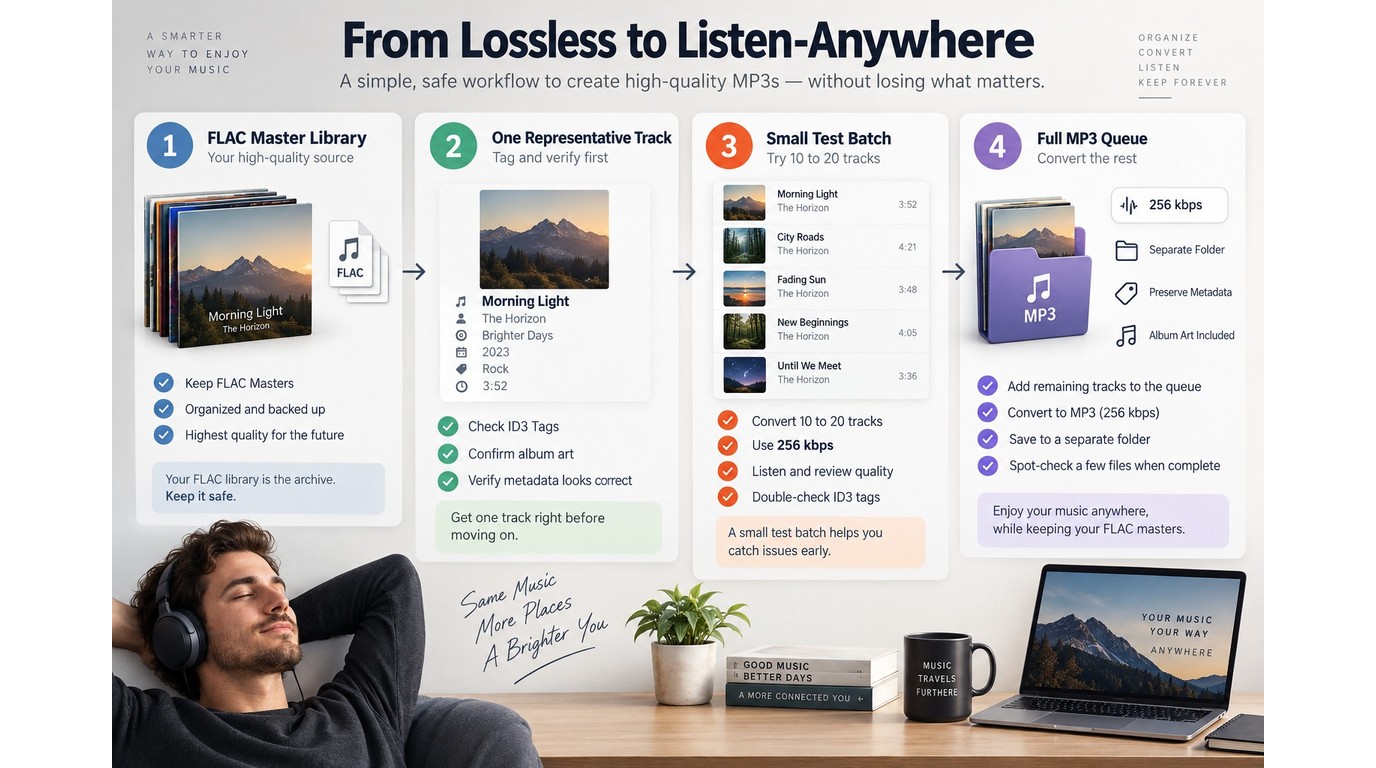
A safe conversion creates MP3 copies in a separate location, tests one tagged FLAC file, and verifies the result before scaling. For a whole library, reuse the tested bitrate and output rules, then inspect a small first batch before starting the full queue.
Prerequisites before you start
Decide where the MP3 files will play before choosing settings. A modern phone may handle FLAC, while an older car stereo or portable player may make MP3 the more dependable copy.
Rights reminder: Convert only audio you own or are authorized to use. You are responsible for respecting copyright and any service terms that apply to the files.
Prepare these items before opening a FLAC to MP3 converter:
- One representative FLAC with artist, title, track number, and album art
- A bitrate choice: 192, 256, or 320 kbps
- A new output folder outside the FLAC master library
- Enough free space for the temporary and finished MP3 files
- Headphones or the target device for a playback check
- A backup if the FLAC library has no second copy
The representative track should contain the metadata you care about. A bare test file cannot reveal whether a converter drops artwork, lyrics, disc numbers, or custom fields.
Four steps for a single-file conversion
Work through one file before changing a folder:
- Add or upload the FLAC file without moving or renaming the original.
- Select MP3 as the output format and choose 256 kbps for a balanced first test.
- Set a separate output folder, confirm the filename, and start the conversion.
- Play the full MP3, inspect its duration and tags, and test it on the target device.
The final check matters more than the progress bar. A converter can finish a job while producing a file with missing tags, a truncated ending, or settings your playback device rejects.
Scale the same workflow to a batch queue
Batch-convert FLAC to MP3 only after the single-file result passes. Apply the same encoder, bitrate, naming rule, and destination to a small album or folder first.
- Copy the tested settings into a saved preset if the converter supports presets.
- Add one album or 10 to 20 varied tracks, not the entire library.
- Keep the source folder read-only when the app offers that control.
- Start the queue and review several files from the beginning and end.
- Confirm folder placement and tags, then add the remaining library in manageable groups.
This staged approach catches systematic errors while they are still cheap to fix. It also answers the real frustration behind mass conversion. As one Reddit user in r/DigitalAudioPlayer put it, "The apps/software I've found has either been riddled with pop-ups, or limits how many files I can convert. I don't mind paying for it, within reason. But realistically I probably only need to use it once, assuming I can mass convert."
Check tags, album art, folders, and output files
Metadata needs a field-by-field check because FLAC commonly stores Vorbis comments while MP3 commonly uses ID3 tags. A converter has to map those systems, and support for artwork, lyrics, replay gain, or custom tags is not identical across apps.
Before removing anything from a working device, confirm:
- Artist, album, title, track, and disc numbers
- Embedded album art on the target player
- Lyrics or custom fields you intend to keep
- Matching duration and a complete ending
- Expected bitrate and MP3 file extension
- Correct folders, names, and album order
Never treat the MP3 folder as a replacement master. It is the portable derivative; the FLAC archive is the reusable source.
FLAC to MP3 on Mac, Windows, and VLC
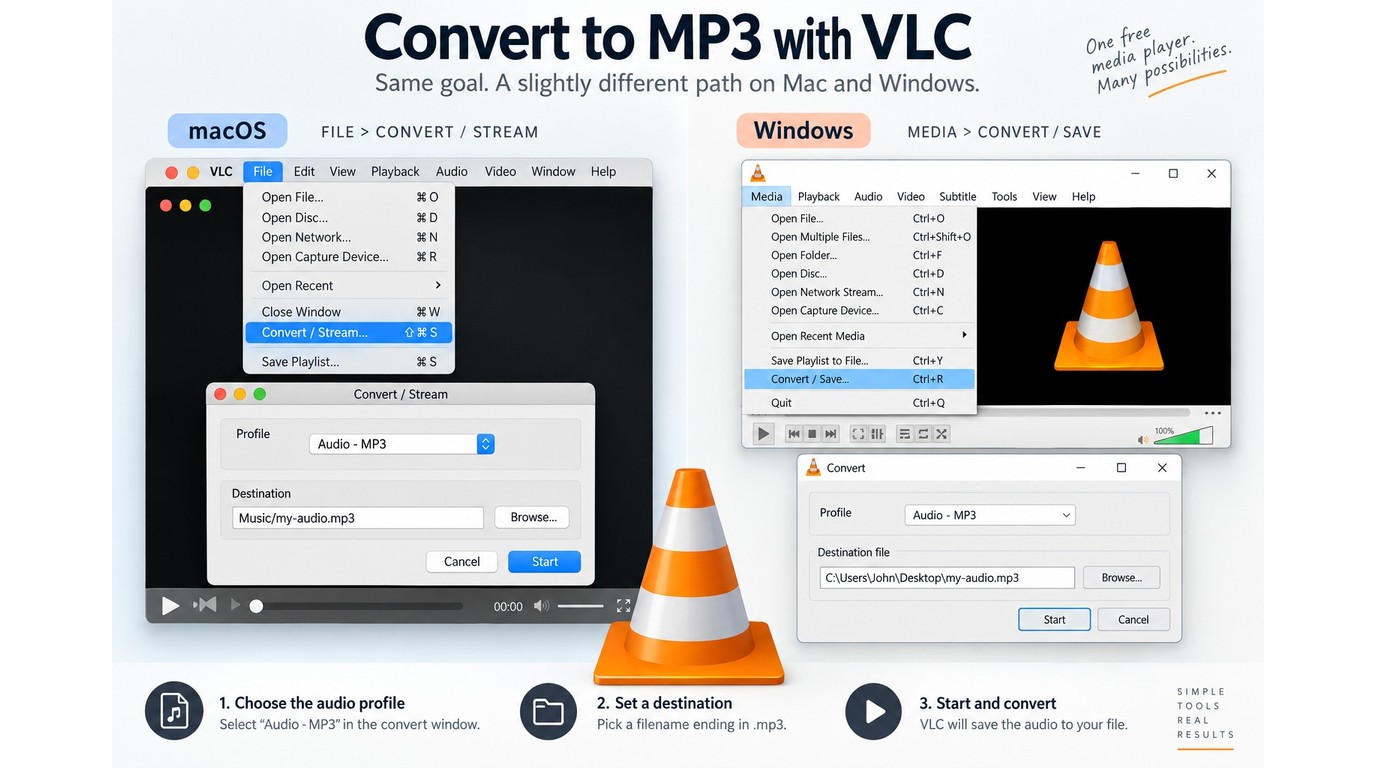
The conversion logic stays the same on macOS, Windows, and VLC: open a copy, select MP3, set bitrate and destination, then verify playback and tags. The important differences are interface labels, especially VLC's File menu on Mac and Media menu on Windows.
Convert FLAC to MP3 on a Mac
Use a macOS converter that explicitly lists FLAC as an input and MP3 as an output. Apple Music is not a general FLAC conversion route, so do not build a library workflow around its MP3 import settings.
- Open the converter and add the representative FLAC file.
- Choose MP3 and reuse the tested 192, 256, or 320 kbps setting.
- Select a folder outside the source library and start the job.
- Open the MP3 in Music, Finder, or the target player to check duration and tags.
The Mac-specific decision is the app, not the audio principle. If its format selectors do not plainly show both FLAC and MP3, choose a tool that does before adding the library.
Convert FLAC to MP3 on Windows
Use the same preset and output-folder rule on Windows rather than introducing new settings. A confirmed desktop audio converter or VLC can handle the interface layer; Windows Media Player's CD-ripping controls are not a substitute for converting an existing FLAC folder.
- Add the test FLAC through the app's file or folder control.
- Select MP3, the established bitrate, and a separate destination.
- Convert one file, then play it in Media Player or the target device.
- Queue a small folder only after its tags and duration match expectations.
Windows makes folder-based selection convenient, but that is also how an unchecked preset reaches thousands of files. Keep the first queue small.
Use VLC without following the wrong menu path
VLC can convert a FLAC file, but many instructions silently assume Windows. A Reddit user in r/VLC captured the mismatch: "New to vlc on Mac and trying to convert some Flac to Mp3, all guides start with the media button which is apparently supposed to be in the menu bar, but I don't see it?"
- On Windows, choose
Media > Convert / Save; on Mac, chooseFile > Convert / Stream. - Add or open the FLAC file, then select the
Audio - MP3profile. - Choose a destination filename ending in
.mp3and start or save the conversion. - Inspect the finished file separately for playback, duration, and metadata.
VLC suits an occasional local conversion when you already have it installed. It is less attractive for a carefully tagged library because metadata transfer requires close inspection rather than assumption.
My editorial judgment is that VLC is the weaker batch-library choice than a metadata-focused converter: its platform-specific menu paths differ, and the workflow offers no verified guarantee that FLAC tags and artwork will map cleanly to MP3.
Is UniFab a Free FLAC to MP3 Converter?
UniFab cannot be recommended for FLAC-to-MP3 conversion from its published format specifications. Video Converter is a $0 local batch tool for Windows and macOS, but its listed inputs omit FLAC and the specifications do not confirm MP3 output for this path.
Choose between online, mobile, and local conversion
Each route fits a different job:
- Online: Fits one occasional, non-sensitive file; uploads take time.
- Mobile: Fits quick on-device work; large library review is cramped.
- Local desktop: Fits private files and batches; installation is required.
Before uploading audio, read the service's Terms of Use, privacy policy, and retention policy. Private recordings, client audio, and unreleased music belong in a local workflow unless you have approved the service's handling terms.
What UniFab Video Converter clearly supports
As of September 2026, UniFab Video Converter is free at $0 and has no watermark. It processes files locally on Windows and macOS and supports batch queues, so it can be relevant as an adjacent desktop option when upload privacy or repeated files matter.
The limitations are equally important. UniFab is a desktop app, not an instant browser or mobile converter. More decisively, its published input list names MOV, MP4, AVI, MPEG, WMV, F4V, MPG, TS, and FLV, not FLAC; metadata preservation for this audio workflow is also unconfirmed.
The FLAC compatibility caveat and fit verdict
Treat the installed format selectors as the decision point. If the current build exposes both FLAC input and MP3 output, run the representative-file test and verify its tags before a batch. If either format is absent, use a confirmed audio converter instead.
The narrow conclusion is deliberate: a free price cannot compensate for an unconfirmed format path. UniFab suits you only when the installed build proves the exact route; it is not the default tool for this guide.
FLAC to MP3 FAQ
Keep the FLAC originals until every MP3 passes playback, duration, tag, and folder checks. The edge cases below explain why reconversion, metadata mapping, output settings, and online privacy deserve separate attention.
Can you convert FLAC to MP3 without losing quality?
No. MP3 is a lossy format, so FLAC-to-MP3 conversion always discards some audio data; use 256 or 320 kbps to manage the tradeoff, and keep the FLAC master for future conversions.
Can converting MP3 back to FLAC restore lost quality?
No. Converting an MP3 to FLAC preserves the already-decoded MP3 signal without recovering the audio information removed by MP3 encoding. The new FLAC file is usually larger, but it is not equivalent to the original FLAC master. Return to the original lossless file for any future conversion.
Why does a converted MP3 sound distorted or refuse to play?
Treat distortion or playback failure as a failed output, not an acceptable quality tradeoff.
- Confirm the file finished and its duration matches the source.
- Reconvert the representative FLAC with a standard 256 kbps MP3 preset.
- Test the result in a second player and on the target device.
- If it still fails, switch encoders before processing more files.
Will album art, track numbers, and lyrics survive conversion?
They survive only when the converter maps each field into compatible MP3 tags. Artist, album, title, and track number are common; embedded art, lyrics, replay gain, and custom fields need separate checks. Use a fully tagged representative track, then inspect the result in the player that will manage the final library.
Does FLAC-to-MP3 conversion overwrite the original files?
That behavior is controlled by the converter and destination settings. The safer setup writes MP3 files to a new folder and leaves the FLAC tree unchanged. Avoid any option labeled replace, delete source, or overwrite. Keep the masters until you have checked several albums and backed up the final library.
Is it safe to upload private audio to an online converter?
An upload is appropriate only when the service's terms, privacy policy, and retention period fit the file. Use local processing for private recordings, client material, or unreleased music. For ordinary audio you are authorized to convert, review the upload limit and deletion policy before sending the file, then remove the online copy if the service provides that control.