Why Colorize Black and White Film?
If you want to colorize movies without losing the character of the black-and-white original, film colorization adds a new color interpretation to grayscale footage, using artist-selected colors or AI predictions while leaving an unchanged source copy available to preserve the original. The methods, workflow, and UniFab example below explain how to approach that process. Unlike colorization, color grading and camera matching adjust the appearance of footage that already contains color. Colorized versions can serve several purposes:
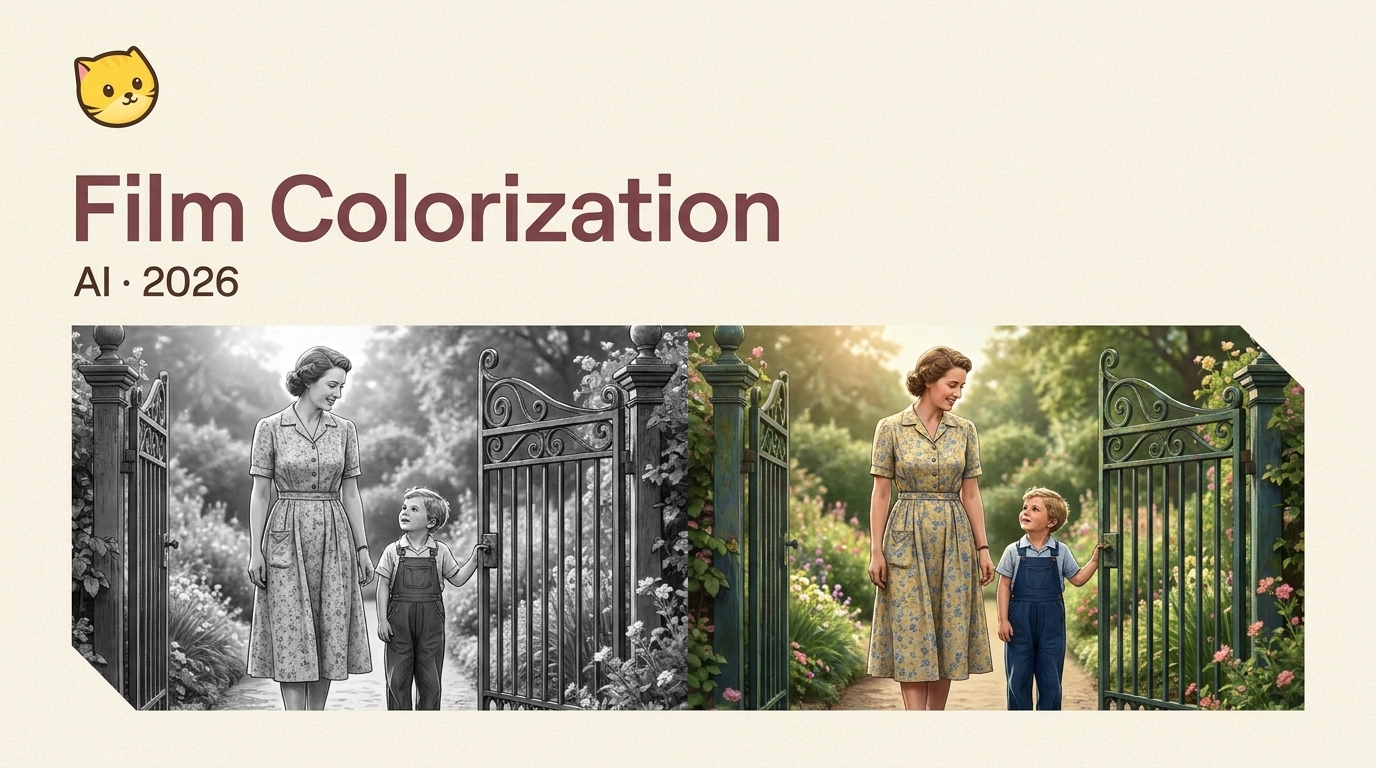
- Historical preservation — Colorized footage helps younger generations connect with historical events by making them feel more real and relatable.
- Family memories — Old home movies and photos gain new emotional impact when seen in color.
- Film restoration — Classic movies can reach broader audiences who find black and white harder to watch.
- Content creation — Colorized vintage footage adds unique value to documentaries, social media content, and educational materials.
- Cultural heritage — Museums and archives use colorization to make historical collections more engaging.
From Hand Coloring to Digital Color
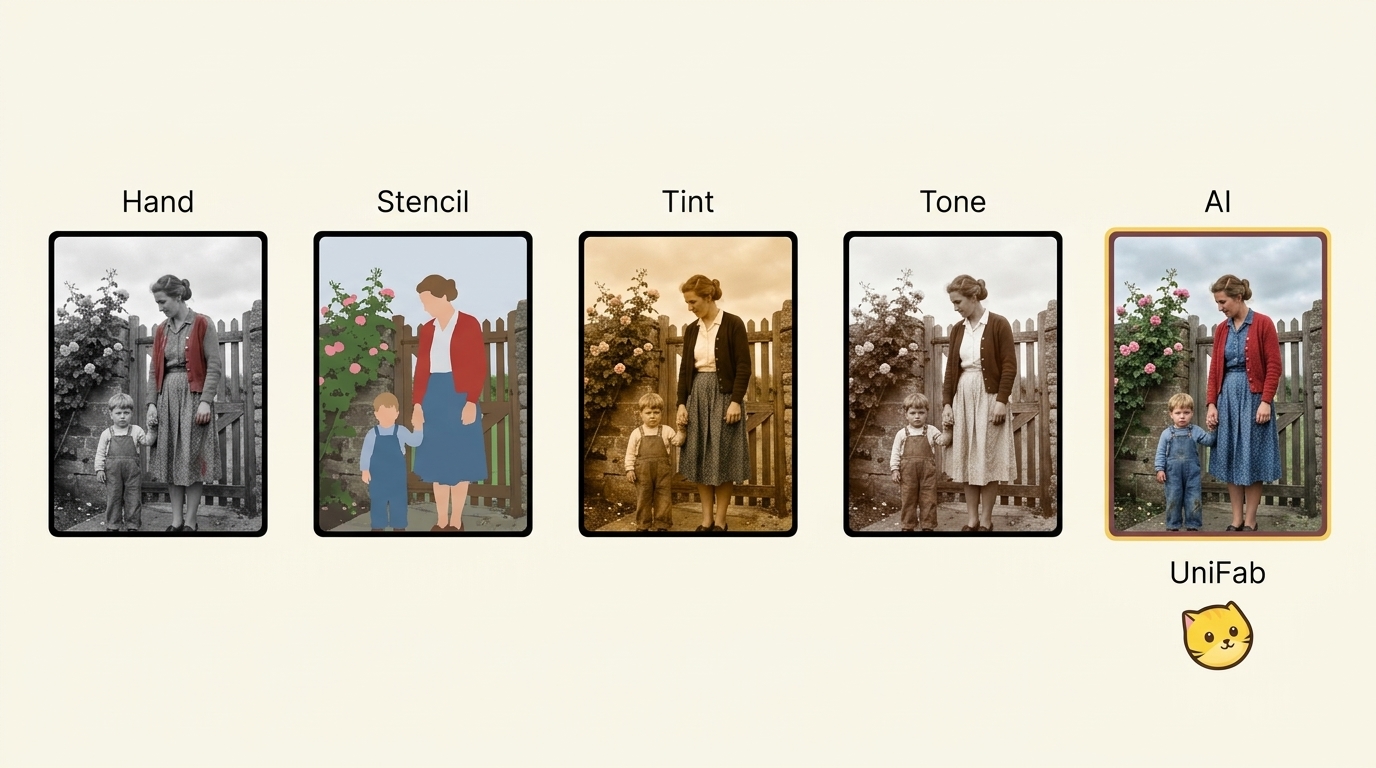
Applying color to an existing black-and-white film is different from photographing a scene on color film. Early applied-color techniques produced distinct effects. Hand coloring added color selectively to details within individual frames, such as clothing or flowers. Stenciling used cutout shapes to apply dyes repeatedly to selected areas across a sequence. Tinting dyed the film print, giving its lighter areas an overall hue rather than assigning separate colors to objects. Chemical toning changed the color of the silver image, affecting darker image areas. Later digital colorization let artists define regions, choose palettes, and carry those choices through moving footage. AI-assisted workflows predict colors from image patterns, but references and human decisions remain important when a project calls for specific historical colors.
Traditional vs AI Film Colorization
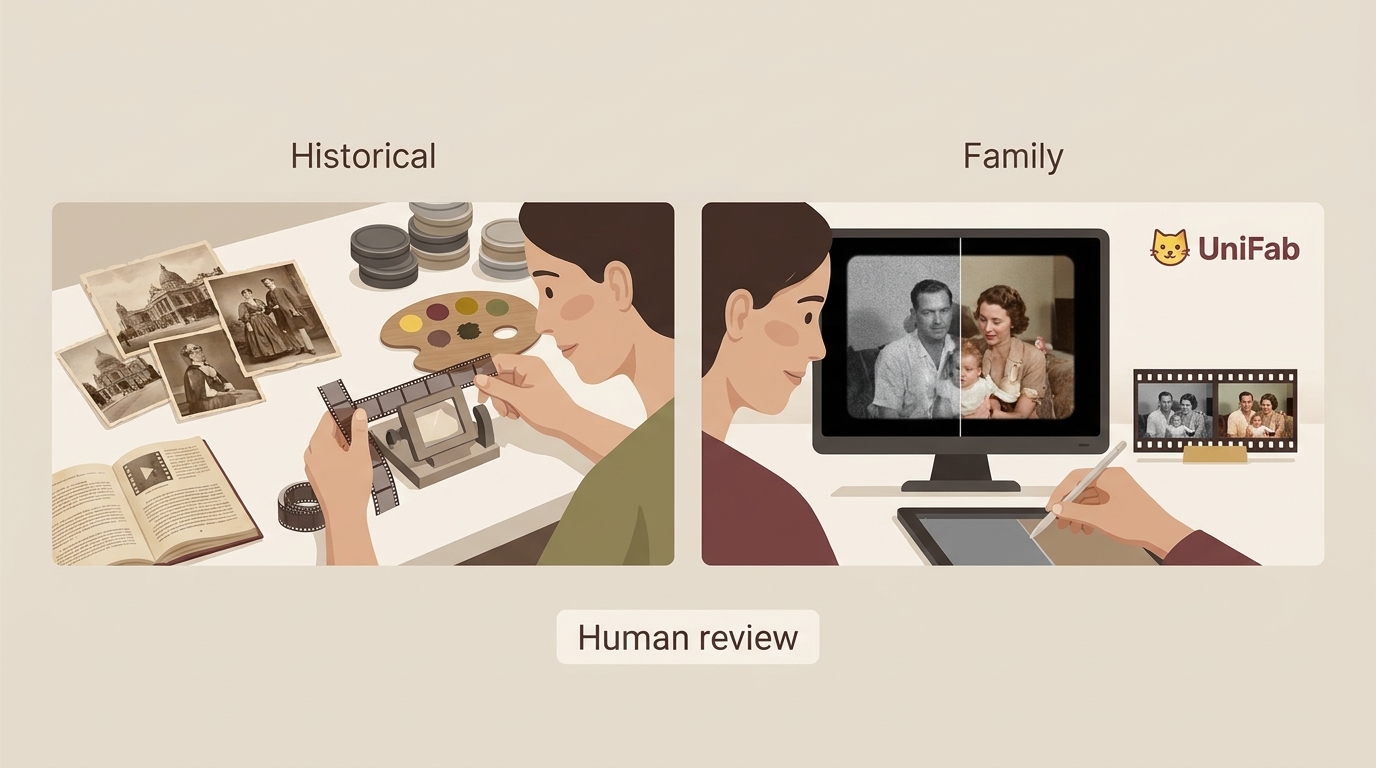
Digital film colorization can be artist-guided or AI-assisted, with different levels of direct palette control. Understanding the difference helps you choose the right method for your project.
| Aspect | Artist-Guided Digital Colorization | AI-Assisted Colorization |
|---|---|---|
| Color assignment | Artists define regions and palettes | Models predict colors from image patterns |
| References | Guide specific palette choices | Help evaluate predicted colors |
| Manual control | Direct region-level color decisions | Adjustments depend on the tool |
| Consistency checks | Review tracked regions and scene transitions | Review flicker, fading, and scene transitions |
| Work involved | Region selection, tracking, and corrections | Style selection, processing, and output review |
| Suitable projects | Restorations needing specific palette control | Family footage and exploratory color treatments |
Historical methods: Timeline of Historical Film Colors; Columbia University Film Language Glossary, “Color Film.”
Bottom line: For a family film, I recommend starting with an AI-assisted color treatment and using UniFab's reference-frame previews to choose the look. For a restoration that needs specific historical colors, artist-guided work offers direct palette control; use period references to establish those colors and review moving footage for stability.
How Do They Colorize Black and White Movies?
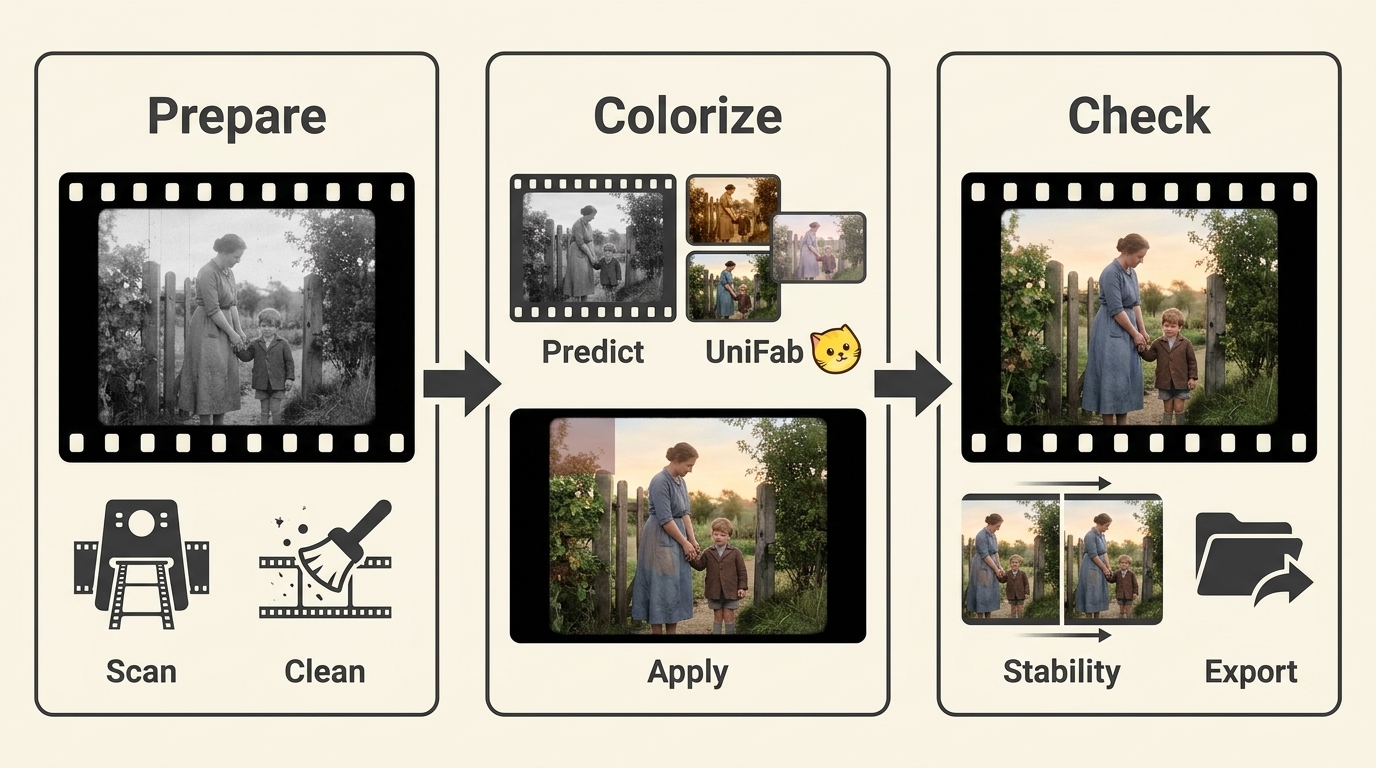
Modern AI film colorization follows these key steps:
Step 1: Digitization
The original black and white film is scanned into high-quality digital format. Each frame is captured as an individual image with its full range of gray tones preserved. Higher scan quality produces better colorization results.
Step 2: Restoration (Optional)
Before colorization, the digital footage is cleaned — reducing dust, scratches, and distracting noise while preserving film grain and fine texture. This step significantly improves the final color output.
Step 3: AI Color Analysis
The AI-powered colorize video software analyzes each frame's gray tones and recognizes contextual cues to predict appropriate colors. It identifies elements such as sky, grass, skin, clothing, and other objects using learned image patterns. These predictions suggest plausible colors rather than recover a unique original palette; check historical details against reliable period references, and use UniFab's reference-frame preview to choose an aesthetic treatment.
Step 4: Color Assignment
Colors are applied to different regions of each frame. The AI segments the image into objects and applies predicted colors to each segment. Reference images from the same era or subject can guide color choices where the workflow supports reference input or manual correction. For example, compare a uniform with a reliable period photograph before adjusting its color in an editor that supports local corrections.
Step 5: Consistency Maintenance
AI video colorization aims to keep colors stable across frames, but the result needs scene-by-scene review. Check for flicker, colors fading to gray, shifts at cuts, and unexpected changes in faces, clothing, or backgrounds. In UniFab, use a reference-frame preview to choose the color treatment, then inspect a representative processed segment to assess color stability over time.
Step 6: Review and Export
The colorized output is reviewed for quality, with manual corrections applied if needed. Review a representative segment that includes movement and scene changes before exporting the full film. The final result is exported in the desired format and resolution. Inspect the exported copy for color shifts, softened texture, and compression artifacts; adjust UniFab's output settings if needed.
AI Film Colorization Software Compared
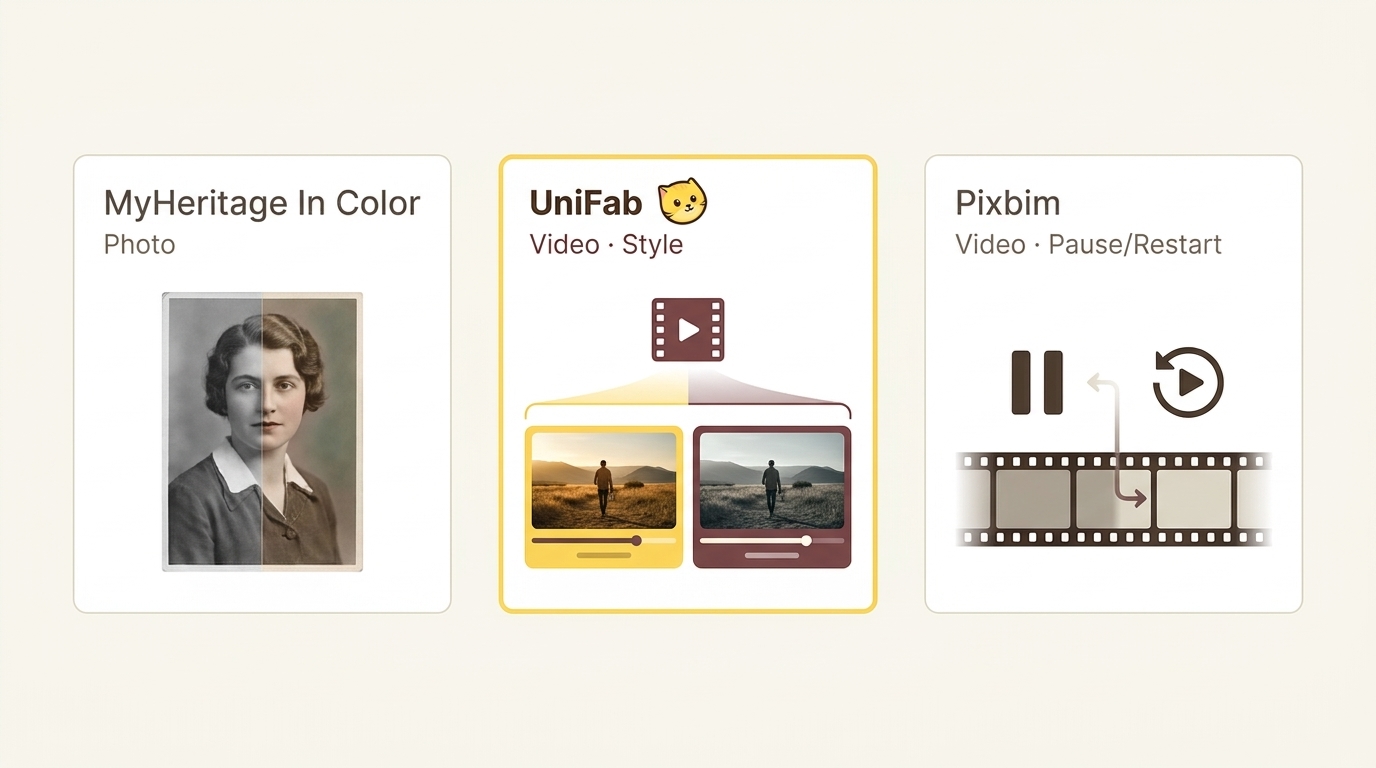
Film colorization tools differ in media support and workflow. This comparison separates video-processing options from a still-photo service.
| Tool | Media scope | Workflow | Platform |
|---|---|---|---|
| UniFab AI Video Colorizer | Video | Reference-frame style preview; GPU acceleration | Windows, Mac |
| Pixbim Video Colorize AI | Video | GPU acceleration; pause/restart | Windows |
| MyHeritage In Color | Still photos only | Photo colorization and color restoration | Online |
DeOldify includes video colorization and reconstruction, but its original repository was archived on October 19, 2024. Its code and Cloud/Colab notebooks remain available for self-managed use. For a guided video workflow, UniFab offers reference-frame style selection before processing.
Comparison as of November 2026.
UniFab offers a free trial and a paid license for continued use. Its style previews show a reference frame rather than a finished sequence; inspect a processed segment before running the full film. Pixbim Video Colorize AI is a paid video-processing option with GPU acceleration and pause/restart. MyHeritage In Color is a freemium still-photo service, not a movie colorizer; for moving footage, use a video workflow such as UniFab's. I would choose UniFab for reference-frame style selection or Pixbim when pause/restart is a priority, and reserve MyHeritage for individual photographs.
Colorize Black and White Film with UniFab AI
UniFab AI Video Colorizer uses deep learning algorithms to automatically add predicted colors to black and white footage. It offers four generated style previews and a multi-scene mode for footage with scene changes, so you can choose a color treatment before processing.
Key Features
- AI-powered automatic colorization with deep learning algorithms.
- Four generated color-style previews to compare on a reference frame.
- Multi-scene mode that divides footage into segments for scene-based processing.
- GPU acceleration (NVIDIA CUDA) for colorization processing.
- Supports various video formats and resolutions.
- Output settings to adjust the saved video's resolution and quality.
Performance on Film Colorization
UniFab AI Video Colorizer utilizes advanced deep learning algorithms and technologies to process various video types. It applies predicted colors to black and white videos, vintage videos, cultural heritage videos, and historical footage. Generated style previews let you compare color treatments on a reference frame before processing. GPU acceleration, including NVIDIA CUDA, supports processing; completion time depends on the footage, hardware, and selected settings.
How to Colorize Black and White Movies with UniFab AI
Check out how UniFab simplifies the film colorization process with just a few steps.
- Install UniFab from the official download page, then open All Features > Colorizer and import your video.
- Capture a reference frame, generate four color styles, and select your preferred treatment.
- Set the output options and enable Multi-Scene mode as needed for footage with different scenes.
- Click Start. When processing finishes, inspect the saved video, including faces, backgrounds, and scene transitions.
I recommend choosing the color treatment on a reference frame before processing the video, then reviewing the exported copy for color changes over time.
For lawful personal projects, use only footage you are authorized to access and edit; you are responsible for securing the necessary permissions. Follow applicable law and platform terms, and do not redistribute footage without permission; specific requirements depend on your use case.
Tips for Better Film Colorization Results
- Start with the highest quality source — Clean, sharp black and white footage produces better colorization. If possible, use restored or remastered versions. Keep an unchanged source copy and colorize a duplicate.
- Try all four color styles — Compare the four generated style previews on a reference frame in UniFab to choose a treatment that suits the footage. Historical footage may look more natural with muted tones, while artistic projects might benefit from vibrant styles.
- Use Multi-Scene Mode for varied footage — If your film has indoor and outdoor scenes, different locations, or varying lighting, Multi-Scene Mode adjusts colorization for each segment. Review representative segments and the exported copy for flicker, fading to gray, and changes in face or background colors around cuts.
- Clean the footage first — Reduce dust, scratches, and distracting noise before colorization while preserving grain and fine texture. If cleanup softens detail, reduce its strength and compare the result with the source before colorizing.
- Manage expectations — For corrections to specific historical colors, compare clothing and objects with reliable period photographs or records, then use an editor with manual color controls if needed. See Step 3 for the limits of AI predictions and the separate role of the reference-frame preview.
Conclusion
Film colorization combines source preparation, color assignment, and review. AI tools can help apply a color treatment to grayscale footage, while historical references and scene-by-scene checks guide corrections. We have covered how film colorization works, how it compares to traditional methods, and how to colorize black and white movies with UniFab AI Video Colorizer. Keep the original black-and-white copy alongside the colorized result. To colorize your vintage footage, start by choosing a reference-frame style in UniFab AI Video Colorizer.
FAQs about Film Colorization
How accurate is AI film colorization?
AI colorization predicts plausible colors rather than recovering a unique original palette. Use period references to assess historical accuracy, use a reference-frame preview to choose the look, and review moving footage for color stability.
Can I colorize old family videos?
Yes, UniFab AI Video Colorizer can add color to black and white video, including digitized family movies. Keep an unchanged source copy and colorize a digital duplicate. Begin with a clean, well-exposed scene and preview a reference frame in UniFab before processing the rest.
How long does it take to colorize a film?
Processing time depends on video length, resolution, and your hardware. Longer footage contains more frames to process, while higher resolution adds more pixels per frame. The selected processing mode also affects completion time. Use the progress estimate for your selected UniFab job to plan the workflow.
Does colorization reduce video quality?
AI colorization adds color to grayscale footage, but processing and export compression can affect sharpness and texture. Keep an unchanged source copy and adjust UniFab's output settings to suit the original footage. Compare grain, fine details, and edges in the exported copy with the source.
Is film colorization controversial?
Yes, adding color can change the visual choices of a film designed in black and white. Hand coloring, stenciling, tinting, and toning were used long before digital film colorization. Keep the original alongside a clearly labeled colorized version, including when working with personal or historical footage.
Can I colorize a film for free?
UniFab AI Video Colorizer offers a 30-day free trial with up to three uses per module and no watermark. This is a limited trial, not unrestricted free processing of full films. DeOldify is an open-source option with Google Colab notebooks and includes video colorization and reconstruction. Its original repository was archived on October 19, 2024; the existing code remains available for self-managed use. Setup requires technical knowledge; UniFab offers a guided video workflow with reference-frame previews for choosing a color style.