Missing controls are a reason to diagnose Enhancer for YouTube before replacing it. I would keep the official extension when it meets your viewing needs, then choose another YouTube enhancer for a specific browser or feature gap. Start with browser support, isolate the symptom, and compare the options below.
Enhancer for YouTube Status and Official Downloads
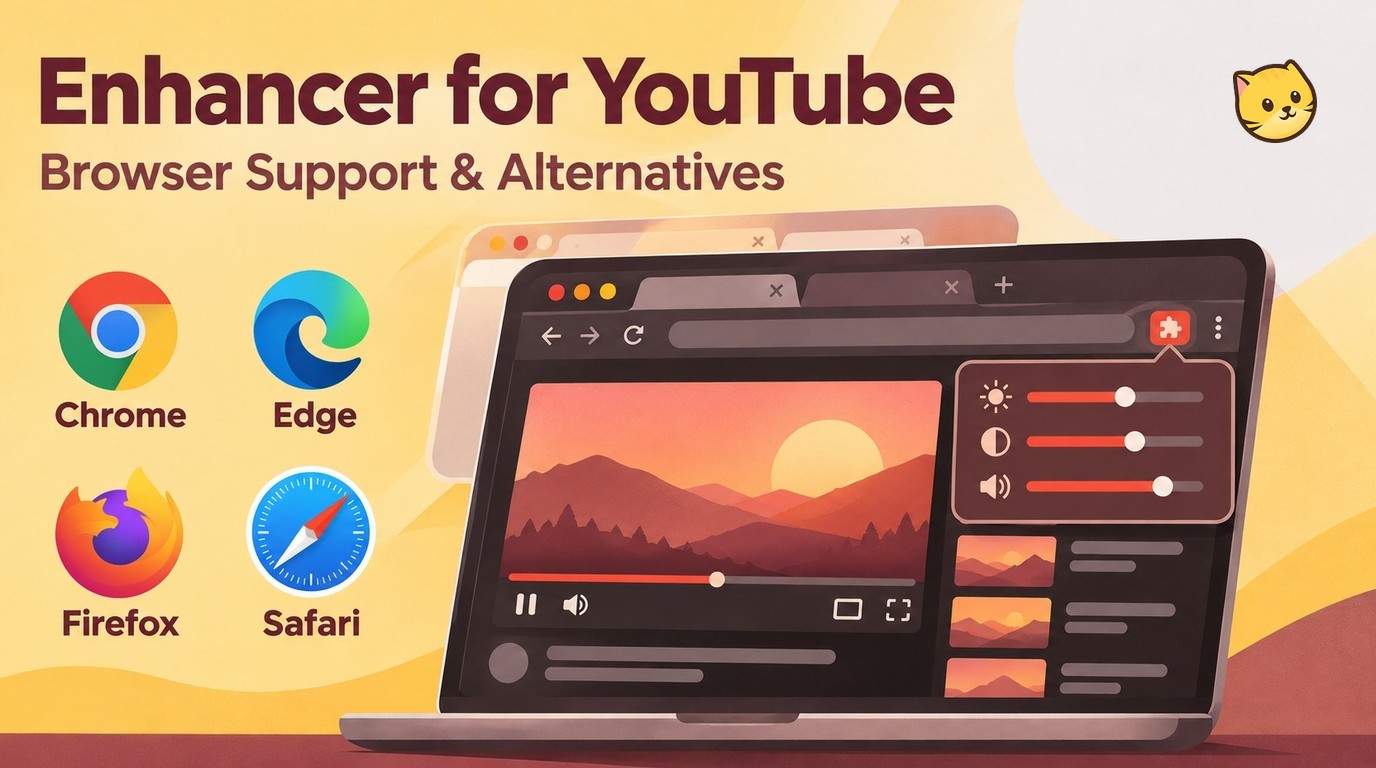
Enhancer for YouTube has official installation routes for Chrome, Edge, and Firefox. Use Maxime RF’s official installation page to reach the corresponding browser store. The Edge route leads to Edge Add-ons; installing a compatible Chrome extension in another browser does not establish official support.
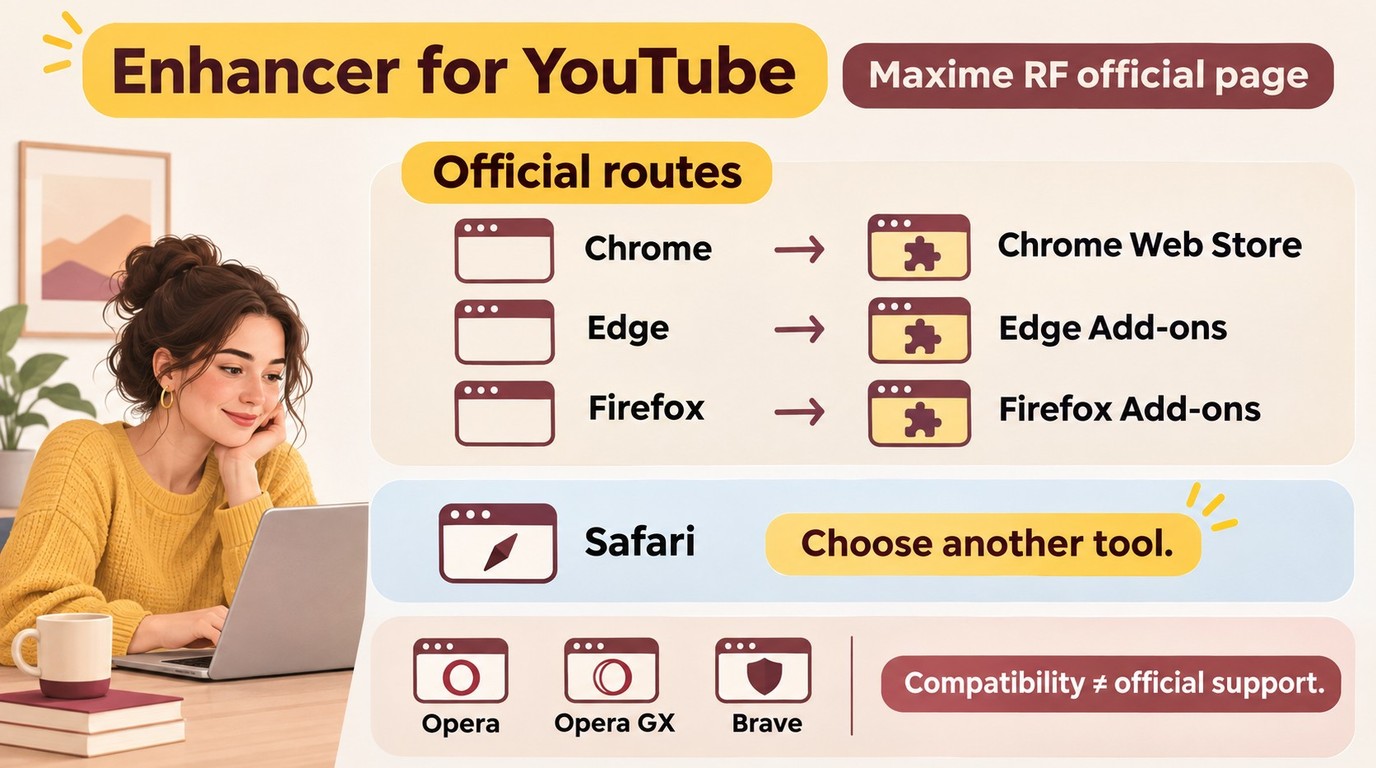
| Browser or platform | Support status | Installation route |
|---|---|---|
| Chrome | Supported; version 3.0.19 | Chrome Web Store |
| Firefox | Supported; version 2.0.136 | Firefox Add-ons |
| Microsoft Edge | Supported | Edge Add-ons |
| Opera, Opera GX, Brave | Outside official support | Chromium installation compatibility only |
| Safari | No official build | No official Safari route |
Support and release information is current as of November 2026. Official reference: Maxime RF’s Enhancer for YouTube installation page.
The Chrome listing shows version 3.0.19, updated July 15, 2026. Firefox’s version 2.0.136 was updated August 2, 2026. The Firefox interruption in 2025 is historical; Firefox support is active again. A similarly named listing from a different developer is a different installation decision.
A Mac running Chrome and a Mac running Safari use different extension routes. Choose the browser first, then its official listing.
Enhancer for YouTube Features
Enhancements for YouTube viewing are most useful when they keep your preferred settings in place. Enhancer for YouTube combines playback controls with page customization. These settings enhance YouTube playback and appearance; they do not reconstruct detail missing from the uploaded footage.
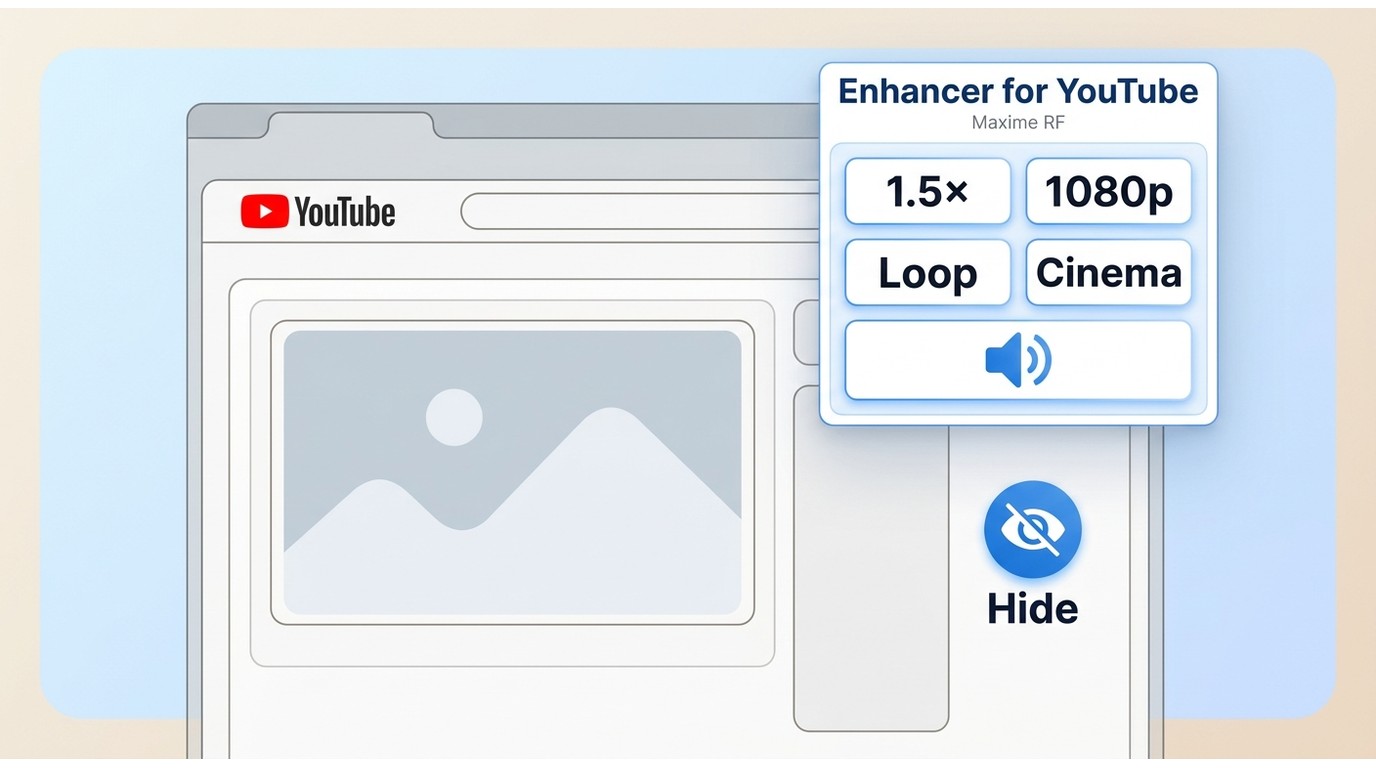
- Playback controls: Set speed, volume, autoplay, and looping preferences. The developer documents mouse-wheel control for speed and volume, plus a volume boost.
- Quality selection: Set your preferred video resolution; YouTube still needs to offer that stream for the video.
- Mini-player and appearance: Use a floating or pop-up player, cinema mode, and page adjustments. Enhancer for YouTube themes change the viewing environment.
- Shortcuts and filters: Configure keyboard controls and adjust brightness, contrast, or saturation. Those filters change the displayed image rather than restore missing detail.
- Distraction controls: Hide selected page elements, including recommendations, comments, or Shorts.
Playback-format selection serves a different purpose: MP4/AVC controls playback rather than saving a file. Keep that distinction in mind before changing codec settings to solve a quality problem.
An enhanced YouTube layout should make your regular viewing easier. Identify the control you would miss first: remembered speed, an in-player loop button, mouse-wheel volume, or a player that stays visible while you read comments. A replacement needs to match that task, rather than reproduce the entire settings panel.
When an Alternative Makes Sense
An Enhancer for YouTube alternative makes sense for a missing control or a compatibility problem you have isolated. Missing buttons, unexpected whitespace, sound changes, and a smaller player are symptoms to investigate. They do not, by themselves, establish that you need a new extension.
Performance Problems
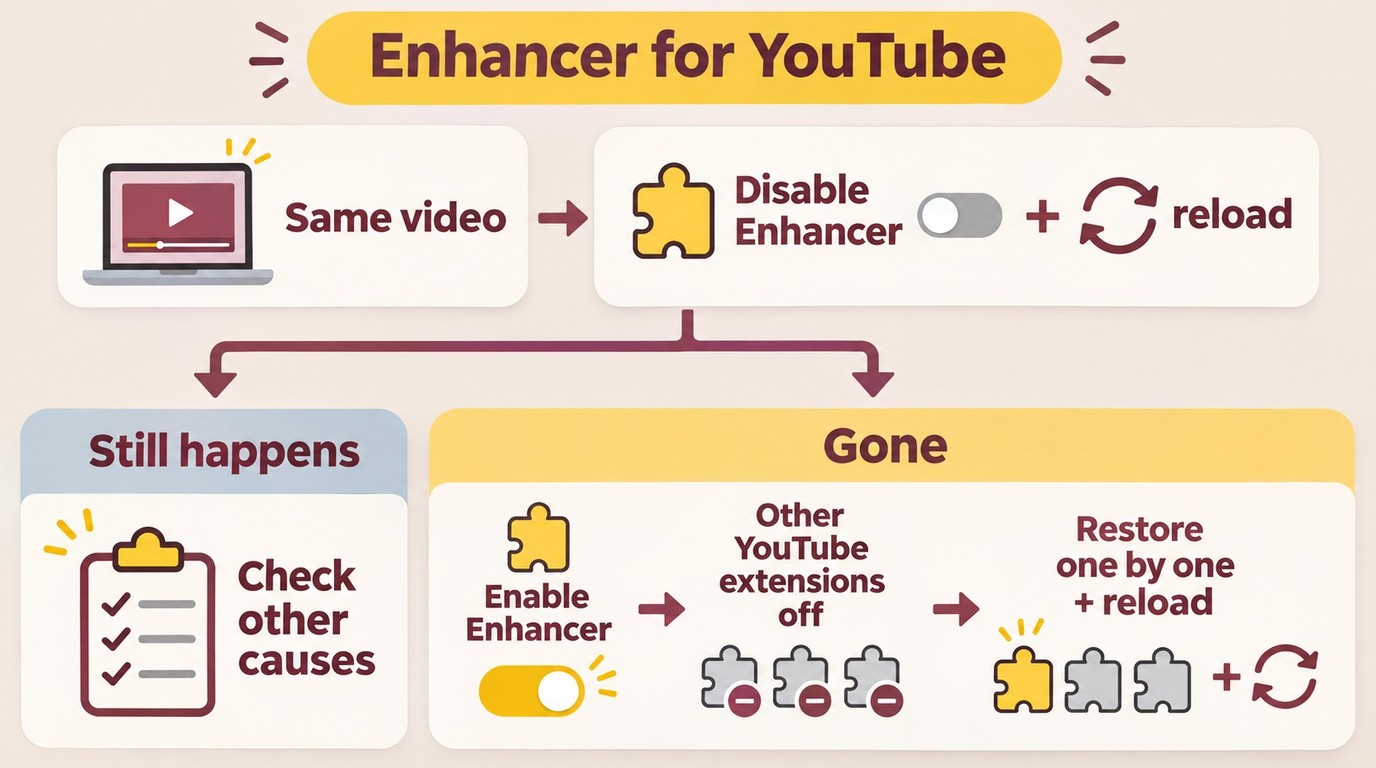
A missing control needs a configuration check first. Open the extension’s settings and move its controls outside the player if they overlap YouTube’s interface. For loading, sound, quality, player-size, or whitespace problems, use the same video while you isolate the cause.
- Disable Enhancer for YouTube in your browser’s extension manager, then reload YouTube. Note whether the original symptom remains.
- If the symptom disappears, re-enable Enhancer for YouTube and disable the other extensions that interact with YouTube. Reload the page.
- Re-enable those other extensions one at a time, reloading between changes. Stop when the symptom returns and identify the conflicting extension.
A symptom that remains with Enhancer disabled needs investigation beyond its settings. The developer’s advanced debugging instructions explain how to collect diagnostic information for an extension-specific problem. Next, establish whether your browser is supported.
Browser Compatibility and Breakage: Safari and Opera
Safari has no official Enhancer for YouTube build. Opera, Opera GX, and Brave are outside the developer’s official support coverage, even when Chromium compatibility lets the extension install. Chrome, Edge, and Firefox have supported routes. Installation and support are different questions.
Opera GX’s Chromium foundation does not turn it into Chrome for support purposes. Reproduce an unresolved Opera or Brave symptom in a supported browser before treating it as an extension-wide failure. For Safari, choose an extension that explicitly supports Safari and supplies your missing feature. Once the browser route is settled, consider maintenance.
Maintenance and Update Risk
Release history helps distinguish an active extension from an archived project. Enhancer for YouTube’s Chrome and Firefox listings show continued releases, while an archived repository signals a different maintenance position. Neither a recent update nor open-source code alone establishes faster fixes.
Keep your browser and extension updated. Describe persistent problems with the browser, version, video, and reproduction steps. If behavior changes after a YouTube redesign, consider what changed in YouTube itself.
YouTube's Own Evolution
YouTube’s built-in playback speed and appearance controls already cover some viewing needs. Start there for a simple adjustment. Page experiments and interface changes also affect extension behavior, so a new layout does not automatically mean your browser or video file is faulty.
I would keep the official Enhancer for YouTube extension as the default when it supplies your everyday controls in a supported browser. Switch to solve a named problem: the missing feature, unsupported browser, or reproducible conflict. A longer feature list is not a reason to rebuild a working setup.
5 Enhancer for YouTube Alternatives by Use Case
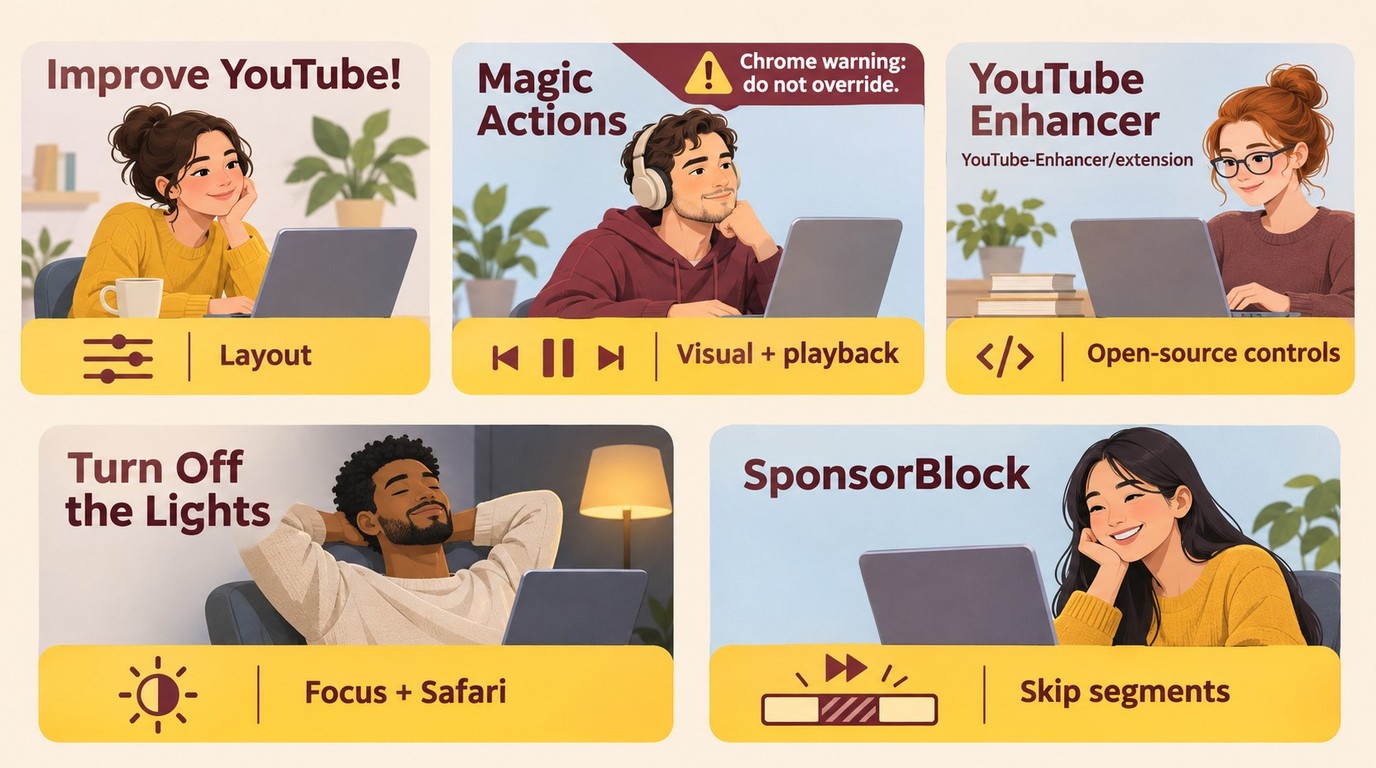
The five options below address different viewing tasks. Each is an Enhancer for YouTube alternative for a particular need, rather than a substitute for its whole control set. Magic Actions requires extra caution because its developer acknowledges a Chrome warning.
1. Improve YouTube! for Full Customization
Improve YouTube!, also called ImprovedTube, is one Code for Charity project. It suits you when layout and playback customization matter together: changing the player, hiding distractions, and choosing how the page behaves. Its open-source settings offer more configuration than a single-purpose dimming or segment-skipping tool.
Its useful controls include:
- Layout changes and visibility settings for comments, recommendations, and Shorts.
- Playback preferences, including quality selection and frame-by-frame navigation.
- Theater-style viewing and custom CSS for more detailed appearance changes.
The tradeoff is configuration time. Start with one layout change, then add playback preferences. Enabling overlapping options together makes an unexpected result harder to trace.
For several coordinated page changes, Improve YouTube! can justify the setup time. If you already like YouTube’s layout, a narrower tool leaves fewer settings to manage.
2. Magic Actions and Chrome Warnings
Magic Actions for YouTube groups visual and playback controls into a familiar extension interface. Auto HD, screenshots, full-window viewing, mouse-wheel volume, and cinema-style dimming address everyday viewing adjustments. Its filters change brightness and color on screen, rather than alter the source footage.
The developer acknowledges that Chrome displays a malware warning and disputes that warning as a false positive. That is the developer’s response, not an independent safety finding. Keep browser protections enabled; do not override a warning to install the extension.
Use Magic Actions only when nearby screenshots, volume adjustment, and effects are the controls you need; use a supported store route and keep browser protections enabled.
Full-window viewing expands the video inside your browser; fullscreen uses the display. Likewise, mouse-wheel volume changes loudness, rather than processing the audio file. Choose the control that fits your viewing need.
3. YouTube Enhancer for Open-Source Control
YouTube Enhancer is the YouTube-Enhancer/extension project. It is separate from Maxime RF’s Enhancer for YouTube and Code for Charity’s Improve YouTube! project. Its v1.36.0 release is dated November 4, 2026. The project identity matters more than the similar name.
Its player-oriented options include size and layout changes, quality preferences, looping, and configurable shortcuts. It also includes controls for hiding suggestions and comments. Those features make it relevant when you want an open-source player-control project rather than a tool focused on dimming or sponsored segments.
Choose it when source transparency and configurable behavior are priorities. The tradeoff is learning a different settings interface; importing assumptions from Enhancer for YouTube will not tell you where its controls live. Begin with the one setting that prompted the switch.
Match the project name before installing. Similar names do not establish shared features. Compare remembered speed, loop placement, and player sizing during setup, rather than assume them from an icon.
4. Turn Off the Lights for Focus
Turn Off the Lights dims the page around a video. It fits a viewing problem centered on visual distraction: the player stays prominent while the surrounding page recedes. The extension works across video sites and offers browser routes including Safari.
Its appearance tools include theater-style dimming, ambient lighting, and night mode. Video zoom and picture-in-picture provide other ways to change the viewing area. Those controls address the environment around a video; they do not create detail that is missing from it.
Turn Off the Lights fits a calmer viewing page, especially when visual focus is the missing Safari feature. It also has playback options, but its central appeal is visual focus; use a broader customization tool when comments, recommendations, and player preferences all need separate rules.
Start with dimming and adjust the background to suit your screen. A dark page reduces surrounding distraction; fullscreen changes how much of the display the player occupies. Choose the behavior you need.
5. SponsorBlock for Sponsor Segments
SponsorBlock skips segments using timestamps submitted by the community. Its focus is sponsor messages and other marked portions inside videos, including intros, outros, and subscription reminders. It addresses interruptions within the timeline rather than page appearance or playback-quality selection.
You choose the categories to skip. The timeline shows marked segments, and the extension uses the submitted timings to move past the categories you enable. That makes the control different from hiding recommendations or changing how the player looks.
A segment needs a community timestamp before SponsorBlock knows where it is. Category preferences matter too: leaving intros enabled gives you a different experience from skipping both intros and sponsors.
SponsorBlock suits repeated in-video segments while your existing extension keeps speed and volume controls. Segment skipping will not supply a missing mini-player or mouse-wheel speed control.
Legacy Options: Iridium for YouTube’s repository was archived on January 31, 2026. h264ify requests H.264 playback instead of VP9 or AV1; its H.264 pathway does not offer 1440p or 4K. Official commits on Mar 2, 2025 added a note about 4K and 1440p video support and updated screenshots. That codec choice concerns playback compatibility, not source enhancement. These older tools belong in a different maintenance decision from the five options above.
Browser Extensions vs Local AI Enhancement
Use an extension for YouTube speed, volume, layout, or player controls. When you already have footage and need an exported picture or sound change, process the local file instead. MP4 is a file container, while AVC names a video codec: choosing them for playback does not create a saved file, and preferred quality only asks YouTube for an available stream.
What Is YouTube Enhanced Bitrate?
YouTube’s 1080p Premium is an enhanced-bitrate version of 1080p for Premium members. It provides more information per pixel while keeping the same resolution. It is a streaming option, rather than a desktop export setting or a browser extension’s restoration feature.
More bitrate and more pixels describe different changes. A higher-bitrate 1080p stream remains 1080p; it does not become 4K. An extension’s preferred-quality setting and a local processor’s output settings therefore serve separate goals. Choose the stream for watching, and file processing for an exported result.
UniFab for Local Video Enhancement
For footage you already have, UniFab All-In-One processes local video on Windows and Mac into MP4 or MKV, including 4K output. Its on-device video quality enhancer supports SDR-to-HDR10 conversion and stereo-to-5.1 or 7.1 upmixing for HDR displays or surround playback. It does not control YouTube’s browser interface. Preview a short passage before exporting; denoising can soften fine texture, as in the UniFab review workflow.
Video enlargement: Inspect edges and texture.
SDR to HDR: Review tone and contrast.
Denoise: Balance grain reduction and texture.
Deinterlace: Process interlaced footage.
Working with local files
- Open the software, select a module, and import your file.
- Choose processing parameters and output settings.
- Start processing and export in your selected format.
Use content you own or are authorized to process, for personal offline use without redistribution. Follow platform terms and applicable local law.
YouTube Enhancer Comparison by Use Case
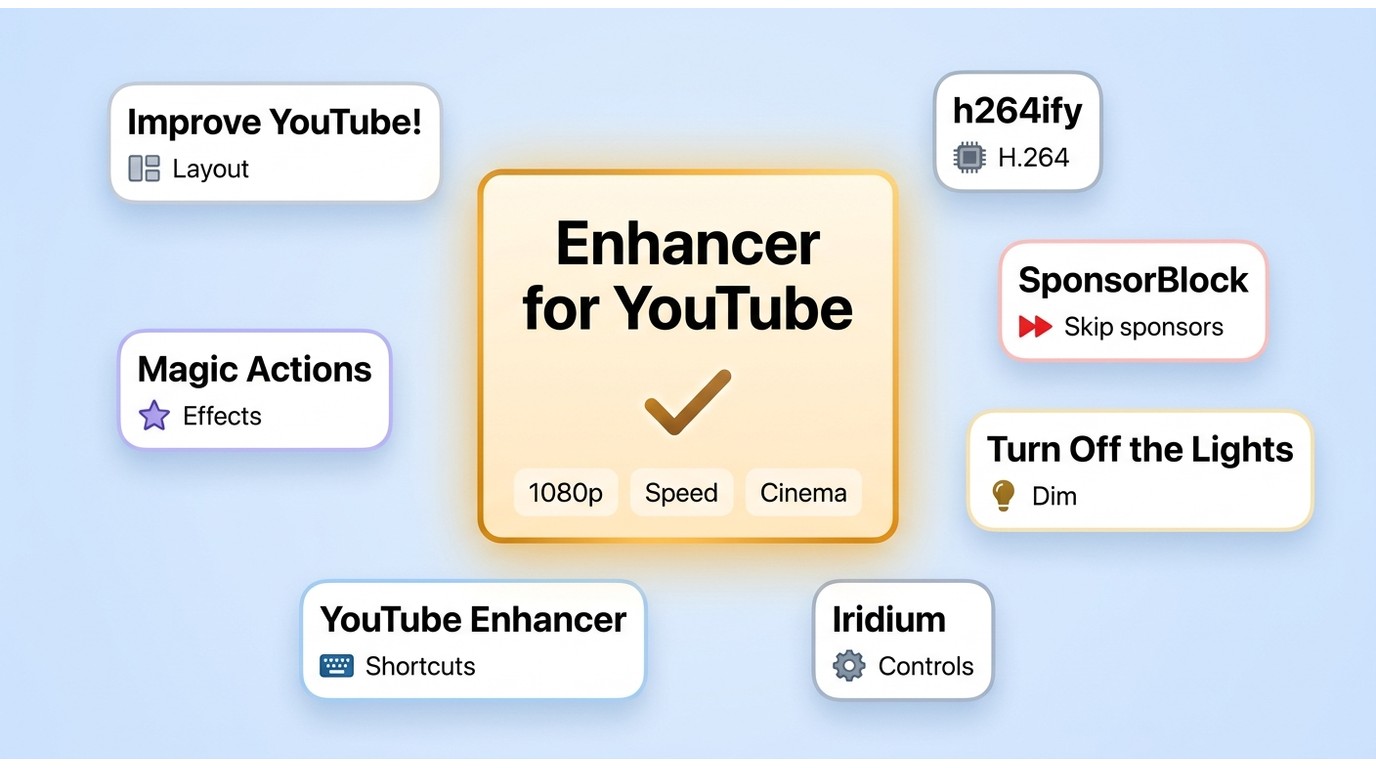
The useful YouTube enhancer is the one that supplies your missing control. This table compares the six browser options, including the original extension.
| Option | Primary use | Maintenance status | Key limitation | Best fit |
|---|---|---|---|---|
| Enhancer for YouTube | Playback and page controls | Active official listings | Browser-specific conflicts | Remembered viewing preferences |
| Improve YouTube! / ImprovedTube | Layout customization | Active open-source project | Advanced configuration | Several coordinated page changes |
| Magic Actions for YouTube | Playback and visual effects | Developer disputes Chrome malware warning | Chrome warning acknowledged by developer | Volume, screenshots, cinema controls |
| YouTube Enhancer | Open-source player controls | v1.36.0; November 4, 2026 | Different settings interface | Source-conscious customization |
| Turn Off the Lights | Page dimming and appearance | Current extension option | Focus-centered control set | Less surrounding distraction |
| SponsorBlock | Community-marked segment skipping | Active community project | Requires submitted segment timings | Skipping selected in-video categories |
I would keep Enhancer for YouTube for a working combination of speed, volume, and page controls, choose Improve YouTube! for broader layout changes, and add a focused tool for dimming or segment skipping. Match the missing behavior before changing the rest of your setup.
What Users Report About Enhancer for YouTube
Dated Reddit reports show why Enhancer for YouTube’s remembered controls matter, alongside the compatibility problems individual viewers encountered. They describe those people’s experiences, rather than the current behavior of every installation.
In Reddit’s ASMR community in 2025, one laptop viewer valued setting 2x playback so clicked and queued videos started at that speed. The report did not identify a browser. In Reddit’s Firefox community in 2025, another viewer praised the in-player speed controls for increasing, decreasing, and resetting playback speed.
Other reports described friction. A Reddit Firefox commenter in 2025 said Enhancer for YouTube paused videos after a few seconds. In Reddit’s YouTube community in 2024, a commenter described an ad-related pop-up interaction involving the extension. Those reports concern different dates and setups; neither establishes a present outage.
The practical lesson is to value the control you use, then isolate a compatibility symptom before replacing the extension. Convenient playback and trouble-free interaction are separate parts of that choice.
The Right Enhancer Depends on Your Goal
Keep Enhancer for YouTube when a supported browser and its controls meet your viewing needs. Choose a feature-matched extension for a specific gap. For footage you already have, use local processing when the goal is an exported picture or audio change.
I would fix an isolated settings conflict before changing extensions. For Safari or an unsupported browser, choose the installation route first.
Enhancer for YouTube FAQ
Is Enhancer for YouTube safe to install?
I recommend Maxime RF’s official store listing rather than similarly named copies. Review the developer identity, permissions, and privacy disclosure before installation. The developer explains that access to YouTube-nocookie.com supports the pop-up player; that purpose helps you evaluate access. Store presence alone is not an independent security assessment.
How do I uninstall Enhancer for YouTube?
In Chrome or Edge, open Extensions, find Enhancer for YouTube, and select Remove. In Firefox, open Add-ons and themes, locate the extension, and select Remove. In Opera or Opera GX, open Extensions and remove the installed item. Reload YouTube afterward; restarting the browser also clears lingering page changes.
Can Enhancer for YouTube save videos as MP4?
No. MP4/AVC selection changes playback format; it does not save a local MP4 file.
Does Enhancer for YouTube work on Safari or Opera GX?
There is no official Safari build. Opera GX uses Chromium, but Opera is outside the developer’s official support coverage. The compatibility section above explains why installation compatibility and developer support are different.