Why You Need Colorize Video Software in 2026
If your family footage survives only in black and white, a video colorizer can add plausible colors without painting every frame by hand. To colorize video for a family slideshow, start with a representative clip and inspect faces, moving objects, and the saved file.
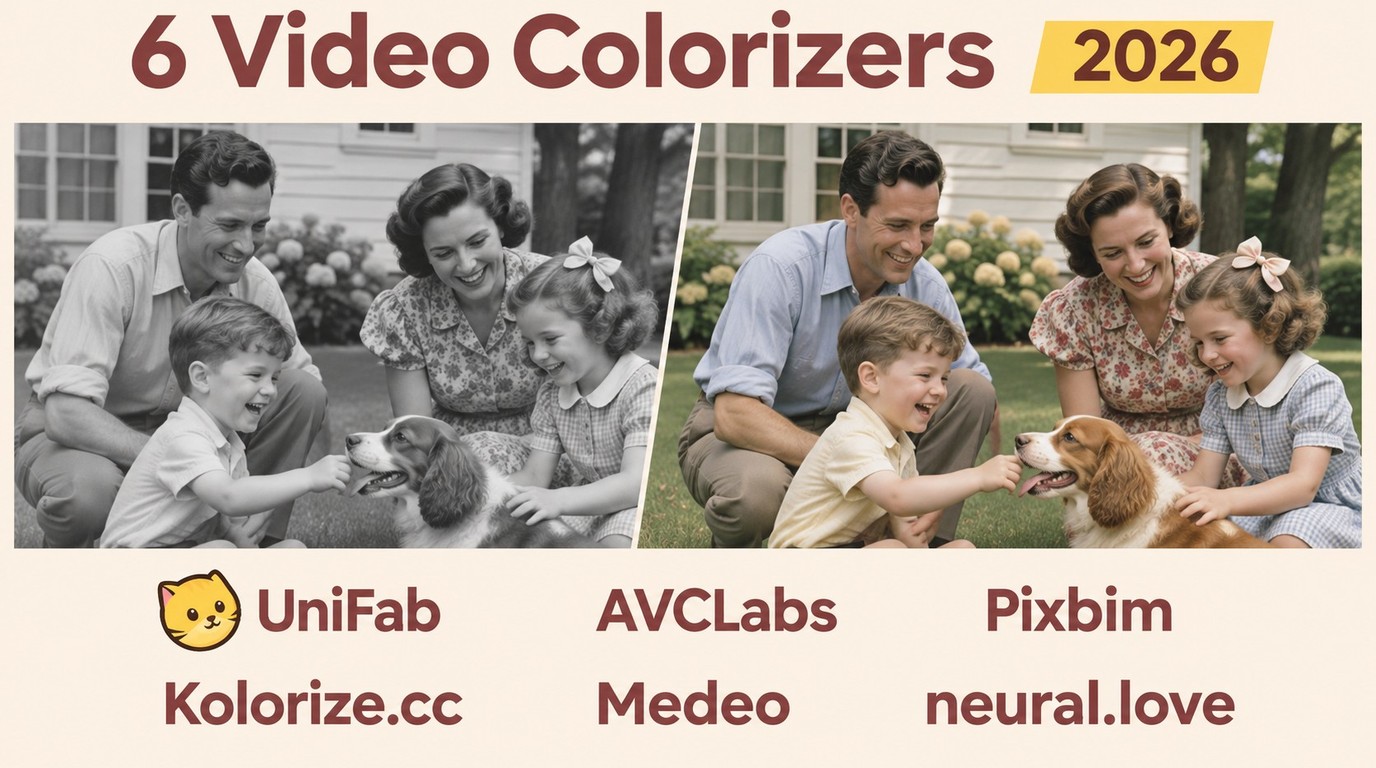
If you have ever wanted to convert your old black and white video to color for a family slideshow, restore a wedding reel, or revive vintage documentary footage for a YouTube channel, modern colorize video software can automate much of the coloring work. Choose a tool whose preview produces believable skin tones and stable colors, and whose export fits your playback needs. The comparison below helps you choose between desktop and browser workflows, followed by a short UniFab walkthrough.
Benefits of Using AI Colorize Video Software
- Automation: AI assigns colors across frames, reducing the need to paint individual objects by hand.
- Consistency: Video colorization models can reduce abrupt color changes between frames; preview moving objects to spot flicker or color bleeding.
- Accessibility: Automated colorization provides a starting point without requiring frame-by-frame painting skills.
- Preview access: A representative sample helps you judge skin tones and moving edges before processing a full family video.
How AI Colorize Video Works (Step-by-Step Explained)
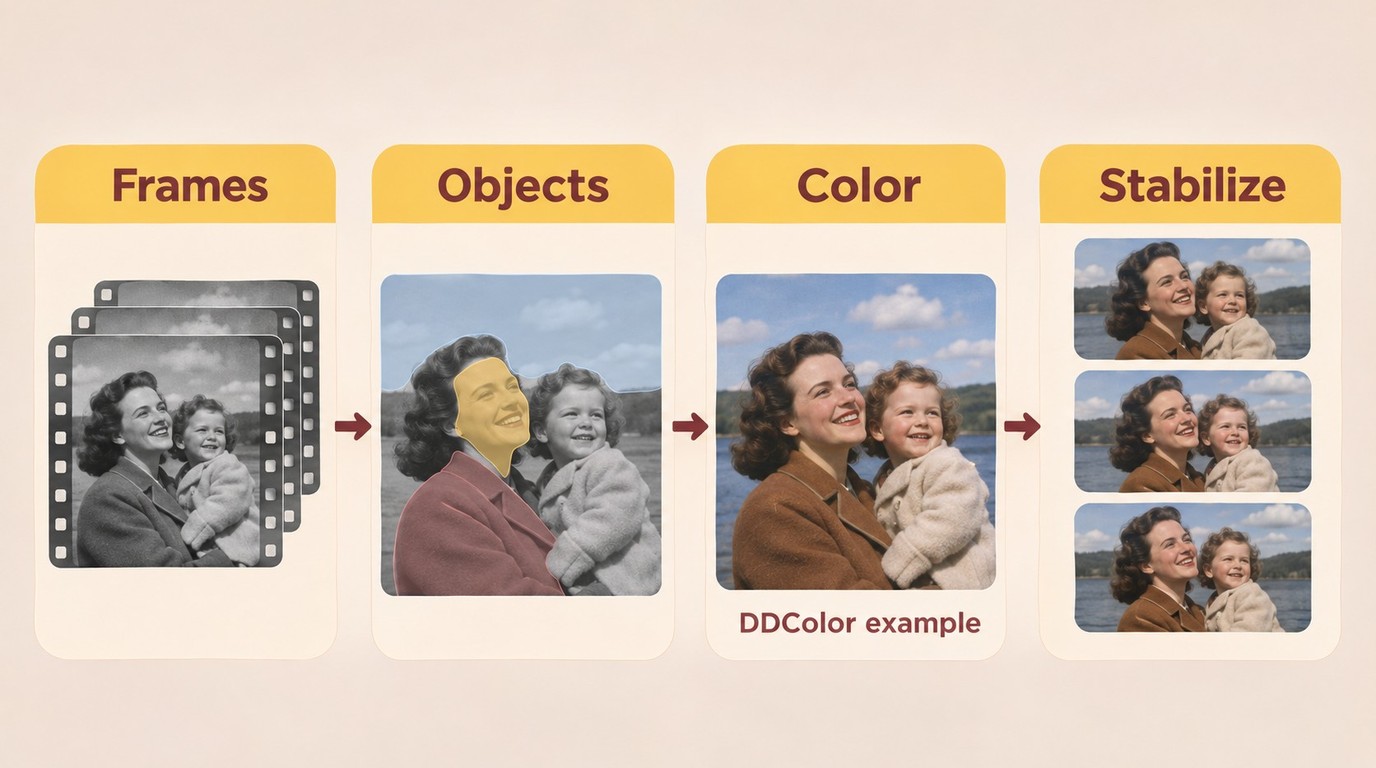
The following four stages illustrate a simplified AI video colorization workflow; individual tools may use different models and processing steps:
- Frame extraction: The video is split into individual frames (typically 24, 25, or 30 per second).
- Scene classification: A vision model identifies what each frame contains — sky, skin, vegetation, water, fabric, metal — using detectors trained on millions of labeled images.
- Color prediction: A second model (commonly a diffusion or GAN architecture; DDColor is one widely adopted backbone) predicts plausible hues for each pixel, conditioned on the scene class and on previous frames so the colors stay consistent.
- Temporal smoothing and re-encoding: A post-processing pass enforces frame-to-frame stability (so a green leaf doesn't flicker brown for one frame) and re-encodes the colored frames back into a playable video file.
Colorization infers missing colors in monochrome footage, while AI video color correction adjusts colors already present in a recording. A LUT remaps existing color values rather than identifying objects and inferring their missing colors. AI colorize video software predicts a unique color map per pixel per frame, which is why it can keep a person's red coat saturated while letting the sky behind them stay overcast gray. Color grading shapes the visual style of existing colors.
AI vs Manual Colorization: Which Is Better in 2026?
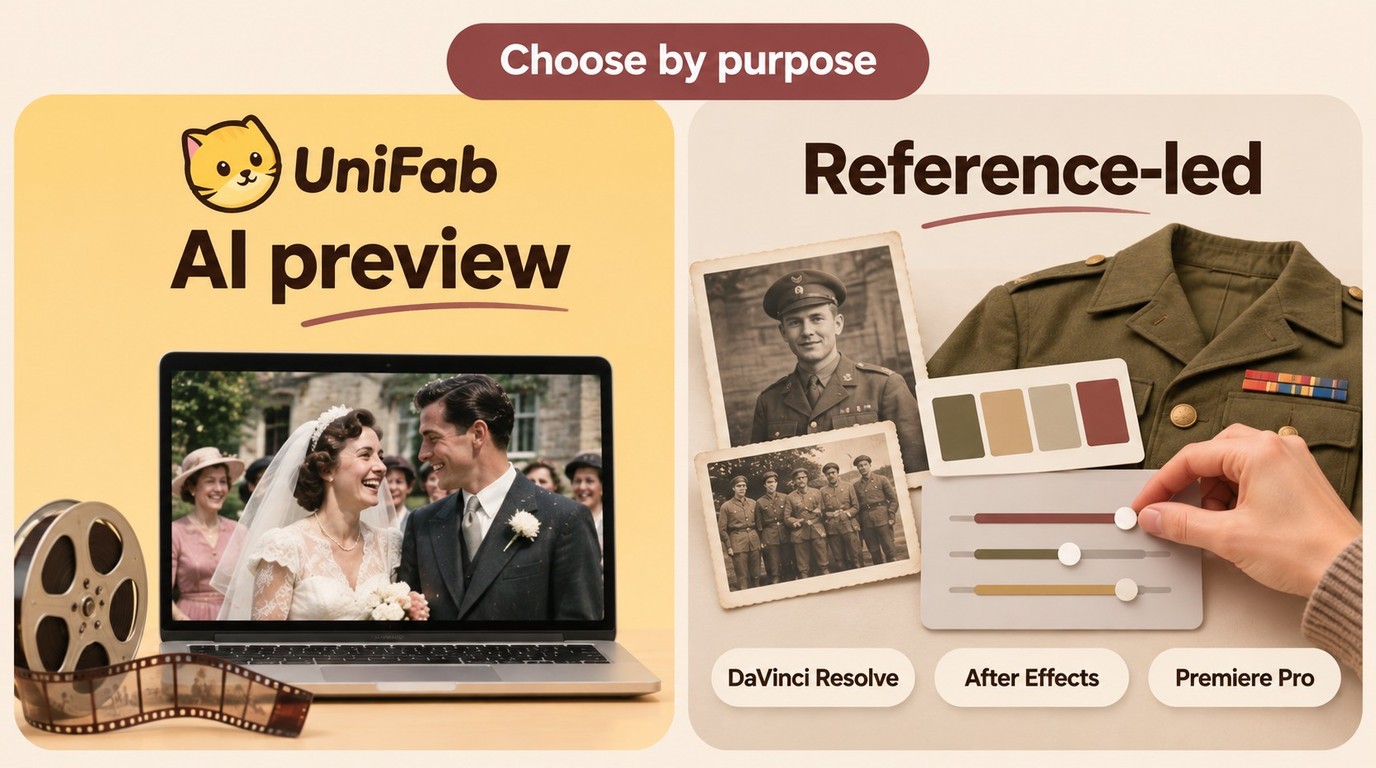
Manual colorization inside DaVinci Resolve, After Effects, or Premiere Pro gives a colorist direct control over individual objects and shots, especially on historically significant footage where reference material can establish period-accurate uniforms, dye lots, and product packaging. It also requires hands-on masking, tracking, and shot-by-shot adjustments.
AI colorize video software automates initial color assignment, while manual work allows targeted correction. The table below summarizes when each approach makes sense.
| Criterion | AI Colorize Video Software | Manual Colorization (NLE) |
|---|---|---|
| Processing workflow | Automated prediction, followed by review | Hands-on masking, tracking, and coloring |
| Cost structure | Software license, subscription, or processing credits | Editing software and colorist labor |
| Skill required | Basic import, preview, and export | Masking, tracking, and color adjustment |
| Historical accuracy | Plausible inferred colors | Reference-guided color choices |
| Consistency across frames | Inspect motion for flicker and color bleeding | Track masks and match colors between shots |
| Suitable use case | Family memories and initial restoration passes | Reference-based archival work and targeted corrections |
For a family slideshow or a digitized wedding reel, I recommend reviewing an AI-colored sample before processing the full recording. If uniforms, flags, or product colors must match historical references, use those references to guide manual correction of the important shots.
Quick Comparison: 6 Colorize Video Software Options
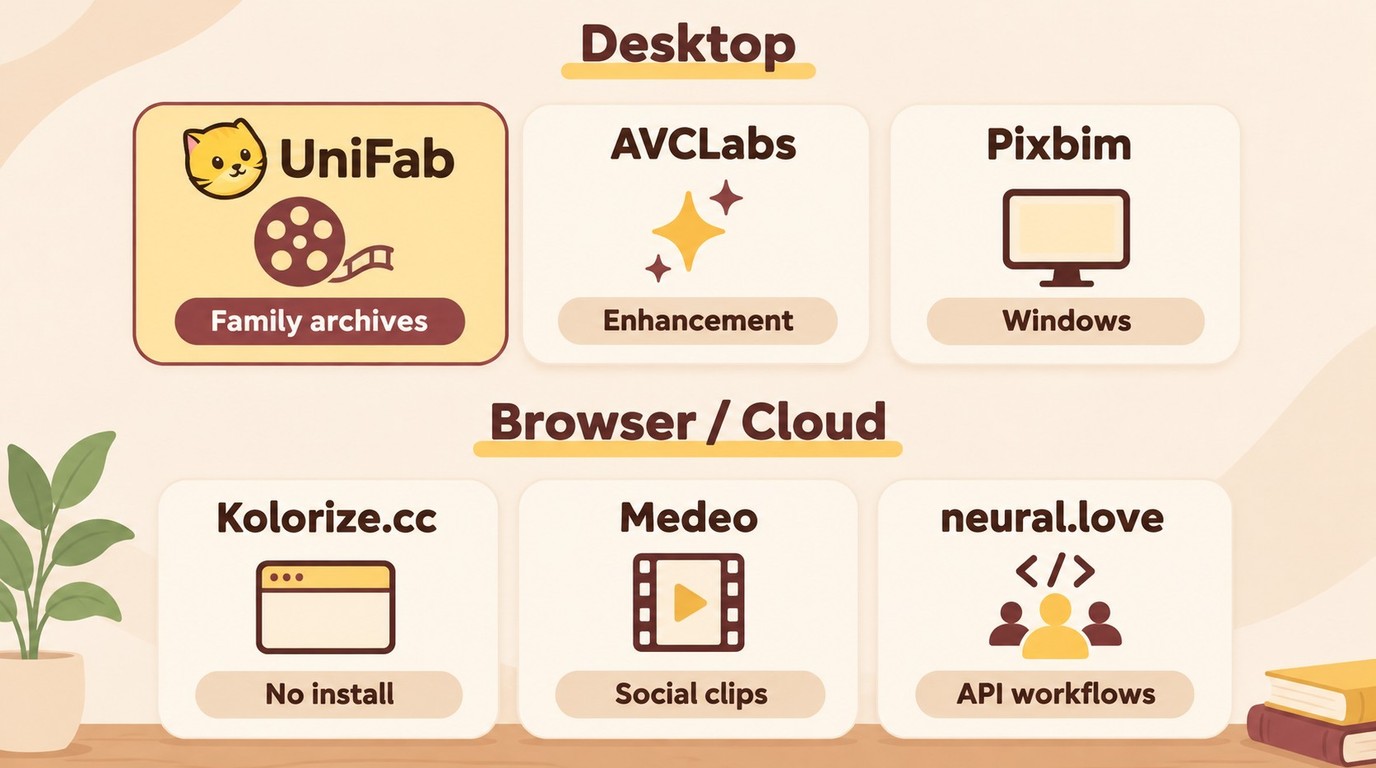
UniFab AI Video Colorizer supports Windows or macOS and offers 30-day preview access with no watermark (as of November 2026).
- UniFab AI Video Colorizer: A desktop option for colorizing family footage locally.
- Kolorize.cc Video: A browser workflow that charges processing credits, with no additional download charge.
- Medeo AI Video Colorizer: A browser option offering trial credits for evaluating colorization.
- neural.love Video Colorization: A cloud option requiring registration and paid video-colorization access.
- AVCLabs Video Enhancer AI: A desktop option combining colorization and enhancement; the evaluation described here includes a watermark.
- Pixbim Video Colorize AI: A Windows desktop option with CPU and NVIDIA GPU packages; its macOS version has not been released.
Input Formats and Export Compatibility
MP4 is a container, not a video codec. An MP4 file can carry different video and audio codecs, so accepting an MP4 input does not by itself establish which formats a colorizer can export.
For a digitized family recording, keep the original transfer and save the colorized result separately. Play the saved file in your intended player to confirm that the picture displays correctly, the audio is present, and speech stays synchronized. If the result needs conversion for another device, use the exported file rather than overwriting the original transfer.
- UniFab AI Video Colorizer: This article describes local processing on Windows or macOS and up to 4K output.
- Kolorize.cc Video: All major video formats are supported, including MP4, MOV, AVI and WEBM.
- Medeo AI Video Colorizer: Once your footage is colorized, continue editing in Medeo. Add subtitles, voiceover, background music, titles, or scene extensions.
- neural.love Video Colorization: Input formats include MOV, MP4, MKV, MXF, QT, AVI, WebM, GIF, MPG, MP2, MPEG, MPE, MPV, OGG, M4V, WMV, FLV, and 3GP. Output formats are MP4 H264 and MOV ProRes 422.
- AVCLabs Video Enhancer AI: Input formats include 3G2, 3GP, AVI, DIVX, FLV, F4V, M2TS, MTS, MOV, MP4, M4V, MPEG, MPG, DAT, MKV, OGM, RMVB, RM, TS, TP, VOB, WMV, WTV, ASF, DV, and WEBM. Export containers are MP4, MKV, MOV, and AVI.
- Pixbim Video Colorize AI: Audio out of sync issue has been fixed.
6 Colorize Video Software Options
1. UniFab AI Video Colorizer for Family Archives
UniFab AI Video Colorizer supports local processing on Windows or macOS, up to 4K output, and batch queues for family archives.
Colorize Your Black and White Video in One Click!
- Multi-Scene Video Colorization with Four Color Styles
- 30-day free trial with no watermark or limitations
Video Colorizer AI
Colorize Your Black and White Video in One Click!
- Multi-Scene Video Colorization with Four Color Styles
- 30-day free trial with no watermark or limitations
Video Colorizer AI
Workflow considerations:
- Local processing uses your computer's hardware; use the trial to assess turnaround.
- Inferred colors may need adjustment; preview your footage during the trial to assess skin tones and moving edges.
Suitable for: Family archives with multiple clips. I recommend checking a representative clip before queuing the archive.
2. Kolorize.cc Video for Browser-Based Processing
Kolorize.cc Video is a browser-based option for colorizing footage without installing desktop software. It uses proprietary AI to analyze each frame for objects and apply realistic colors. The workflow is straightforward: upload a file in your browser, process it, then download the result. Processing consumes credits based on the number of video frames; downloading the processed result carries no additional charge.
Suitable for: Quick previews, short clips for social media, users on Chromebooks or work laptops where you can't install desktop software.
3. Medeo AI Video Colorizer for Social Media Clips
Medeo is a browser-based video colorizer with trial credits for exploring its workflow. The web app is tuned for short, social-ready exports: aspect-ratio presets, optional captions, one-click share. For family clips, inspect faces and moving objects in the preview before preparing a social media export.
Suitable for: Creators preparing colorized clips for TikTok, Instagram Reels, or YouTube Shorts.
4. neural.love Video Colorization for Cloud Workflows and Teams
neural.love positions its colorize video software as a cloud solution for creators, developers, and teams. It exposes an API alongside the web UI, so production studios and content agencies can script batch colorization across hundreds of clips. Registration is required, and paid access is needed to colorize a video.
Suitable for: Production teams, content agencies, and developers who need scripted batch colorization rather than one-at-a-time desktop processing.
5. AVCLabs Video Enhancer AI for Adjustable Enhancement Modes
AVCLabs Video Enhancer AI bundles colorization with upscaling, face refinement, and denoise in a single Windows / macOS app. Its strength is mode flexibility: you can swap between several AI engines depending on whether your source is film, video, or animation.
In a representative preview, check skin-tone warmth and red saturation, particularly where faces and colored objects move between light and shadow.
In practice, this flexibility comes with a learning curve — you need to know which mode to pick for your source footage. If you prefer fewer adjustments, start with a representative clip before choosing settings for the full video.
Pros:
- Multiple AI engines selectable per source type
- Bundles upscaling and face refinement in the same app
Cons:
- Requires understanding which mode fits your source
- Processing time depends on hardware and selected enhancement settings
Best for: Power users who want a single app for colorize + upscale + face restore and are comfortable tuning AI mode settings.
6. Pixbim Video Colorize AI for Beginners
Pixbim Video Colorize AI is the entry-level option in our roundup: load a clip, click Start, wait. This straightforward workflow suits parents and grandparents who want to colorize a single family video without learning a full video editor. Pixbim Video Colorize AI offers Windows CPU and NVIDIA GPU packages; its macOS version has not been released.
The trial caps output length. Before processing a longer video, preview mixed crowds and fast motion at your intended output resolution to inspect color consistency and detail.
Best for: First-time users who want a one-click experience on short, simple family clips.
Colorize Video with UniFab in 3 Steps
Before you begin, download and install UniFab Suite and have your source video ready. The screenshots below walk through the exact path.
30-day Free Trial for full features, without watermark!
Launch UniFab and open it. Next, choose the Colorizer option from the centre screen. Now, upload your black and white video.
Hit Capture and drag the video progress bar. Now, pick a reference frame and test different color styles. As soon as you hit Generate, UniFab will automatically create 4 unique styles for the frame. Choose your favorite frame.
After selecting the style, enable Multi-Scene Colorization Mode. Then, tap the Start button in the lower right corner. Your entire video will instantly change color according to your chosen coloring style.
Before exporting the full video, inspect a representative preview for skin tones and color flicker around moving objects, then play the saved sample to check audio synchronization.
Process only footage you own or are authorized to use for lawful personal backup and restoration. You are responsible for content rights and must follow applicable law and each tool's terms of service.
Verdict: Which Colorize Video Software Should You Choose?
I recommend choosing a workflow that produces credible color on a representative family clip and an export you can play and save.
- Desktop family archives: UniFab AI Video Colorizer: Pick UniFab for local desktop colorization, especially when your source also needs a separate upscaling or denoise step.
- Browser access: Kolorize.cc Video: No installation is needed, making it an option for work laptops or Chromebooks where desktop software cannot be installed. Processing uses credits, with no additional download charge.
- A straightforward Windows workflow: Pixbim Video Colorize AI: Pick Pixbim for a short family clip when you prefer a load-and-start workflow and have a compatible Windows computer.
Download UniFab and start with a representative clip from your archive. Compare the saved output with your source for believable skin tones, stable color in motion, and synchronized sound before processing the remaining footage.
Conclusion
Colorize video software automates much of the work of adding plausible color to monochrome footage. Keep the original transfer unchanged, save the colorized version separately, and check the exported file for color stability, detail, and synchronized sound before sharing it with family.
If you also need to fix damaged source footage before colorization, pair colorize video software with a film colorization workflow for transferred reel-to-reel material.
FAQs about Colorization Software
Can colorize video software restore audio too?
No — colorize video software targets the visual track only. If your source has noisy or muffled audio, you will need a separate audio-restoration step. Preserving the original audio during export is different from enhancing it. Play the saved file to confirm that the sound is present and stays synchronized with the picture.
Does colorize video software require a powerful computer?
Pixbim Video Colorize AI offers Windows CPU and NVIDIA GPU packages; its macOS version has not been released. Browser-based tools (Kolorize, Medeo, neural.love) process uploaded footage in the cloud. Choose the compatible Windows package for Pixbim, or a browser workflow if you cannot install desktop software.
How long does it take to colorize a 5-minute video?
Processing time depends on the tool, source footage, and output settings. As of November 2026, Kolorize says most five-minute videos finish within an hour; video length and scene complexity affect processing time. Desktop hardware and cloud queues also affect turnaround. Use the application's progress estimate for your selected clip and settings.
Can I colorize a black and white video for free?
Some tools offer a limited way to try video colorization at no charge. UniFab offers a 30-day trial with no watermark, Medeo offers trial credits, and Pixbim has a trial with output-length caps. neural.love requires registration and paid access for video colorization. Kolorize charges processing credits, with no additional download charge. The AVCLabs Video Enhancer AI trial described here includes a watermark. Preview access, processing credits, and permission to download an export are separate benefits; a preview does not necessarily include a downloadable, watermark-free file.
Will AI colorize video software work on damaged or noisy footage?
Yes, but quality drops as source quality drops. Preserve the original transfer, then run a separate denoise pass when needed (UniFab Denoise AI or a similar tool) before colorization. For damaged VHS footage, upscaling and grain removal may help the colorizer identify objects, but aggressive cleanup can erase detail. Inspect a representative preview for lost detail and color changes around moving edges before processing the full video.
Is AI colorization historically accurate?
AI colorize video software predicts plausible colors based on training data, not researched period-correct colors. For historical accuracy on flags, uniforms, or product packaging, use reference material to guide manual color overrides or correction by a human colorist. For family videos, compare important details with surviving color photos when available, and treat the result as an interpretation rather than a record of the original colors.