Quick Picks: The Best Video Converter for Each Job
For compatible playback without an unexpectedly large export, I recommend a free Video Converter with stream-copy and quality controls. UniFab suits guided local batches on Windows and Mac; HandBrake suits preset-based encoding. The best Video Converter for your files should match the destination, not just change the extension.
- UniFab Video Converter: Free, guided local batch conversion on Windows and Mac.
- HandBrake: Open-source presets and detailed quality controls.
- Shutter Encoder: Graphical rewrap and production-codec workflows.
- FFmpeg: Repeatable commands and scripted batches.
- Any Video Converter Free: Guided Windows batches without a watermark or file-size limit, plus advanced encoding controls.
- XMedia Recode: Detailed Windows profiles and stream-copy controls.
For a one-off file, choose a compatible output preset and save a sample. UniFab's strength is applying those visible controls across local batches. For an automated folder pipeline, I would choose FFmpeg instead.
What Matters in the Best Video Converter Software
A useful converter produces a file your destination plays, with the tracks you need and a sensible file size. Start with the destination. A television, editing timeline, and private archive need different outputs.
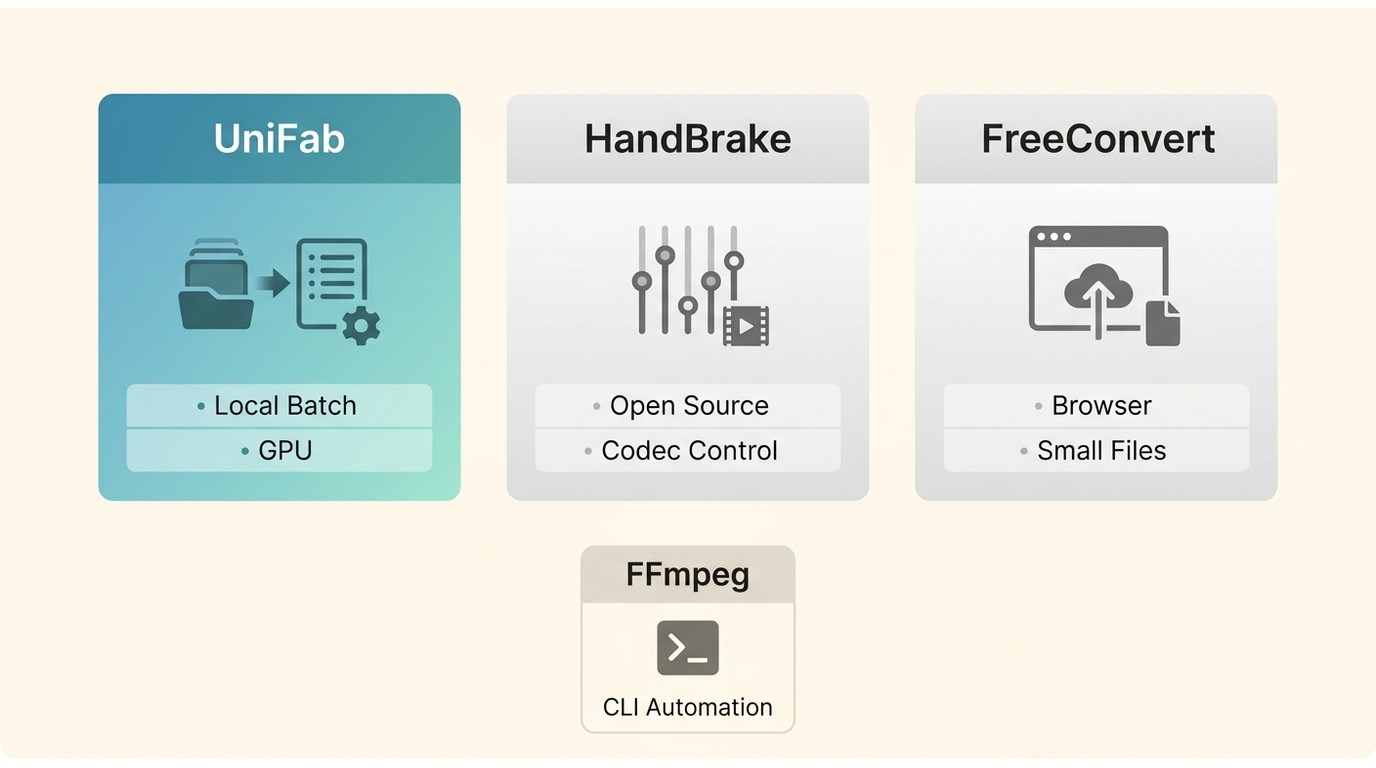
- Platform fit: Choose a build for your operating system.
- Free use: Identify watermarks, duration or file-size caps, and locked exports.
- Output support: Match the container, video codec, audio codec, and subtitle treatment to the destination.
- Quality control: Look for bitrate or constant-quality settings and compatible stream copy.
- Batch workflow: Use visible queues for interactive work or scripts for recurring jobs.
- Hardware path: Pair the encoder with your GPU and retain a software fallback.
- Privacy: Keep sensitive footage in a local workflow.
A compatible preset is a useful starting point, not the final check. Play the exported sample on the actual destination before converting the rest. Use files you are authorized to access and convert; do not redistribute content without permission, and follow applicable law and platform terms for your use case.
Best Video Converter Comparison Table
The best free video format converter for a local queue differs from the best video conversion software for a scripted pipeline. These six desktop choices offer different controls. Any Video Converter Free's listed terms apply to its Windows edition.
| Tool | Platform | Free use | Batch method | Best fit |
| UniFab Video Converter | Windows, Mac | Free; no watermark | Local graphical queue | Guided broad-format conversion |
| HandBrake | Windows, Mac, Linux | Free; open source | Local queue | Presets and quality control |
| Shutter Encoder | Windows, Mac, Linux | Free; donation-supported | Local batch | Production codecs and rewrap |
| FFmpeg | Windows, Mac, Linux | Free; open source | Local scripts | Automation and exact control |
| Any Video Converter Free | Windows | Free; no watermark or size limit | Local batch | Guided conversion and encoding controls |
| XMedia Recode | Windows 10/11 | Free; no watermark | Local queue | Detailed Windows profiles |
I would choose a graphical queue for mixed everyday files and a script for recurring jobs with fixed settings. For editing deliverables, Shutter Encoder's production formats are the more relevant distinction.
Best Video Converter Reviews and Product Notes
UniFab, HandBrake, Shutter Encoder, FFmpeg, Any Video Converter Free, and XMedia Recode cover guided conversion, encoding, and automation. Choose the workflow you need. The product notes distinguish Movavi, VLC, and Avidemux from those six recommendations.
1. UniFab Video Converter: Best Overall Free Choice for Windows and Mac
Good fit: UniFab is our overall free choice for the table's guided desktop scenario: free use, local processing, Windows and Mac support, and a graphical batch queue. That combination suits you if you want to convert a folder without writing commands.
Platform boundaries: UniFab supports Windows and Mac, rather than Linux. Its local batch workflow combines visible output controls with broad format support; get the installer from the official UniFab Video Converter page.
Video Converter runs on Windows and Mac, supports conversion across 1000+ formats, and outputs video up to 4K without a watermark. It processes local files. Apply one output profile to a queue, or adjust a file before starting the batch.
Compatible-stream passthrough avoids an unnecessary encode when the destination accepts the existing streams. NVIDIA, AMD, and Intel hardware acceleration provides supported encoding paths; use software encoding when a selected codec or setting does not fit the hardware path.
The built-in editor handles everyday changes such as trimming and cropping. AI enhancement uses separate modules. For conversion, keep the original file and preview the chosen output settings before queuing a folder.
Why it fits this scenario: I recommend UniFab when you want free, local conversion with visible batch controls on Windows or Mac. The recommendation is about that workflow, rather than a universal speed or image-quality ranking.
2. HandBrake: Best Open-Source Video Converter
Best for: You want open-source software, cross-platform support, mature presets, and detailed quality controls.
Skip it if: You want a broad output-container list, a conventional editor, or a shallow learning curve.
HandBrake is a free, open-source converter for Windows, Mac, and Linux. It opens a wide range of sources and focuses output on MP4, MKV, and WebM. That narrower output design is acceptable when those containers cover the destination, but it is less flexible than a general-purpose converter for unusual delivery formats.
Its strengths are the preset system, constant-quality controls, filters, chapter support, subtitle options, queue, and access to software or supported hardware encoders. The main difficulty is terminology: RF values, encoder presets, filters, anamorphic settings, and audio passthrough can confuse a first-time user.
Why it fits: HandBrake is the best free Video Converter for people who want transparent open-source development and cross-platform control. Its documentation explains presets and encoding settings when you need help choosing an output.
Limitations: Output containers are limited, the interface is technical, and it is not designed as a full timeline editor or general stream-manipulation toolkit.
3. Shutter Encoder: Best for Editors and Professional Codecs
Best for: Editors, post-production teams, and users who need broadcast formats, image sequences, conforming tools, or sophisticated rewrap and transcode options.
Skip it if: You only need to turn an occasional MOV or MKV file into MP4 with the fewest possible decisions.
Shutter Encoder places a graphical layer over established media frameworks and exposes a long list of delivery and editing functions. It can transcode, rewrap, cut, replace audio, extract tracks, conform frame rates, create proxies, and prepare files for editing or distribution. Its production-oriented codecs and utilities suit editing handoffs and delivery preparation.
The interface is more approachable than raw FFmpeg, but the number of functions can still feel dense. A casual user must understand whether the job requires rewrap, H.264 encoding, ProRes, DNxHR, an editing codec, or a delivery codec. The right choice prevents an unnecessary generation of quality loss; the wrong one can create a huge file or an incompatible output.
Why it fits: It serves workflows that simpler consumer converters do not address, while remaining free and cross-platform. Choose it when your delivery calls for production codecs or rewrap controls.
Limitations: It is not the cleanest beginner experience, and advanced options require media knowledge. As with FFmpeg, breadth is useful only when the operator knows the intended target.
4. FFmpeg: Best for Automation and Advanced Control
Best for: Scripts, servers, repeatable pipelines, bulk jobs, remuxing, custom filters, and technical users.
Skip it if: You need a visual file picker, preset browser, or guided error recovery.
FFmpeg is the engine behind many desktop and online conversion products. It supports an exceptionally broad range of containers, codecs, filters, capture devices, streaming protocols, and hardware APIs. Once a command is validated on a representative source, it can process a folder or production pipeline with the same explicit settings on each run.
For WebM-to-MP4 conversion, compatible streams support copying, while incompatible codecs require re-encoding, a distinction illustrated in the FFmpeg WebM-to-MP4 guide.
The learning cost is real. A missing quote, incorrect map, unsupported encoder, or wrong path can stop a batch. Users must also understand that -c copy is not a magic universal conversion: it only works when the existing streams are valid in the target container.
Why it fits: FFmpeg suits repeatable scripted work. For the best video encoding software in a terminal workflow, its explicit codec, filter, and track controls are the practical attraction.
Limitations: No native guided GUI, substantial command complexity, and more responsibility for validating output tracks, colors, frame timing, subtitles, and metadata.
5. Any Video Converter: Best Guided Alternative
Good fit: You want guided Windows conversion with batch processing and advanced encoding controls. Any Video Converter Free supports batches without a watermark or file-size limit. Those terms describe the Windows Free edition.
The workflow starts with importing media and selecting a format or device preset. Adjust the output settings before converting. Its advanced controls let you work beyond a preset when a destination needs specific encoding settings.
Why it fits: Choose this edition when you prefer a guided batch interface but still want access to encoding controls. It is a practical alternative for everyday Windows files.
Edition boundary: The separate Mac edition is a different product configuration; the Windows Free edition's terms do not establish matching Mac features. For Mac conversion, use the Mac choices below.
Movavi Product Note
Movavi Video Converter, the product discussed in the Movavi Video Converter review, is distinct from Movavi's online converter.
6. XMedia Recode: Best Lightweight Video Converter for Windows
Best for: You use Windows 10 or Windows 11 and want detailed output profiles, queues, stream copy, and hardware-encoding options in a relatively lightweight utility.
Skip it if: You need macOS or Linux support, a modern guided design, or simple terminology.
XMedia Recode exposes a large set of containers, codecs, filters, device profiles, audio settings, and queue controls. It can copy compatible streams or re-encode them, and its current documentation lists AMD, NVIDIA, and Intel hardware paths. A portable edition also appeals to users who do not want a large multimedia suite.
The density of controls is both its strength and weakness. A power user can define an exact output; a beginner may not know which profile, level, pixel format, rate-control mode, or audio setting is safe for the destination.
Why it fits: It is a strong best Video Converter for Windows when technical control and a small footprint matter. It cannot be the general cross-platform winner because it is Windows-only.
Limitations: Technical interface, no Mac or Linux version, and numerous settings to learn.
VLC Product Note
VLC is a media player.
Avidemux Release History and Copy Modes
Avidemux 2.8.1 was released on September 23, 2022. It supports job queues and scripting, and its copy modes repackage compatible encoded streams. For a graphical rewrap workflow, choose Shutter Encoder; for a scripted conversion pipeline, choose FFmpeg.
Best Video Converter for Windows
UniFab is our best free Video Converter for Windows when you want a guided local queue. HandBrake suits open-source encoding, Shutter Encoder suits editing deliveries, and FFmpeg suits scripts. XMedia Recode supports Windows 10 and Windows 11.
- Choose UniFab for free local batches, broad format coverage, built-in edits, and a guided interface.
- Choose HandBrake for open-source presets and strong quality controls.
- Choose Shutter Encoder for production formats, conforming, rewrap, and editor-oriented utilities.
- Choose FFmpeg for scripts and repeatable technical pipelines.
- Choose XMedia Recode for a lightweight Windows-only tool with detailed profiles.
- Choose Any Video Converter Free for guided Windows batches with advanced encoding controls.
For most nontechnical readers, UniFab is our best Video Converter software recommendation on Windows. HandBrake is the better default when open-source licensing or Linux parity matters, and Shutter Encoder is the more capable choice for professional media preparation.
On Windows 11, start with a local file you are authorized to convert and the playback device's accepted formats. Save a sample before a full batch:
- Import a local file or folder into your chosen converter.
- Inspect the destination's video codec, audio, and subtitle requirements.
- Select compatible stream copy when supported, or choose MP4 with H.264 video and AAC audio for a compatible playback target.
- Choose an output folder separate from the source.
- Check playback, audio, subtitles, and display aspect ratio, then queue the remaining files.
Best Video Converter for Mac
The best Video Converter for Mac should run locally, respect Apple media workflows, and make it clear whether a job uses CPU encoding or a supported hardware path. Do not assume that a Windows benchmark will reproduce on macOS.
- UniFab is the guided free choice for broad formats, batch work, local privacy, and users who prefer visible output controls.
- HandBrake is the open-source option and a useful best free Video Converter for Mac when MP4, MKV, or WebM output covers the job.
- Shutter Encoder fits editors who need ProRes, DNxHR, image sequences, rewrap, audio replacement, and production utilities.
- FFmpeg suits automation, Homebrew-based setups, and exact repeatable commands.
Our best Video Converter for Mac recommendation is UniFab for guided general use and HandBrake for open-source control. If “free” is the only filter, compare the desired output container first. HandBrake is the best free Video Converter for Mac when its mature preset workflow covers the output. UniFab is better when a broader guided format list and built-in editor matter.
Choose the Best Video Converter for Your Files
A playable output keeps the needed picture, audio, and subtitles together. Choose a container and codecs your destination accepts, then verify the result on that device. Keep the original.
Confirm the Output, Not Just the Extension
MP4, MKV, MOV, AVI, and WebM are containers. H.264, H.265, AV1, VP9, ProRes, DNxHR, AAC, and AC3 are codecs carried inside them. A .mp4 filename does not guarantee that an older television or editor can decode the streams. The best video format converter for your destination exposes both container and codec choices.
Use Remuxing When the Streams Already Fit
Remuxing copies compatible video, audio, and subtitle streams into a new container. It is fast and does not change encoded picture quality. Re-encoding is necessary when the destination needs another codec, resolution, frame rate, bitrate, color format, or audio layout. Do not re-encode an archive simply because a converter defaults to it.
At the same duration and other settings, a higher video bitrate increases file size. Compatible stream copy preserves the encoded quality, so an MKV-to-MP4 job does not need a new video encode when the destination accepts its existing streams.
Treat “Free” as a Checklist
The best free Video Converter should disclose its restrictions before processing begins. Check for a watermark, duration cap, file-size cap, daily credits, sign-in requirement, disabled output format, resolution cap, or export paywall. A download button alone does not establish unrestricted free conversion.
Match Hardware Acceleration to the Job
NVIDIA NVENC, Intel Quick Sync, AMD hardware encoding, Apple media engines, and CPU encoders can produce different speed, quality, and compatibility results. Hardware encoding often saves time, but a software preset may deliver a better quality-to-size trade-off. Test one representative file with the target settings before processing the full queue.
Check Audio, Subtitles, Color, and Frame Timing
A converted picture can look correct while the deliverable still fails. Verify audio sync, channel layout, subtitle selection or burn-in, chapters, metadata, color range, HDR metadata, variable frame rate, and the display aspect ratio. Keep the source until the new file passes playback and editing checks.
Subtitle burn-in requires video encoding; copying a compatible subtitle track keeps it separate. Confirm the display aspect ratio on a sample before a folder batch, so a resize does not stretch the picture.
Prefer Local Processing for Private or Large Files
Desktop converters process local files, while browser-based converters require uploads and impose service-specific upload or processing limits. Keep sensitive footage and large recurring batches local. For a small, non-sensitive clip, a browser converter is useful when installation is inconvenient.
Free vs. Paid Video Converter Software
Free tools cover ordinary format conversion, queues, and detailed encoding controls. UniFab, HandBrake, Shutter Encoder, FFmpeg, Any Video Converter Free, and XMedia Recode address those jobs with different interfaces. Price alone does not establish output quality.
Paying for software is useful when a license adds a workflow you actually need, such as bundled editing or managed deployment. Separate those requirements from conversion. AI enhancement is a different task from repackaging streams or encoding a compatible playback file.
I would keep a repeatable technical pipeline in FFmpeg and choose a graphical application for interactive batches. The best Video Converter software is the one that exposes the necessary controls without adding unnecessary work to your routine.
Best Video Converter FAQs
What is the best free Video Converter with no watermark?
UniFab is a free Video Converter for local Windows and Mac workflows without a watermark. Any Video Converter Free also offers watermark-free Windows batches without a file-size limit. Choose UniFab for guided cross-platform queues or the Windows Free edition of Any Video Converter for its guided workflow and encoding controls.
Can I convert a video without losing quality?
Yes, compatible stream copy preserves encoded video and audio without another encode. Resizing, changing the video codec, or burning in subtitles requires video encoding. Lossy encoding is not mathematically lossless. Keep the original and inspect a representative sample before applying new settings to a folder.
Does GPU acceleration reduce video quality?
Not automatically. Hardware and software encoders produce different quality at the same bitrate. A slower software preset offers a different size-to-quality trade-off, while hardware encoding often shortens a batch. Compare a detailed scene at your intended bitrate and inspect texture, motion, and gradients before choosing.
Should I use a desktop or online Video Converter?
Choose desktop software for private footage, large files, and recurring local batches. An online converter suits a small, non-sensitive clip when installing an app is inconvenient. The browser route requires uploading the file, so consider its upload limit and retention policy before sending footage.
How do I choose between MP4, MKV, MOV, and WebM?
The best MP4 converter for broad playback should offer H.264 video and AAC audio. MKV suits flexible audio and subtitle packaging; MOV is common in editing workflows; WebM suits web delivery. Your playback device must support the codecs inside the container, not just recognize the filename extension.
Final Verdict
Choose UniFab for free, guided local conversion on Windows and Mac. Choose HandBrake for open-source presets, Shutter Encoder for editing deliverables, or FFmpeg for scripted work. Any Video Converter Free and XMedia Recode add guided and detailed-control options for Windows.
For one compatible file, a preset and a playback check are enough to start. For recurring folders, prioritize a queue or script that repeats your settings. Preserve compatible streams where possible, inspect the exported sample, and keep the original until the new file plays correctly.