
Choosing an AI video denoiser is less about making footage perfectly smooth and more about reducing distracting grain without erasing faces, hair, text, or texture. This comparison explains how ten options differ, where video noise reduction software helps, and when a free video denoiser or manual adjustment tool is enough.
The practical takeaway is simple: choose by noise type, processing location, host workflow, and tolerance for setup. The quick picks below lead into a ten-tool comparison built around those decisions rather than a universal winner.
What AI Video Denoising Actually Fixes
An AI video denoiser targets random luminance grain, colored speckles, frame-to-frame flicker, and some compression artifacts. Spatial noise reduction works within each frame, while temporal noise reduction compares neighboring frames to identify patterns that should not remain.
Noise, Blur, and Compression Are Different
Video noise reduction software can improve grain and unstable pixel patterns, but it does not automatically correct missed focus, camera shake, motion blur, or lens distortion. For a focused grain-reduction workflow, the key is to separate true grain from defects that need stabilization, sharpening, or reframing.
- Luminance noise: brightness variation that often appears as gray grain in dim footage.
- Chroma noise: colored speckles, especially in shadows and underexposed areas.
- Temporal noise: flicker or crawling patterns that change across consecutive frames.
- Compression artifacts: blocks, ringing, or mosquito noise caused by aggressive encoding.
Detail preservation matters more than maximum smoothing. A result with a little natural grain often looks more credible than waxy skin, smeared hair, or unstable lettering.
When Denoising Helps, and When It Doesn't
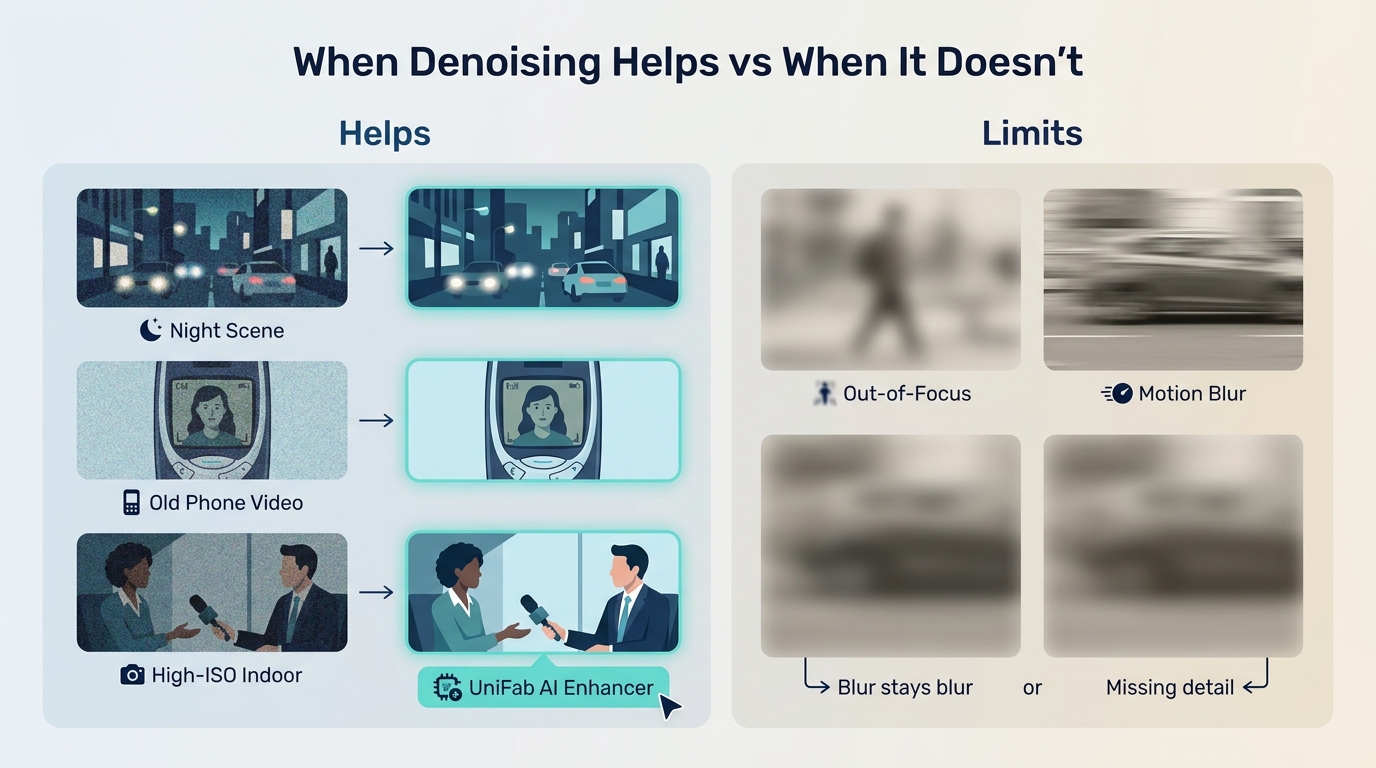
Low-light video denoising is most useful when the subject is readable but the image is distracted by grain or chroma speckles. It is less effective when the source has no recoverable focus, severe motion blur, clipped highlights, or large missing areas.
- Good fit: dim indoor clips, high-ISO camera footage, old compressed exports, and mild temporal flicker.
- Use restraint: skin, fine fabric, animation line art, subtitles, and fast-moving edges can soften under aggressive settings.
- Use another tool first: stabilize shake, correct exposure, or address focus before judging denoising quality.
A sensible check is to preview faces, hair, small text, and moving edges at full resolution. If those areas lose structure, lower the strength even when some grain remains.
Quick Picks by Footage and Workflow
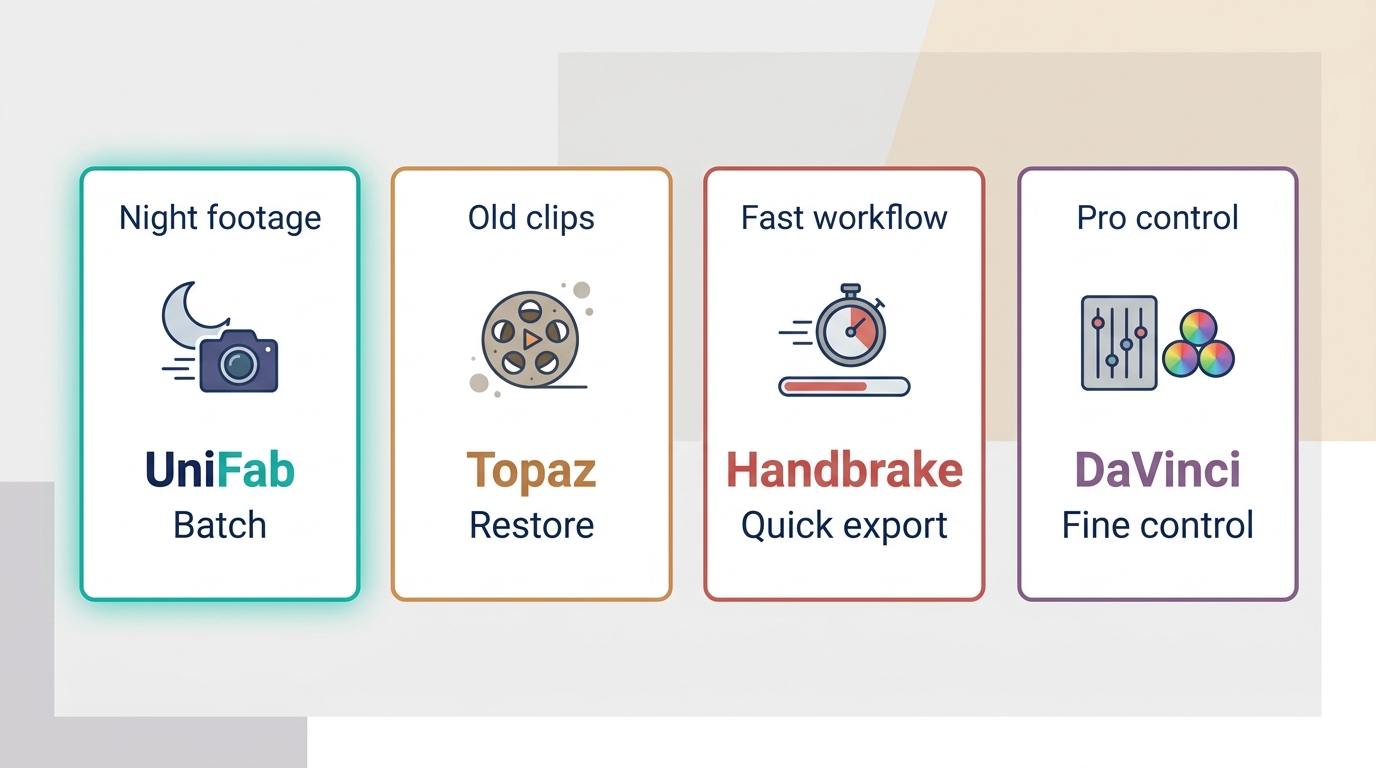
A desktop video denoiser suits long or private footage, an online video denoiser favors short convenience jobs, and plugins fit established editing timelines. Readers comparing the broader video denoiser category should still choose by source footage and workflow rather than by one headline score.
| Option | Best fit | True denoising method | Standalone or plugin | Local or cloud processing | Desktop, web, or host platform | Free access type | Watermark or export limit | Hardware demand | Detail-control level | Not ideal for |
| UniFab Denoise AI | Low-light clips and users choosing between privacy and lighter local hardware | Deep-learning noise reduction with Fast and Standard modes | Standalone | Local or FabCloud | Windows and Mac | Three export evaluations without watermark | Evaluation count applies | Local GPU helps; cloud path reduces local demand | Preset-led | Shot-by-shot custom noise profiling |
| Topaz Video AI | Restoration workflows that combine denoising with other enhancement tasks | Nyx-based denoising workflow | Standalone | Local | Desktop | Commercial access | License terms apply | High for larger sources | Model and setting controls | Lightweight systems or quick browser jobs |
| Neat Video | Editors who want camera-specific noise profiles inside an existing host | Spatial and temporal filtering based on noise profiles | Plugin | Local | Supported editing hosts | Demo access | Demo restrictions apply | Can slow previews | High | Beginners who want one-click standalone processing |
| DaVinci Resolve Studio | Color and finishing workflows already built in Resolve | Temporal and AI spatial controls | Host application | Local | Desktop | Free standard edition excludes these denoising controls | Studio license required for the listed controls | Moderate to high | High | Users seeking those controls at no cost |
| Magic Bullet Denoiser III | Editors using compatible host applications | Plugin-based video noise reduction | Plugin | Local | Host platform | Commercial access | License terms apply | Host and GPU dependent | Moderate | Standalone batch workflows |
| Adobe After Effects | Compositors who need denoising inside an effects project | Built-in noise effects or compatible plugins | Host application | Local | Windows and Mac | Commercial access | Plan terms apply | Project dependent | Depends on effect or plugin | Simple automatic standalone cleanup |
| Final Cut Pro | Mac editors who want noise cleanup inside their timeline | Visual noise-reduction workflow within the editor | Host application | Local | Mac and iPad workflows | Commercial access | License terms apply | Apple hardware dependent | Editor-level | Windows users or custom camera profiling |
| Aiseesoft Video Converter Ultimate | Occasional cleanup within a conversion and editing suite | Visual noise and artifact adjustment | Standalone | Local | Windows and Mac | Limited evaluation access | Evaluation restrictions apply | Moderate | Basic | Professional shot matching |
| Media.io | Short clips when installation is inconvenient | Cloud-based automated processing | Standalone web tool | Cloud | Browser | Limited browser access | Export limits may apply | Low locally | Low | Private, long, or upload-heavy footage |
| VEED manual adjustment tools | Exposure and color cleanup when true denoising is not required | Manual exposure, sharpness, blur, and color controls | Standalone web editor | Cloud | Browser | Limited browser access | Export limits may apply | Low locally | Manual visual controls | One-click grain or temporal noise reduction |
Access terms and time-sensitive product details are stated as of July 2026.
The matrix is the article's single decision table. For confidential footage, local video processing avoids an upload step; for weak local hardware, a cloud option may be more practical if the footage is suitable for upload.
10 AI Video Denoisers Compared
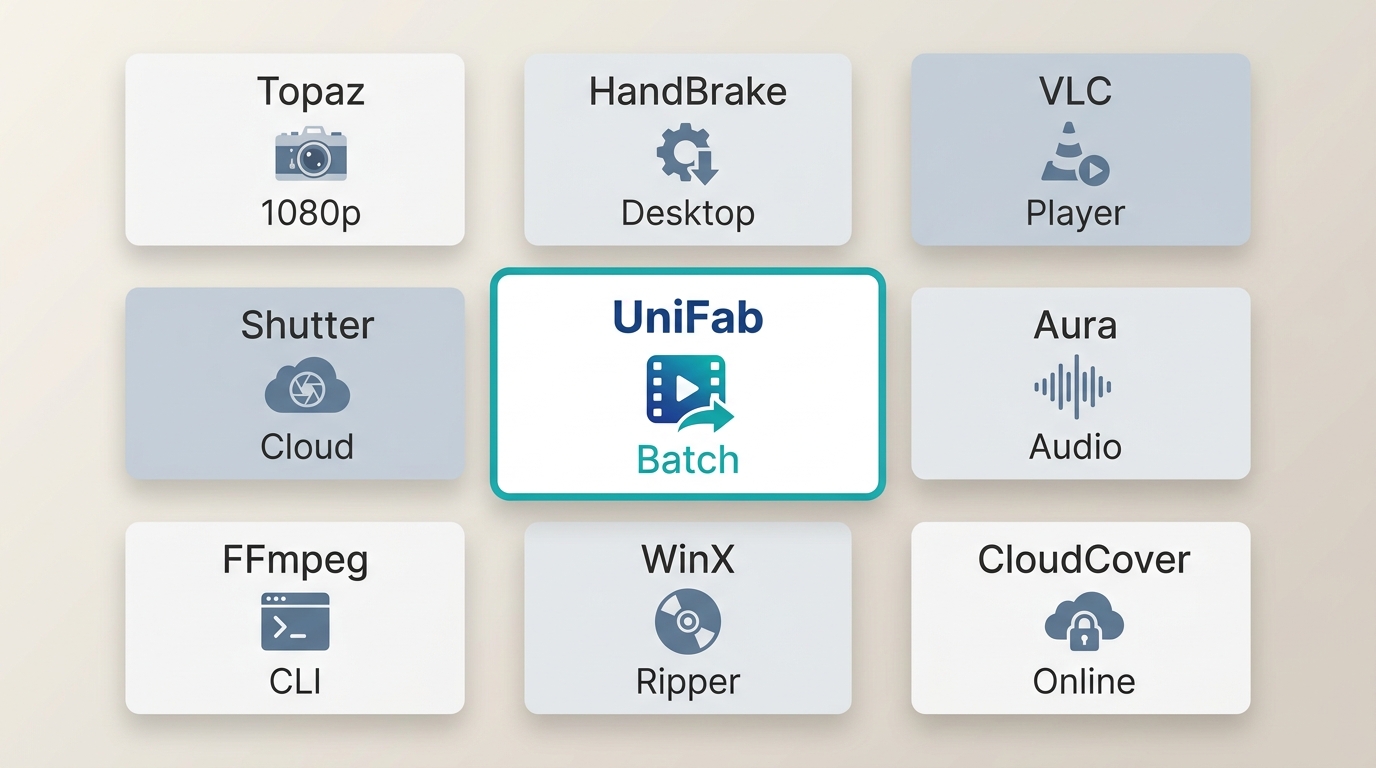
These ten candidates are compared by what they actually denoise, where processing happens, how much control they expose, and the workflow cost of reaching a usable result. This is a structured comparison, not a claim of identical hands-on benchmarking.
Common evaluation method: use the same low-light, chroma-noise, temporal-flicker, and compressed samples; keep output resolution unchanged; record the computer and GPU; time from processing start to completed export; inspect faces, hair, text, and moving edges; note watermarks or export caps; then score noise reduction, detail retention, temporal stability, setup effort, and workflow fit.
Facial texture and moving-Edge stability deserve more weight than maximum smoothing because those areas reveal overprocessing first.
UniFab Denoise AI
UniFab Denoise AI is a Windows and Mac option for low-light video denoising, with local video processing for privacy-focused work and FabCloud processing when local GPU resources are limited. Its verified output ceiling is 4K, with MP4 and MKV output and batch processing.
Best fit: users who want a guided workflow and a choice between local and cloud processing.
Not ideal for: editors who need deep manual noise profiling for each camera and shot.
Silens Fast and Standard modes prioritize speed or quality. The product supports output up to 4K, with Fast and Standard modes for choosing between quicker processing and higher-quality cleanup. The three-export evaluation allowance is watermark-free. Any “up to 50x” speed statement should be read as a vendor claim because this article does not supply a reproducible benchmark.
UniFab Denoise AI
- Denoise videos for cleaner and sharper quality
- 30-day free trial with full feature access
UniFab Denoise AI
UniFab Denoise AI
- Denoise videos for cleaner and sharper quality
- 30-day free trial with full feature access
UniFab Denoise AI for Mac
- Open Denoise AI and add a representative clip from the project.
- Select the processing mode and output settings, then preview a frame containing skin, hair, text, or motion.
- Run the export and compare the result at full resolution before applying the same settings to a batch.
A second UniFab product reference is useful here because the practical strength is the processing-location choice, while the limitation is shallower per-shot profiling than specialist plugins.
Topaz Video AI
Topaz Video AI provides a current Nyx-based denoising workflow for desktop restoration. It fits editors who want denoising alongside other enhancement models and are prepared for a demanding local workload.
Best fit: restoration projects with capable hardware.
Not ideal for: quick browser processing, low-power systems, or editors who only need a light noise pass. Its value depends on whether the wider enhancement workflow is relevant, not on an unsupported claim that Nyx wins every source.
Neat Video
This Neat Video review gives more background on the professional plugin workflow. Version 6.1.3, released May 26, 2026, supports current hosts including DaVinci Resolve 21 and combines temporal noise reduction with detailed profile controls.
Best fit: editors willing to build camera or clip-specific profiles.
Not ideal for: one-click standalone use. Better profiles can improve control, but they add setup time, and plugin processing can make preview playback less responsive.
DaVinci Resolve Studio
DaVinci Resolve Studio places temporal noise reduction and AI spatial noise reduction inside a color and finishing workflow. The standard edition is free, but the listed denoising controls belong to the $295 Studio edition.
Best fit: editors already grading in Resolve who want shot-level controls.
Not ideal for: readers expecting those controls in the no-cost edition or wanting a small standalone utility. The workflow is capable, but the learning curve is part of the decision.
Magic Bullet Denoiser III
Magic Bullet Denoiser III is a plugin for compatible editing and compositing hosts, aimed at reducing footage noise without leaving the timeline. It is more relevant to host-centered work than to file-by-file standalone processing.
Best fit: editors already using a supported host and Red Giant tools.
Not ideal for: standalone batch work or lightweight systems. Its main strength is workflow placement; its material cost is extra processing inside an effects stack.
Adobe After Effects
Adobe After Effects is a compositing and visual-effects host, not a dedicated one-click AI video denoiser. Noise cleanup depends on the specific built-in effect or plugin used, so results and controls cannot be judged as one fixed denoising system.
Best fit: compositors who need cleanup inside an existing effects project.
Not ideal for: readers seeking simple automatic standalone processing. The contextual After Effects and Premiere Pro comparison helps clarify the host-workflow choice without turning this card into a general feature list.
Final Cut Pro
Final Cut Pro is a Mac and iPad editor with a visual noise-reduction workflow that should be evaluated separately from Voice Isolation and other audio features. It should not be described as automatically fixing grain, blur, shake, and unrelated defects at once.
Best fit: Apple-based editors who want cleanup inside the timeline.
Not ideal for: Windows users or editors who want custom camera noise profiles. The strongest reason to choose it is timeline integration, not a claim of universal automatic correction.
Aiseesoft Video Converter Ultimate
Aiseesoft Video Converter Ultimate combines conversion and editing with basic visual noise and artifact adjustments. It is more suitable for occasional cleanup than for precision temporal profiling.
Best fit: users who also need conversion and simple editing in one desktop application.
Not ideal for: professional shot matching or fine temporal control. The relevant strength is convenience; unrelated filter and format claims do not decide denoising quality.
Media.io
Media.io is an online video denoiser candidate for short clips when installation is inconvenient. Processing requires an upload, so the decision includes network time, file sensitivity, and export restrictions rather than cleanup quality alone.
Best fit: occasional browser jobs on non-confidential clips.
Not ideal for: private footage, long sources, or repeated large uploads. The phrase denoise video online free covers a broader browser-tool intent, while this comparison keeps Media.io focused on its role and constraints.
VEED Manual Adjustment Tools
VEED offers manual exposure, sharpness, blur, and color controls, but it is not a true one-click denoiser or grain-removal system. It remains here as an Edge case for footage that needs visual adjustment rather than temporal or spatial noise analysis.
Best fit: quick browser-based exposure and color corrections.
Not ideal for: automatic grain cleanup, temporal flicker, or detail-aware denoising. Treat it as a manual workaround, not an equal substitute for the dedicated candidates above.
Which Denoiser Fits Your Workflow?
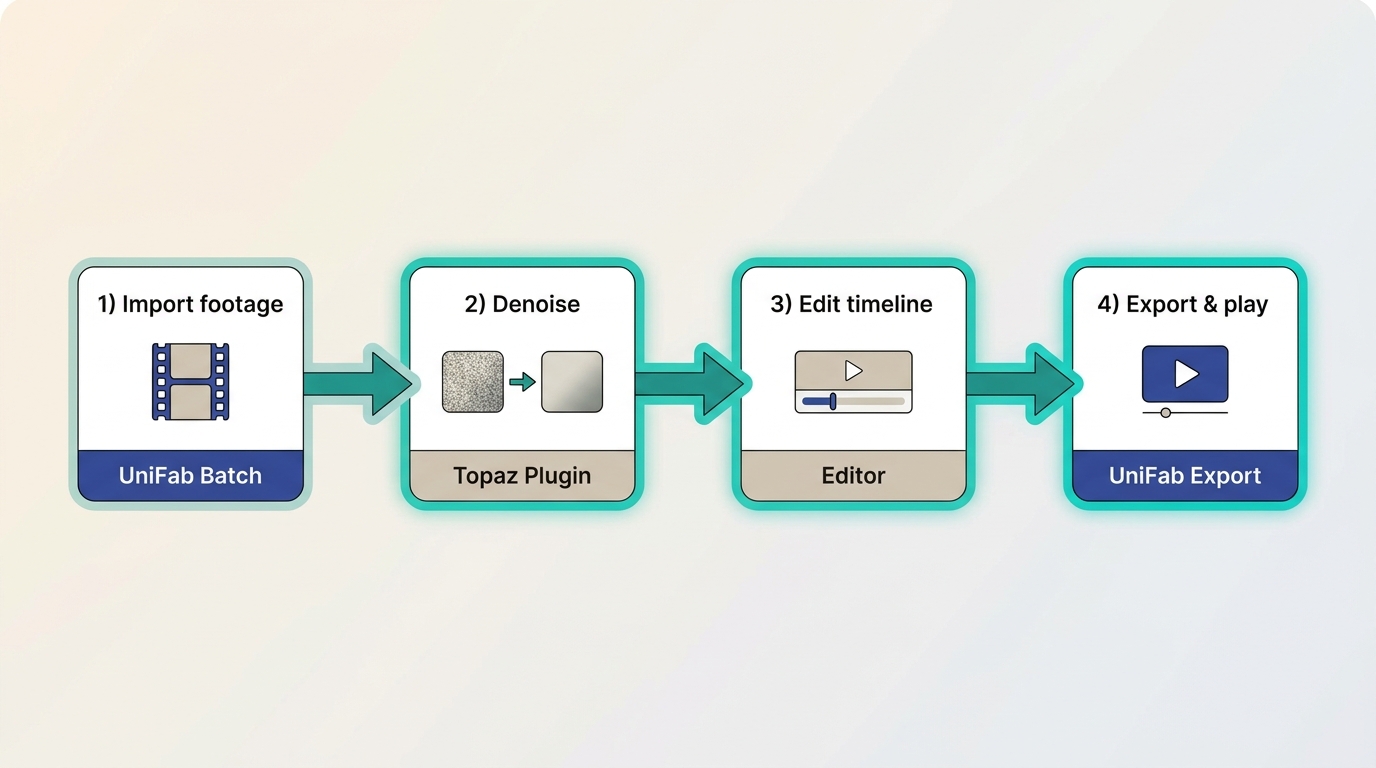
The right choice depends on whether the footage is private, long, difficult to profile, tied to an editing host, or suitable for cloud upload. A free video denoiser label alone does not show whether the needed controls, clean export, or processing location are included.
- For private or long footage: favor local processing with UniFab, Topaz Video AI, Neat Video, DaVinci Resolve Studio, or another desktop workflow that fits the host.
- For limited local GPU resources: UniFab's FabCloud path offers an alternative to its desktop route, while browser tools can suit short, non-confidential clips.
- For precise camera profiling: Neat Video offers deeper control at the cost of setup and preview performance.
- For an existing color workflow: DaVinci Resolve Studio keeps denoising with grading and finishing.
- For simple browser adjustments: Media.io is the true denoising candidate; VEED is better treated as manual visual correction.
The most defensible choice is the one that protects important detail and fits the editing pipeline. UniFab offers a balanced local-or-cloud route, but it is not the right match for users who prioritize custom per-shot noise profiles over guided modes. The broader UniFab video toolkit is relevant when denoising is one part of a larger enhancement workflow.
Video Denoiser FAQs

These answers cover access, detail loss, privacy, and processing order without repeating the product cards.
Which video denoisers are genuinely free to use?
Separate a free editor from access to its denoising controls. DaVinci Resolve has a no-cost standard edition, but its temporal and AI spatial noise-reduction controls require Studio. UniFab Denoise AI provides three watermark-free export evaluations. Other tools may offer demos or limited browser access rather than unrestricted denoising.
Can denoising make a video look soft or artificial?
Yes. Aggressive settings can flatten skin texture, smear hair, weaken text, or create unstable moving edges. The better judgment is often to accept some grain when it preserves real structure. Compare the result at full resolution and reduce strength if important detail starts to look synthetic.
Is an online video denoiser safe for private footage?
Online processing requires uploading the file, which adds a privacy and transfer consideration. For confidential, sensitive, or long footage, local processing is generally the more controlled workflow. For short non-confidential clips, cloud processing can be convenient when local hardware is limited.
Should I denoise before upscaling or compressing a video?
The practical default is to denoise before upscaling and before final compression, so later stages do not enlarge or reinforce the noise. Test a short representative segment first, because a model that combines enhancement tasks may produce a better result with a different order.