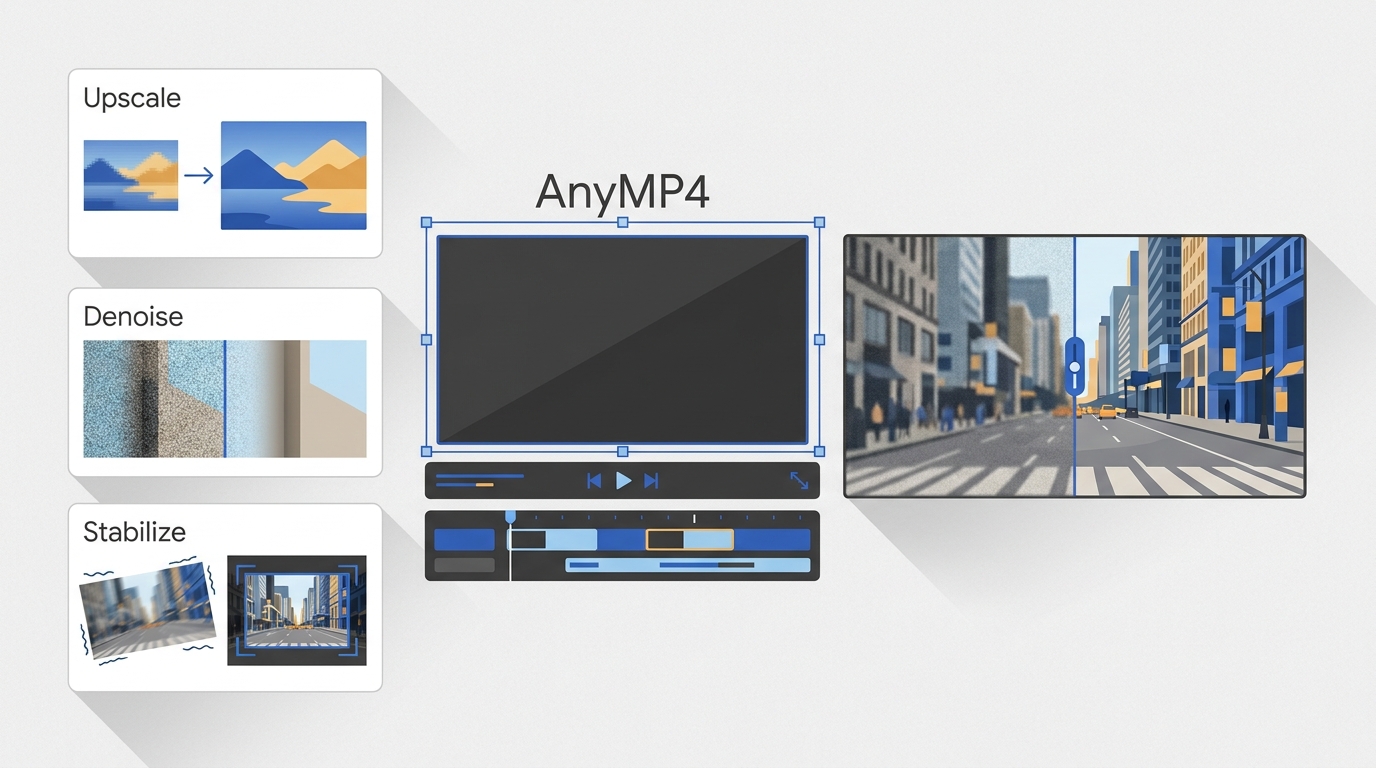
Quick Verdict: AnyMP4's 3 Test Results
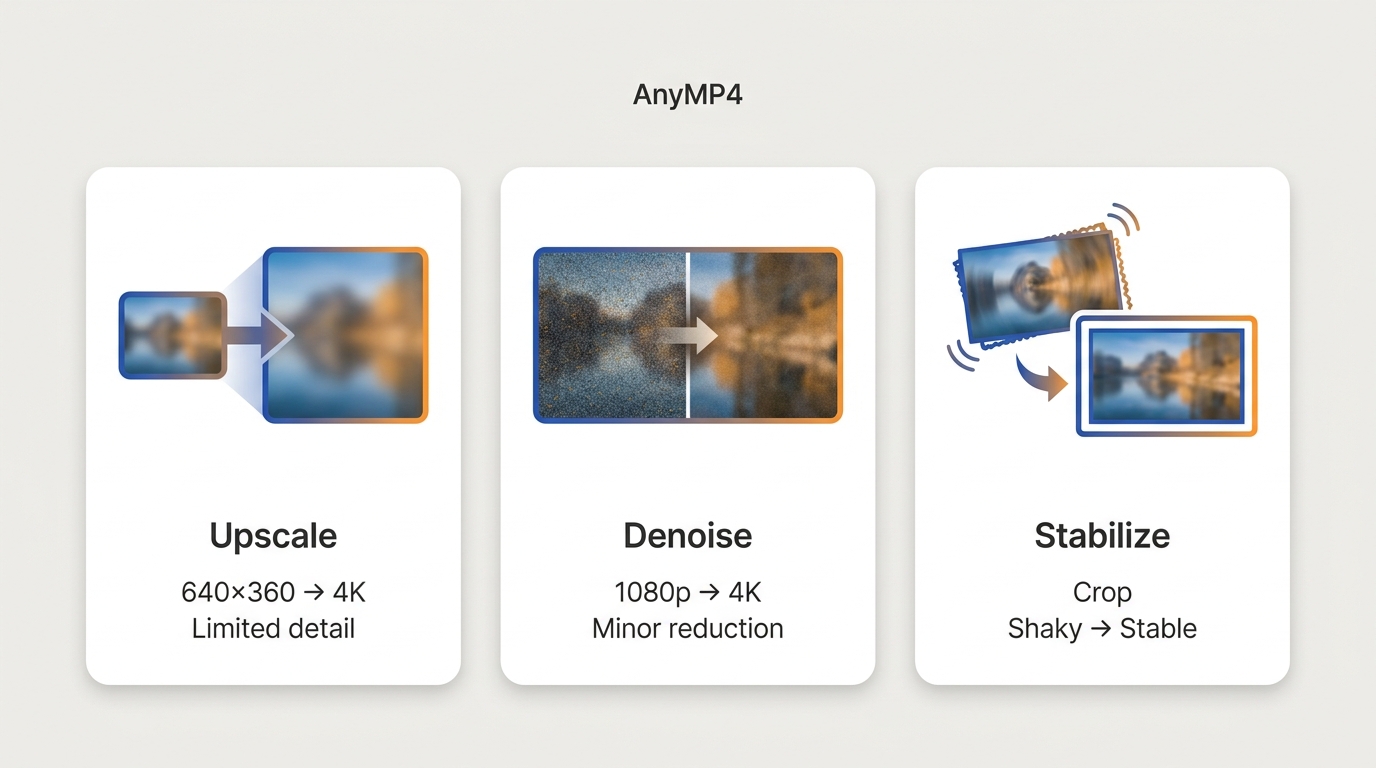
In short, this AnyMP4 review found that its simple desktop workflow does not necessarily translate into meaningful visible improvement. The three documented tests raise questions about recovered detail, noise control, and retained framing, which are more useful buying signals than a larger exported file alone.
AnyMP4 can suit basic conversion and casual cleanup when its simple workflow matters most. Readers who need closer control over visible detail, noise, and framing may prefer a broader desktop UniFab All-In-One workflow, but should compare results on their own footage before choosing.
What Is AnyMP4 Video Enhancement?
AnyMP4 is a software company offering consumer multimedia tools, including Video Converter Ultimate, Screen Recorder, Blu-ray Player, and the separate AnyMP4 Video Enhancement product reviewed here.
Product Identity and Desktop Availability
AnyMP4 Video Enhancement is a Windows and macOS desktop application. It is distinct from AnyMP4 Video Converter Ultimate, Super Video Enhancer, the image upscaler, mobile apps, APKs, and browser-based tools, so their prices and access terms should not be treated as interchangeable. Download the reviewed product from the official AnyMP4 domain and avoid modified installers.
AnyMP4 Video Enhancement is an AI-marketed video enhancer that targets users wanting to upgrade old or low-quality footage without deep technical knowledge. It bundles resolution upscaling (up to 4K), color correction, noise reduction, deinterlacing, and shake stabilization into a Windows + macOS desktop application.
The marketing positions AnyMP4 as a simple solution for everyday users. The tests below focus on what remains visible after export: texture recovery, noise reduction, and how much of the original frame stabilization retains.
Current Price, Access, and Ratings
| Detail | Current information |
| Access | Windows and macOS desktop app |
| Official offer | $12.50; license term not stated |
| Evaluation limits | Confirm export limits before purchase |
| Third-party rating | Trustpilot: 4.2/5 from 228 reviews |
As of August 2026, the official product page showed the listed offer without identifying its license term; pricing and access conditions can vary by offer. AnyMP4's official product page.
Core Enhancement Features
- Enhance Resolution: Upgrade lower-resolution videos to 720p, 1080p, or 4K output.
- Eliminate Video Noise: Remove unwanted noise artifacts for cleaner output.
- Adjust Brightness and Contrast: Tune brightness, saturation, contrast, hue, and volume.
- Stabilize Video: Reduce shake from handheld shooting and compensate for frame shifts.
- Convert Video: Convert to MP4, MKV, AVI, MOV, FLV, and more.
For users researching how to upscale video to 4K, the difference between interpolation-based scaling and AI detail reconstruction becomes easier to judge at normal 4K viewing distance.
AnyMP4 Performance in Three Tests
Benchmark Summary
| Test | Input | Time or speed | Output | Observed result |
| Upscaling | 640×360 face footage | 20 seconds; 14 fps | 4096×2160 | Smoother, limited detail gain |
| Denoise | 1920×1080 noisy clip | 35 seconds; 8.5 fps | 4096×2160 | Minor noise reduction |
| Stabilization | Shaky handheld footage | Not measured | Stabilized export | Reduced shake, heavy crop |
For footage that needs restoration rather than simple enlargement, visible texture and retained framing matter more than output dimensions alone.
To assess its capabilities, we evaluated AnyMP4 Video Enhancement, concentrating on its video enhancement features: resolution upscaling, noise reduction, and shake stabilization. Here's what we found.
Test System Specifications:
- GPU: NVIDIA GeForce RTX 4070
- CPU: AMD Ryzen 7 5700G with Radeon Graphics
Resolution Upscaling Test
We tested AnyMP4 Video Enhancement's resolution upscaling feature using a video of a person.
| Before | |
|---|---|
| After |
Test Result Analysis:
AnyMP4 Video Enhancement processed the video quickly, demonstrating decent speed. However, the visual quality after upscaling showed no significant improvement compared to the original footage. The image appeared slightly smoother but lacked the detail recovery you'd expect from a true AI upscaler.
A notable issue: AnyMP4 forced the output resolution to 4096x2160, a non-standard 4K video resolution. This altered the original aspect ratio, potentially distorting the video's composition. Standard 4K (3840x2160) would preserve the 16:9 aspect ratio, but AnyMP4 doesn't offer this option for upscaled output.
Noise Reduction Test
We also tested AnyMP4’s noise reduction feature using a 1080p video clip.
| Before | |
|---|---|
| After |
Test Result Analysis:
The noise reduction function in AnyMP4 Video Enhancement showed minimal improvement. The processed video was nearly identical to the original, with only a few minor noise spots removed. For users dealing with genuinely noisy footage — such as low-light recordings or older camera output — this level of noise reduction is insufficient.
Stabilization Test
We also tested AnyMP4’s video stabilization feature on footage with significant shaking. The software moderately reduced the shakiness but did not fully eliminate it, resulting in less-than-perfect stabilization. Additionally, AnyMP4 applied aggressive cropping during processing, cutting out large portions of the frame and compromising the visual composition.
Using AnyMP4 Video Enhancement
Before starting, use a Windows or Mac desktop computer, a video you own or are authorized to process, sufficient output storage, and a short representative clip to assess the result before processing a full project.
Step 1: Install and Import a Video
Install the desktop app from AnyMP4's official domain, then click "Add File" to import a video you own or are authorized to process.
Step 2: Enhance Your Video
Click "Enhance" at the top, then select the enhancement feature you want.
Step 3: Convert and Get Your Video
Select output format and click "Convert". Output video will be saved to your chosen destination.
AnyMP4 Pros, Cons, and Best Fit
The strengths below reflect the desktop workflow and format support, while the limitations reflect the observed enhancement results.
Pros
- Wide format support — compatible with MP4, MKV, AVI, MOV, FLV, and many more
- Basic editing tools — trim, crop, merge, watermark beyond enhancement
- Measured conversion performance — the test exports completed without unusually long waits
- Simple workflow — three-step process is approachable for beginners
Cons
- Enhancement trade-offs — see the documented test results above
- Purchase terms need attention — confirm the license term and export limits attached to the current offer
- Preview limitations — no side-by-side before-and-after view
- Dated interface — less polished than newer tools
Best For and Not Ideal For
AnyMP4 is best suited to beginners who value a simple desktop workflow and broad format support. It is less suitable for footage that needs stronger detail recovery, restrained stabilization crop, or fully transparent purchase terms.
Where UniFab Fits Better
4K Output and Specialized Models
UniFab All-In-One is a 24-in-1 AI toolkit for Windows and Mac with MP4 and MKV output up to 4K. Its broader workflow is relevant when one project needs more than basic upscale, denoise, and stabilization controls.
HDR and Audio Expansion
Official specifications list SDR-to-HDR10 conversion and stereo-to-5.1/7.1 audio expansion. These are workflow options rather than evidence that every source will look or sound better, so they matter most when HDR delivery or surround output is part of the project.
Local Processing and Evaluation Access
UniFab processes files locally and offers three no-watermark evaluations for standard functions. It is not the right fit for someone who wants a lightweight single-purpose tool or browser-only processing.
UniFab as a Desktop Alternative
UniFab All-In-One is a broader desktop alternative for people whose projects need multiple enhancement and conversion controls in one application.
Who Should Choose UniFab
Choose AnyMP4 for basic cleanup and a simple export path. Consider UniFab when the observed limits around detail, denoise, or crop matter enough to justify a larger toolkit; readers comparing the wider video quality enhancer category should focus on their source footage and delivery needs.
Performance of UniFab Video Enhancer
UniFab combines Video Upscaler AI, HDR Upconverter AI, Denoise AI, and other tools in one suite. The images below illustrate selected workflow examples; results still depend on source detail, compression, and selected settings.
UniFab Video Upscaler AI
UniFab supports multiple AI models for enhancement scenarios.
- Detail rendering: The example shows more defined plant textures and wall detail.
- Color processing: The selected settings produce stronger greens and animation colors.
- Edge treatment: Edges appear smoother in the illustrated output.
UniFab HDR Upconverter AI
UniFab HDR Upconverter AI converts SDR to HDR10/Dolby Vision and HDR10 to Dolby Vision.
- Brightness Optimization: Balanced brightness; low-light details (people, vehicles) more visible, background clearer.
- Contrast Enhancement: Greater contrast vs standard HDR mode. Foreground/background separation more defined, improving visual depth.
UniFab Denoise AI
The example illustrates a denoise workflow intended to reduce visible noise while retaining useful image detail.
- Noise appearance: Dark areas appear cleaner in the example.
- Detail balance: Fine detail remains visible in the illustrated output.
- Texture: The selected settings avoid an obviously harsh look in this example.
- Highlights: Bright areas remain controlled in the displayed frame.
Using UniFab Video Enhancer
Step 1: Choose Mode and Upload
Launch UniFab → "All Features" section → select your enhancement option. Add video by clicking "+" or dragging into the app.
Step 2: Configure Output Settings
Customize resolution, file format, video quality, codec, frame rate, and audio settings. Adjust to match your requirements.
Step 3: Start Enhancement
Click "Start" to begin processing. Processing time varies with the source file, selected settings, and available hardware.
AnyMP4 vs UniFab Comparison
Upscale Resolution
The upscaling evidence is documented in the test section above. Compare output at your intended viewing size rather than treating pixel count alone as proof of recovered detail.
Remove Video Noise
The denoise evidence is documented in the test section above. Judge any denoise result for both residual noise and lost texture, especially in low-light footage.
Reduce Video Shaking
The stabilization evidence is documented in the test section above. For any tool, weigh reduced shake against retained framing when composition matters.
Decision Table
| Decision point | AnyMP4 Video Enhancement | UniFab All-In-One |
| Observed result | Limited detail and denoise gains | Compare on your footage |
| Verified output | 4096×2160 in tests | Up to 4K |
| Evaluation access | Confirm current export terms | Three no-watermark evaluations |
| Workflow fit | Basic desktop cleanup | Broader local workflow |
| Main limitation | Heavy stabilization crop | Larger, less lightweight suite |
Choose AnyMP4 if a simple basic workflow is the priority. Consider UniFab when broader controls and the documented output concerns matter more, while recognizing that it is a larger desktop suite rather than a browser-based tool.
Final Verdict
AnyMP4 Video Enhancement fits basic desktop cleanup when format support and a simple workflow matter more than extensive restoration controls. The documented tests, pricing context, and evaluation conditions should be weighed against a representative clip from your own project. Choose UniFab when a broader local toolkit justifies a larger application; it is less suitable for lightweight or browser-only processing. For the broader product workflow, see our UniFab review.
AnyMP4 Video Enhancement FAQs
Can I use AnyMP4 Video Enhancement online or on a phone?
No. The product reviewed here is a Windows and macOS desktop application, not an online enhancer, iOS app, Android app, or APK. If browser-based processing is essential, compare a video upscaler online instead of assuming the desktop product has the same access model.
Is AnyMP4 Video Enhancement safe to download?
Use AnyMP4's official domain for the installer, confirm the product name before downloading, and avoid modified installers from third-party sites. Standard installer hygiene, including reviewing prompts during setup and keeping device security tools active, is usually sufficient.
What should I check before paying for AnyMP4?
Confirm the exact offer, license term, export restrictions, and any watermark conditions at checkout. Then process a representative clip and judge detail recovery, stabilization crop, and final output before committing. Readers seeking lower-cost options can compare free video enhancer software based on the same export and quality criteria.
Does AI upscaling improve every low-resolution video?
No. Results depend on retained source detail, compression damage, motion, noise, and the selected model. Raising resolution can make a file larger without restoring texture, so inspect faces, edges, and moving objects rather than relying on the output dimensions alone.