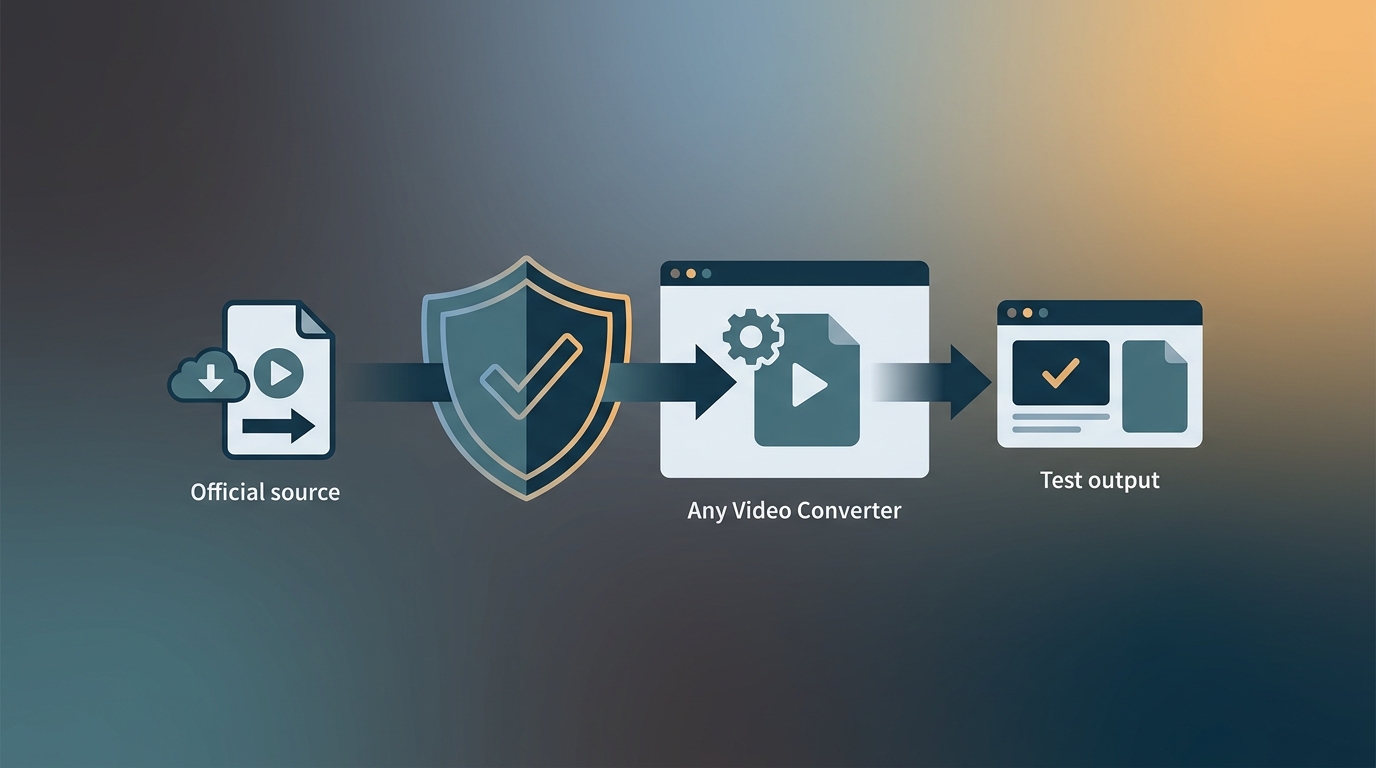
If you are considering Any Video Converter for a free local conversion, start with Any Video Converter Free and the official installer. I would convert one representative file before committing a folder: a working output matters more than a long feature menu.
The free features, Windows and Mac setup, output checks, and workflow comparison below help you choose a route that fits your files. You do not need an advanced media module simply to make a local clip play on another device.
Any Video Converter Converts Local Video and Audio
Any Video Converter is a desktop app for converting local video and audio, rather than a browser-based converter. It takes an existing media file and creates an output for another device, editor, or service. You install it on Windows or macOS.
The Branded App vs the Generic Tool Category
The lowercase phrase “any Video Converter” describes a software category. The capitalized name, Any Video Converter, identifies a specific product family with a free offering and upgrade-based tools. A generic converter review does not necessarily describe this product’s installer, modules, system requirements, or output behavior.
The product places conversion within a wider media workflow. For a basic job, you need a readable source and an output your destination supports. Extra modules become useful when the project also calls for editing or compression.
Formats, Containers, Codecs, and Resolution in Plain English
A container is the file wrapper, such as MP4, MKV, or MOV. A codec is the method used to encode the video or audio inside that wrapper, such as H.264, HEVC, AAC, or MP3. Two files can both end in .MP4 yet behave differently because their internal codecs differ.
Resolution is the pixel grid, such as 1920×1080. It does not measure all aspects of quality. Bitrate, frame rate, codec efficiency, source detail, and prior compression also affect the result. This is why choosing “1080p” does not guarantee that a converted file will look as clean as the 1080p source.
Conversion vs Editing, Compression, Downloading, and Audio Extraction
Conversion changes a file’s technical format. Editing changes content or timing. Compression reduces storage or bandwidth, usually by discarding some information. Audio extraction creates an audio-only file from a video source, while downloading obtains media from another location before conversion begins.
These are separate jobs even when they share an interface. An MP4 conversion preset does not obtain an online video, and an audio export does not grant rights to the original recording. Start with the local file you intend to process.
Any Video Converter Free: Features, Limits, and Prerequisites
As of September 2026, Any Video Converter Free supports local batch conversion without watermarks or a file-size limit. Advanced tools are offered separately through paid upgrades. You can complete the core conversion workflow without treating the entire product family as free.
Core Conversion and the Wider Workflow
The core workflow creates a new file from local media. Add your source, select an output format or profile, adjust the relevant settings, and convert. Editing and compression modules sit alongside conversion; they serve different tasks rather than changing what a basic format conversion means.
For a single compatibility fix, start with a simple preset. For recurring work, choose adjacent tools for a specific need, such as trimming footage or reducing storage. A familiar workflow is useful when you repeat the same job across a folder.
What to Verify About Free and Upgrade-Gated Functions
Free local conversion and advanced upgrades have different scopes. The no-watermark, no-file-size-limit conversion offer does not make every tool in the interface free. A visible module tile is an entry point, not a statement that all of its options are included.
An Any Video Converter Free review built around an older release is a poor guide to current module access. Open the function you intend to use and distinguish its conversion controls from a separate upgrade offer. Older reports of changed modules describe those releases, not the current local-conversion offer.
Prerequisites Before the First Conversion
Start with a supported computer and a playable source. AVC Free 9.2.5 supports Windows 10 and Windows 11 on 64-bit systems. The current Mac download requires macOS 12 or later; a separate vendor download serves macOS 10.15 through 11.
- A local source file that plays correctly before conversion
- Enough local storage for both the source and output
- A writable destination folder and a distinct output filename
- A short representative clip matching the real batch’s format and tracks
A short sample protects the rest of the batch. It reveals a wrong codec, stretched picture, silent track, missing subtitle, or unexpected file-size increase before you apply the settings to a folder. Keep the source unchanged while you inspect the result.
Quality, File Size, and Re-encoding Limits
Conversion does not recreate detail absent from the source. Increasing pixel dimensions changes the frame size; lowering bitrate reduces the data available to describe each scene. Keep the original file so you have a reference when judging detail and motion.
AVC added Auto (Match Source) in July 2026 and advanced encoding controls in August 2026. Source matching carries source settings into the output setup. Matching a codec, resolution, or frame rate does not itself establish that the encoded streams are being copied.
Remuxing changes the container while copying compatible encoded streams. Re-encoding creates new streams. For converting MKV to MP4, inspect the video and audio codecs before deciding to change them. A container change and a codec change are different operations.
I would preserve the source dimensions and frame rate for a compatibility job unless the destination requires a change. Increasing either adds processing without recovering original detail. Choose an encoding quality that keeps motion and fine texture acceptable at your intended viewing size.
Any Video Converter Download and Setup on Windows or Mac
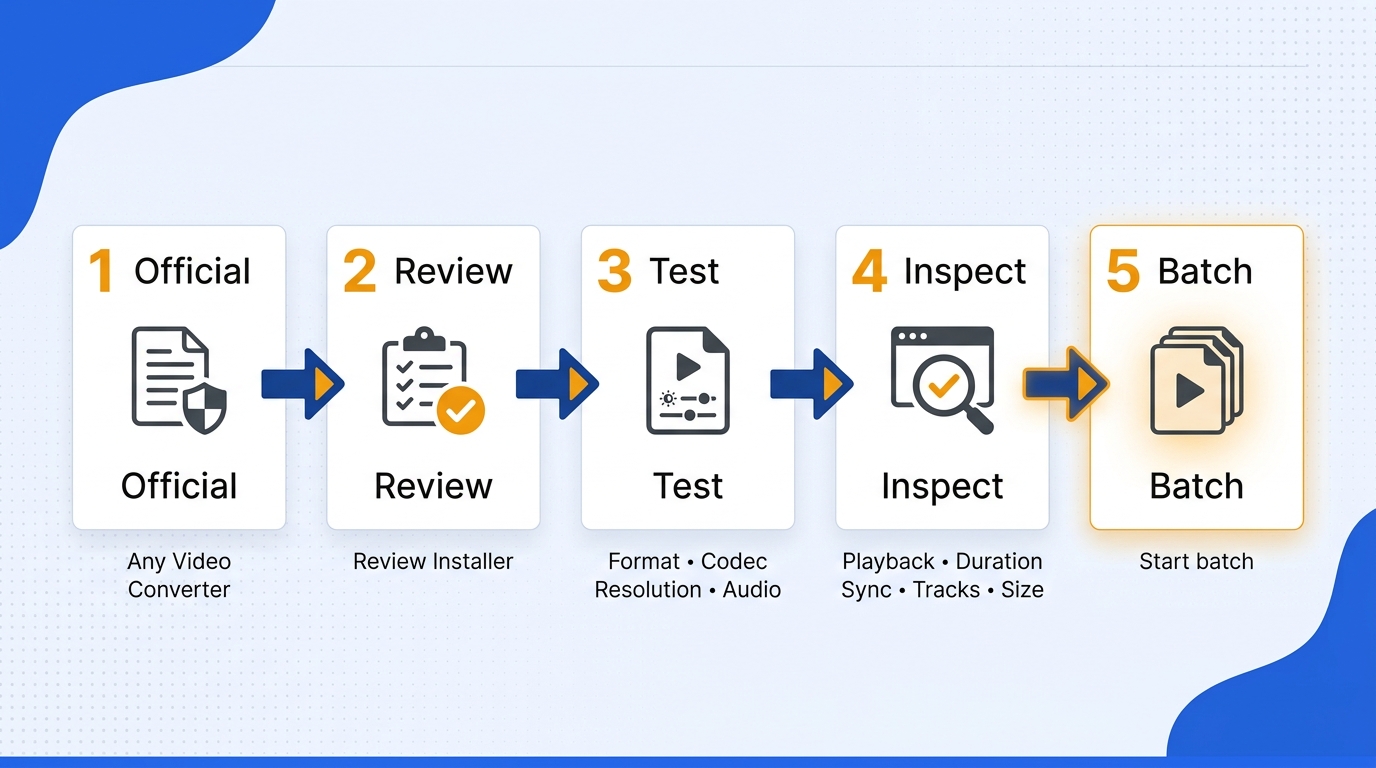
For your Any Video Converter download, use the official installer and convert one local sample before starting a batch. The sequence is simple: confirm the installer, install the matching build, choose your file and destination, configure the output, then inspect it.
Process local content you are authorized to access and convert. Obtain any permissions needed for your intended use, do not redistribute without authorization, and follow applicable law and platform terms. The permissions required depend on your use case.
- Confirm the official download and installer identity.
- Install the build for your operating system.
- Add a representative source and choose an output path.
- Set the format, codec, dimensions, and audio.
- Inspect the converted sample before starting the batch.
Step 1: Use the Official Download Page and Confirm the Installer
Start your Any Video Converter Free download at the vendor’s official download page. Select the correct operating system. The Windows release is AVC Free 9.2.5, released in August 2026; avoid substituting an archived package to reproduce an older tutorial.
On Windows, open the downloaded file’s Properties and inspect the available publisher and digital-signature information. Match the product and platform to your selection. On macOS, let Gatekeeper perform its normal check and read warnings before launching the installer. Scan the file with your normal security software.
Step 2: Install the Current Windows or Mac Build
Install the package that matches your system. Use the Windows build on Windows 10 or 11, 64-bit. On Mac, choose the current macOS 12-or-later download or the separate vendor package for macOS 10.15 through 11.
Windows presents installer screens and a User Account Control prompt with publisher details. Review those details before proceeding. On macOS, follow the package’s installation instructions, move the app into Applications if prompted, and approve its first launch through the normal system flow. Read each installation screen instead of clicking through automatically.
Step 3: Add a Test Video and Choose the Destination
Add a short, playable file resembling your planned batch. In this example, the source is clip.MKV and you choose Videos/Converted/clip.MP4 as the output path. That is a destination you select, not an application default.
Create the Converted folder in your Videos folder and confirm that it is writable. Keep enough free space for the output alongside the original. Use a distinct filename or location so the source remains intact, then note the destination before starting conversion.
Step 4: Select the Format, Codec, Resolution, and Audio
For the clip.MKV example, choose MP4 with H.264 video and AAC audio. This is a practical compatibility target for many phones, TVs, browsers, and editors. Keep the source dimensions and frame rate unless your destination requires a different delivery format.
Auto (Match Source) carries source settings into the output setup, while advanced encoding controls let you adjust them. Review the resulting codec selections: the MP4 example still calls for H.264 and AAC. Source matching is not a stream-copy command.
Inspect source metadata and play the original before changing an unexpected frame-rate reading. A different displayed value is a reason to investigate, not automatically to force another rate. For audio, preserve the original channel layout when the destination supports it; converting multichannel sound to stereo changes the listening result.
Step 5: Convert, Inspect, and Then Start the Batch
Run the single test and inspect the result outside the converter. Check these points:
- The file opens in the intended player or editor
- Duration matches the source
- Speech and picture remain synchronized
- Required subtitles and audio tracks are present
- File size is reasonable for the chosen settings
Open Videos/Converted/clip.MP4 in your intended player and compare it with clip.MKV. Once the checks pass, apply the settings to the remaining files. Keep separate profiles for files with different delivery requirements.
If the Job Finishes Instantly or Produces No Usable File
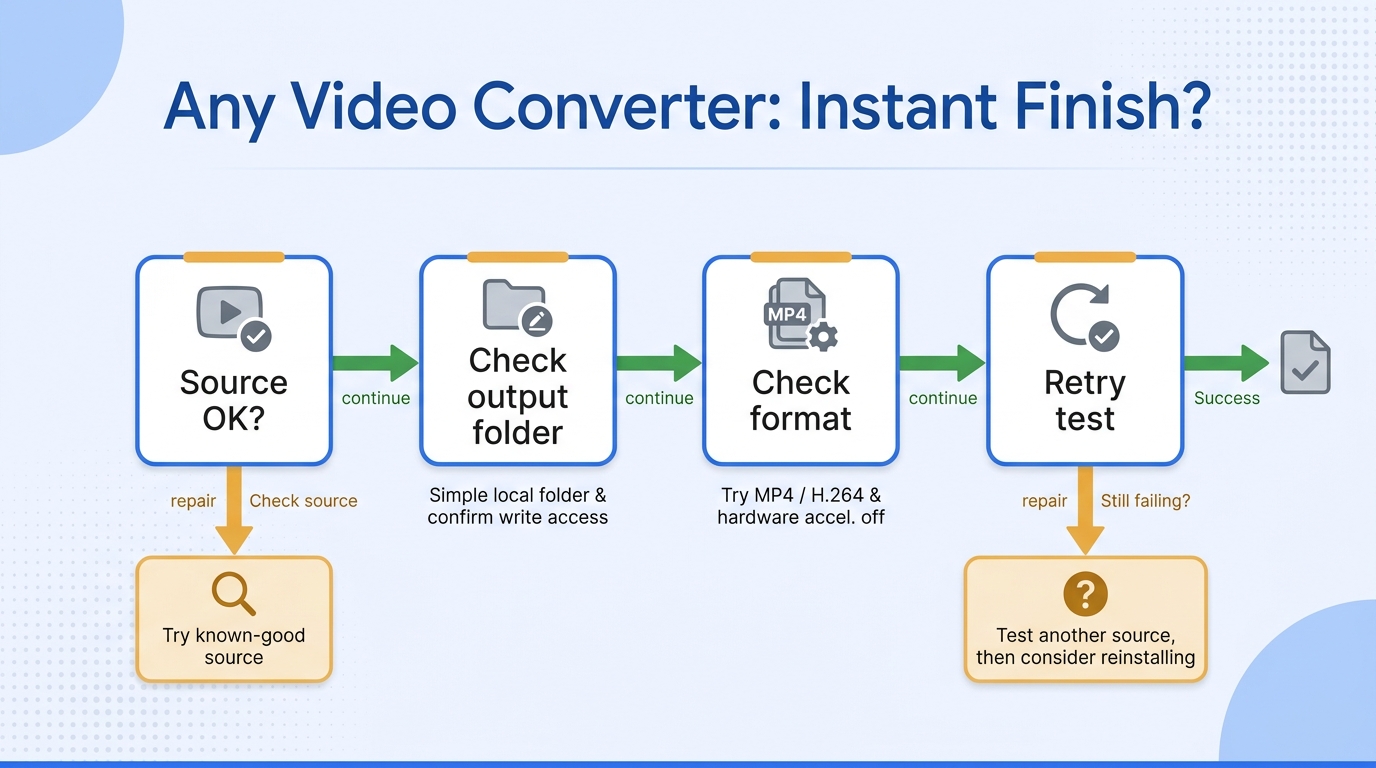
Instant completion without a usable output calls for input and destination checks first. A completed progress indicator is not enough: open the saved file. Work through these checks one at a time so you can identify which change resolves the failure.
- Play the source file in another application.
- Change the destination to a simple local folder.
- Try a common MP4/H.264 output profile.
- Confirm that the app can write to the destination.
- Disable hardware acceleration for one diagnostic run.
If the software-only run works, the issue may involve the selected hardware path, driver, or codec combination. If it still fails, try another known-good source before reinstalling. This sequence isolates one variable at a time instead of turning troubleshooting into guesswork.
Any Video Converter vs UniFab: Which Workflow Fits?
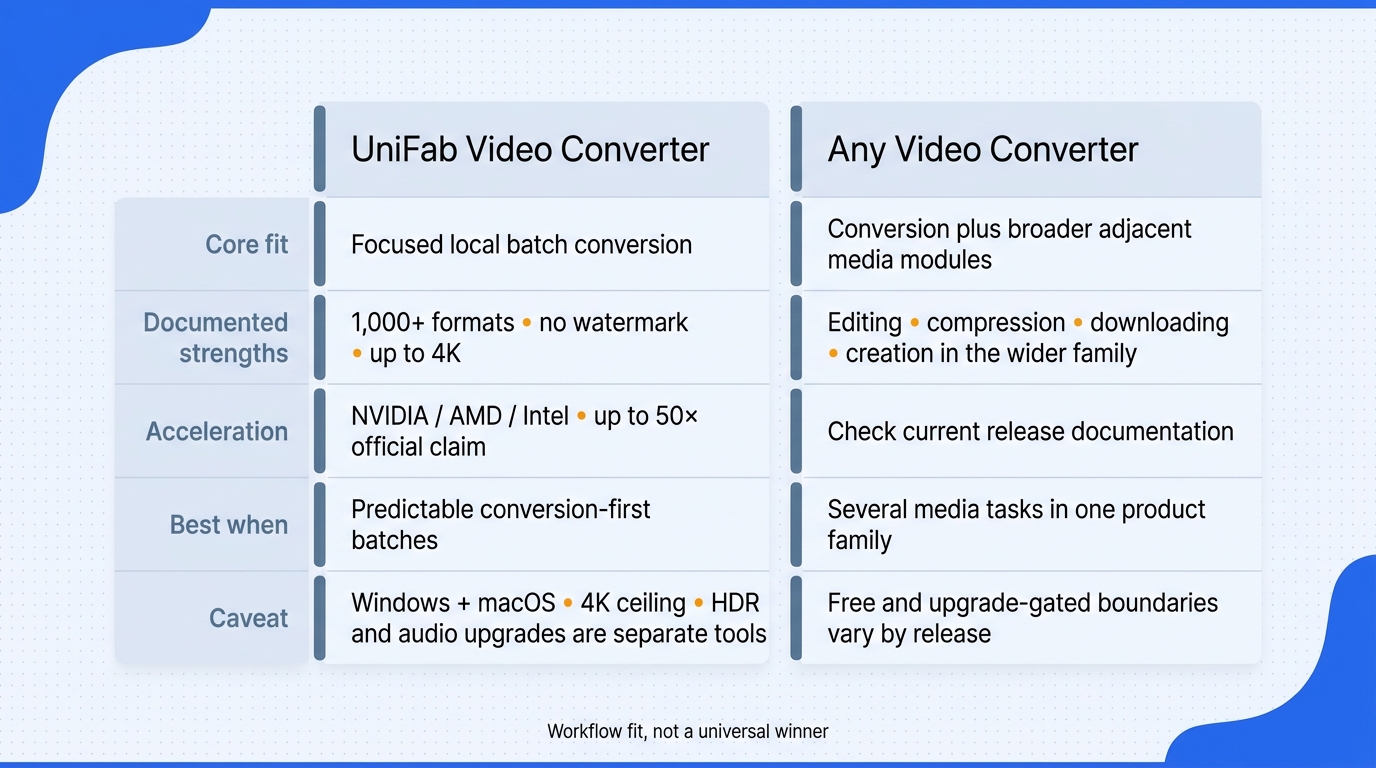
The choice is about the work waiting in your folder. Any Video Converter brings conversion into a wider media-tool interface; UniFab Video Converter is another desktop route when you want to prepare local files for playback or editing.
Decision Table: Match the Converter to the Job
| Criterion | Any Video Converter | UniFab Video Converter |
| Core local conversion | Free; batch; no watermark | Free; batch; no watermark |
| Editing | Editing and compression modules | Built-in editing; track controls |
| Workflow emphasis | Conversion plus wider media modules | Conversion, editing, compatible-stream remuxing |
| Platforms | Windows and macOS | Windows and macOS |
For a large private batch, I favor local processing because it avoids uploading the source footage to a browser service. Both desktop routes offer that benefit. Choose AVC if its surrounding modules already fit your routine; choose UniFab for a recurring folder-to-output workflow.
Where Any Video Converter May Fit
Any Video Converter fits you if you want local conversion alongside its wider media modules. Its core free workflow handles batches without a watermark. Keep advanced upgrades separate from that offer, and choose the current supported build rather than an old package simply for a familiar interface.
UniFab Handles Local Conversion, Editing, and Remuxing
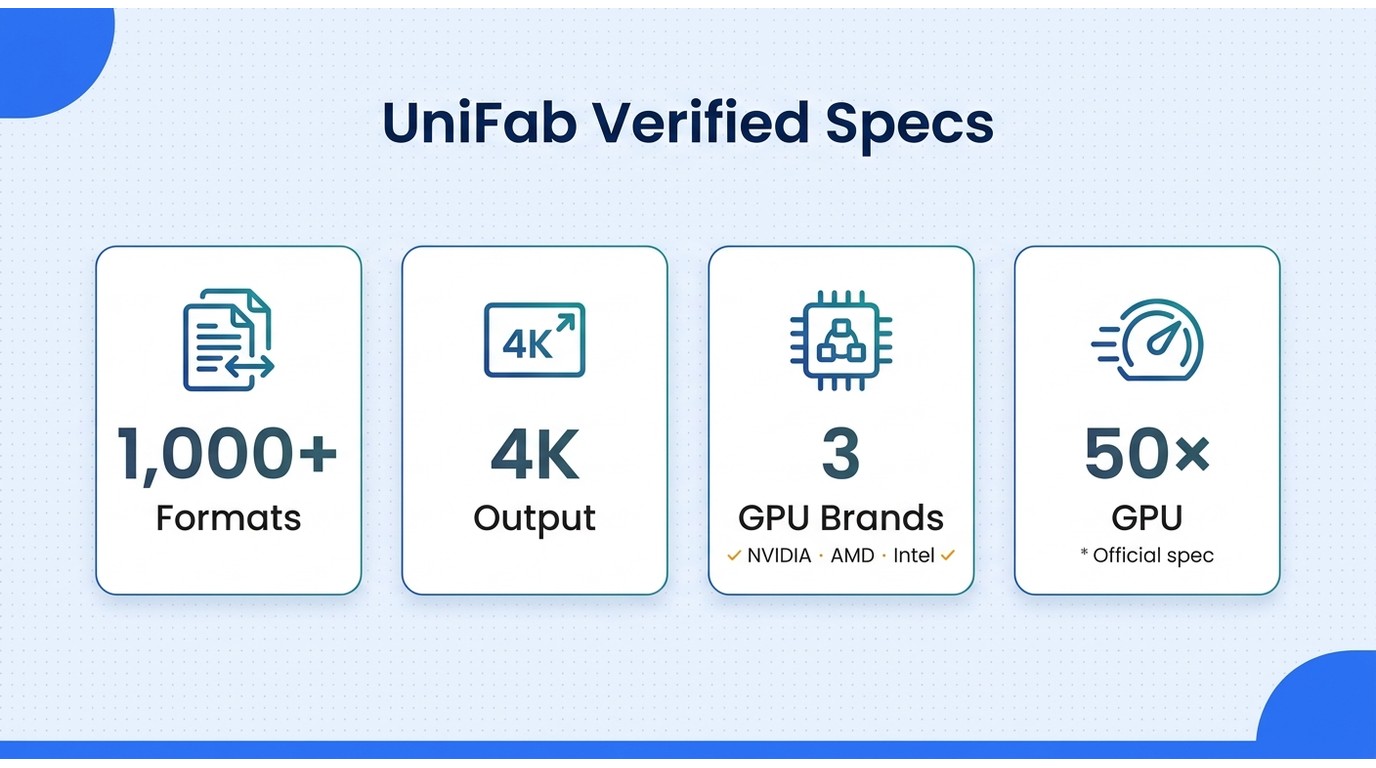
A simple conversion preset is enough for a single small file. UniFab Video Converter handles local batch conversion, built-in editing, subtitle and audio controls, and remuxing of compatible streams. The core converter is free and produces no-watermark output, so repeated conversion does not require a paid upgrade.
UniFab Platform and Output Options
The core converter runs on Windows and macOS, with conversion output up to 4K. Download the matching desktop package from the UniFab Video Converter page, then select an output profile within that limit that matches your intended player.
Any Video Converter Safety and Setup FAQ
Installer origin and system compatibility deserve separate checks. These quick answers address the common safety, older-version, and output questions before you commit your files.
Is Any Video Converter safe to download?
The current official installer is the recommended starting point. The vendor says it contains no bundled software. Download it from the official source, inspect the publisher or signature information exposed by your operating system, and scan it with your usual security tools. A vendor statement is not an absolute safety guarantee.
Can Any Video Converter run on Windows 7 or Windows 10?
AVC Free 9.2.5 supports Windows 10 and Windows 11 on 64-bit systems. Windows 7 and 32-bit Windows fall outside its current requirements; older versions had their own compatibility requirements. On Mac, the current download requires macOS 12 or later, with a separate vendor package for macOS 10.15 through 11.
Should you install an older Any Video Converter version from a third-party site?
Usually, choose the current official release for a supported system. An archived installer changes the package’s provenance, and a familiar interface is not a strong reason to accept that uncertainty. If a documented legacy workflow needs an older build, establish its origin and compatibility before installation.
Why can a converted video look worse than the source?
Repeated lossy encoding, a lower bitrate, unnecessary scaling, or a changed frame rate can introduce artifacts. Preserve source dimensions and frame rate for an ordinary compatibility conversion. Remuxing copies compatible streams into another container; matching source settings alone does not establish that remuxing is taking place.
Can Any Video Converter extract MP3 audio from a video?
Yes, its audio-conversion workflow supports extracting MP3 audio from a video you own or are authorized to process. Choose MP3 output and inspect the saved file’s duration and sound. The result uses the existing audio track; converting it does not improve the original recording.
Choose a Converter That Fits Your Files
Keep AVC if its current workflow already produces the files you need. Choose UniFab when you want a desktop route for recurring local jobs. Start with a representative clip, inspect the result in its destination player, and then commit the folder.