Searching for an Aiseesoft Video Enhancer review can lead to different applications. The short answer: the current Video Enhancer download leads to Video Converter Ultimate 11 (VCU 11), while Aiseesoft Filmai owners have an upgrade route to Aiseesoft VidHex. Older screenshots show a separate legacy interface.
This review explains those download and upgrade paths, preview and export access, pricing, and the visible differences in legacy comparison images. Choose the current application whose workflow and output suit your footage, rather than treating an older interface as a guide to today's capabilities.
Quick Verdict: Current Strengths and Limits
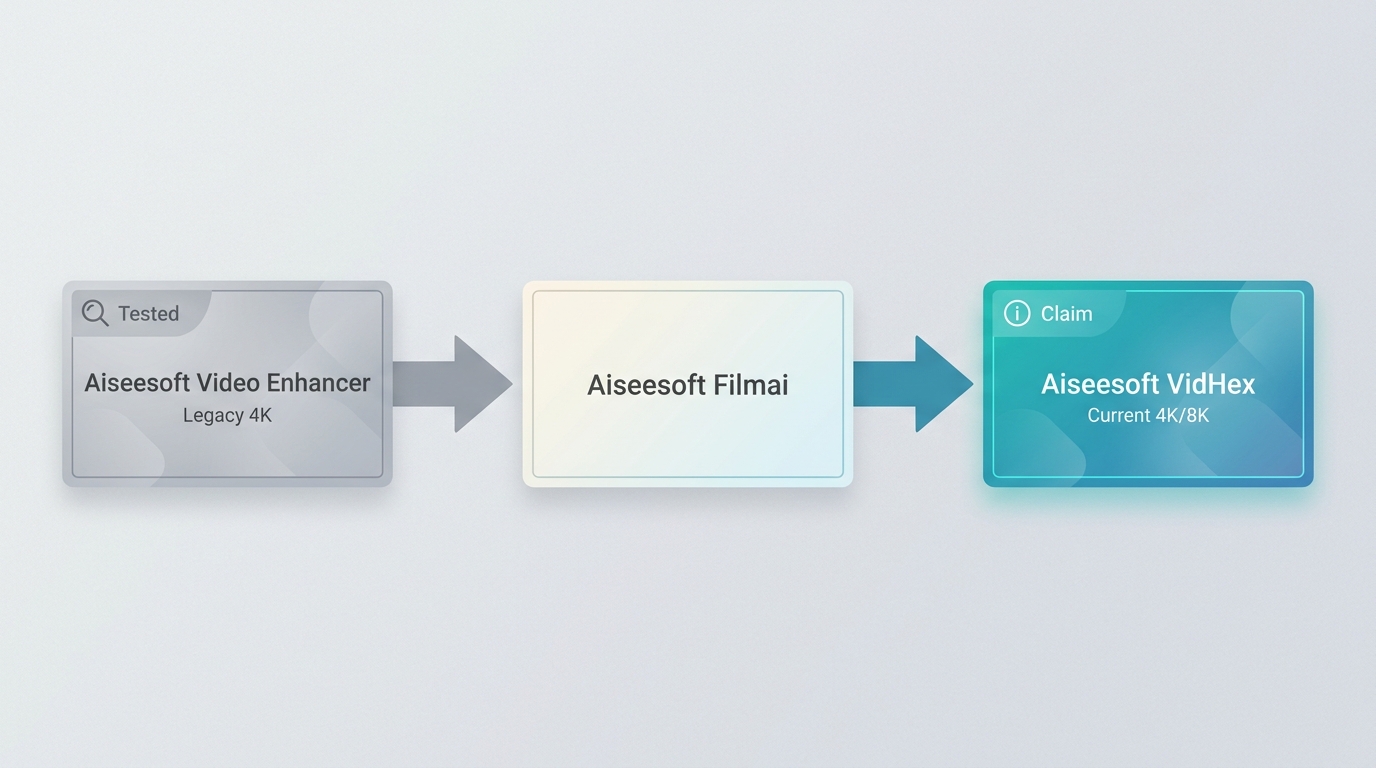
The current Aiseesoft Video Enhancer download route leads to Video Converter Ultimate 11, which includes AI enhancement; Filmai owners have a separate upgrade route to VidHex. The legacy comparison images still offer useful reference points for detail and texture.
- Current strengths: VidHex advertises 4K and 8K output, general, anime, and face-focused models, SDR-to-HDR conversion, and higher-frame-rate workflows. Video Converter Ultimate 11 also includes model-based enhancement.
- Evidence limit: the comparison images come from an older interface and cannot prove how the current VidHex models perform.
Readers comparing a browser-based video enhancer with desktop software should also account for upload time, hardware, and whether a workflow uses local or cloud-assisted processing.
The practical takeaway is to treat Aiseesoft as a plausible fit for guided enhancement, while keeping the legacy observations clearly separated from current product claims.
Aiseesoft Video Enhancer, Filmai, and VidHex Explained
Aiseesoft Video Enhancer, Aiseesoft Filmai, and Aiseesoft VidHex are names from a transitioning product line, not proof that every interface and model remained identical.
- Aiseesoft Video Enhancer: the legacy desktop name visible in the workflow screenshots; the current landing page directs downloads to Video Converter Ultimate 11.
- Aiseesoft Filmai: the earlier application upgraded to VidHex, with a free upgrade available to existing Filmai purchasers.
- Aiseesoft VidHex: the application reached through the Filmai upgrade route, with its own model set, pricing, preview, and cloud-credit terms.
The title bar identifies the tested software only as Aiseesoft Video Enhancer (Unregistered); it does not display a numeric build. Those observations are therefore labeled as legacy rather than assigned to current VidHex.
The Aiseesoft Video Enhancer landing page directs downloads to Video Converter Ultimate 11, which includes AI enhancement alongside conversion and editing. This is a different installation route from the Filmai-to-VidHex upgrade.
This version map matters more than a rebrand label because it prevents an old interface limitation from becoming a false claim about a current model.
Current Aiseesoft Video Enhancer Features
Video Converter Ultimate 11 includes AI enhancement alongside conversion and editing. VidHex offers model-based upscaling, cleanup, color work, interpolation, and guided export; neither application's current feature set is represented by the four-checkbox legacy interface alone.
Resolution Upscaling and Detail Recovery
VidHex advertises both 4K upscaling and 8K output, along with specialized general, anime, and face models. Resolution and real detail recovery remain separate questions: a larger frame does not by itself prove that texture was reconstructed.
The useful distinction is between output dimensions, Edge clarity, facial texture, and stability from frame to frame. The legacy result below addresses those observations only for the available test images.
Noise Reduction
VidHex presents video denoise and deblurring as current capabilities, but texture preservation depends on the model, source compression, and strength of processing.
Noise cleanup should be judged on flat backgrounds, hair, skin, and moving edges, not on a single still alone. A broader guide to remove grain from video explains why different noise patterns need different treatment.
Brightness and Color Enhancement
Automatic brightness and contrast adjustment targets underexposed footage without requiring manual changes to each setting.
Current materials also advertise SDR to HDR conversion. That is a separate workflow from simple brightness optimization, so the legacy brightness result does not establish current HDR output quality.
Stabilization
Video stabilization targets camera shake, while upscaling and denoising target image quality. The legacy panel includes a deshaking control, but current results should be assessed for cropping, Edge warping, and motion consistency.
Motion stability matters more than a steadier sample frame because wobbling edges can be more distracting than the original shake.
Basic Editing Tools
Trim, crop, rotate, and related preparation tools reduce the need to switch applications for a simple enhancement job. They are useful for setup, but they do not replace a timeline editor for layered edits or detailed audio work.
For most buyers, these tools are conveniences rather than the reason to choose the product.
Aiseesoft Performance Tests by Version
The comparison images below show an older Aiseesoft Video Enhancer interface, with visible softness and residual noise that belong to those pictured results rather than current VidHex models.
Tested Build and Source Clips
The screenshots identify the software as Aiseesoft Video Enhancer (Unregistered) in a Windows-style interface.
- Upscale input: 360p.MP4, 426×240, 17 seconds, with no audio track shown.
- Upscale setting: 4096×2160 output using the 4K H.264/MPEG-4 AVC MP4 profile shown in the interface.
- Pictured noise scene: a dark outdoor cabin scene with visible chroma and luminance noise.
- Image inspection points: detail recovery, compression artifacts, residual noise, and face texture.
- Playback checks: watch moving edges for flicker and compare spoken dialogue with mouth movement in the exported video.
The selected output dimensions describe frame size; inspect texture separately to judge whether enlargement adds useful detail.
4K Upscaling Results
The legacy interface shows a 4096×2160 output setting, while the comparison image shows soft facial detail. The larger frame size and the visible texture are separate measures of the result.
The softness is most apparent in the face pictured in the legacy comparison. Anyone trying to upscale video to 4K should distinguish the requested pixel size from recovered texture and stable detail across motion.
The most noticeable issue in this image is facial texture: the face looks smooth rather than finely detailed despite the larger output setting.
Noise Removal Results
The legacy cabin-scene comparison shows visible digital noise in both images. Residual noise remains apparent in the processed image, alongside slightly softer fine detail.
The visible criteria are residual grain in the sky and trees, edge definition around the roof, and texture in the people. During playback, also watch for noise flickering between frames and check audio timing in the exported file.
Version-Aware Performance Verdict
Soft facial texture is the clearest concern in the legacy comparison images; the cabin scene also shows residual noise. Current VidHex offers a wider model selection, so those pictured results belong to the older interface rather than its current face, HDR, or interpolation workflows.
I would favor Aiseesoft for a guided, model-based desktop workflow when the selected model preserves natural texture on the project's source footage. Processing time on the intended desktop and the selected local or cloud-assisted mode should also suit the project's schedule and privacy needs.
Using Aiseesoft Video Enhancer in Four Steps
The current workflow still follows four practical stages: install the matching Aiseesoft application, import a source, choose a model, and set the export format and destination.
- Install Video Converter Ultimate 11 from the Aiseesoft Video Enhancer download route, or use the Filmai-to-VidHex upgrade route if you already own Filmai, choosing the package for your operating system.
- Import the video and confirm its audio and aspect ratio.
- Select the enhancement model that matches the source problem.
- Choose MP4 or another available format, set the destination, and export.
Download the Matching Aiseesoft Application
The Aiseesoft Video Enhancer landing page directs downloads to Video Converter Ultimate 11, which includes AI enhancement. Filmai has been upgraded to VidHex, with a free upgrade for existing Filmai purchasers. Confirm whether the installed application identifies itself as Video Converter Ultimate 11 or VidHex before following its controls.
Import a Source Video
Import the source and check the displayed dimensions, duration, audio track, and subtitle state. The legacy screenshot shows a 17-second 426×240 MP4 with no audio selected, which is useful context for that test but not a current default.
Choose the Enhancement Model
Match the model to the problem instead of enabling unrelated adjustments. Upscaling addresses resolution, denoise targets visible noise, stabilization addresses shake, and face-focused processing should be reserved for footage where facial detail is central.
Export as MP4 with H.264
MP4 is a container, and H.264 is a video codec that an MP4 file can contain. Select MP4 and an H.264 profile when those controls are available, then choose the destination folder before export. In the pictured legacy interface, the Profile field shows 4K H.264/MPEG-4 AVC Video (*.MP4), while Destination and Open Folder controls identify where the saved file goes.
In the installed Video Converter Ultimate 11 or VidHex application, follow this sequence: container, codec if available, destination, export, then the app's file-location control.
Preview and Aspect-Ratio Caveats
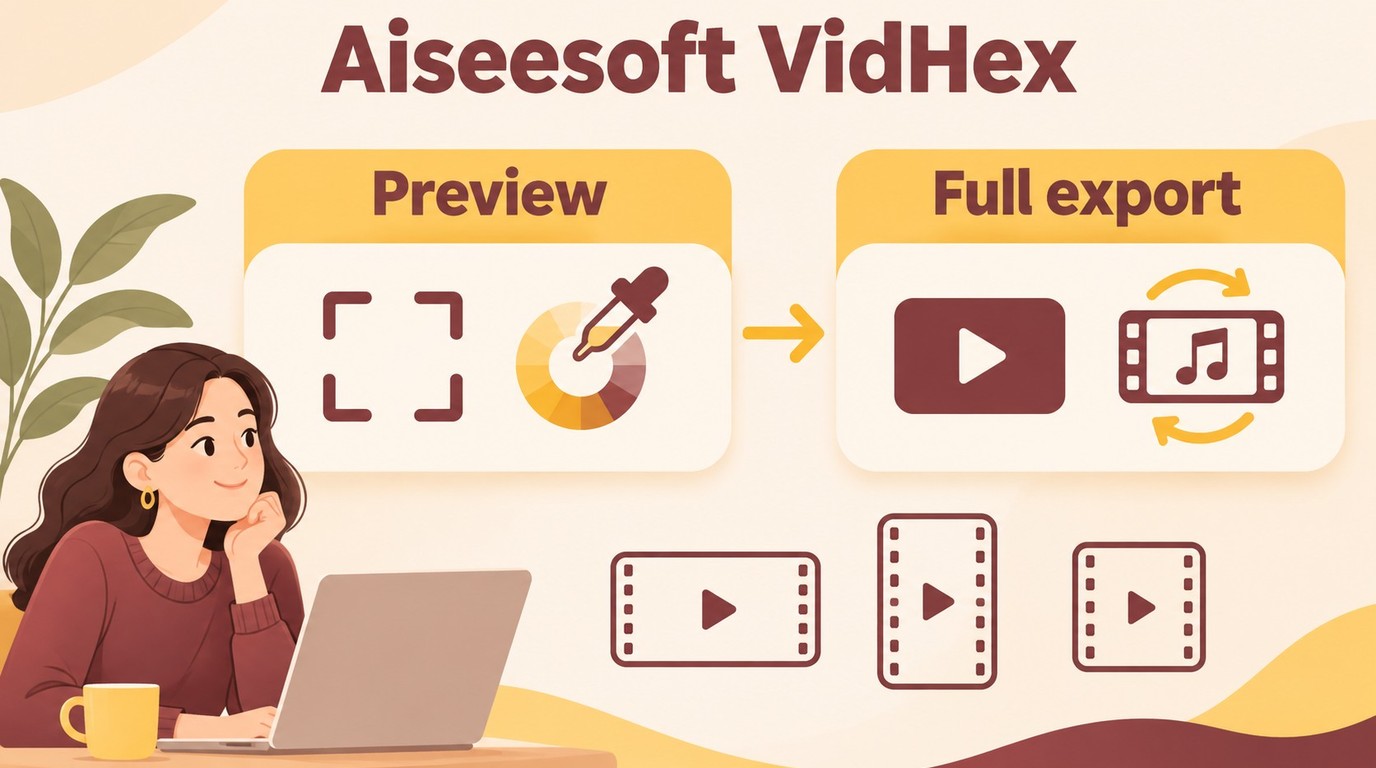
VidHex's preview lets you inspect a short segment; full-file export requires membership. Use the preview to assess framing and color, and check the saved file after export for playback and audio synchronization.
Likewise, the legacy 16:9 and 4:3 interface evidence is not a current product ceiling. Current materials promote TikTok and Instagram workflows, so vertical or square output should be checked in the installed VidHex build rather than ruled out from old screenshots.
Only process personal material you own or are authorized to use, for personal offline use. You are responsible for confirming permissions and following applicable service terms and local laws.
Aiseesoft Free Preview and Current Pricing
VidHex offers monthly, annual, and perpetual plans with different initial cloud-credit allowances. Its free preview lasts 3 seconds, and full export requires membership.
The preview can reveal obvious framing or color problems, but it is too brief to establish long-sequence consistency by itself. Initial cloud credits cover credit-based functions; they are separate from membership access to full export.
Current Individual Pricing
| Plan | Price | Initial cloud credits | Access |
|---|---|---|---|
| 1 month | $31.92 | 100 | Current enhancement tools |
| 1 year | $79.92 | 1,350 | Current enhancement tools |
| Perpetual | $239.92 | 5,000 | License plus initial credits |
VidHex pricing, as of November 2026.
Cloud credits are plan-specific resources for accelerated or cloud-assisted work, separate from membership access to full export. The perpetual plan includes an initial credit allowance; additional cloud credits are sold separately.
The sensible pricing judgment is based on expected use: a recurring plan lowers the initial commitment, while the perpetual option places more cost upfront and still requires attention to credit-based features.
Aiseesoft Video Enhancer Pros and Cons
Video Converter Ultimate 11 and VidHex both offer desktop enhancement, but VidHex’s short preview and cloud-credit plans create specific purchasing tradeoffs.
Pros
- Video Converter Ultimate 11 and VidHex are available as desktop applications for Windows and Mac.
- Video Converter Ultimate 11 advertises conversion up to 8K; VidHex advertises 4K and 8K output plus general, anime, and face-focused models.
- VidHex includes denoise, color, interpolation, stabilization, and preparation tools in one workflow.
- VidHex offers monthly, annual, and perpetual purchasing options.
Cons
- VidHex’s local and cloud-assisted functions require attention to the selected processing mode and cloud-credit consumption.
- The legacy screenshots show older controls, so current VCU 11 and VidHex menus may differ.
- Output quality remains source- and model-dependent, especially for faces, compression noise, and motion.
Best for: buyers who want guided desktop enhancement and are comfortable selecting among current models.
Official Capabilities vs Observed Test Results
Video Converter Ultimate 11 and VidHex are distinct current desktop applications. In the legacy comparison images, enlarged faces look soft and the dark cabin scene retains visible noise.
Video Converter Ultimate 11 advertises the following conversion capability: “It supports HD, 4K, 5K and up to 8K converting.” Its enhancement features also include SDR-to-HDR conversion and a face-focused model.
VidHex advertises 4K and 8K output, general, anime, and face-focused models, SDR-to-HDR conversion, and frame interpolation. Its preview, export membership, and cloud-credit options are described on the VidHex pricing page.
VCU 11 and VidHex run as Windows or Mac desktop applications. VidHex also offers cloud-assisted functions and cloud credits; desktop installation does not mean that every selected function processes locally.
Aiseesoft’s Trustpilot company profile covers the company and multiple products; it is not a VidHex-specific quality rating.
VCU 11 fits projects combining conversion and enhancement, while VidHex fits buyers seeking its model-based enhancement workflow.
Where Aiseesoft and UniFab Differ
Aiseesoft suits guided, model-based desktop enhancement; UniFab suits projects that combine restoration with additional desktop processing tasks. For a simple format change, a conversion-only workflow is sufficient.
Shared Enhancement Workflows
Both products address upscaling and denoising. UniFab separates those tasks into an AI Video Upscaler and a Video Denoiser, while VidHex presents a current model-based enhancement line.
Best for Aiseesoft: users who want the current VidHex model choices.
Not ideal for Aiseesoft: anyone relying on legacy stills as proof of current output.
Differences in Output and Workflow
The images suggest different treatment of facial detail and dark-scene noise, but they are not a controlled current-build benchmark.
Compare Aiseesoft and UniFab using the same source and output settings, and select a processing mode appropriate for the footage.
Additional UniFab Workflows
UniFab supports SDR-to-HDR10 conversion and 5.1 or 7.1 audio upmixing in a local Windows and Mac workflow. Aiseesoft also advertises SDR-to-HDR conversion; compare the selected output and processing mode when those requirements matter to the project.
UniFab All-In-One as an Alternative
UniFab All-In-One fits projects that need a restoration suite, while Aiseesoft remains a fit for guided model selection and conversion alone calls for a lighter workflow.
Professional AI Video Enhancer
- 30-day free trial — no watermarks, no feature limits
- Advanced AI enhancement across 22 dedicated modules
- Deeper restoration than Aiseesoft for detail-critical work
- Suited for professional-grade workflows
UniFab All-In-One
Professional AI Video Enhancer
- 30-day free trial — no watermarks, no feature limits
- Advanced AI enhancement across 22 dedicated modules
- Deeper restoration than Aiseesoft for detail-critical work
- Suited for professional-grade workflows
UniFab All-In-One for Mac
For conversion alone, UniFab Video Converter provides a free, watermark-free option. Browser-only work needs a browser workflow; for Windows or Mac restoration projects, the official UniFab download provides access to the desktop suite.
Choosing Between Aiseesoft and UniFab
The choice should follow the source problem and required deliverable. Buyers still surveying the category can place both tools within the broader video quality enhancer field or compare a best free AI video upscaler shortlist before deciding how much workflow breadth they need.
- Choose Aiseesoft: when Video Converter Ultimate 11 or VidHex provides the guided model-based workflow your project needs.
- Choose UniFab: when your restoration project calls for several desktop processing tools.
- For browser-only work: choose a browser workflow rather than either desktop application.
UniFab also has practical limits: it is a Windows or Mac desktop workflow rather than a browser-only option, and its broader restoration suite can be more than a simple format-conversion project requires. For either product, use a representative difficult source before purchase and judge natural texture in motion against your delivery needs.
Worth Buying? Aiseesoft in 2026
Aiseesoft is worth considering for buyers who want a guided Windows or Mac enhancer, with Video Converter Ultimate 11 and VidHex offering current enhancement workflows.
The legacy samples support two limited observations: facial texture looks soft in the pictured upscale result, and visible noise remains in the dark cabin scene. They do not establish current VidHex output, so choose Aiseesoft when its current model choices suit your footage and the resulting output meets your delivery needs—not on the strength of an 8K label alone.
Aiseesoft Video Enhancer FAQs
Is Aiseesoft Video Enhancer safe to install?
Use the official installer for the application you intend to run. The Aiseesoft Video Enhancer landing page directs downloads to Video Converter Ultimate 11. Existing Filmai purchasers can use the official Filmai-to-VidHex upgrade route. Avoid installers from unofficial download sites.
Does Aiseesoft Video Enhancer work on Mac?
Yes. Video Converter Ultimate 11 and VidHex both offer Mac desktop applications. Hardware performance and model availability should be assessed on the intended Mac, while a broader AI video enhancer for Mac comparison can clarify device-specific alternatives without changing the VidHex verdict.
What should you test before paying for VidHex?
Use VidHex’s three-second preview on a difficult segment with faces and movement. Inspect framing, skin texture, and moving edges for unwanted smoothing or distortion. Full export requires membership.
Can enhancement cause audio and video sync problems?
Yes, audio and video can drift out of sync during video processing. If that happens, confirm that the correct audio track was imported, check the export frame rate, and compare the source and exported durations. Play the exported file and compare spoken dialogue with visible mouth movement, especially when frame interpolation is enabled.
Is Aiseesoft Video Enhancer online or desktop software?
Aiseesoft Video Converter Ultimate 11 and VidHex are Windows and Mac desktop applications, not browser tools. Desktop installation is separate from processing mode: local processing, cloud-assisted functions, and acceleration depend on the selected application and feature. VidHex plans include cloud credits for credit-based functions. Readers who need a phone- or browser-oriented option can compare a free video upscaler app, but that device choice is separate from this desktop review.