Here’s the short answer: the right 4K bitrate depends on whether you are exporting for a YouTube upload, encoding a live stream, or ensuring smooth playback. A single target cannot cover all three. This guide separates each 4K bitrate decision by destination, frame rate, codec, and delivery limit.
What Is 4K Bitrate?
4K bitrate refers to the amount of data processed per second in a 4K video stream, typically measured in megabits per second (Mbps) or kilobits per second (kbps). This video bitrate affects video quality, file size, and the bandwidth required for delivery.
4K video resolution (3840 × 2160 pixels) contains approximately 8.3 million pixels, four times more than 1080p. This larger pixel count generally requires more bitrate to maintain quality:
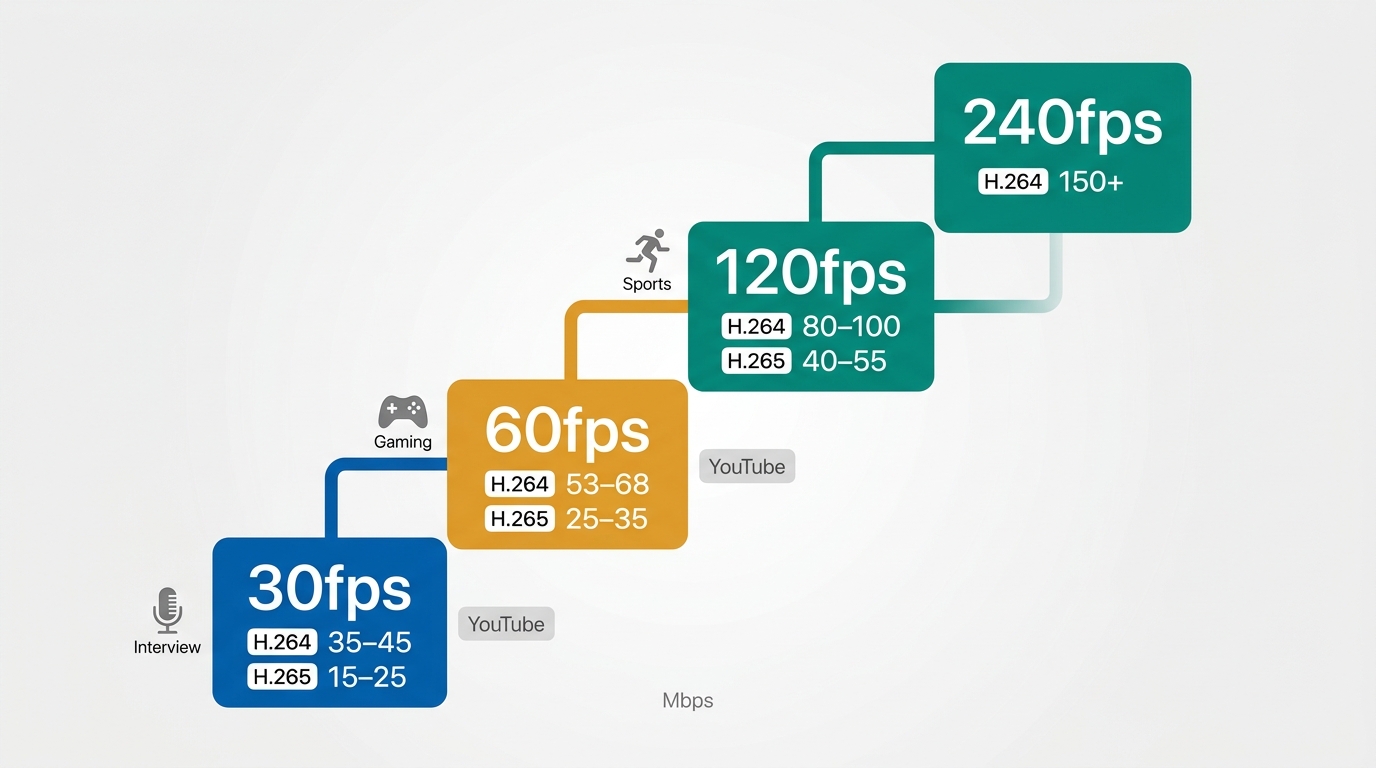
- 4K @ 30fps: 35–45 Mbps (H.264) / 15–25 Mbps (H.265)
- 4K @ 60fps: 53–68 Mbps (H.264) / 25–35 Mbps (H.265)
Why Bitrate Matters for 4K
Higher bitrates preserve more detail, reduce compression artifacts, and maintain quality during motion-heavy scenes. However, excessive bitrates create unnecessarily large files and may cause buffering during streaming.
Key Insight: The same 4K resolution at different bitrates can look dramatically different. A 4K video at 10 Mbps may appear worse than a 1080p video at 8 Mbps due to compression artifacts.
Recommended 4K Bitrate Settings
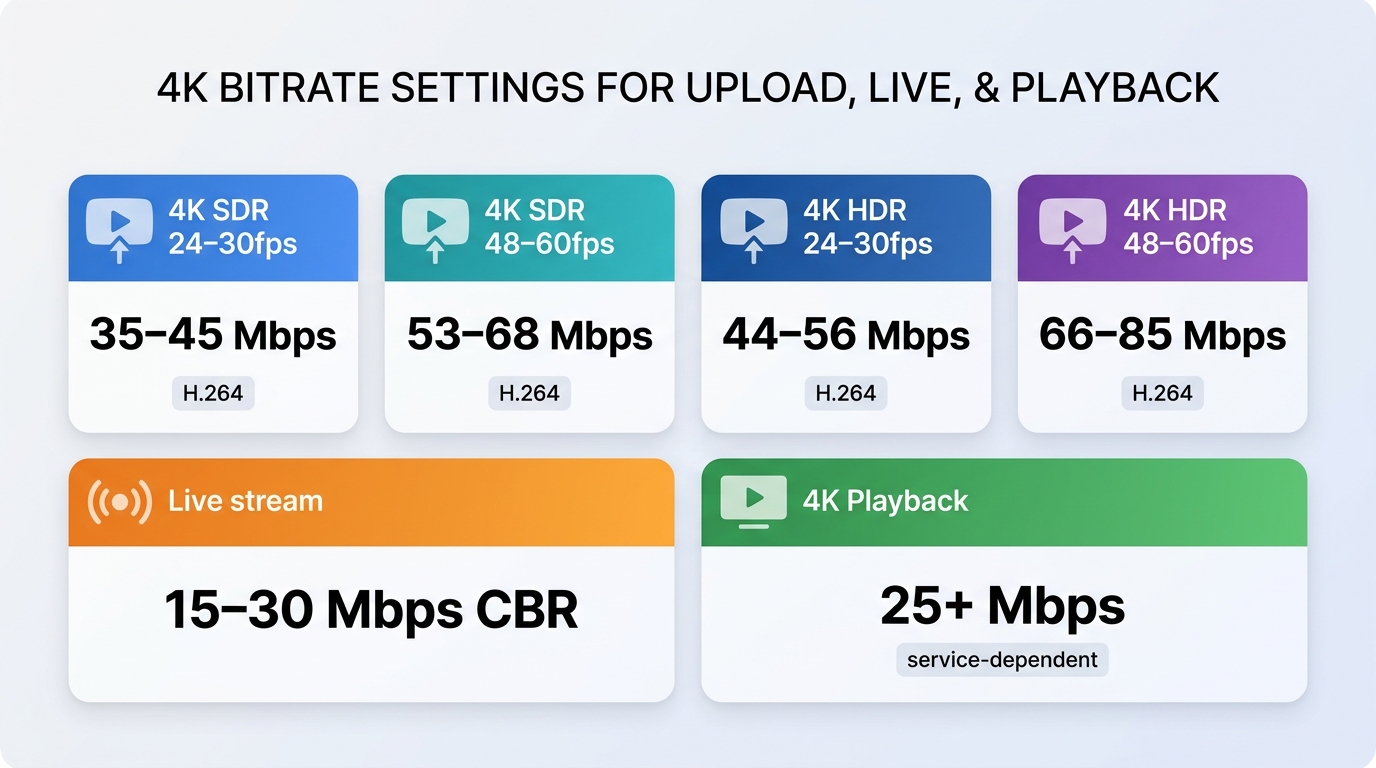
Complete Bitrate Reference Table
| Use case | Frame rate or range | Recommended bitrate | Codec or control | What the number measures |
| YouTube 4K upload | 24–30 fps SDR | 35–45 Mbps | H.264, VBR | Export/upload file |
| YouTube 4K upload | 48–60 fps SDR | 53–68 Mbps | H.264, VBR | Export/upload file |
| YouTube 4K upload | 24–30 fps HDR | 44–56 Mbps | H.264, VBR | Export/upload file |
| YouTube 4K live stream | Platform, codec, and frame rate | 15–30 Mbps typical | CBR encoder | Live encoder output |
| 4K playback | Single stream | 25 Mbps or more | Service-dependent | Connection capacity |
Choose the delivery workflow before choosing a number. Upload/export bitrate, live-encoder bitrate, and playback bandwidth describe different stages, so treating one as a universal 4K minimum is unreliable.
YouTube 4K Upload Settings
For a YouTube 4K upload, use an MP4 container, H.264 video, AAC-LC audio, variable bitrate, and the same frame rate as the source. The upload ranges below are current as of August 2026 and are separate from live-stream encoder settings.
| Format | Frame Rate | Recommended Bitrate | Minimum Bitrate |
| 4K SDR | 24/25/30 fps | 35–45 Mbps | 20 Mbps |
| 4K SDR | 48/50/60 fps | 53–68 Mbps | 35 Mbps |
| 4K HDR | 24/25/30 fps | 44–56 Mbps | 25 Mbps |
| 4K HDR | 48/50/60 fps | 66–85 Mbps | 40 Mbps |
If a clean local export looks poor after upload:
- Wait until the 4K rendition has finished processing.
- Compare the 4K rendition with the lower-resolution versions and the local export.
- Check frame pacing and fast-motion scenes for compression stress.
- Review bit depth and color handling when banding appears.
Pixelation, softness, banding, and choppy playback can result from platform recompression or rendition quality even when the local MP4 looks clean.
Streaming Platform Requirements
Streaming services apply their own encoder limits, supported resolutions, and adaptive-delivery rules. Treat a platform’s live-encoder recommendation as a production setting, not as an upload target or a promise of playback quality. For local playback, the connection, server, device decoder, and selected rendition can all become the bottleneck.
Recording/Export Settings
For local recording and professional editing:
- Archival Quality: 100+ Mbps (ProRes, DNxHR) for mastering
- High Quality: 50–80 Mbps (H.264) for general use
- Web/Delivery: 20–35 Mbps (H.265) for efficient sharing
4K Bitrate by Frame Rate
What Bitrate Is 4K at 30fps?
For 4K at 30fps, use 35–45 Mbps with H.264 for a standard YouTube SDR upload. In a supported H.265 workflow, 15–25 Mbps can be a practical storage-efficient target. This frame rate is standard for most cinematic content, interviews, and general video production.
When to use 30fps:
- Documentary and interview content
- Cinematic productions (24fps is cinema standard)
- Talking head videos
- Content where smooth motion isn't critical
What Is the Best Bitrate for 4K 60fps?
For 4K at 60fps, use 53–68 Mbps with H.264 for a standard YouTube SDR upload. In a supported H.265 workflow, 25–35 Mbps can be a practical storage-efficient target. The higher frame rate captures smoother motion but requires significantly more data to maintain quality.
When to use 60fps:
- Gaming content and live streaming
- Sports and action sequences
- Slow-motion footage (record at 60fps, playback at 24fps)
- Screen recordings with fast transitions
4K at 120fps and Higher
High frame rate 4K (120fps+) is primarily used for:
- Professional slow-motion effects
- Competitive gaming content
- Sports analysis
Recommended bitrates:
- 120fps: 80–100 Mbps (H.264) / 40–55 Mbps (H.265)
- 240fps: 150+ Mbps (specialized cameras only)
Codec Comparison: H.264, H.265, and AV1
Different video codecs dramatically affect the bitrate required for quality 4K video:
Codec efficiency changes the bitrate needed for a given result, but compatibility and encoding time matter too. H.264 is the practical default for YouTube uploads and broad device support. H.265 can reduce storage and delivery demands in supported workflows. AV1 can be useful with compatible modern encoders, but it may be a poor fit when encoding time or device support is constrained. ProRes and DNxHR are better suited to editing and mastering workflows than web delivery.
Which Codec Should You Use?
Choose H.264 when:
- Maximum compatibility is needed
- Uploading to older platforms
- Editing on older hardware
Choose H.265 when:
- File size matters
- Targeting modern devices (2017+)
- Working in a supported workflow where smaller files matter
Choose AV1 when:
- Future-proofing your content
- Bandwidth is limited
- Targeting YouTube (which supports AV1)
OBS and Streaming Software Settings
Optimal OBS Settings for 4K
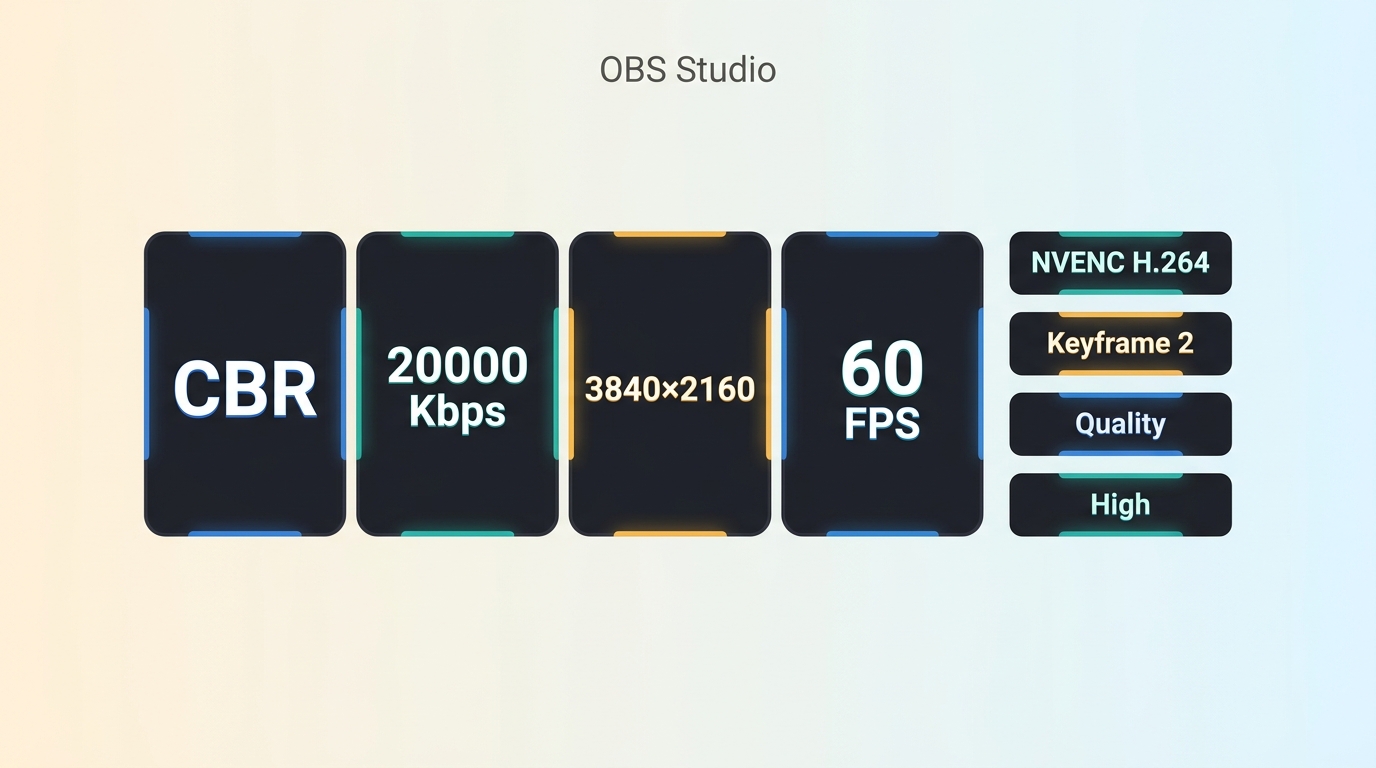
These are live-encoder settings, not YouTube upload settings. Choose a target based on the platform, codec, frame rate, dynamic range, and available upload capacity; uploaded 4K 60fps video follows the separate SDR and HDR ranges shown above.
Output Settings:
- Encoder: x264 (CPU) or NVENC H.264 (GPU)
- Rate Control: CBR (Constant Bitrate)
- Bitrate: 15,000–30,000 Kbps (depending on platform)
- Keyframe Interval: 2 seconds
- Preset: Quality (or Slow for x264 if CPU allows)
- Profile: High
Video Settings:
- Base Resolution: 3840×2160
- Output Resolution: 3840×2160 (or 2560×1440 if bandwidth limited)
- Downscale Filter: Lanczos (36 samples)
- FPS: 30 or 60
Is 20,000 Bitrate Too High?
It depends on the destination, codec, frame rate, and dynamic range. For a 4K live stream, 20,000 kbps may be a workable target on some supported workflows; it is not a universal benchmark for 4K uploads or playback.
- For 4K uploads: use the destination-specific SDR or HDR export range above
- For 1440p: 20 Mbps is excellent quality
- For 1080p: 20 Mbps is very high quality (overkill for most uses)
Streaming Considerations:
- Most platforms transcode your stream anyway
- A higher bitrate may preserve more detail before platform re-encoding, but it cannot overcome platform or delivery limits
- Ensure your upload speed is at least 35 Mbps for stable 4K streaming
Choosing the Right 4K Bitrate
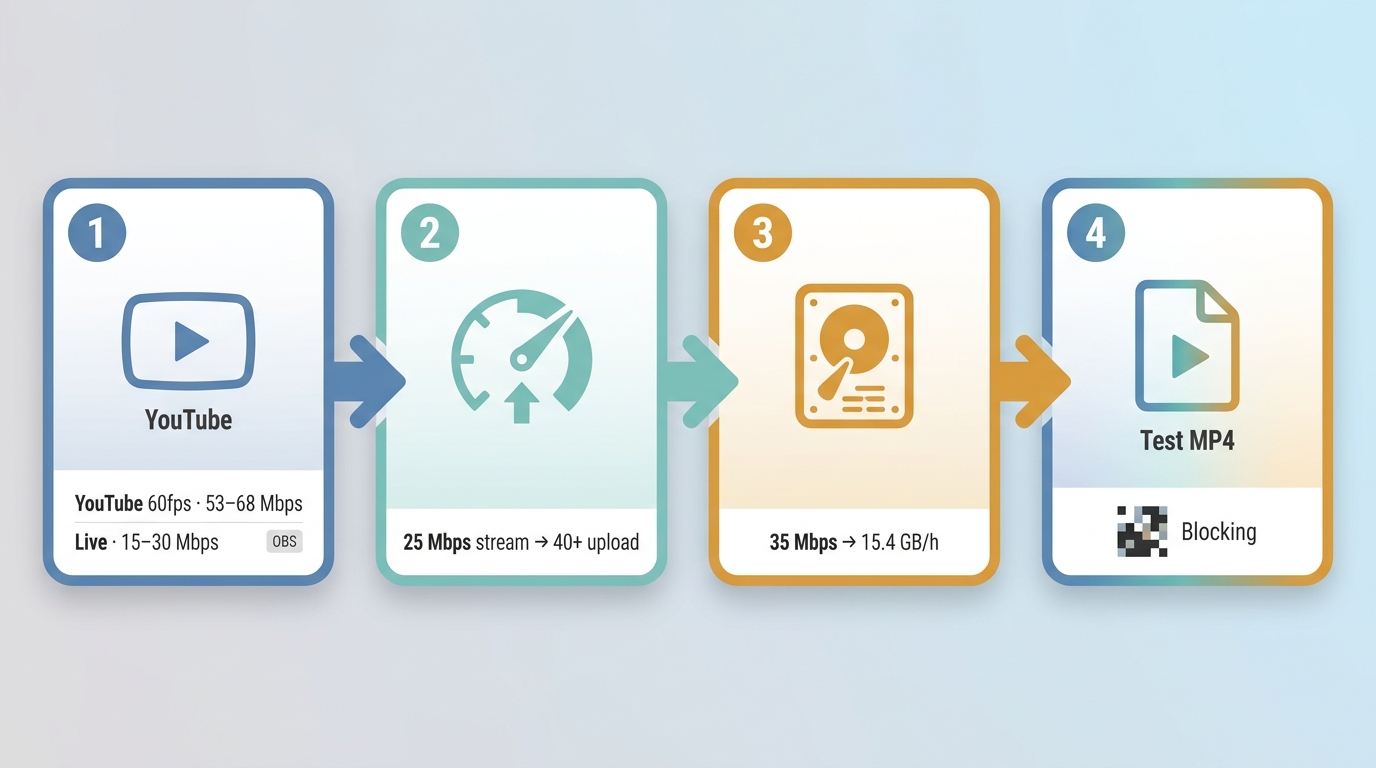
Step 1: Determine Your Use Case
| Use case | H.264 or other target | H.265 target | Decision note |
| YouTube upload, 30fps SDR | 35–45 Mbps | 15–25 Mbps | H.264 is the official profile |
| YouTube upload, 60fps SDR | 53–68 Mbps | 25–35 Mbps | H.264 is the official profile |
| Live streaming | 15–30 Mbps typical | Platform-dependent | Match platform live guidance |
| Archival/master | 100+ Mbps | Not typical | Use ProRes or DNxHR |
| Mobile/web delivery | Platform-dependent | 15–25 Mbps | Use supported H.265 workflows |
Step 2: Check the Delivery Path
For streaming, your upload speed should be at least 1.5x your target bitrate:
- 4K streaming at 25 Mbps → Need 40+ Mbps upload
- 4K streaming at 50 Mbps → Need 75+ Mbps upload
Step 3: Balance Quality and File Size
Higher bitrates can preserve more information, but returns diminish as codec efficiency, source quality, motion complexity, platform transcoding, and delivery limits become the bottleneck:
| Bitrate | File Size (1 hour) | Quality Level |
| 15 Mbps | ~6.6 GB | Acceptable 4K |
| 35 Mbps | ~15.4 GB | Good 4K |
| 68 Mbps | ~30 GB | Excellent 4K |
| 100 Mbps | ~44 GB | Professional 4K |
Step 4: Test and Compare
Export the same clip at different bitrates and compare:
- Look for compression artifacts (blocking, banding)
- Check motion clarity in fast-moving scenes
- Verify detail preservation in textures
When Bitrate Cannot Fix Source Quality
Bitrate cannot recreate detail that was never captured or was already lost to blur, noise, halos, jagged edges, or compression damage. Raising the export setting may enlarge the file without correcting those source-level problems.
AI enhancement may help visibly damaged footage, but it is not the right fix for an export configuration error, platform recompression, or a network-delivery problem. For source footage that needs reconstruction, the practical workflow to upscale video to 4K belongs in a separate guide.
When AI Enhancement May Help
UniFab Video Upscaler AI may be worth considering when the source itself shows visible compression damage, noise, or lost detail. Export a short representative clip first and compare it with the original at the intended playback size; results can vary with the footage and hardware.
UniFab Video Upscaler AI
Upscale Video and Maintain Crystal-Clear Detail
30-day free trial with full features—no watermark
UniFab Video Upscaler AI
UniFab Video Upscaler AI
Upscale Video and Maintain Crystal-Clear Detail
30-day free trial with full features—no watermark
UniFab Video Upscaler AI for Mac
Use a Short Test to Judge Fit
Different enhancement models can favor different footage, so judge the result on a short representative clip at the intended playback size rather than assuming one setting fits every source.
Test Before Committing
Start with a short, representative clip. A useful test export should finish at your intended resolution and play cleanly on the device you plan to use. If it fails, return to the source file, output settings, available storage, and hardware configuration before treating enhancement as the fix.
30-day Free Trial for full feature, without watermark!
- Step 1
Open UniFab program and select the "Video Upscaler AI" Mode. Upload your video file.
- Step 2
Customize parameters such as resolution (select 4K), AI model, format, and quality settings.
- Step 3
Click the "Start" button to begin upscaling your video to 4K resolution.
4K Bitrate Tradeoffs
Advantages of Higher 4K Bitrates
- Superior Image Quality: More data means finer details, better color accuracy, and less compression
- Better Motion Handling: High-motion scenes remain clear without motion blur or blocking
- Color Grading Flexibility: Higher bitrates preserve more information for post-production
- Future-Proofing: Higher quality masters can be re-encoded for future standards
- Professional Results: Meets broadcast and cinematic quality standards
Disadvantages of Higher 4K Bitrates
- Large File Sizes: 4K at high bitrates creates massive files (20–50 GB per hour)
- Storage Requirements: Need fast, high-capacity storage (SSD recommended)
- Bandwidth Demands: Streaming requires fast, stable internet connections
- Hardware Requirements: Editing and playback need powerful CPUs/GPUs
- Upload Time: Large files take significantly longer to upload to platforms
Final Recommendations
For most creators, choose the destination first, then match frame rate and dynamic range, and finally select the codec:
- For YouTube uploads: use MP4, H.264, AAC-LC, variable bitrate, and the original frame rate.
- For 4K 30fps SDR uploads: target 35–45 Mbps.
- For 4K 60fps SDR uploads: target 53–68 Mbps.
- For live streams: use the platform’s live-encoder guidance rather than upload ranges.
- For playback issues: inspect the connection, device, server, and rendition before changing the export.
Bottom Line: A useful target bitrate for 4K is destination-specific. Raising bitrate without identifying the limiting stage can increase file size without fixing the visible problem.
4K Bitrate FAQ
Is 50 Mbps enough for 4K video?
For many 4K 30fps H.264 uploads, 50 Mbps is a strong target. Whether it is enough still depends on frame rate, HDR, motion complexity, codec, and destination. It may be appropriate for an upload while being irrelevant to a live encoder or playback connection.
Does a 1,000 Mbps connection improve 4K streaming quality?
A gigabit connection provides useful headroom, but it does not improve a stream already limited by the platform, server, client device, codec, source, or selected rendition. Connection capacity and encoded video bitrate are separate limits.
Should I export in 4K before uploading to YouTube?
Export in 4K when the source and timeline contain genuine 4K detail and your delivery goal supports it. Enlarging a lower-resolution source creates more pixels, but it does not automatically create real detail; compare a short local export before committing to a full upload.
Why can a YouTube video labeled 4K still look soft?
The 4K label confirms an available rendition, not identical quality to the local master. Processing may still be incomplete, and recompression, complex motion, color handling, lower-resolution renditions, and source limitations can make the result look soft. Compare the local export with the finished 4K rendition before increasing bitrate.