To turn voice into text in another language, transcribe a recording first, then translate the checked transcript. For live speech, use a supported speech-translation mode. If you need words you can copy rather than a dubbed video, choose a text-output workflow.
You may have a saved recording or a speaker to follow, but you need wording you can read and reuse. I treat a fluent translation as a draft, not proof that the original was heard correctly. A missing “not” changes the meaning even when the English reads naturally. Below, I separate recorded-file transcription, live speech translation, and video delivery.
How to Transcribe Recordings with oTranscribe
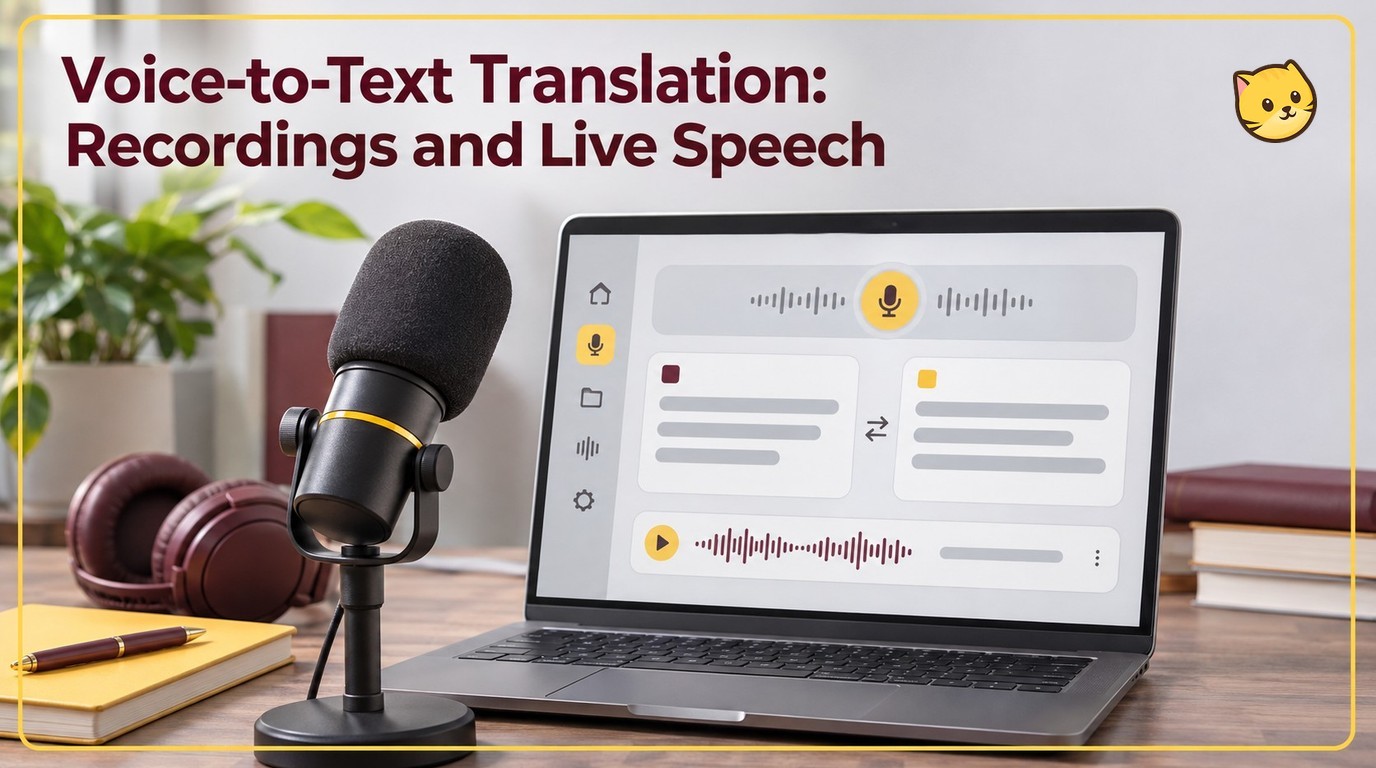
Use oTranscribe to play a recording while you type and check the original-language text. It is a manual workspace, not automatic speech recognition or translation, and it exports plain text or Markdown for reuse.
Available routes as of November 2026:
| Starting Point | Goal | Route | Deliverable |
|---|---|---|---|
| Recorded audio or video | Editable original-language text | oTranscribe | TXT or Markdown |
| Live speech | Readable translated text | Google Translate on supported Android devices | Saved or copied transcript |
| Saved video on Windows | Translated video for playback | Video Translator AI-Fabcloud | MP4/MKV, up to 4K (UniFab’s official specifications) |
For notes you need to edit or quote, keep the text route. A translated video serves a different purpose: watching the material in another language.
Listen, Type, Check, and Export
Prepare a desktop browser, headphones, and a playable recording. You also need to understand the spoken language well enough to check it. The browser determines which media formats play; use the format list beneath oTranscribe’s file selector if a recording will not open.
- Open the recording in oTranscribe. Choose your local audio or video file. Play a short passage before typing to confirm that you can hear the words clearly.
- Type what you hear. Pause and replay within oTranscribe rather than switching between a player and a document. Keep the original language at this stage.
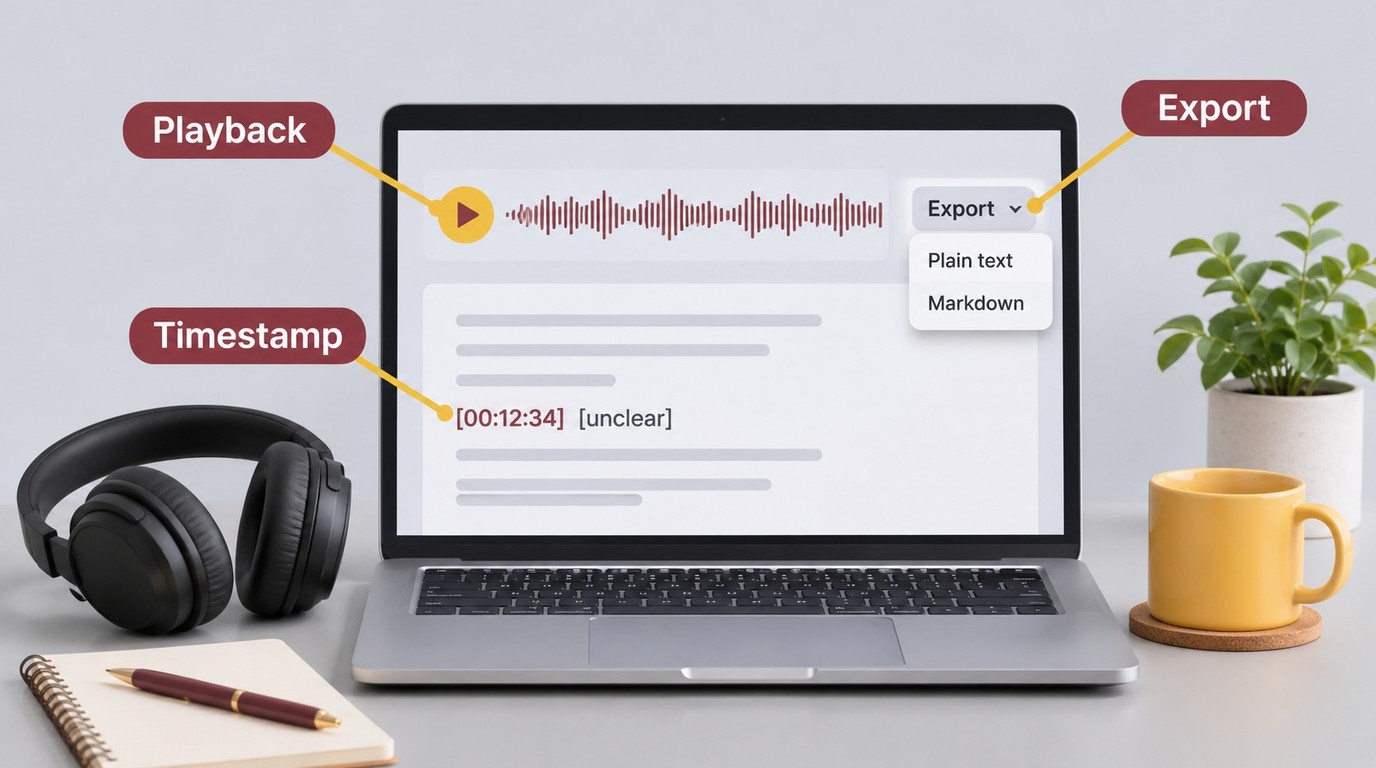
- Mark places to revisit. Insert an interactive timestamp at an unclear passage, and add speaker labels when the voice changes. Write “[unclear]” rather than guessing a name or technical term.
- Check against the recording. Use the timestamps to return to uncertain passages. Confirm names, numbers, specialist terms, and speaker assignments before polishing the wording.
- Export the checked text. Open Export and download plain text or Markdown to a folder you can find again. Keep the recording alongside the transcript for later reference.
Manual transcription saves tool fees, not listening time. It fits a recording you understand and are willing to review; a long recording in an unfamiliar language calls for automatic transcription with support for that language and a reviewer who understands it.
The editing work remains even after automation. One contributor in Reddit’s r/Entrepreneurs wrote, “Right now im basically jumping between transcription tools and translators and then still fixing things manually because the english comes out kinda stiff or just… off.”
Before translating, I would settle names, numbers, and negative statements in the transcript. Fluent English cannot repair a fact you misheard. With that checked text ready, move to the translation input below.
How to Translate Text and Live Speech with Google Translate
Use Google Translate’s text box for a checked transcript and its microphone options for speech happening now. For extended speech, the Android app’s Transcribe mode produces translated text you can save or copy.
Short-turn input is a poor fit for an uninterrupted presentation. A contributor in Reddit’s r/germany described the need clearly: “Not a short exchange, but a continuous speech that goes on for twenty or thirty minutes, sometimes even longer.” For that situation, choose the continuous-speech path rather than repeatedly restarting phrase capture.
Choose an Input, Select Languages, and Keep the Text
Have your transcript ready, or enable microphone permission for live input. Follow the branch for your input; you do not need to complete every branch.
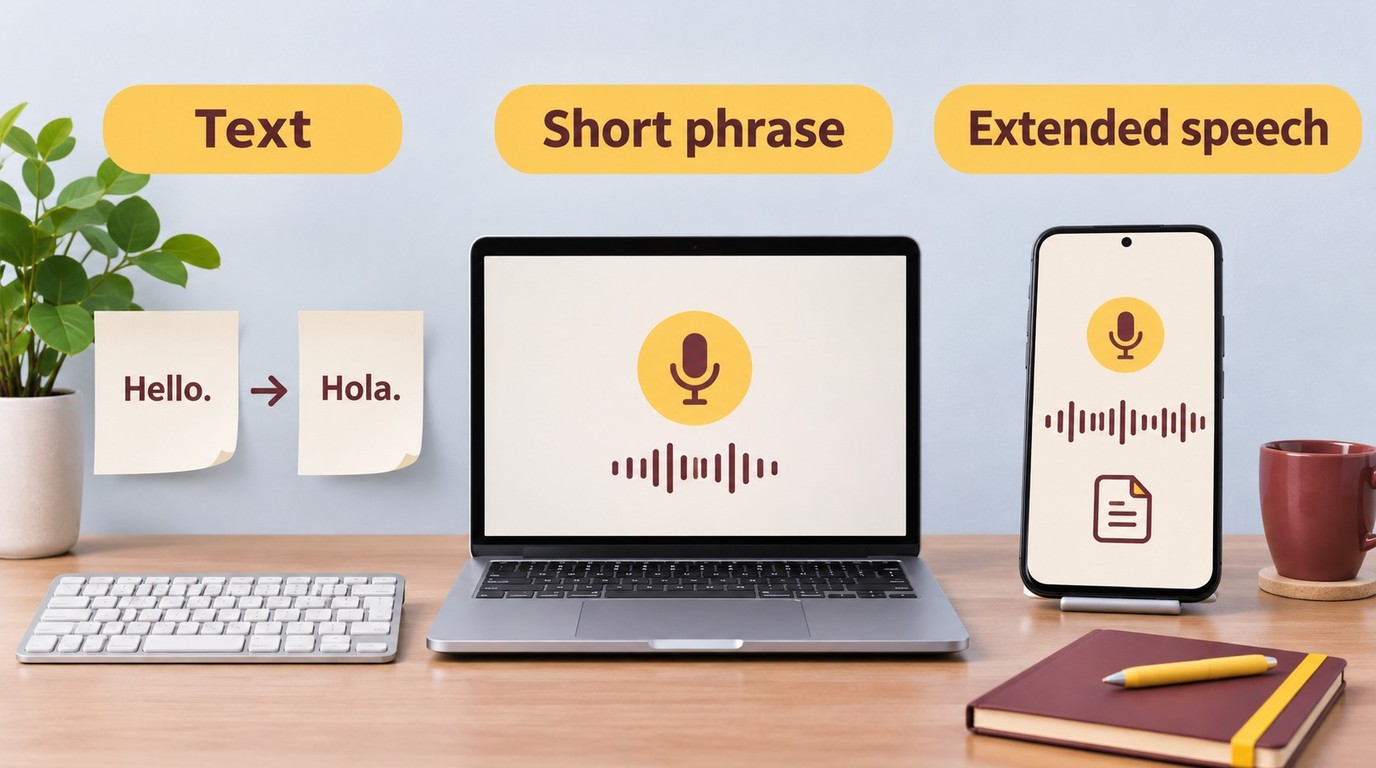
- Open Google Translate and choose your input. For an existing transcript, paste the checked text. For a live phrase on a computer, use Chrome’s microphone workflow. For extended speech on supported Android devices, open the Translate app and tap Speak → Transcribe.
- Set the source and target languages. Choose English as the target if you need English text. Desktop microphone mode requires you to select the spoken language yourself. A disabled Android Transcribe button means the spoken language is unsupported.
- Translate the text or capture the speech. Pasted text uses the text-translation path. On desktop, click the microphone, speak, and click Stop when finished. Android Transcribe follows extended speech in near real time.
- Keep the wording. Copy the translated text into your document. In Android Transcribe, tap Save transcript; reopen it under Saved transcripts to select, copy, or share the text.
For personal use, process material you have the right to use and follow the relevant services’ terms. You are responsible for obtaining the necessary content permissions; do not redistribute the material.
Review the translation beside the original before using it. Check whether the same person, amount, and yes-or-no meaning survived. Google Translate suits text and supported live speech; its microphone button is not a recording-file upload or a system-audio capture control.
When UniFab Fits a Translated Video Project
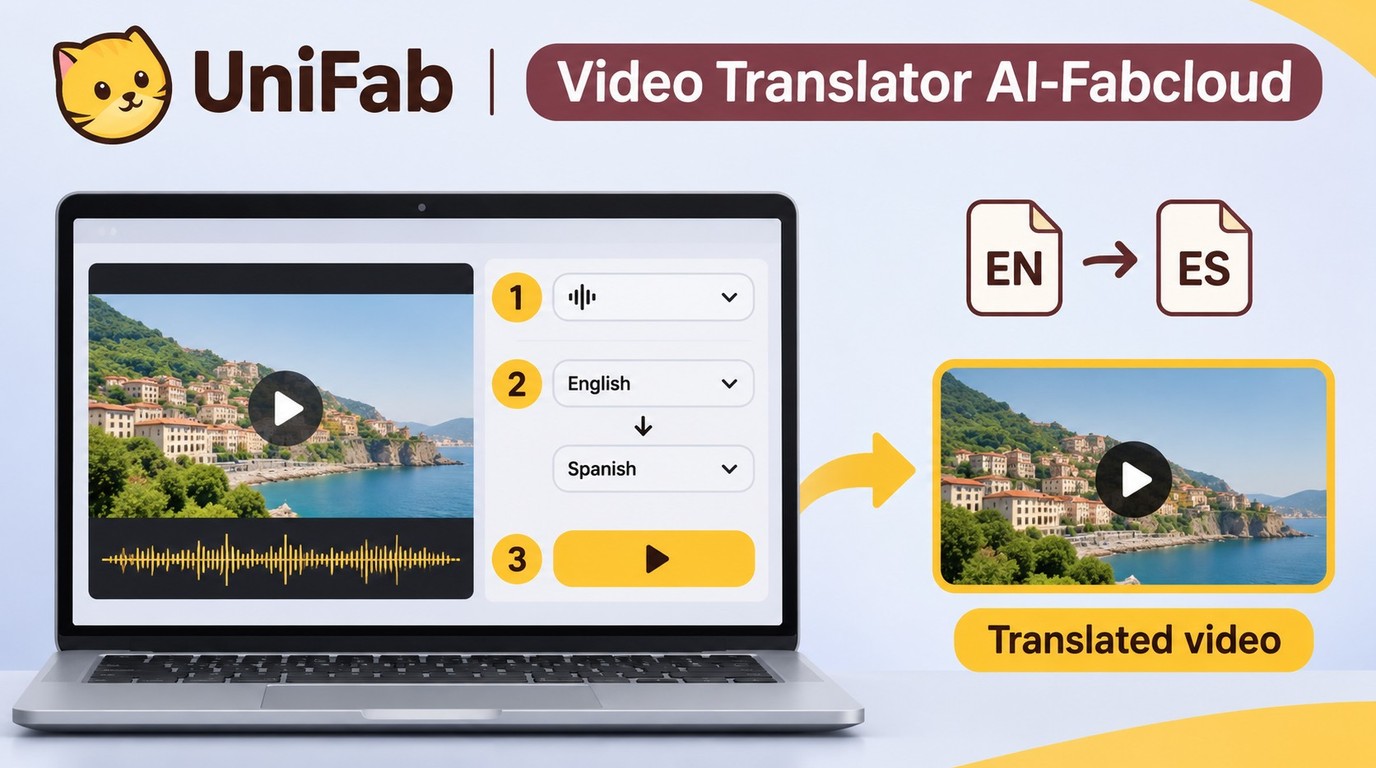
Video Translator AI-Fabcloud fits you when the finished deliverable is a translated video for playback. Choose it for a dubbed tutorial; keep a document workflow for editable notes.
On Windows, Video Translator AI-Fabcloud supports 23 translation languages and MP4/MKV output up to 4K, so you can deliver a video your audience can watch. Match your saved video to its supported input containers: MOV, MP4, AVI, MPEG, WMV, F4V, MPG, TS, and FLV.
Subtitle-language options include Traditional Chinese, Brazilian Portuguese, Filipino, and Malay, helping you plan the on-screen wording for those audiences. Treat subtitle-language options separately from spoken-language coverage.
To create the video, configure the imported clip’s audio track and languages in UniFab’s Video Translator AI module. Start translation to generate the video for playback.
Processing requires uploading your video to FabCloud and uses cloud credits; new accounts receive 30 FabCloud credits to get started. Each translation draws from your credit balance. For a Mac-based project, the free video translator options offer other video workflows.
If a translated video is your deliverable, open the official Video Translator AI-Fabcloud entry to get started.
Voice-to-Text Translation FAQ
Call audio, offline use, and transcript storage need separate checks. Resolve the input and save location before relying on a transcript for later reference.
Can I translate audio playing inside a call?
Answer: The microphone paths above listen through a microphone; they do not provide direct capture of your computer’s internal audio. For captions during a call, use a calling app’s supported translated-caption feature. If you already have an authorized recording, use the recorded-file route instead. Avoid relying on a nearby speaker and microphone for important wording: replaying a saved passage gives you a clearer way to check it.
Can I translate speech without an internet connection?
Answer: Local playback and manual typing do not require online translation. A local recording and text editor let you make a transcript offline. For translated live speech, Google documents offline live translation for Pixel 9, 10, and 11 with downloaded supported languages. That feature does not extend to every phone or language. Before travel, download the language you need and try it with the connection off; a downloaded text dictionary alone does not confirm live-speech support.
Do I have to sign in to save a transcript?
Answer: No account is needed for oTranscribe’s local plain-text or Markdown download. Its browser storage is separate from a file you save yourself, so export important work rather than treating the open tab as a permanent archive. Sending a transcript to Google Drive is a separate cloud-saving choice and requires the relevant account authorization. Complete that authorization on Google’s sign-in page. Keep a local exported copy even when also saving to a cloud account.
Choose the Output You Actually Need
For a saved recording, make a checked transcript and translate it when you need another language; for live speech, use a supported live-input mode. Choose video translation when the final deliverable is something to watch. Keep the original wording beside the translation for the final review, because names, numbers, and a missing negative matter more than how polished the sentence sounds.