Choose a speech translator for a conversation and a video translator for a saved voiceover. If you need voice over translation software, Google Translate handles spoken phrases, while YouTube automatic dubbing adds language tracks to eligible uploads. A standalone dubbed video requires a file-export workflow.
You need to hear another language, whether someone is speaking to you or narrating a video. I would not treat a translated transcript as a finished voiceover: readable words still leave the spoken delivery unfinished. A conversation needs an audible reply; a recorded presentation needs audio that fits the picture. I’ll walk through those choices, a microphone exercise, and the checks that matter before you commit a full video.
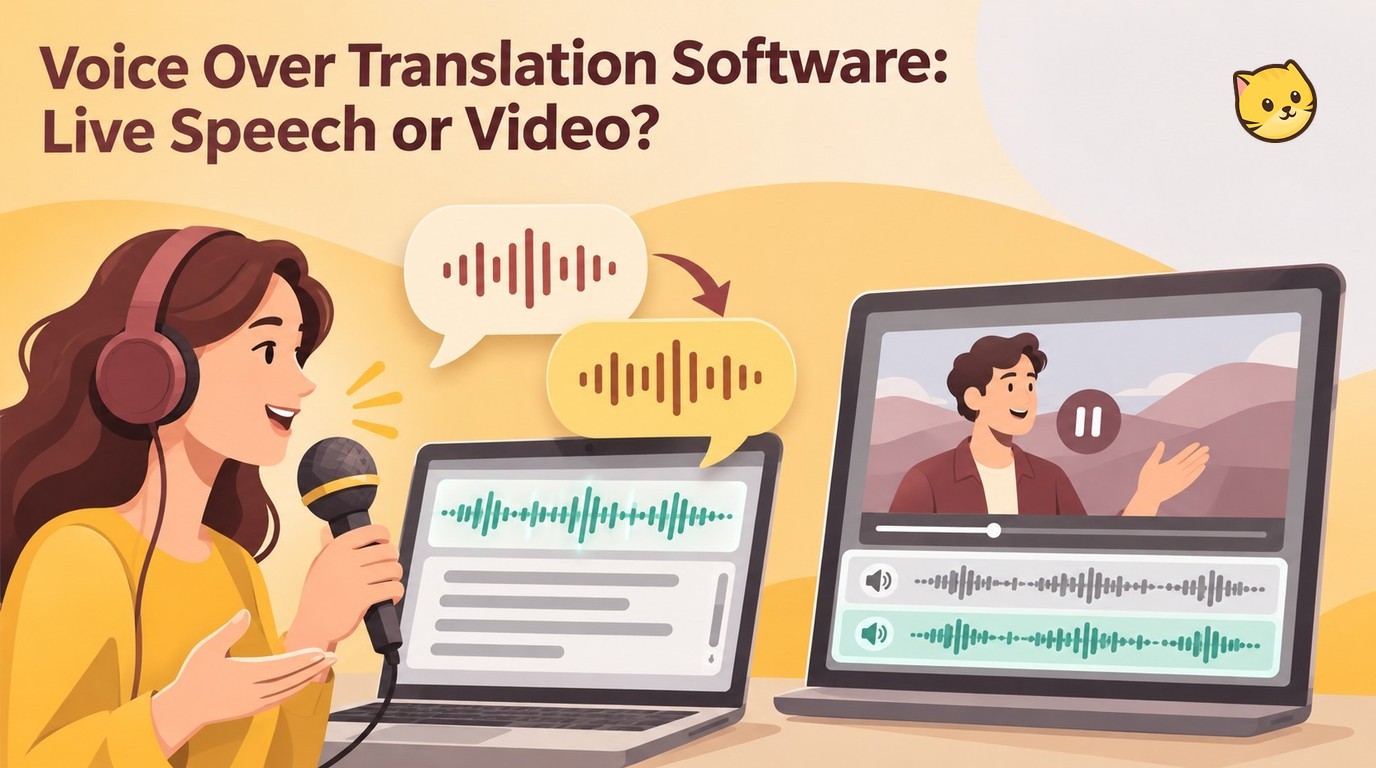
Choose voice over translation software for your workflow
Google Translate fits short spoken exchanges; YouTube automatic dubbing fits eligible videos on your channel. For a translated video you can deliver separately, choose software with video-file export.
| Tool | Workflow | Result | Main requirement |
|---|---|---|---|
| Google Translate | Live speech | Translated text; supported spoken playback | Microphone; supported browser and language pair |
| YouTube automatic dubbing | Creator uploads | Translated audio tracks on YouTube | Eligible channel, video, and languages |
| Video Translator AI-Fabcloud | Windows video translation | MP4 or MKV; up to 4K | Windows; internet; FabCloud credits |
Sources: Google Translate speech help, YouTube automatic dubbing help, YouTube multi-language audio help, and UniFab’s official product page, as of November 2026.
I would choose by where you need the translated voice to end up. A channel audio track and a video file serve different handoffs; neither replaces a spoken exchange.
For live conversations: Google Translate
Google Translate gives you microphone input, translated text, and spoken playback for supported languages. It suits you when you can pause between phrases. The desktop microphone workflow is not a phone-call interpreter or a finished video-dubbing workflow.
As one Reddit user in r/machinetranslation put it, “I've noticed that a lot of translation apps work well for text, but real-time conversations still seem to be a challenge, especially when you're traveling and need quick, accurate translations.”
That distinction matters when you try a tool. For an exchange, ask whether both people can hear and respond, rather than stopping at whether a sentence appears on screen.
For recorded video: YouTube dubbing or a separate video file
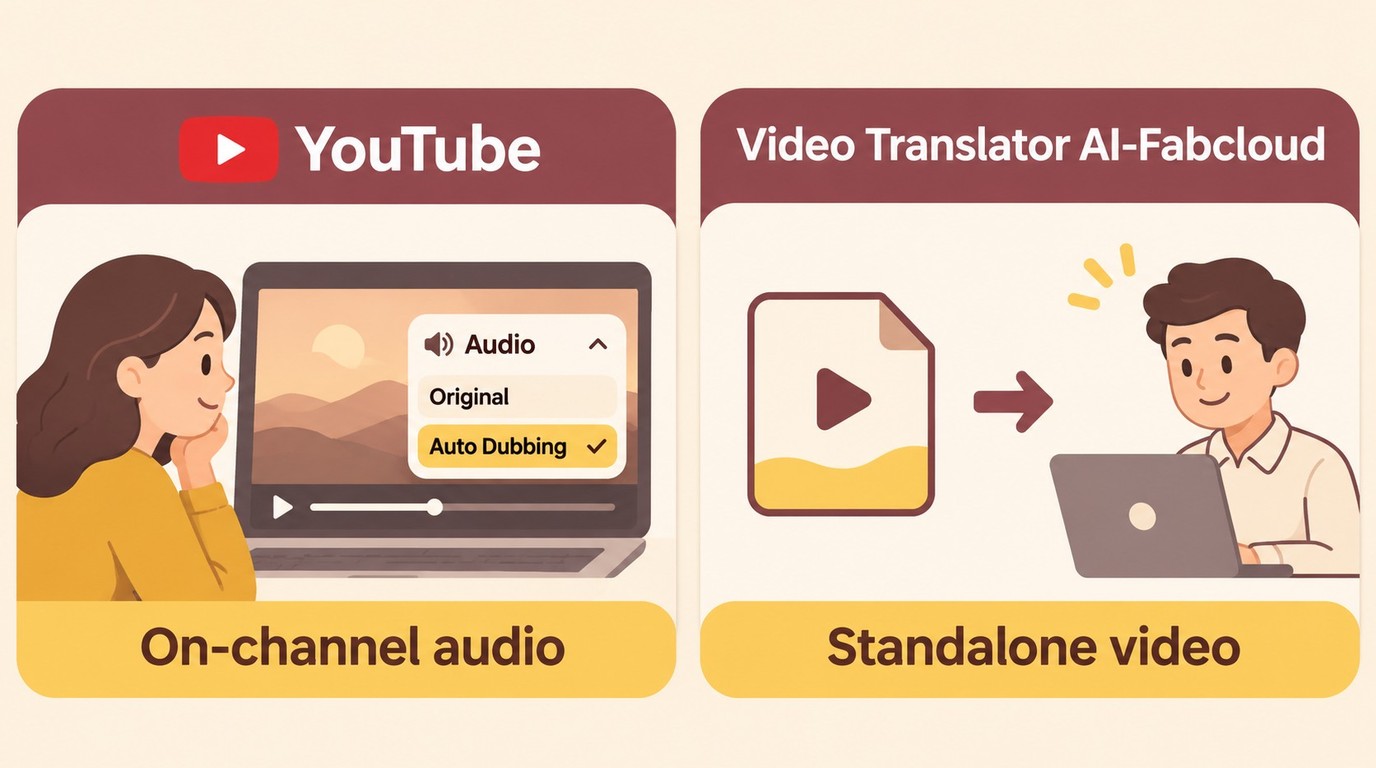
YouTube automatic dubbing generates translated audio tracks for eligible creator uploads. It suits you when viewers will watch on your channel. Set the original video language correctly, then use the review and publication controls to listen before releasing a dub. Channel, video, and language eligibility apply; this is not a way to translate any video you encounter as a viewer.
A separate video file suits a different handoff, such as sending a translated presentation to a colleague. UniFab’s Video Translator AI-Fabcloud fills that Windows file-delivery role; its setup and cloud-credit conditions are covered below.
Try Google Translate for spoken conversations
On a computer, select the source and target languages in Google Translate, use the microphone, and review the translation. Spoken playback is available for supported languages. I would use a short, familiar phrase so you can judge whether the recognized words match what you said.
Run a short microphone translation
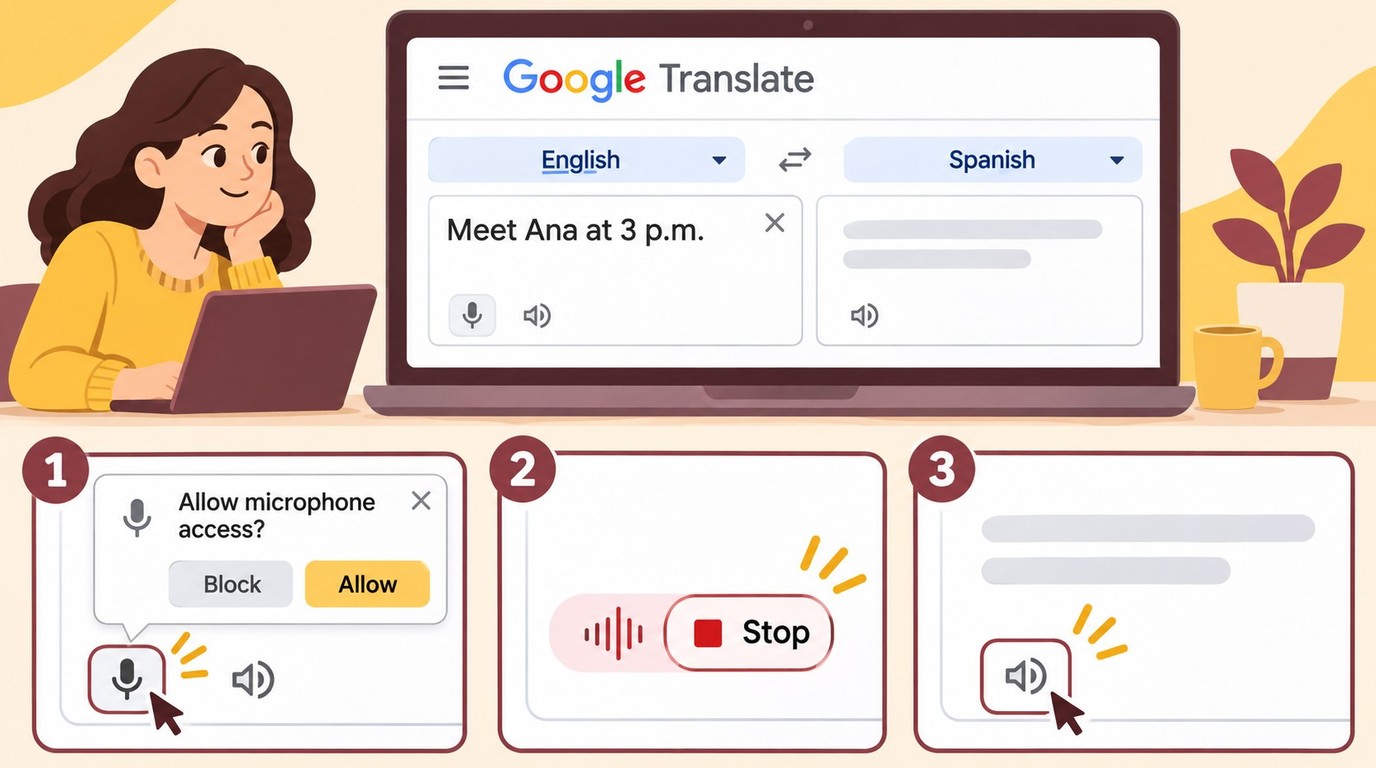
Chrome and a working microphone are the starting point. Allow microphone access in your browser and select the language you will speak; desktop microphone translation does not automatically identify it. Keep the target language deliberate, too.
- Open Google Translate on your computer and choose the source and target languages.
- Click the microphone and allow access when prompted.
- Say a short phrase, then click Stop when you finish.
- Read the translation and use Listen when spoken playback is supported.
- Check names and key details against what you intended before sharing the result.
The useful result is an understandable exchange, not simply an active microphone. For example, try a sentence with a name and a meeting time. A fluent translation that changes either detail still needs correction. Let the other person respond before moving to another sentence, rather than feeding a whole discussion into this phrase-based exercise.
Treat input and meaning as separate checks. If a name was misheard, repeating the same sentence louder is less useful than checking the recognized wording. If the wording is right but the meaning seems wrong, simplify the sentence and ask the other person to confirm it. These are communication checks, not an accuracy score.
If voice input is unsupported, use Chrome; if it is unavailable for the selected language, that language lacks microphone input. If permission is missing, allow the site to access your microphone in the browser settings.
This exercise checks speech input and playback. It does not establish whether a tool can deliver a publishable dubbed video; that requires checking the translated voice and the export you will actually hand over.
Check language support, audio quality, and usage costs
Check the exact spoken-language pair on your device, listen to the result, and budget for the work you expect to process. Text translation, spoken playback, and video dubbing are separate capabilities. I would choose working speech in the languages you need over a larger headline language count.
An understandable voice matters more than a sharp picture. Review names, technical terms, numbers, and the speaker’s intended tone, preferably with someone who understands the target language. For video, listen while watching: a correct sentence still needs to fit the scene. A higher export resolution does not repair a mistranslated instruction.
Budget for the whole translation job
Recurring publishing needs a recurring budget. One creator in r/AIToolsAndTips wrote, “I've been translating around 50–60 Shorts a month into different languages, so I'm trying to find a workflow that can keep up.”
I would plan around the videos you expect to finish, including revisions. A free entry point, an ad-supported app, a daily allowance, and cloud credits describe different costs. For a repeat job, record the credits or allowance consumed by a representative clip, then allow room for corrected versions. Keep that spending separate from time spent reviewing speech.
A free video translator is a relevant alternative when its allowance covers your clips and its export matches your destination. If either condition falls short, a free starting point does not complete the job. The Windows file workflow below makes those delivery and credit conditions concrete.
When UniFab fits a Windows video-dubbing workflow
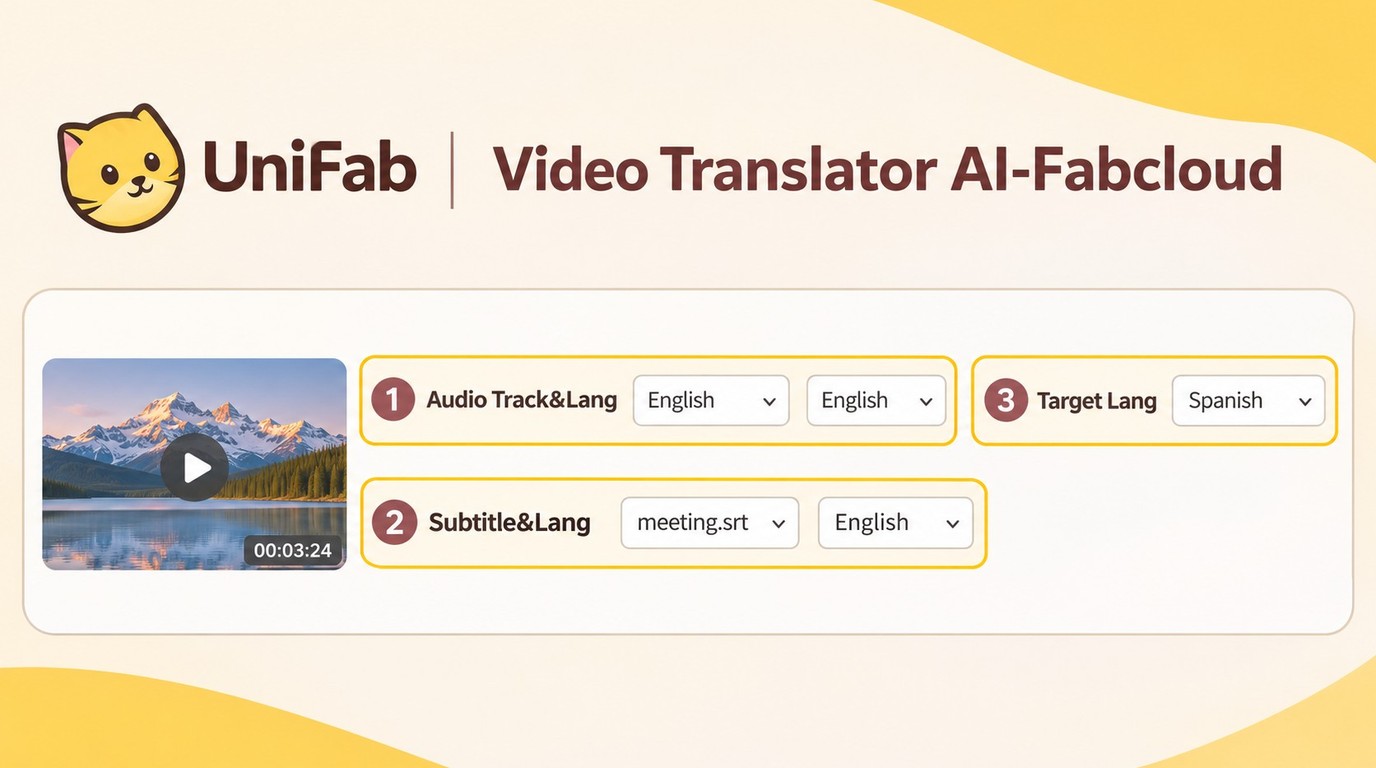
Video Translator AI-Fabcloud suits you if you work on Windows and need a translated voiceover in a standalone video. It exports MP4 and MKV at up to 4K, so you can deliver a video file separately from a channel’s language-track feature.
The translator supports 23 languages, including English, Spanish, French, German, Japanese, Chinese, and Korean. Choose the target voice language for your audience; additional subtitle options, including Traditional Chinese and Brazilian Portuguese, are subtitle choices rather than proof of matching synthesized speech. I would keep that distinction explicit when planning a multilingual deliverable.
Translation setup uses your source audio track, source language, corresponding subtitle file and language, and target language. Inputs include MOV, MP4, AVI, MPEG, WMV, F4V, MPG, TS, and FLV, so those source files fit the workflow without choosing another format first.
Processing runs through FabCloud and requires internet access and cloud credits, making this a connected video workflow rather than an offline or live-call tool. New accounts receive 30 cloud credits to begin with a short source clip. The FabCloud 600-credit annual plan starts at USD 199.99 per year.
Start a short video translation through the official Video Translator AI-Fabcloud entry point in the target language you plan to deliver.
Frequently asked questions
Offline speech needs feature-specific support; a downloaded text language pack is not enough to establish it. A YouTube language-track upload also needs a different deliverable from a finished video file.
Can voice translation work offline?
Some offline translation features cover text rather than speech. A downloaded language pack alone does not establish microphone input, spoken output, or video dubbing without internet. If offline speech is essential, I would try the exact input and playback functions with the connection disabled before relying on them away from a network. Cloud video processing needs a connection during translation; that is separate from playing an already exported local video.
Can I upload an MP4 or MKV as a YouTube language track?
No. YouTube’s multi-language audio upload requires a supported audio-only file roughly matching the video’s length. An MP4 or MKV video export is not that deliverable. You need the translated audio prepared separately for the language-track upload. I would settle that handoff before translating a full project, especially if you want additional languages on one existing upload rather than separate dubbed videos.
Process content and voices you own or have permission to use, and follow third-party tools’ terms of service. You are responsible for the material you use and for having permission for any publication or sharing.
Choose by the result you need
Use a spoken-phrase translator for a conversation, YouTube dubbing for eligible channel uploads, and a video-file workflow for a standalone translated video. I would settle the target voice language and final handoff before processing a full project. The important boundary is functional: text support does not establish spoken output, and a video export does not replace a separate audio track.