With voice cloning for video translation, you generate translated speech that aims to keep the original speaker recognizable. If you want an English version of your video without replacing your vocal identity, use video translation and dubbing with an original-speaker option, then review the language before publishing.
I would hold back a familiar-sounding dub if it gets a person’s name wrong. Recognition is not the same as accuracy. A translated voice can retain an accent while names, historical terms, or pauses still need attention. My priority is meaning over accent removal: a recognizable voice should carry the right message. The walkthrough below turns a short source clip into a reviewable dub, then separates language checks from visual polish.
What Voice Cloning Changes in a Translated Video
Voice cloning preserves recognizable vocal traits in newly generated speech; ordinary dubbing can use a different voice. Translated subtitles change the text you read, while lip-sync processing changes how mouth movements match the new speech.
The basic chain is speech recognition, translation, voice generation, and timing alignment. Each stage has a different job. An error in the source transcript can carry through into convincing speech, so I would judge the words separately from the voice.
| Output | Translated text | New speech | Speaker identity | Mouth movements |
|---|---|---|---|---|
| Translated subtitles | On screen | No | Original audio unchanged | Unchanged |
| Standard dubbing | Used for speech | Yes | May use another voice | Not inherently changed |
| Voice-cloned dubbing | Used for speech | Yes | Aims to preserve identity | Not inherently changed |
| Lip-sync processing | Not the core function | Handled separately | Handled separately | Adjusted to match speech |
For a narrated tutorial, cloned speech might be enough. For a face-to-camera interview, you also need to judge the visible delivery. Video translation and subtitling suit a different need: viewers read the target language while hearing the source audio.
A creator in r/generativeAI described the goal plainly: “I’d like to create the exact same video in English.” That is a request to preserve a speaker, not merely replace a language.
Start with your own voice or authorized material, clear speech, and little background noise. Identify the source language and target language before uploading. If a viewer needs the original performance rather than new speech, translated captions are the closer fit.
How to Translate a Video With Voice Cloning in Kapwing
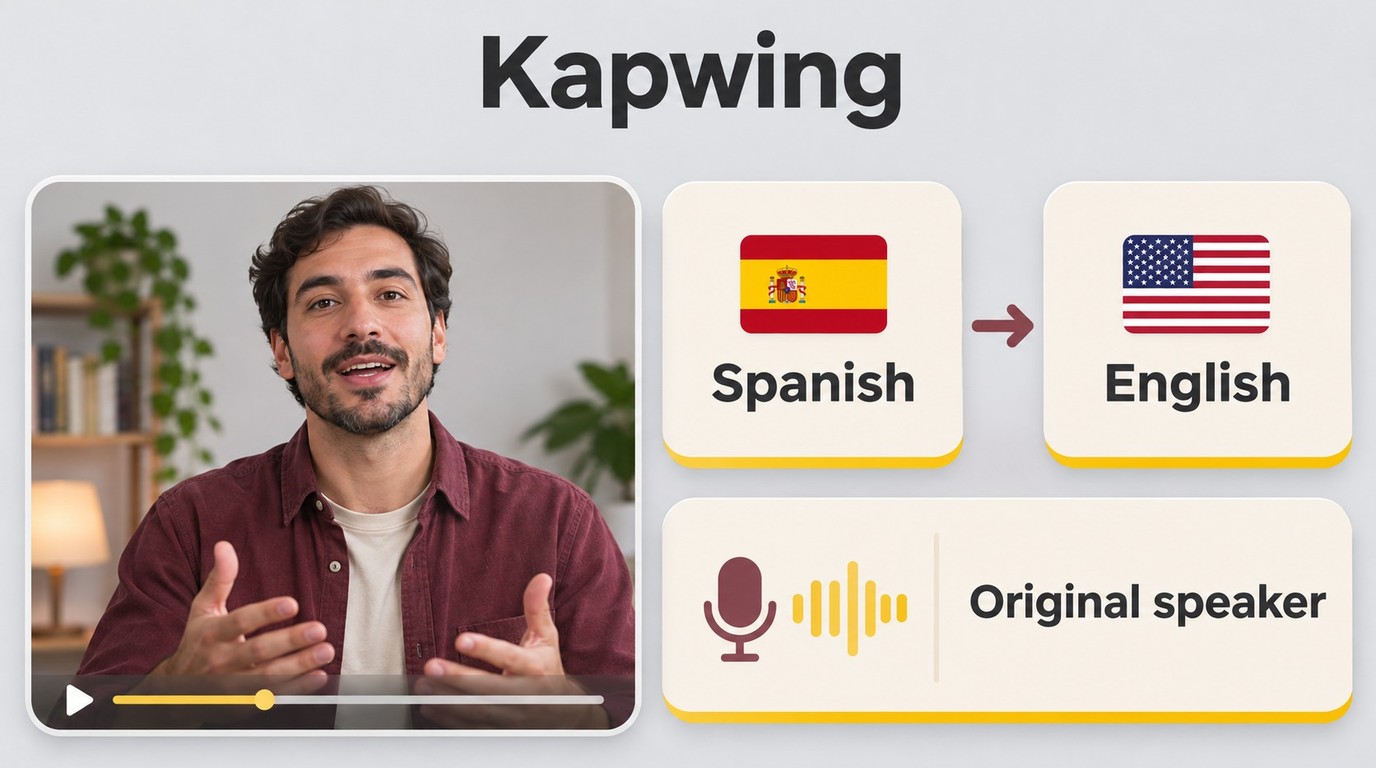
In Kapwing AI Video Translator, use the original-speaker voice option for a dubbed translation, rather than selecting a replacement voice. Keep a short excerpt as your review project before processing the full video; the workflow below covers preparation through export.
Before starting, prepare your own or authorized video, a clear source recording, an internet connection, and Kapwing Pro access for voice cloning. Free-account exports include a watermark.
This browser workflow suits you if you want a translated transcript, generated speech, and video editing in one project. It does not remove the need for a target-language listener. I would choose an excerpt with a name, a full sentence, and a natural pause: those features give the review something concrete to catch.
Prepare and Upload the Source Video
-
Prepare a review clip. Choose a passage with a clearly identifiable speaker and audible words. Keep a copy of the original video for reference. Avoid an excerpt dominated by music or people talking over each other; it makes the intended speech harder to judge. Write down names and technical terms as they should appear in the source transcript.
-
Upload the clip to Kapwing Studio. Open the video translation editor and add your source video. Listen to the uploaded passage before generating speech. Compare it with your original copy so you know the project contains the intended speaker and passage. A bad source segment is easier to replace now than after you have reviewed a translated dub.
Your preparation should answer a simple question: what should a correct version say? A spelling list helps with a speaker’s name, a company name, or a course term. It also gives a reviewer an anchor beyond whether the voice sounds convincing.
Select the Language and Original-Speaker Voice
-
Set the language direction. Confirm the source language and select the target language in Kapwing. For Spanish-to-English video translation, the spoken Spanish is the source and English is the output. For Japanese or French footage, confirm the corresponding direction in the available choices. A translated subtitle language is not a substitute for selecting the intended spoken output.
-
Choose the original speaker’s voice and generate the dub. Use the voice-cloning choice rather than a stock voice. Review the source transcript before generation, especially names and abbreviated terms. Save your wording notes alongside the project so a later edit does not turn a correction into a different claim. The next stage is listening, not publishing.
Keep the comparison small. Listen for whether the same speaker remains recognizable, but assess the translated sentence on its own terms. A literal word order that fits the source language can be awkward in English; preserving the speaker does not mean preserving that word order.
Review the Translation and Export the Dub
-
Review the translated wording and listen again. Use Kapwing’s translation and pronunciation editing controls to address mistakes. Check that the subtitle and spoken line agree. Ask someone fluent in the target language to review unfamiliar expressions. Keep corrections focused: changing a mistranslated term and rewriting an entire sentence are different editorial decisions.
-
Export the reviewed video. Apply optional lip-sync processing after generation if the footage calls for it, then export and save the file. Play that saved file outside the editor. Confirm the intended language is audible and that the ending has not lost speech. Leave the editable project available for corrections after the full-length review.
Follow the third-party service’s terms and process only your own or authorized content; you remain responsible for the material and its use. Permission to use a source video is not permission for every use of its speaker’s cloned voice.
Review the Dub for Pronunciation, Timing, and Lip Sync
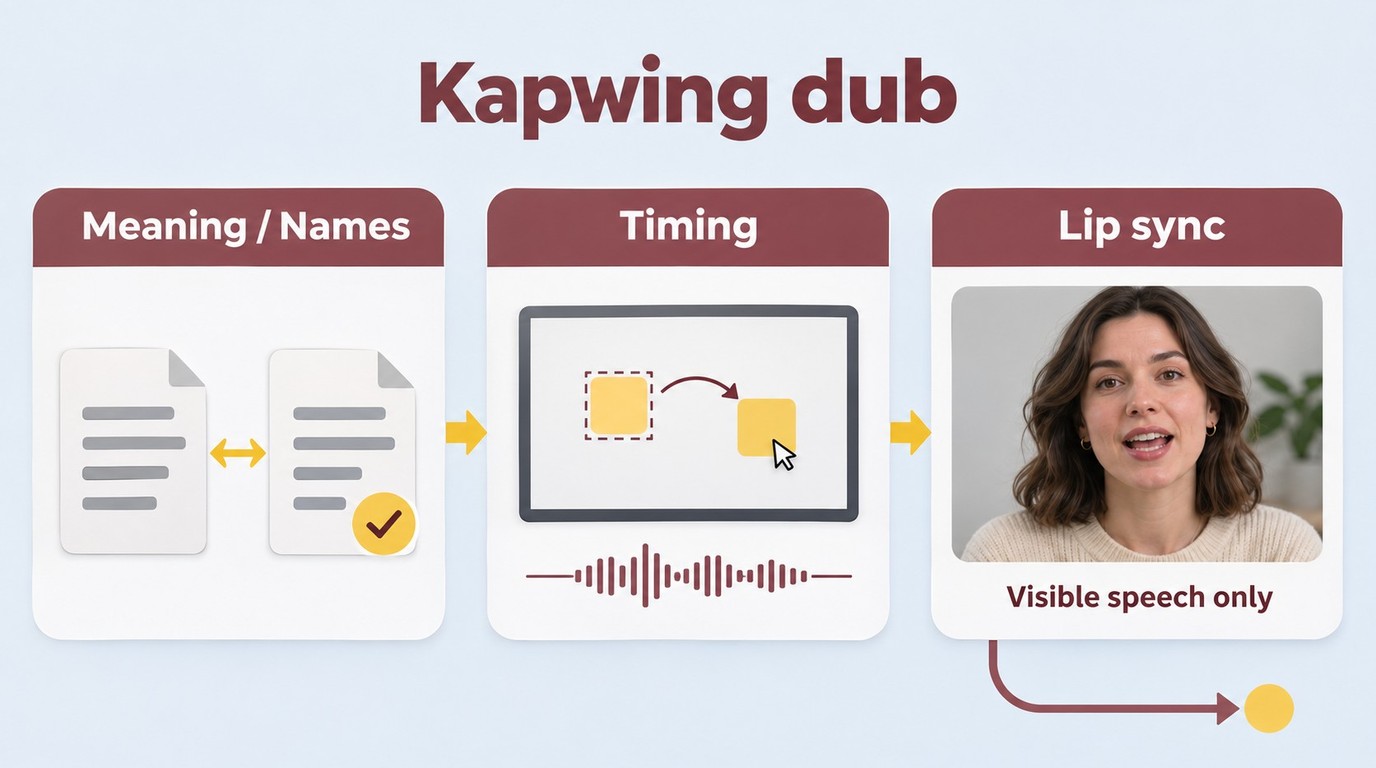
A familiar voice is not a publishing check. Review meaning, names, spoken delivery, subtitle agreement, and the relationship between speech and picture; lip sync addresses the last of these, not the accuracy of the translation.
A creator in r/aitubers described a specific failure: “The English dub has a Russian accent, and some words sound wrong (mostly names and historical terms).” The accent and the wrong words are separate concerns. I would correct a mispronounced name before trying to erase the speaker’s accent.
Separate Voice Similarity From Translation and Lip Sync
Meaning comes first in a course or explainer. Ask a target-language reviewer whether instructions, quantities, negation, and specialist terms still mean the same thing. A missing “not” deserves attention even when the sentence sounds natural. With multiple speakers, also check that a line has stayed with the right person.
Timing matters when speech refers to the picture. In a software lesson, the narration should describe the button or result currently on screen. A translated sentence that runs into the next demonstration needs revision even if its individual words are correct. Listen through pauses, too; they help mark where a thought ends.
Lip sync earns attention in visible speech. For a close-up interview, watch mouth movements alongside the new audio. For narration over slides or scenery, changing a face adds nothing because there is no speaking face to align. I would reserve that work for shots where the viewer actually sees the mismatch.
The audio mix needs its own pass. Listen for overlapping source dialogue, distracting music, and abrupt changes between lines. Read captions while listening rather than assuming both outputs match. A course needs reliable terminology; an interview needs credible delivery; a voiceover needs speech that follows the visuals. Use those differences to decide what to fix, rather than giving each clip the same treatment.
Where UniFab Video Translator AI-Fabcloud Fits
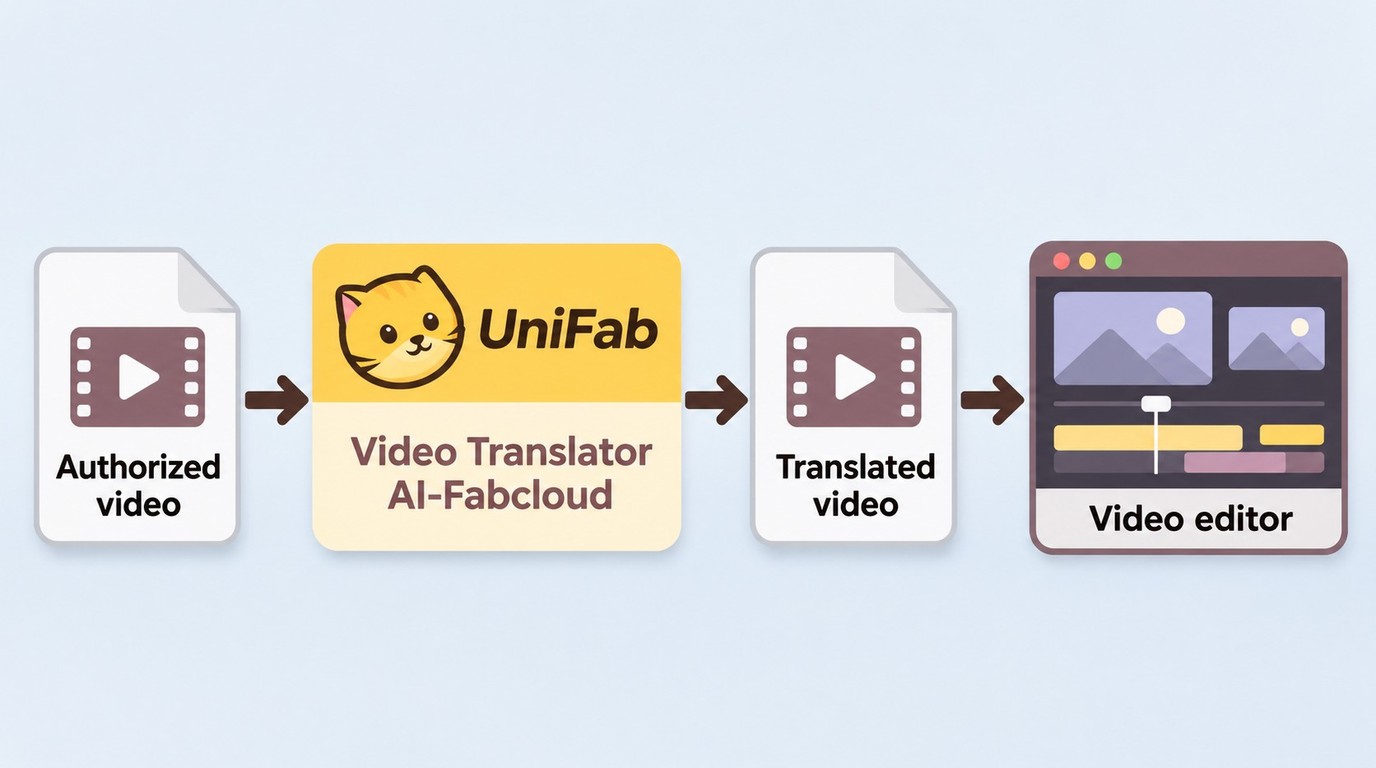
UniFab Video Translator AI-Fabcloud fits you if you need translated video files for a Windows editing workflow, rather than an original-speaker cloning tutorial. As of November 2026, UniFab Video Translator AI-Fabcloud supports Windows, 23 languages, and MP4 or MKV output at up to 4K, so you can plan a translated-file handoff to your editing project.
For that workflow, keep the job focused:
- Match your source and target language to the translator’s supported choices.
- Choose MP4 or MKV to suit the project receiving the translated file.
- Review the speech against the source before using the file in your final edit.
New FabCloud accounts receive 30 cloud credits to start using cloud services.
I would use this video translation tool for language conversion and file delivery, keeping original-speaker cloning and altered mouth movements as separate requirements. The fit is a translated file you can review and reuse in your edit. A resolution label describes the picture, not the accuracy of the new speech.
Start a Windows translation-and-delivery project through the UniFab official entry.
Voice Cloning for Video Translation FAQ
Kapwing voice cloning requires Pro access, and its browser translation workflow runs online. YouTube’s own-voice dubbing example does not require disclosure, while realistic misleading alterations can require it.
Can I Translate a Video With Voice Cloning for Free?
Answer: Free video translation does not necessarily include a usable voice clone. Kapwing requires Pro access for voice cloning, and free-account exports carry a watermark. A no-cost subtitle project is enough when you want translated text over the original speech; a cloned dub is a different deliverable. When weighing free video translators, include the final file, not just the ability to open an editor, in your definition of free.
Can Voice-Cloned Video Translation Run Fully Offline?
Answer: A fully offline workflow needs local transcription, translation, voice generation, and video assembly. A desktop window alone does not establish that. One person in r/StableDiffusion asked for a “local voice cloning/dubbing app with support for many languages,” which captures the combined need. For a job that must stay offline, I would require a complete run with networking disabled after setup, including the translation stage. The browser tutorial above is an online workflow.
Do I Need to Disclose a Cloned-Voice Dub on YouTube?
Answer: YouTube’s GenAI disclosure guidance lists cloning your own voice for voiceovers or dubs among examples that do not require disclosure. Realistic changes that make a person appear to say or do something they did not can require it. I would assess the final video’s meaning, not just the fact that AI generated its audio. Permission from another speaker is a separate matter from YouTube’s disclosure setting.
Choose a Workflow You Can Review Before Publishing
Choose a voice-cloning workflow when recognizable speaker identity matters, and use a translated-file workflow when language conversion and delivery are your requirements. Start with a short passage you can have reviewed in the target language before extending the job to the full video. I would add lip-sync work for visible speech, while keeping meaning, names, and timing ahead of cosmetic polish. A dub is ready because it communicates the intended message, not merely because it sounds like its speaker.