Topaz Video AI stabilization can steady shaky footage, but it is computationally heavy and aggressive settings may create fluttering edges or warped detail. The practical approach is to choose the right framing mode, start with low strength, preview a short segment, and add passes only when the improvement justifies the extra render time.
People usually search for this feature because a handheld clip still looks nervous or a render takes far longer than expected. My editorial view is that stabilization should be treated as controlled reframing, not a rescue switch. That lens clarifies the crop, edge, and speed trade-offs. The sections below move from mechanism to settings, then to a lighter option for focused de-shake work.
How Topaz Video AI Stabilization Works
Topaz analyzes movement across frames, then shifts and rotates them to counter unwanted camera motion. This exposes empty areas around the image, so the software must create edge content or crop inward.
Full Frame vs Auto Crop
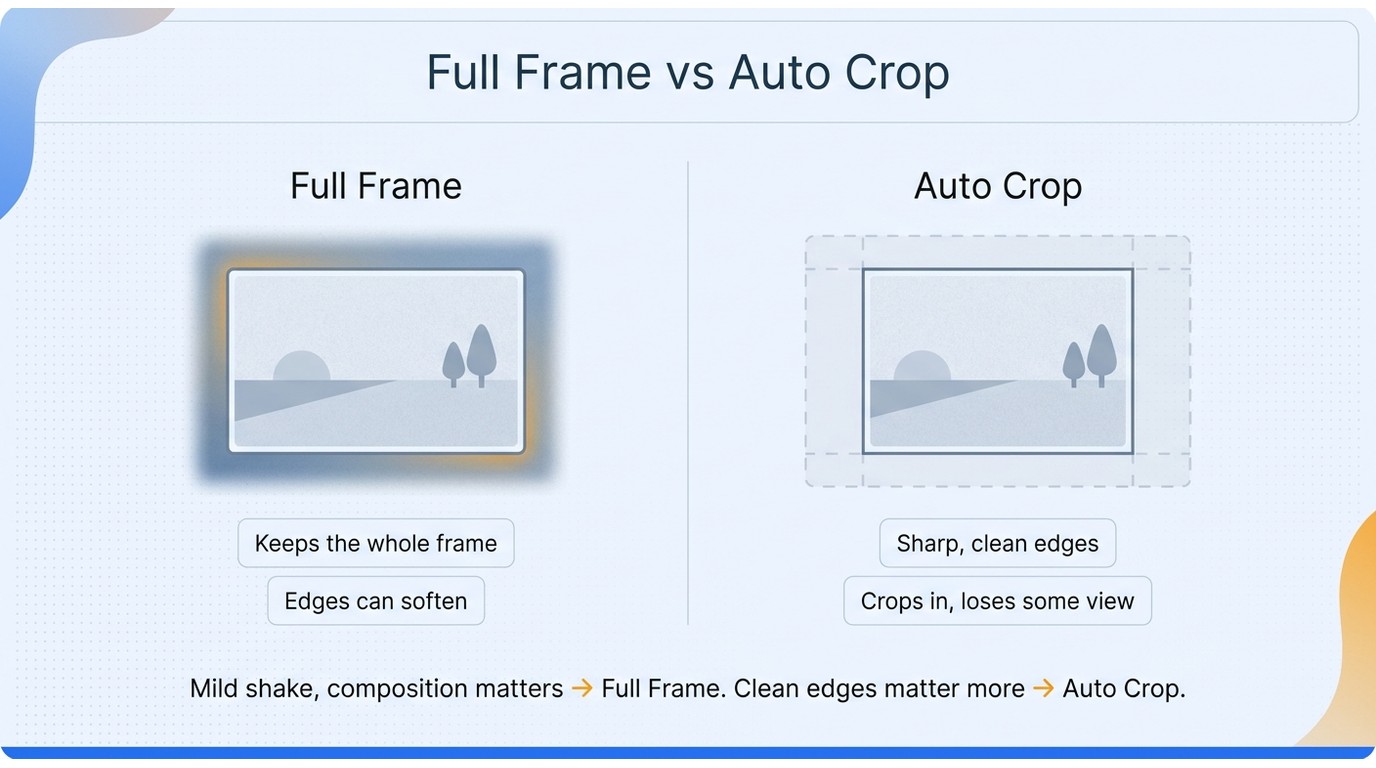
Full Frame preserves the original frame dimensions by filling the moving borders. It protects composition, but the generated or interpolated edges may look soft or unstable when the source shake is severe.
Auto Crop enlarges and trims the image so those empty borders remain outside the final frame. It generally keeps the visible picture cleaner, but you lose some field of view. Use Full Frame when composition matters and the shake is mild. Use Auto Crop when clean edges matter more than retaining every pixel near the border.
This is the first decision I would make, because no strength setting can remove the underlying choice between preserving the frame and preserving edge integrity.
Rolling Shutter Correction and Reduce Jittery Motions
Rolling Shutter Correction targets skew and wobble caused by CMOS sensors reading the image line by line. Enable it when vertical lines bend during fast pans or handheld movement. Reduce Jittery Motions is better suited to small, rapid vibrations that remain after the main motion is corrected.
These controls solve different defects. Enabling both may add work without improving broad camera shake.
How to Stabilize a Clip in Topaz, Step by Step
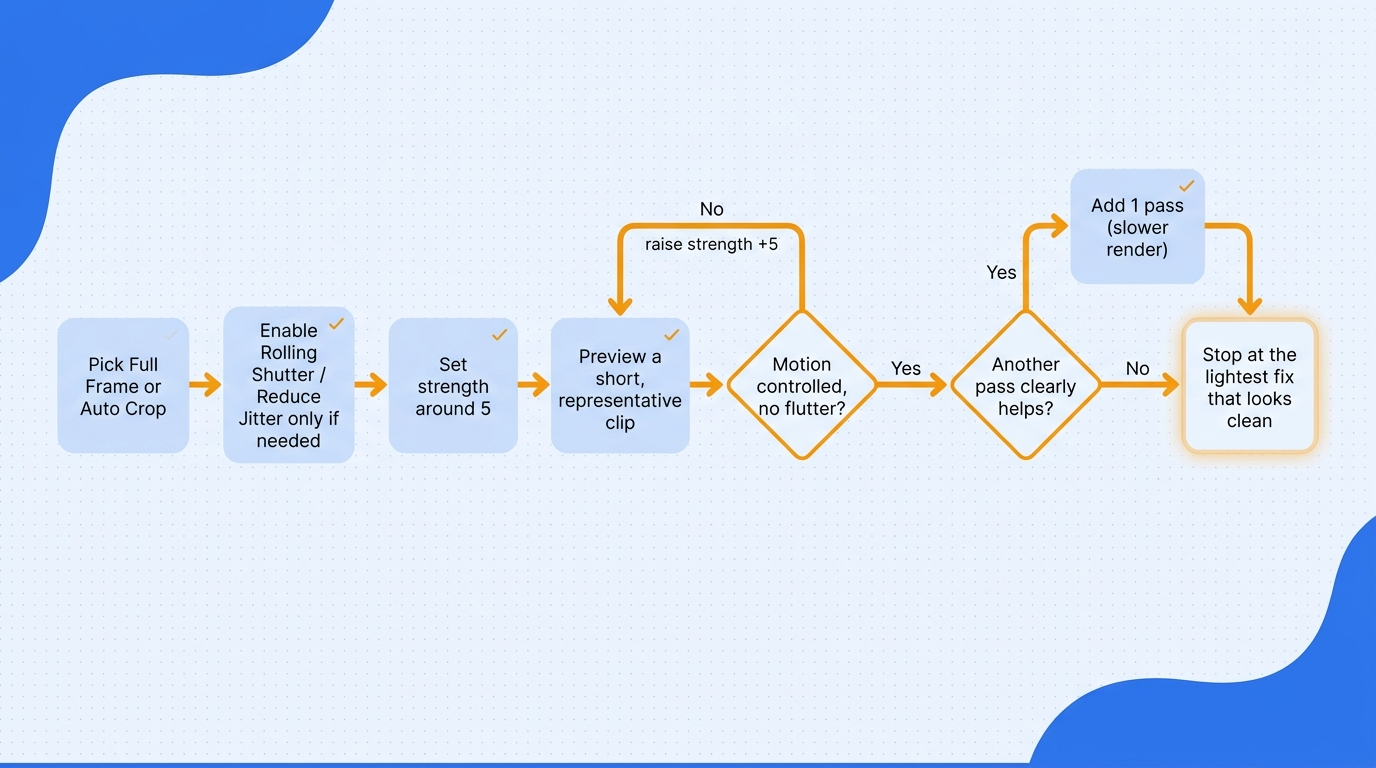
Once the framing trade-off is clear, the cleanest workflow is conservative: test a short section, begin near strength 5, and increase in roughly five-point steps. More passes can smooth difficult movement, but each pass increases processing time and can amplify artifacts if the underlying setting is already too strong.
Choosing strength and number of passes
The reliable sequence is simple:
- Import the clip and open the Stabilization filter.
- Choose Full Frame or Auto Crop based on whether composition or clean edges is more important.
- Turn on Rolling Shutter Correction only for visible skew or wobble, and use Reduce Jittery Motions for fine vibration.
- Set strength around 5 and preview a representative section with both camera movement and detailed edges.
- Raise strength by about five points at a time, stopping when motion looks controlled without fluttering textures.
- Add another pass only if the preview shows a clear benefit worth the longer render.
The low-strength starting point is not timid. It directly addresses the failure mode in which stabilization replaces camera shake with elastic-looking pixels. Start near 5, then raise the value in roughly five-point steps while checking the preview.
Why it renders slowly, and how to cut render time
Stabilization is slow because the software estimates motion across frames, transforms them, rebuilds exposed edges, and repeats the analysis for every added pass. Larry Jordan’s Topaz Video AI review also singled out stabilization performance as a weakness.
To reduce the wait:
- Use one pass unless a second pass visibly improves the preview.
- Process only the section that needs correction instead of the entire source file.
- Work at the required delivery resolution rather than enlarging and stabilizing in one oversized render.
- Confirm that Topaz is using the available GPU.
- Queue long footage as shorter segments when that fits the edit.
One advanced workflow described on Reddit splits longer footage into “60–90 second segments, processed individually, and then reassembled.” That approach adds assembly work, so it suits long or failure-prone renders rather than every project. The practical goal is not maximum stabilization strength; it is the lightest correction that makes the shot usable.
For the wider enhancement workflow beyond stabilization, the Topaz Video AI settings guide covers setup and model selection in more detail.
A Faster, Lower-Cost Alternative: UniFab Video Stabilizer AI
If stabilization is the main job, a dedicated tool can be more efficient than a full enhancement suite. UniFab Video Stabilizer AI runs locally on Windows and macOS, uses GPU acceleration, supports batch processing, and offers Motis for standard de-shake work plus Statys for higher-quality stabilization. It exports MP4 or MKV at up to 4K.
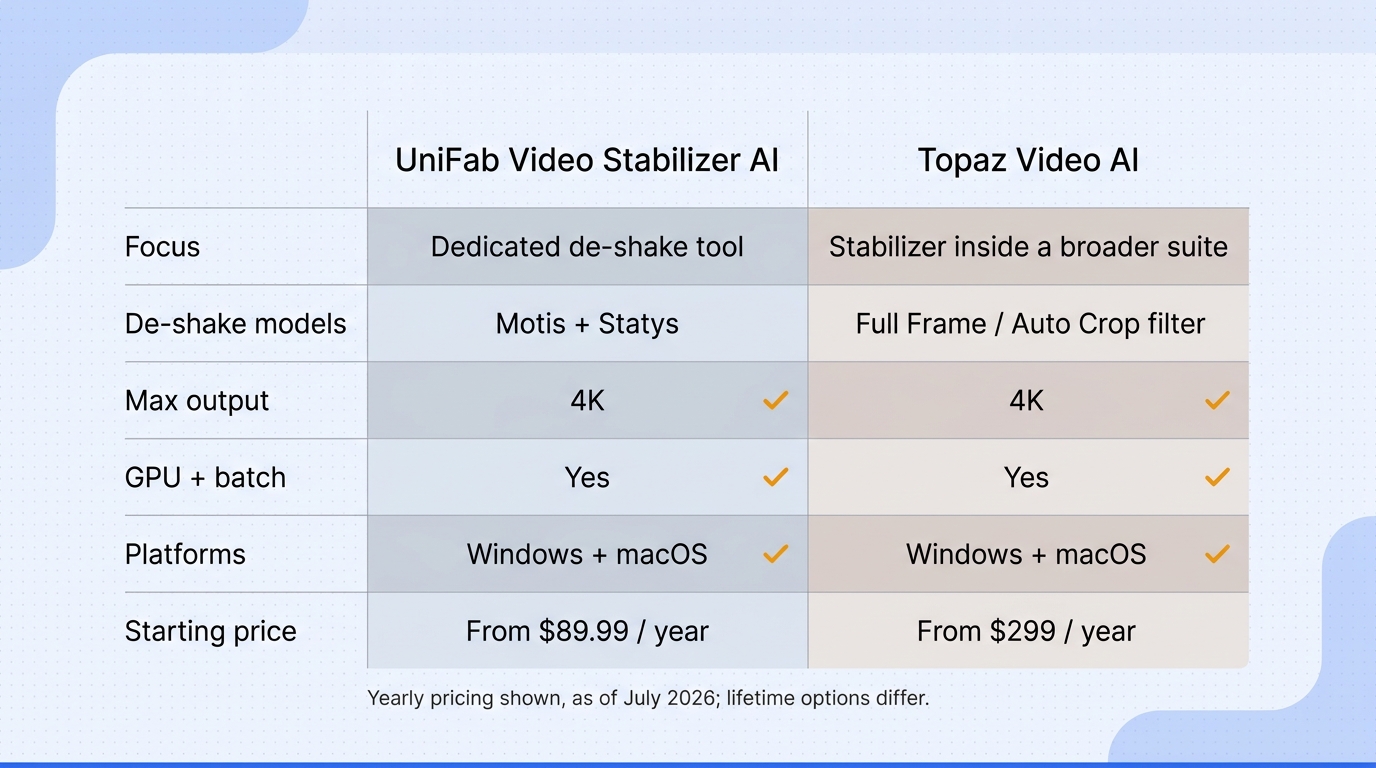
| Factor | Topaz Video AI | UniFab Video Stabilizer AI |
| Product scope | Stabilization within a broader enhancement suite | Dedicated stabilization tool |
| Stabilization approach | Stabilization filter with Full Frame and Auto Crop modes | Motis and Statys de-shake models |
| Maximum output | 4K | 4K |
| Batch processing | Yes | Yes |
| GPU acceleration | Yes | Yes |
| Platforms | Windows and macOS | Windows and macOS |
| Processing location | Local | Local |
| Pricing | $299 yearly | $89.99 yearly; $109.99 lifetime; $319.99 All-In-One lifetime |
Prices and specifications are shown as of July 2026 from official product pages.
The limitation is equally important: UniFab tops out at 4K and its narrower feature set is not a replacement for Topaz’s broader upscaling and denoise workflow.
Best fit: editors who mainly need to steady handheld clips and value a focused workflow.
Not ideal for: anyone buying one application specifically to combine stabilization with Topaz’s wider enhancement toolset.
The UniFab versus Topaz comparison gives the broader feature and budget context without turning this stabilization guide into a suite-by-suite review.
The Bottom Line: Which Stabilizer Fits Your Footage
The decision follows the job. If you already use Topaz for upscaling or denoise, its stabilizer is a sensible part of that workflow: keep strength low, preview difficult edges, and accept that extra passes cost time. If de-shake is the main requirement, a dedicated stabilizer offers a narrower workflow and a lower entry price.
Footage condition matters more than the logo. Mild handheld motion suits either route. Severe shake, motion blur, and large perspective changes may force heavy cropping or reconstruction artifacts.
A Reddit user captured the value question plainly: “I've tried using the stabilization and upscaling features a few times but have never really relied on them.” Before purchasing a broad suite, choose one representative clip, compare edge behavior and crop, then decide whether stabilization is a frequent need or an occasional repair.
Frequently Asked Questions
These answers cover the buying and edge-case questions that settings alone do not resolve.
Is Topaz Video AI worth it just for stabilization?
Usually not if stabilization is the sole requirement. Topaz makes more financial sense when its upscaling, denoise, deinterlace, or frame-interpolation tools are also part of your regular workflow. For occasional de-shake work, a focused stabilizer or an editor you already own may offer better value.
What's the best software for stabilizing shaky video?
There is no universal winner. Choose by footage severity, acceptable crop, render speed, operating system, and whether you need a dedicated stabilizer or a larger enhancement suite. Topaz suits editors who use several AI enhancement tools; a dedicated application suits a focused de-shake workflow.
Can I stabilize a shaky video for free?
Many desktop and mobile editors include basic stabilization at no added cost. These tools can handle mild handheld movement, but they may provide less control over edge treatment, passes, and AI-assisted correction. Start with the stabilizer already in your editor before buying another application.
Can Topaz fix very shaky, handheld footage?
It can improve some heavily shaken clips, but stronger correction demands more crop or more edge reconstruction. If faces, text, or straight lines begin to bend or flutter, reduce strength and accept some remaining motion. A stable-looking image with warped detail is not a successful repair.
Is there a trial to test Topaz stabilization first?
Use any current evaluation option offered through Topaz’s official download to process your own short, difficult clip before committing. Check three things: edge artifacts, crop loss, and total render time. A polished sample clip is less useful than the footage that regularly causes problems in your workflow.