If you need Spanish to English video translation, use YouTube’s English captions or Auto-translate to understand a video while watching. To create an English-language video file, translate a saved video into dubbed audio. Player captions do not create a dubbed download.
You might need to follow a Spanish explanation, read its wording, or hear it in English. Those are different results. I would keep the original audio for close viewing, where tone matters alongside the words. Below, I separate the output choices, show the YouTube caption controls, and explain the saved-file route.
Choose Subtitles, a Transcript, or an English Dub
Choose player captions for watching, a translated transcript for reading, timed subtitles for editing, or an English dub for listening. A transcript contains words; a subtitle file adds timing, while a dub changes the spoken language.
Match the Output to Your Next Step
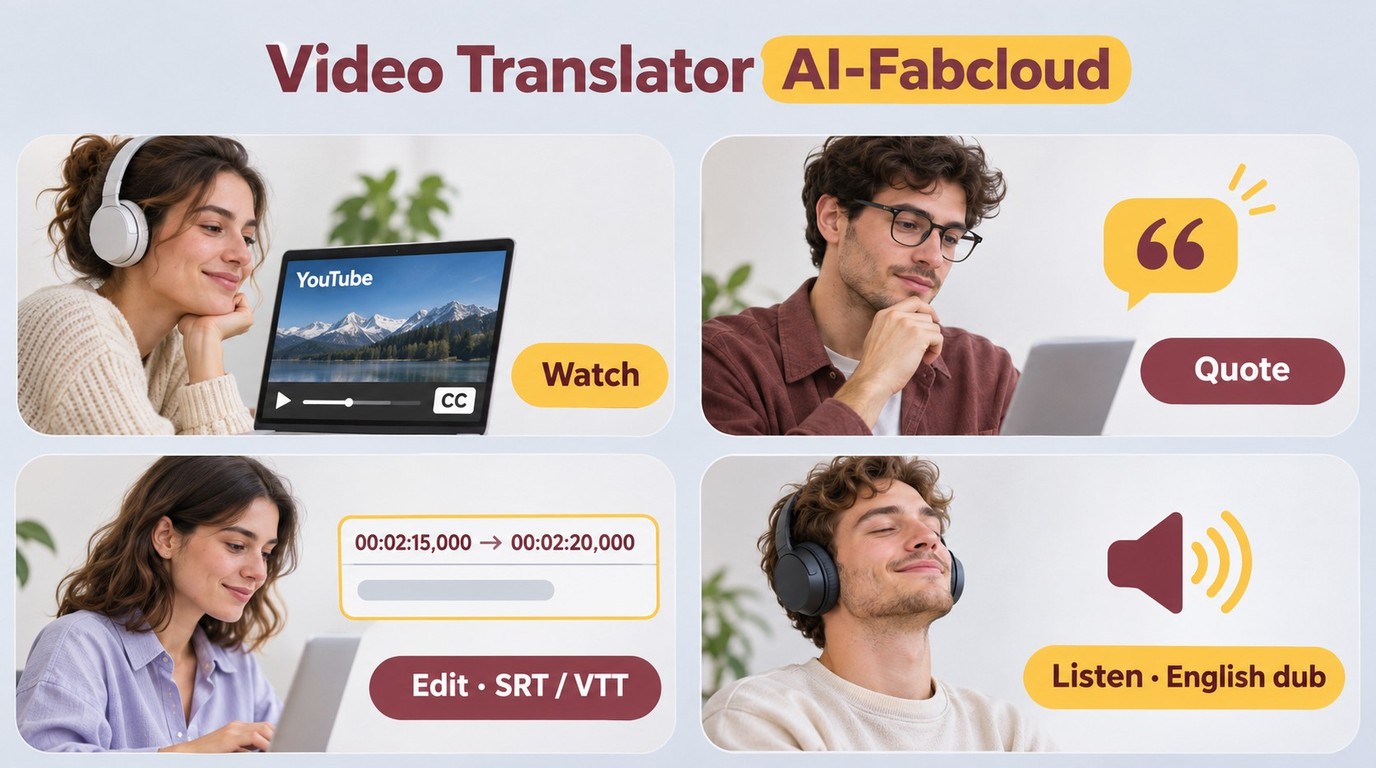
The file you need determines which route fits. English text on a player is enough to follow a tutorial, but it is not an editable caption track you can hand to an editor.
| Goal | Route | Result | Main limit |
|---|---|---|---|
| Watch a YouTube video | YouTube Auto-translate | English player captions | Needs an available caption track |
| Edit timed English captions | A subtitle-file exporter | Separate SRT or VTT file | Requires explicit subtitle-export support |
| Deliver an English-language video | Video Translator AI-Fabcloud | MP4 or MKV video | Windows; cloud credits required |
Source: YouTube’s caption settings, automatic captioning, and automatic dubbing guidance, plus UniFab’s official product and FabCloud plan information, as of November 2026.
An English subtitle track solves a different handoff from dubbed speech. As one Reddit poster in r/VideoEditing put it, “My question is straightforward: I have a video with a Spanish speaker, and I want to automatically generate English subtitles so I can share it with an English-speaking audience.”
For that handoff, I would choose an editable English subtitle file, rather than assume a translated video includes one. SRT and VTT hold timed text; they do not replace the voice. When evaluating free video translators, distinguish subtitle export from plain translated text so your editor receives captions with timing.
A transcript suits reading and quotation instead. If your next step is taking notes from an interview, translated paragraphs are useful without a video export. For a watchable English-language copy, the file workflow below serves a different need.
Translate Spanish Video to English with YouTube Captions
On a Spanish YouTube video with captions, choose an English track or use Auto-translate to display English text. This keeps the original audio and does not create an English voice track.
Turn On English Captions in YouTube
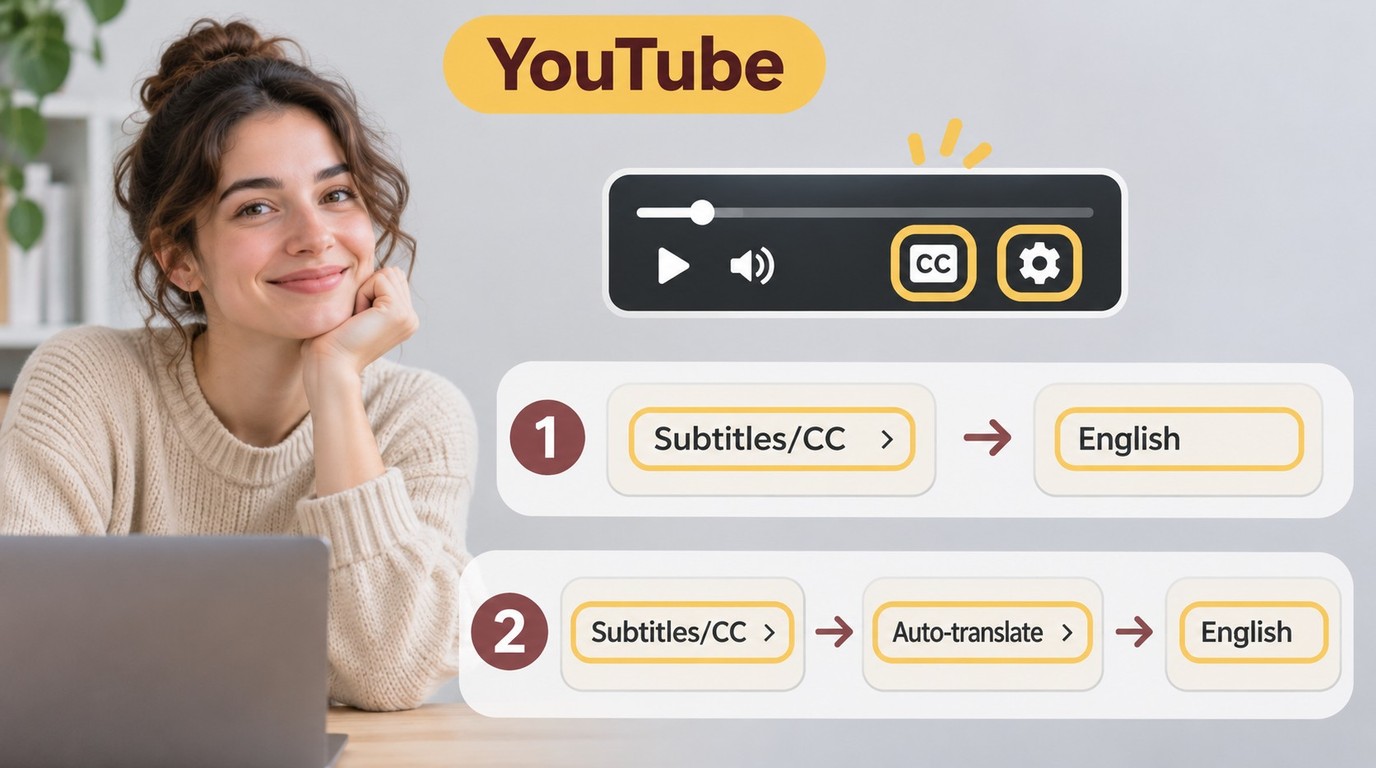
An available caption track is the starting point. On a computer, CC appears in the player when captions are available; on Android, tap the video to reveal the controls.
- Open the Spanish video in YouTube and find the CC control.
- Turn captions on. Confirm that words appear during spoken dialogue.
- Open the player’s Settings, then Subtitles/CC on a computer or Captions on Android.
- Select English if it is listed. Otherwise, choose Auto-translate, when offered, and select English.
You have the intended result when the displayed words change to English while the speaker continues in Spanish. Nothing needs to be saved to your drive for this viewing route.
An English track and Auto-translate are different choices. Selecting a listed English track uses those captions; Auto-translate translates the available source captions. If the source text misses a name or sentence, the English text starts from that mistake.
The need for English audio is separate. A Reddit poster in r/VideoEditors described it directly: “I have a video in Spanish on YouTube. I want to convert the audio to English so that I can use the information in the video file to use in my assignment. I don’t speak Spanish.” For simply following the explanation, I would use readable captions; needing spoken English calls for an audio track, not another caption setting.
When Captions or English Audio Are Missing
Missing English captions and missing captions altogether require different responses. If Spanish captions exist, Auto-translate offers a text route when the menu includes it. If CC is absent, changing the target language cannot supply a missing source track.
Spanish is supported for automatic captions on uploaded videos. A particular upload can still lack captions while processing, or because speech is unclear or speakers overlap. Waiting for processing or asking the creator for captions addresses that missing track; repeatedly changing caption language does not.
English audio also has to exist for that video. YouTube’s automatic dubbing creates translated audio for eligible creators and videos, but turning on captions does not generate a dub on demand. An available English audio track serves listening; its absence is not a caption-setting error.
A missing track does not automatically make file translation the next step. I would move to a saved-file workflow when you actually need a separate English-dubbed video and have a file you can process. Otherwise, the unresolved need is still access to readable captions.
Translate a Saved Video with UniFab Video Translator AI
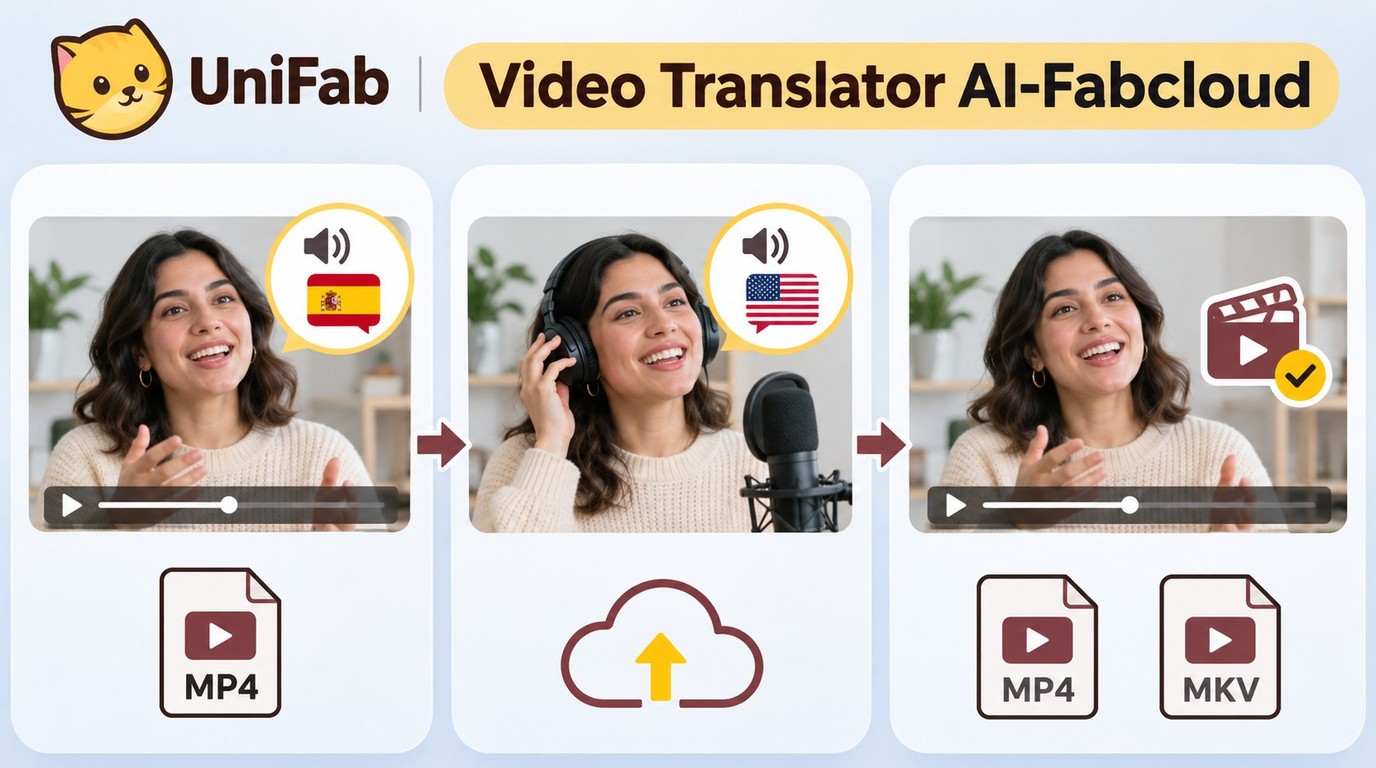
Video Translator AI-Fabcloud fits you if you use Windows and need a saved Spanish video exported with English dubbed audio in MP4 or MKV. Video Translator AI-Fabcloud for Windows supports 23 languages and exports dubbed MP4 or MKV video at up to 4K resolution.
Have an internet connection, a UniFab account with available FabCloud credits, and a supported file such as MP4, MOV, or AVI ready. As of November 2026, FabCloud’s 600-credit annual plan starts at USD 199.99 per year; new accounts receive 30 cloud credits.
- Open UniFab’s Video Translator AI-Fabcloud module on Windows, import your file, and select the Spanish source audio track and language.
- Choose English as the target language and submit the translation for cloud processing.
- When processing finishes, export the MP4 or MKV to your chosen folder, then replay it to check the English speech and timing.
I would judge the English wording separately from picture resolution. This route delivers a dubbed video; standalone SRT or VTT delivery needs a subtitle-export workflow. Use UniFab’s official site to access the app, then open the translation module for your video.
For personal use, translate only content you are entitled to watch or process, and follow the source platform’s terms. Do not redistribute or resell personal-use copies.
Frequently Asked Questions
YouTube captions provide a no-cost viewing route, while a translated video export depends on the workflow’s credits and export entitlement. Review Spanish recognition before polishing English, and use a documented local workflow when the source file must not be uploaded.
Can I get a full English translation and export without paying?
A: YouTube does not charge a separate translation fee for its caption controls, but they do not export a newly translated video. For a full file, free access must cover the entire input, translation, and final export. A signup allowance does not establish that a full-length video fits. Compare the input-duration allowance and export entitlement with the actual file you need to deliver; free translated text alone does not meet a dubbed-video requirement.
Why do slang and mixed-language speech translate poorly?
A: An error can start in the Spanish recognition or in how the English expresses it. As one Reddit poster in r/postproduction asked, “Cross posted with video editing, but what human services are we using? Want to account for slang use.” I would review it in this order:
- Compare the Spanish transcript with the audio, especially overlapping voices.
- Check slang and language switches for changes in meaning.
- Have a bilingual reviewer resolve important or ambiguous passages.
Fluent English is not proof that the Spanish was understood correctly.
Can I translate a saved video entirely offline?
A: Installing a desktop app does not establish offline processing. FabCloud requires an internet connection and uploads the file for cloud translation. If your project must stay offline, choose a workflow documented to run both speech recognition and translation locally, or use a human translator working from a local copy. Keep that requirement separate from whether the finished video plays offline.