Compression artifacts are blocky patches, banding, or edge noise caused by lossy video encoding. Reduce them with targeted cleanup after checking whether damage starts in the source, export, or upload. Preview motion first: cleanup can improve appearance, but it cannot precisely recover discarded detail.
Aggressive cleanup can turn blocky foliage into painted patches. I would keep some residual blocking rather than accept a face that loses its texture whenever it moves. The goal is to remove video compression artifacts without trading away useful detail. The workflow below separates source damage, sample cleanup, and export problems so you can stop at the right stage.
Identify Where the Compression Damage Starts
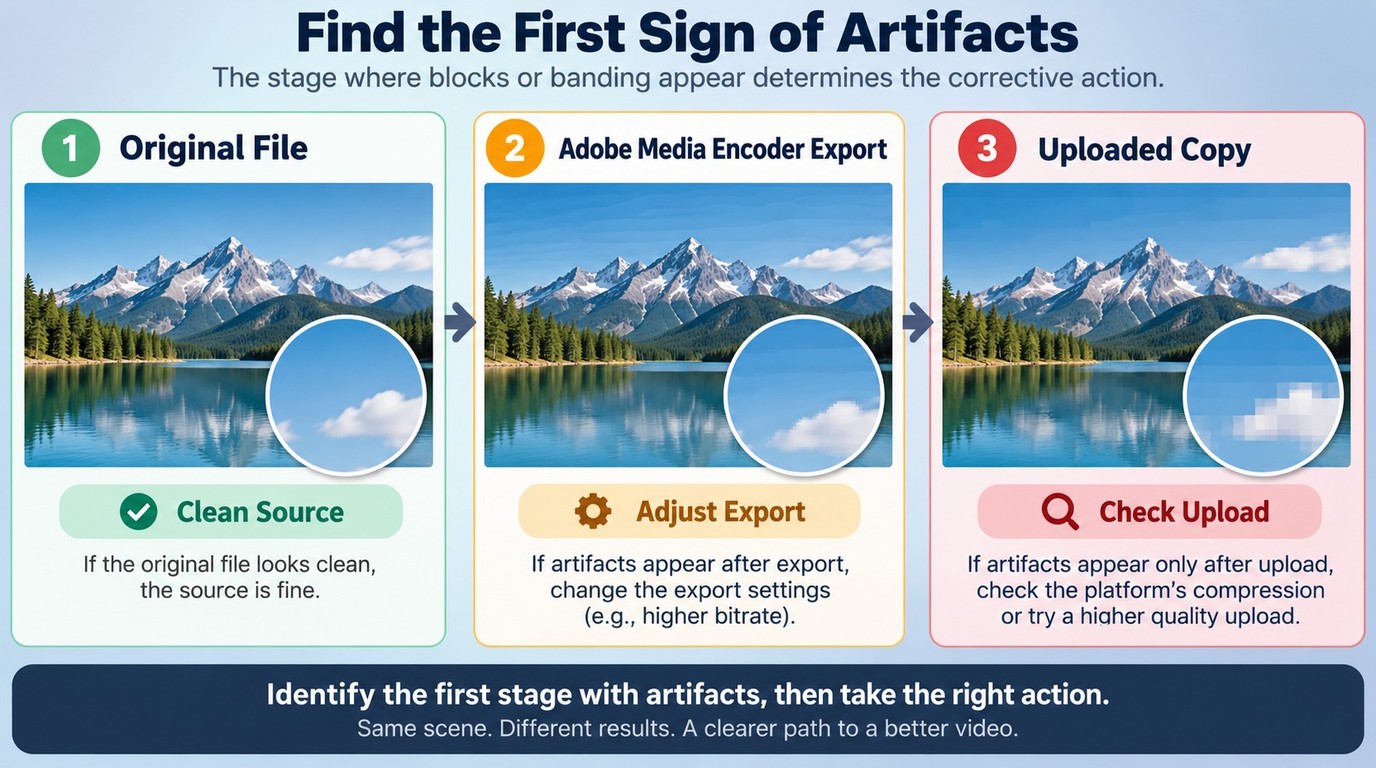
Compare the original file, your local export, and the uploaded copy at the same viewing size. Artifacts present in the original need source cleanup; artifacts that first appear later need an export or upload check. Keep the original untouched.
Compression artifacts are visible errors left by lossy encoding. Macroblocking looks like square patches, banding like steps across a gradient, and mosquito noise like speckles around edges. Too little source resolution, excessive zoom, and corrupted frames are different problems. When you fix pixelated video, identifying that difference prevents the wrong treatment.
| What You See | Where It Appears | Next Step | Main Tradeoff |
| Blocky textures | Source file | Preview cleanup | May soften texture |
| Bands in gradients | Source or export | Compare source and export | Cleanup cannot recover lost color |
| New blocks after export | Local export only | Review source matching and bitrate | Larger files may be needed |
| Clean local file, degraded upload | Uploaded copy only | Review upload encoding | Platform recompression remains |
I would change the stage where the defect first appears. A Reddit poster in r/editors described the distinction directly: “The source footage looks perfectly fine on every display including OLED. Problem appears only after export from AE through Media Encoder.” That is a symptom report, not a diagnosis of every export problem. If your source is clean too, skip source cleanup and work on the export.
Reduce Compression Artifacts with TensorPix Deep Cleaner
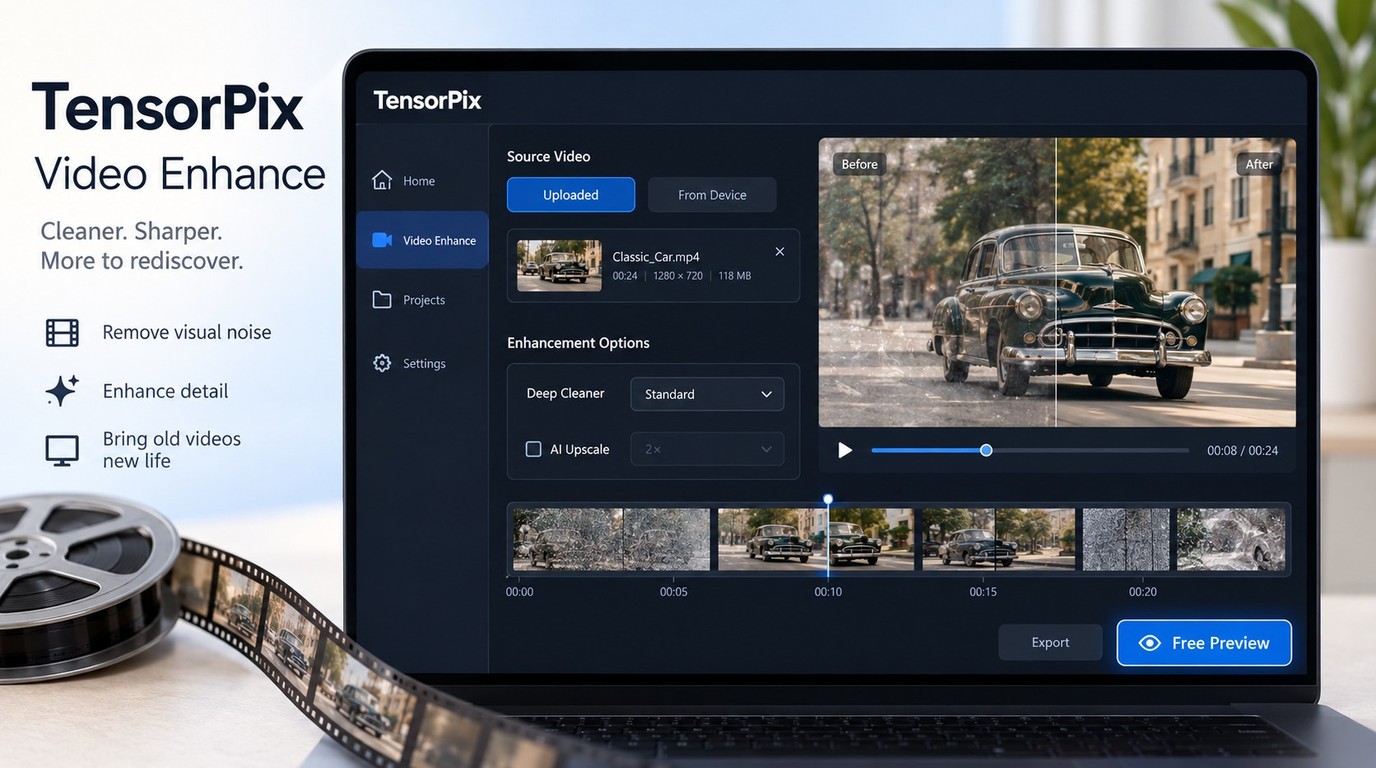
Use TensorPix Deep Cleaner on a representative sample, start with Standard, and compare the preview in motion before processing the full clip. Leave AI Upscale unselected when you want to retain the original dimensions. This cloud workflow fits clips you are comfortable uploading; sensitive footage belongs in a local workflow.
Upload a Sample and Run Deep Cleaner
Prepare a sample that includes the actual problem. A quiet frame will not reveal what happens to grass during a camera pan or to a face during movement. Include both a damaged area and nearby texture you want to keep. Preserve your original file and upload a separate copy.
You need a TensorPix account, an internet connection for uploading, and access to the Video Enhance workspace. Free Preview provides a way to inspect the filter before committing to full processing. Its watermark and plan-dependent preview size make it a sample evaluation, rather than a finished deliverable.
- Open TensorPix and select Video Enhance, then Uploaded. This is the upload workspace for your source clip.
- Select Browse Files or drag your sample into the upload area. Wait for the upload to complete before choosing processing options.
- Select Deep Cleaner and begin with Standard. Leave AI Upscale unselected to separate cleanup from enlargement; Deep Cleaner itself does not change the resolution.
- Select Free Preview and choose a representative section. Include visible blocks and movement, rather than choosing the cleanest moment in the clip.
- Select Enhance and wait for the preview to finish. Review the completed preview before starting another job.
Keep this first pass simple. Adding unrelated filters at the same time makes it harder to tell whether Deep Cleaner helped or whether another change concealed the defect. A smaller block pattern is useful only if the image still carries the texture you need.
Compare Motion Before Processing the Full Clip
Judge the preview at normal playback speed as well as on paused frames. On Video Production Stack Exchange, a reader asked for cleanup “without a serious loss of existing detail or flickering between frames (Caused by frame-by-frame editing).” Those are useful symptoms to watch for, not evidence that any particular filter will eliminate them.
Inspect faces, hair, fabric, vegetation, and fine edges. Watch whether texture stays attached to a moving object or changes from frame to frame. Pause matching moments in the original and preview to distinguish fewer blocks from a uniformly blurred surface. Use the same display size for both.
Stop increasing cleanup when the texture loss outweighs the reduction in blocks. If Standard leaves distracting damage while retaining useful detail, compare an Ultra preview. If the stronger variant makes skin look plastic or introduces more flicker, keep the gentler result. I would accept a less dramatic still-frame improvement if it produces a more consistent moving image.
Once the preview meets that standard:
- Select the full clip with the chosen Deep Cleaner variant. Run the full processing job; it consumes credits rather than using the free-preview allowance.
- Review the completed video before downloading. Inspect the difficult motion section again, not just the opening frame.
- Download the completed video and retain the original separately. Record the filter variant alongside the output so you can identify and repeat the useful pass.
Process only footage you own or are authorized to use, and follow TensorPix’s applicable terms. You are responsible for the content you upload and the rights associated with it.
Fix Pixelated Exports in Adobe Premiere Pro
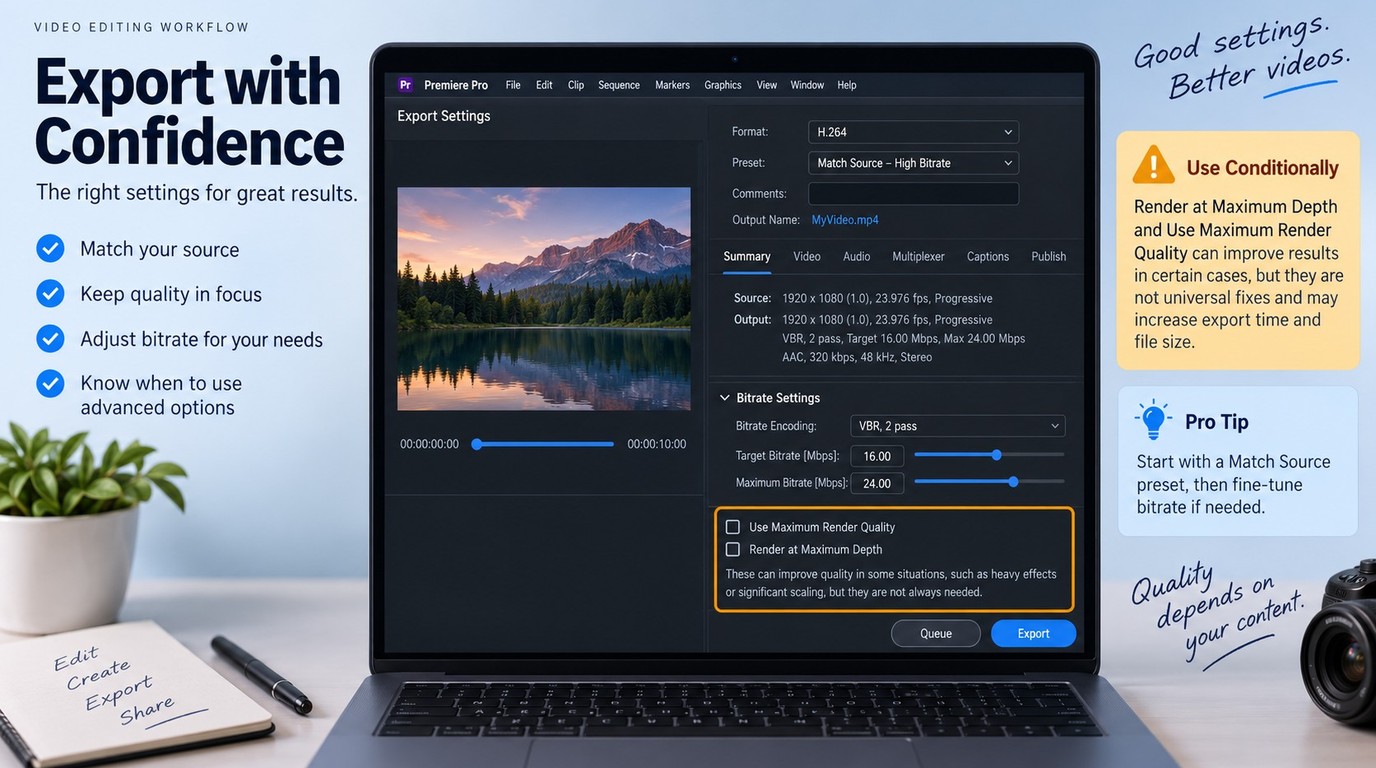
To fix pixelated video in Adobe Premiere Pro when the source is clean, match the export to the source and review bitrate before adding cleanup. Scaling and color-depth settings address specific export problems. They do not reconstruct detail already lost in the input.
Match the Source and Review Export Settings
Work from your original source or the approved cleaned file. Avoid exporting an export again when you can return to that better input.
- Compare the source with a short local export. Inspect the same motion section at the same display size. If both have the same blocks, changing export settings is not the source-cleanup step.
- Open Export and choose an appropriate H.264 Match Source preset. Review frame size and frame rate. Adaptive Match Source presets adjust bitrate to source frame size, but still need to suit your delivery goal.
- Review bitrate against dimensions and motion. Bitrate is the amount of data assigned per second of video. Export a short comparison sample with more data available if the first export adds blocks; expect a larger file.
- Use the quality switches for their intended jobs. Use Maximum Render Quality when scaling to a different frame size. Consider Render at Maximum Depth for gradients when the source and workflow support retaining more color information.
I would keep those switches separate from restoration. Better scaling can reduce jagged edges, and retaining source color information can help banding, but neither switch retrieves discarded source detail.
Separate Upload Recommendations from Repair Settings
For YouTube, as of October 2026, the recommended video bitrates for 1080p SDR uploads are 8 Mbps at 24, 25, or 30 fps, and 12 Mbps at 48, 50, or 60 fps. Encode and upload at the recorded frame rate. SDR means standard dynamic range; these figures are upload recommendations for that format, not universal repair settings.
Compare the local file with the uploaded playback. A clean local export followed by a blocky upload points to the delivery stage. Raising the uploaded resolution does not guarantee artifact-free playback or a particular platform codec.
Export protection applies whichever cleanup route you choose. If your next source clip needs enhancement but should stay off a cloud upload service, a local Windows workflow is the relevant next option.
When UniFab Video Refiner AI Fits Your Workflow
UniFab Video Refiner AI is a Windows desktop app that processes video locally at its original size (1×), up to 4K, and saves MP4 or MKV output. It also supports batch processing, so a collection of clips can stay in one desktop workflow rather than becoming separate cloud uploads.
Original-Size Processing and Product Limits
Use the local workflow for material you prefer to keep on your computer. Original-size processing keeps cleanup separate from enlargement, which is useful when your editing sequence already matches the footage. For a collection, start with a representative clip before applying the same choice to other material.
- Choose a representative source clip for local processing. Include movement and visible texture so you can assess the result before organizing a larger batch.
- Compare Standard and High Quality processing on that clip. I would choose the result that retains moving detail, rather than assume the higher quality label settles the decision.
- Process the selected clips and save MP4 or MKV output. Batch processing helps organize multiple jobs, while GPU acceleration supports the AI workload on your computer.
It enhances video at its existing dimensions rather than upscaling it. The evaluation allowance provides three watermark-free runs of up to five minutes each, with Start Time required.
Compression Artifact Removal FAQ
Free previews, container changes, and damaged frames address different needs. A preview helps you judge cleanup, a container holds the encoded video, and missing frames require attention to the source file. None is a substitute for locating the defect first.
Can I Reduce Compression Artifacts in a Video for Free?
Yes, you can evaluate a cleanup result with TensorPix’s Free Preview without spending credits on that preview. It is not free full-length processing: the preview has a watermark, and its duration and resolution depend on the plan. Full processing consumes credits. Use the preview to answer a concrete question, such as whether foliage remains recognizable during movement, before committing the whole clip. The upload requirement still applies to the preview.
Does Converting an MP4 File to MKV Remove Compression Artifacts?
No. MP4 and MKV are containers, not cleanup filters. Remuxing, which moves the same encoded video into a different container, leaves its image content unchanged. Re-encoding is a different operation and can add another compression pass. Choose the container for your editing or playback needs; address visible blocks with image processing or a better source, rather than expecting a filename extension to improve them.
Can Compression Cleanup Repair Missing or Corrupted Frames?
Treat missing frames and decoding errors as a source-integrity problem. An enhancement filter works on the available pictures; it is not general file-recovery software. Look for an intact original or backup before attempting cosmetic cleanup on the readable sections. I would prioritize the complete source over a cleaner-looking fragment. Diagnose the damage, preview the treatment, and protect the result during export.