
Quick Verdict: Is Nero AI Video Upscaler Any Good?
I would start with Nero AI Video Upscaler for short, low-resolution clips on a capable Windows PC. Its model choices and preview suit straightforward enhancement, but noisy footage and fine textures need closer inspection before you commit to a full render.
For a cloud workflow, UniFab's online video enhancer offers another route. Video Upscaler AI also provides a local option for projects that need output beyond Nero’s 8K ceiling.
Old clips often need more than a larger frame. Soft edges, noise and flattened textures each call for a different preview check. This Nero video upscaler review follows those choices through the models, price, export format and hardware requirements.
What Is Nero AI Video Upscaler?
Nero AI Video Upscaler is a Windows desktop tool that uses AI to increase video resolution. You choose a model for your footage, preview the result and export an MP4. A larger output frame alone does not guarantee more natural detail.
- Six models: Fast, Animation, Realistic, Versatile, Face Enhancement and Restoration.
- Clip selection: Process a selected segment without first cutting a separate source file.
- Batch processing: Queue multiple videos for enhancement.
- Resolution choices: Output options range from 720p to 8K.
| Format choice | Supported option | Practical use |
| Input containers | MP4, MOV, AVI, MKV, WMV | Import existing clips |
| Output container | MP4 | Save the processed video |
| H.264 encoding | MP4 with H.264 | Broad playback compatibility |
| H.265/HEVC encoding | MP4 with H.265/HEVC | Smaller files at similar quality |
I would choose H.264 for a clip destined for several devices. HEVC suits a smaller file when your player supports it.
What's New in Nero AI Video Upscaler
Restoration joins the lineup as the sixth model, aimed at older or degraded footage. It adds another starting point for enhancement. Preview faces, edges and movement before applying it to an entire clip.
- Side-by-side preview: Compare the original frame with the enhanced version.
- Frame interpolation: Generate intermediate frames for smoother movement.
- Face Enhancement: Adjust facial detail with a dedicated model.
- Color adjustment: Tune brightness, contrast, saturation, sharpness and white balance.
Nero AI Video Upscaler Pricing
Nero advertises a U.S. purchase price of $84.95 as of September 2026. Its seven-day trial requires no credit card and exports without a watermark. You can evaluate an exported clip before purchasing.
The Nero AI Video Upscaler price is useful for an initial budget comparison. For your purchase decision, preview a demanding section with noise or motion, then inspect the exported MP4 on the device you use for playback.
Using Nero AI Upscaler Step by Step
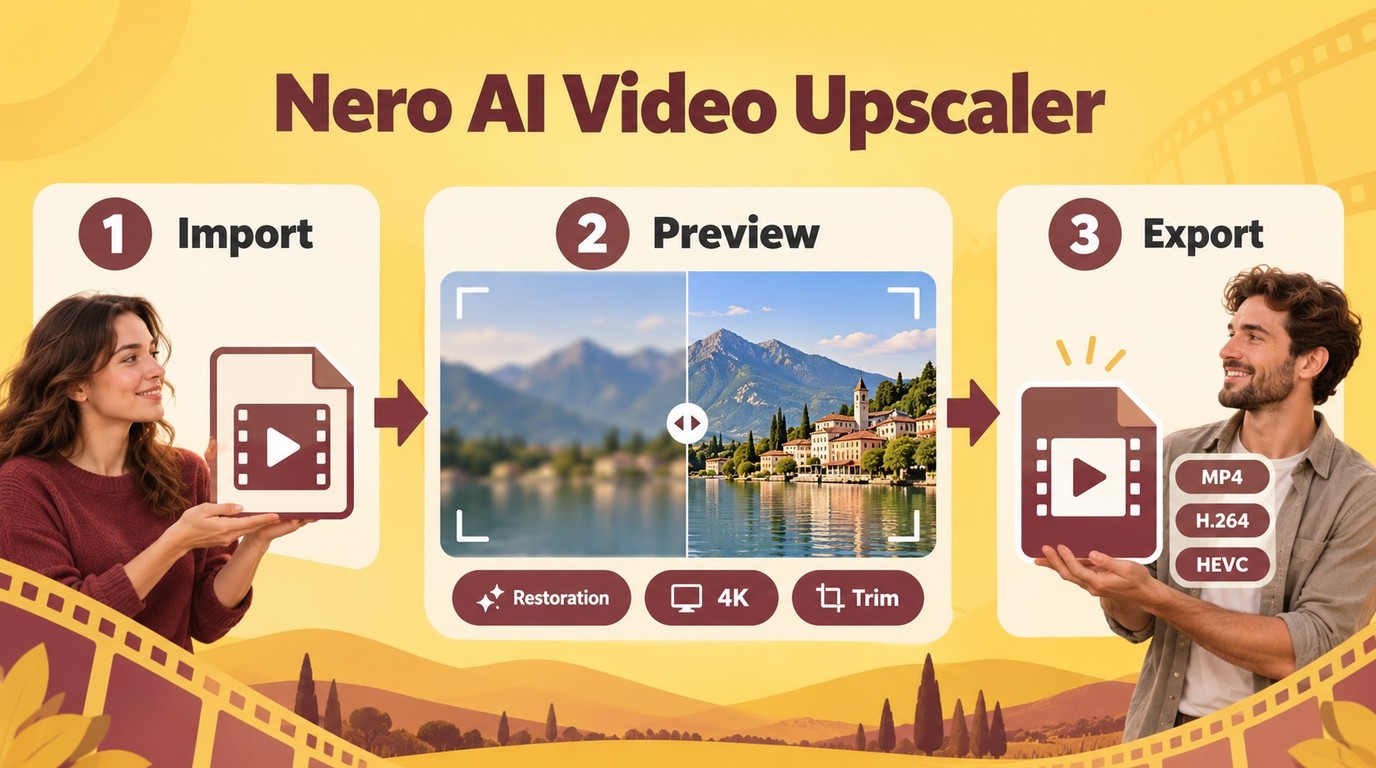
Nero’s workflow takes you from an imported clip to an MP4 export. Start with Windows 10 or 11, 64-bit, and at least 8 GB RAM; Full HD-to-4K processing calls for 4 GB VRAM. Use footage you own or have permission to process.
Import Your File
Begin by clicking "Import Video" to add your video for upscaling. Alternatively, you can record directly from your webcam.
Set Upscale Options Menu
Choose an AI model and output resolution that best suits your needs. Optionally, you can trim the video clips before upscaling.
Preview
Once you have found the best settings for your file , you can preview the video before starting the full upscaling process.
Start Upscale & Export Your File
Upscale by clicking the "Add to job list". Once the processing is complete, choose the output video folder to save your upscaled video.
Select H.264 for broad playback support or H.265/HEVC for a smaller file on compatible devices. Keep the original clip so you can compare the export with its source.
Nero AI Video Upscaler Model Results

The scenery, animation, vlog, night and close-up samples show different tradeoffs: stronger edges, smoother textures or remaining grain. For a Nero AI Video Upscaler Pro test on your own footage, compare movement as well as still frames. Watch the whole preview.
Test Setup and Scope
The five illustrated model samples used a Windows PC with an NVIDIA GeForce RTX 4070 and AMD Ryzen 7 5700G, targeting 720p-to-4K enhancement. They cover scenery, animation, a daily vlog, noisy night footage and a face close-up.
Nero’s hardware requirements start at Windows 10/11 64-bit and 8 GB RAM, with 32 GB recommended. Full HD-to-4K work calls for 4 GB VRAM; 4K-to-8K work calls for 12 GB VRAM with an RTX 3060 or RX 6700 XT-class GPU.
A capable Windows PC fits Nero’s local workflow. Below the 8K hardware recommendation, a cloud processing route shifts rendering away from your local GPU.
| Model | Best Footage | Intended Effect | Preview Check |
| Fast | General scenery | Quick enhancement | Fine texture |
| Animation | Cartoons and anime | Defined lines | Moving edges |
| Realistic | Live-action clips | Natural-looking detail | Skin texture |
| Versatile | Mixed-quality footage | General enhancement | Remaining grain |
| Face Enhancement | Face close-ups | Defined facial features | Halos around contours |
| Restoration | Older, degraded clips | Restore visible detail | Faces and motion |
Fast Model of Nero AI Video Upscaler
The scenery sample shows a modest increase in sharpness, with limited additional fine detail. The overall image remains close to the original. Use the preview to decide whether that change is worth a full render.
Animation Model of Nero AI Video Upscaler
The Animation model gives the illustrated cartoon brighter colors and more defined lines. It is a useful starting point for animated footage. Check moving outlines as well as still frames so that stronger edges do not distract during playback.
Realistic Model of Nero AI Video Upscaler
The vlog sample shows smoother skin, but some texture and depth are reduced. Smoothness is not the same as realism. I would favor the version that preserves recognizable skin texture over the one that looks cleanest in a paused frame.
Versatile Model of Nero AI Video Upscaler
The noisy night sample still shows grain after enhancement. The visible improvement is limited for this clip. Inspect dark backgrounds at normal playback size before processing a longer sequence with the same settings.
Face Enhancement Model of Nero AI Video Upscaler
The close-up sample shows more defined facial contours, along with an overly sharpened appearance. Strong edges need restraint. Check eyes, hairlines and cheeks during movement, especially in footage with noise or uneven lighting.
Pros & Cons of Nero AI Video Upscaler
Nero combines clip selection, batch processing and side-by-side preview in a Windows workflow. Those controls help you evaluate a short segment before rendering more footage. Its MP4 export also gives you a straightforward playback format.
Pros of Nero AI Video Upscaler
- Queue multiple source clips for processing.
- Select a segment without creating a separate trimmed file.
- Compare the source and enhanced preview side by side.
- Import common containers, then export MP4 with H.264 or HEVC.
- Choose among six models for different source material.
Cons of Nero AI
- The illustrated samples show smoothing and sharpening artifacts.
- Heavy grain remains in the night-footage example.
- MP4 is the output container, even when the input is MOV or MKV.
- Desktop processing requires Windows and suitable local hardware.
- Output stops at 8K.
Nero suits short enhancement jobs where you want to inspect the result before committing more processing time. Texture-sensitive footage deserves a careful moving preview.
Nero AI Video Upscaler User Reviews
Nero feedback centers on ease of use, GPU demands, occasional artifacts and price. Those themes are useful prompts for your own evaluation. A short export on your computer gives you a more relevant purchase signal than a rating alone.
A Reddit discussion comparing Nero with other upscalers illustrates the interest in price and workflow differences. Individual comments reflect particular footage and expectations; they are not a performance ranking.
Topaz Video AI also appears in these comparisons. For your own choice, inspect whether an enhanced clip preserves texture and keeps moving edges stable.
Best Alternative to Nero AI: UniFab Video Enhancer
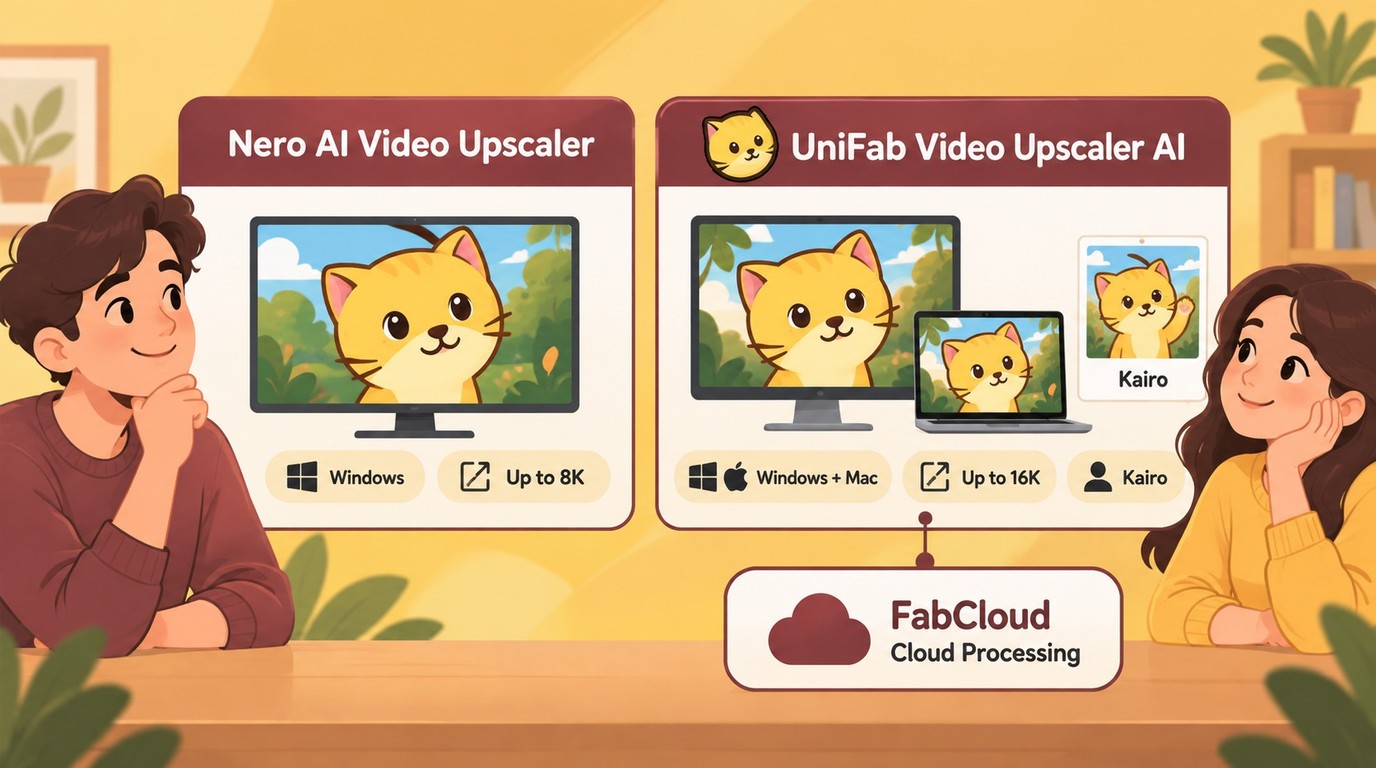
UniFab offers local enhancement through Video Upscaler AI for Windows and Mac, plus a FabCloud route that moves processing to the cloud. The local module supports output up to 16K and includes Kairo for animation.
Video Upscaler AI suits projects that need larger output dimensions or an animation-specific model. A 16K export increases the processing workload; use one of the three watermark-free evaluations on a representative segment to choose a practical output size.
Kairo targets anime and cartoon footage. For a clip dominated by noise, Denoise AI is a separate module; use its evaluation to preview cleanup before combining it with upscaling.
For occasional enhancement, free AI video upscaling software is another starting point. UniFab’s local module focuses on model-based enhancement, while FabCloud provides a route without an RTX rendering setup.
Nero AI Video Upscaler vs. UniFab Video Upscaler AI
Nero fits a Windows workflow with MP4 output up to 8K. UniFab adds a Mac desktop option, Kairo and a higher local output ceiling. FabCloud serves the separate need to move rendering off your computer.
| Feature | Nero AI Video Upscaler | UniFab Video Upscaler AI |
| Advertised price | $84.95 purchase | $89.99 lifetime list price |
| Evaluation | 7 days; no card; watermark-free | 3 uses; watermark-free |
| Maximum local output | 8K | 16K |
| Hardware route | Local Windows PC | Local Windows/Mac; separate FabCloud route |
| Animation model | Animation | Kairo |
UniFab’s lifetime list price is higher than Nero’s advertised purchase price. Its three watermark-free evaluations give you a direct way to preview Kairo and your chosen output size.
Final Verdict
Nero is a reasonable choice for short Windows enhancement jobs when its preview preserves the details you care about. The Animation and Face Enhancement options offer targeted starting points, while the illustrated noise and texture tradeoffs deserve attention.
Choose UniFab for Kairo, larger local output or a cloud processing route. Use one of UniFab’s three watermark-free evaluations to preview Kairo’s line detail and moving edges on a short clip before rendering a longer video.
FAQs about Nero AI Video Upscaler
Does Nero AI Video Upscaler Export Only MP4?
Yes. Nero AI Video Upscaler MP4 export uses H.264 or H.265/HEVC. Choose H.264 when compatibility across playback devices matters most.
Can Nero AI Video Upscaler Run on a Mac?
No. Nero’s desktop upscaler is a Windows application. A Mac-compatible AI video enhancer gives you a local workflow on macOS; cloud processing is another route.
Does Nero's Seven-Day Trial Add a Watermark?
No. Nero’s seven-day trial exports without a watermark and requires no credit card. Inspect the exported result on your usual player, not just in the preview window.
What Hardware Does Nero Need for 4K or 8K?
Nero calls for 4 GB VRAM for Full HD-to-4K and 12 GB VRAM for 4K-to-8K. If your computer falls below the 8K recommendation, choose a lower output size or cloud processing.
Why Do Black Borders Appear After Upscaling?
Black borders usually come from a mismatch between the source’s framing and the output aspect ratio. Keep the original composition unless cropping serves your intended display.
- Inspect the source for borders already encoded into the frame.
- Match the output aspect ratio to the source framing.
- Preview a short export, then crop only if losing Edge content is acceptable.