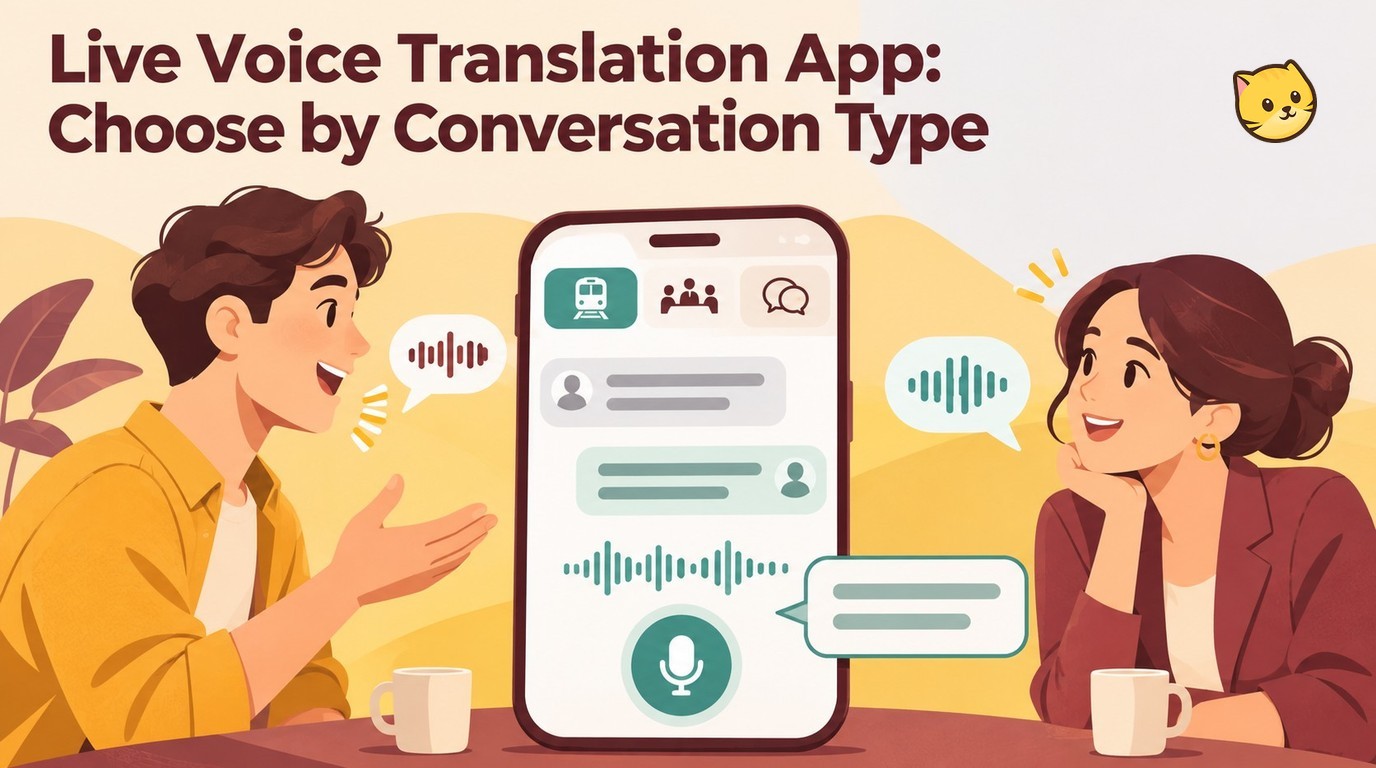
A live voice translation app translates speech as you talk, but the right choice depends on where the conversation happens. For a shared-phone conversation, use Google Translate; for supported iPhone calls, use Apple Live Translation. Choose spoken output when both people need to hear replies.
I would not call a conversation solved just because translated words appear on a screen. If your partner needs to hear your reply, captions leave half the exchange unfinished. Repeatedly reaching for a button also interrupts the moment you are trying to share. Here, I separate in-person exchanges, calls, and listening before walking through a conversation you can start on Android.
Choose a live voice translation app for your conversation
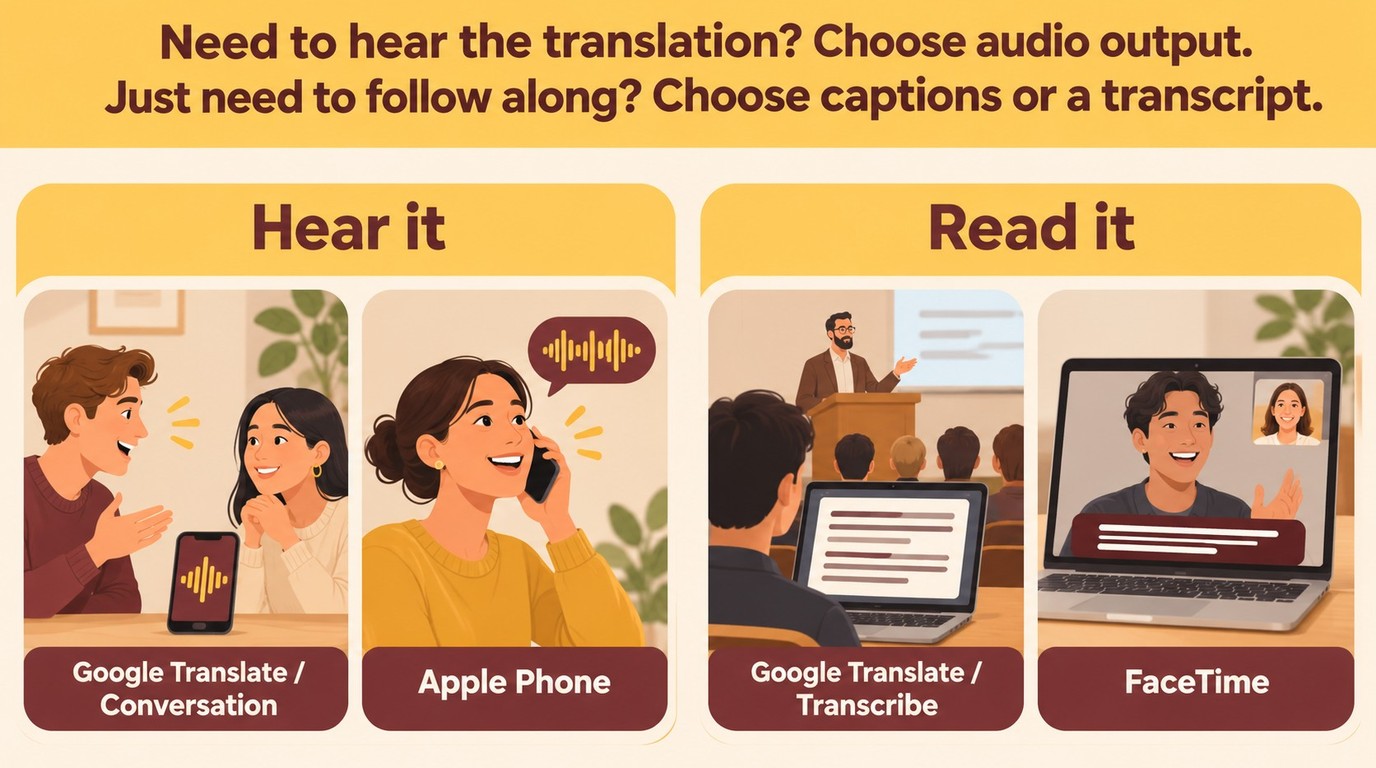
For an in-person exchange, Google Translate offers spoken conversation translation; for a lecture, its Transcribe feature produces translated text. On a compatible iPhone, Apple Phone translates spoken calls, while FaceTime displays translated captions.
| Feature | Conversation type | Translated output | Key requirement | Main trade-off |
|---|---|---|---|---|
| Google Translate: Conversation | In person | Spoken replies | Supported language pair | Take turns speaking |
| Google Translate: Transcribe | Lecture or speech | Text transcript | Android; supported spoken language | One-way listening |
| Apple Phone: Live Translation | Phone call | Speech and transcript | Compatible iPhone; supported languages | Device and language limits |
| Apple FaceTime: Live Translation | FaceTime call | Translated captions | Compatible iPhone; supported languages | Read rather than hear |
Google and Apple official help, as of November 2026: Google conversation modes, Google Transcribe, and Apple call translation.
I would choose spoken replies for a back-and-forth exchange and text for following a speaker. Neither output replaces the other.
Google Translate for conversation and one-way listening
Google Translate fits a conversation across the same table. Conversation mode plays translated replies, while Listening is intended for hearing translated speech and Text only stays silent. Transcribe serves a different purpose: following an ongoing talk in writing.
The shared-phone approach gives both speakers a place to follow the exchange. Its trade-off is turn-taking. It suits short questions and answers better than a discussion where several people talk over one another. For a lecture, I would favor the transcript over trying to turn each sentence into a reply.
The app is free to download. For other translation apps with in-app purchases, distinguish access to conversation mode from charges for call minutes or transcript export before choosing a plan.
Apple Live Translation for supported calls and AirPods
Apple's call features fit you if the conversation already happens in Phone or FaceTime on eligible hardware. Phone supplies spoken translation and a transcript; FaceTime supplies captions. Supported AirPods also offer in-person listening, with an iPhone available to show or play your translated reply.
The benefit is translation within the supported exchange. The limitation is its defined app and device scope; a feature in Phone does not establish support inside Zoom or another calling app.
A Reddit poster in r/CustomerSuccess asked for “real time speaking in English translation to Spanish and integration with Zoom phone.” Those are separate needs. I would not substitute a caption display for the spoken reply that this request calls for.
How to use Google Translate for a live conversation
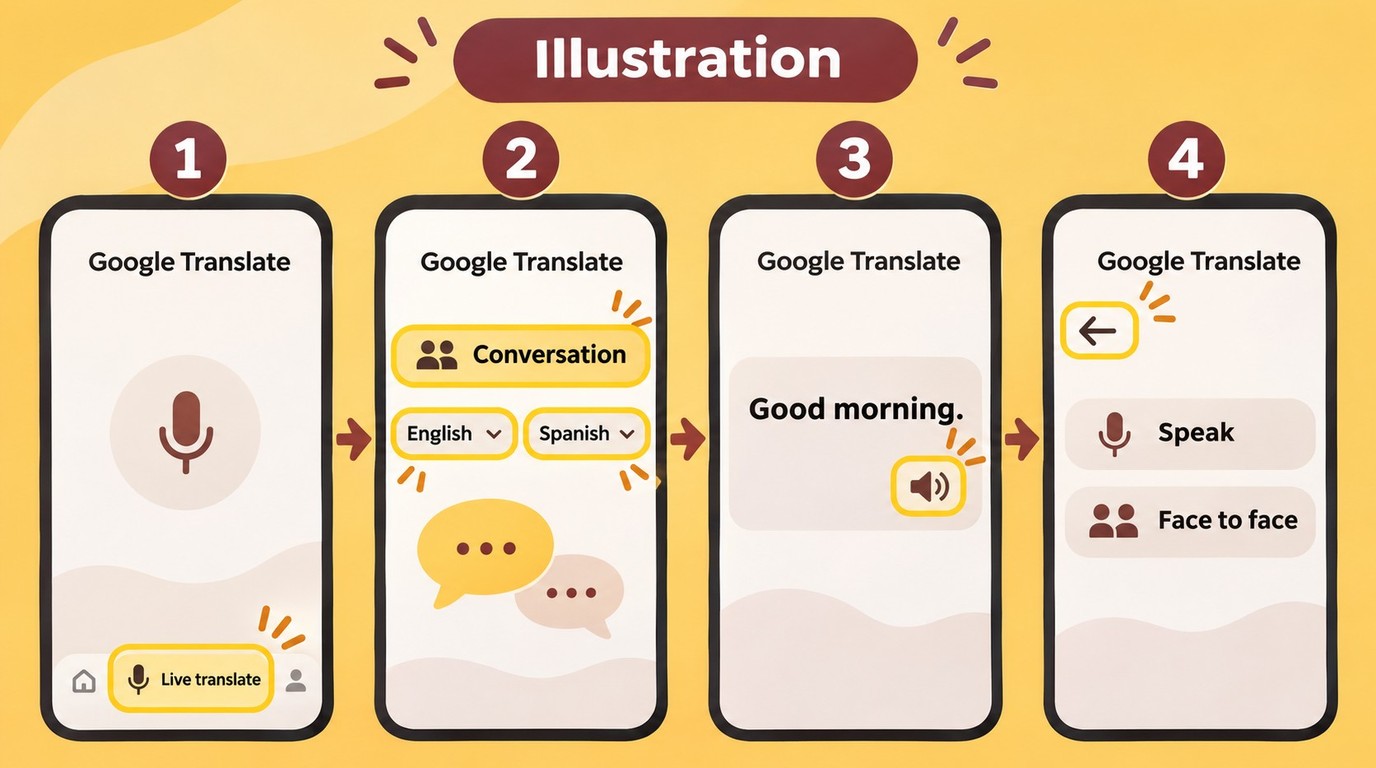
On Android, open Google Translate, enter Live translate, and choose Conversation with the languages you need. Take turns speaking, then confirm that each person hears the translated reply before continuing.
Start and finish one conversation
Get the phone ready before the conversation starts. Use the latest Google Translate app, allow microphone access, and begin with an internet connection. The offline exceptions are covered in the next section. Choose a place where both people can speak toward the phone without passing it around after every sentence.
Agree on the languages together. Your phone's interface language does not tell you which language your partner wants to hear. If you are speaking English and your partner Spanish, confirm that the selected pair matches that exchange rather than assuming the app's initial choices are right.
Follow this Android sequence:
- Open Google Translate. Connect headphones if you want the translated audio routed there.
- Tap Live translate at the bottom of the app.
- Select Conversation and the two languages for the exchange.
- Take turns speaking. Tap translated text to hear it again when needed.
- Use Speak to pause or resume translation. Use Face to face if both people want their own half of the screen.
- Tap Back to exit translation when you are done.
For personal use, process only content you have the right to use and follow the relevant service terms. You are responsible for the copyright status of any content you process.
The goal is a complete exchange, not just visible text. After the numbered flow, you should know where to speak, where the reply plays, and how to stop listening. That gives both people a shared rhythm rather than leaving one person to guess whether the phone is still translating.
Confirm both speakers can hear and understand
I would begin with a greeting from each person. Keep the topic simple. Have your partner confirm the meaning in their own language, then let them ask something you can answer. This is a check you perform together, not a reason to assume that a fluent-sounding reply is correct.
Check names and numbers separately. For an appointment, for example, ask the other person to confirm the day and time rather than accepting the whole sentence at once. Write a street name or unfamiliar surname on the screen when speech alone leaves it unclear. A corrected name is more useful than a confidently spoken mistake.
The sound needs to reach the intended listener. If only you are wearing headphones, ask your partner whether they can hear the reply meant for them. If they cannot, change the audio arrangement before carrying on. Turning up the volume in your earbuds will not help the person across the table.
One Reddit poster in r/HelpMeFind described the requirement plainly: “Like it would need to not require button inputs? And play the translated result out loud.” That is a useful question to bring to your own setup. Do you need to touch the screen for each exchange, and does the translation reach the right person? Judge the workflow by those actions.
A silent result calls for a mode check before a longer retry. Make sure you selected Conversation rather than Text only, then check the phone's volume and any connected headphones. If the words are wrong instead, confirm the language pair and say a shorter sentence. Separating a playback problem from a recognition problem gives you a concrete next action.
Check language, device, and offline compatibility
Live translation needs a supported language pair in the specific feature you plan to use, plus compatible hardware and software. A downloaded text-language pack does not establish that live speech will work offline.
Match the exact feature to the device and language pair
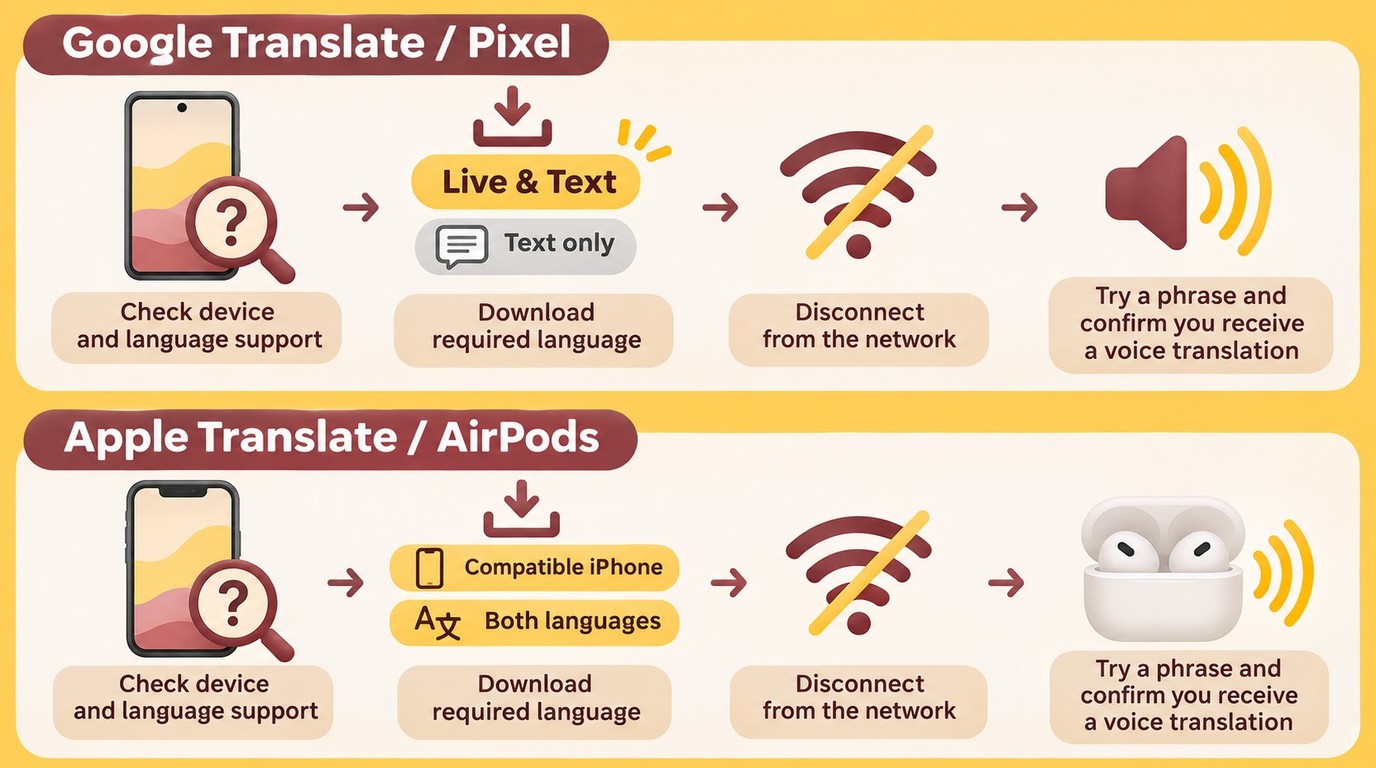
For Google's offline live translation, the current Android instructions name Pixel 9, 10, and 11. The listed pairs connect English with languages including Spanish, French, German, Italian, Portuguese, Hindi, Russian, Swedish, Japanese, and Indonesian. Look for Live & Text in the language picker; a text download alone is a different capability.
Treat offline use as something to confirm before you leave Wi-Fi. Download the available pair, disconnect from the network, and try the same spoken exchange you intend to use later. If the live mode is unavailable on your phone, reconnect for that conversation rather than treating a successful typed translation as proof of voice support.
Apple's AirPods feature requires the supported combination. Its list includes AirPods 4 with Active Noise Cancellation, AirPods 5, AirPods Pro 2 or later, and AirPods Max 2, paired with an eligible iPhone, iOS 26 or later, enabled Apple Intelligence, Apple's Translate app, and current AirPods firmware. Both translation languages need downloading. The standard AirPods 4 model without ANC is not the listed AirPods 4 option.
Use an Apple Intelligence-capable iPhone, such as iPhone 15 Pro, iPhone 15 Pro Max, or an iPhone 16 model or later. Language support also belongs to the feature: Phone and FaceTime include English (US and UK) and Spanish (Spain), for example. The longer Messages language list is not a substitute for the call list. Apple's compatibility details distinguish those features, while its AirPods instructions specify the listening setup.
I would confirm the language pair before buying different earbuds. A matching accessory cannot add a missing translation language. In the same way, an iPhone that handles typed translation is not automatically ready for every live call feature.
If you already have a video file to translate, UniFab's Video Translator AI-Fabcloud supports Windows, 23 languages, and MP4 or MKV output up to 4K, so you can prepare translated video for later playback. It handles existing files rather than live conversations or calls; the Video Translator AI-Fabcloud page is the entry point for that file workflow.
Understand how your speech and translation history are handled
Speech processing and transcript storage are separate tasks. In Apple’s documented AirPods workflow, translation runs on the iPhone after both languages are downloaded; in Google Translate on Android, saving or sharing a transcript is a separate action.
Displayed translation, a saved transcript, and shared text are different things. In Google Translate on Android, Transcribe has a separate save action, while copying or sharing sends selected text to another destination.
Live text is different from a saved transcript
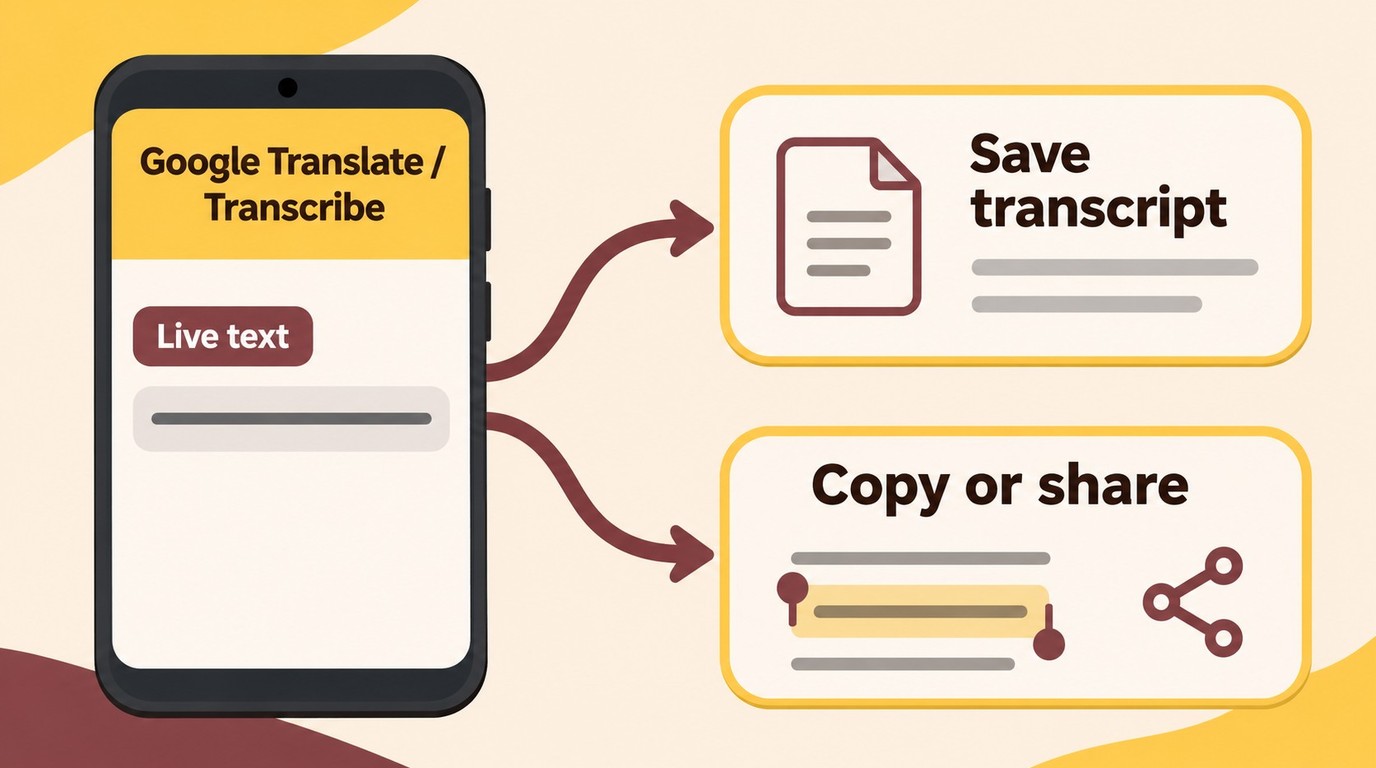
The text on screen helps you follow the speaker now. Google Translate's Transcribe feature is designed for ongoing speech, such as a lecture, and provides a Save transcript action when you finish. That saved text gives you something to return to later. It does not make the translation an exact record of the original speech.
I would treat a saved translation as a working note. Before relying on a name, date, or instruction, confirm that detail with the speaker. If a sentence is unclear, ask for a shorter restatement while the person is still there. A transcript is easier to use when you resolve the uncertainty at the time rather than guess later.
Keep a correction distinguishable from the words the app produced. For your own notes, adding a clear explanation beside the relevant passage avoids making a later reader think the correction came directly from the translation. The useful record is the one you can understand afterward.
Decide what to keep and share
Saving a transcript and sending it to someone else serve different purposes. In Google Translate, saved transcripts can be reopened and renamed, while selected text can be copied or shared. A clipboard copy is text for another app, not the same action as retaining a named transcript in Translate.
Choose the passage that serves the task. If a colleague needs an address, send the confirmed address rather than the whole conversation. Add enough context to make it usable, such as which entrance the speaker meant. Check the recipient and the selected text before sending.
My preference is to share a confirmed detail rather than an unexplained block of translation. That keeps the handoff tied to what the other person needs to do. Ask the participants whether they are comfortable with you keeping or sharing their words; this is a practical conversation, separate from choosing where the text goes.
Frequently asked questions
Download from the publisher’s official store listing, confirm where translated audio plays, and let each speaker finish before responding. On Android, Google Translate’s Transcribe feature can save a translated lecture transcript or share selected text.
Where should I download a live translation app?
Answer: Use Google Play or Apple's App Store and check the publisher, not just the title or icon. For Google Translate on Android, the publisher is Google LLC. Google's Android download instructions lead to its store listing. If an app is simply called Live Translator, match its developer to the app you intended to install; similar names do not identify the same software.
Can I use ordinary Bluetooth earbuds for live translation?
Answer: Google Translate's Android live modes support connected headphones, so you do not need Apple's dedicated AirPods feature just to hear Google Translate. Confirm the actual playback route on your phone. The separate Apple AirPods workflow requires the compatible setup described above. If the other person is not wearing earbuds, make sure your reply also reaches them rather than staying in your ears.
Why is there a pause before the translated reply?
Answer: A turn-based exchange needs room for the speaker to finish and the translated reply to play. Do not talk over it. I would shorten the sentence and wait for the other person to respond before adding another thought. If the app has stopped listening, resume it; if the translation is wrong, rephrase. Waiting longer is not a remedy for a sentence the app misunderstood.
Can I save or share a translated lecture transcript?
Answer: Yes, Google Translate's Transcribe feature on Android supports saving transcripts and copying or sharing their text. It requires a supported spoken language; a disabled Transcribe button indicates the chosen spoken language is unsupported. I would keep the talk's title with the saved text so it remains useful later. This gives you a translated text record, which is different from an original audio recording or a two-way spoken exchange.