To fix pixelated video in Premiere Pro, locate where the visible blocks begin: the source, preview, or export. If your original looks clear but the edited version breaks up, check monitor resolution, scaling, and export settings before sharpening; source damage needs a different approach.
A clear clip turning blocky after export points to a different problem than footage that arrived that way. I would treat the location of the damage as the deciding clue, rather than the strength of a sharpening effect. That distinction also explains why blurry video in Premiere Pro sometimes looks fine in a finished file. The sections below connect each symptom to the relevant controls, then explain what source enhancement actually changes.
Where Does the Pixelation Start: Source, Preview, or Export?
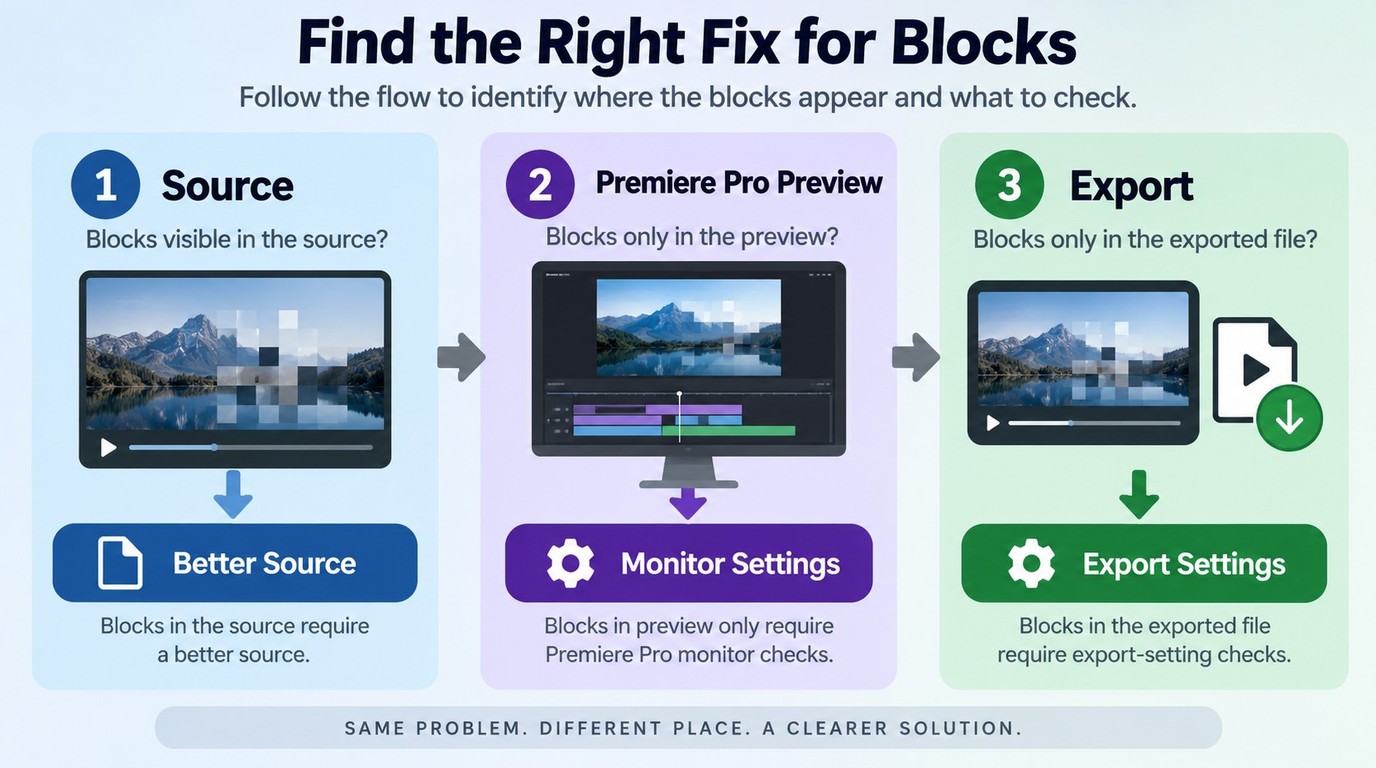
Compare the same moment in the original file, the Premiere preview, and a short export to locate the quality loss. Blocks already visible in the original point toward source damage; a clean original with a damaged preview or export points toward a later stage. Keep the displayed image size consistent so enlargement does not distort the comparison.
Match the Symptom to the Right Fix
A matching frame is more useful than three unrelated screenshots. Choose a moment where the defect is obvious, such as a moving camera, fine hair, foliage, or small text. Compare it at actual pixel size, often labeled 100%, rather than stretching each image to fill a different window. You are checking whether the same block pattern survives each stage.
| Observed problem | Source at 100% | Premiere preview | Short export | Next decision |
| Source damage | Blocky | Same blocks | Same blocks | Seek a better source |
| Preview only | Clean | Blocky | Clean | Check monitor resolution |
| Export only | Clean | Clean | Blocky | Review export controls |
Source: Adobe Premiere Help, as of October 2026.
A clean export makes preview troubleshooting the sensible branch. Lower monitor resolution reduces the detail displayed during editing, and its artifacts need not appear in the exported file. For that situation, adding a sharpening effect changes footage that was already clean. Check the display instead.
Export damage deserves a separate check. One writer in r/premiere described the difference this way: “The image in the Premiere timeline looks sharp and detailed, but after exporting, the image becomes noticeably softer and loses detail, especially during fast camera movement in gameplay.” That is a useful symptom to recognize, not a diagnosis of its cause. Scaling, compression, or export-source choices still need to be separated.
Mixed symptoms need more than one branch. A compressed source can also suffer another quality loss during export. Likewise, a sequence with different cameras can contain one damaged clip among several clean ones. Compare the affected clip against its own original before changing the entire sequence.
My recommendation is to follow the visible loss: export-only damage calls for export checks, while preview-only damage calls for monitor checks. The table helps you choose the next section; it does not require you to apply every fix.
How to Fix Pixelated Video in Premiere Pro
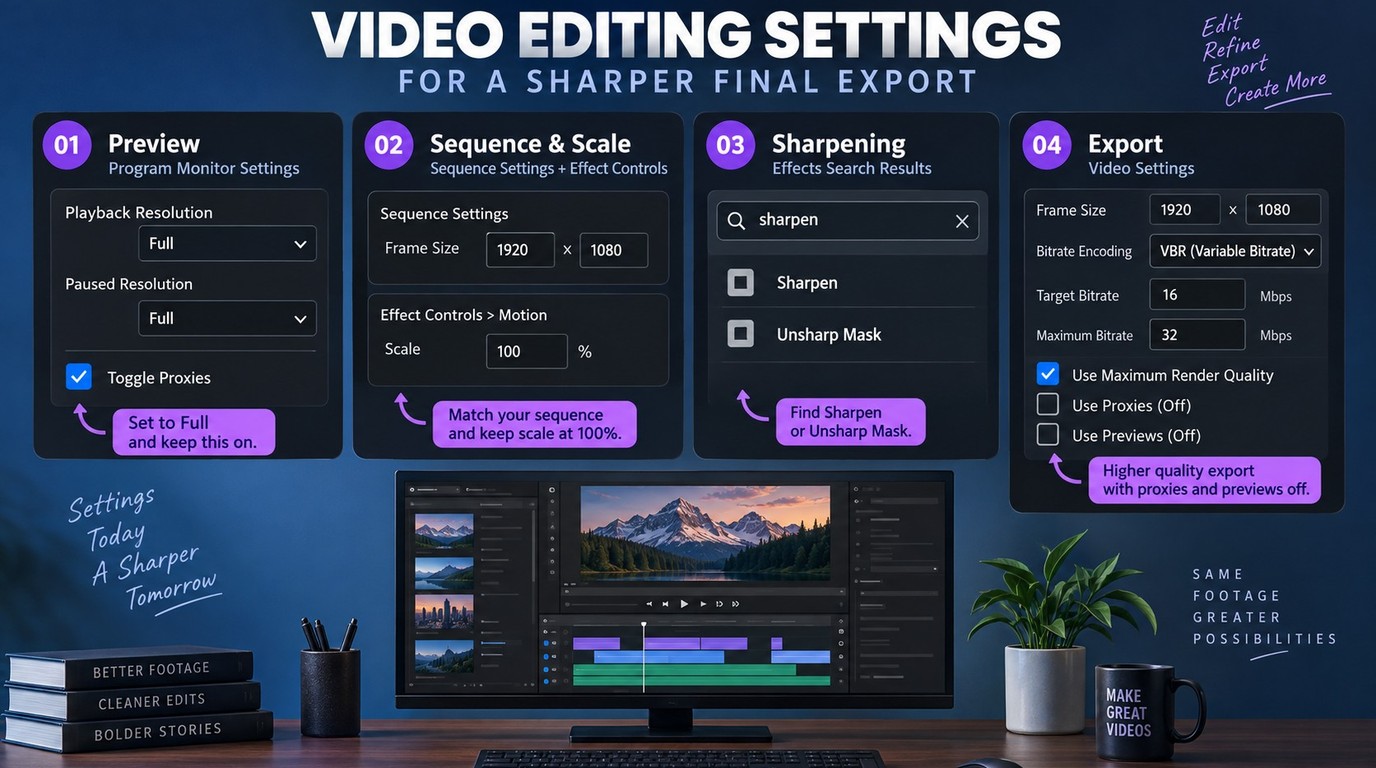
Check the Premiere Pro controls that match the symptom: monitor resolution for preview problems, source and sequence dimensions for unwanted enlargement, and video settings for export damage. Use Sharpen or Unsharp Mask for soft edges, rather than treating them as compression-block repair. Judge the change in a short export of the affected section.
Check Playback Resolution, Paused Resolution, and Proxies
Monitor quality is the right place to start when the saved file looks clean. Playback Resolution and Paused Resolution are separate settings, so checking one does not settle the other.
- Open the settings menu in the Source Monitor and Program Monitor. Check Playback Resolution and Paused Resolution, and select Full where available for the comparison.
- Display the original and timeline at actual pixel size. If proxy viewing is enabled, use Toggle Proxies to compare against the full-resolution source, and confirm that source is available.
- Pause on the same frame, then check it during playback. If Full still looks soft, continue to source dimensions and scaling rather than increasing sharpening.
Full-resolution viewing helps you inspect the image; it does not increase export resolution. Lower-resolution proxies are useful editing copies, but their appearance is not the reference for judging your camera original. Use the original for this check.
Match Source, Sequence, and Scaling
Unnecessary enlargement makes a limited source look softer. Check the dimensions before adding an effect, especially when a crop or nested sequence fills a larger frame.
- Inspect the source clip's frame dimensions and the frame size in Sequence Settings. Confirm that the sequence matches your intended delivery size.
- Select the clip and open Effect Controls > Motion > Scale. Check whether filling the frame requires substantial enlargement or crops away much of the original.
- Reduce unnecessary enlargement where the composition allows it. For a nested clip, inspect the source inside the nest as well as the outer sequence.
A larger frame adds output pixels, not captured detail. If your delivery size is fixed, a less aggressive crop preserves more of the available image. Older advice about a single scaling command should not replace checking the actual dimensions in your project.
Use Sharpen or Unsharp Mask Only for Soft Edges
Sharpening suits mild edge softness, not missing texture. Choose one effect for the initial comparison so you can see what it contributes.
- Search Sharpen or Unsharp Mask in the Effects panel. Apply one to the affected clip and open its controls in Effect Controls.
- Increase the effect gradually. With Unsharp Mask, Amount controls the strength of edge contrast, Radius controls how far that contrast extends around edges, and Threshold controls which pixel differences are treated as edges.
- Toggle the effect off and on at actual pixel size. Reduce it if bright outlines, noise, or block boundaries become more noticeable.
There is no useful universal slider setting. A low Threshold includes small differences and can emphasize noise; a wide Radius can produce visible halos. Stop when the edge looks clearer without drawing attention to the processing.
Review Export Settings and Compare a Short Sample
Export controls matter when the timeline is clear but the saved file loses detail. Keep a baseline sample so each adjustment has a reference.
- In Export, check video frame size and frame rate against the intended delivery. Look for accidental downscaling or an unintended frame-rate conversion.
- For blocks during complex motion, compare a higher bitrate or an available VBR setting. VBR means variable bitrate: data allocation changes with image complexity. Change one factor at a time.
- When changing frame size, evaluate Use Maximum Render Quality, which helps scaling. Render at Maximum Depth concerns effect-processing bit depth; it is not a deblocking switch.
- Confirm Use Proxies is off for a full-resolution comparison. If Use Previews draws on low-quality preview files, turn it off for another sample.
- Export the affected section and compare it with the original in an independent player at actual pixel size. Include movement, not just a clean paused frame.
I would correct the setting that introduces the loss before adding an effect. Bitrate, scaling quality, and processing depth serve different purposes; enabling every quality checkbox does not identify the cause.
Process only footage you own or are authorized to use, and keep personal-use copies within that authorization. You are responsible for content copyright and for following Adobe, UniFab, and any relevant platform terms.
What Premiere Pro Can and Cannot Fix in the Source
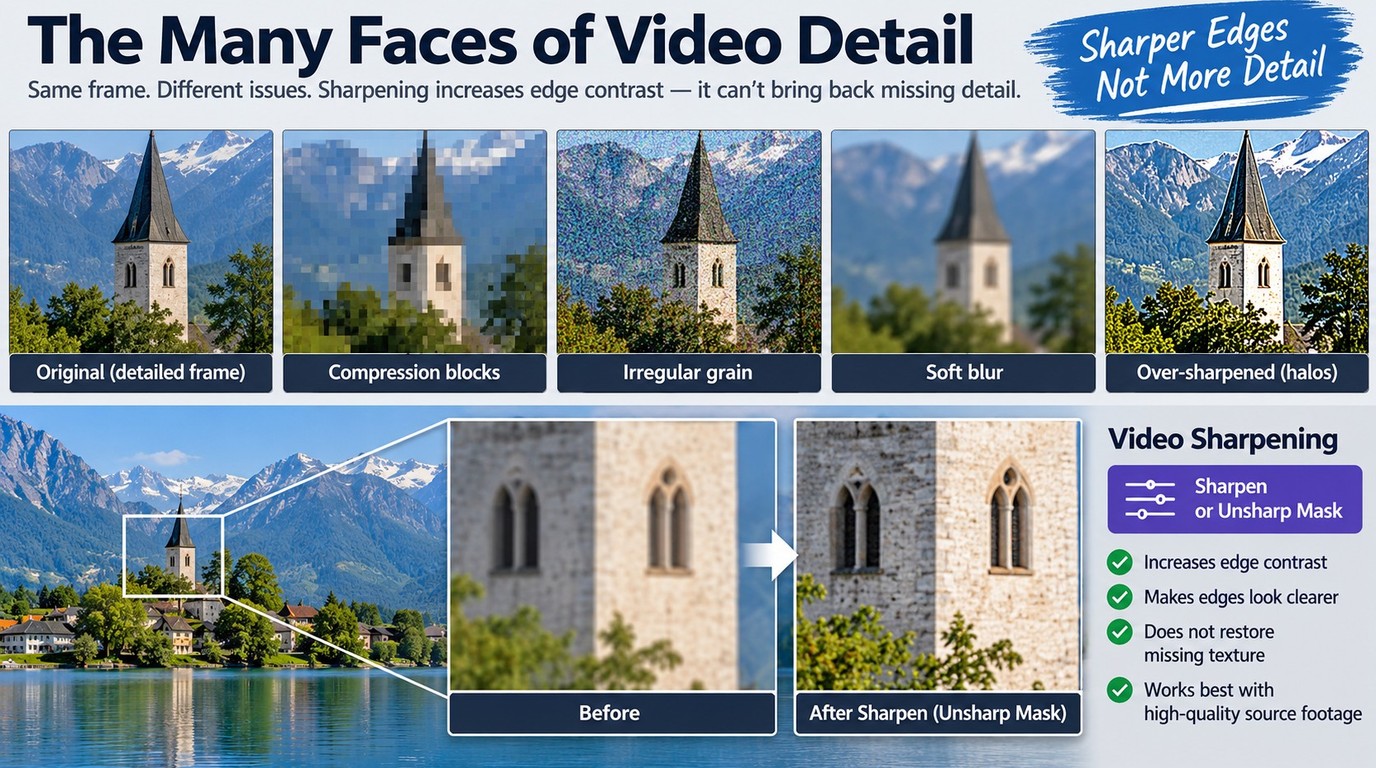
Premiere Pro can improve the appearance of some soft footage, but Sharpen and Unsharp Mask do not reconstruct texture discarded by compression. If blocks already exist in the source, higher export quality preserves the available image rather than recovering its original detail. A better source file is the strongest starting point.
Compression Blocks, Grain, and Blur Need Different Treatments
The shape of the defect tells you what to address. Compression blocks look like square patches or broken texture, often becoming more obvious during movement. Grain or image noise looks like irregular speckling. Blur softens edges and can come from focus, motion, or enlargement.
These defects can overlap. A noisy, compressed clip might show speckles within broad patches, while a heavily enlarged clip reveals both softness and block boundaries. Pause on a clear example, then play the surrounding motion. That helps you avoid calling every loss of detail “pixelation.”
Use edge enhancement when the image is mildly soft and still contains recognizable texture. Noise reduction addresses speckling, but it risks smoothing useful texture along with the noise. Compression blocks need a different assessment because their boundaries are themselves part of the damaged image. Neither more edge contrast nor stronger smoothing is a universal answer.
Sharper Edges Are Not Recovered Detail
Edge contrast explains the limit of sharpening. A leaf outline can look crisper after processing even when the small veins inside the leaf remain missing. The apparent improvement is real, but it is an improvement in presentation rather than restoration of that lost information.
A writer in r/premiere captured the practical frustration: “I've tried sharpen and unsharp mask but still don't see a tiny difference in the video. Either it's still in the same quality or a worse one.” The comment describes that person's result. The mechanism matters more: increasing contrast also emphasizes existing block edges, which explains why sharpening is a poor fit for some damaged sources.
Raising export bitrate addresses another stage. It gives the encoder more data for preserving what you feed it, but it cannot retrieve the texture already removed from an earlier compressed file. A larger file is not evidence of recovered detail.
My judgment is to keep sharpening for edges that benefit from it and reject changes that merely outline the damage more clearly. A cleaner-looking frame should also hold up during motion.
Choose a Better Source Before Considering AI Enhancement
The original recording is preferable to a downloaded or repeatedly exported copy. Ask for the camera file, recording master, or a less-compressed version of the same clip. Avoid working from another compressed copy when a cleaner version exists.
If a better source is unavailable, enhancement becomes a choice about acceptable appearance. AI-generated detail is an estimate, not a record of what the camera captured. Keep the original separately, and compare movement, faces, fine texture, and transitions rather than selecting the most flattering single frame.
When deciding how to fix pixelated video, a source-level defect calls for a different choice than a damaged export. To remove compression artifacts from video, you need an approach suited to that artifact type; a tool that targets a different kind of mosaic does not automatically fit. That distinction determines whether the next option belongs in your workflow.
Does UniFab Video Refiner AI Fit This Repair Task?
UniFab Video Refiner AI fits you if you work on Windows with footage suited to its specialized mosaic-refinement purpose. For ordinary compression blocks introduced by a Premiere export, the native export checks above remain the relevant path. Mosaic refinement and general compression-artifact repair are different tasks.
Check the Task Fit Before Choosing the Product
The visible pattern needs to match the intended use. A mosaic deliberately applied to an area of the picture differs from compression blocks that appear across moving texture. Video Refiner AI focuses on the former; selecting it because both defects look square would skip that distinction.
I would reserve Video Refiner AI for supported mosaic-refinement material, while keeping Premiere export problems in the export workflow. For a suitable file, the following workflow keeps the original available for comparison without assuming a Premiere plugin or an automatic round trip:
- Keep an untouched original and identify a representative section containing the mosaic you want to refine.
- Use the Windows local edition for refinement at the source's existing dimensions.
- Review the processed output against the original during motion before using it in your edit.
The practical goal is a usable processed file for your edit, with the source preserved separately. Compare the area being refined rather than judging the result by its resolution label alone.
Windows-Only Local Processing at 1x, With Output up to 4K
UniFab Video Refiner AI processes footage locally on Windows at 1x, with output up to 4K, so a supported source stays at its existing size rather than being enlarged. The 4K ceiling is not a low-resolution-to-4K conversion promise. Local processing also keeps the footage on your workstation without requiring a cloud upload.
The local edition and FabCloud edition have separate licenses. Batch processing and MP4/MKV output support file-based work, but a container name does not specify its codec or guarantee a particular Premiere import result. Check your processed sample within the edit you intend to deliver.
Windows is the supported platform for the local edition; the VideoRefiner AI trial allows three tasks of up to five minutes each, requires Start Time to be entered, and produces output without a watermark. Explore UniFab Video Refiner AI through UniFab's official website for the Windows local option.
FAQ: Pixelated Video in Premiere Pro
Choppy motion, damaged text, and version differences need separate checks from compression blocks. The questions below cover those exceptions without adding another full repair workflow. Match the symptom to the affected part of the project before changing the whole sequence.
Is Choppy Playback the Same Problem as Pixelated Video?
A: No. Choppiness is uneven motion over time; pixelation is visible blockiness within the image. They can occur together. If an exported file stutters in one player but plays normally in another, investigate playback or decoding before changing the image. If the same jumps appear across players, inspect the source timing and export frame-rate choice. Sharpening does not fix dropped or repeated frames. I would separate a playback symptom from a file defect before exporting the whole project again.
Why Do Text or Masks Look Pixelated When the Footage Looks Fine?
A: A defect confined to text or a mask points toward that layer's processing, scaling, or nesting. Compare the affected layer with its Transform effect disabled, and inspect it inside any nested sequence. For a tracked mask, compare its edge before and after tracking and in a short export. Keep the adjustment local to that element. A single project's symptom does not establish a general Premiere bug, and sharpening the underlying footage would change the wrong part of the image.
Do the Same Premiere Pro Checks Apply on a Mac?
A: Yes. Separating source damage from preview and export problems still applies on a Mac, as do the checks for scaling, edge contrast, and output settings. Menu placement and available export controls differ with the installed version and format. Follow the matching setting rather than a Windows screenshot. The Windows local refinement option described above does not change the native Premiere troubleshooting approach on macOS. For preview-only or export-only damage, stay with the relevant Premiere branch.
Can I Use This Troubleshooting Approach in Premiere Pro 2021 or 2022?
A: Yes, as a diagnostic approach. Compare the original, preview, and export, then check the stage where the defect begins. Control locations and available options depend on the version, so current menu directions are not a claim that every older interface is identical. Avoid importing an old forum's scaling advice as a blanket rule. Keep your original project and use a copy for adjustments. The useful result is a change in the affected sample, not simply matching someone else's settings.
Choose the Fix That Matches the Cause
If pixelation appears only in the Premiere preview, check monitor quality and proxy viewing; if it appears only in the exported file, review the export settings and compare an affected sample. If the original is already damaged, seek a cleaner source before deciding whether appearance enhancement fits the footage. I would keep that cause-based choice ahead of stronger sharpening: clearer edges and generated texture do not turn a damaged copy into the original recording.