![Denoise Video in Premiere Pro: 5 Methods Compared [2026]](https://artifact.dvdfab.me/2026/07/21/GTPP5H0THM7mz5hTOKlJaeVg6jZ2IHGk/feature_cover.jpg)
Premiere Pro can reduce visual grain and color speckling with VR De-Noise, Lumetri, a legacy Median fallback, After Effects, or plugins. Audio hiss and hum are a separate problem handled with Premiere Pro's audio tools. The practical goal is cleaner footage that still retains natural texture.
Premiere Pro Denoising at a Glance
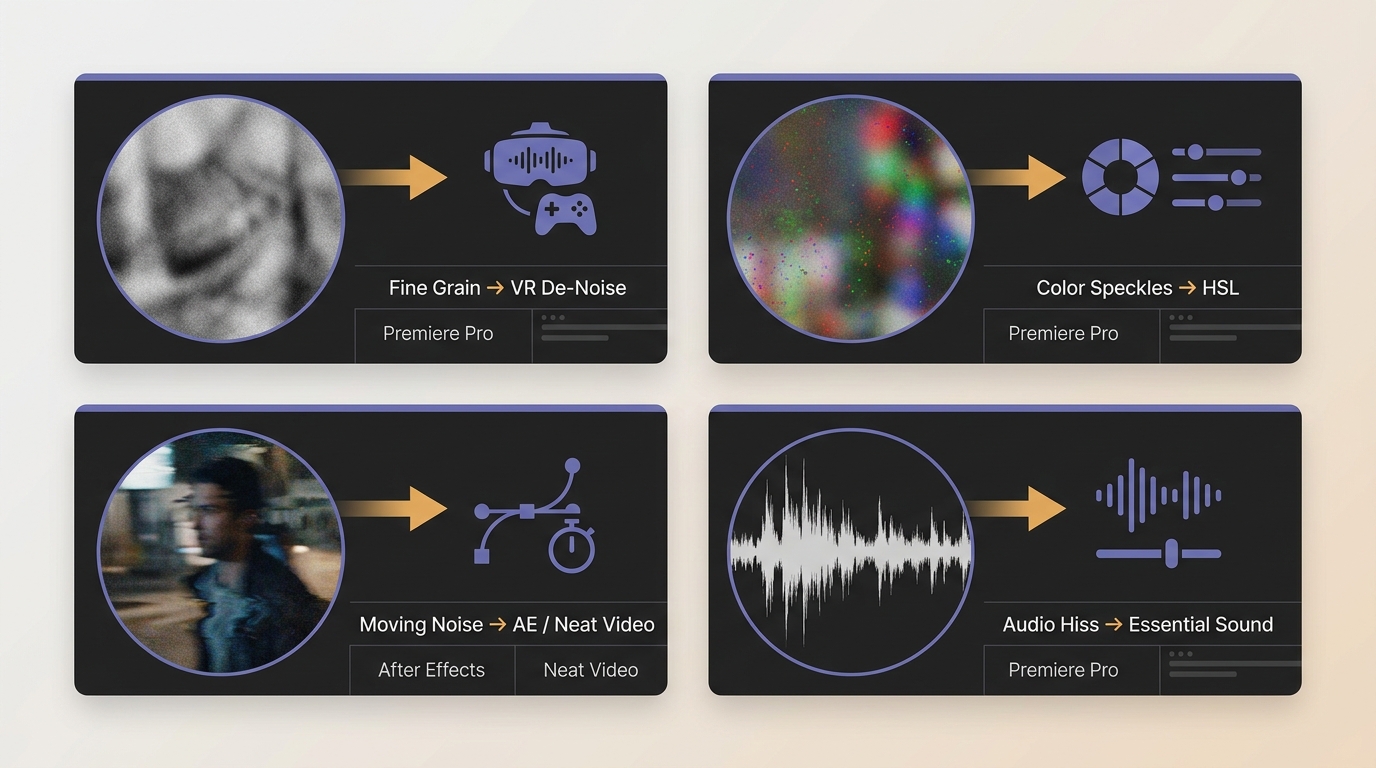
Premiere Pro noise reduction works best when you identify the noise type before choosing an effect. Fine luminance grain, colored blotches, moving high-ISO noise, and audio background noise need different treatment.
- Visual grain: Start with VR De-Noise for a quick native test.
- Localized color noise: Use Lumetri HSL Secondary to isolate a narrow hue or tonal range.
- Difficult moving noise: Test After Effects Remove Grain or a specialist plugin on a short sample.
- Audio hiss or hum: Use Premiere Pro's audio DeNoise or Essential Sound controls rather than a video effect.
Noise often becomes visible in underexposed shadows, high-ISO footage, compressed clips, or small-sensor recordings. In editorial review, the clearest stop rule is simple: back off as soon as skin, hair, fabric, or fine edges begin to look waxy.
5 Ways to Denoise in Premiere Pro
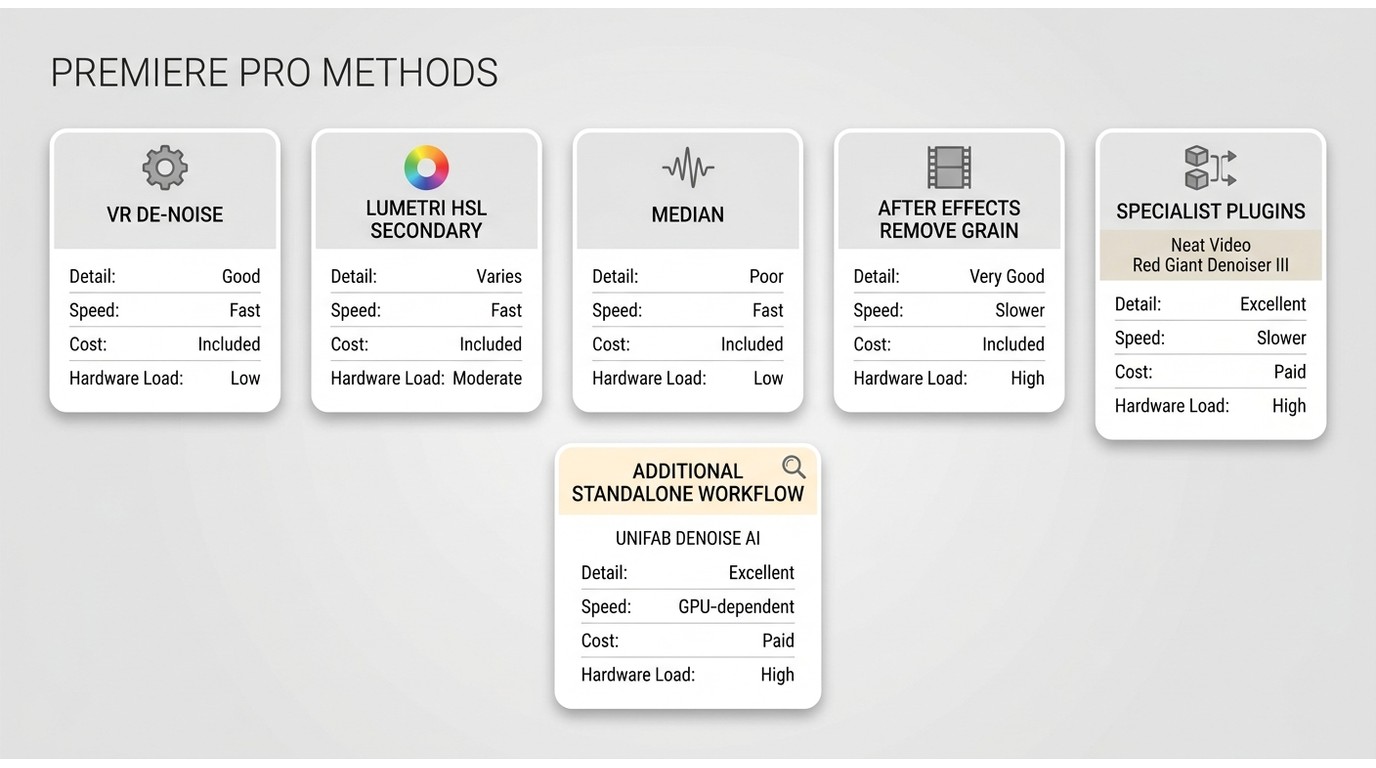
These five Premiere Pro noise reduction paths cover native effects, Adobe's linked workflow, and plugins. The fifth method is a plugin category with two examples; the later UniFab section is an additional standalone workflow, not a sixth Premiere Pro method.
Before applying any method to a full sequence, choose a representative clip, preview at 100%, toggle the effect on and off, and begin at low strength. For long timelines or 4K video denoising, proxies and pre-renders can keep editing responsive, while shadow-only masks help preserve video detail.
Choose the Right Denoising Method
The right choice depends on noise severity, where you want to work, available hardware, and how much render time the delivery allows. Native effects favor speed; temporal tools and specialist denoisers can handle harder footage but add processing load.
| Method | Best for | Workflow location | Detail preservation | Relative speed | Cost type | Hardware load | Main limitation |
| VR De-Noise | Quick native cleanup of light visual grain | Premiere Pro timeline | Good at conservative strength | Fast to set up | Included with Premiere Pro access | Low to moderate | Higher values can soften texture |
| Lumetri HSL Secondary | Localized chroma noise in a selected range | Premiere Pro timeline | Good outside the selected range | Fast for targeted fixes | Included with Premiere Pro access | Low | Not designed for heavy moving grain |
| Median legacy fallback | Small masked areas in projects that still expose the effect | Premiere Pro timeline | Limited if radius rises | Quick on small regions | Included where available | Low to moderate | May be under Obsolete and can blur the frame |
| After Effects Remove Grain | More difficult footage needing temporal controls | After Effects through Dynamic Link | Strong when tuned on a test segment | Slower than native fixes | Requires After Effects access | Moderate to high | Dynamic Link and long renders can interrupt deadlines |
| Neat Video | Noise-profile-based cleanup inside Premiere | Premiere Pro plugin | Strong with a representative profile | Varies with settings and clip length | Separate license | Moderate to high | Demanding settings increase render load |
| Red Giant Denoiser III | Editors who want a dedicated denoiser in the timeline | Premiere Pro plugin | Designed to balance cleanup and texture | Varies by footage and hardware | Commercial product | Moderate to high | Product access and compatibility must fit the workflow |
| UniFab Denoise AI | Local, batch-oriented processing outside Premiere | Standalone Windows or Mac app | Designed to retain edges, texture, and detail | Varies with resolution, length, settings, and GPU | Separate product | GPU-dependent | Requires an export-and-import round trip |
The practical synthesis is that native effects minimize setup, specialist tools suit difficult grain, and a standalone process fits batch work. Clip length, delivery resolution, and hardware often matter more than the effect name.
Method 1: VR De-Noise
VR De-Noise is the quickest native first test to denoise Premiere Pro footage, but it should be raised gradually rather than treated as a maximum-strength filter.
- Select the noisy clip and open Effects.
- Go to Video Effects > Immersive Video > VR De-Noise, then apply it to the clip.
- Disable automatic VR properties when they are not relevant to the source footage.
- Set Noise Level to zero or a very low value, then increase it in small steps.
- Preview at 100% and stop when grain recedes without softening skin, hair, text, or fine texture.
For shadow-heavy footage, mask the darkest region instead of processing the full frame when practical. A before-and-after toggle at full resolution is more revealing than judging the Program Monitor at a reduced scale.
This is the native route to try first, not a universal answer. If the grain changes rapidly from frame to frame or a low setting already damages texture, move to a temporal or noise-profile-based method.
Method 2: Lumetri for Color Noise
Lumetri is best for subtle chroma noise within a selected hue or tonal range. It is not ideal for heavy moving grain across the whole image.
- Import the footage, place it on the timeline, switch to the Color workspace, and open the Lumetri Color panel.
- Open HSL Secondary, use the eyedropper to sample the noisy color range, and refine the Hue, Saturation, and Luminance keys.
- Increase the section's Denoise and Blur controls carefully, then check that clean areas remain unaffected.
- Preview the clip and export through File > Export > Media when the selected region looks natural.
The editorial tradeoff is control versus scope: Lumetri can protect most of the frame by targeting a narrow selection, but it does not replace a general denoiser when grain moves through multiple colors and brightness levels.
Method 3: Median as a Legacy Fallback
Median can remove video grain in a small masked area, but current Premiere Pro versions may place it in the Obsolete effects folder. Treat it as a legacy fallback, not the normal primary route.
- Import the clip and place it on the timeline.
- Search the Effects panel for Median. If it is available, check the Obsolete folder in the installed interface.
- Apply Median and begin with a low Radius. Increase it only until the distracting pixels recede.
- Create a mask around the noisiest shadow or background area so the effect does not soften the full frame.
Median is useful when an older project already depends on it or a tiny region needs smoothing. For faces, fabric, foliage, and text, the detail cost becomes visible quickly, so compare the masked result at 100% before committing.
Method 4: After Effects Remove Grain
After Effects Remove Grain suits Creative Cloud editors who need temporal controls for difficult footage. It is less attractive when Dynamic Link or a long render threatens the deadline.
- Right-click the clip in the Premiere Pro timeline and choose Replace with After Effects Composition.
- In After Effects, search Effects & Presets for Remove Grain and apply it to the clip.
- Use the preview region to build settings on a representative section. Adjust reduction strength and temporal behavior while watching moving edges.
Test a short segment that contains both shadows and fine detail before processing the full timeline. For long projects, a pre-render can be more predictable than keeping a heavy Dynamic Link composition live through every edit.
The reason to choose this method is temporal control, not convenience. If native tools leave crawling noise but the delivery still needs a 4K master, After Effects can justify the extra render cost.
Method 5: Premiere Pro Denoise Plugins
A Premiere Pro denoise plugin keeps the work inside the timeline and can handle harder grain than simple native effects. The tradeoff is a separate license and greater hardware demand.
Neat Video Premiere Pro: Neat Video builds a noise profile from a representative area, then applies that profile across the clip. Its Premiere Pro and Premiere Elements editions start at $79.90 as of July 2026. Keep its role here concise; the linked guide covers the deeper feature and tutorial questions.
Neat Video fits editors who value an in-timeline profile workflow. It is less suitable when demanding settings make a long sequence impractical to render on the available hardware.
Red Giant Denoiser III: Denoiser III remains listed in Maxon's current Red Giant catalog and compatibility documentation. It is another dedicated in-timeline option for balancing cleanup with texture, without assuming a bundle or fixed price.
Red Giant fits editors whose existing product access and host compatibility align with the project. Compare it on the same short clip used for the native and Adobe methods instead of judging products from default settings.
For broader workflows beyond Premiere Pro, this guide to reducing grain in video covers other editing environments without expanding them into this Premiere-focused tutorial.
When a Standalone AI Tool Fits Better
A standalone AI video denoiser fits when batch processing and a separate local-file workflow matter more than keeping every adjustment in the Premiere timeline. It adds a round trip, so it is a workflow choice rather than an automatic upgrade.
What UniFab Denoise AI Does
UniFab Denoise AI is a local Windows and Mac application that uses deep learning for video noise reduction, supports batch processing, and exports MP4 or MKV at up to 4K while aiming to retain edges, texture, and detail.
UniFab publishes this article and develops UniFab Denoise AI. That relationship is disclosed here once; the useful evaluation remains whether its separate file workflow fits the edit.
- Suitable for: editors who want local processing, multiple-file queues, and a separate output that can be imported into Premiere.
- Less suitable for: editors who need every parameter and revision to remain inside the Premiere timeline.
- Limitation: exporting, processing, and re-importing creates an extra round trip that can complicate late editorial changes.
- Limitation: processing time and hardware load vary with resolution, clip length, settings, and the available GPU.
The strongest relevant distinction is operational: the app separates denoising from the NLE and can batch files locally. It should not be selected merely because it uses AI; the round trip must save more time than it adds.
Readers comparing a wider field of AI tools can use this AI video denoiser guide; this page stays focused on the Premiere Pro decision.
A Simple UniFab Workflow
The UniFab workflow has three steps: import authorized footage, choose Denoise AI, and process the file before returning it to Premiere. Use a short representative clip before queuing a full project.
- Install and launch UniFab on Windows or Mac.
- Select Denoise AI, then add the noisy video. Process footage you own or are authorized to edit.
- Choose the required output, start processing, and inspect the result at 100% before importing it into Premiere Pro.
Do not assume a longer or stronger pass is better. Compare texture, edges, and motion against the original, then keep the least aggressive result that solves the visible problem.
What to Use for Your Footage
Choose by noise severity and workflow cost, not by a universal winner. Natural texture is more valuable than maximum smoothing.
- Use VR De-Noise for a fast native first pass on light grain.
- Use Lumetri or a mask when color noise is confined to a selected range or shadow region.
- Use Median only as a legacy fallback for small targeted areas.
- Use After Effects Remove Grain when temporal controls justify a linked Adobe workflow.
- Use Neat Video or Red Giant Denoiser III when difficult footage needs a dedicated plugin and the render budget can support it.
- Use UniFab when local batch processing and a separate Windows or Mac file workflow fit the project.
For long 4K sequences, test the hardest representative shot first. If the final delivery does not require a 4K master, a 1080p delivery can be a legitimate speed-versus-resolution tradeoff rather than an editing failure.
Premiere Pro Denoising FAQs
These quick answers cover the distinctions and setup choices that are easy to miss during the main workflow.
Does Premiere Pro remove audio noise too?
Yes, but audio and visual noise use different tools. Apply Premiere Pro's audio DeNoise or Essential Sound controls for hiss, hum, or wind; VR De-Noise and the methods above address visual grain. Readers comparing broader no-extra-cost options can see this free video noise reduction software guide.
Is VR De-Noise included with Premiere Pro?
VR De-Noise is a built-in Immersive Video effect in current Premiere Pro workflows, so it does not require a separate plugin purchase. Search the Effects panel for the effect if the folder path differs in the installed workspace.
What VR De-Noise setting should I start with?
Start at zero or a very low Noise Level, preview at 100%, and increase it gradually. Stop when grain becomes less distracting but skin, hair, text, and fine texture still look natural.
Is Premiere denoising suitable for professional footage?
Native effects can handle light cleanup and targeted corrections in professional projects. Heavy or rapidly changing high-ISO noise may justify After Effects, a specialist plugin, or a standalone tool, depending on the required detail, deadline, and hardware.
Can I denoise 4K footage without losing detail?
Yes, if the effect remains conservative. Use a representative test clip, preview at full resolution, mask noisy shadows when practical, and compare the result against the original. Proxies can improve editing responsiveness, but judge the final effect on full-resolution media.
What affects denoising render time?
Clip length, resolution, temporal analysis, effect strength, codec, GPU, VRAM, proxies, and pre-renders all affect processing time. Test the intended settings on a short section before estimating a full timeline, rather than relying on a universal minute range.