For French to English voice translation, use Google Translate to turn live speech into English text or spoken playback. If you have a recording, try microphone capture for a short clip; choose a file-based workflow when you need to work with an existing video.
You need the meaning of the French you hear, whether it comes from a conversation, a voicemail, or a video. I would not judge a translation by how fluent its English voice sounds: polished delivery can hide a misunderstood word. That distinction matters when you need a name, an instruction, or an interview quote. Here is how to get a usable result, then check the parts that matter.
Choose Between Live Speech, a Recording, and a Video File
Use a live translator when someone is speaking nearby; use a file-based tool when you need to process an existing video. A short recording sits between those routes: replaying it into a microphone is a practical option, but it is not file import.
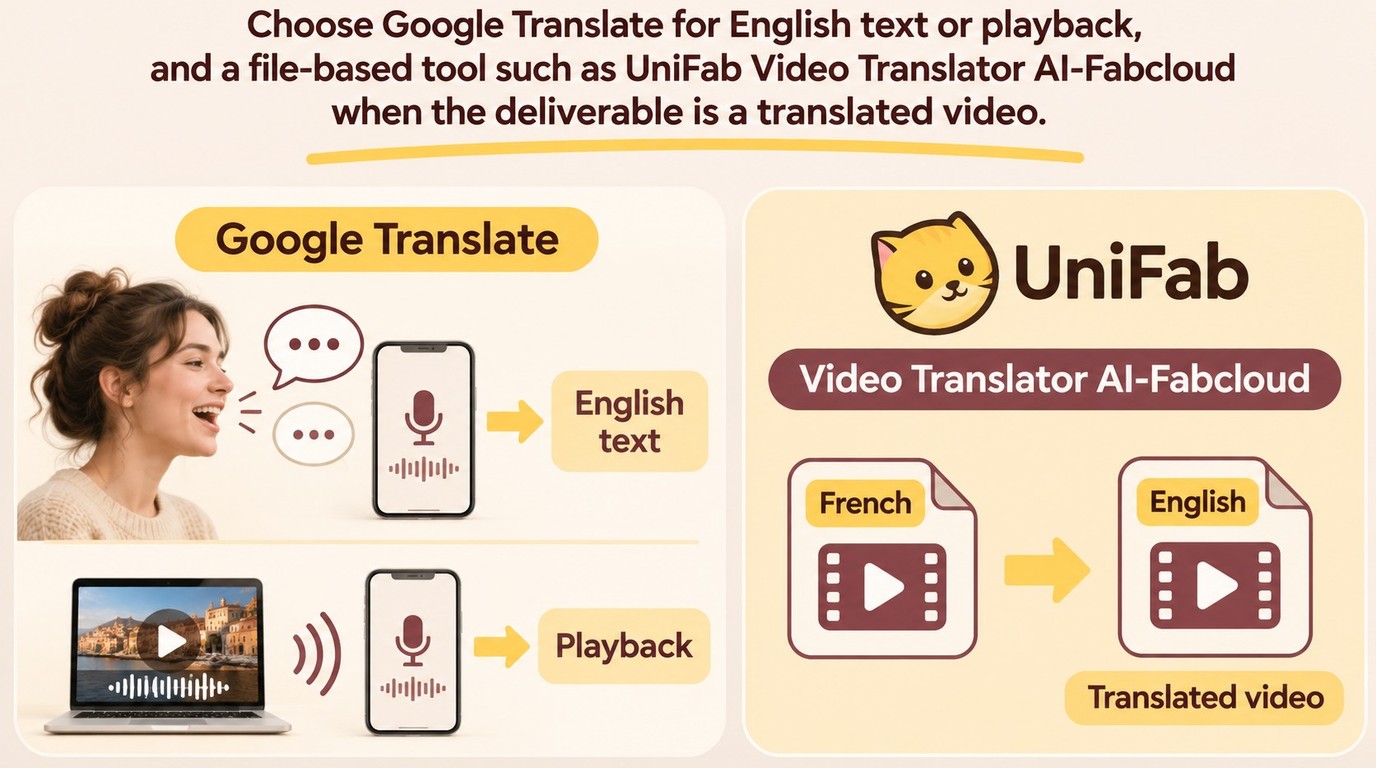
For a quick reply, I would use live translation. For a video project, I would settle the required output first. Reading English, hearing English read aloud, and delivering a dubbed video are different jobs.
Transcription writes down the French words. Translation expresses their meaning in English. Dubbing adds a spoken track to a video. A Listen button gives you spoken playback; it does not by itself produce a downloadable English soundtrack.
| Route | Input | English output | Use case |
|---|---|---|---|
| Desktop microphone | Live microphone audio | Text and spoken playback | Short phrases or replayed clips |
| Android live translate | Live microphone audio | Listening, Conversation, or Text only | Live dialogue |
| Android Transcribe | Ongoing microphone speech | Save, copy, or share text | Longer spoken passages |
Source: Google Translate's official Help Center covers desktop microphone translation, Android live translation, and Transcribe, as of November 2026.
The useful split is the deliverable. If you only need to understand a reply, English text or playback addresses that need. If you need captions or a finished video, choose a workflow that explicitly delivers that output; a microphone translation alone leaves editing work to you.
Translate French Speech with Google Translate
Select French as the source and English as the target, then use Google Translate's microphone input to capture speech. You can read the English result or hear spoken playback; the Android app also offers live conversation modes.
On Android: Translate a Live Conversation
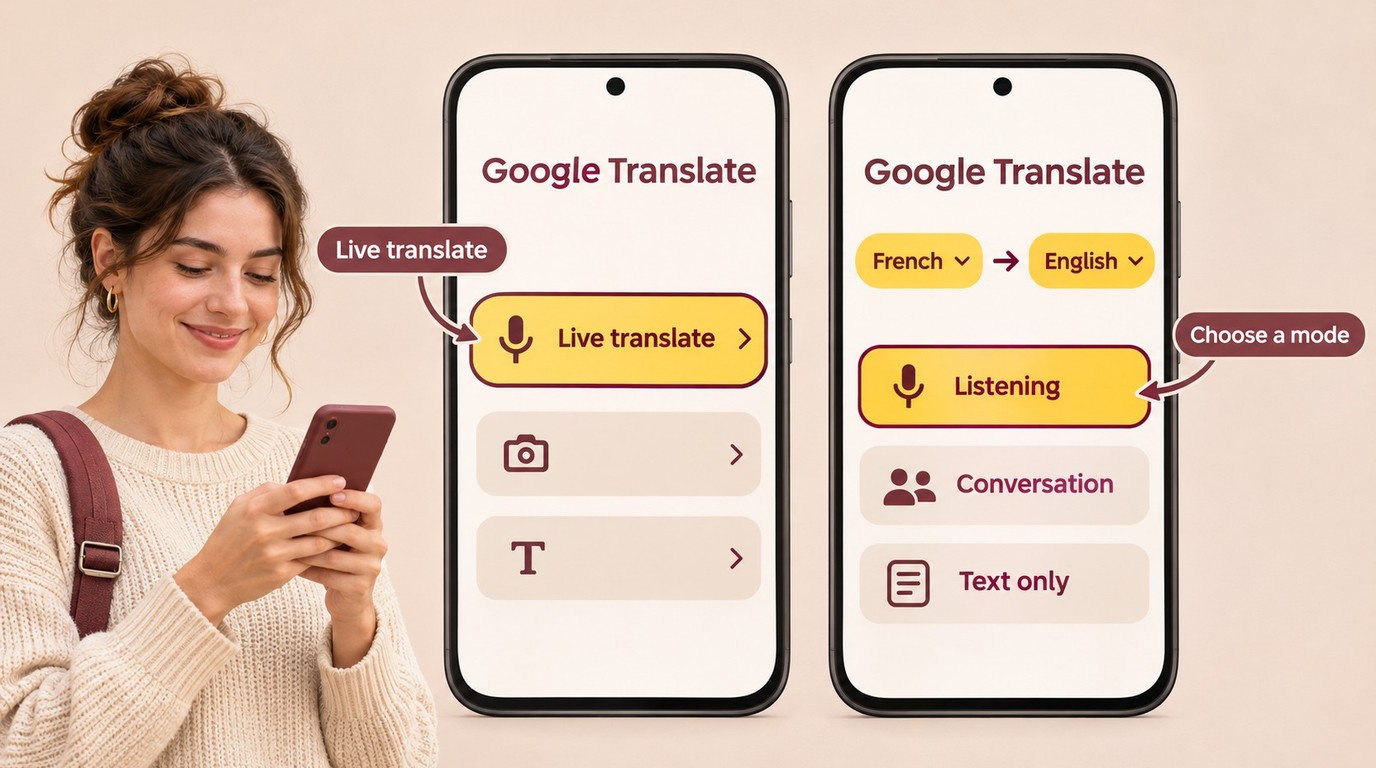
Use the official Google Translate app with microphone permission enabled. For a conversation, choose a place where the phone can hear each speaker clearly. Keep the language pair visible so you can catch an accidental reversal.
- Open Google Translate and tap Live translate.
- Select French and English, then choose Listening, Conversation, or Text only. Listening suits hearing the English; Conversation plays translations aloud; Text only keeps the result on screen.
- Let the phone capture the speech. In Conversation mode, take turns rather than speaking over each other.
- Read the translated text, or tap it to hear the translation. Use the face-to-face display if both speakers need their own view.
- Tap Speak to pause or resume, and Back to end the session.
I would favor short turns when a detail matters. A Reddit poster in r/AskFrance described the difficulty this way: "And when people answer at normal speed, Translate often messes it up and it gets even more awkward." That is one person's experience, not an accuracy score. The practical response is to ask for the uncertain phrase again rather than build the next reply on a guess.
For a longer speech, Transcribe provides a text-centered route. In the app, it is reached through Speak → Transcribe, with source and target languages selected. You can save the transcript, then copy or share its text. That fits reviewing a passage afterward; live Conversation mode fits an exchange where you need to respond.
On a Computer: Translate a Short Spoken Clip
Chrome supports Google's desktop microphone workflow; Safari and Edge have limited support. Allow microphone access in the browser and operating system. Keep the input set to the microphone you intend to use.
- Open Google Translate on your computer.
- Select French as the source and English as the target. Desktop microphone translation does not automatically detect the source language.
- Click Microphone and speak, or play a short French recording from another device near the microphone.
- Click Stop when the phrase or clip finishes.
- Read the English result and inspect the recognized French text for obvious mistakes.
- Click Listen beside the English translation if you want spoken playback.
For personal use, process only content you are authorized to use and follow the applicable service terms; do not redistribute someone else's recordings or translations without permission.
For a voicemail, I would replay a short passage rather than the entire message. A Reddit poster in r/translator put the problem plainly: "my French is not good enough to make out exactly what is being said." A short passage gives you a manageable piece to compare with the recognized words.
Microphone replay is a workaround, not an upload feature. Room noise, speaker volume, and overlapping voices affect what reaches the microphone. If recognition breaks down, move somewhere quieter or use an external microphone. Stop English playback before capturing the next French passage so the microphone does not pick it up.
Google's free microphone route is enough for a brief exchange or a short clip you can replay clearly. It is a poor fit for turning a long recording into an edited deliverable. If you already have the video file, a file-based workflow avoids managing speaker-to-microphone replay for each passage.
When UniFab Video Translator Fits a French Video File
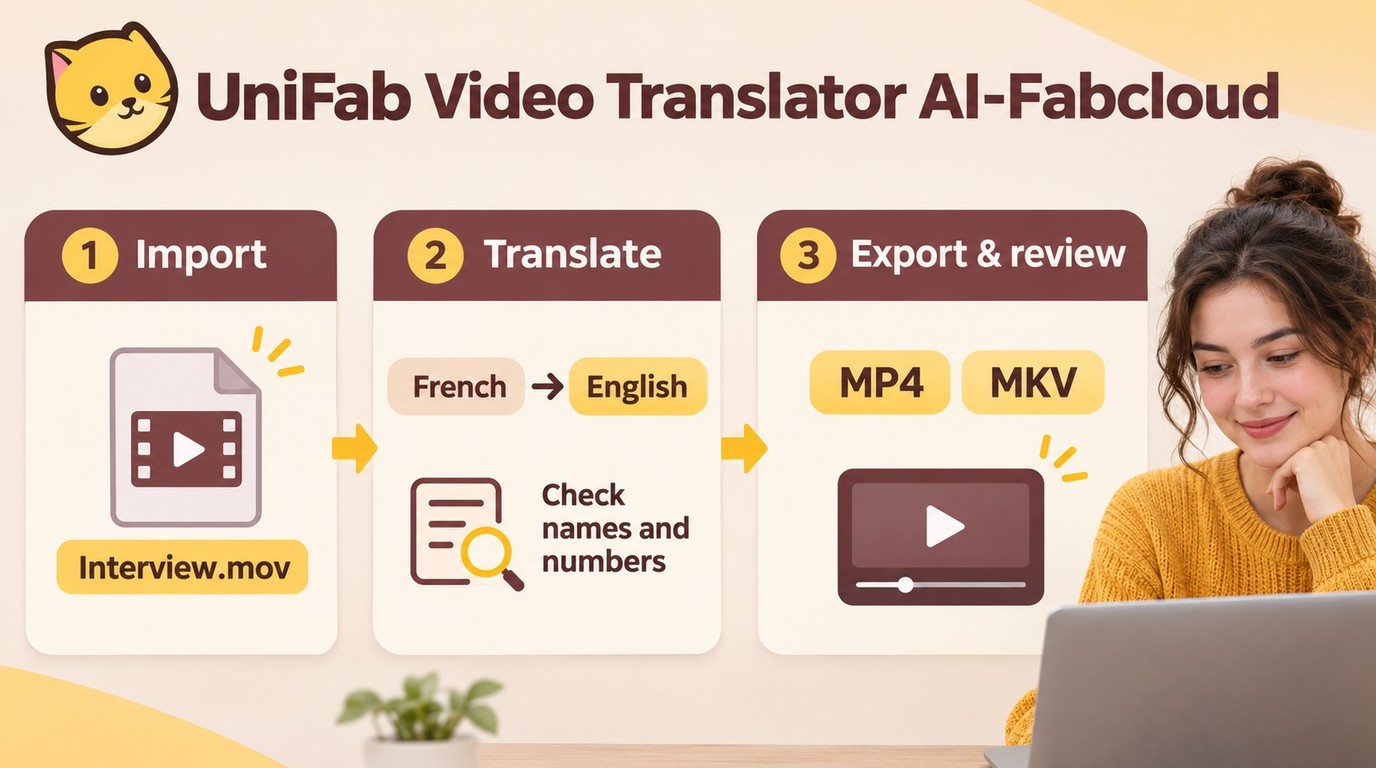
UniFab's Video Translator AI-Fabcloud fits you if you use Windows and have a French video file to translate. French and English are among its 23 supported languages, making this language pair part of the module's video workflow.
For a French video, keep the workflow focused on the file and the English result:
- Start with a supported video source. MOV, MP4, AVI, MPEG, WMV, F4V, MPG, TS, and FLV are accepted inputs, so a French interview saved in one of these formats fits the input scope.
- Choose English as the translation language and review the wording against the French speech, especially names and numbers.
- Use MP4 or MKV for video delivery, then open the saved result to review it in context.
The module supports video output up to 4K, which accommodates a higher-resolution video deliverable. I would separate that specification from language quality: a larger picture does not make a mistranslated sentence correct. MP4 and MKV describe video containers, not a promise of an English dubbed soundtrack.
This module's supported system is Windows; for a workflow on another system, the free video translator options provide a next route to explore. You can find the Windows option on the official Video Translator AI-Fabcloud page.
French-to-English Voice Translation FAQ
Offline access, same-phone playback, and conflicting results need separate checks. I would resolve those questions before relying on a translation for a detail you cannot afford to misunderstand.
Can French-to-English live translation work offline?
A: Yes, on supported devices. Google's Android help lists offline live translation for Pixel 9, 10, and 11, with French–English among the supported pairs. Download the languages through the live-translation language picker; the Live & Text label identifies languages available for both uses. An ordinary offline text-language download does not establish offline speech support on another phone. Before heading somewhere without coverage, try your intended French-to-English mode with the connection turned off. That checks the feature you need, rather than assuming text and speech have the same offline behavior.
Can I translate a French voice message on the same phone?
A: Switching apps is not the same as importing a voice message. Google Translate can keep a live session running in the background, but that does not establish that it reads another app's internal audio. I would use another device for speaker playback when following the microphone method above. If you need a file workflow, select a tool that explicitly accepts your message's audio format. Saving a voice message and renaming its extension will not turn it into a supported video. Keep the original recording so you can revisit uncertain passages.
Why do I get different translations of the same French recording?
A: The difference can begin with the French transcription or with the English wording. A Reddit poster in r/translator wrote, "I have tried to use audio to text programs, but it gives me different results." I would compare the recognized French before choosing the English version that reads best. Replay the uncertain passage and check names, numbers, negation, and surrounding context. If the French text changes, resolve that recognition problem first. If it stays the same, compare the English meanings. For an important instruction or quotation, ask someone who understands French to confirm it.