If you’re comparing the best ai video translation tools 2026, choose VEED for subtitles, HeyGen for lip-synced presenters, ElevenLabs for dubbed audio, or Rask for multilingual dubbing with minute allowances. YouTube serves eligible channel publishing; for a Windows video library, choose an app that delivers the translated file you need.
You need another language version, but getting translated speech is only part of finishing the job. I would treat the handoff as part of the translation: an audio track that still needs editing is a different purchase from a finished video. That distinction gets expensive when a long recording needs several language versions. Below, you’ll find options for captions, channel publishing, and file delivery, followed by a project-cost example.
Which AI Video Translation Tool Fits Your Project?
A subtitle editor fits captions, an audio-dubbing tool fits an editing timeline, and a lip-sync tool fits visible speakers. For channel publishing or a finished file, the destination also determines which workflow fits.
Documentation and plan details as of November 2026.
| Tool | Fits | Language scope | Delivery | Key boundary |
|---|---|---|---|---|
| YouTube automatic dubbing | Channel publishing | Eligible source–target pairs | Published audio tracks | Channel eligibility; 120-minute video threshold |
| HeyGen | Visible presenters | Source, target, and accent selection | 4K with eligible plan/source | Engine-based credits; per-video caps |
| ElevenLabs | Audio postproduction | 90+ dubbing languages | Audio; video preview | v2 alpha; version-specific limits |
| Rask | Recurring multilingual work | 135+ translation; 57 voice cloning | Dubbed video | Lip sync consumes extra allowance |
| VEED | Subtitle editing | 125+ subtitle languages | SRT/VTT/TXT; captioned video | Subtitle catalog differs from dubbing |
| UniFab | Windows video libraries | 23 languages; subtitle variants differ | Up to 4K MP4/MKV | FabCloud processing uses credits |
YouTube eligibility and publishing controls: YouTube Help.
For a narrated screen recording, I would spend the budget on wording and voice review before lip sync. A creator in Reddit’s r/ChatGPTCoding put that distinction plainly: “My face isn’t in the video, so I don’t need lip sync or anything.” For a visible presenter, mouth movements become part of the deliverable.
Channel audio stays within the publishing workflow; file delivery needs an export you can hand off. The YouTube and Windows sections below follow those separate paths.
HeyGen: Lip-Synced Presenter Videos
HeyGen fits a presenter whose face stays on screen. Its translation engines separate audio dubbing from lip-synced video, so you can select the visual treatment the footage needs.
Audio Only changes speech without changing mouth movements. Speed and Precision include lip sync, with different credit rates covered in the cost example below. The language selector also distinguishes a base language from a localized accent. That matters when preserving the speaker’s accent and sounding native in the target market pull in different directions.
Brand Glossary supports consistent terminology, and eligible plans include translated-script proofreading. MP4, MOV, and WEBM uploads support files up to 5 GB. Original-resolution 4K export requires a matching source and an eligible Pro, Business, or Enterprise plan.
Creator and Pro translation jobs have a 30-minute per-video cap. More credits do not extend it. I would use HeyGen for presenter-led localization, while treating its engine choice and export entitlement as separate decisions. A voiceover without a visible face has less reason to pay for mouth animation.
ElevenLabs: Dubbed Audio for Postproduction
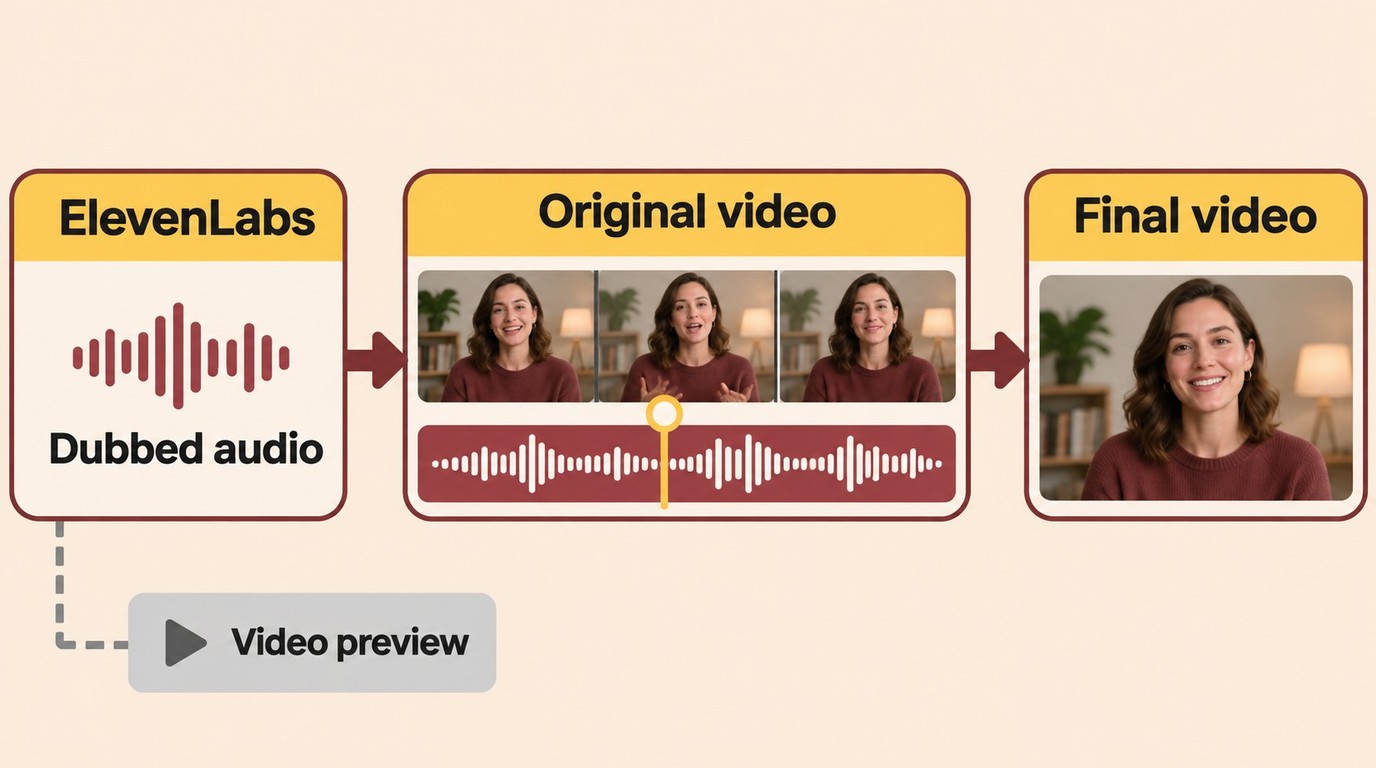
ElevenLabs fits an editor who wants translated audio to place against the original picture. Its production route is to download the dub and replace the original video’s audio track.
The dubbing catalog covers more than 90 languages, but the version matters. Automatic Dubbing v2 is alpha and accepts app uploads up to 1 GB and 180 minutes. Legacy v1 Dubbing Studio is in maintenance mode, with a 1 GB, 45-minute upload limit. Studio’s transcript editing and clip regeneration belong to that workflow; do not assume identical controls across versions and interfaces.
A 4K source does not make the downloadable video a 4K master. That video is a preview, commonly 1080p. Keep the original picture for the final edit.
I would choose this route when the audio handoff fits an existing editing timeline. It adds an assembly task if you want a ready-to-publish video. Listening still matters: one February commenter in Reddit’s r/ElevenLabs wrote, “My problem is the voices sound too flat.” That comment captures a review concern, rather than a verdict on every voice or model.
Rask: Multilingual Dubbing with Minute Allowances
Rask fits recurring localization work where you need dubbed video and an editable transcript. Its minute allowances make target-language volume a concrete part of project planning.
Translation covers more than 135 languages; voice cloning covers 57. Those catalogs answer different questions. A supported translation language does not by itself establish that the same voice-cloning option is available.
The transcript editor lets you revise wording and re-dub segments. That is useful when names or technical terms need correction before export. I would favor that review loop for repeat training or instructional videos, where a mistranslated term is more consequential than a polished mouth movement.
Each target language uses allowance separately, and enhanced lip sync adds consumption beyond translation. A short source therefore becomes a larger job when you produce several versions. Rask suits you if recurring dubbed-video output justifies a minute-based subscription; a subtitle-only deliverable does not need that entire workflow. The worked example below shows how the language count and lip-sync choice change the allowance required, without treating those units as an accuracy score.
VEED: Editable Subtitles and Captioned Video
VEED fits a subtitle-first project where viewers can keep listening to the original voice. Its subtitle translator covers more than 125 languages and accepts an existing SRT file.
Editable wording is the useful part here. You can correct a term, retain a separate subtitle file, or export video with captions burned in. SRT and VTT preserve timed cues for caption workflows, while TXT serves as text rather than a timed subtitle track. Choose the deliverable your player or editor accepts.
The subtitle-language catalog does not establish the same coverage for dubbed voices or voice cloning. If your audience needs to listen without reading, captions alone leave that requirement unmet. That is a different purchase.
I would use VEED when text review and caption delivery are the central tasks. It also fits an existing subtitle workflow without requiring replacement speech. A finished captioned video and an editable subtitle file serve different handoffs: the former is ready to watch with visible text, while the latter lets you revise captions separately from the picture.
How to Review and Publish Dubs in YouTube Studio
In desktop YouTube Studio, enable manual review, open the video’s language entry, and preview the dub before publishing it. You can keep an unsuitable track unpublished.
YouTube’s automatic dubbing fits a creator publishing to an eligible channel. It generates translated audio tracks for the video, rather than serving as a general-purpose translated-file exporter. Available language pairs are tied to the source language and the video.
Eligibility is a real boundary. Videos longer than 120 minutes, unsupported speech, or too little spoken content can prevent generation. Set the original language correctly. Automatic dubs cannot be directly edited, so a review can lead to withholding the track rather than repairing individual words.
I would use this route when the destination is YouTube and the generated track meets the brief. YouTube’s separate multi-language audio feature accepts externally created dubs; it does not create them. That distinction gives an editor another publishing route when automatic speech needs more control.
Enable Manual Review, Preview, and Publish
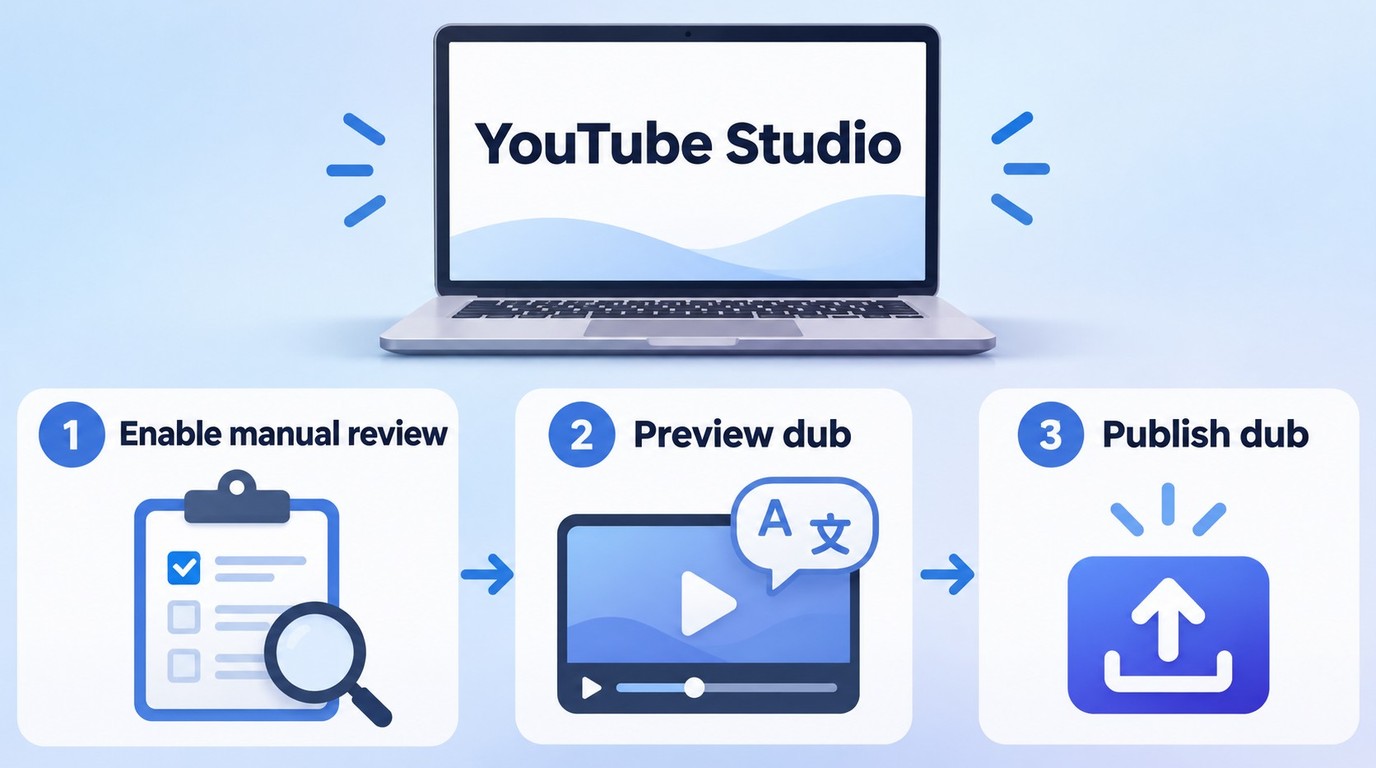
You need access to an eligible creator channel, a video with supported source speech, the correct original-language setting, and YouTube Studio on a computer. Managing these tracks belongs in desktop Studio.
- Open YouTube Studio, then Settings > Channel > Advanced settings.
- Enable Allow automatic dubbing and Manually review dubs before publishing, then save the settings.
- After the video’s dubs have processed, open Content, select the video, and choose Languages and the target language.
- Select that language in the preview player and listen. Open the audio options and choose Review to read the transcript, checking wording and pronunciation against the speech.
- Use the language’s audio menu to Publish an acceptable dub, or leave it unpublished.
Manual review is the useful control here. I would listen especially closely to names, numbers, and specialist vocabulary, then judge whether the target-language speech communicates the intended meaning. A readable transcript does not settle pronunciation.
An unacceptable published track can be unpublished while you decide what to replace. You do not need to delete it immediately. Experimental lip sync is limited to selected channels and eligible videos and languages, so it should not be assumed available for a scheduled release.
When UniFab Fits a Windows Video Library
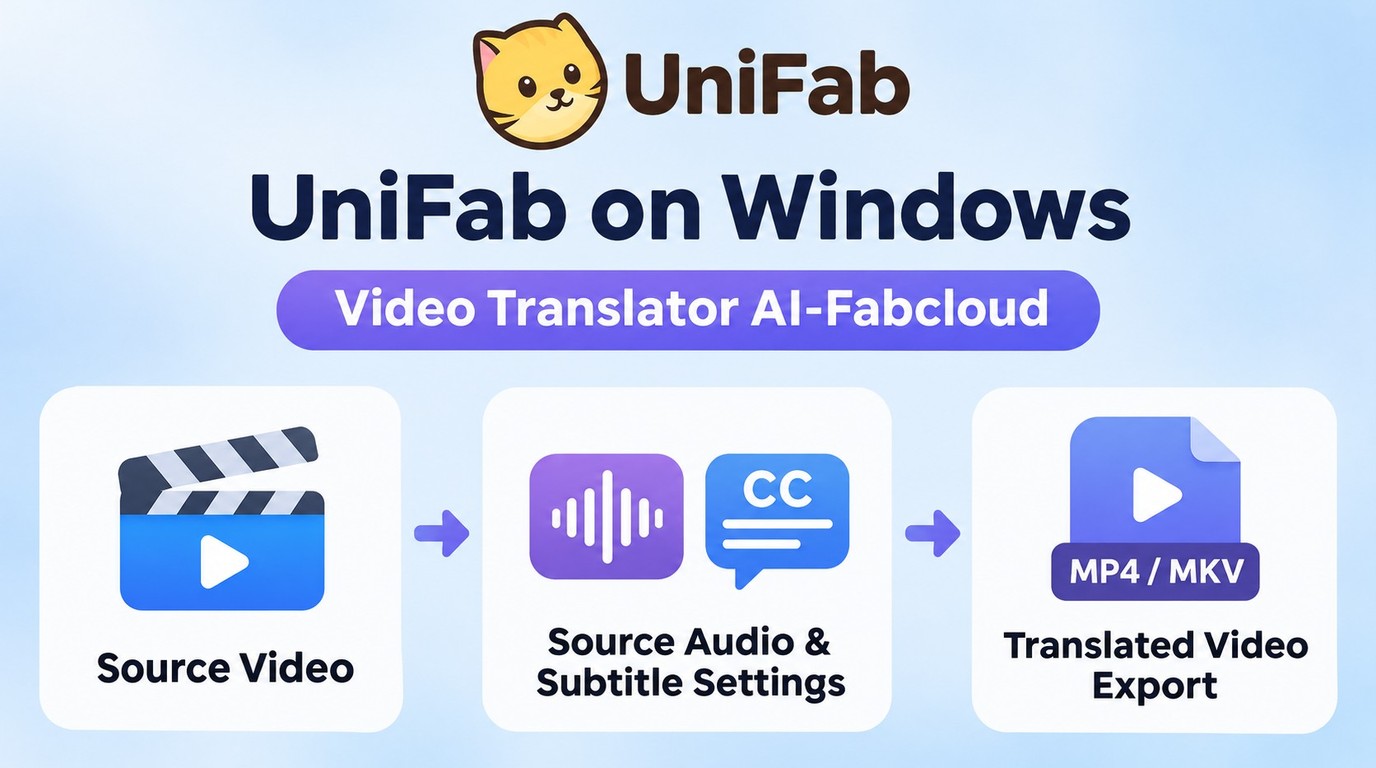
UniFab’s Video Translator AI-Fabcloud fits you if existing Windows video files need translated MP4 or MKV output. Its up-to-4K export ceiling supports a video-file handoff rather than a separate audio assembly job.
Before starting, have the source audio track, source language, and corresponding subtitle file and language ready. Common inputs include MOV, MP4, and AVI, so those files enter the translation workflow without a preliminary container change. The language catalog covers 23 languages, including English, Spanish, French, German, Japanese, Chinese, and Korean; additional subtitle options include Traditional Chinese and Brazilian Portuguese. Subtitle variants are distinct from dubbed-language choices.
I would choose this workflow for its file compatibility and finished-video delivery. Translation runs on FabCloud and consumes credits, with the corresponding feature license required alongside the balance. The Windows client therefore uses cloud processing rather than offering offline translation; the product page provides the entry point for this client-and-cloud workflow.
The FabCloud 600-credit annual plan starts at USD 199.99 per year; it is a cloud-credit package, separate from the feature license. For a compatible Windows library, explore Video Translator AI-Fabcloud.
What Does a Finished Multilingual Video Cost?
A 20-minute video translated into three target languages represents 60 target-language minutes before added lip-sync consumption. Budget for the finished versions, including language review and the exports you need, rather than treating the subscription price as the project total.
Long recordings make the difference visible. One poster in Reddit’s r/generativeAI wrote, “The videos are about 3 hours total, so fully paid solutions might get expensive (though I’m open to paying if it’s good enough).” That is a workload question, not just a monthly-price question.
A 20-Minute Video in Three Target Languages
HeyGen’s standard monthly Creator subscription is $29 with 600 shared credits; Pro is $49 with 1,000. ElevenLabs Starter is $6 per month with 30,000 shared credits, and Creator is $22 with 121,000. These are recurring subscriptions and shared balances, not dedicated dubbing-minute promises.
Rask’s monthly Creator plan is $39 for 25 minutes, while Creator Pro is $99 for 100. Its seven-day introductory access includes three minutes. Monthly billing here is distinct from annual plans and first-month promotions.
For HeyGen, the source duration multiplied by the target-language count gives 60 minutes. At four credits per minute, Audio Only uses 240 credits; Speed at six uses 360; Precision at ten uses 600. The same project therefore consumes different amounts of the shared balance. Lip sync must earn its place in the footage.
For Rask, basic translation uses 60 minutes of allowance. Enhanced lip sync adds three allowance minutes per video minute for each target language: 180 additional minutes, or 240 total with translation. The 100-minute plan covers the basic example’s usage, but not that enhanced-lip-sync total.
ElevenLabs charges dubbing by source-media duration for each target language, with the app presenting the cost before generation. Do not turn a text-to-speech allowance into a promised dubbing duration. Its source-file cap and the price of the dub remain separate checks.
I would reserve review time for every language version. Correcting terminology, checking spoken numbers, and assembling audio against the original picture still belong in the delivery budget. Those are work items, not additional software rates.
For a smaller caption task, free video translator options offer a different budget path when their file and export limits fit. If you need a long dubbed video or extensive revision controls, match the processing allowance and editing access to that requirement.
Frequently Asked Questions
On-screen text, subtitle context, and permission to use the footage are separate questions from generating translated speech. Resolve them before you commit to a final export.
Can AI Dubbing Translate Text Burned into a Video?
Answer: Dubbing translates speech; changing text embedded in the picture requires text recognition and visual replacement. HeyGen’s Video Translation workflow excludes text baked into the source image, including graphics and hardcoded captions. A new translated voice therefore leaves those original pixels in place. I would flag slides, labels, and existing captions in the delivery brief so the picture and the speech do not end up telling viewers different things.
Will Translating an SRT File Preserve Context across Subtitle Lines?
Answer: Keeping timestamps does not guarantee that a sentence split across cues retains its meaning. VEED provides editable subtitle wording, but an editor still needs to review context. I would read connected cues together, then check terminology and reading pace during playback. A sentence that works in a document can become awkward when viewers receive it in separate timed fragments.
Can I Dub Someone Else’s Video or Clone Their Voice?
Answer: Having access to a video does not grant every reuse or voice-cloning permission. For personal use, process material you have the right to use and follow the relevant service terms; you are responsible for confirming footage rights, voice consent, and publication permission before sharing a translated version.
Choose by Deliverable, Then Commit to a Plan
Choose captions when the original voice can stay, dubbed audio when you already have an editing timeline, and lip-synced video when the visible speaker needs it. For channel publishing, use the eligible publishing workflow; for a video library, match the file and system requirements to the intended handoff. I would settle the exact language version, review controls, and full-project usage before choosing a plan. Support for an input file or a large language catalog does not by itself establish the finished export you need.