AI voice translation turns speech into another language, often by recognizing words, translating their meaning, and generating spoken audio. If you need listeners to hear a translation rather than read captions, use live speech translation for conversations or dubbing for a recorded video.
Your recording needs another language track, but a text transcript leaves the speaking part unfinished. I would treat a fluent dub with the wrong numbers as an editing failure, not a finished translation. That distinction matters for a lesson as much as a product demonstration. Below, you can choose a live or recorded route, follow the YouTube Studio workflow, and decide when a separate video file fits better.
What AI Voice Translation Does and Which Route Fits
Use a live translator when another person needs to respond during the conversation. For a recording, choose translated audio if the audience needs to listen, or subtitles if reading along is enough.
Live Conversation, Meetings, or a Recorded Video?
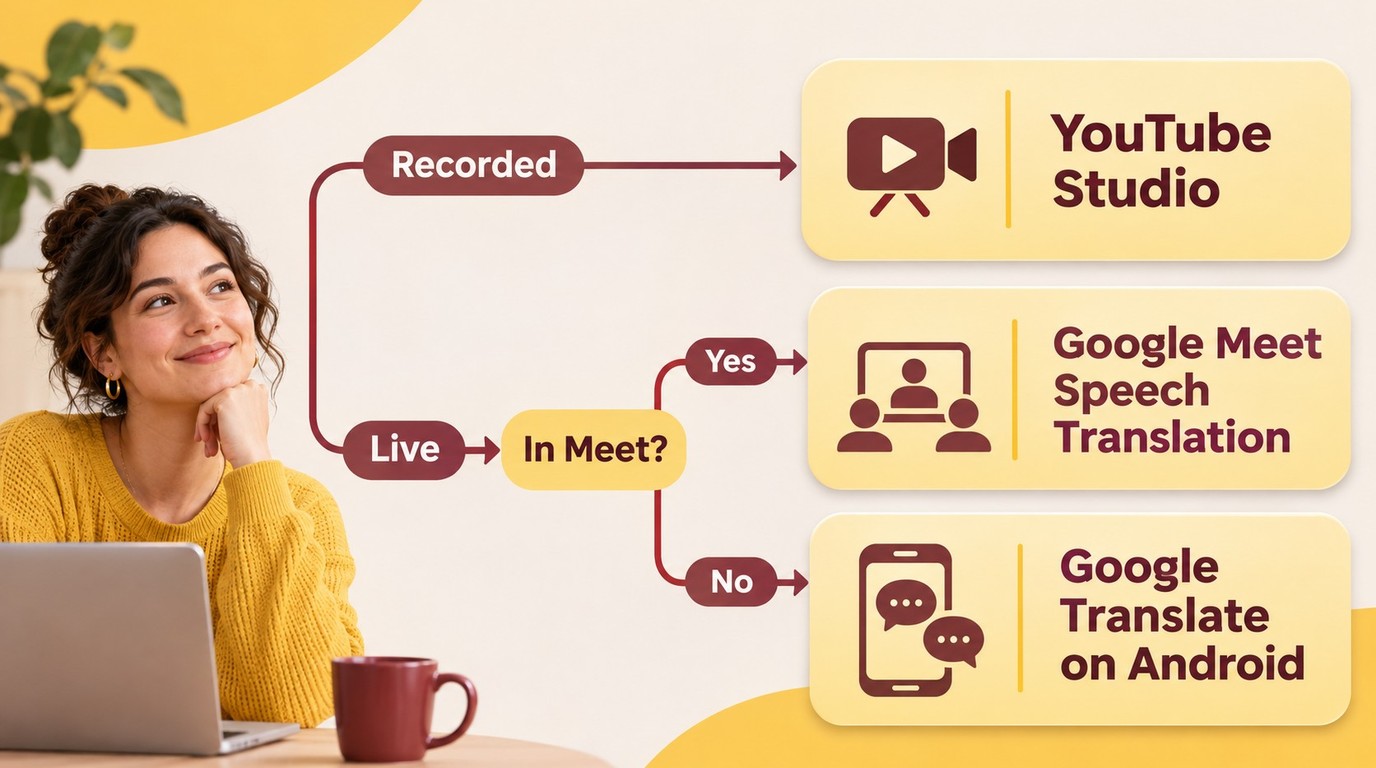
Match the tool to where the translated speech needs to play. These routes serve different tasks rather than forming a ranking.
| Task | Tool | Output | Key requirement |
|---|---|---|---|
| Live conversation | Google Translate on Android | Translated speech where supported | Supported speech languages; microphone |
| Recorded YouTube video | YouTube Studio automatic dubbing | Translated audio track | Eligible creator and video |
| Live meeting | Google Meet Speech Translation | Translated meeting speech | Eligible plan and speaker consent |
Source: Google Translate, YouTube, and Google Meet official Help Centers, as of November 2026.
Google Translate fits a spoken exchange on an Android device with a microphone and supported speech languages. A disabled Speak button means speech input is unavailable for that language. Spoken playback also needs support; text translation alone is not enough. For a recorded lesson, use a video-dubbing workflow instead.
Language breadth is not a quality score. A Reddit poster in r/AiAutomations asked, “I’m trying to figure out if this is actually useful in real work or mostly just marketing.” I would choose support for your exact spoken language pair over a larger headline count. A language offered for subtitles does not establish dubbed speech.
Translate a Video with YouTube Studio Automatic Dubbing
Eligible creators can use YouTube Studio to generate translated audio tracks, review them, and publish them alongside a video. This route serves viewers on YouTube; it is not a workflow for exporting a separate dubbed video file.
Enable Dubbing, Review the Audio, and Publish
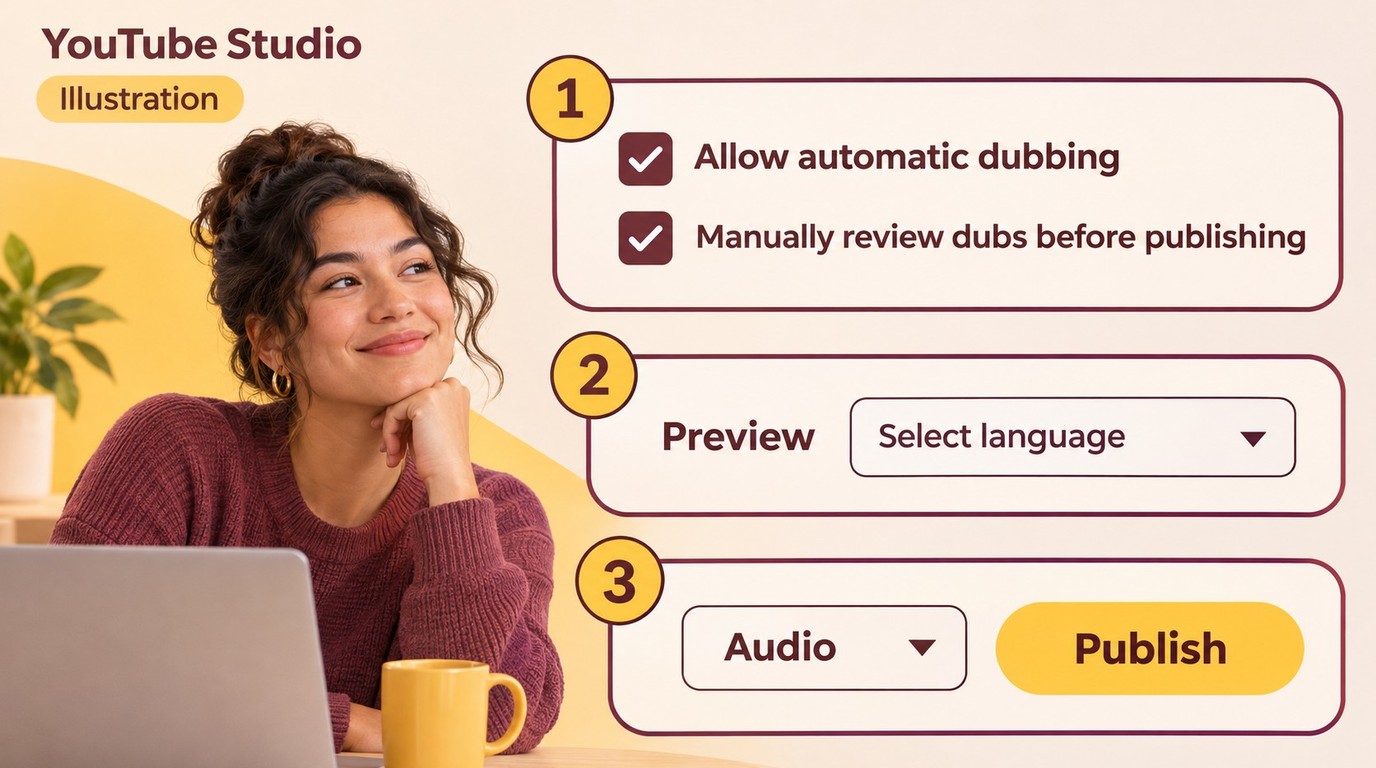
Start with a channel that has access to automatic dubbing. Confirm the original language and the available target languages for your video; the Languages page shows that video's choices. Access is enabled by default for eligible creators, with an early-access Enable option offered to some others.
Not every upload qualifies. Videos over 120 minutes, recordings with little or no speech, unsupported original languages, failed language detection, excessively fast speech, or copyright claims can make a video ineligible.
- Sign in to YouTube Studio on a computer. Open Settings → Channel → Advanced settings.
- Select Allow automatic dubbing and Manually review dubs before publishing, then save. Manual review keeps the publishing decision with you.
- Upload your video and set its original language correctly. YouTube generates dubs automatically for supported languages.
- Once a dub is available, open Content, select the video, and open Languages.
- Select the relevant language. In the Preview menu beneath the video, choose that language and play the video.
- Compare the dub with the original for names, numbers, units, technical terms, and meaning. Then listen for tone and pacing. If you do not speak the target language, involve someone who does.
- Open the relevant language's menu in the Audio column and choose Publish when it is ready. Otherwise, leave it unpublished while you review; use Unpublish to withdraw an already published dub.
I would approve meaning before delivery. In a course, a mistranslated unit changes the lesson even when the voice sounds natural. Listen through the full explanation around each important quantity, rather than judging a dub by its opening sentence.
Automatic dubs cannot be edited directly. If an incorrect original-language setting caused a mistranslation, correct that setting; YouTube generates the dubs again. Viewers can switch between the original and translated audio, so reviewing the dub does not require replacing the original track.
Keep this workflow within personal use, process only content you have the right to use, and follow the applicable service terms. You are responsible for what you upload.
A translated track meets the goal of offering another listening language on YouTube. If your handoff calls for a video file instead, move to a file-based workflow.
When UniFab Video Translator Fits a Windows Workflow
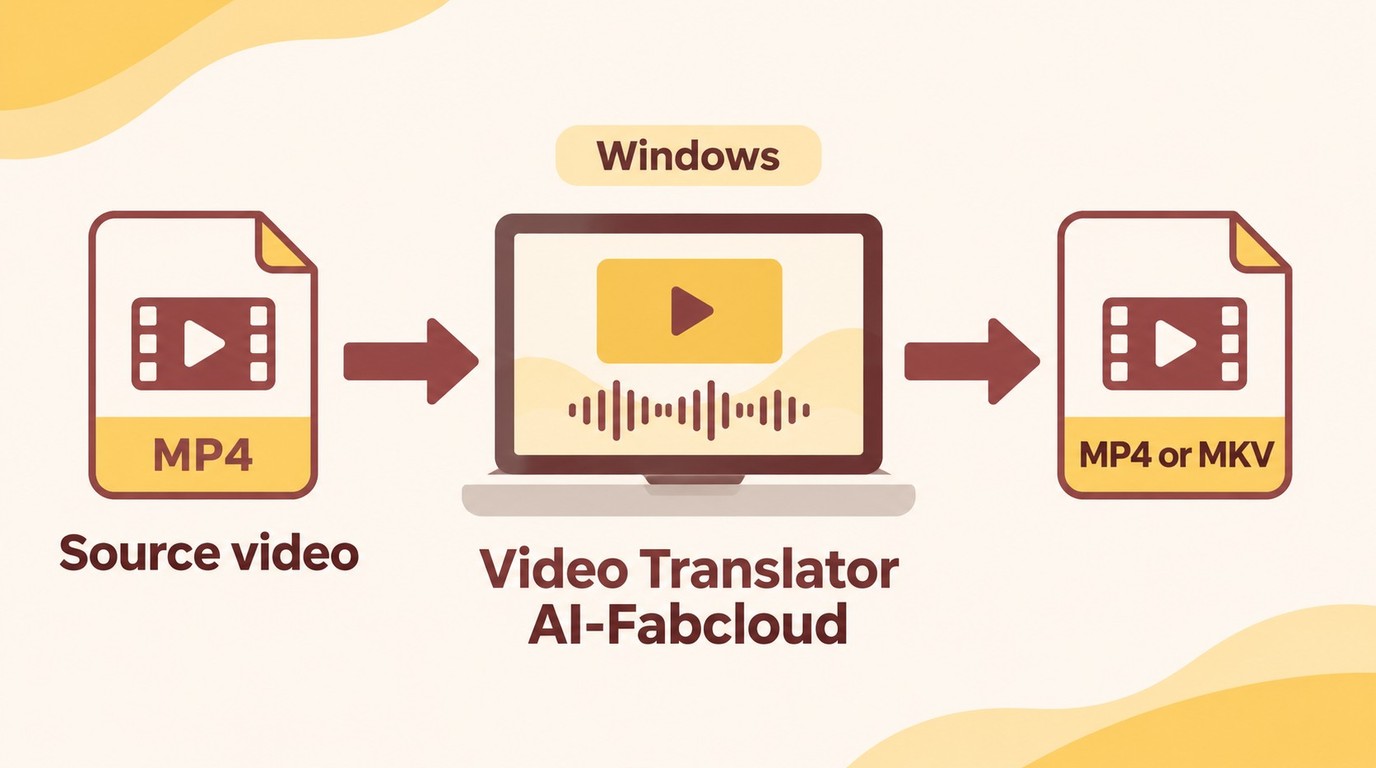
When you need a separate translated video file on a Windows PC, Video Translator AI-Fabcloud fits that task. I would use this route for file delivery rather than treat a platform audio track as the finished file.
As of November 27, 2026, Video Translator AI-Fabcloud supports Windows, accepts MOV, MP4, AVI, MPEG, WMV, F4V, MPG, TS, and FLV video files, and exports MP4 or MKV at up to 4K. That resolution ceiling describes the output frame size, not translation accuracy or an improvement to the source picture.
Translation support covers 23 languages, including English and Spanish. Traditional Chinese, Brazilian Portuguese, Filipino, and Malay are also named as subtitle options; do not treat those subtitle entries as confirmation of spoken dubbing.
Windows is the supported system. If you need a different device workflow, the free video translator options offer another route to explore. For a Windows video-file task, explore Video Translator AI-Fabcloud.
Frequently Asked Questions
Audio-only input, speaker identity, and live meetings call for different capabilities. A supported video format does not establish support for standalone audio, and a natural-sounding dub does not establish voice cloning.
Can I Translate an MP3 or WAV Recording into English?
A: Yes, with a tool that explicitly accepts your audio format and produces translated speech in English. Select the recording's source language and English as the target, and make sure the result is audio rather than a transcript or captions. MP3 and WAV are audio files; a list of video inputs does not confirm either one. I would keep the original recording beside the translated result so a bilingual reviewer can compare the meaning.
Will the Translated Audio Keep My Original Voice?
A: Not automatically. Translating meaning, generating speech, and reproducing a speaker's identity are separate capabilities. A selectable synthetic voice is not the same as your voice. YouTube supports expressive speech in some languages to reflect pitch and intonation, but it is not used for every supported dub. I would judge identity separately from fluency: does the result sound like the speaker, or simply like a clear narrator? Voice preservation needs explicit support from the tool you choose.
Can Google Meet Translate a Live Conversation?
A: Yes, with the required eligibility: the host needs an eligible plan for scheduled meetings, or at least one participant needs one in a direct call. Speakers must consent, and listeners must enable Speech Translation. Translations arrive a few seconds later. A Reddit poster in r/AIVoice_Agents wrote, “The biggest challenge isn't understanding English, it's speaking fluently in real-time.” I would leave room for that delay between turns. The feature is unavailable in recordings and live streams, and for telephone or interop participants.